










At HTM,you can use MT4, the world's most popular trading platform. Many people want to install and use it not only on their PCs but also on their smartphones.
"HFMCan
"HFM's MT4 on my smartphone?"
"How do I log in to MT4?"
This article will answer questions such as those mentioned above. We will provide a detailed explanation using smartphone screenshots on how to download and install MT4, how to set up charts, and how to place orders.a must-read for anyone who wants to master the basic usage and operation of MetaTrader4 (MT4). Please use it as a reference.
We also provide detailed explanations of HFM's "deposit methods" and "withdrawal methods," so please check those as well
What is the MT4 trading platform for HFM?
HFMMT4, available through HFM,a well-known trading tool commonly offered by most brokers in the overseas forex market. In recent years, the number of domestic forex brokers adopting MT4 as a server-client platform has also been increasing.
Among the many overseas forex brokers that offer MT4,particularlyHFM's MT4popular.
First, let's look at the features ofHFM's services and some basic knowledge about MT4
Overview of HFM(HF Markets)
HFMoriginally is an overseas forex broker that started offering forex services in 2010 under the name HotForex . In August 2022, it changed its name to HF Markets and is a long-established company that will celebrate its 15th anniversary in 2025.
In terms of safety and reliability, it rivals XM Trading, the most widely used platform among Japanese investors. Problems with deposits and withdrawals are rarely heard of.by its wide range of users, from FX beginners to professional and advanced tradersHFMcharacterized.
FX services and trading platform provided by HFM
[Features ofHFM services]
HFMoffers multiple account types, including the "CENT account" for small-amount trading with a maximum leverage of 2000x, the standard "Premium account," the "PRO account" with narrower spreads, and the "Top-Up Bonus account" for bonuses. The ability to choose an account type that suits your purpose, along with a variety of deposit bonuses and trading contests, are attractive features
[A wide variety of brands]
Furthermore, another attractive feature ofHFMis that it allows trading of over 1200 different instruments, including not only currency pairs but also precious metals, energy, stocks, stock indices, commodities, and ETFs. This provides opportunities to trade a variety of financial products, including stocks, in addition to foreign exchange

Reference:HFMofficial website
[Choose your trading platform]
The following three trading platforms are available on HFM:
- HF Trading App (Our Own Platform)
- MetaTrader 4 (MT4) → PC version, smartphone version
- MetaTrader 5 (MT5) → PC version, smartphone version
Among the above,MT4 (MetaTrader 4) is particularly popular.
What is MT4 (MetaTrader 4)?
So, let's take a look at an overview of what MT4 (MetaTrader 4) is as a trading tool
MT4, officially known as MetaTrader4,is an FX trading platform developed by the Russian-based software company MetaQuotes. MT4 is the fourth version of MetaTrader, and the next version after MT4 will be MT5 (MetaTrader5).
Overview and Features of MT4 (MetaTrader 4)
comes standardwith over 60 technical tools,guiding you towards advanced technical analysis. Furthermore, it boasts excellent expandability, allowing for virtually unlimited installation of indicators and various tools.
MetaTrader's appeal lies in its ability to utilize automated trading EAs (system trading) and copy trading, and it's the ultimate trading tool, allowing users to develop indicators and automated trading systems using its dedicated programming languages (MQL4, MQL5)
With its extensive customization features, you can freely design your platform to your liking
Differences between MT4 and MT5
MT5 (MetaTrader 5) is an upgraded version of MT4 that includes features that were lacking in MT4 . Specifically, it offers improved usability, such as the ability to display charts externally and the ability to split the chart screen on smartphones. Of course, MT5 provides a more comfortable trading environment in terms of specifications, but MT4 has a longer history, and therefore has a significantly larger number of compatible software programs (that can be installed and used).
In terms of performance, there isn't a huge difference, which is why MT4 is still widely used around the world today
The advantages of HFM's MT4 (MetaTrader 4)
HFMnumerous advantagesoffers
- There are many indicators and analysis tools that can be installed
- There are overwhelmingly more scripts for automated trading EAs (system trading)
- There are many services and software that can be integrated
- Copy trading is available that allows you to incorporate professional discretionary trading strategies
As explained above, for those who want to utilize a wide range of technical tools, indicators, and automated trading EAs,HFM's MT4 is the best recommended platform
Disadvantages of HFM's MT4 (MetaTrader 4)
While MT4 boasts excellent functionality,the drawback of being complex and difficult to understand in terms of terminal setup and operation. Particular attention should be paid to order placement. Starting without understanding how to place orders can lead to losses as you may not be able to place and close orders as intended.
Make sure you understand the basic operation methods of MT4 before you start trading
Many individual traders share their MT4 usage guides on blogs and YouTube, so searching for user guides online is also a good idea
Points to note regarding MT4 (MetaTrader 4) for HFM
One thing to keep in mind is thatHFMin order to usebeforehandHFMMT4 accountopenedHFMaccounts allow you to choose between MT4 and MT5.

If you want to use MT4, please be sure to select "MT4" after choosing your account type when opening your account
*Even if you have already selected MT5, you can easily open another account later by selecting MT4
Devices compatible with MT4 (MetaTrader 4)
HFM's MT4 can be downloaded and used for free on the following devices
- Windows
- MAC OS
- Linux
- iPhone/iPad
- Android
- Huawei
It's compatible with most devices, including PCs, smartphones, and tablets, so you can use it with peace of mind
Download HFM's MT4 for free [Smartphone version]
Now, let's get straight to explaining HFMhow to download and install 's MT4 on your smartphone for free
This article uses images as an example to show how to do it on an Android smartphone app, but the general process is almost the same on any device, so please use it as a reference
How to download
HFMTo download the MT4 app, first go to HFMthe "MT4" page from the "Trading" menu on official website

Click here for HFMofficial website
When you open the MT4 page, you'll see a "Download MT4" screen. You can download the PC version from here, but you cannot download the smartphone version from this button. Please scroll all the way down this page
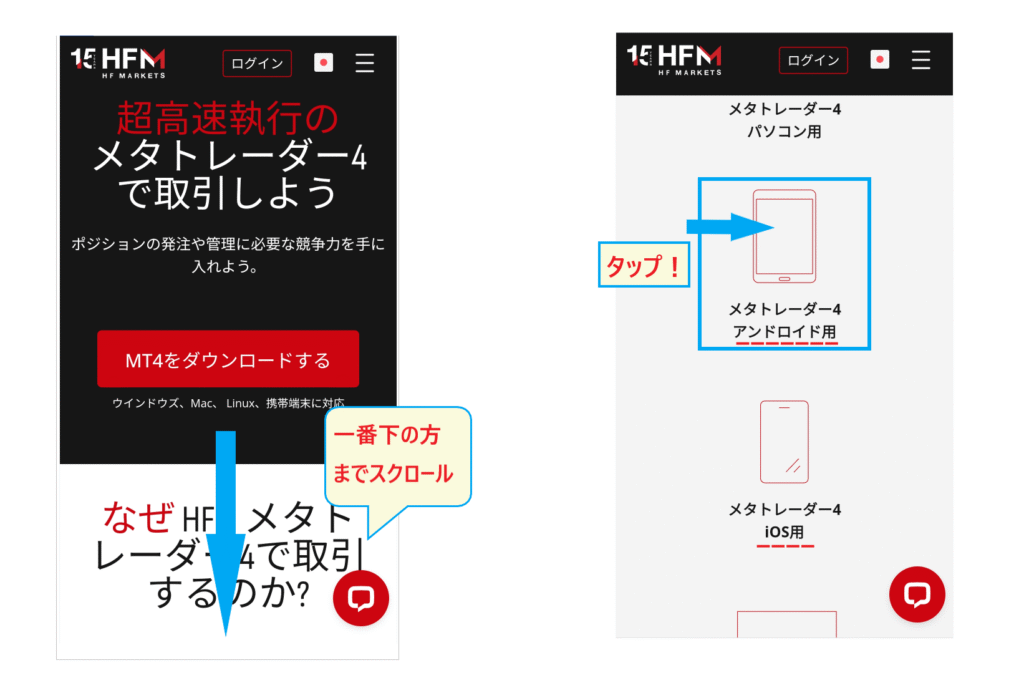
Scroll all the way down and you'll see the download screen for your smartphone. You'll see "Android" and "iOS" displayed, so tap the one that applies to you
Installation method
Next, press the red "Download Link for Android" button to proceed to the MT4 installation screen
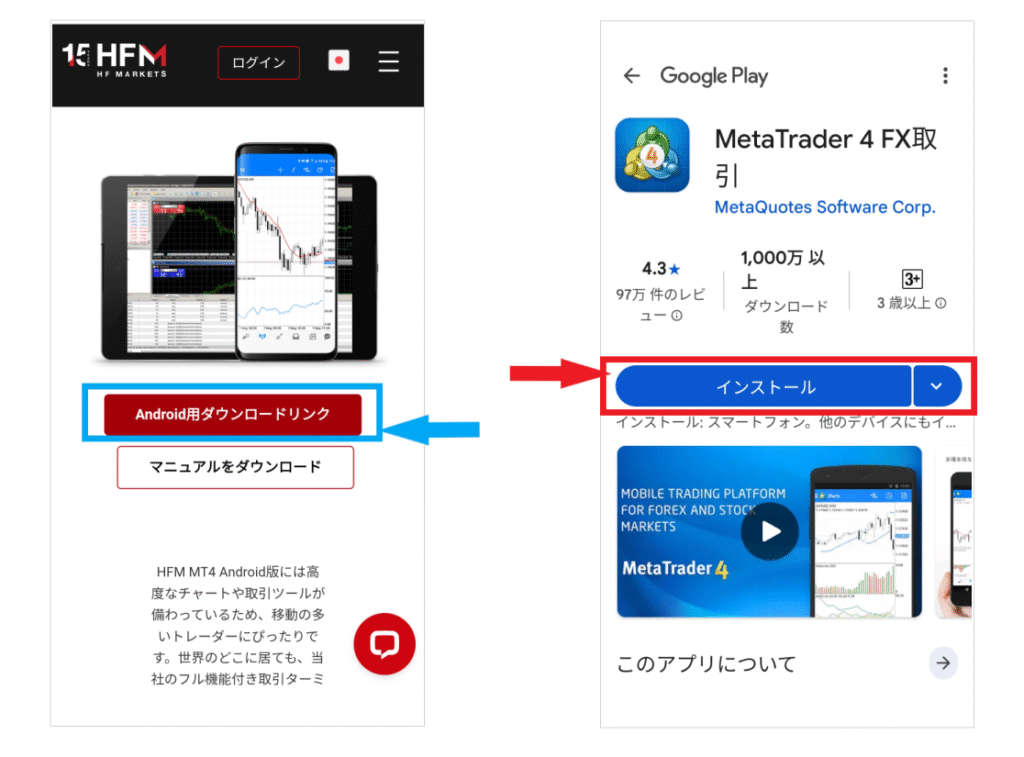
At this time, be sure to download the manual, which is located below the "Download" button. You can use it as a reference in conjunction with this guide
When the MT4 installation screen appears, tap the blue "Install" button in the center. The installation will begin immediately

Once the screen changes to "Installing," all you have to do is wait for it to finish. If you turn on "Open app automatically" during installation, MT4 will open automatically, which is convenient
Once the installation is complete, the "MT4 Terms of Service" will be displayed, sotap "Agree".
nowcomplete. Close MT4 and confirm that the application has been installed.
How to log in to MT4 on HFM
Next, we will explain how to log in (register) toHFM's MT4 for the first time
Prepare your MT4 ID and password
There are three things you need to log in to MT4
- MT4 ID number (account number)
- MT4 login password
- HFMserver name
This information is included in the email confirming your account opening. Please check your email fromHFMand gather all the necessary information
If you accidentally delete the email,HFMcustomer support. You can also find your account number in the myHF area, but your password and server name are only listed in the account opening confirmation email.
Check HFMserver name
One area that can be confusing isHFM's server names.HFMis a major global FX broker with offices in nine countries and six financial licenses. As such, it has a large number of server names—over 40—making it somewhat difficult to find the correct one
What kind of server names are there...?.
HFMServer Name List
・HFMarketsKE-Live Server 8
・HFMMarketMENAーLive Sever2
・HFMarketsEurope-Live Server2
・HFMarketsSV-Live Server1
・HFMarketsSV-Live Server3
・HFMarketsSV-Live Server4
・HFMarketsSV-Live Server5
・HFMarketsSA-Live Server
・HFMarketsSA-Live Server1
・HFMarketsSA-Live Server2
・HFMarketsSA-Live Server3
・HFMarketsSA-Live Server4
・HFMarketsSA-Live Server5
As you can see from the server names above, there are many names that look similar at first glance. Even a single character difference can cause an error when logging into MT4. For the service for Japan, the name is "HFMarketsSV-LIVE Server," so please make sure to check it precisely.
MT4 Login Procedure
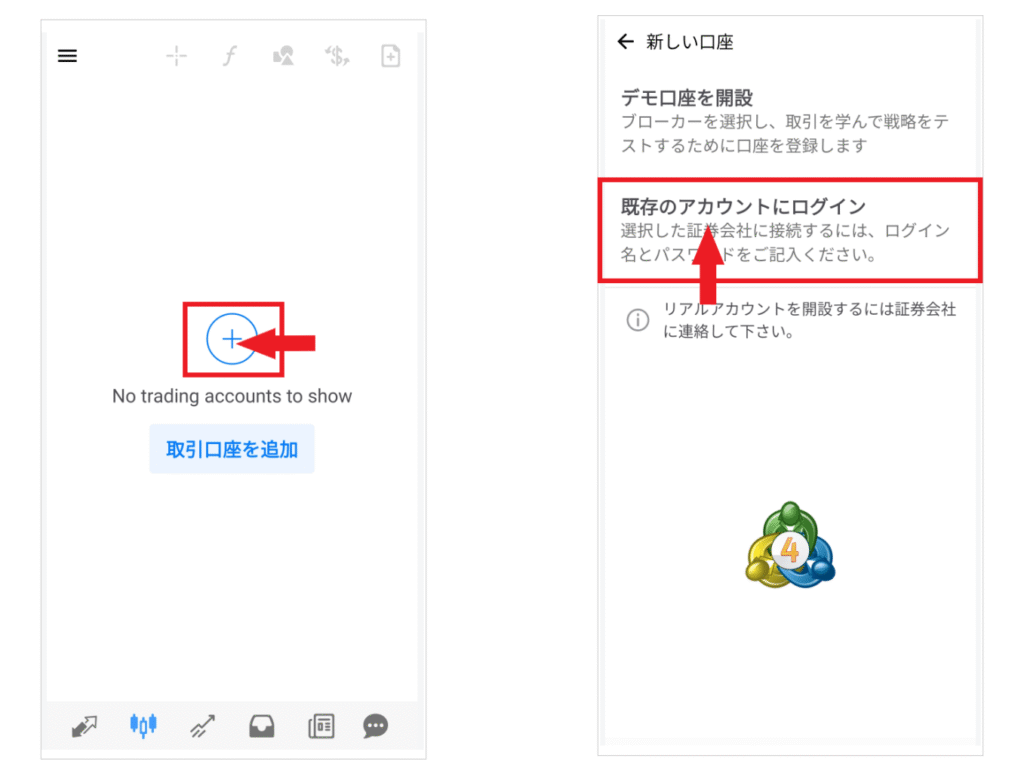
Step 1. Select "Log in to an existing account"
HFM(for first-time registrations),"Add a trading account"will appear. Tap the plus sign, then tap "Log in to an existing account" to register your account.
Step 2. Select the appropriate "server name"
Next, enter the name of the brokerage firm (overseas FX broker name:HFM) to display the server name list

Please carefully check the server name and select the appropriate server
Step 3. Enter your ID and password to log in
After selecting a server, the login screen will appear.Enter your MT4 ID (account number) and password, thenclick the login button.
When you click the login button, your account information will be displayed on the next screen
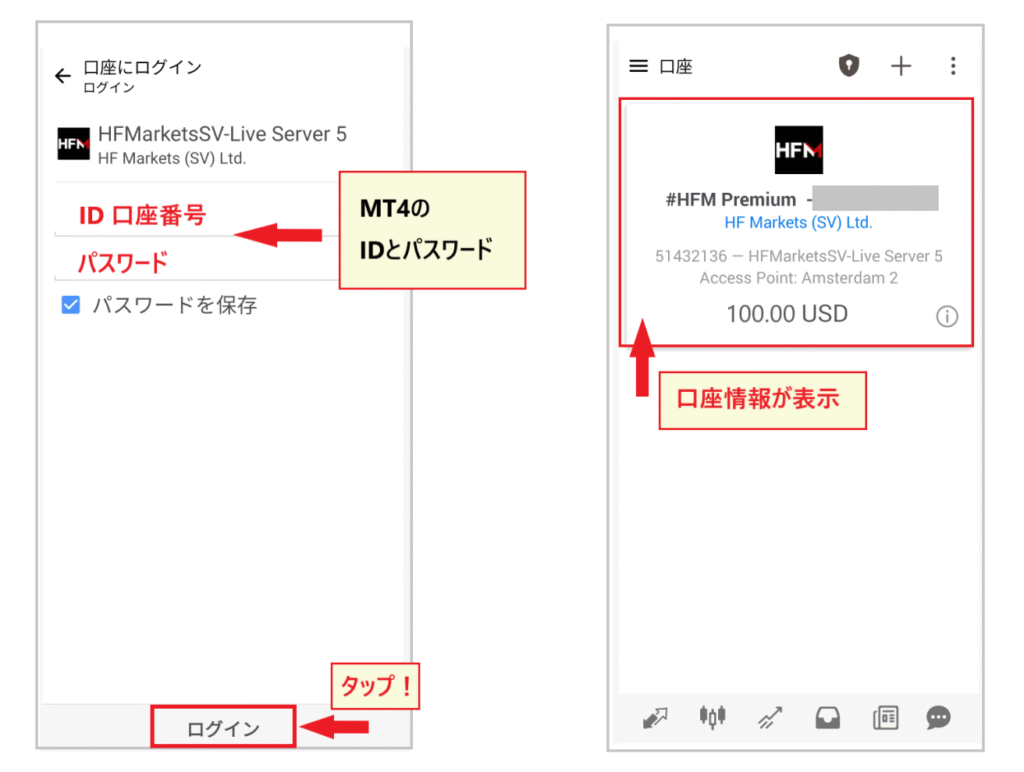
Once your account information has been verified,HFMyour login tois successful. You have now successfully logged into MT4.
If your account information is not displayed, your password or server name may be incorrect, so please try registering again from the beginning
Please note that the ID and password used for myHF in HFMare completely different from the ID and password used for MT4
HFM's spread information can be found in the following article. Please be sure to read it before trading
How to set up MT4 with HFM: Setting up menus and windows
Next, we will explain how to configure various settings in MT4. Initially, it's best to learn and master only the essential settings
Here, we've carefully selected and simplified the essentials for trading. Let's take a look at the general menu layout and the functions of each window
How to read and use the menu
Firstthe menu in the upper left cornerwill give you access to chart settings, switching MT4 accounts, a list of automated trading algorithms (EAs), and more. Open this menu if you want to switch to another broker's MT4 platform.
[Top left side menu]
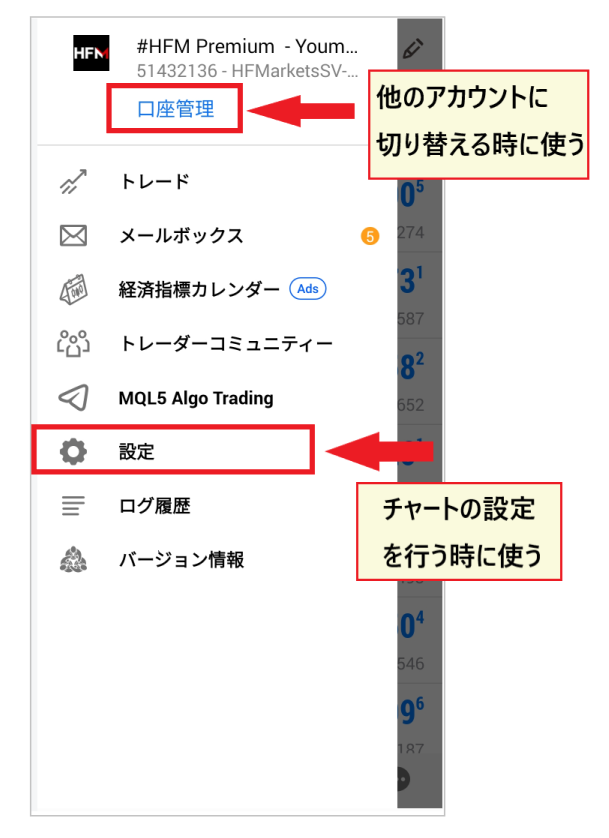
For now, knowing just these two side dishes is enough
[Menu in the upper right corner]
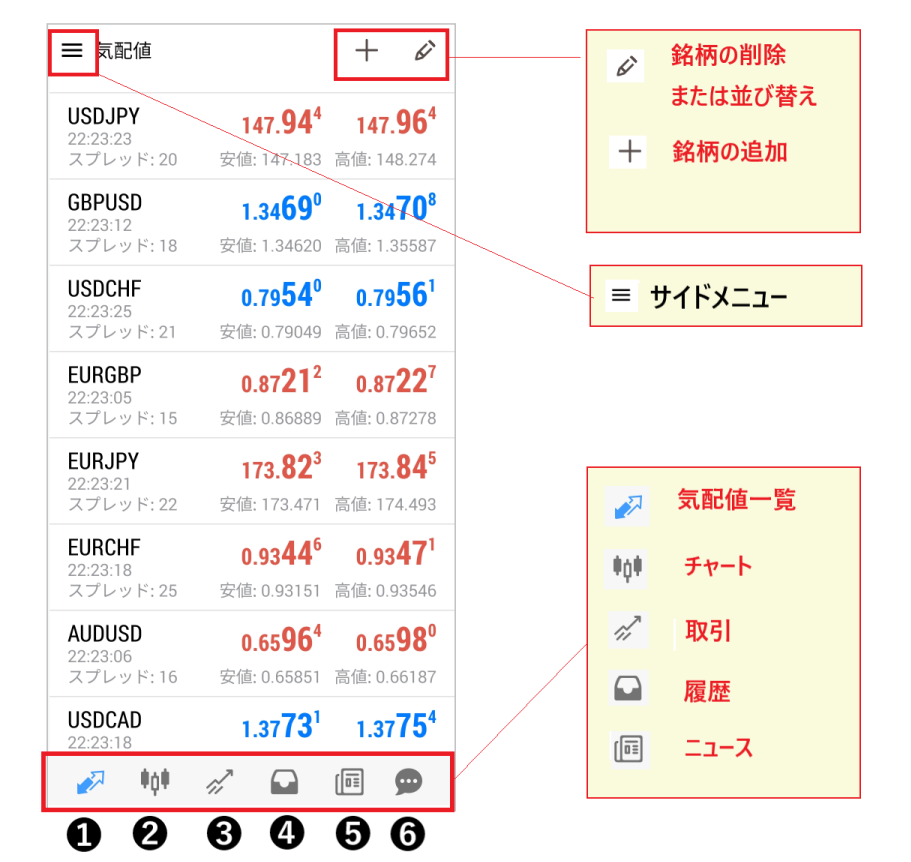
You can add, delete, and rearrange stocks using the menu in the upper right corner
[Main menu at the bottom]
The menu at the very bottom of the smartphone screenis the main menu, which contains six functions. Normally, you use this main menu to operate the screen.
- List of bid and ask prices → Exchange rate table
- Chart → Chart screen
- Trading → Positions and Account Information
- History → Past transaction data
- News → FX Street News
- Message → MQL4 Community Site
*The MQL4 community site is an information site for MT4 users. Registering allows traders to exchange information. You don't need to worry about this at the moment. Check out how to use it later if you become interested
Functions and usage of each window

[List of Indicative Prices (Exchange Rate Table)]
By default, the quote list includes major currencies
On this screen, you register and use your own preferred stocks
You can check real-time buy, sell, low, and high prices, as well as the spread
[Chart screen]
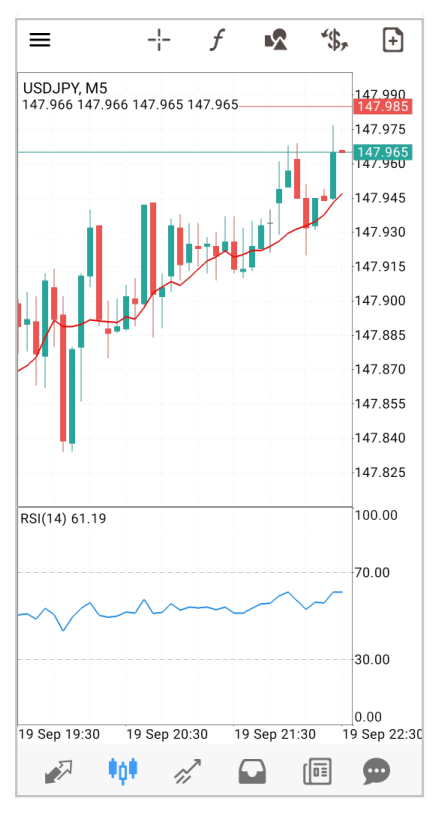
The chart screen displays a real-time chart of the selected stock
This screen allows you to insert technical indicators and perform chart analysis using drawing functions
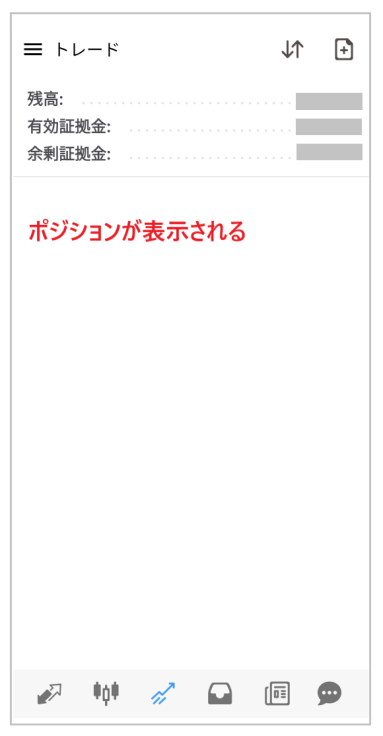
【transaction】
The trading page displays your balance, effective margin, excess margin, margin maintenance ratio, and the profit/loss status of your positions
Look at this screen to check the current status of your position
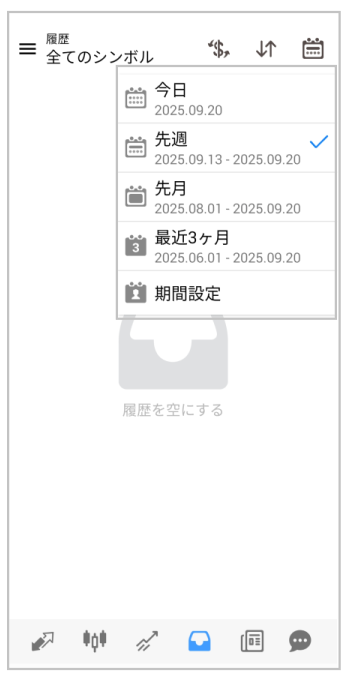
【history】
Selecting "History" will allow you to view past transaction data
You can specify the time period for transaction data and upload transaction history as a report
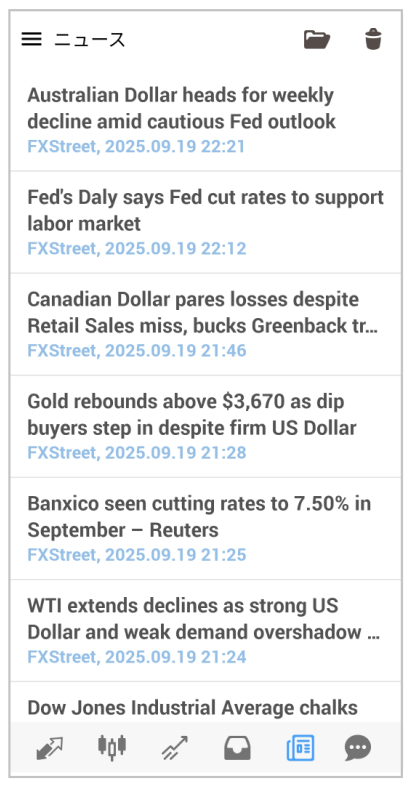
[News (English version)]
When you select a news item, you can view news from an international media outlet called "FXStreet." It's in English, so try it occasionally as a way to practice your English
That covers the basic functions of the MT4 menus. Try using the menus a few times to get a general understanding of what's where
Next, we will explain the specific setup method
How to set up HFMin MT4: Inserting currency pairs into the quote list
HFM's MT4 already displays several major currency pairs by default. You can use them as they are, but you can also customize the available pairs to your liking
This section explains how to add or remove currency pairs and instruments you want to trade from the quote list
Add currency pair/instrument
Tap the "+" mark in the upper right corner of the bid/ask screen

Open "Forex (Currency Pairs)" to display the currency pairs.Tap the currency pair you want to insert from the "Forex" list, and it will be inserted directly into the quote list.
Delete currency pair/instrument
To delete a stock, tap the "pen icon" in the upper right corner of the price list. Then, tap the "trash can icon" to display a box for selecting the stock
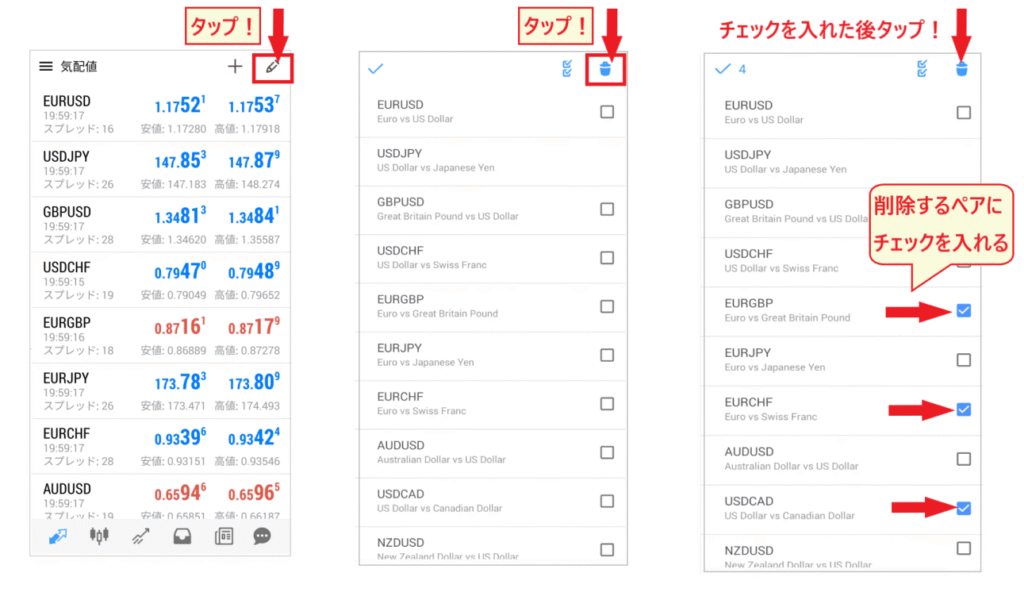
To remove a currency pair, check the box next to the pair you want to delete and tap the "trash can icon" again to remove it from the quote list
Customize the list to your liking by adding or removing stocks. Even if you don't trade, you can effectively use the quote list by selecting stocks you want to refer to or are interested in.
Rearrange the brands
You can also rearrange the stocks to make them easier to view
Tap the "pen icon" in the upper right corner of the price quote list. A list of stocks will appear. Press and hold the "three-line icon" until it turns gray. Once it turns gray, you can rearrange the list by dragging it up or down
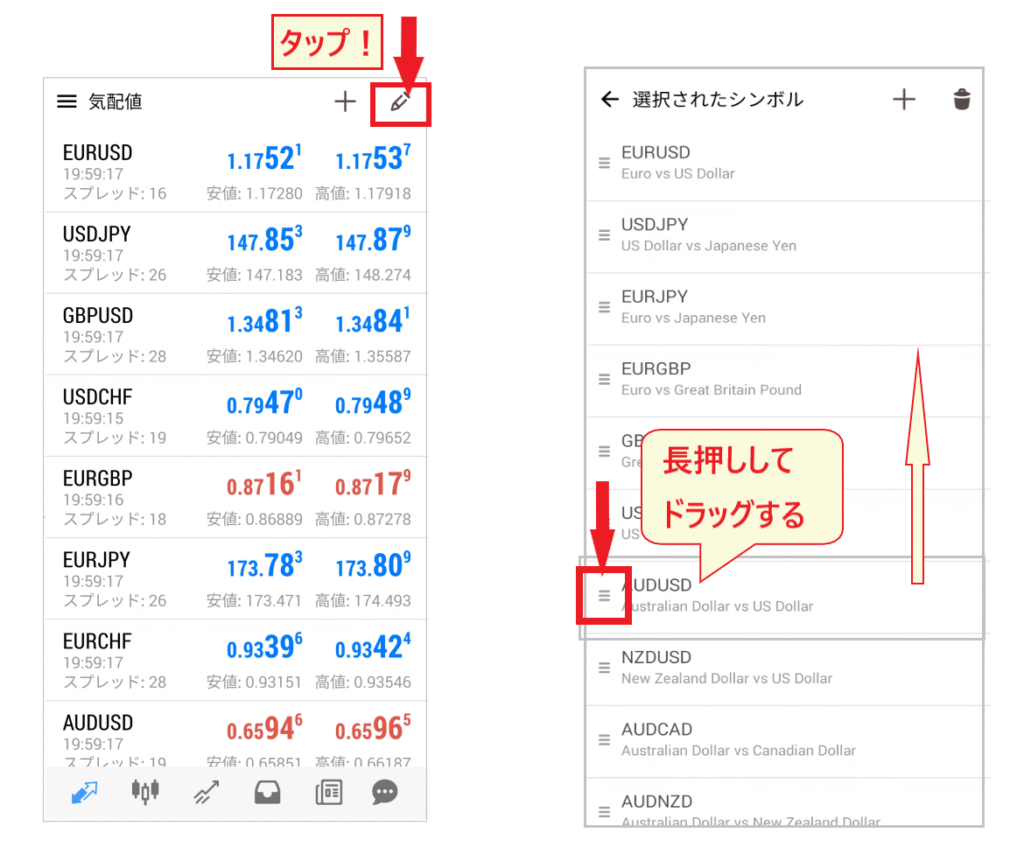
It will be easier to use if you group frequently viewed and frequently traded items at the top
How to set up HFMin MT4: Initial setup of the chart window
Next, we will explain how to set up the chart screen
Let's open the chart screen together and go through the initial chart setup
Display the chart screen
First, display the list of bid and ask prices screen, and then open the chart screen
Tap your desired currency pair from the list.A menu will pop up; select "Open Chart".

When you tap "Open Chart," the chart screen will appear as shown below
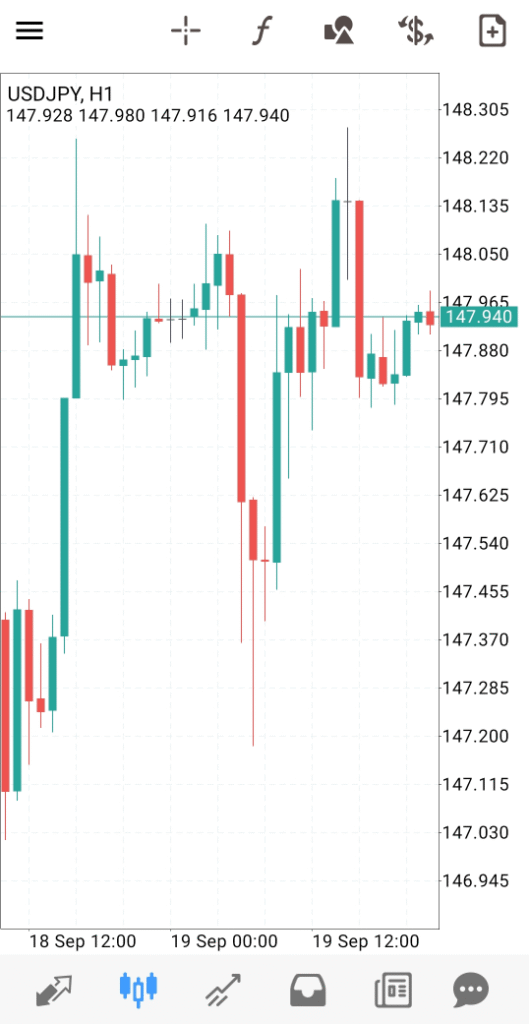
The first thing you should set up here is the display of the "buy price line." In the default settings of the MT4 mobile app, only the "sell price line" is set. Therefore, you might mistakenly place an order thinking this line is the "buy price line."
actually,The "buy price line" is located above the normally displayed lineTherefore, it becomes impossible to make accurate judgments
This is a mistake that even experienced FX traders can easily make, so you need to be very careful
Always display the "buy price line"
The "Purchase Price Line" can be set from the basic settings in the side menu
Tap the "three lines" in the upper left corner of the price quote list, and then select "Settings" from the side menu
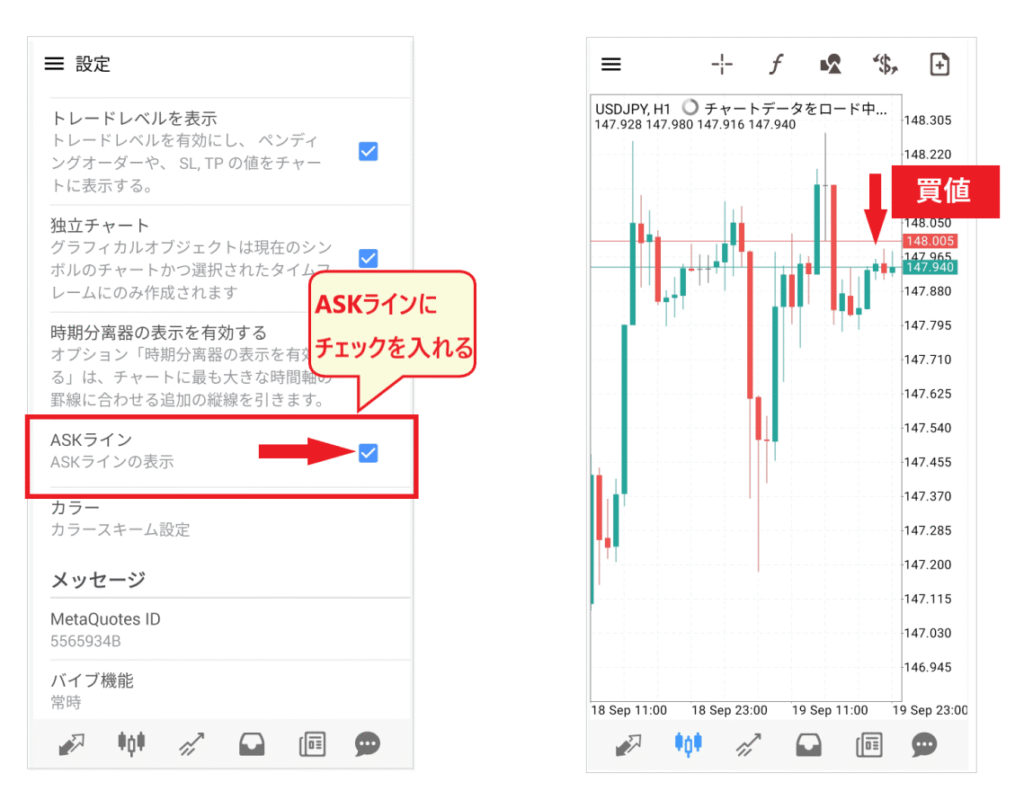
Scroll down the settings menu a bit and you'll find an item called "ASK Line." Check this box. When you check this box, the "Buy Price Line" will be displayed above the "Sell Price Line."
The difference between the "buy price line" and the "sell price line" is the spread,A large difference increases the risk of lossTherefore, it becomes an important factor in making a decision
[Buy and sell price lines for 1-minute and 15-minute charts]
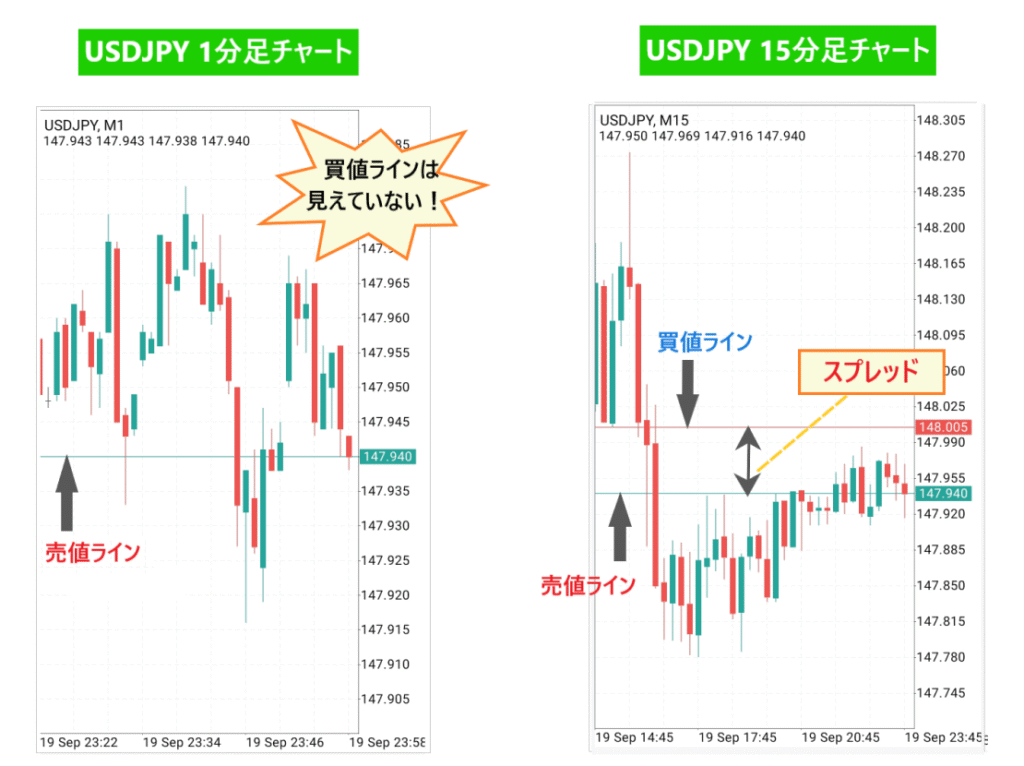
By adding a buy price line, it becomes possible to realistically measure the size of the spread. As shown in the diagram above, the buy price is sometimes not even visible on the 1-minute chart. It is clear that being misled by the "sell price line" and placing an order based on that is a high-risk strategy
How to switch currency pairs
Next, let's look at how to directly switch currency pairs from the chart screen
First, tap the "$" icon in the upper right corner of the chart screen. A list of registered currency pairs will be displayed.Tap a different currency pair from the listto switch screens.
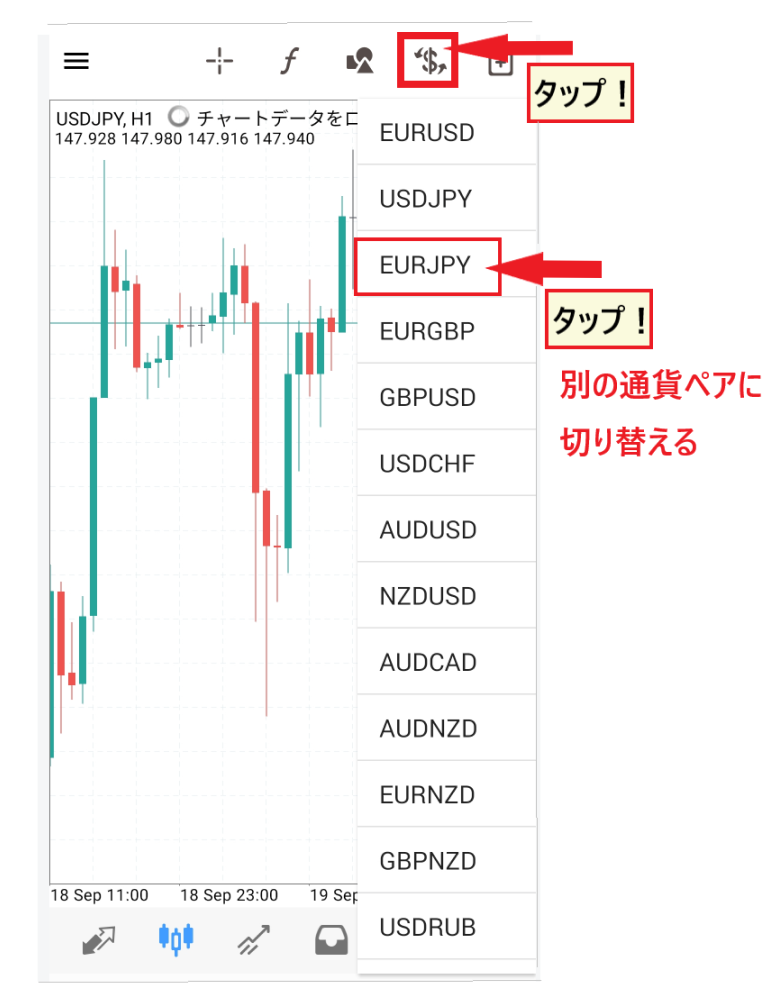
Try tapping on various stocks to master how to switch currency pairs on the chart screen
How to switch timeframes
Next, you can switch timeframes to analyze exchange rate movements in more depth
Tap anywhere on the chart screen.A circular "switching menu"will appear. From this circular menu, select a different timeframe to switch charts.
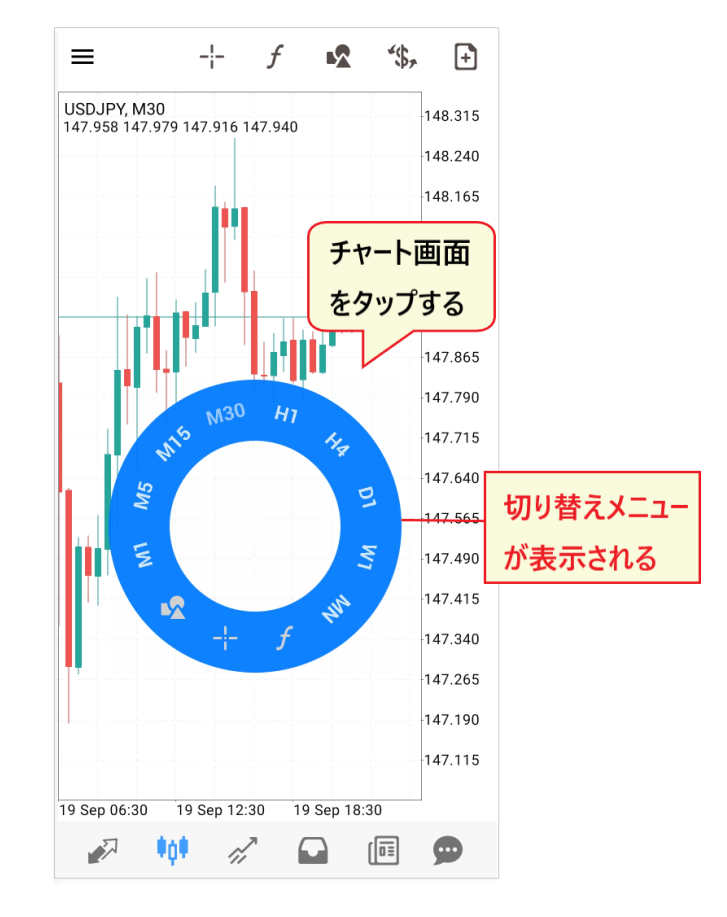
Let's take a closer look at how to view the menu for switching timeframes
[How to use the time frame switching menu]
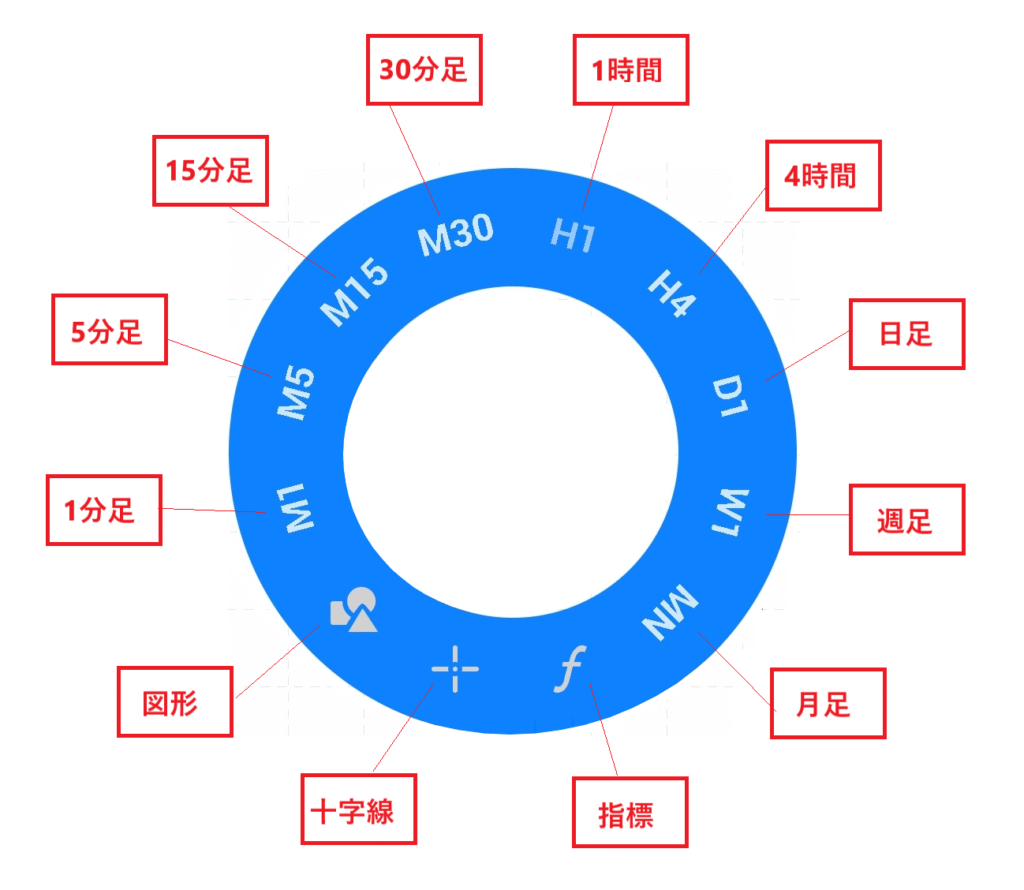
- M1: 1-minute chart
- M5: 5-minute chart
- M15: 15-minute chart
- M30: 30-minute chart
- H1: 1-hour chart
- H4: 4-hour chart
- D1: Daily Chart
- W1: Weekly
- MN: Monthly
- f: Technical indicators
- ✛: Crosshairs
- △〇: Shape
From this menu, you can select not only the time frame but also the insertion of "technical indicators," "doji candlesticks," and "shapes."
It's incredibly convenient because you can insert timeframes and technical indicators with just a single tap
How to use zoom in and zoom out
One more thing: Remember how to adjust the chart size (candlestick size). Zooming in on the chart makes the candlesticks larger, making analysis easier. Conversely, shrinking the chart makes the candlesticks harder to see, but allows for analysis over longer periods
- Zoom in → Enlarge
- Zoom out → Zoom out
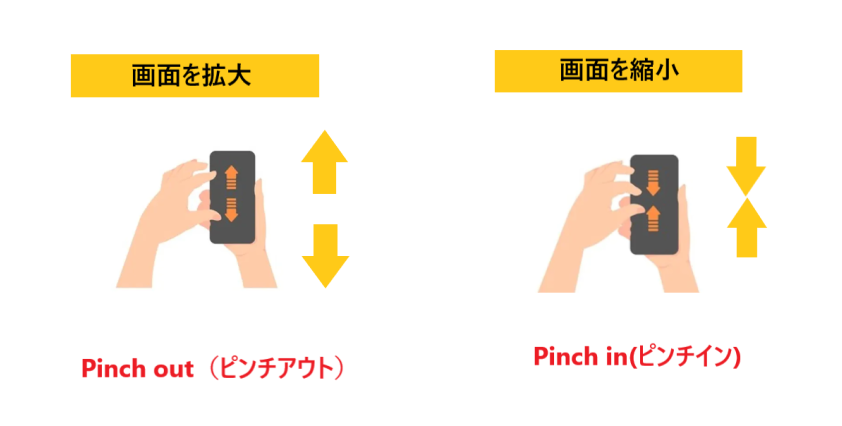
Zooming in and outdone using "pinch-in" and "pinch-out" gestures, which involve bringing two fingers closer together or further apart. "Pinch-in" shrinks the chart by bringing two fingers closer together, while "pinch-out" enlarges the chart by separating two fingers.
How to insert an indicator
Furthermore, let's improve the quality of our technical analysis by adding indicators
MT4 indicators, like regular indicators, come in two types: "trend indicators" that are inserted into the main chart and "oscillator indicators" that are inserted into sub-charts
We'll start by explaining how to insert trend-following indicators
MT4 Mobile App: Setting up Trend Indicators
Indicator settings are accessed by tapping the "f" icon at the top of the chart screen. On the next screen, tapping the "f" icon next to "Main Chart" will display the indicator list.

Select the indicator you want to set from the list. Tapping it will bring up the parameter settings screen. Here, I selected the Moving Average and set it to 50 days
[Example of setting up a moving average]
Please refer to the example settings for the Moving Average

- Period(commonly used numbers such as 8, 9, 13, 15, 20, 21, 50, 55, 200, 220, etc.)
- Method (Simple → This refers to the simple moving average, the most common type)
- Applicable to (closing price → commonly used base value)
- Style (line thickness → pixels, color → can be changed)
Once you've checked the parameterstap the "Done" buttonto complete inserting it into the chart.
The default settings are usually the most common values, so you can use them as they are. Once you get used to it, you can adjust the values to suit your own needs, such as short-term, medium-term, and long-term strategies
MT4 Mobile App: Settings for Oscillator Indicators
In addition to the main chart, let's also add one oscillator-type indicator to the sub-chart
Tap the "f mark" at the top of the chart screen, then tap "Main Chart" and then the "f mark" again. An indicator list will appear. Click towards the bottom and select the oscillator you want to use. Here, we've selected "Relative Strength Index (RSI)"
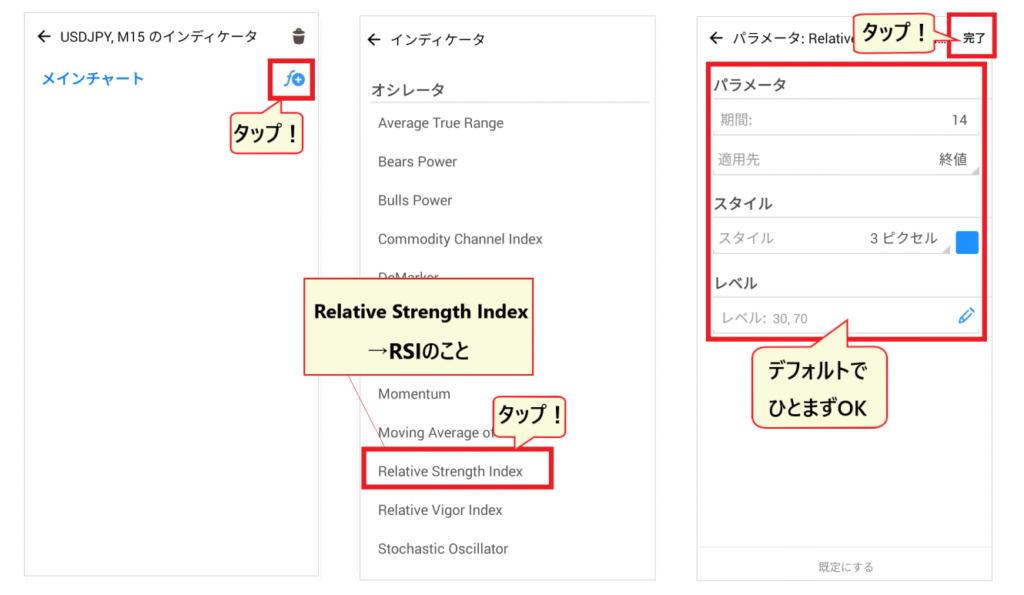
By default, the RSI period is set to 14. If you feel the movement is too slow, try shortening the period slightly (to around 9-11)
After checking the parameter settings andtapping the "Done" button, the RSI will be inserted into the subchart.
[A sub-chart section will be added]
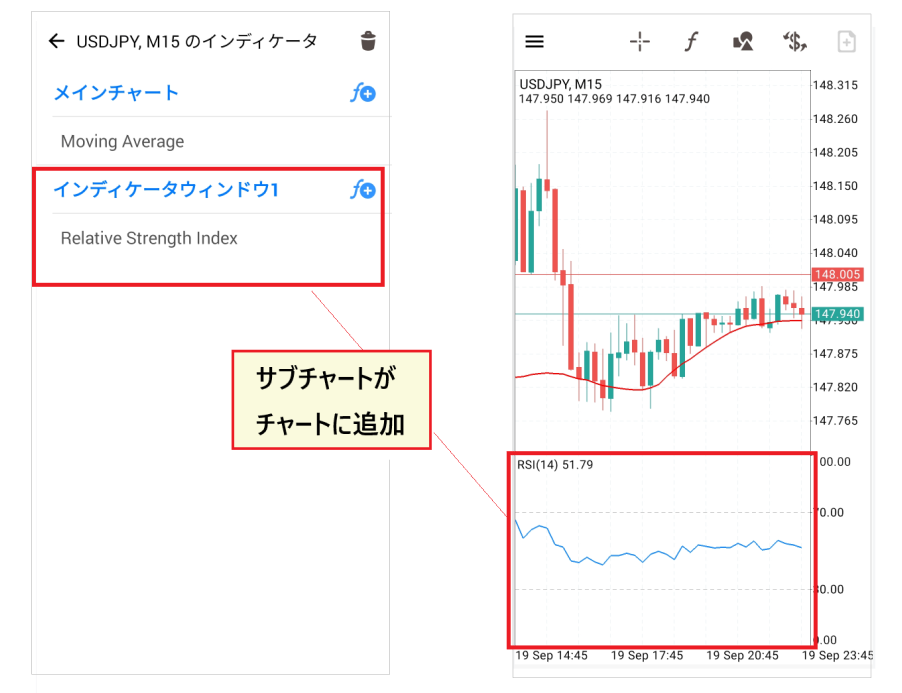
Once you insert an oscillator, a subchart window section will be added to both the chart and the menu
You can also choose indicators from volume-based and Bill Williams-based systems, so try out a few of them to practice your settings
How to delete an indicator
To delete an indicator,go to the indicator menu from the "f" icon and tap the "trash can" icon.
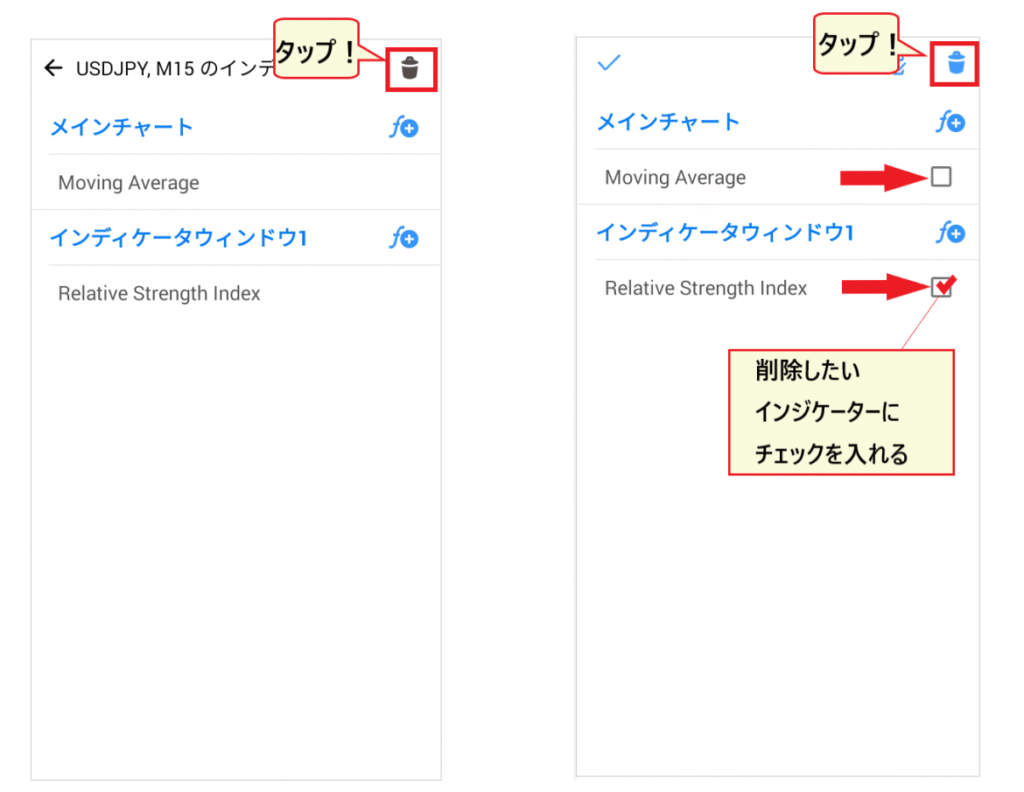
Tapping the "trash can icon" will bring up checkboxes next to each indicator. Check the items you want to delete and tap the "trash can icon" again to delete them
How to set up HFMin MT4: Placing orders
Now, let's move on to the most important aspect of using MT4: placing orders
If you order incorrectly,There is a risk of incurring significant lossesTherefore, make sure to practice the operation method thoroughly
Two ways to display the order screen
When placing an order, the first thing you should know is how to access the order screen. You can access the order screen from the "Quote List" and from the "Chart Screen" .
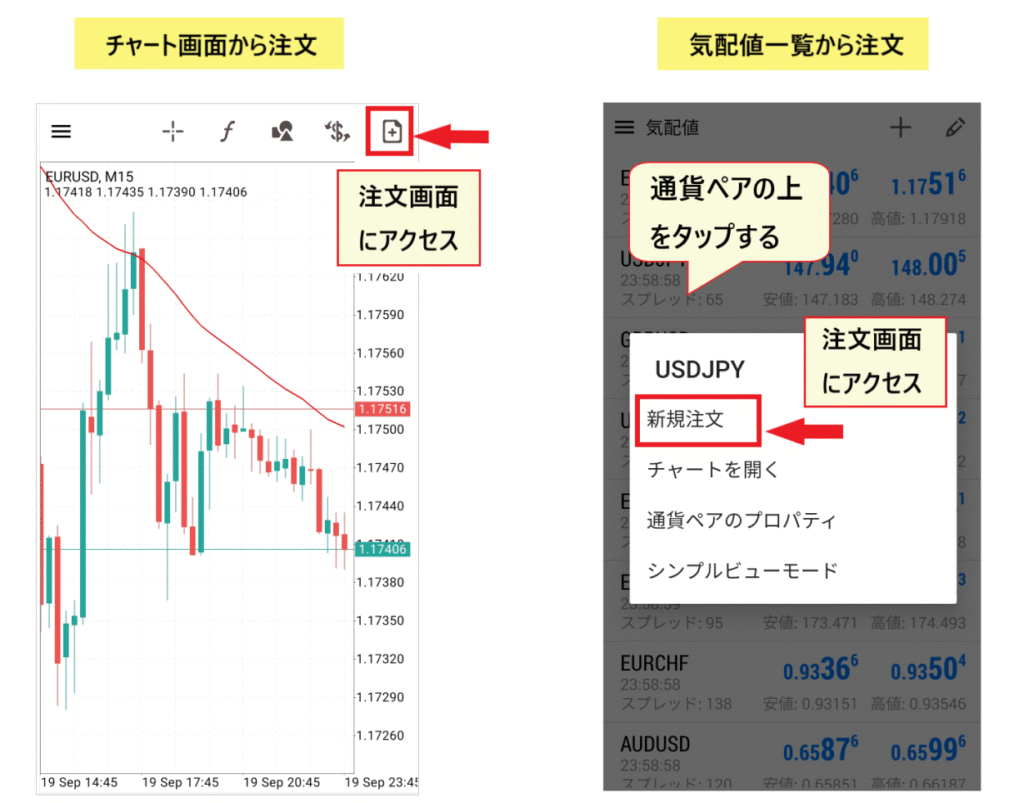
Place an order from the list of bid and ask prices
From the list of quotes, tap the currency pair you want to trade to display the menu. From the menu that appears, select "New Order" to display the order screen
Place an order from the chart screen
From the chart screen, you can access the order screen by tapping the "document icon" in the upper right corner
Once the order screen appears, you can set one of the following: "Market Order," "Limit Order," or "Stop Order."
Market order
Let's start with the simplest and most commonly used order type: the "market order."
A market order is an order method that "decides to buy or sell immediately at the current exchange rate."

- Select "Market Order" from the pull-down menu
- Use + and - to set the lot size
- Check the purchase price and selling price
- Leave it as "0"
- Check the movement on the tick chart
- Once you've made your decision, place a buy or sell order
*Market orders generally have their price determined immediately, but the execution rate may differ depending on the circumstances
Limit order
When you want to buy or sell at a specific price, you use a limit order
A limit order is a type of order where you reserve a price to "buy when it falls to XX" or "sell when it rises to XX"

- Select limit order from the pull-down menu
- Set the lot size using + and -
- Check the purchase price and selling price
- Adjust the rate
- No need to touch it
- Set an order deadline (optional)
- Check the tick chart
- Press the order button to confirm your order
*You can also place stop-loss and take-profit orders here, but for now, let's just focus on learning how to place orders
I will explain how to add it later
How to interpret asset status, positions, and order status
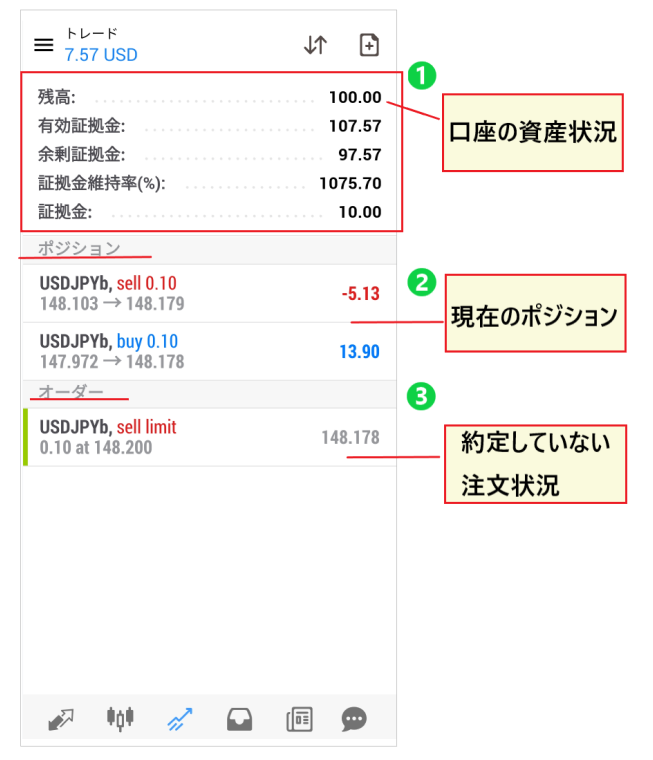
- This section shows the current asset status of your account, including "balance," "effective margin," and "margin maintenance ratio."
- This shows the profit and loss status of your current positions
- Details of orders that have not yet been executed
This screen allows you to see all of your current trading status
Stop-limit order
Now, let's look at another order method for taking a position using a stop-loss order
In this context, a stop-loss order is an order type that can be used for strategies such as "buying after confirming an increase" or "selling after confirming a decrease."
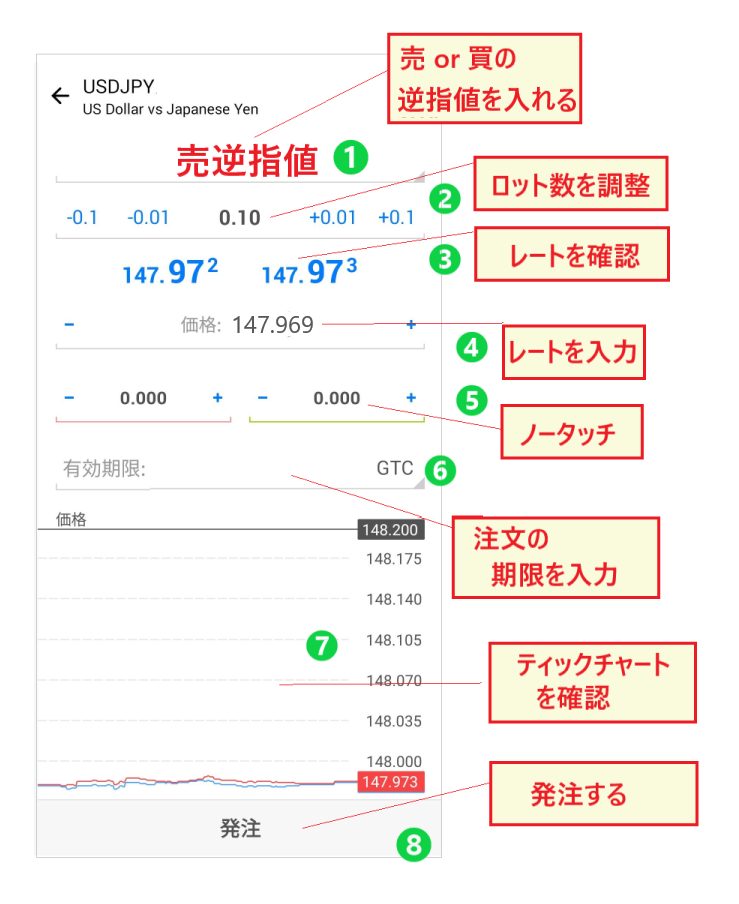
- Select either a buy stop order or a sell stop order
- Set the lot size using + and -
- Check the purchase price and selling price
- Set the rate
- No need to touch it
- Set an order deadline (optional)
- Check the tick chart
- Press the order button to confirm your order
The stop-loss order used when taking a position is based on trend following, where you enter a trade when the price moves in the expected direction. This method involves confirming the direction before buying or selling
How to change limit orders and stop-loss orders
If your strategy changes due to exchange rate trends,you can modify an order you've already placed.
Let's review how to modify limit orders and stop-loss orders
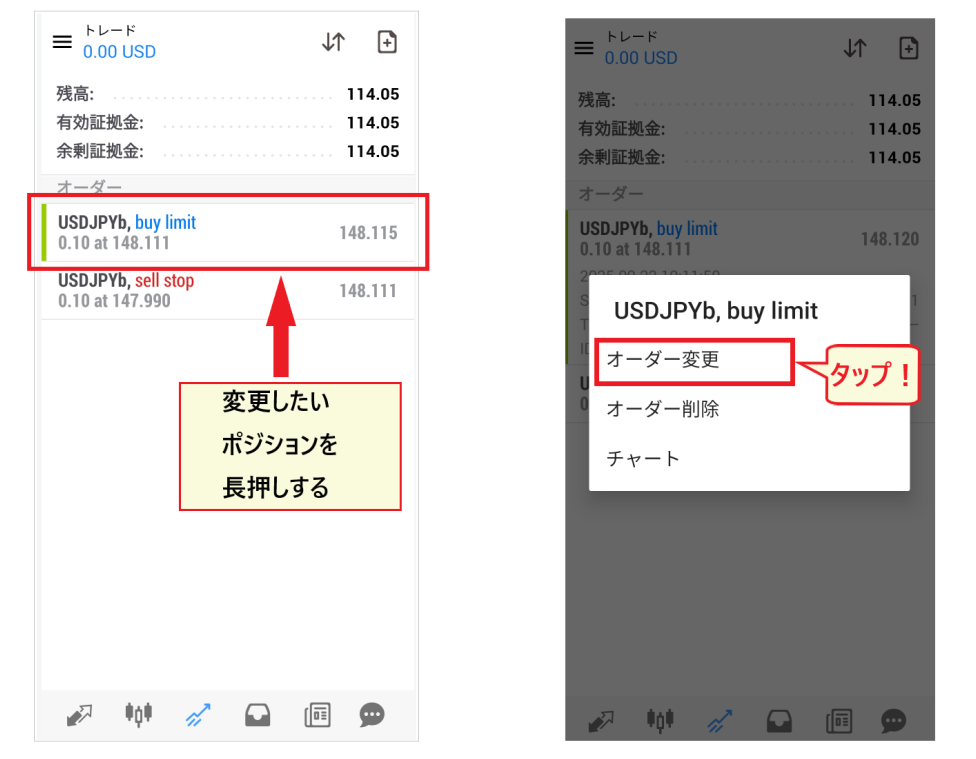
From the "Trading" screen, long-press the position you want to change. A pop-up menu will appear;tap "Modify Order" to correct the order.
How to cancel limit orders and stop-loss orders
Limit orders and stop-loss orders can also be completely canceled

To cancel an order, long-press the position you want to remove from the order list on the trading screen.A menu will appear; select "Delete Order"to cancel the order.
How to set up HFMin MT4: Placing stop-loss and take-profit orders
In FX trading, once you hold a position, you close it by either cutting your losses or taking profits depending on the situation
Here, we will explain how to cut losses and take profits
Stop-loss and take-profit orders
From the "Trading" screen, long-press the position you want to close with a stop-loss or take-profit order.A menu will appear; tap "Close Order".

On the next screen, the loss amount (profit amount) will be displayed at the bottom. If everything looks correct, tap the "Confirm Settlement" button to complete the transaction
Make sure to carefully check how much loss (or profit) you're willing to accept
Limit and stop-limit orders for stop-loss and take-profit orders
Ideally, after taking a position, you should place stop-loss and take-profit orders at the right time. Thesestop-loss and take-profit orders should be placed using "limit orders" or "stop-limit orders.
Go to the "Trading" screen and long-press the position you want to place an order for.A menu will appear, so tap "Modify Order".
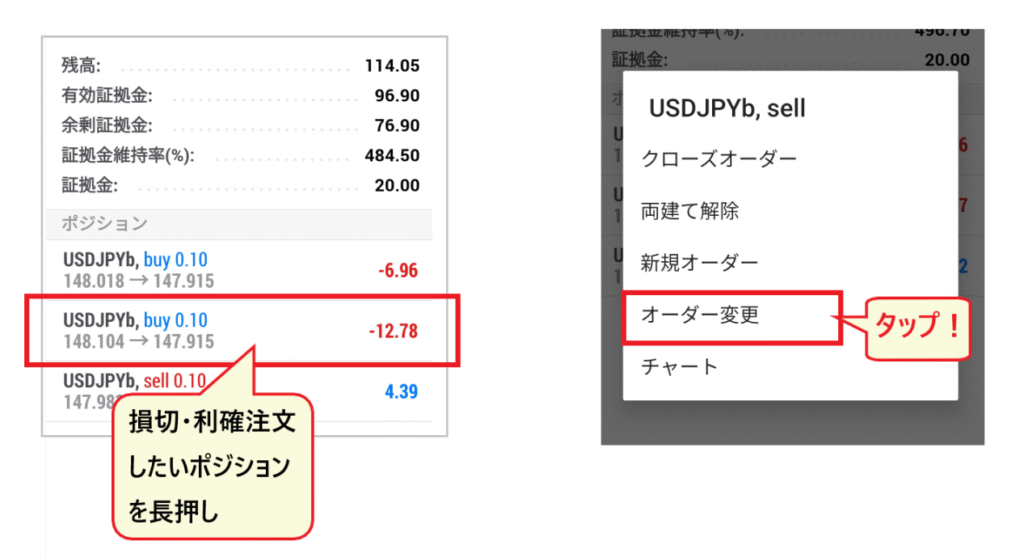
Please note that the method for setting stop-loss and take-profit orders will vary depending on the direction of your position (buy or sell)
[Stop-loss/Take-profit settings screen: Buy position/Sell position]

- Buy position (long)→ Take profit at a higher rate than the current price, cut losses at a lower rate than the current price.
- Sell position (short)→ Take profit at a lower rate than the current rate, cut losses at a higher rate than the current rate
You can also place an order by entering only a stop-loss or take-profit level. Check the rates, and if everything looks correct,tap the "Change" button to confirm your order.
How to change stop-loss and take-profit orders
To modify stop-loss and take-profit orders, long-press the position on the "Trading" screen, select"Modify Order" from the menu, and then open the existing order screento correct the rates.

How to cancel stop-loss and take-profit orders
To cancel a stop-loss or take-profit order you've set,open the order screen from "Change Order," reset the set rate to zero, and tap the "Change" button.
You can change or delete settings without any restrictions, so you can rest assured
Stop-loss and take-profit orders, as well as settlement rates,differ depending on whether you have a buy or sell position, so make your decisions carefully and without rushing.
The following article provides a detailed explanation of leverage in High-Financial ManagementHFM). Please refer to it for tips on how to effectively utilize high leverage
HFM's MT4 isn't working! Troubleshooting login issues
Finally, let's look at how to troubleshoot whenHFM's MT4 isn't working or you can't log in
Solutions for when MT4 is not working
When MT4 isn't working, the first thing you should check is where the problem lies
Check whether the problem lies with MT4 or with the network
- Only MT4 isn't working → There's a problem with MT4
- The entire smartphone is unresponsive (browser, Google, etc.) → There is a network problem
[Only MT4 is not working]
If only MT4 is not working, it means there is a problem with the MT4 app. In many cases,"logging out and logging back in," "checking your login information," "uninstalling and reinstalling,"or "restarting your smartphone" can resolve the issue.
Also, please note that trading is limited to cryptocurrencies for about an hour in the early morning and on weekends and public holidays, so be sure to check the dates and times
[The entire smartphone is unresponsive]
If your entire smartphone is unresponsive, there is likely a problem with your internet connection. Try checking for connection issues by: "disconnecting and reconnecting to Wi-Fi," "turning off ad blockers and other blocking functions," "checking for any outstanding phone bills," and "checking if there are any network outages in your area."
Contact HFMcustomer support
If only MT4 is not working, try contacting HFM's customer support via chat or email
[Contact us via chat]
When contacting us, please have your ID and email address ready. Providing as much specific information as possible about your situation will help us resolve your issue. Screenshots of your login status would also be helpful

[Contact us by email]
Chat support may not connect immediately depending on the time of day. In that case, you can contact us by email. While you wait for a reply to your email, try accessing the chat again at a different time

Causes and solutions for when you can't log in to MT4
If you are unable to log in, please try "uninstalling → restarting your smartphone → reinstalling" and then "logging in again"
HFMIn the case ofyou've entered the wrong server name. Please double-check your account number, password, and server name. If you still can't log in, please contact customer support. They can provide advice on how to resolve the issue.
Summary: Let's try trading withHFMusing the MT4 app!
This time, we explained how to useHFMMT4 smartphone app with images
You might feel confused at first when logging in for the first time, setting currency pairs and instruments, or placing orders. However,you'll get the hang of it and learn as you use it, so the key to improvement is to frequently use the MT4 app.
Since making a mistake when ordering can lead to serious problems, please be sure to practice the ordering process
The advantage of a smartphone app is that you can easily access the FX platform anytime, anywhere, even when you're out and about. Even busy people will findHFM's MT4 app, which can be used during spare moments, very useful
Let 's get started using the MT4 appHFMwith trading
By the way,HFMtrading accountwith our cashback site, "Money Charger (Manecha),"is highly advantageous.HFMpopular high cashback rateHFM, you can earn extra profits through cashback. Take this opportunity to try out Money Charger's cashback as well.