












EA Guide -
From Setup to Operation
MoneyChat's EA
in 5 steps.

This page provides basic instructions for using EAs. Installation procedures may vary depending on the EA, so please follow the instructions in the README file included with the downloaded file when actually using the EA
Completed in 5 steps
Complete in 5 Steps
Apply for EA
2MT4/5 Installation
3Set up the Expert Advisor (EA)
4Operational status confirmation
5Check your performance and credits
The whole process takes just 15 minutes. Once set up, it will continue to run automatically
Apply for EA

Estimated time: Approximately 1 minute
-
1
Register for Money Charger for free
Existing users can skip
-
2
From the "EA" page in My Page, select the EA you want to use and click "Apply →"
-
3
Application completed
A download link for the EA file (.ex4/.ex5) will be sent to your My Page
* Please check the "EA" page in My Page for the types and distribution status of EAs
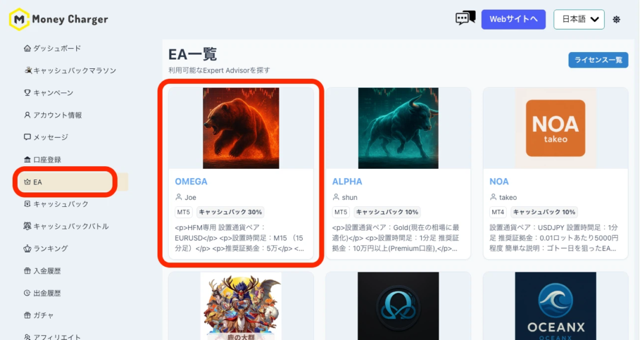
① Select the EA you want to use from "EA" on My Page
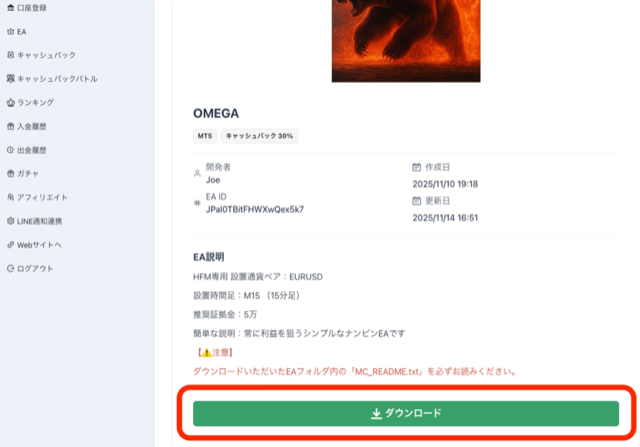
② Obtain the EA file from the "Download" button
Registration takes 1 minute, and EA (Expert Advisor) acquisition is free
Install MT4/5

Estimated time: Approximately 5 minutes
-
1
Access the website of the broker where you opened your account
-
2
Select either "MT4 Download" or "MT5 Download" and install
-
3
Enter the broker's server name, ID, and password to log in
It is stated in the email you received when you opened your account
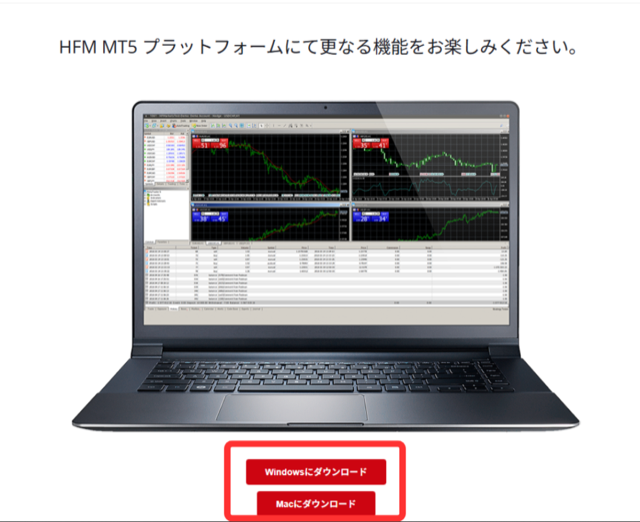
Download MT5 from the broker site
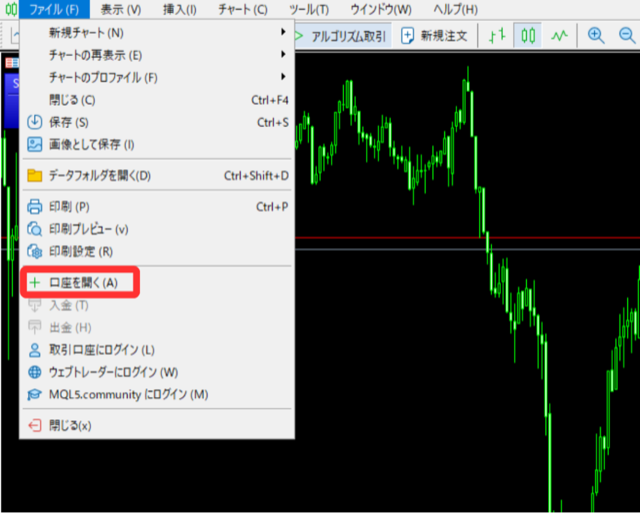
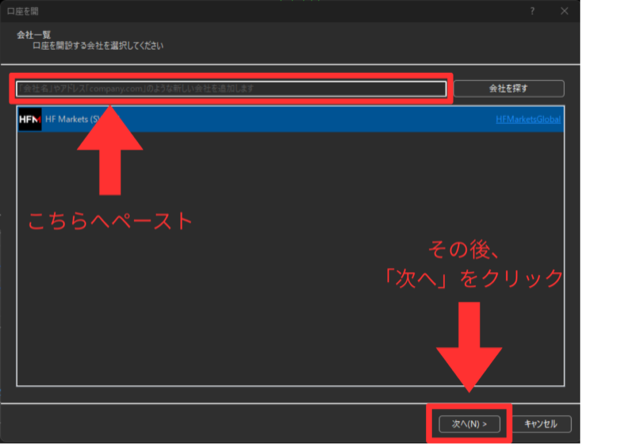
Log in via "File" → "Open Account"
Paste the server information received in the email
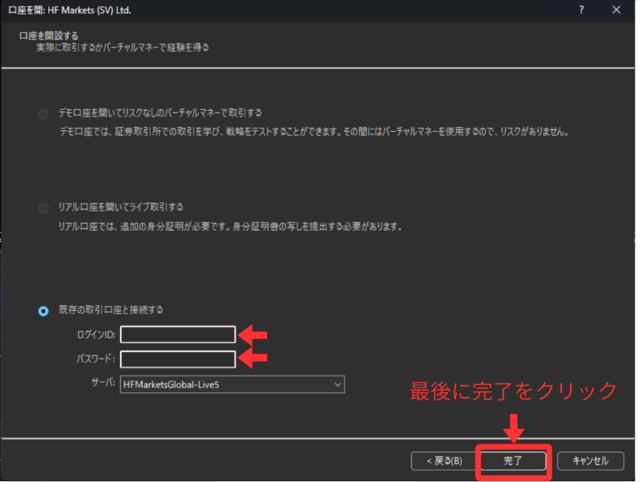
Enter your password and click "Done"
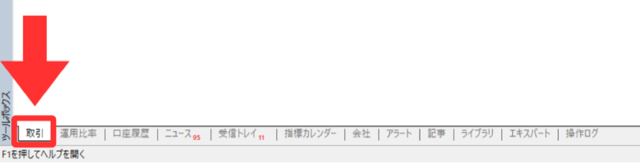
If a "Transactions" tab is added to the bottom left, the login was successful
Set up the Expert Advisor (EA)

Estimated time: Approximately 5 minutes
*Installation methods may vary depending on the EA. Please be sure to check the instructions (README) in the file that can be downloaded after application. The following are basic steps
-
1
Move the downloaded EA file (.ex4/.ex5) to the "Experts" folder in MT4/5
-
2
Restart MT4/5 → Confirm that the EA name is displayed in the Navigator window
-
3
Drag and drop the EA onto the chart you want to use → The settings window will open
-
4
Check the box for "Allow automated trading" and click "OK"
① Unzip the EA file
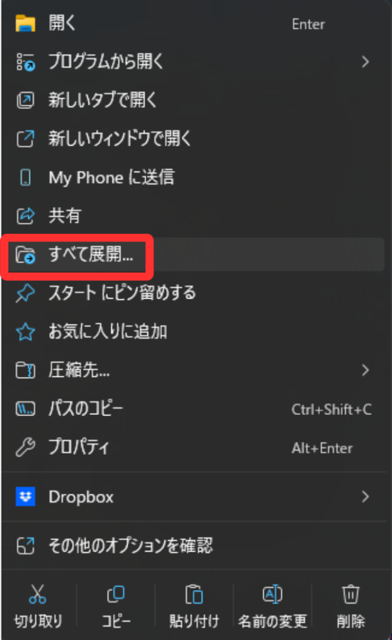
② Place the EA file in the MQL5 > Experts > Advisors folder
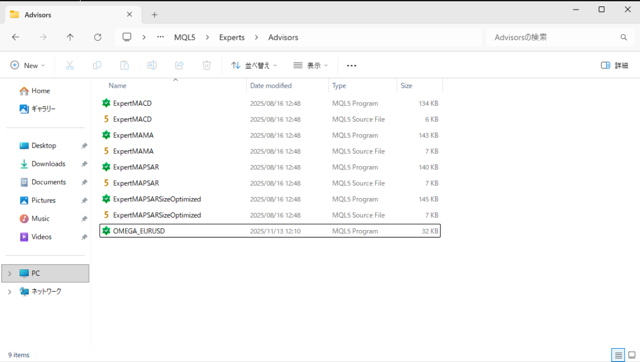
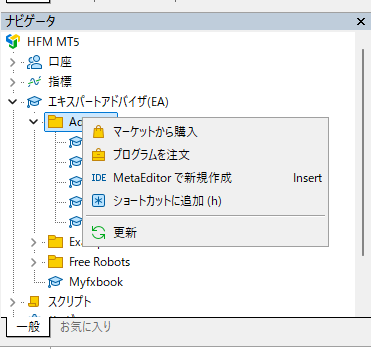
③ Right-click in the navigator → "Refresh"
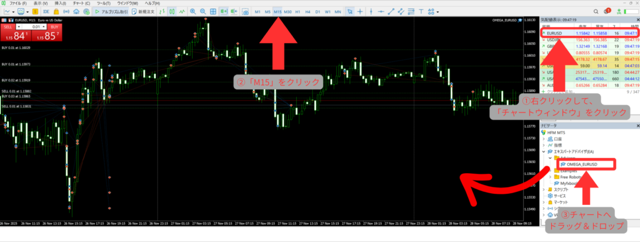
④ Drag and drop the EA onto the chart (EURUSD 15-minute chart recommended)
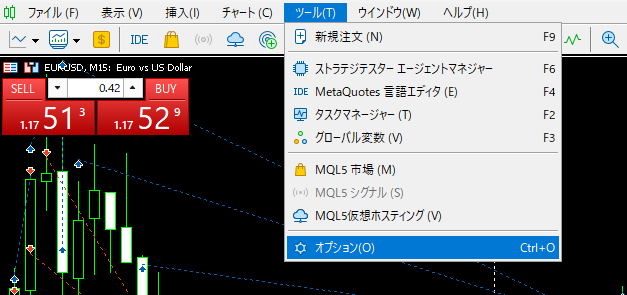
⑤ Set in "Tools" → "Options"
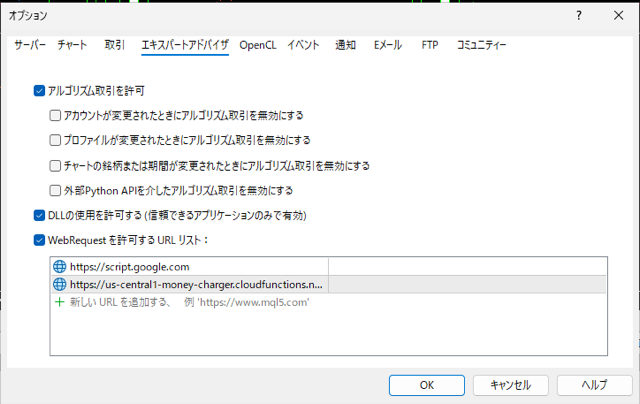
⑥ EA Settings — Check "Allow Algorithmic Trading"
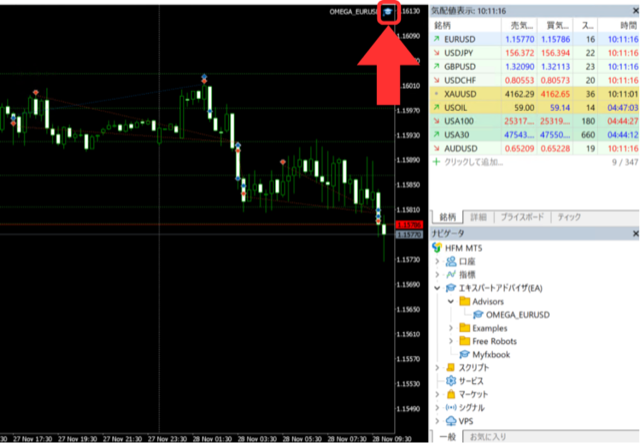
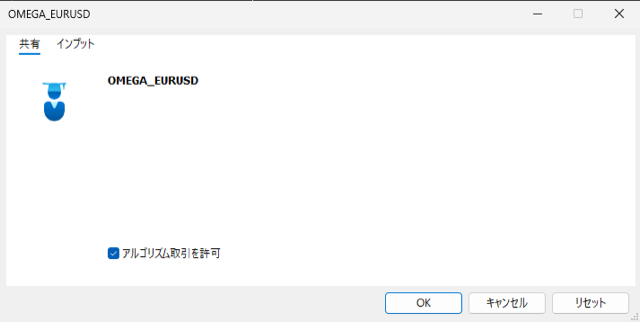
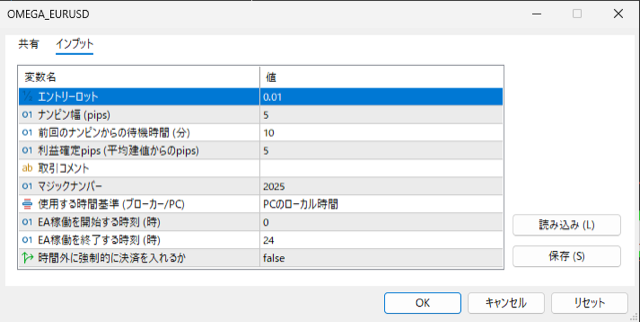
⑦ Check the parameters in the Input tab
EA Operation

Automated trading occurs

CB Automatic Addition
Please make your own judgments regarding lot size and risk management (losses may occur)
CB also covers trades made by EAs
Check if the EA is running

Let's check if it's working in two locations
-
1
If the EA name is displayed in the upper right corner of the chart, it is running
Verification within MT4/5
-
2
Verify that there are no error logs in the "Expert" tab
If you encounter errors, try resetting the EA
-
3
The "EA" page in My Page will display the "Active" status
It will be reflected from the next business day
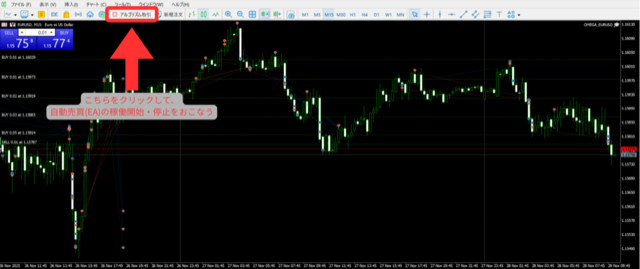
Use the "Algorithmic Trading" button to switch between starting and stopping the system
Check the stats and CB

CB is automatically accumulated each time the EA runs
-
1
Check your trading history in the MT4/5 "Account History" tab
-
2
Check your accumulated cashback in My Page under "Cashback" → "Acquisition Report"
-
3
You can check the list of active EAs and their latest status on the "EA" page in My Page
* EAs may incur losses. Please make investment decisions at your own discretion and responsibility.Terms of Use

Let's run the EA
and automatically receive CB.
Free registration · Free EA acquisition · Zero fees
Registration takes 1 minute · Free EA acquisition · Zero fees
Money Chat features you'll want to use with EA

Tenkaichi Budokai
This is a tournament to determine Japan's No. 1 EA developer. The winning EA will be the next to be distributed for free
Watch the tournament →
AI Copy Trading
AI automatically handles trades 24 hours a day. CBs (Commodity Bonuses) are also accumulated simultaneously
View details →
Check your cashback
You can earn CBs daily even with EA trading. Check your balance on your My Page
Log in →FAQ
The supported brokers vary depending on the EA. Please check the details page for each EA or the instructions included in the downloaded file
In principle, yes. EAs run on a PC with MT4/5 running. Using a VPS (Virtual Private Server) allows for 24/7 operation
The timing of CB (Confirmed Credit) confirmation varies depending on the broker. You can check the daily and monthly confirmed amounts in the "Acquisition Report" section of your My Page
Let's run the EA
and automatically receive CB.
Registration takes just one minute.
You can apply for an EA (Expert Advisor) immediately from your My Page.
Registration takes 1 minute · Free EA acquisition · Zero fees