










MT5 is a popular trading platform for overseas forex trading.HFMon both your PC and smartphone app at. It's packed with convenient features, such as the ability to display multiple indicators and manipulate order lines on the chart screen.
"HFMHow do I install
"HFM's MT5?"
"What are SL/TP in MT5?"
As you can see, you probably have many questions aboutHFMMT5 app
This time,HFMMT5 app (2025 version), how to set up charts, and how to place orders. We'll explain everything clearly with smartphone screenshots, making it easy for beginners to understand. Please use this as a guide to using MT5.
What is HFMsmartphone app MT5?
HFMMT-Five offers an MT5 ( ) smartphone app that can be installed and used on Android and iPhone devices . With its superior charting capabilities and wide range of indicators, MT5 is a popular trading platform alongside MT4 (MT-Four)
First, let's take a look at what kind of toolHFM's smartphone app, MT5, is
HFM(HF Markets) trading platform
There are two types of trading tools available at HFM
- MT4 (MetaTrader 4)
- MT5 (MetaTrader 5)
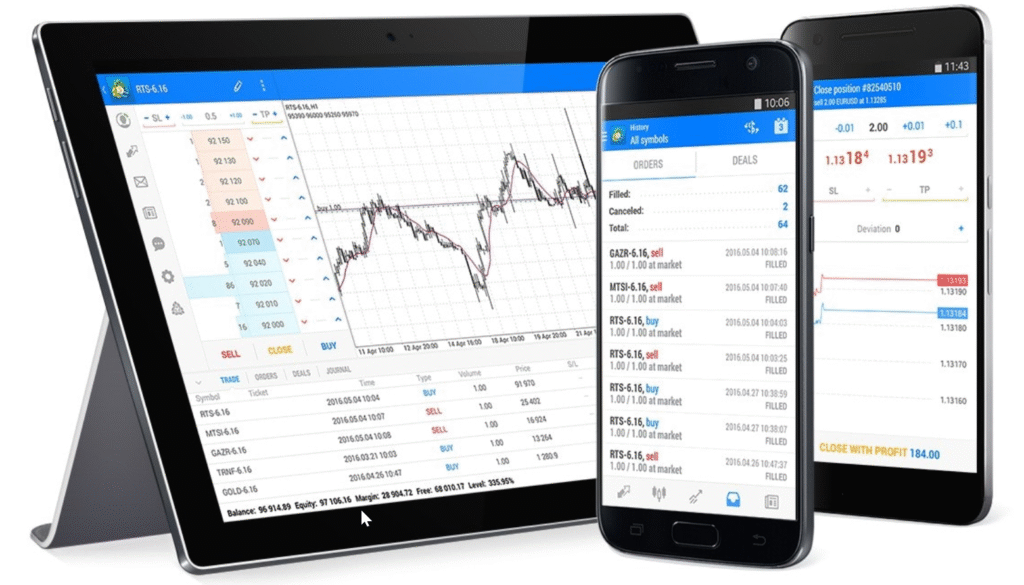
MT4 and MT5 software can be used onPCs, smartphones, and tablets. It is compatible with almost all devices.
The supported operating systems are Windows, Mac OS (Mac OSX), Linux, Android, and iOS (iPhone), and it can also be used without problems on Huawei devices. When installing on a PC, you can choose between a web version that can be logged in via a browser and a software version that you install and use
What is MetaTrader 5 (MT5)?
MT5 is an abbreviation for MetaTrader 5, and it is the fifth generation version of the ultimate FX platform, MetaTrader. MetaTrader first gained worldwide recognition with MetaTrader 4, which was equipped with programming capabilities and is known as MT4.
MetaTrader Overview
The FX platform MetaTrader is not developed by an overseas FX broker, but ratherby the software company MetaQuates. It is a platform used by FX brokers worldwide, and several FX brokers in Japan have also started offering it.
Main features of MT5
30 types of technical indicators and 30 types of drawing tools, for a totalof 60 technical analysis functions能を搭載。成行注文、指値・逆指値注文、ストップロスやテイクプロフィットなど充実した注文機能が完備されています。
Furthermore, a common feature of both MT4 and MT5 is the ability to install over 10,000 automated trading systems. In addition, copy trading, which allows you to copy discretionary trades, is also available
Differences between MetaTrader 5 (MT5) and MetaTrader 4 (MT4)
MT5 (MetaTrader 5) is the latest version, released after MT4 (MetaTrader 4). Some of you may be wondering, "What exactly are the differences between the two?"
First,let's look at the similarities between MT5 and MT4, andwe'll check the differences between them.
Similarities between MT5 and MT4
The common features of MT4 and MT5 are their high performance and excellent customization and expandability. Beyond the built-in functions, countless indicators and tools developed by traders worldwide can be installed. (However, there are limitations on their use in the smartphone app version.)
What's amazing about MetaTrader is that it goes beyond being just a trading tool; it can also be used for development and programming. There are very few trading tools offered by domestic FX brokers that have similar development features and APIs (extension capabilities)
MT5 vs MT4 Comparison List
While both MT5 and MT4 are excellent platforms,their features differ slightly, and eachhas its own advantages and disadvantages.
Let's compare MT4 and MT5 here to see how they differ
| Comparison items | MT5 | MT4 |
|---|---|---|
| Processing power | 32-bit rn comfortable | 64-bit smooth and comfortable |
| Chart docking (externalization) | can be | none |
| Chart splitting (smartphone) | There are two parts | none |
| Timeframe (PC) | 21 types | 9 types |
| Bid and ask price information | fulfillment | standard |
| Built-in indicator (HFM) | 80 | 30 |
| Installable indicators | Increasing | Quite a lot |
| Number of indicators (smartphone) | 30 types | 30 types |
| Number of automated trading EAs | Increasing | Quite a lot |
| PC version expandability | many | Quite a lot |
| Scalability of smartphone apps | none | none |
As you can see from the table,MT5 is more responsive and smoother to use, but that doesn't mean MT4 is slow. MT4 also operates smoothly without any problems.
However, a major difference is that MT5 allows you to dock charts outside the platform, and the MT5 mobile version allows for a split-screen chart display. While the functionality of the mobile versions is limited in both, MT5 is arguably superior in terms of usability
Points to note when using MetaTrader 5 (MT5)
There are a few things to keep in mind when using the MT5 app with HFM
- Select MT5 when opening an account
- It's easy to get HFMserver name wrong
- Fewer features are available compared to the PC version
Select MT5 when opening an account
When you want to use MT5,This must be selected when registering your account informationThere is

HFMWhen opening anafter selecting the account type,you'll first be asked to choose between MT5 and MT4. MT5 is checked by default, but please be sure to double-check. If you accidentally select MT4, simply select the same account again and change the settings to MT5. The account can be opened in just a few minutes.
It's easy to get HFMserver name wrong
There are over 40 different client-server names for HFMThere are a great many things with similar namesthere is
The server name for connecting to MT5 varies depending on the type of account and region. The server name is listed in the account opening confirmation email, but be careful as even a single character difference can prevent you from logging in
[Example ofHFMserver name list]
・HFMarketsKE-Live Server 8
・HFMMarketMENAーLive Sever2
・HFMarketsEurope-Live Server2
・HFMarketsSV-Live Server1
・HFMarketsSV-Live Server3
・HFMarketsSV-Live Server4
・HFMarketsSV-Live Server5
・HFMarketsSA-Live Server
・HFMarketsSA-Live Server1
・HFMarketsSA-Live Server2
・HFMarketsSA-Live Server3
・HFMarketsSA-Live Server4
・HFMarketsSA-Live Server5
The server names listed above are just a few examples; in Japan, server names often have "-SV" or "-Global" appended to them. Please be sure to check your own server name
Fewer features are available compared to the PC version
MT5 was originallyDeveloped as a platform for use on PCsTherefore, the functionality of the smartphone version is limited
Smartphone apps should be considered merely supplementary tools. You cannot freely add custom indicators, Japan Standard Time displays, or buy/sell signals
However, the limited functionality actually has the advantage of being simpler and easier to use for beginners. That being said, if you want to fully enjoy the features of MT5, it is recommended to use it in conjunction with the PC version
Free download of HFM MT5 smartphone app
Now, let's download HFM's MT5 to your smartphone
The MT5 app is free to download
Thisguide uses Androidas an example, but the basic process is the same for any device and any service provider. Please use it as a reference.
How to download
First,HFMofficial websiteand open the menu in the upper right corner.

Open the "Trading" menu and select "MT5". On the next page, you will see the MT5 download screen (PC version). Scroll all the way down. When you reachthe bottom, you will see the download screen for smartphones and tablets. Tap either Android or iOS (iPhone), whichever is appropriate for you.
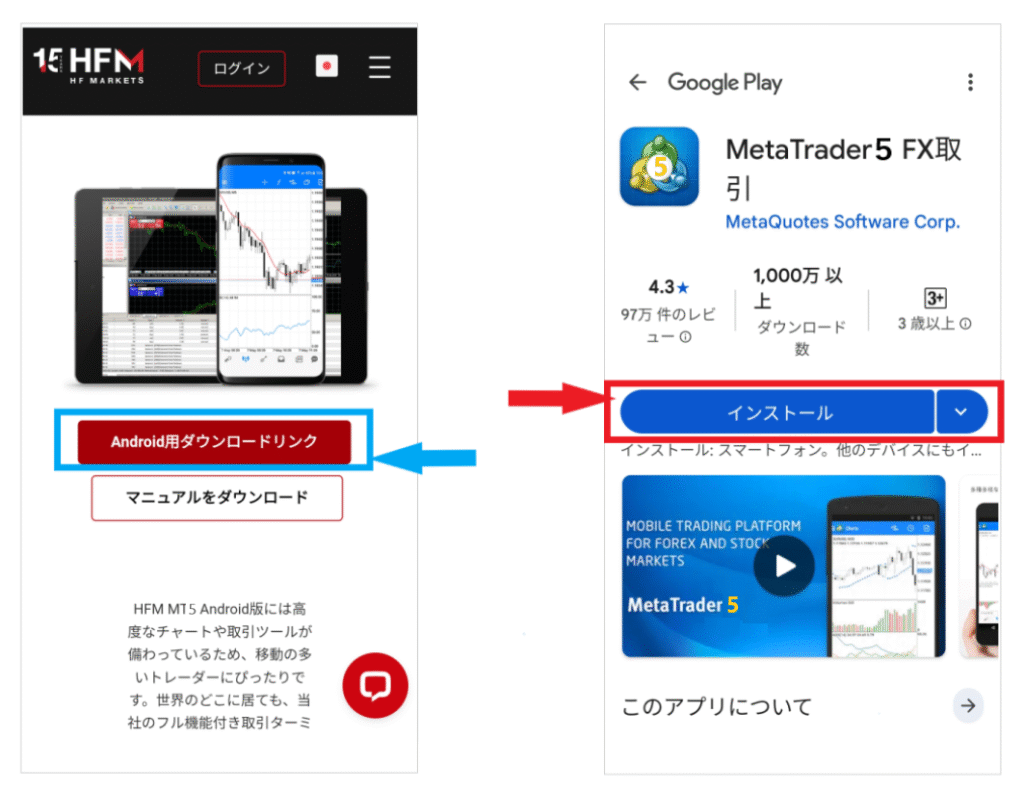
A download button for Android or iOS will appear;press the "Download" buttonto proceed to "Install".
How to install
The installation instructions are as follows:
When you press the "Install" button, the screen will switch to the installation process. Turning on "Automatically launch when ready" is convenient because it will automatically open when the installation is complete
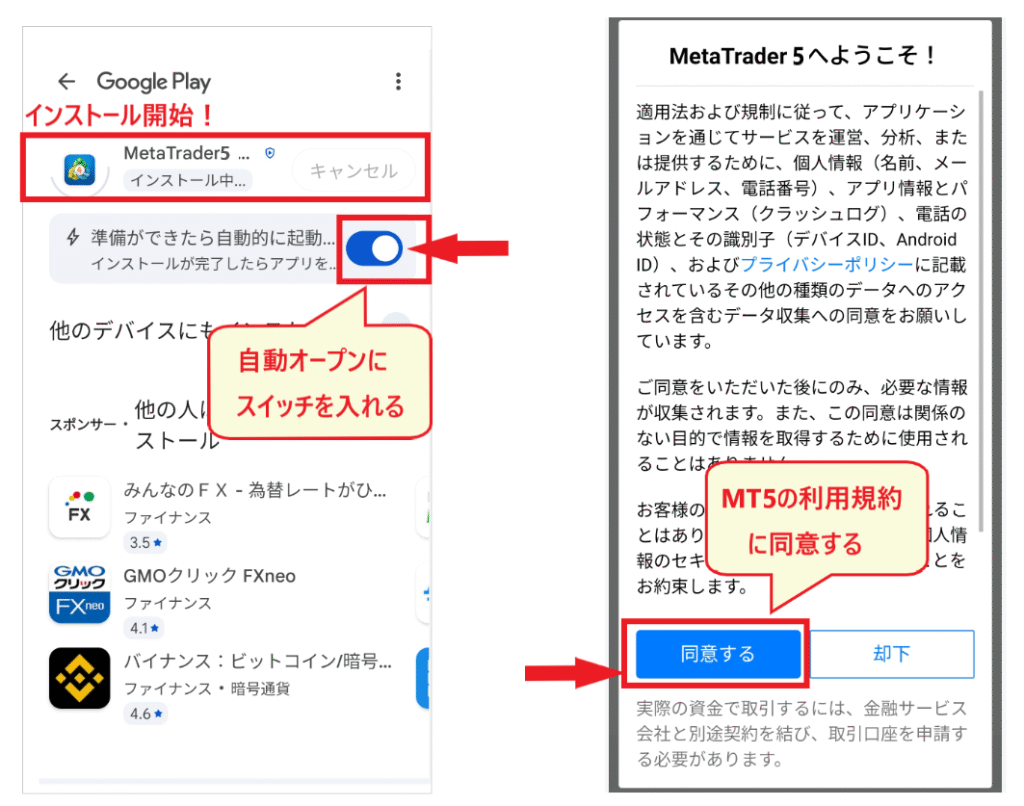
Once the installation is complete, the MT5 app will open.Tap "Agree" to the "Terms of Service." The screen will then switch to the MT5 screen.
At this point, the MT5 installationis complete. Close MT5 and confirm that the application has been installed.
Next, we will proceed to the initial login
How to log in to HFMMT5 app
Now, let's explain how to log in to the MT5 smartphone app
The following three things are required to log in:
- MT5 ID (account number)
- MT5 login password
- HFMserver name
MT5 Login ID and Password
Your MT5 login ID and password are different from yourHFMlogin ID and password. They are the ones sent in the "Account Opening Completion Email." Please check your email to find your ID and password
Your account number (MT5 ID) can be found in the myHF area under "Trading Account Information"
You can also reset your password from the "Account Information" settings screen
Password Reset
To reset your password, log in to myHF (member page) andopen your account details.
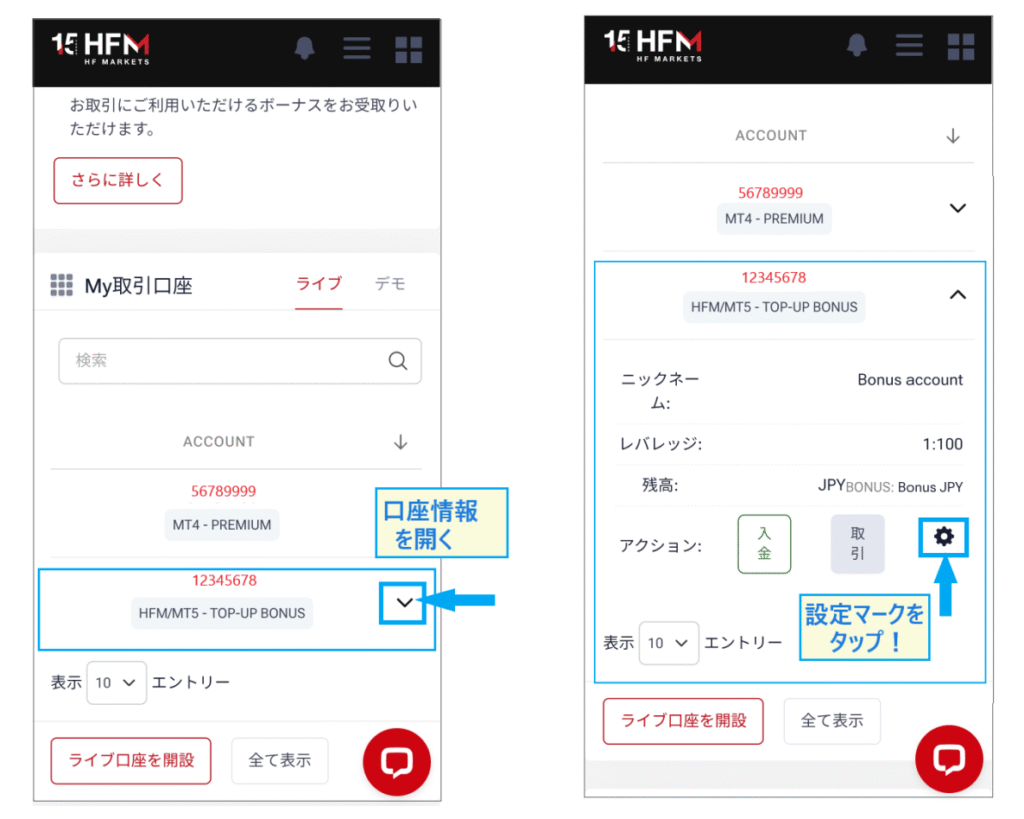
When you open your account information, a settings icon will appear at the bottom; please click on the settings icon
Select "Set Password" from the menu
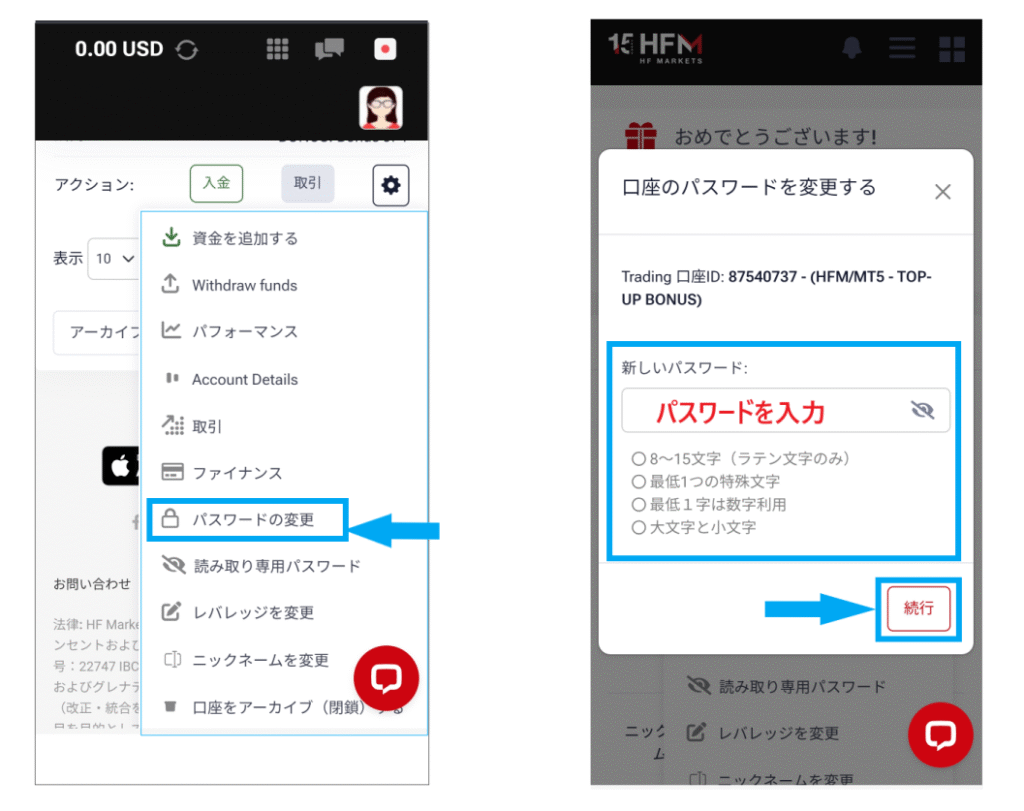
Enter your password on the next screen and tap "Continue ." You can then verify your password settings and change your password.
How to find HFM server name
HFMserver name can only be found in the "Account Opening Confirmation Email"
The "Account Opening Confirmation Email" is sent immediately after the procedure, and you might not know where to find it. If you can't find it, please contact customer support to confirm the server name
You can access customer support via the red chat icon in the myHF area (member screen)
How to log in to MT5
Now, let's move on to explaining how to log in
Step 1. Tap "Log in to an existing account"
When you open MT5, a "+" sign will appear. Tap the "+" sign and select "Log in to an existing account"
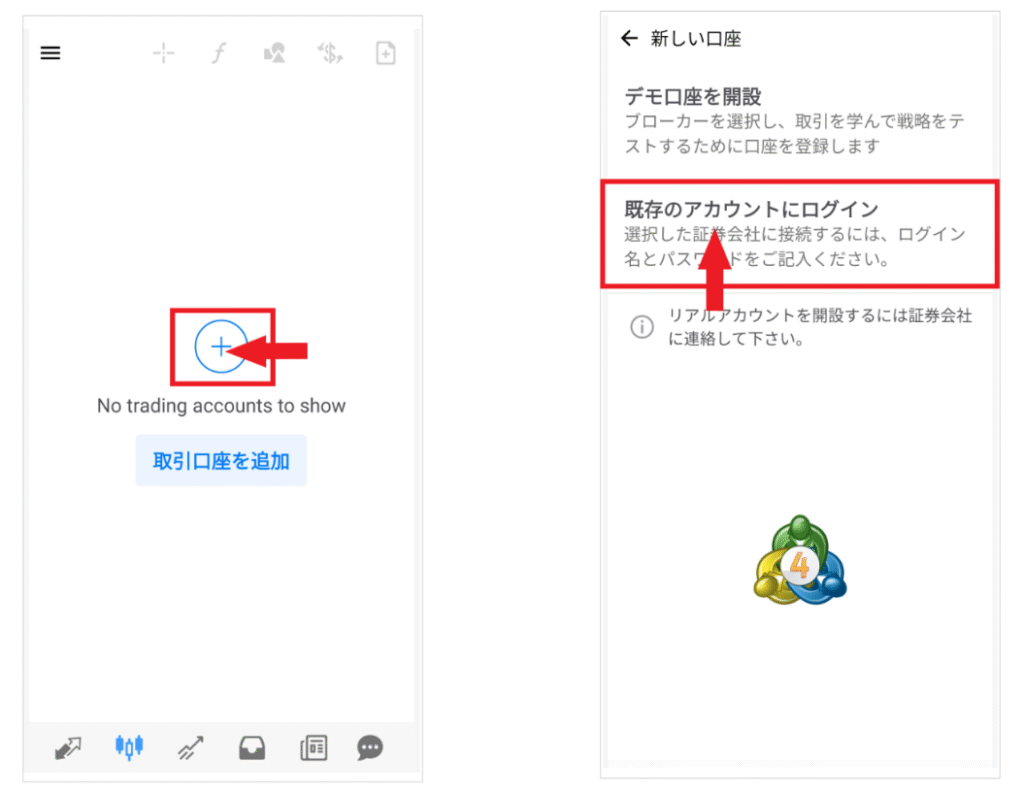
Step 2. Select the "Server Name" inHFM
The next screen will ask you to enter the name of the brokerage firm (overseas FX broker). In the case ofHFM, the company name is "HFMarkets (SV) Ltd", so if you enter "HFM", a list of server names will be displayed as shown below
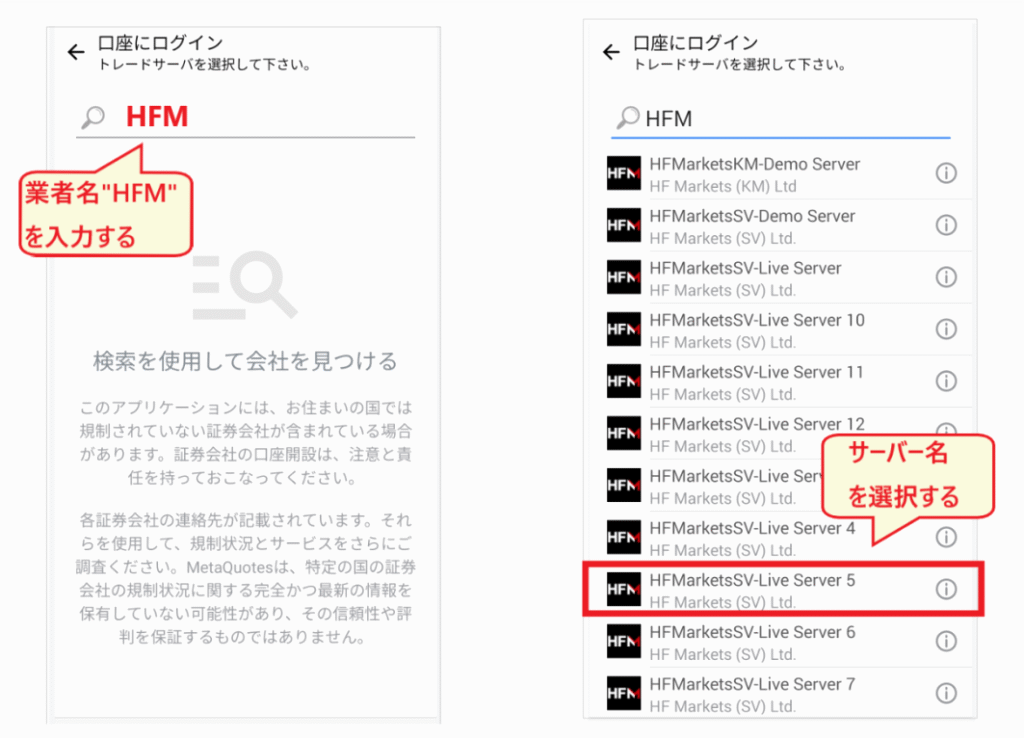
Select the correct server name and proceed to the login screen
Step 3. Log in with your ID and password
After selecting the server name, the login screen will appear.Enter your "ID (account number)" and "password," then tap "Login." Checking "Save password" will make future logins easier.
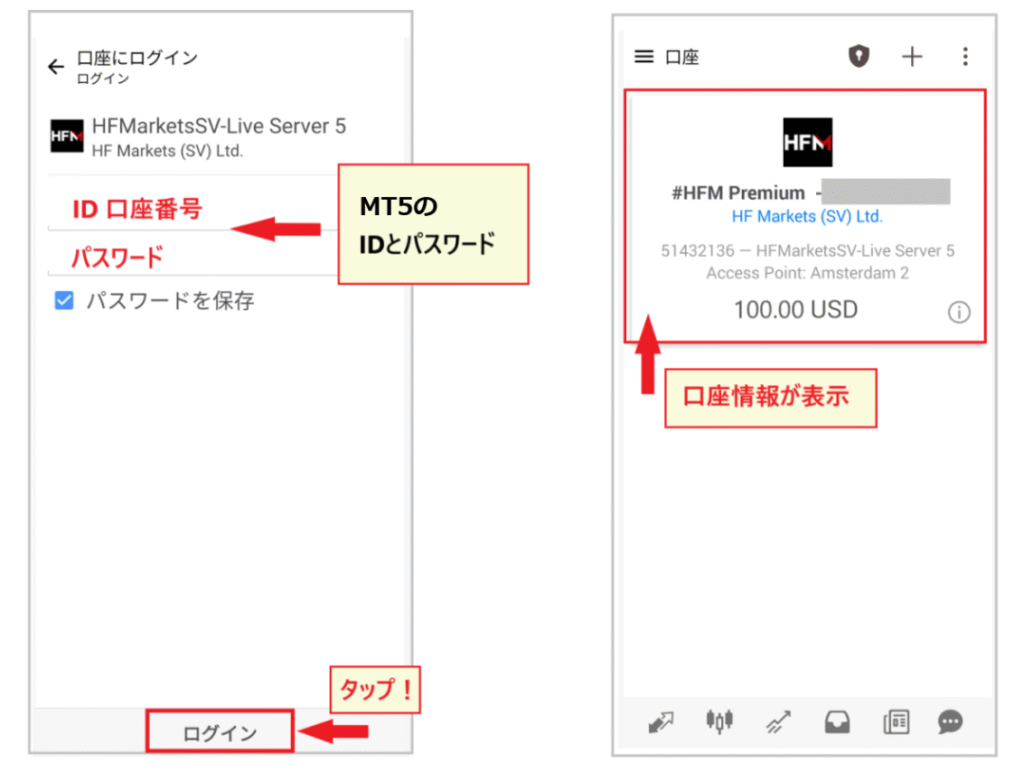
the account information screenappears, your login was successful.
If the account information screen does not appear, you may have entered the wrong "ID," "Password," or "Server Name." Be especially careful withHFMserver name, as it's easy to make mistakes
The following article explains leverage inHFMFrequency Market) trading. It is recommended to familiarize yourself with leverage before trading
Chart Window | Instrument | Transaction Details | How to Check | Price Point | Specifications | New Order | Order Placement | Transaction Quantity | Sell Order/Buy Order | Account History | New Limit Order/Stop Order | How to Modify | How to Cancel | Settlement Method | History | Cannot Log In | Recommended Indicators | Chart | Horizontal Lines | Limit Order | Stop Order | Pop-up Menu
→ Insert into the heading
HFM's MT5 App: How to View Menus and Basic Functions
Next, let's go over how to useHFMMT5 app together
First, let me explain how to read the menu in general terms
How to read the MT5 menu
When you log in to MT5, the first screen you see is the "Market Watch List." This is the main screen from which you can use the various menus to access the sections you need. If you get lost, returning to this screen will help you understand the process better
[Explanation of the menu for the price quote list]
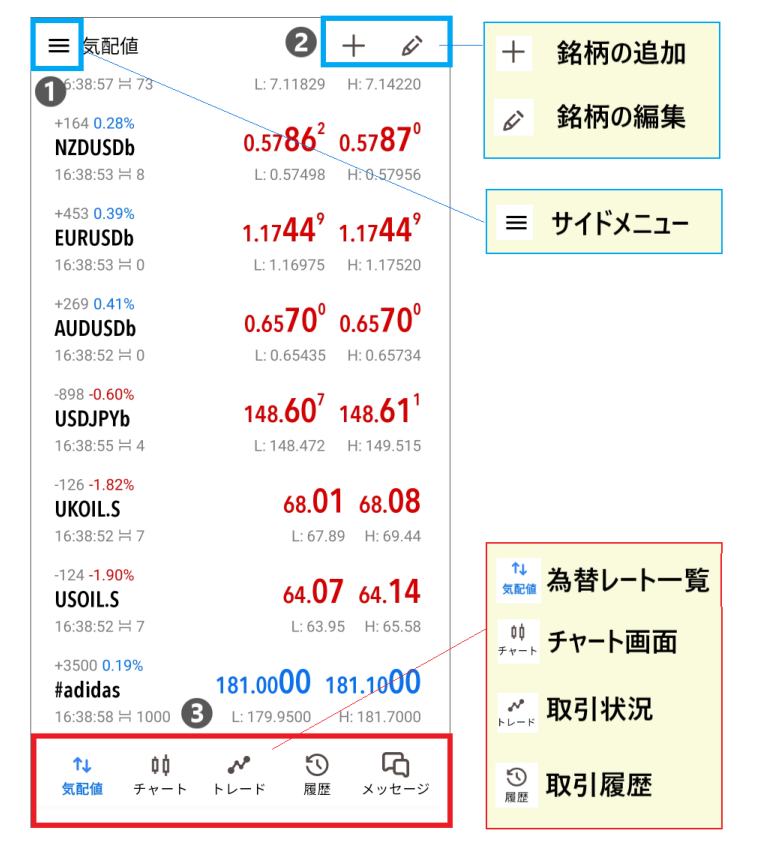
Let's start from the top left, ❶
- Side menu (for switching accounts, settings screen, etc.)
- You can add, delete, and edit stocks
- You can switch between main screens (rate list, chart, trading status, trading history)
The "Messages" section in the bottom menu contains service and other messages from MT5 (MQL5) in English. You can ignore them for now. If you're interested, feel free to read them
[Explanation of the side menu]
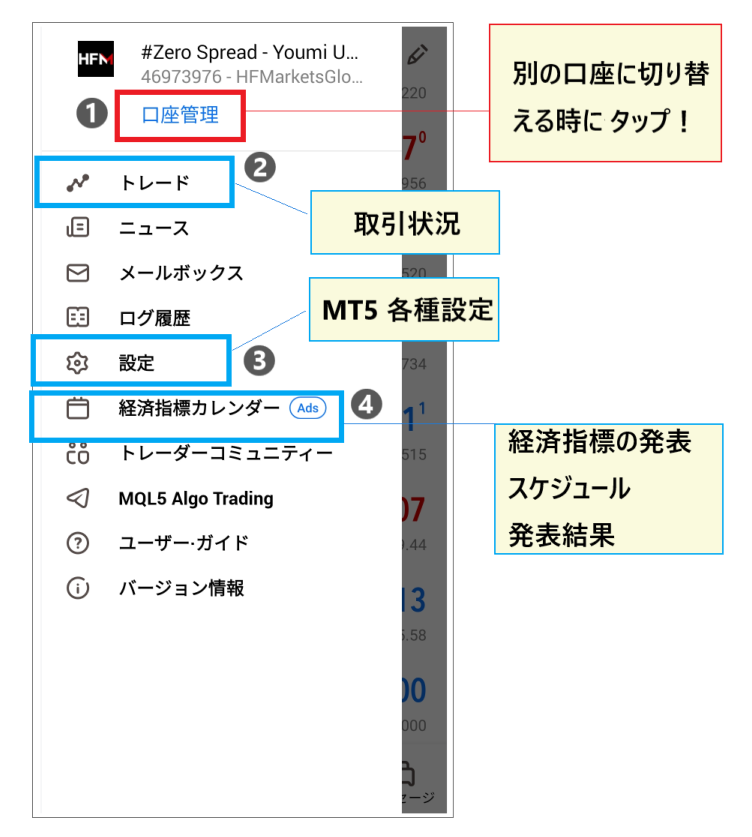
- Account management (allows switching to other accounts with other brokers orHFM)
- Trade (Go to the trading status screen)
- Settings (Configure various settings in MT5)
- Economic Indicators Calendar (where you can check the schedule and results of economic indicator releases)
Many of the side menu items aren't necessary at first, so remembering about four of them should be sufficient. You can gradually explore them once you've become more familiar with the controls
Basic functions of each screen in MT5
Next, let's look at the basic functions of each screen in MT5

[Indicative Price]
The "Quotes" menu displays a list of registered currency pairs and instruments . This screen allows you to select the currency pairs you wish to monitor
You can check real-time exchange rates, highs, lows, spreads, and more
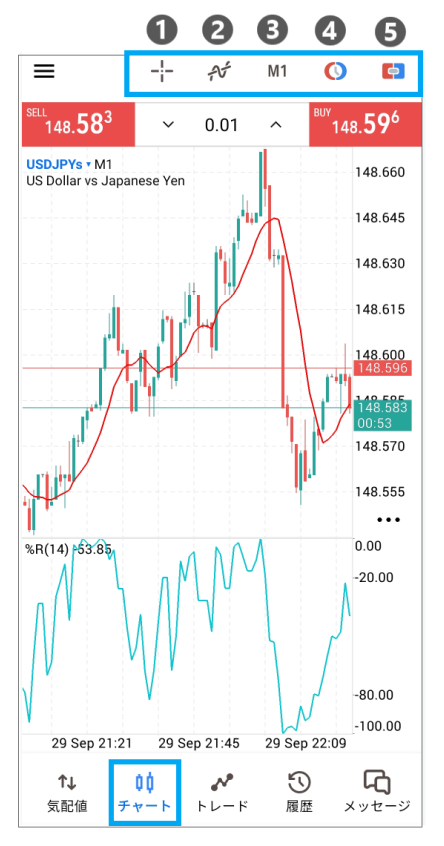
[Chart screen]
The chart screen is used for technical analysis. The menus shown above allow you to perform the following operations:
- Crosshair display
- Insertion of technical tools
- Display of the order screen
- Display one-click order button
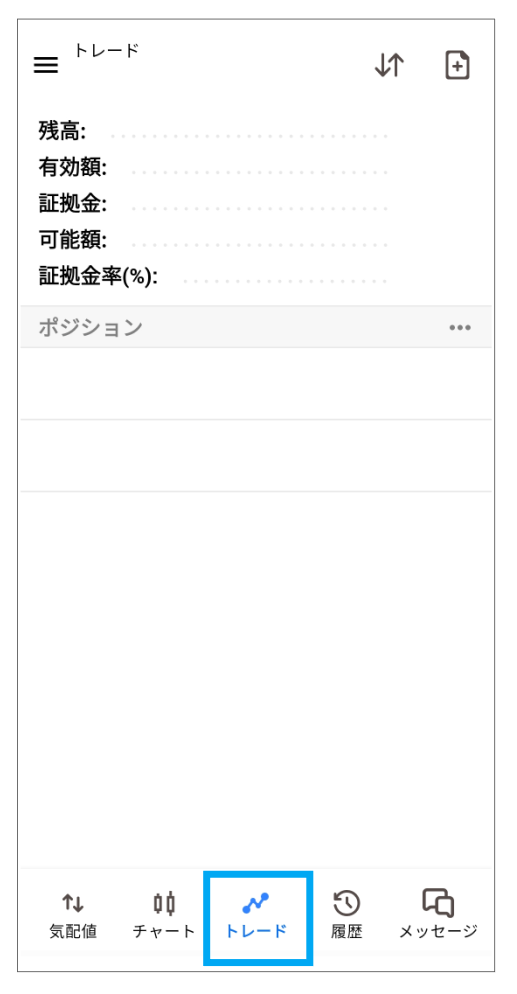
【trade】
The trading screen allows you to check your current trading status, including your balance, effective margin, margin, available funds, and margin maintenance ratio
The Positions section allows you to see all your current positions and their profit/loss status
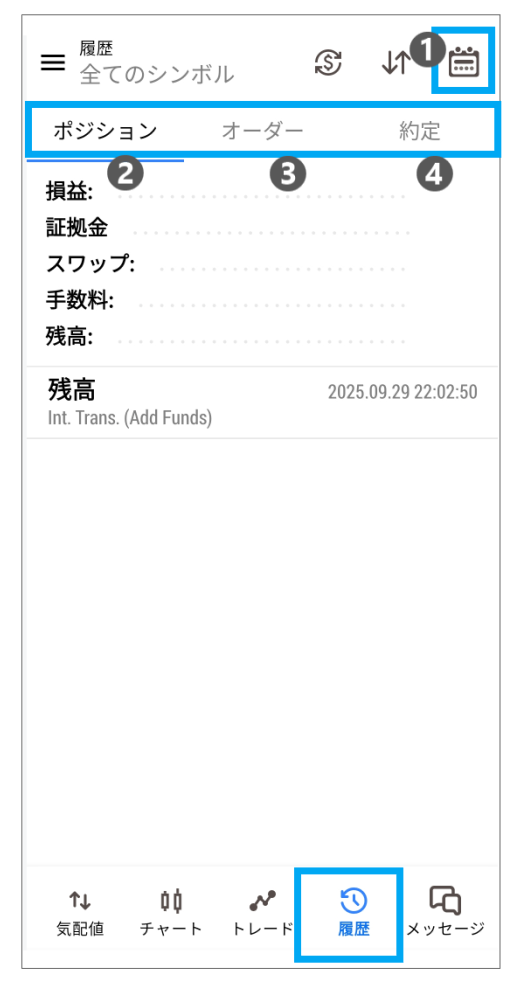
【history】
On the history screen, you can check four items
- Transaction history for a specified period, such as one day, one week, or one month
- Position history
- Order history
- Transaction history
This is used when you want to review past transactions or orders
The screens we've seen here represent the main functions of MT5. Try switching between the various menus in the section below to get a general understanding of where everything is located
HFMMT5 App: How to Set Up Currency Pairs
Next,HFMMT5 app let's look at how to set up currency pairs and instruments in
Add a currency pair/instrument to MT5
To add a stock symbol to MT5,go to the quotes screen and tap the "+" mark.
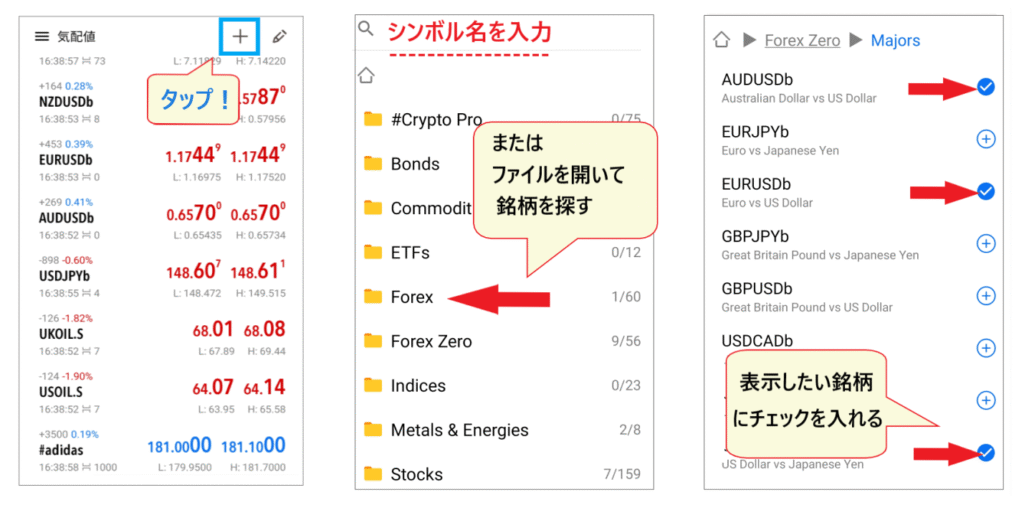
On the next screen, you can either enter the symbol name directly or open a file and find the symbol you want to display. If you open a file, a list of symbol names will appear; simply check the ones you want to display to complete the process
HFMis popular because of its wide variety of instruments, so it's a good idea to open other files besides currency pairsto see what other instruments are available.
Delete MT5 currency pairs/instruments
To delete a currency pair, go to the "pen icon" in the upper right corner, then to the "trash can icon"

To remove a stock from your bid/ask list, check the box next to the stock you want to deletetap the "trash can icon." Delete and add stocks as you like to create your own personalized portfolio.
Sort MT5 instruments
Another useful feature to remember is the ability to rearrange currency pairs and instruments. If you arrange the ones you use most often at the beginning, you can quickly check their rates at any time
To rearrange the stocks, press the "pen icon" in the upper right corner of the price quote list to access the symbol list screen. You can move a stock by long-pressing and dragging the "three-line icon" in the list
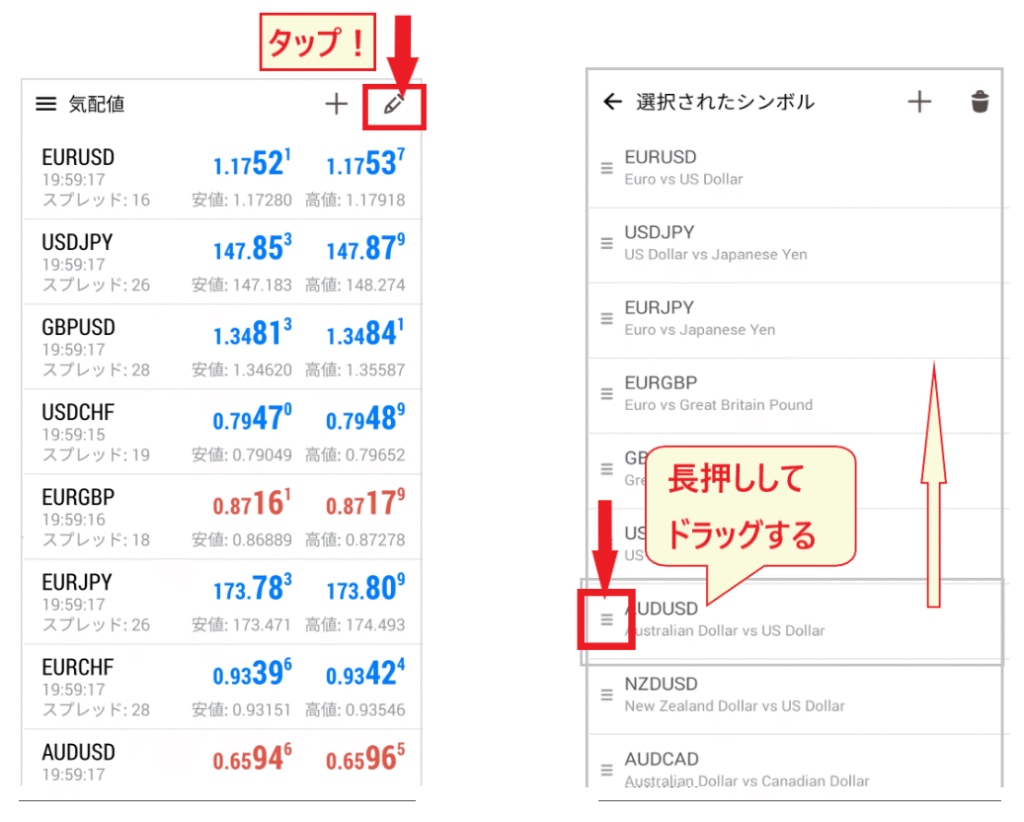
Try devising user-friendly methods, such as deliberately placing the stocks you want to compare one above the other
HFM's MT5 App: How to View Charts and Configure Settings
Next, I will explain how to use the chart screen
How to display the MT5 chart screen
There are two ways to display the chart screen
- Tap "Chart" in the bottom menu to switch screens (select currency pair)
- Tap on the currency pair to display the chart screen
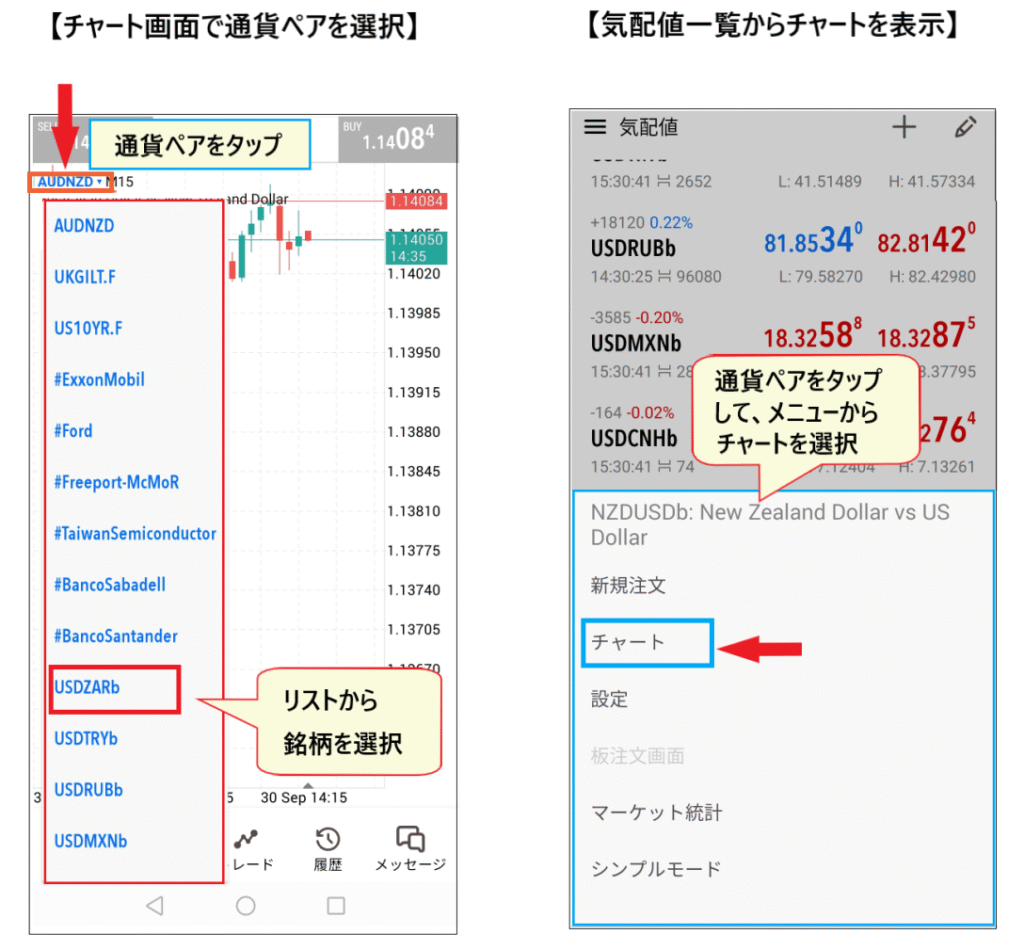
the chart screen from the menu, the last currency pair you viewed will be displayed on the chart. In this case, tap the currency pair in the upper right corner and select the currency pair you want to display from the list.
display a chart from the price quote list, tap on the currency pair you want to view. A pop-up menu will appear; select "Chart" to display the chart screen.
Set a purchase price line
One of the first things you should do when setting up your chartto set the "bid price line." By default in MT5, only the "sell price line" is displayed. If you only look at the "sell price line" and enter a "buy" order, the spread is often larger than you expected.
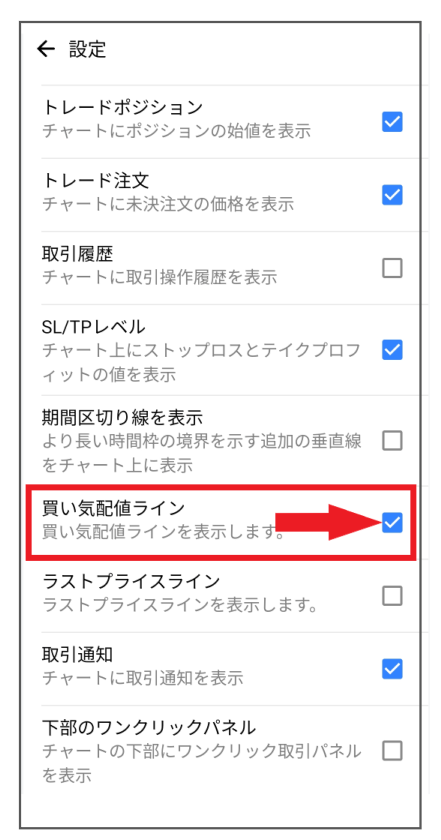
To display the "bid price line," first tap the "settings icon" in the upper right corner of the quote screen to open the "Settings" menu.Check the "bid price line" option in the settings list, and the "bid price line" will be displayed on the chart screen.
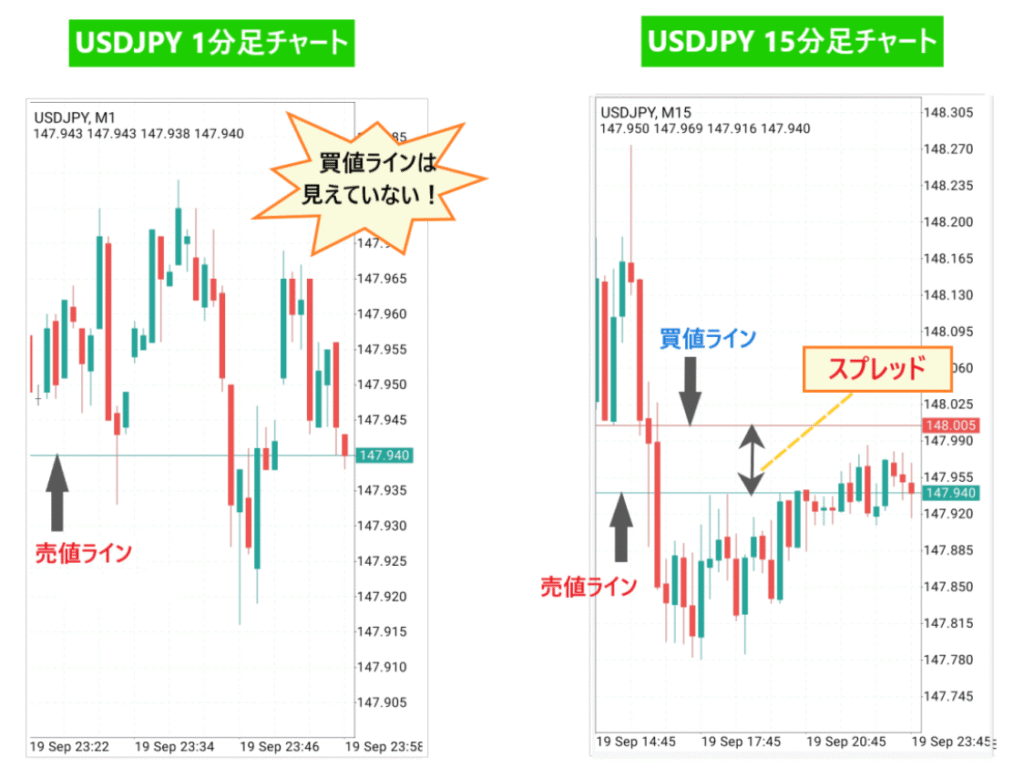
Especially withHFM(overseas forex), the spreads are somewhat wider, so if you don't set a "buy price line," you might be surprised after taking a position
Checking where the "buy price line" and "sell price line" are will lead to more careful entry into a trade
How to set the timeframe in MT5
Next, we'll look at how to set the time frame
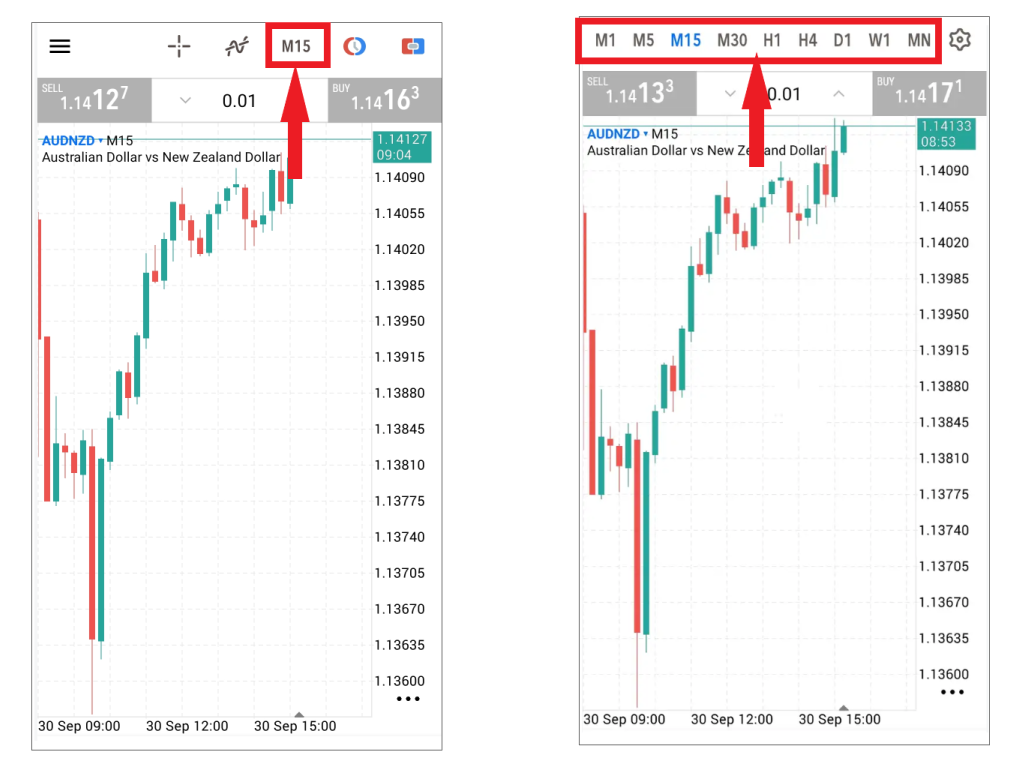
To change the time frame, tap "Time Frame" at the top and select the desired time frame
Show pop-up menu
You can also tap the chart screen to bring up a pop-up menu
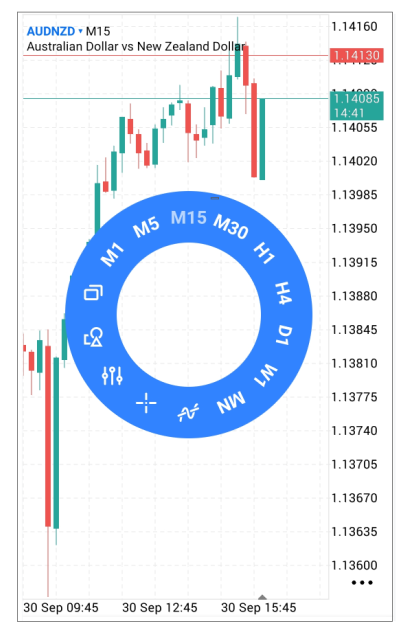
You can switch to your desired timeframe from the circular pop-up menu. The notation is as follows: "M = Minute", "H = Hour", "D = Daily", "W = Weekly", and "M = Month"
Add a timeframe
You can add a timeframe"Timeframe" → "Settings icon" in the top menu. Tapping the "Settings icon" will display a list of timeframes.
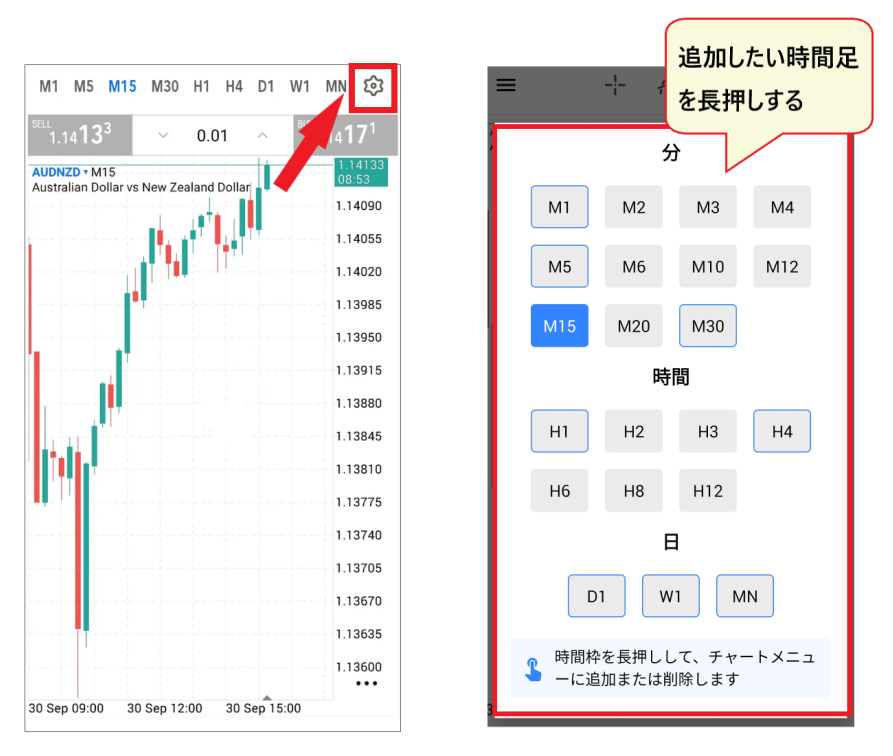
To add a timeframe, simply long-press the timeframe you want to add from the list of timeframes
Zooming in and out of MT5 charts
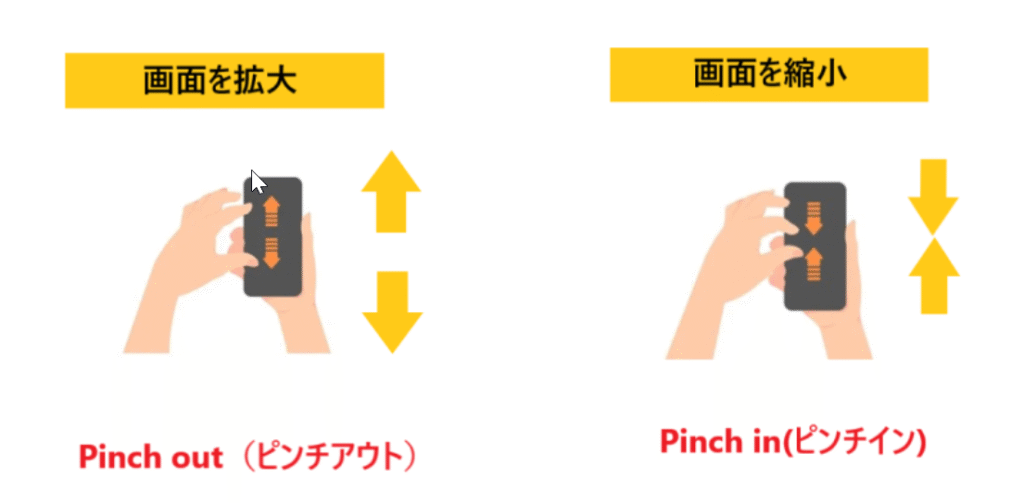
When adjusting the size of an MT5 chart, you can zoom in by separating two fingers and zoom out by bringing them together, just like with a regular smartphone
How to insert an indicator
insert indicatorsfrom the "wave icon" at the top of the chart screen.
Tapping the "wave icon" will display the indicator settings screen.Tapping the "f icon" on the main chartwill display a list of indicators. All indicators will appear, so be sure to select oscillators as well.
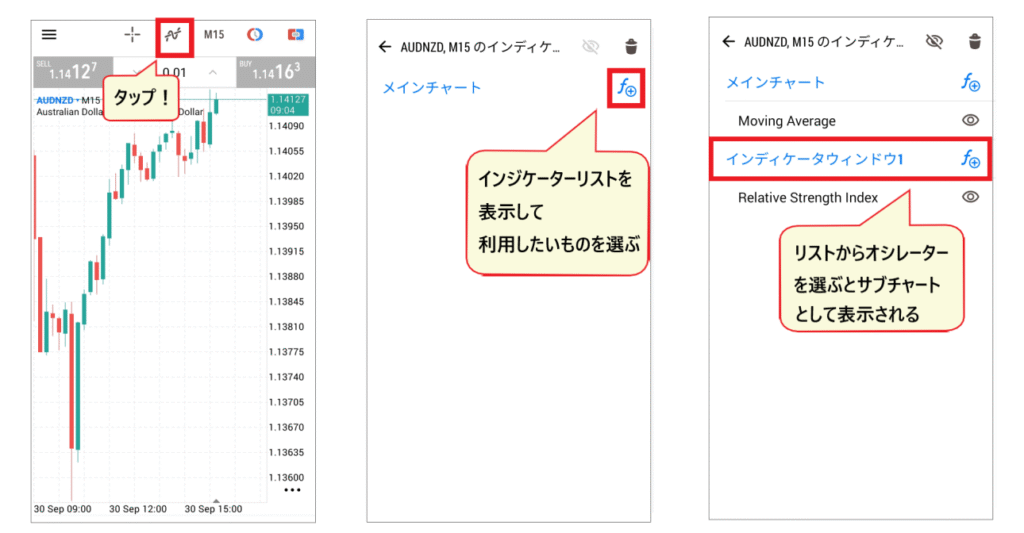
Trend indicators are displayed on the main chart, while oscillator indicators are displayed on the sub-chart.The wide variety of indicators availableis a major advantage of the MT5 app. Try experimenting with different indicators to find what works best for you.
Recommended indicators for MT5 beginners
Here are some recommended indicators for beginners using the MT5 app
Let's start by using the default settings
[Trend-related]
- Moving Average (moving average line)
- Bollinger Band
- ZigZag
- Aliigator / Bill Williams
If you're looking to add indicators to your main chart, the first one you should definitely add is the "Moving Average." Other easy-to-use indicators like ZigZag and Alictor are also worth trying
[Oscillator type]
- Relative Strength Index (RSI)
- Relative Vigor Index (RVI)
- William Percentage
- Volumes
Along with moving averages, the RSI (Relative Strength Index) is a staple in technical analysis. Its simplicity and ease of use make it ideal for beginners. Many traders include the RSI regardless of the other indicators they use. It's also possible to insert multiple indicators simultaneously
Hide indicators
Next, let's look at how to hide the indicators
To hide an indicator,tap the "Show" icon next to the indicator you want to hideand it will no longer be displayed on the chart.
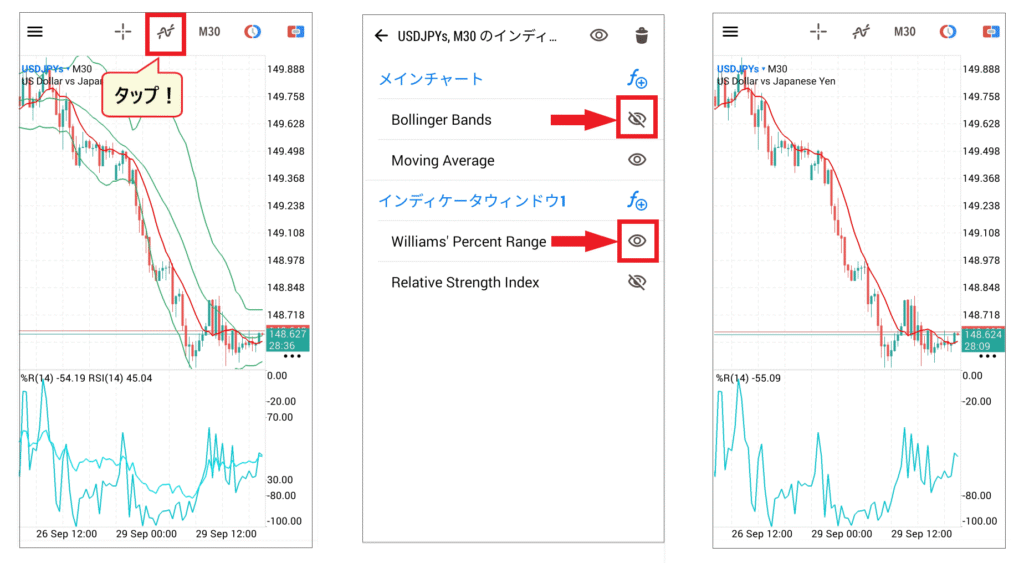
To display an indicator that you've hidden, simply go back to the indicator's screen andtap the "hide" iconto turn it ON. You don't need to delete them if you might need them again, so registering several indicators makes switching between them easy.
How to delete an indicator
To delete an indicator,the "wave icon" at the top of the chart screen, then tap the "trash can" icon. Check the items you want to delete, and then tap the "trash can" icon again to complete the process.
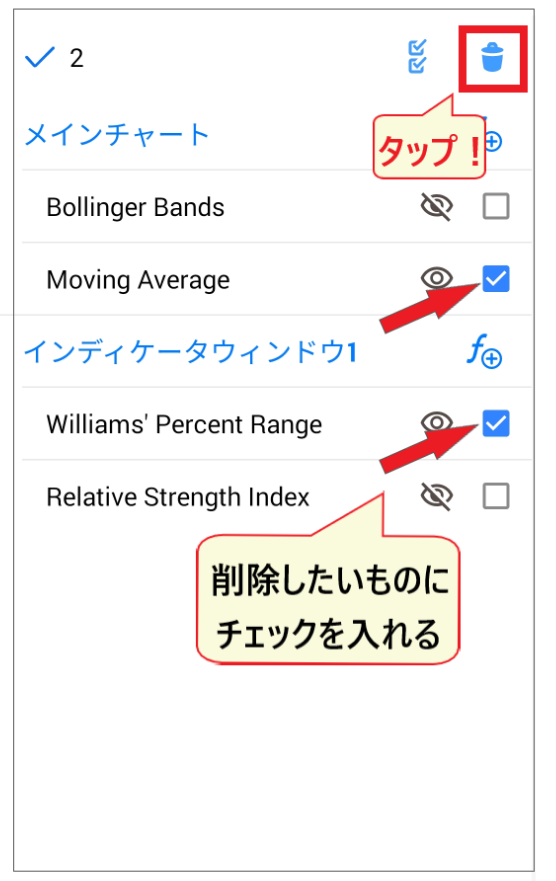
Get familiar with the operation by inserting and removing various types of indicators
Set the economic calendar to Japanese
Now, alongside technical analysis, another thing you should master is the release of economic indicators (fundamental analysis)
The "Economic Calendar" built into MT5 is highly recommended because it allows you to easily check the calendar while trading or analyzing. However, it may be initially set to "English."how to change the "Economic Calendar" to Japanese.
Open the side menu and select "Economic Indicators Calendar." Next,tap the "Settings" icon.
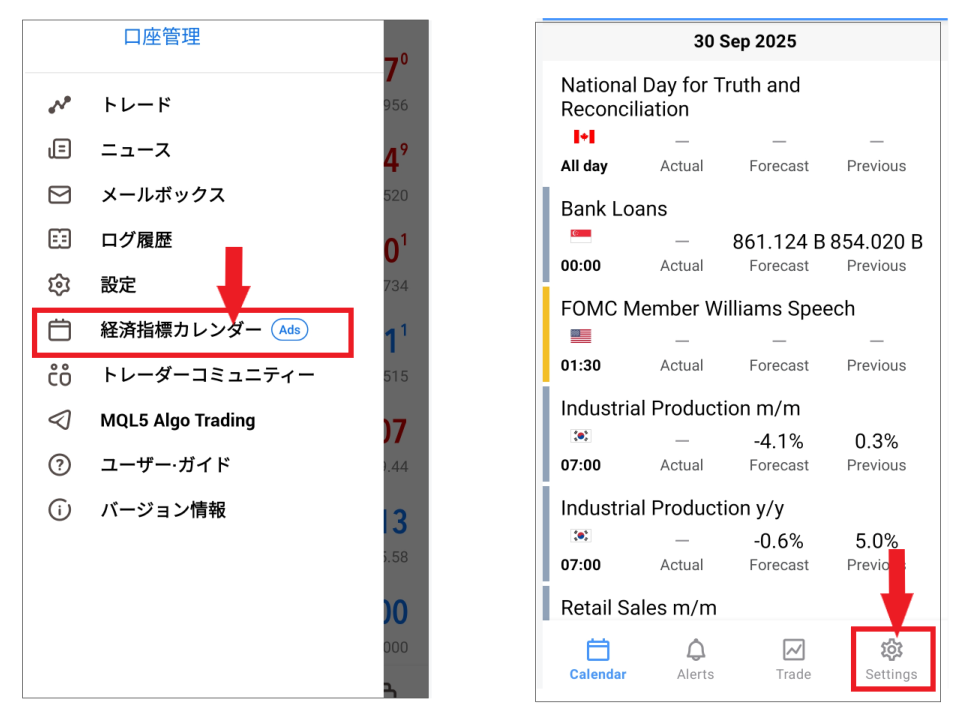
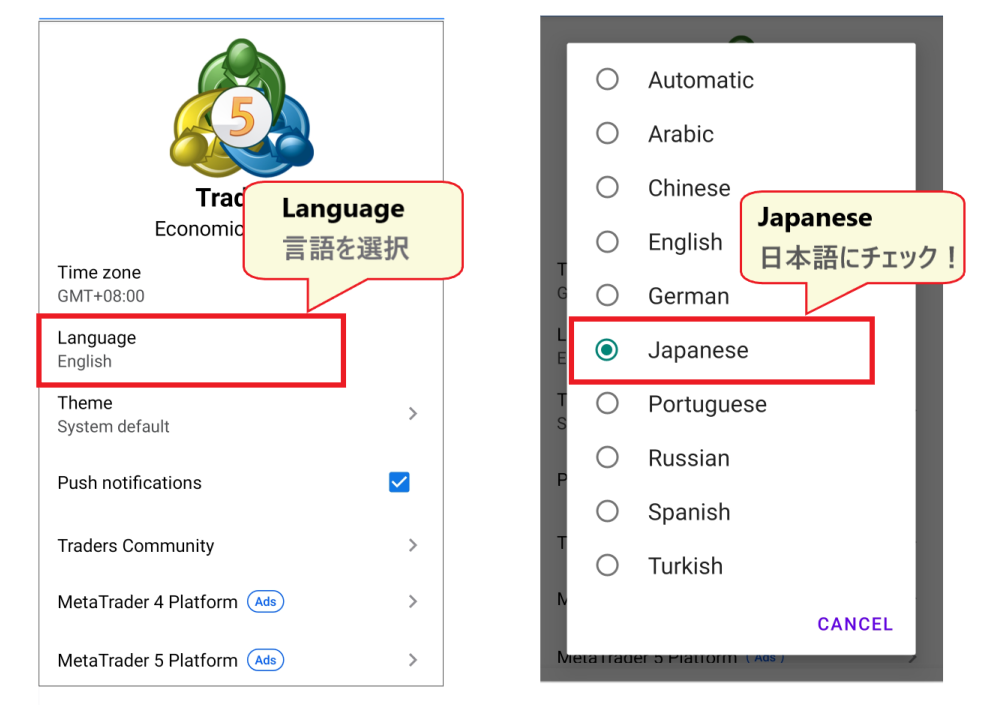
From the settings menu, select "Language." On the next screen,check "Japanese" to complete the process. The economic calendar will now be available in Japanese.
To begin with, let's familiarize ourselves with the terminology by checking out what kinds of economic indicators exist
By the way, the following article introducesHFM's scalping method. Please take a look for reference
HFMMT5 app: Show and delete split charts
Next, we'll discuss advanced MT5 charting techniques. The MT5 app allows you to split the chart into two sections,enabling you to display two different instruments or timeframes simultaneously.
Let's take a look at how to create a two-part chart
How to display a chart in two sections
To split the chart into two, first tap on the chart to display the pop-up menu. From the menu,tap the "two charts icon".
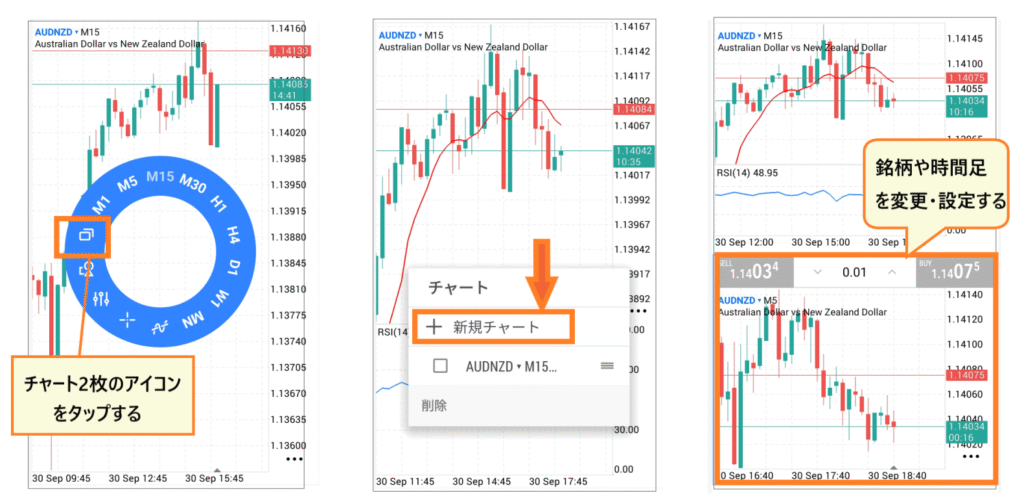
A new chart will appear in the lower section, allowing you to change either one to your desired instrument or timeframe
How to delete a split chart
To delete the split chart and return to a single chart,tap on the chart you want to delete and select the "two-screen icon".
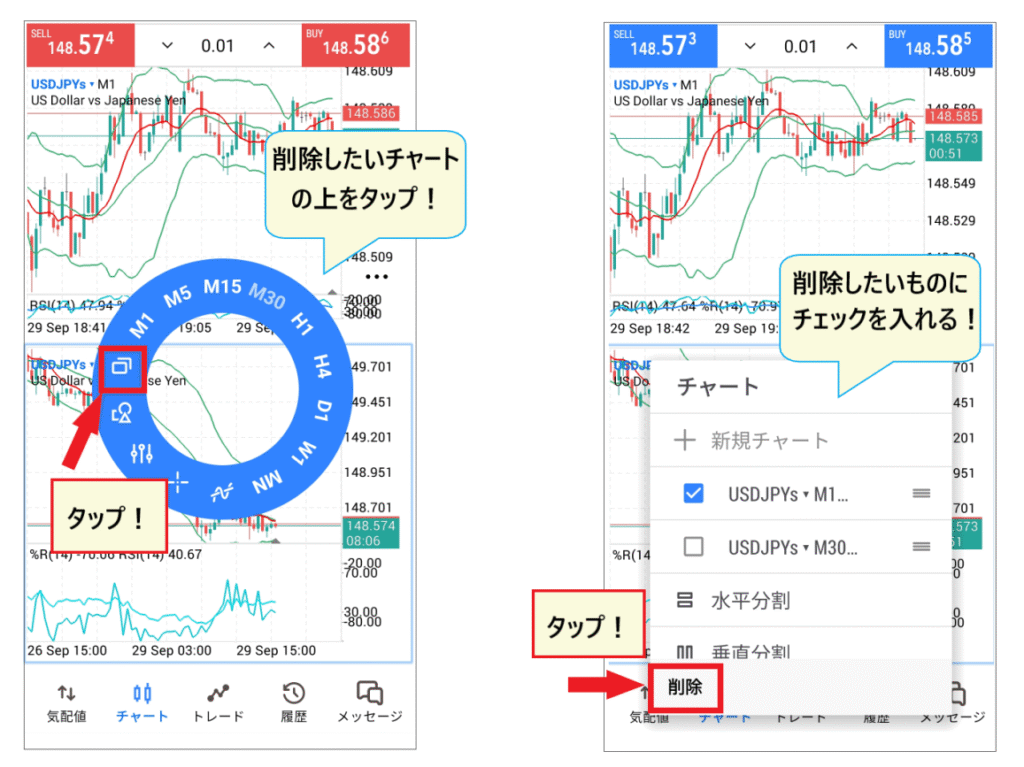
When the pop-up window appears,check the chart you want to delete and tap "Delete." That's it! The chart screen will now display only one chart. Even in limited space, you can perform effective technical analysis with just two charts. Give it a try!
HFM's MT5 app: How to place an order to take a position
Now, let's move on to the most important part of the MT5 app: how to place orders
There are three ordering methods you should remember
- Market order (order placed and executed immediately)
- Limit order (placing an order at a specified rate)
- Stop-loss order (Place an order to buy if the price rises, and sell if it falls)
Let's start by looking at how to access the order screen in order to place an order using each method
How to access the MT5 order screen
There are two ways to access the order screen: from the price quote list and from the chart screen
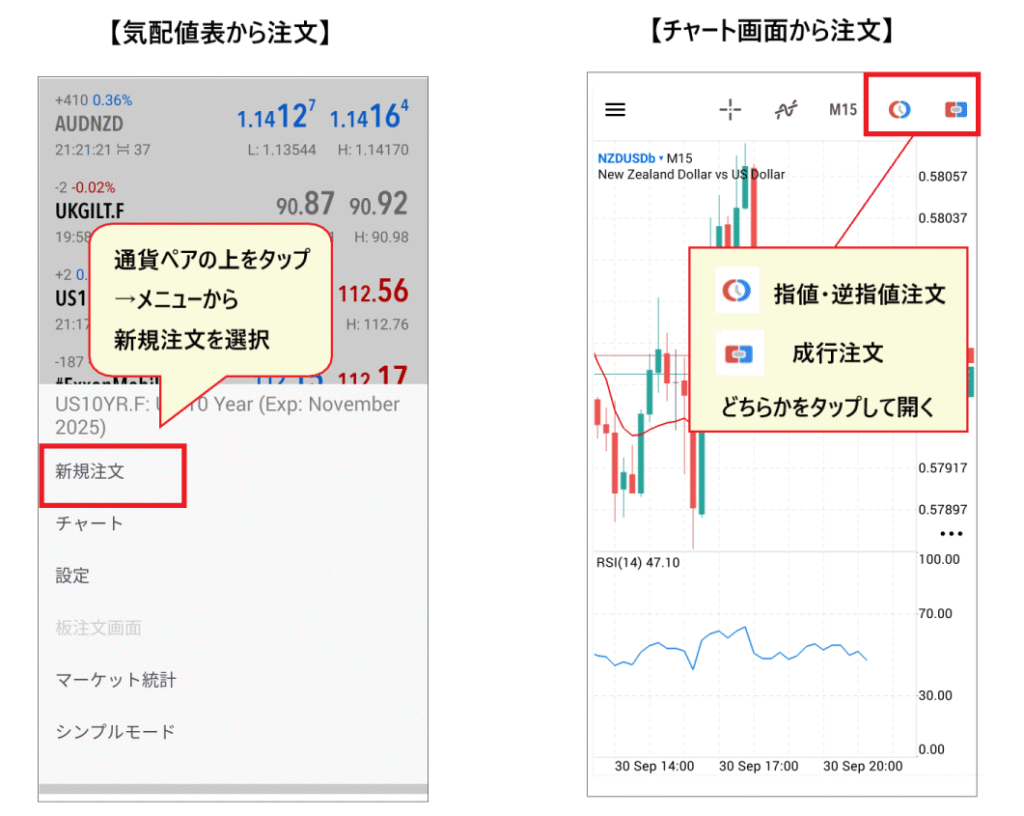
From the quote list, tap on the currency pair and select "New Order."From the chart screen, you can display the order screen by selecting either "Limit/Stop Order" or "Market Order" from the top menu.
Once the order screen is displayed, you will set the various conditions according to your ordering method and then place your order
Let's look at each ordering method in order
Take a position using a market order in MT5

A market order is a method of making an immediate buy or sell decision based on the real-time exchange rate's buy and sell prices
- Select "Market Order" from the pull-down menu
- Use + and - to set the lot size
- Check the purchase price and selling price
- Leave it as "0"
- Check the movement on the tick chart
- Once you've made your decision, place a buy or sell order
You place a market order when you want to buy or sell at the current price. However, be aware that the execution price may differ from the current price
This is the most commonly used order type in FX trading
Take a position using a limit order in MT5

When you want to wait for a specific buy or sell price, rather than the current price, you use a limit order
- Select limit order from the pull-down menu
- Set the lot size using + and -
- Check the purchase price and selling price
- Adjust the rate
- No need to touch it
- Set an order deadline (optional)
- Check the tick chart
- Press the order button to confirm your order
Limit orders have the objective of "buy if the price falls further" or "sell if the price rises further."
This is effective when you want to carefully analyze the situation and trade cautiously
Take a position using a stop-limit order in MT5
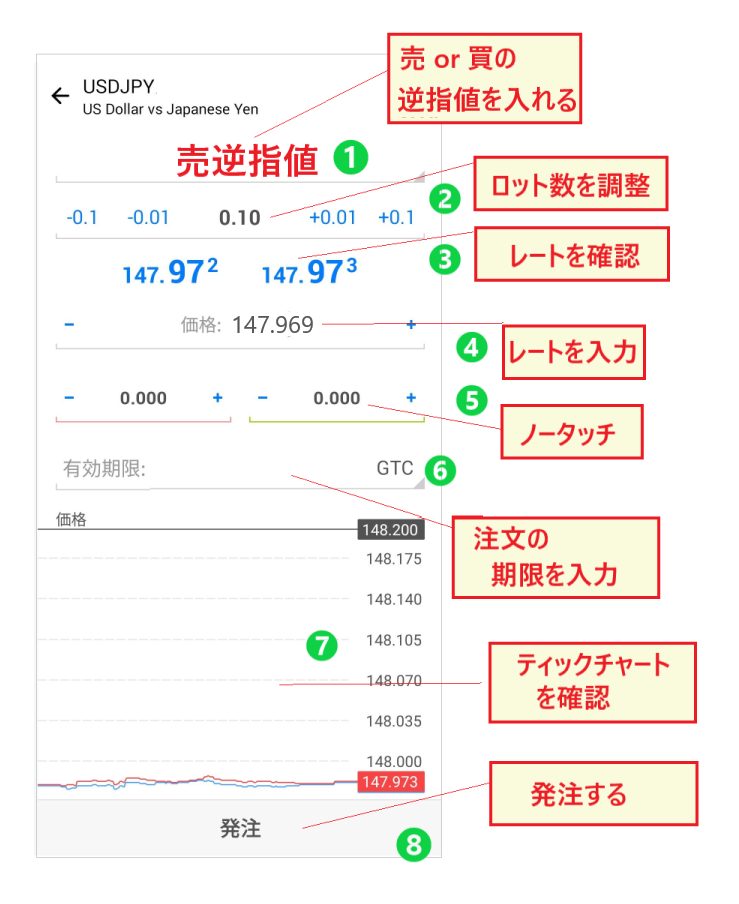
If you want to enter a trade by following the trend after determining whether the price is rising or falling, you can also use a stop-limit order
- Select either a buy stop order or a sell stop order
- Set the lot size using + and -
- Check the purchase price and selling price
- Set the rate
- No need to touch it
- Set an order deadline (optional)
- Check the tick chart
- Press the order button to confirm your order
This is used when you want to buy or sell after the trend has completely reversed
How to modify and delete limit and stop orders in MT5

Limit and stop-loss orders can be modified or deleted
Press and hold the position you want to delete, thentap "Delete Order" or "Modify Order" in the pop-up menu.
To make changes, re-enter the information on the order screen; to cancel, confirm the cancellation to complete the process
MT5 Limit and Stop Orders are controlled using order lines on the chart
Another very convenient feature of the MT5 appyou can change limit and stop orders by manipulating the order lines on the chart screen.
This explains how to operate the order line
STEP 1. Display the order line on the chart screen
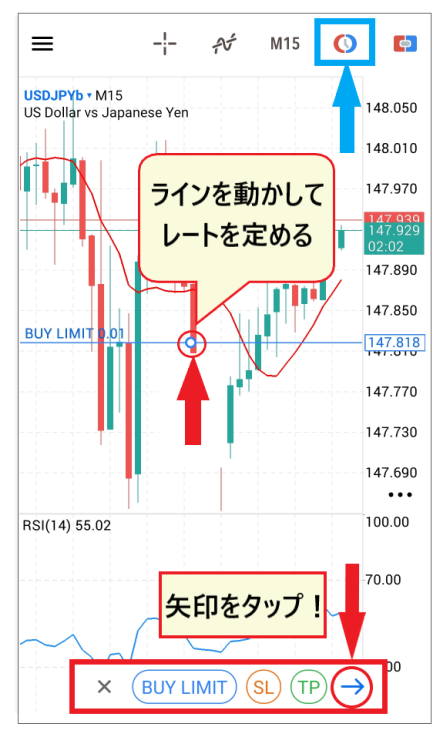
Tap the "order mark" at the top of the chart screen and move the line to determine your entry point
Once you've placed the line where you want to buy or sell, tap the arrow.
STEP 2. Check the order screen and place your order
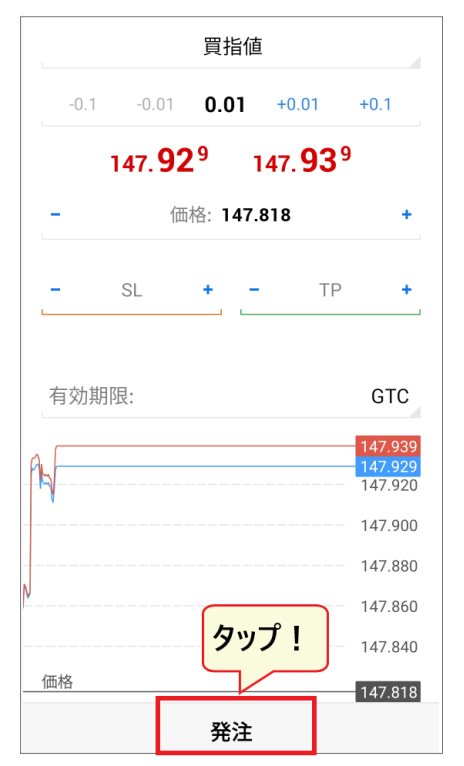
The order screen will appear, socheck the rate andtap the "Place Order" button.
This confirms the order line you set on the chart screen. The order will be executed when the price touches the order line
STEP 3. Drag and change the order line on the chart screen
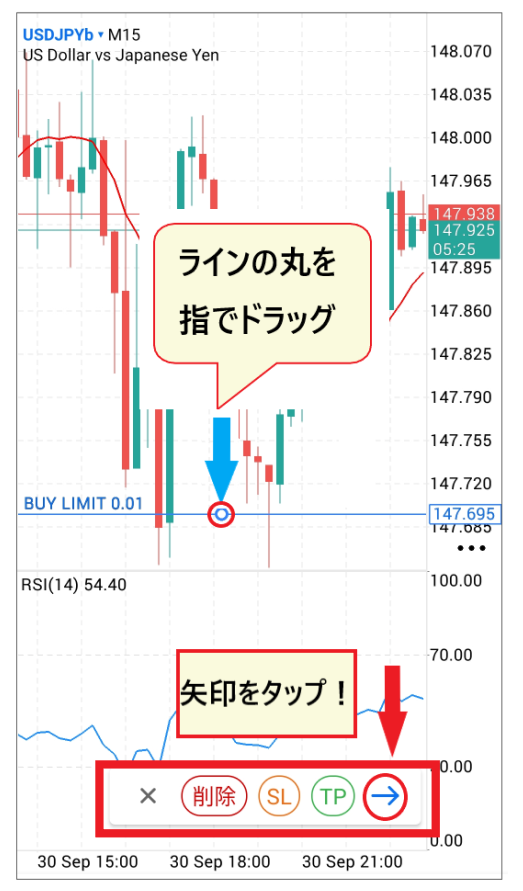
Tap the order line displayed on the chart with your finger. The line will turn blue
on the chart screenwith your fingerto move it to the rate you want to change it to.
Once you've decided on the order line location, tap the arrow that appears below
The order screen will appear, so press the "Change" button to complete the order modification
The order placement method using horizontal lines on the chart screen requires no detailed input whatsoever. Rates are automatically inserted, making order placement simple. If you prefer to trade visually on the chart screen, give it a try
HFM's MT5 app: How to set stop-loss and take-profit orders
Next, I will explain how to cut losses and take profits
Stop-loss and take-profit orders are sometimes referred to as "ST" and "TP" in MT5
- ST = Stop
- PT = Take Profit
"Stop Loss" refers to cutting losses, and "Take Profit" refers to taking profits. It's useful to remember these terms if you're going to start using MT5
Let 's start by looking at how to set stop-loss and take-profit orders using market orders
Market order with stop-loss and take-profit
If you want to place a stop-loss or take-profit order with a market order, you can long-press the position to display the settlement screen
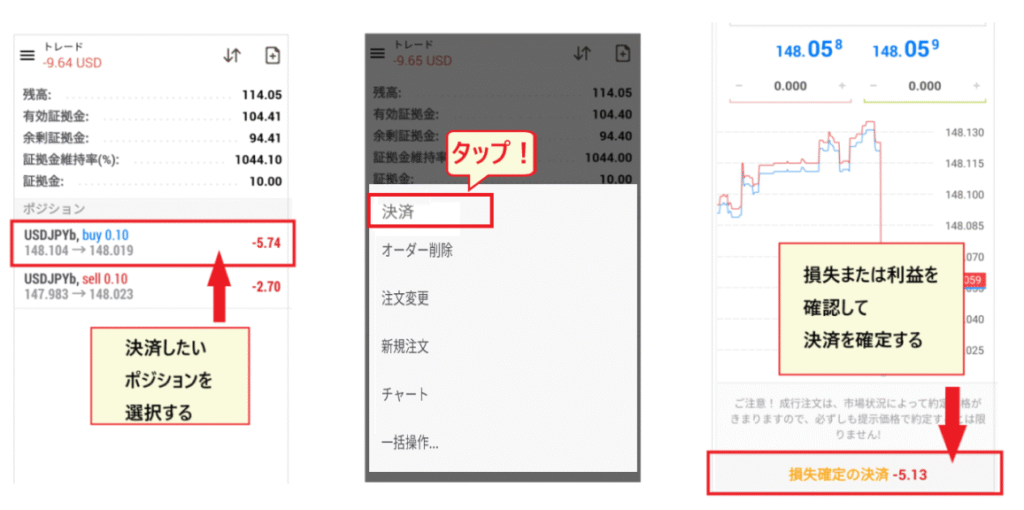
When you tap "Settle," the real-time rate and profit/loss amount will be displayed.If there are no problems, press the "Confirm" buttonto finalize the loss or profit.
Limit and stop-limit orders for stop-loss and take-profit
Next, we will explain how to set "stop-loss" and "take-profit" orders on your open positions using limit and stop-limit orders
- Stop-loss... Buy position (stop-loss order for sell) / Sell position (stop-loss order for buy)
- Profittaking... Buy position (buy limit order) / Sell position (sell limit order)
The direction of stop-loss and profit-taking differs between "buy positions" and "sell positions," so be careful not to make a mistake

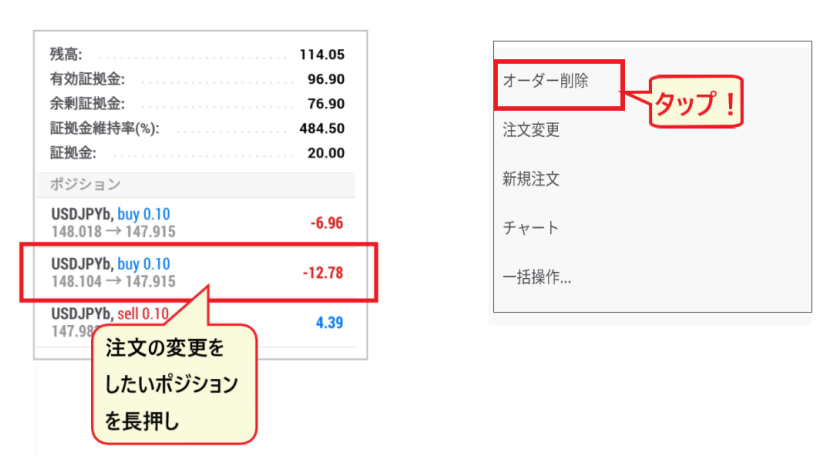
For a buy position, you enter the price level at which you want to cut your losses and the price level at which you want to take profits on the order screen. Conversely,for a sell position,you enter the price level at which you want to cut your losses and the price level at which you want to buy, as shown in the diagram above, and then complete the order by clicking the "Change" button.
How to change or delete stop-loss and take-profit levels
Stop-loss and take-profit orderscan be modified or canceled later. To cancel an order, long-press the position and select "Delete Order." To modify an order, tap "Modify Order" in the bottom row.
Controlling stop-loss and take-profit positions on the chart
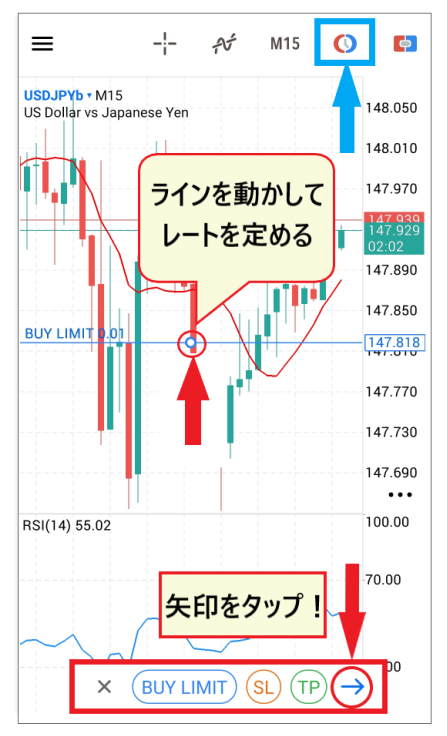
You can also manipulate stop-loss and take-profit levels by moving the order lines from the chart screen
You can change the order rate by dragging the circle in the center of the line with your finger
If you wish to delete an order, select "✕" from the order type displayed below to cancel the order
When placing buy and sell orders in MT5, you may unintentionally make mistakes when you are excited by profits or, conversely, shaken by the shock of losses. In real-time live trading, it is not uncommon to panic due to unpredictable currency movements
To avoid making mistakes during the actual performance, it's ideal to perfectly master at least the basic, unstructured approach
Solutions for when you can't log in to HFM MT5
Even after installing HFMMT5 app, you may sometimes be unable to log in for various reasons
Finally, wewill explain the causes and solutions for when you cannot log in to MT5.
There are several possible reasons why you might not be able to log in, so the key to solving the problem is to find the cause
Reasons and solutions for being unable to log in to MT5
If you are unable to log in to MT5,your "ID," "Password," or "Server Name"is incorrect. A common cause is selecting the wrong "Server Name." Please double-check the correct information.
Even if you try again from the same login screen, you may not be able to log in because your previous login information is still recorded. First,try restarting the MT5 app.
Causes and solutions when MT5 is not working
If MT5 isn't working, firstwhether the problem lies with your PC or specifically with MT5. Check if your browser and other applications are working correctly. If the problem is with MT5, try uninstalling and then reinstalling it.
If you're experiencing problems with your PC,try turning it off (this is important!)and restarting it to see if that helps. It's also possible that you don't have enough memory, so take this opportunity to uninstall any unnecessary files or apps.
In rare cases, the problem might simply be that you forgot to pay your monthly fee, or there might be an issue with the local network connection, so it's worth checking those as well
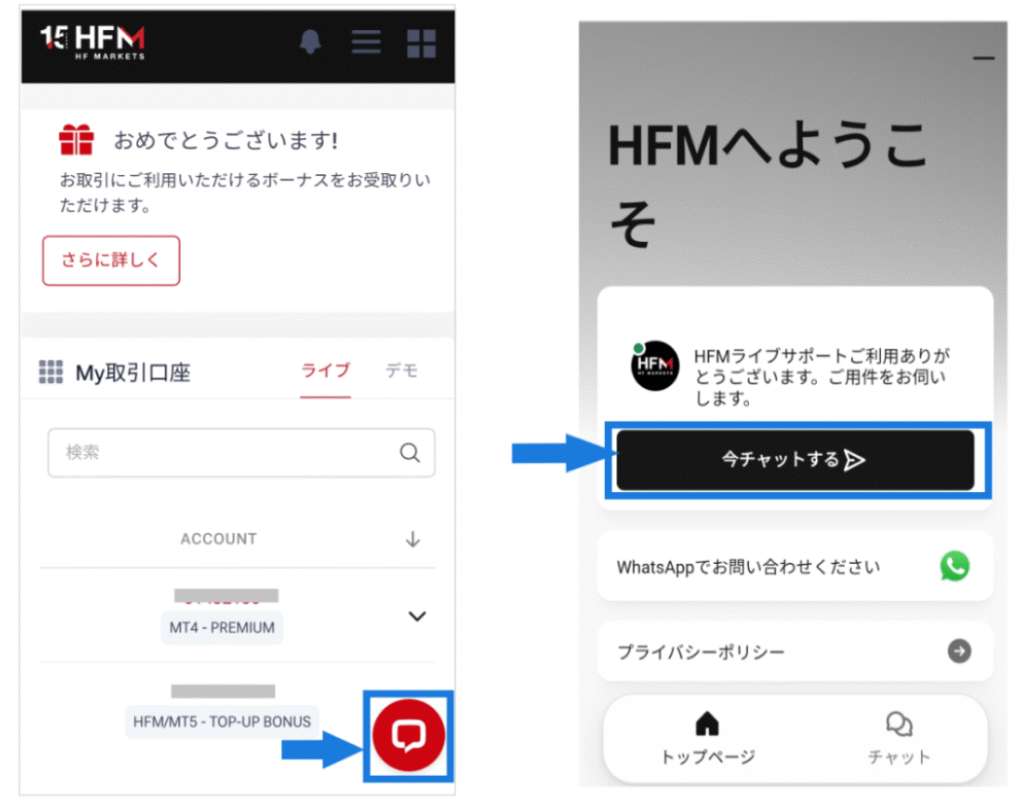
HFMCustomer Service Contact Information
If you absolutely cannot solve the problem yourself or cannot figure out the cause,n't hesitate to contact customer support immediately.HFM's customer support is often available via live chat during weekday business hours (9:00 AM to 12:00 AM Japan time). It is especially easy to get through during daytime hours, so please try contacting them.
If we are unable to communicate via chat, you can send an email and we will contact you on the next business day
[Email Inquiry]
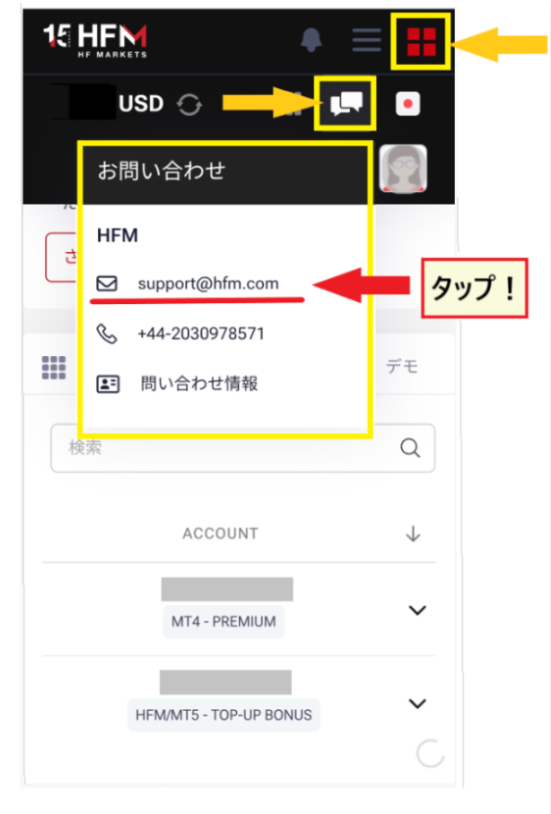
HFM's customer support is 100% in Japanese andresponds quickly, soyou can rest assured. Feel free to contact them if you have any questions.
The following article summarizes reviews and opinions aboutHFM. Please refer to it as well
Summary: Learn how to use MT5 and start trading withHFM!
This time, we've provided a clear explanation of how to set up and use the MT5 app, complete with smartphone screenshots
To be honest, there aren't that many differences between the PC versions of MT4 and MT5, but theMT5 smartphone app is significantly more advanced. It's equipped with various features that are useful for trading even on a small screen.
You can learn how to use it by doing, butIt's important to thoroughly understand how to place orders before you start tradingTherefore, be very careful, as you could make a mistake in your order and incur losses
Furthermore,HFMcanbe linked to our website "Money Charger (Manecha)"to receive attractive cashback rewards. The cashback amount isHFMyou paid when trading withcalculated by returning a portion of the spreads.HFMis particularly popular because of its high cashback rate.
Why while receivingHFMnot take this opportunity to start trading with cashback from "Moneycha" ?