











Regarding the procedure for opening an additional account (transferring accounts) with BingX:
We will explain it with diagrams and smartphone images so that anyone can easily understand it
In conclusion, BingX is
You can easily open an additional account in just two steps
- Step 1: Create a BingX account
- Step 2: Obtain your account ID
Even if you have already opened a BingX account through an account opening link other than MoneyChat, you will need to create a new account using the account opening link via MoneyChat
Step 1: Create a BingX account
① Go to the BingX account creation page
First, click the link below to go to the BingX account creation page
https://bingx.com/invite/UZWFNY
*Please note that if you register through any link other than this one, you will not be able to receive cashback from Money Charger (Moneycha)
What is cashback with MoneyChat?
② Tap "Open an account"
"BingX page URL" will take you to the official BingX website.
Please enter the following information correctly
- Email address: Enter the email address you wish to register
- Password: Enter the password you wish to register (set a password of 8 characters or more, combining symbols, uppercase letters, lowercase letters, and numbers)
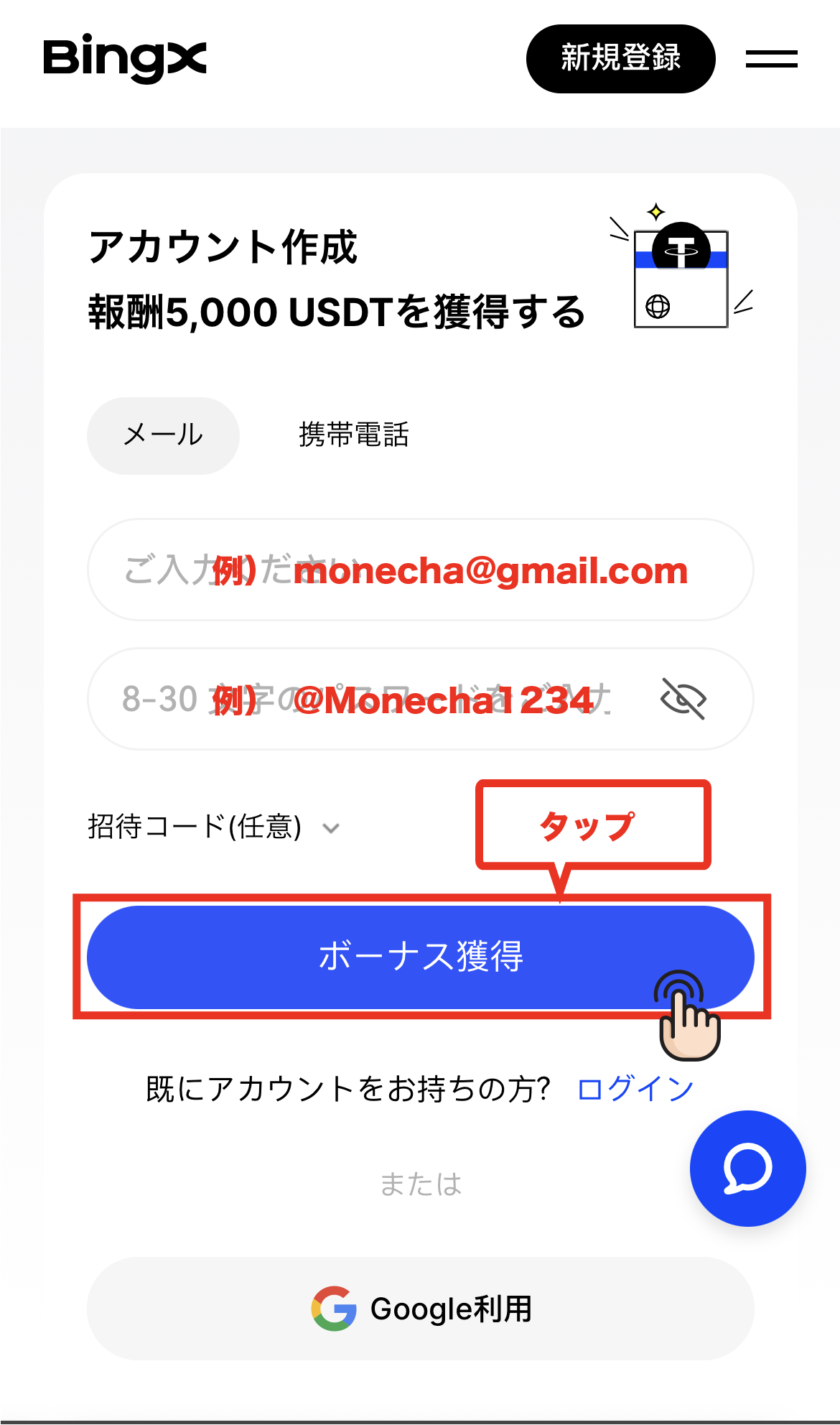
Once you have entered your email address and password, tap "Claim Bonus"
③ Check the authentication code❶
A verification code will be sent to your registered email address, so please check your email
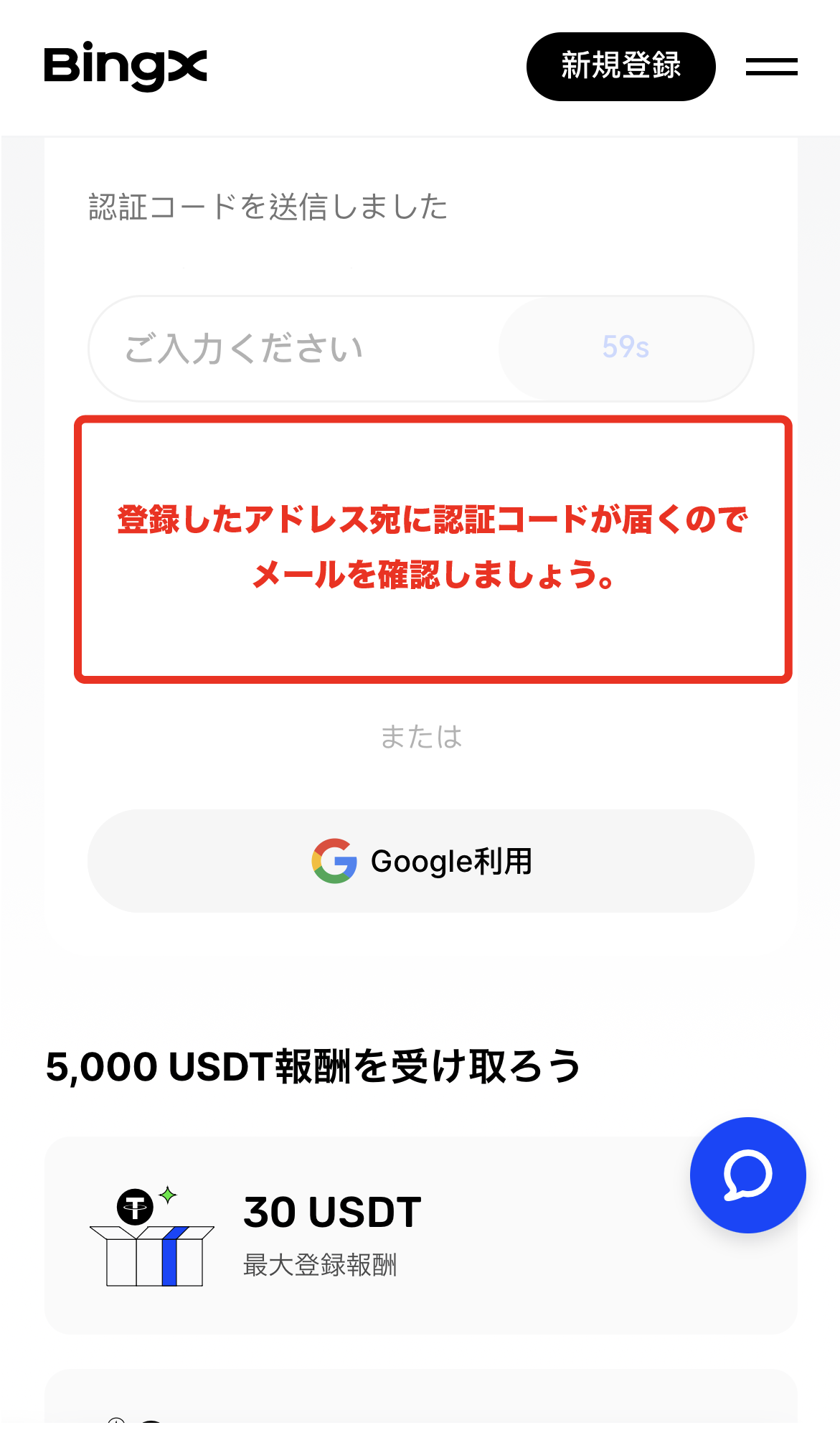
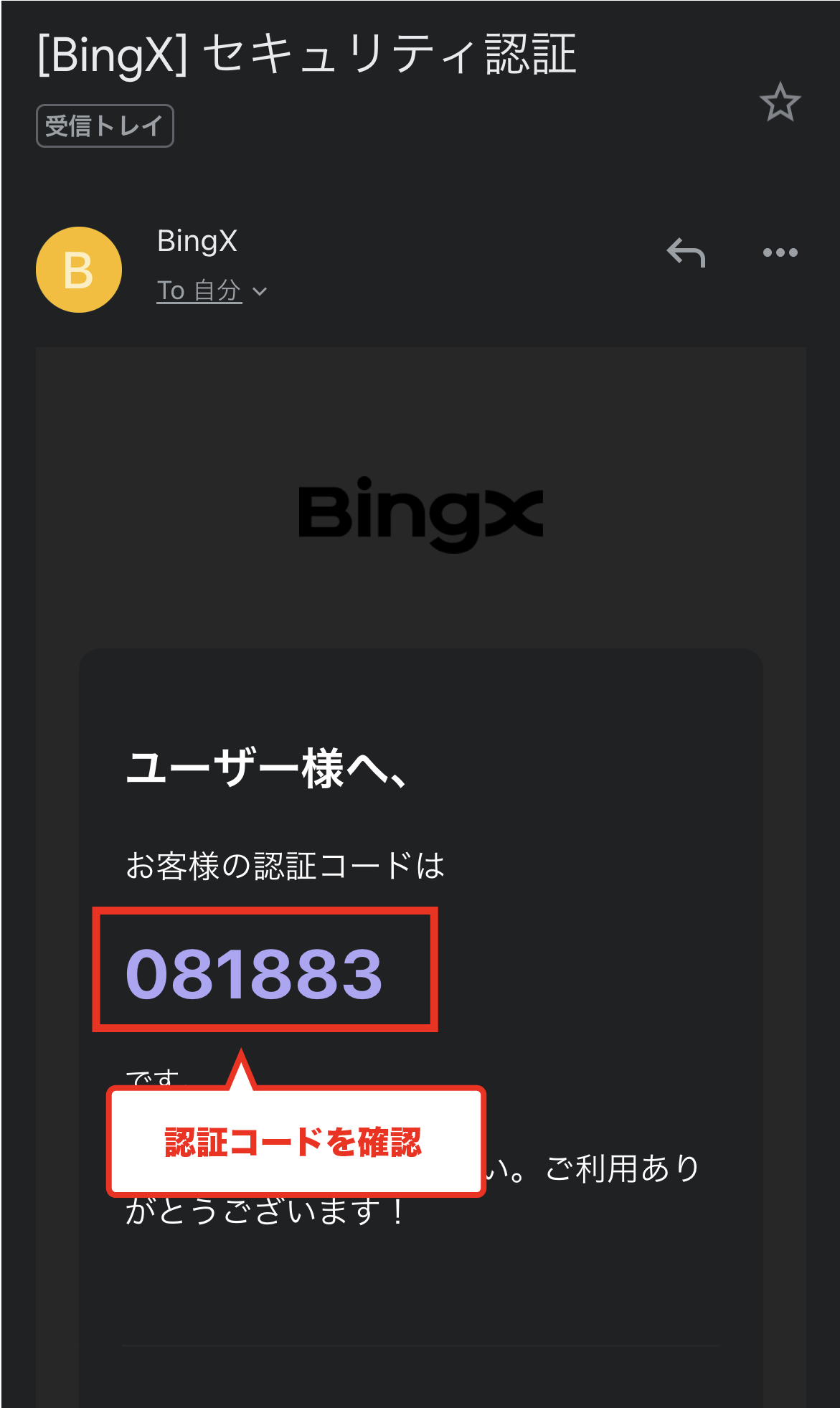
④ Check the authentication code❷
You have received an email from BingX containing a verification code. Please open it and check the verification code
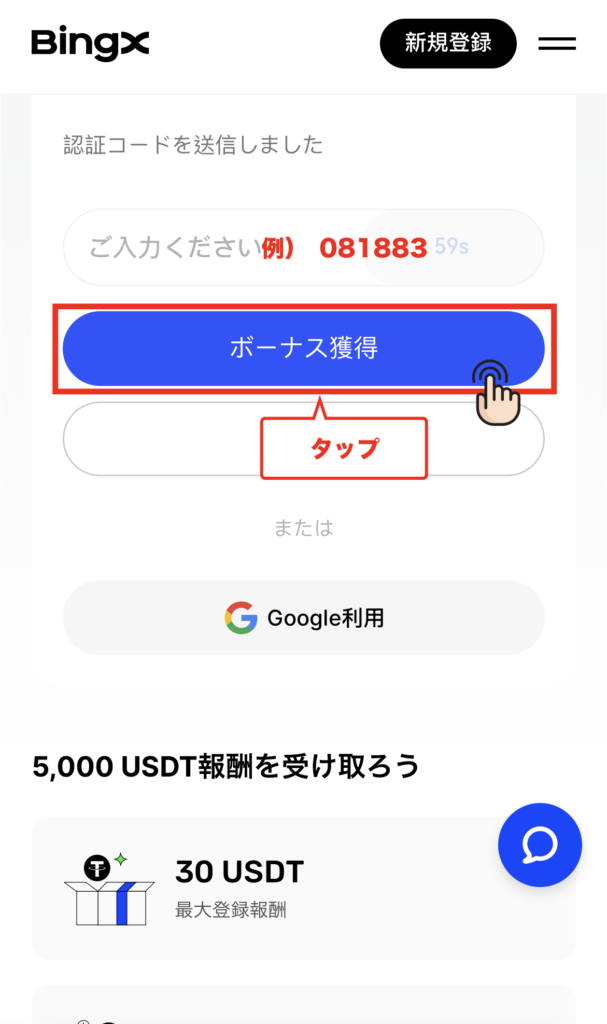
⑤ Enter the verification code
Return to the previous screen, enter the verification code, and tap "Get Bonus"
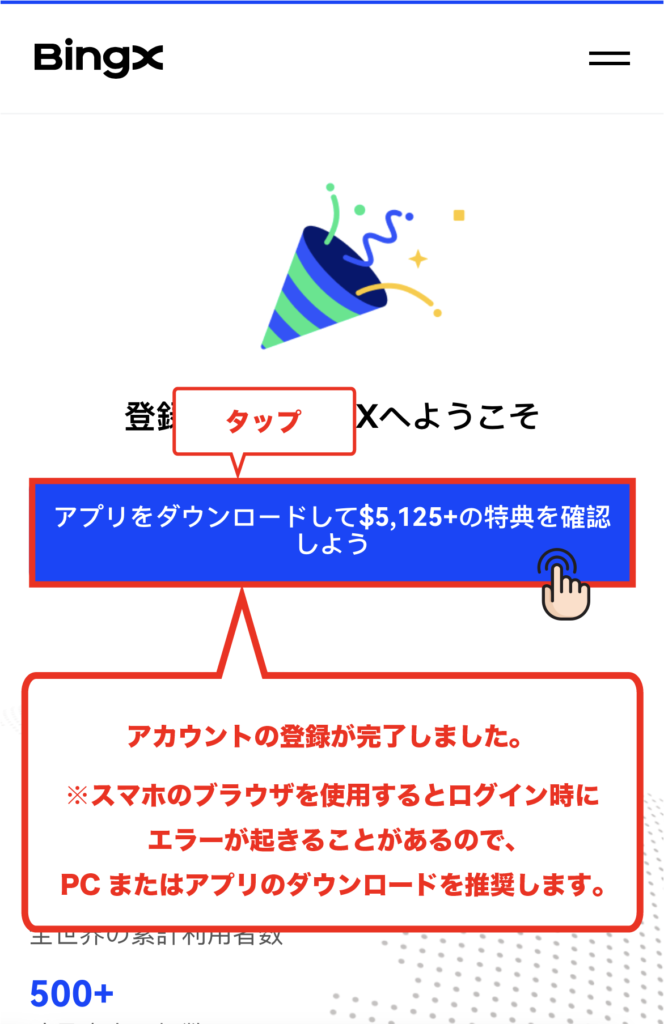
⑤ Account creation complete
This completes the process of creating your BingX account
Step 2: Obtain your account ID
① Download the application
From the account creation completion screen, tap "Download the app... and check out the benefits."
You can also access the download page from this link. ↓↓
https://apps.apple.com/us/app/bingx-btc-eth-crypto-exchange/id1500217666?ls=1
② Download the app
You will be taken to the download screen for the official BingX app. Tap "Get" to download it
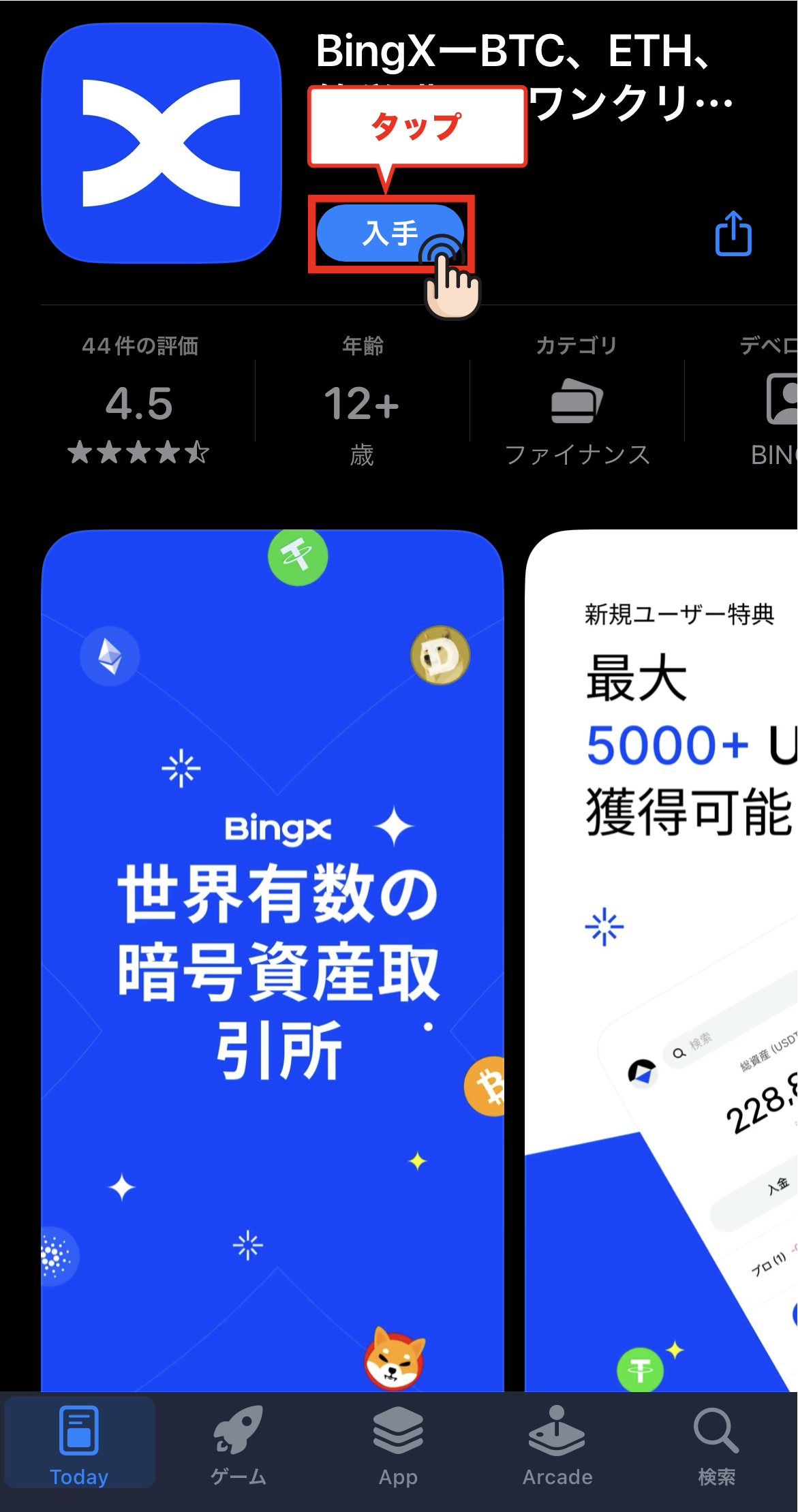
Tap "Upgrade"
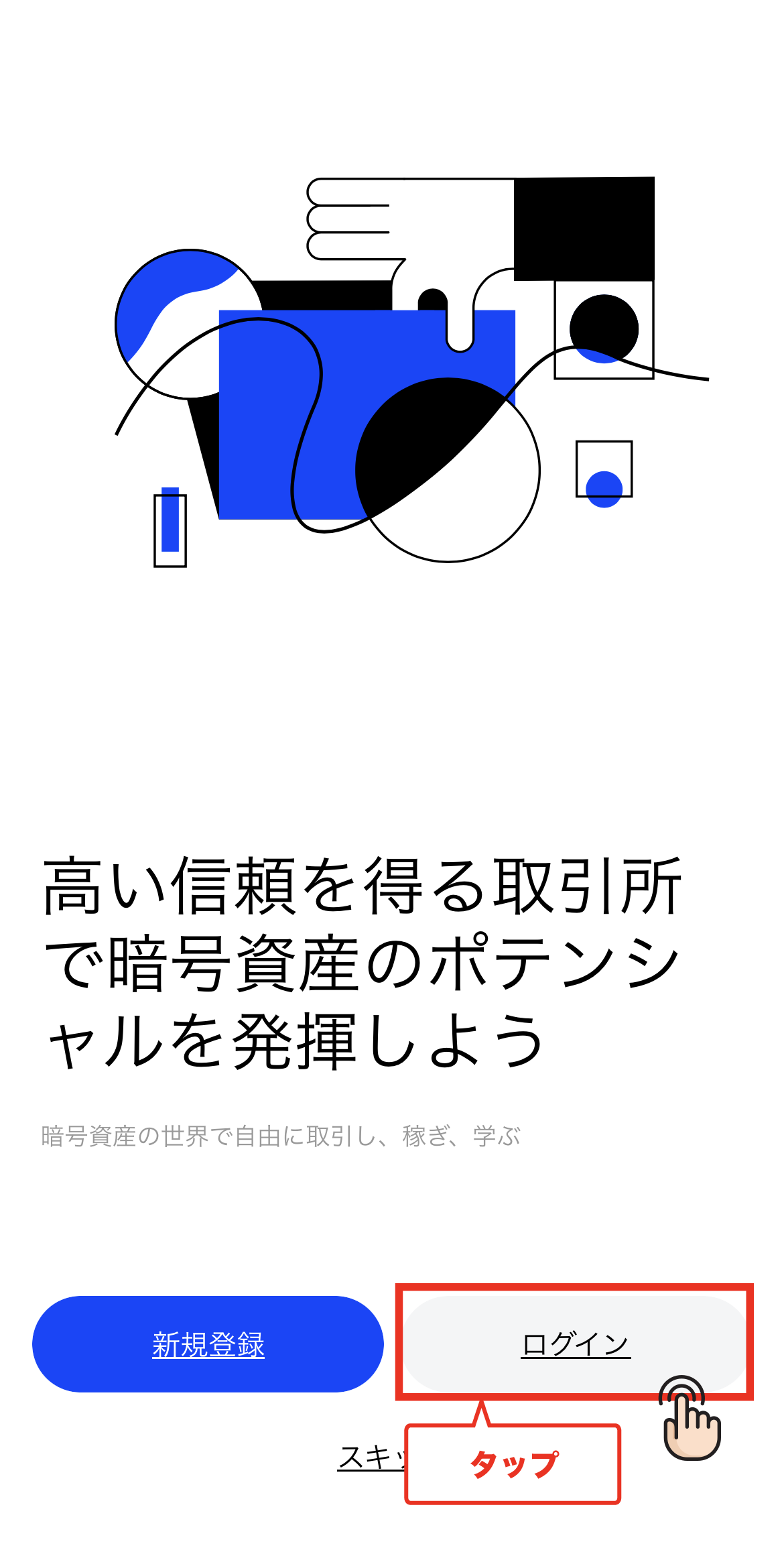
③ Tap "Login"
When you launch the app, you will see a screen like the one below, so please tap "Login"
④ Enter your registered login information and tap "Login"
Please enter the email address and password you registered earlier and tap "Login"
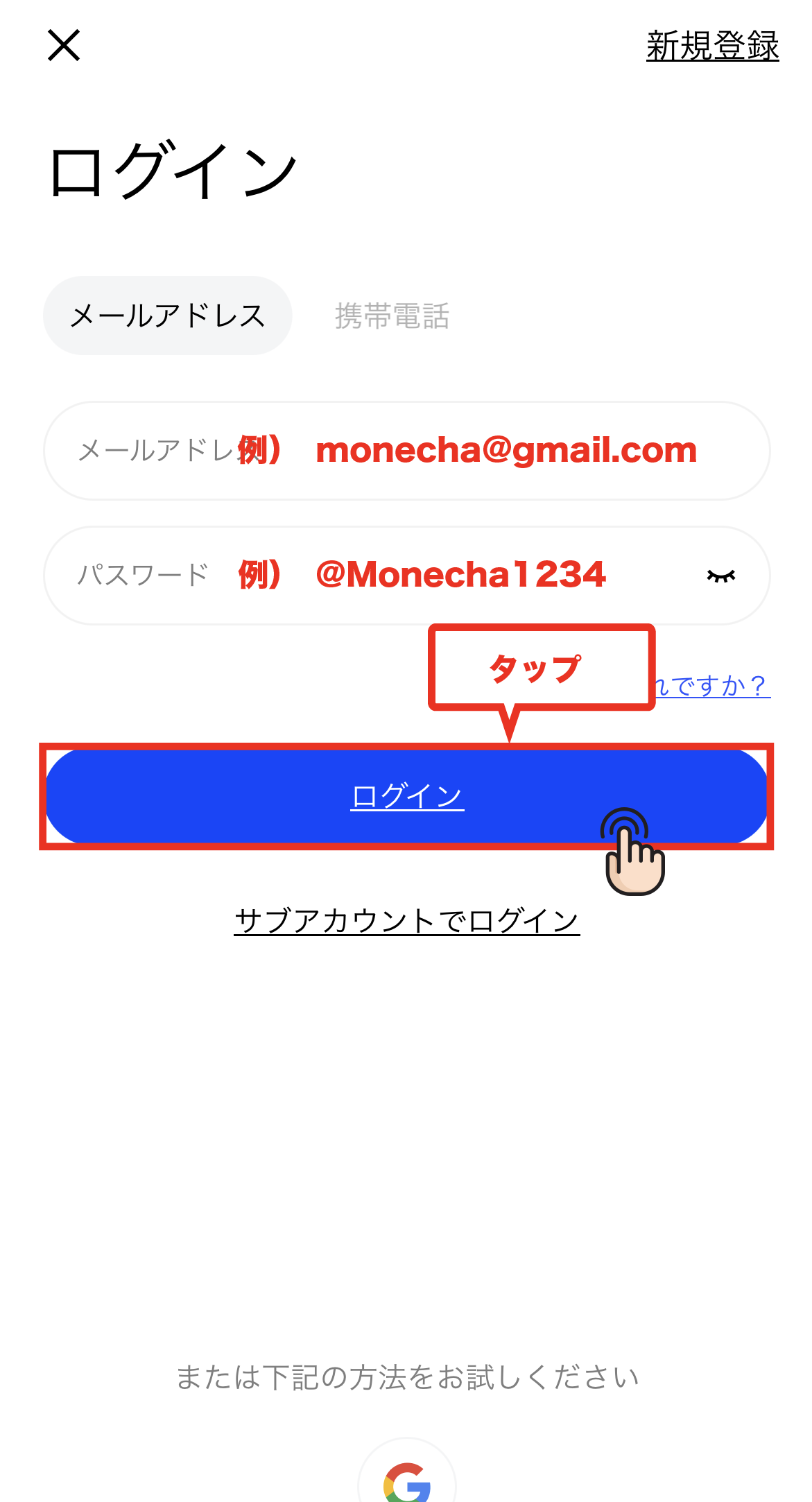
Once you have finished entering the information, tap "Start Transaction"
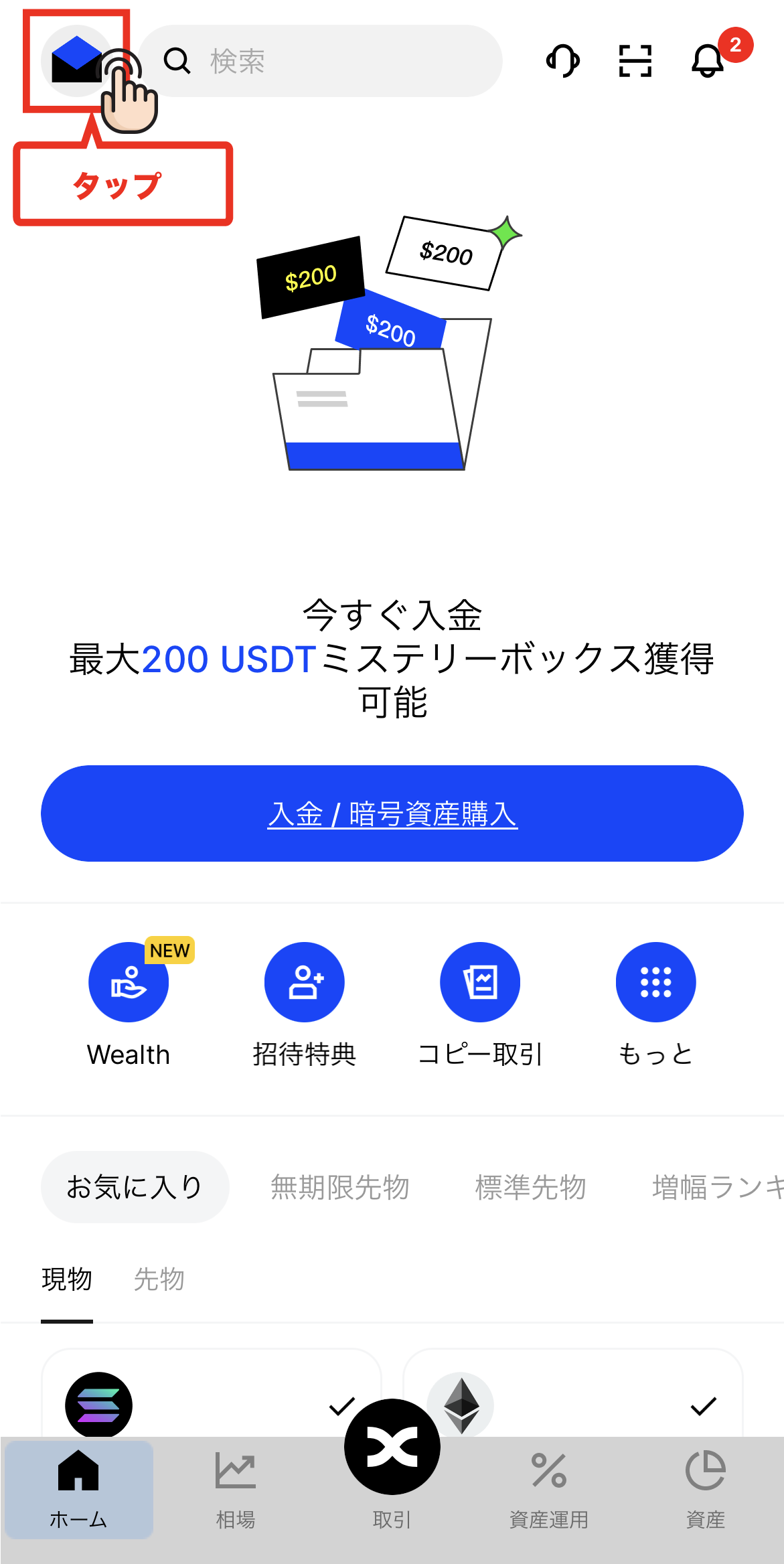
⑤ Tap the mailbox icon in the upper left corner
Once you've logged in, tap the mailbox icon in the upper left corner of the home screen
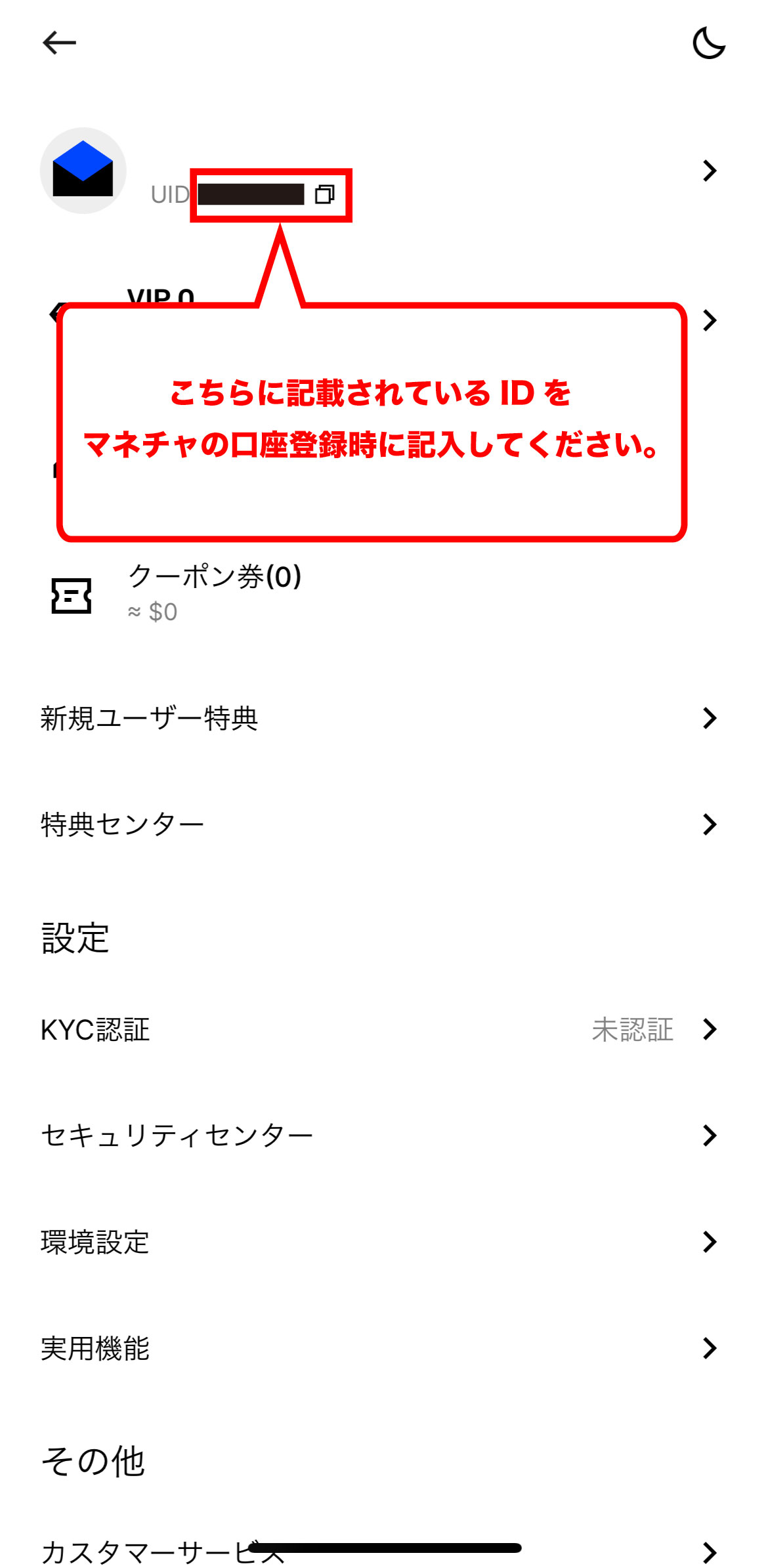
⑥ Confirm the ID used when registering your account
Your account number, labeled "UID," will be displayed next to the mailbox icon
This ID numberwill be your "account number" when you register with Moneycha.
In conclusion
The above is a step-by-step guide with smartphone screenshots explaining how to open an additional account with BingX
Next, go to your Money Charger My Page and apply to register your cashback account
Click here for an article explaining how to register a trading account ↓