











\Better deal than registering directly through the official site/in 1 minuteBingXOpen a

There are only three things you need to do!
Step 1
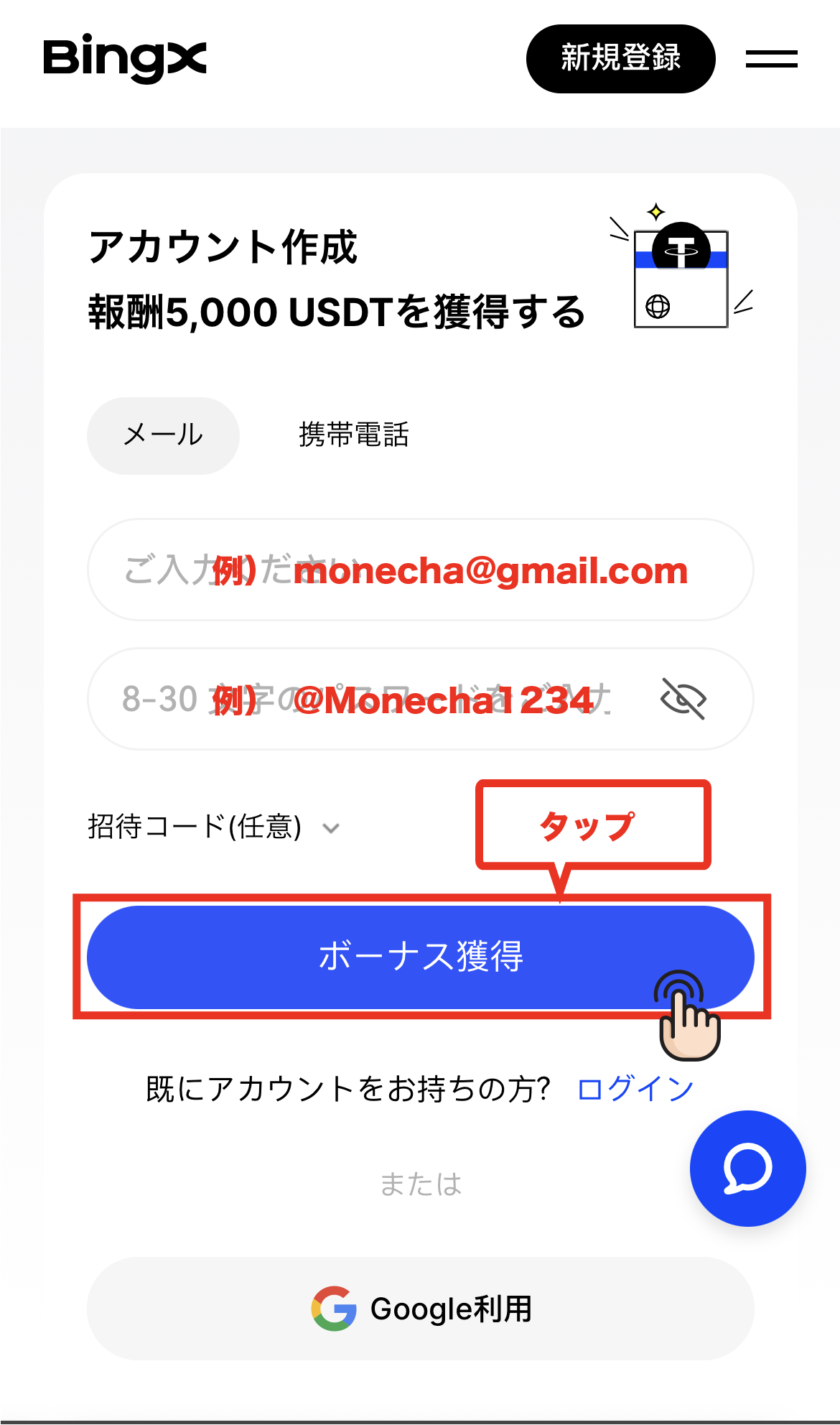
Open an account via the referral link
Step 2
Register an account with MoneyChat
Step 3
If it's approved, then it's OK!
Let's get started by opening aBingXaccount!
Proceed to the officialBingXwebsite via the referral link ↗Check the account opening procedure
that suits you.

BingXcreating a
?
HOW TO OPEN
Account Opening Procedure
Please see below for detailed instructions
Create an account using your email address or phone number
Enter your email address or phone number and set a password. This can be completed in as little as 3 minutes. At this point, demo trading and some features will be available
Get cashback
once your account is open !
CASHBACK APPLICATION
Register with Manecha and get
cashback on every trade.
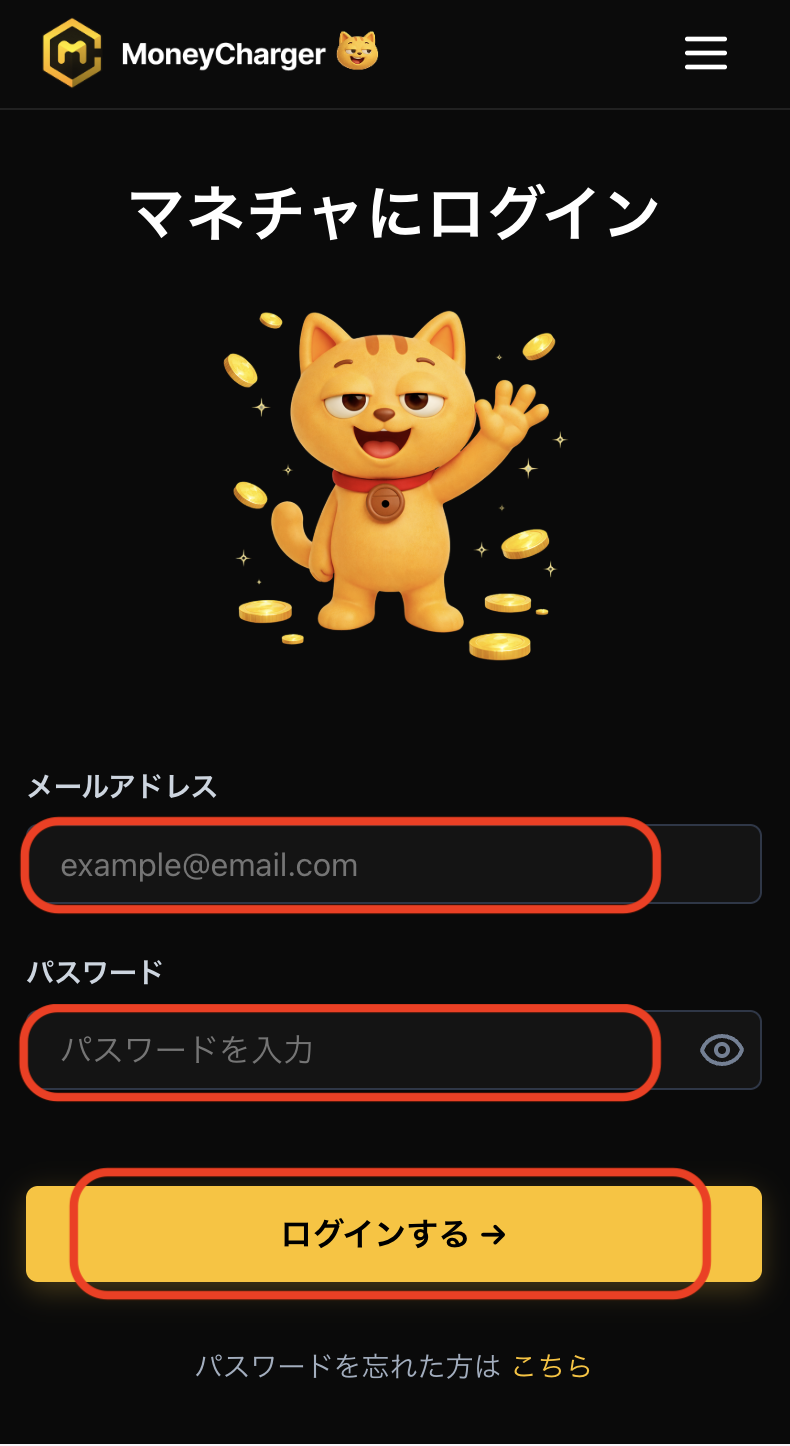
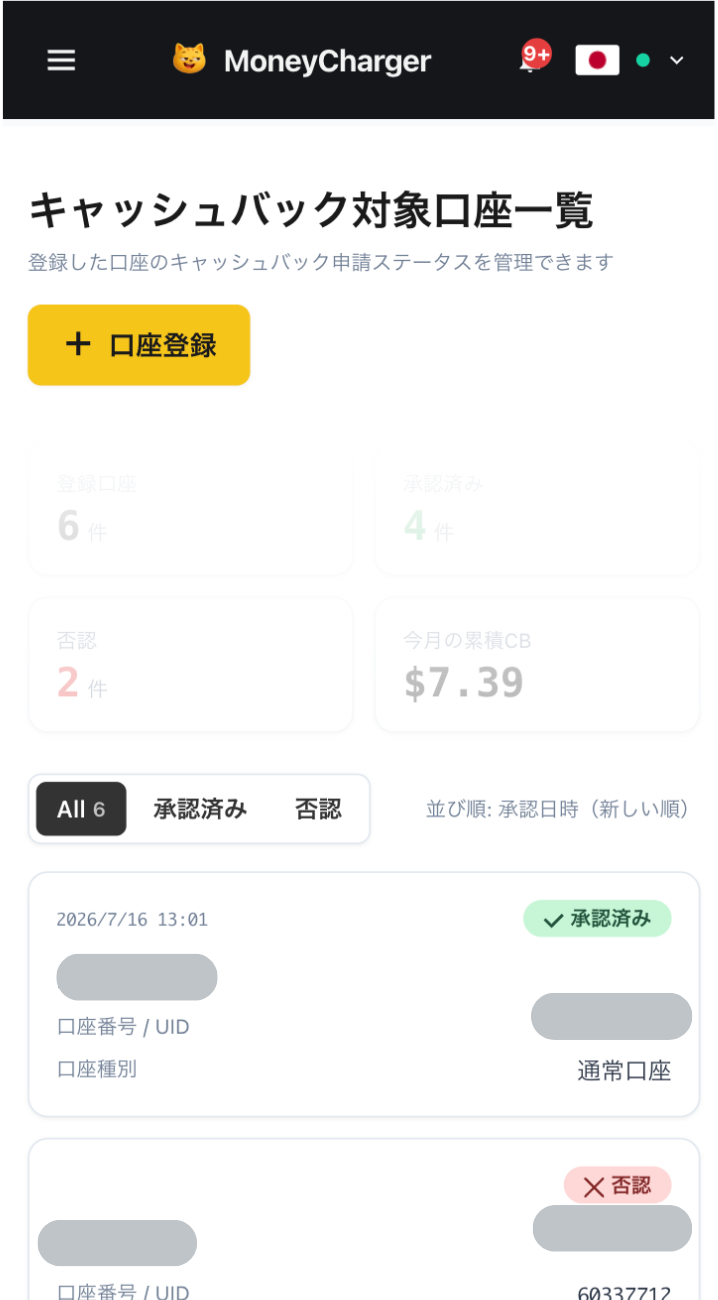
Log in to your MoneyChat My Page
Once your account is opened, log in to your MoneyChat My Page
If you haven't yet registered for a free Manecha account, please complete your registration first
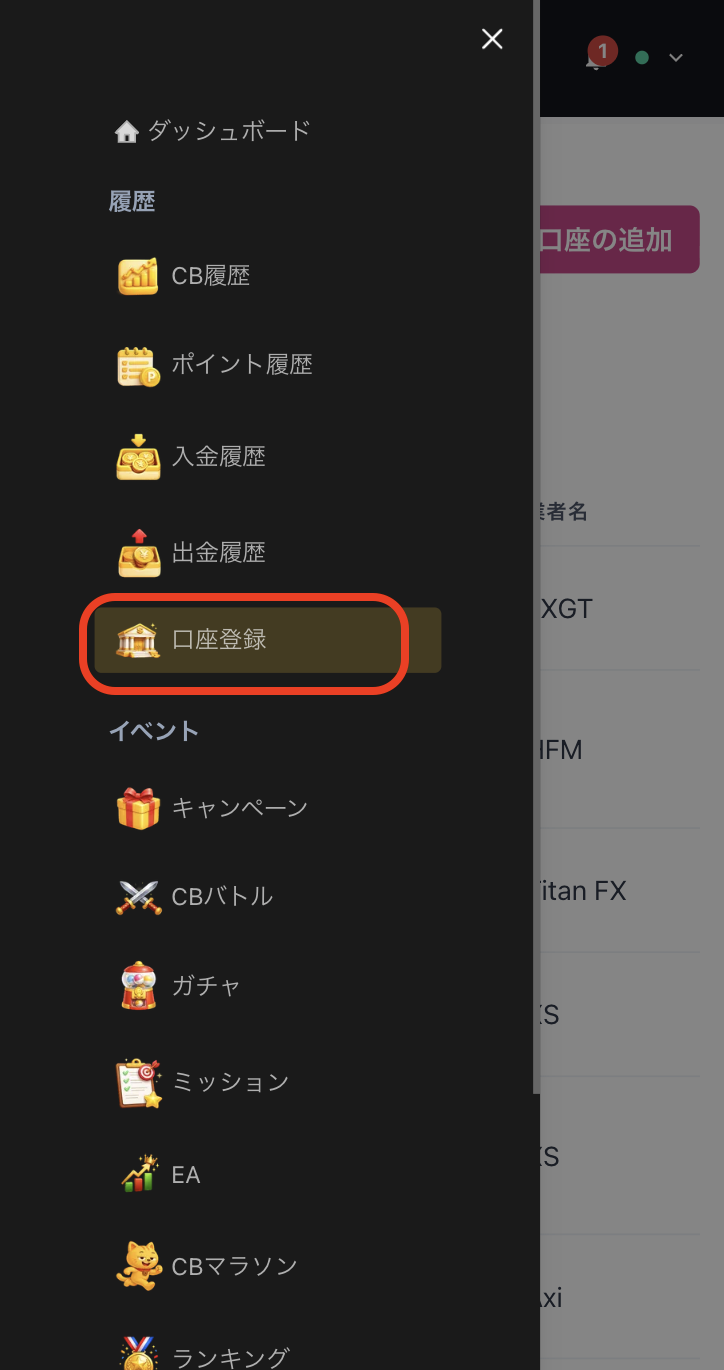
Select "Register Account" from the menu
Open the menu in the upper left corner of the screen and select "Register Account"
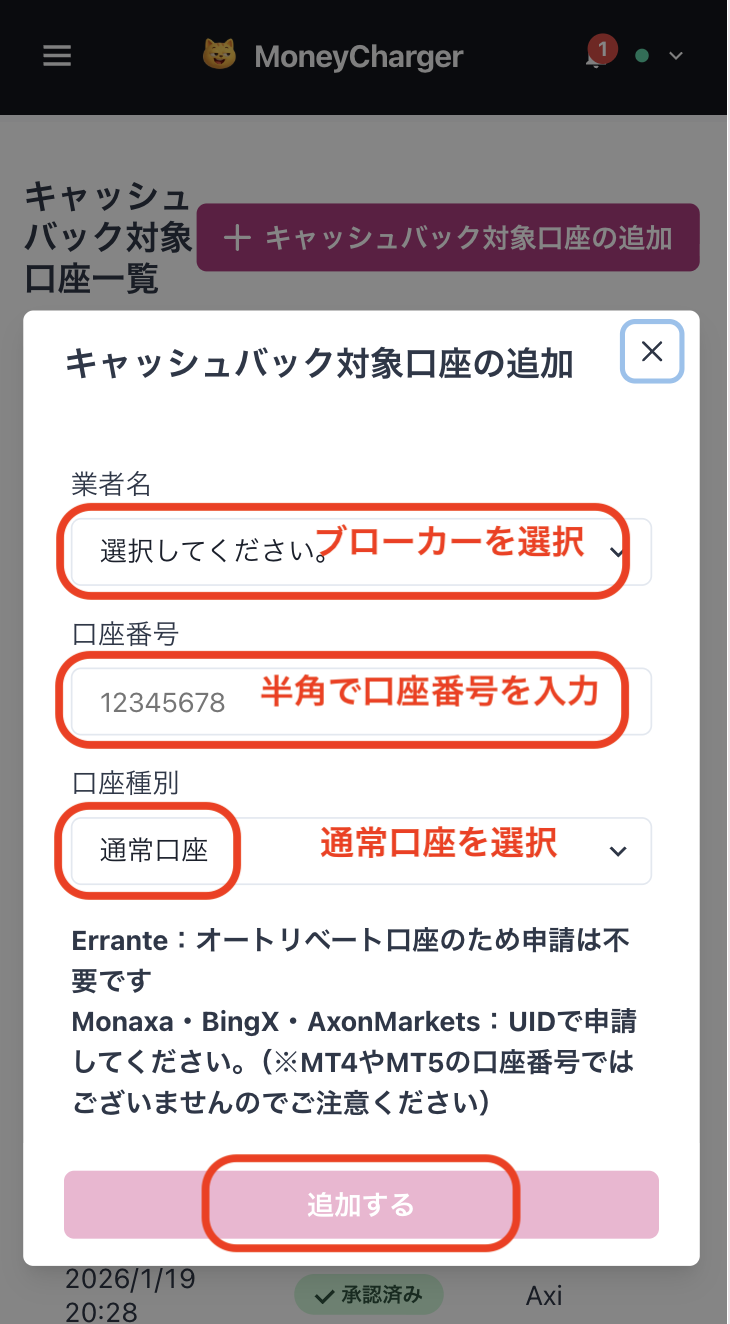
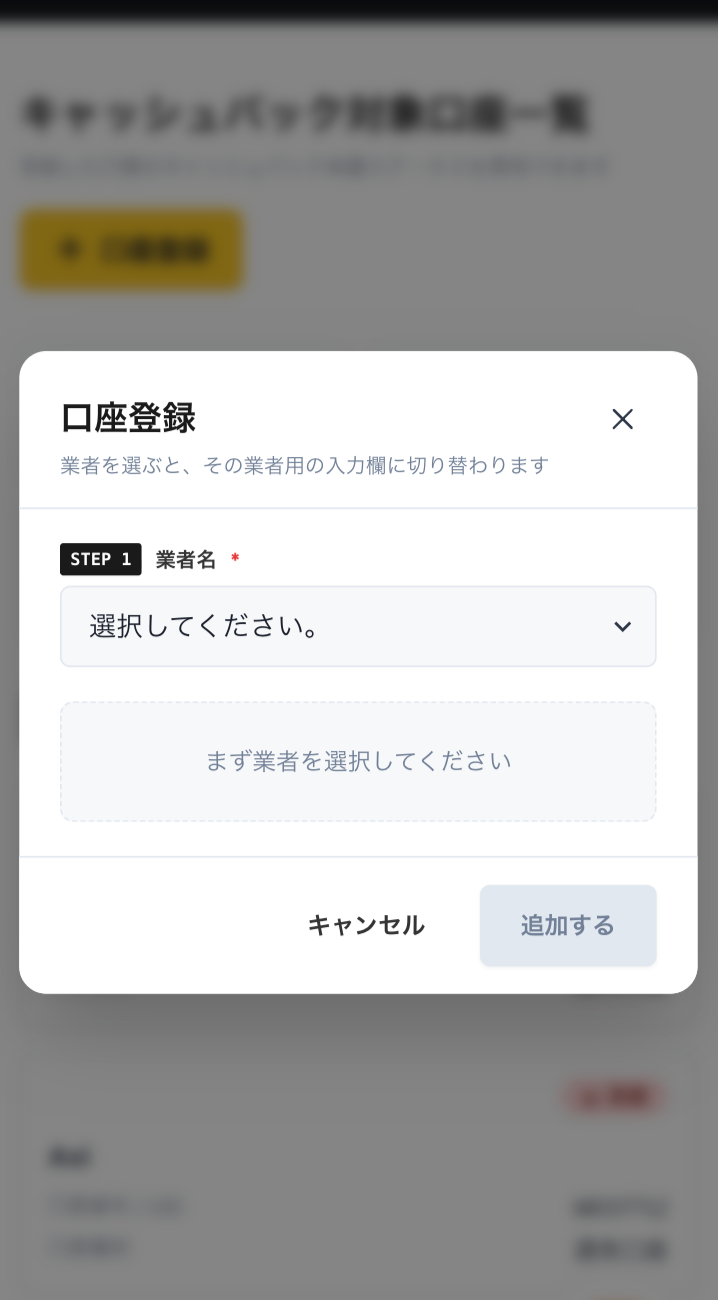
Enter your broker and account number on the account registration screen
On the account registration screen in My Page, selectBingXas the broker name and enter the trading account number you opened using half-width numerals
If you are using regular discretionary trading or your own Expert Advisor (EA), please select "Standard Account" as your account type
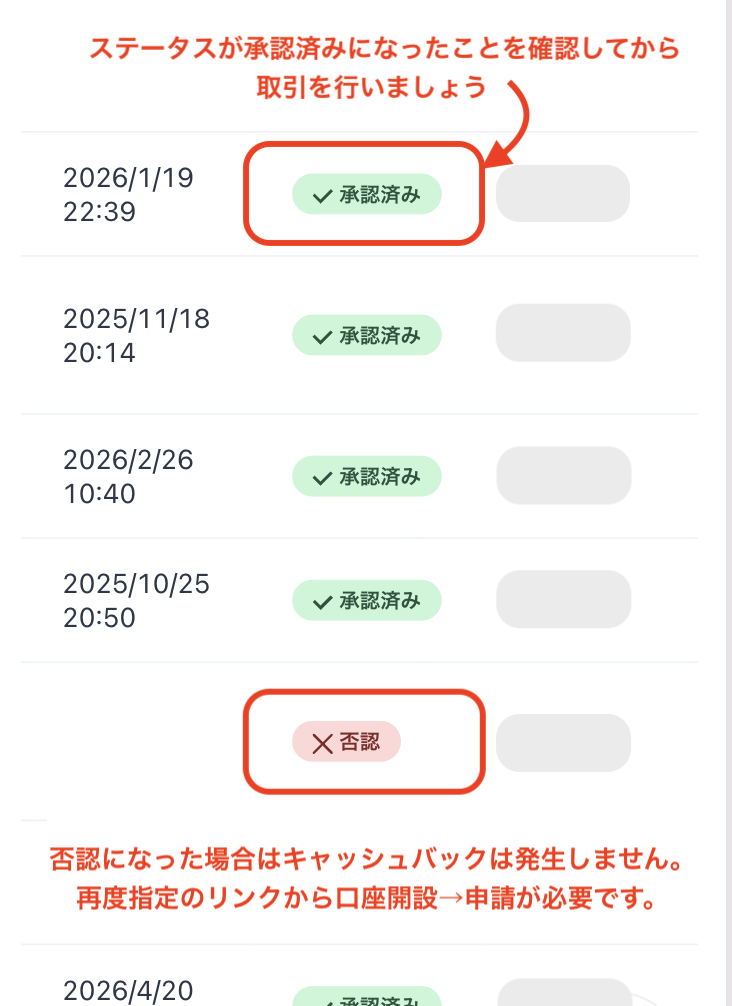
You will be eligible for the cashback after approval from the management
Once your application is approved, the cashback earned for each eligible transaction will be reflected in your MoneyChat My Page
Transactions that have not yet been approved may not be eligible for cashback. Please check that the status is "approved" before making a transaction
HOW TO OPEN
Transfer procedure
Please see below
for instructions on how to make your existing account eligible for MoneyChat
How to change your BingX account
It is not possible to change the IB (Introducing Broker) for an existing account. A new account will be created with a new email address
- Prepare a new email address (different from your existing one). The official page is here.
- AccessBingXfrom the MoneyChat dedicated URL
- Enter invitation code UZWFNY to create a new account
- Identity verification (KYC) completed
- Apply for account registration on MoneyChat My Page
- It is not possible to change the IB for an existing account
FAQ
Frequently Asked Questions about
Opening an Account or Switching Accounts
What documents are required to open an account?
Generally, you will need to provide proof of identity (passport, driver's license, or My Number Card) and proof of address (utility bill, bank statement, or resident registration certificate, issued within the last three months)
How long does it take to open an account?
The input process itself takes as little as 5 minutes, and the identity verification review is usually completed within one business day. The actual time required may vary depending on the service provider and the review status
I already have aBingXaccount. Can I receive cashback?
Existing accounts are generally not eligible. Please check the "Already usingBingX" tab at the top of the page for instructions on how to switch or add an account
Can I open multiple accounts with BingX?
The possibility and conditions for opening multiple accounts vary from broker to broker. If you plan to use an additional account, please check the process for receiving cashback through MoneyChat before proceeding
Does BingXsupport auto-rebates?
No.BingXdoes not currently support auto-rebates. To receive cashback, please register your account number on your MoneyChat My Page