










A complete guide to opening an Axi account, with step-by-step instructions and images
This guide explains how to open a new Axi account, using easy-to-follow diagrams and smartphone screenshots, making it accessible to everyone
Axi makes it easy to open an account and set up cashback by following the instructions
Follow the steps below to open an account and apply for one
- How to open an Axi account
- How to apply for an account with MoneyChat
Part 1
Open an Axi account
First, you need to open an Axi account. Please follow the instructions below and open an account via the dedicated link provided by the button
Step 1
Go to the Axi account creation page
First, click the button below to go to the Axi account creation page. When you open the link, the Axi registration form will be displayed
*Please note that if you register through a link other than the one provided by Moneycha, you will not be able to receive cashback from Moneycha
Step 2
Enter your registration information
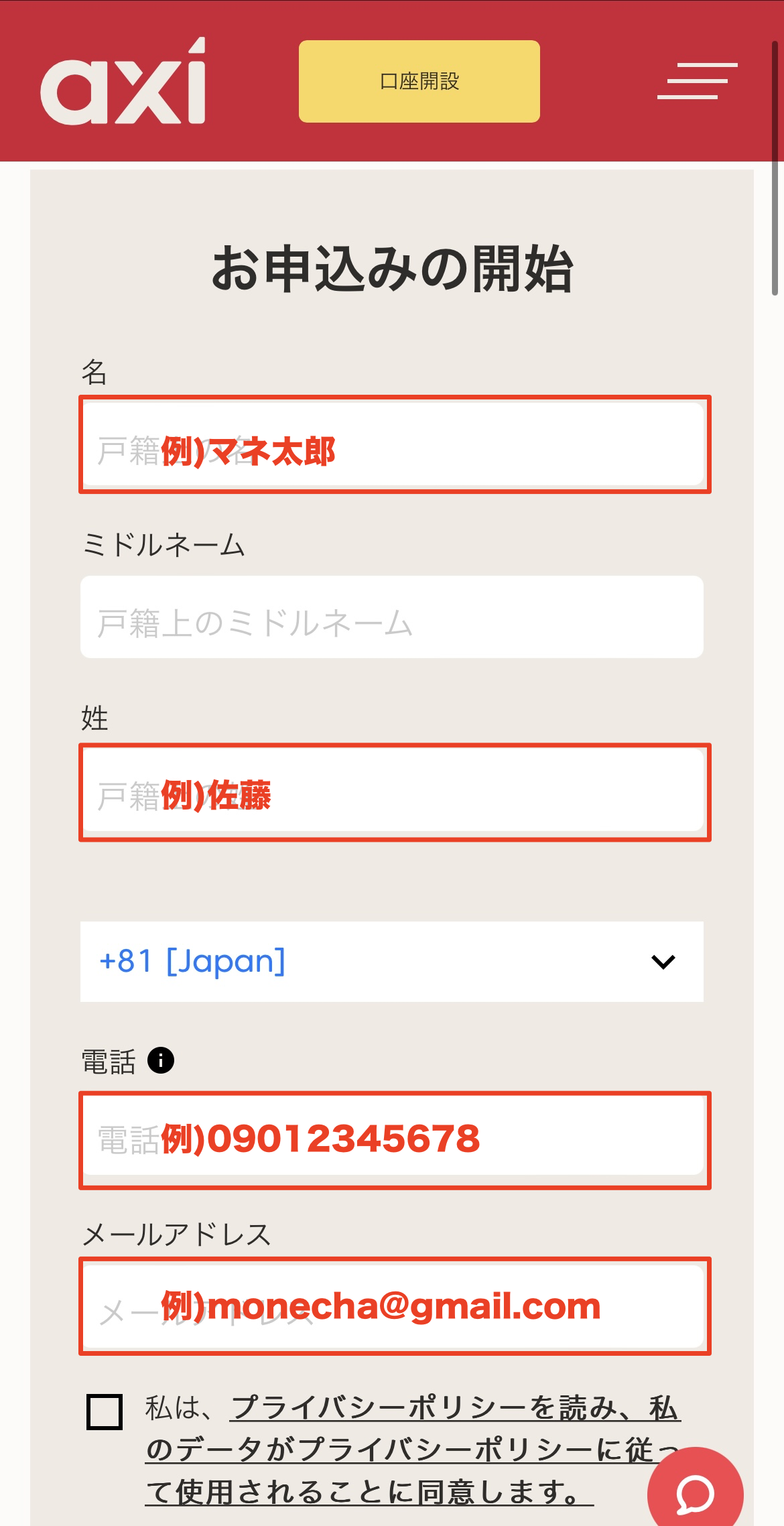
Please fill in the required information on the displayed registration form. Enter "Japan" for your country of residence, your full name in Roman letters, and ensure your email address and phone number are entered correctly
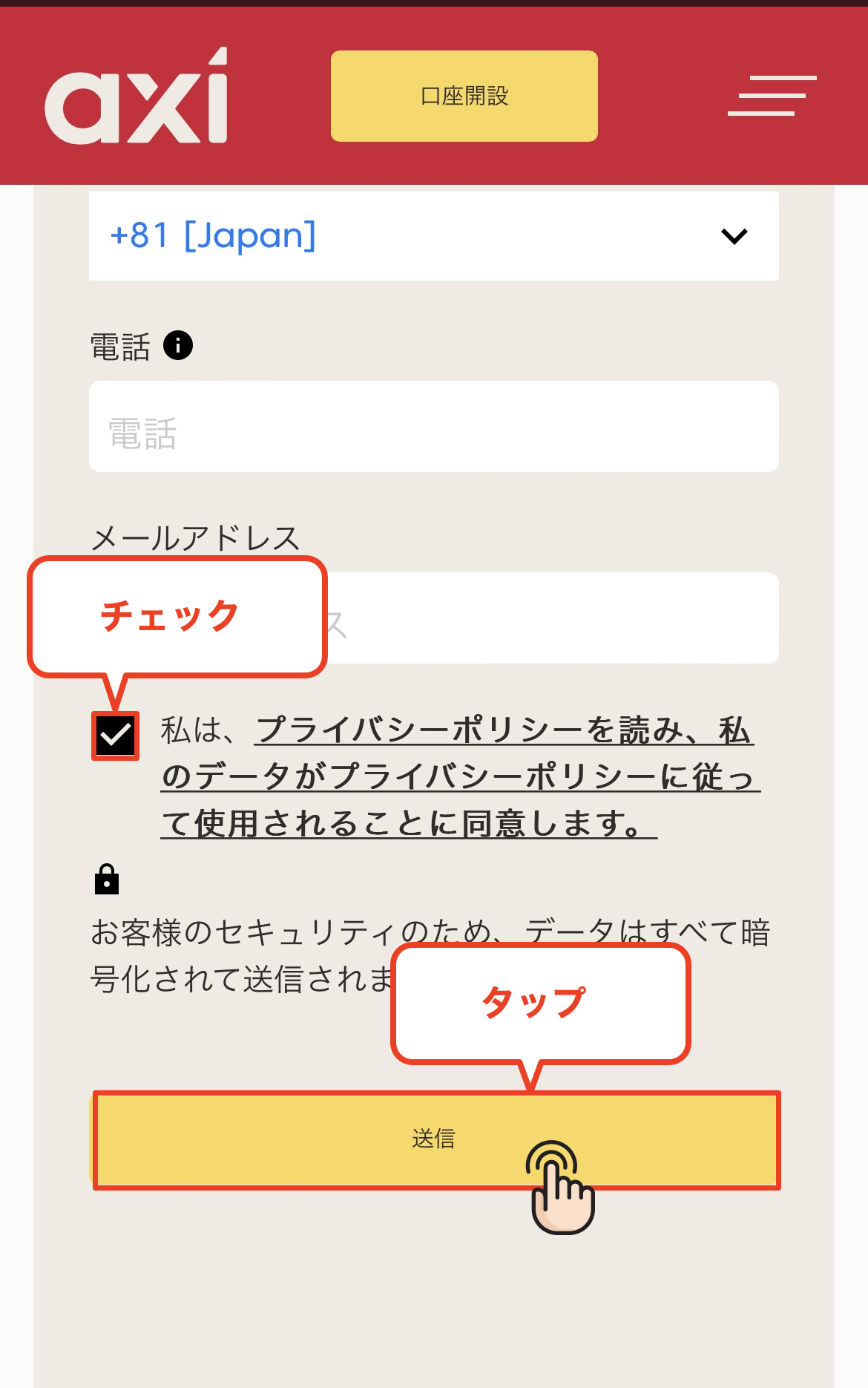
Once you have completed filling in all the fields, check the box to agree to the privacy policy
*The email address you register will be used for logging in and receiving verification emails, so please be sure to enter an email address that you can access
Step 3
Set a password
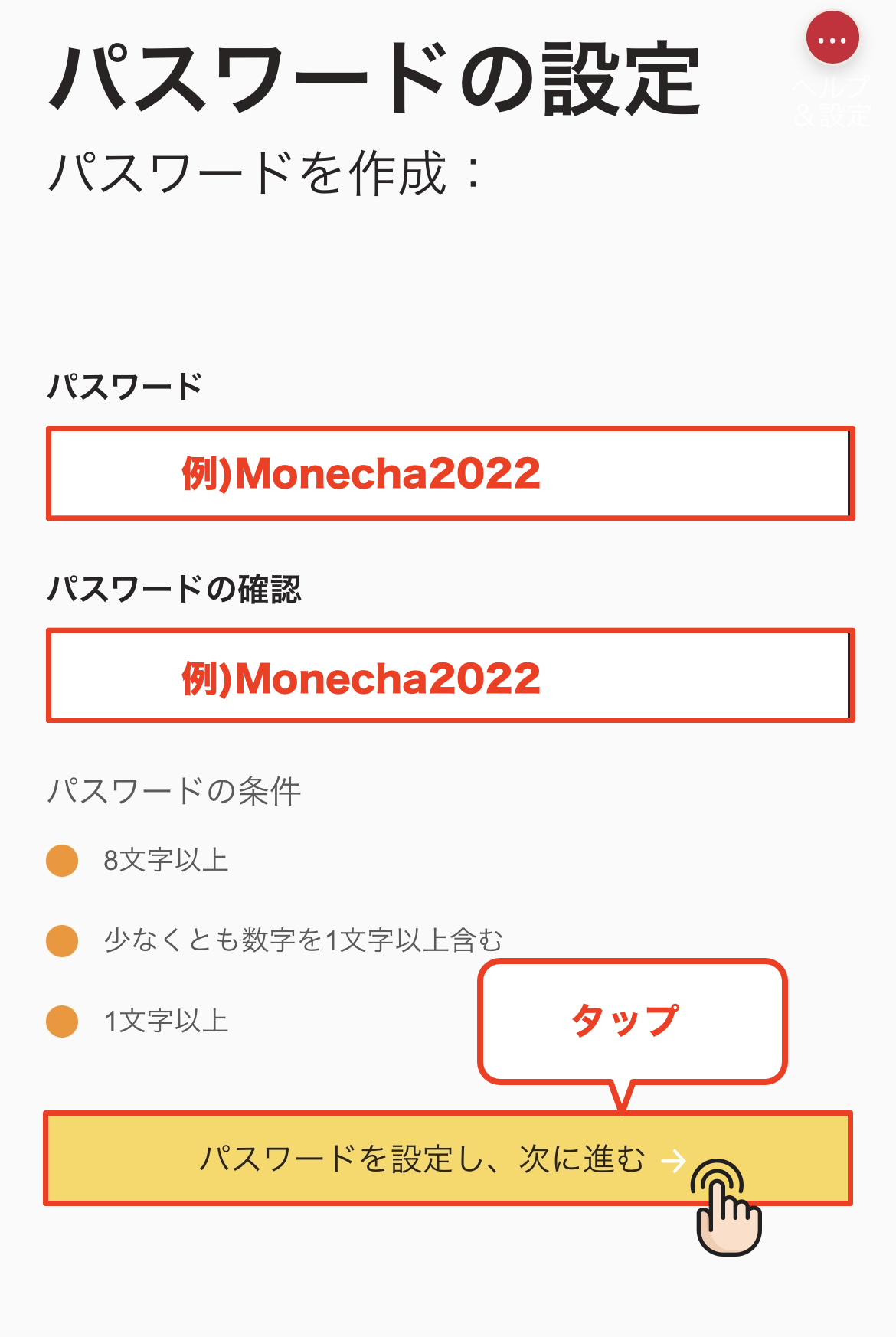
Next, you will set your password. The password you register must be at least 8 characters long and include at least one uppercase letter and one number. Once you have finished entering your password, tap "Set Password and Proceed."
*The password you set will be used to log in to your My Page, so please make sure to write it down so you don't forget it
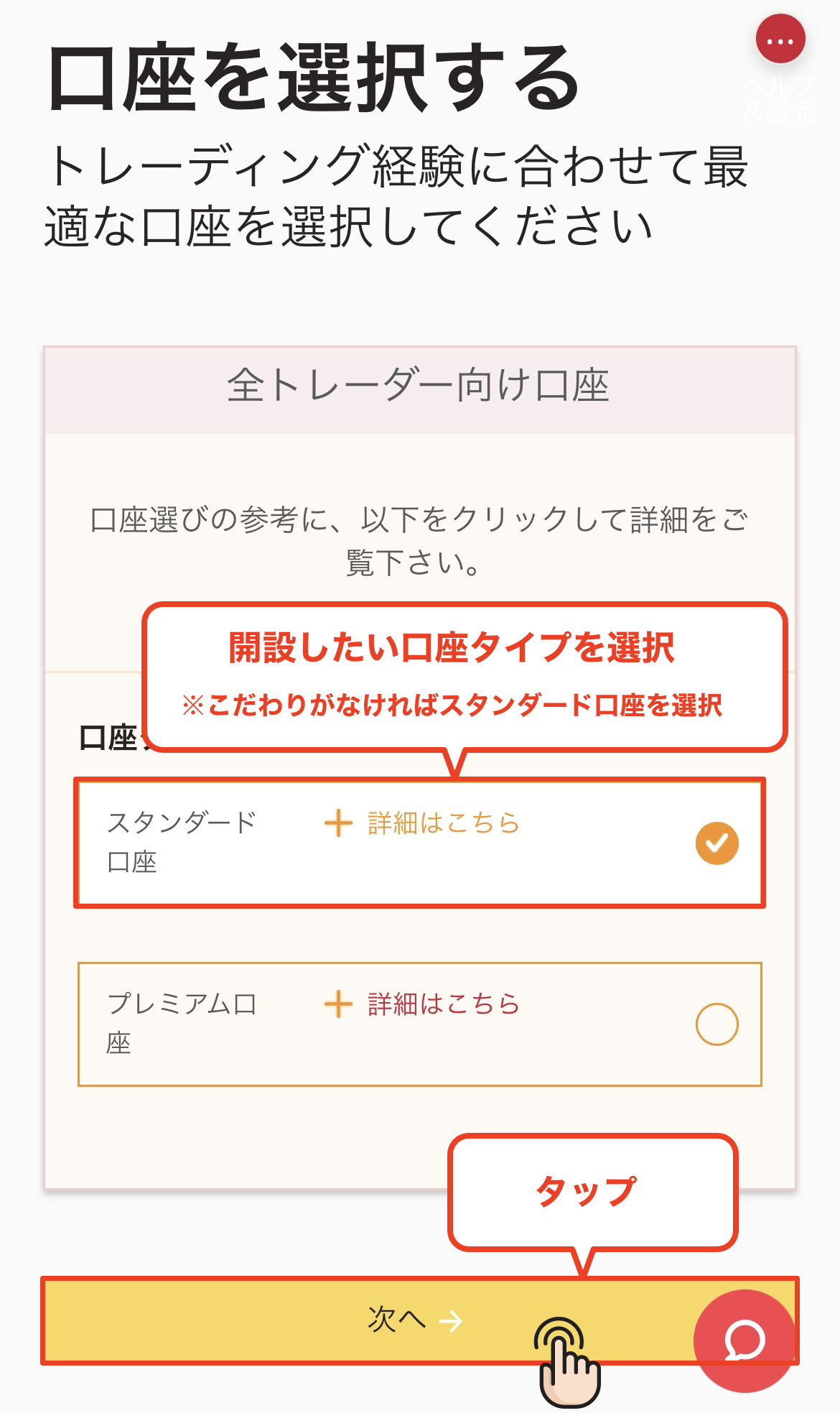
Step 4
Select an account type
Select the type of trading account you wish to use. You can choose between a Standard account and a Pro account; please tap your preferred account type
*For those without specific preferences, we recommend the versatile "Standard Account."
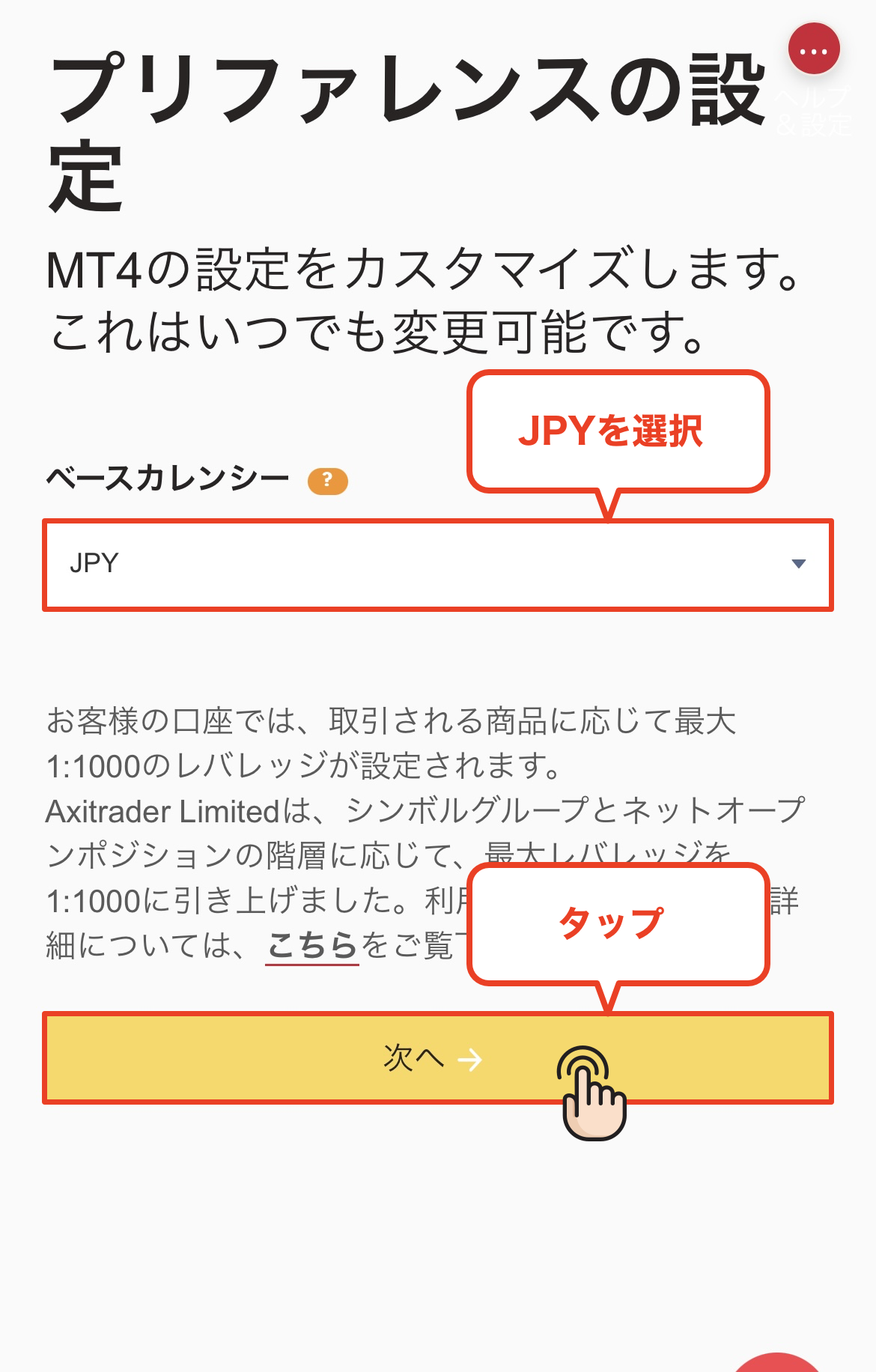
Wi5
Set the base currency
Set the base currency for your trading account. You can choose from several currencies, such as USD and EUR. After selecting the currency you want to set, tap "Next"
*If you don't have a particular preference, we recommend choosing "JPY" as it helps reduce exchange fees during deposits and withdrawals
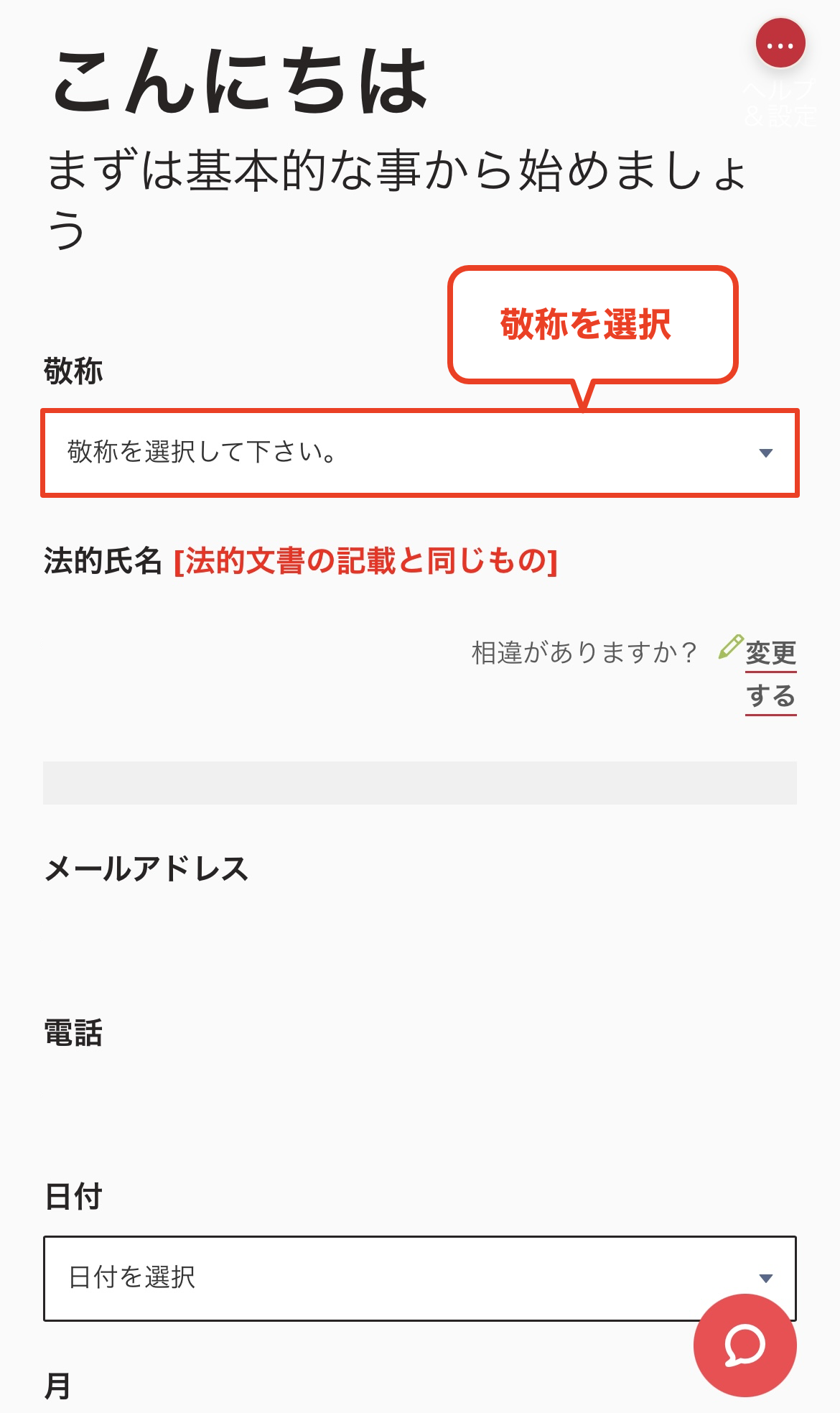
Step 6
Select a title of respect (Mr./Mrs.)
You will now proceed to the personal information input screen. First, please select your title (Mr. or Mrs.)
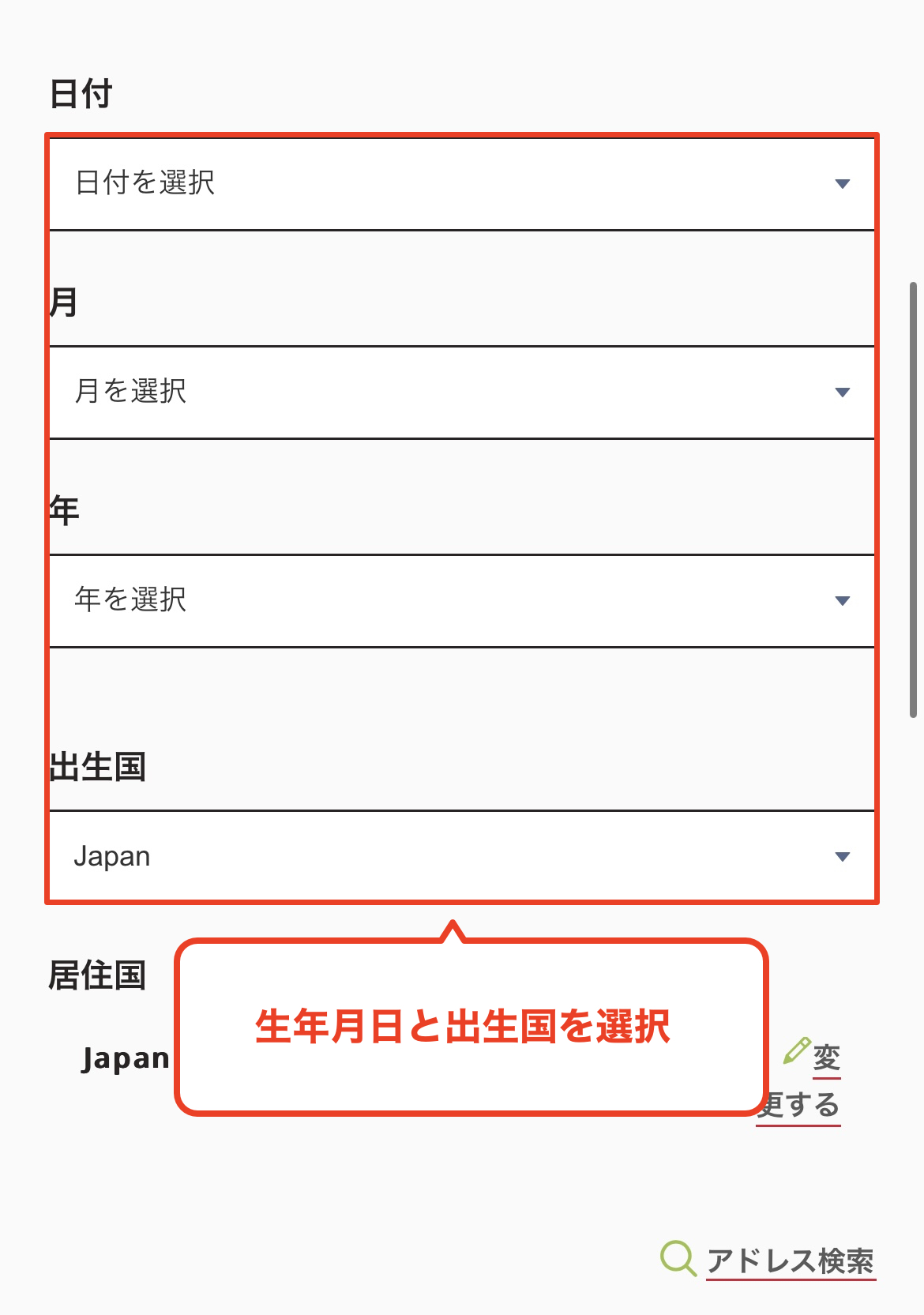
Step 7
Enter your date of birth
Next, select and enter your date of birth. Please note that if you enter information that does not match the information on your identification document, your verification process will fail later
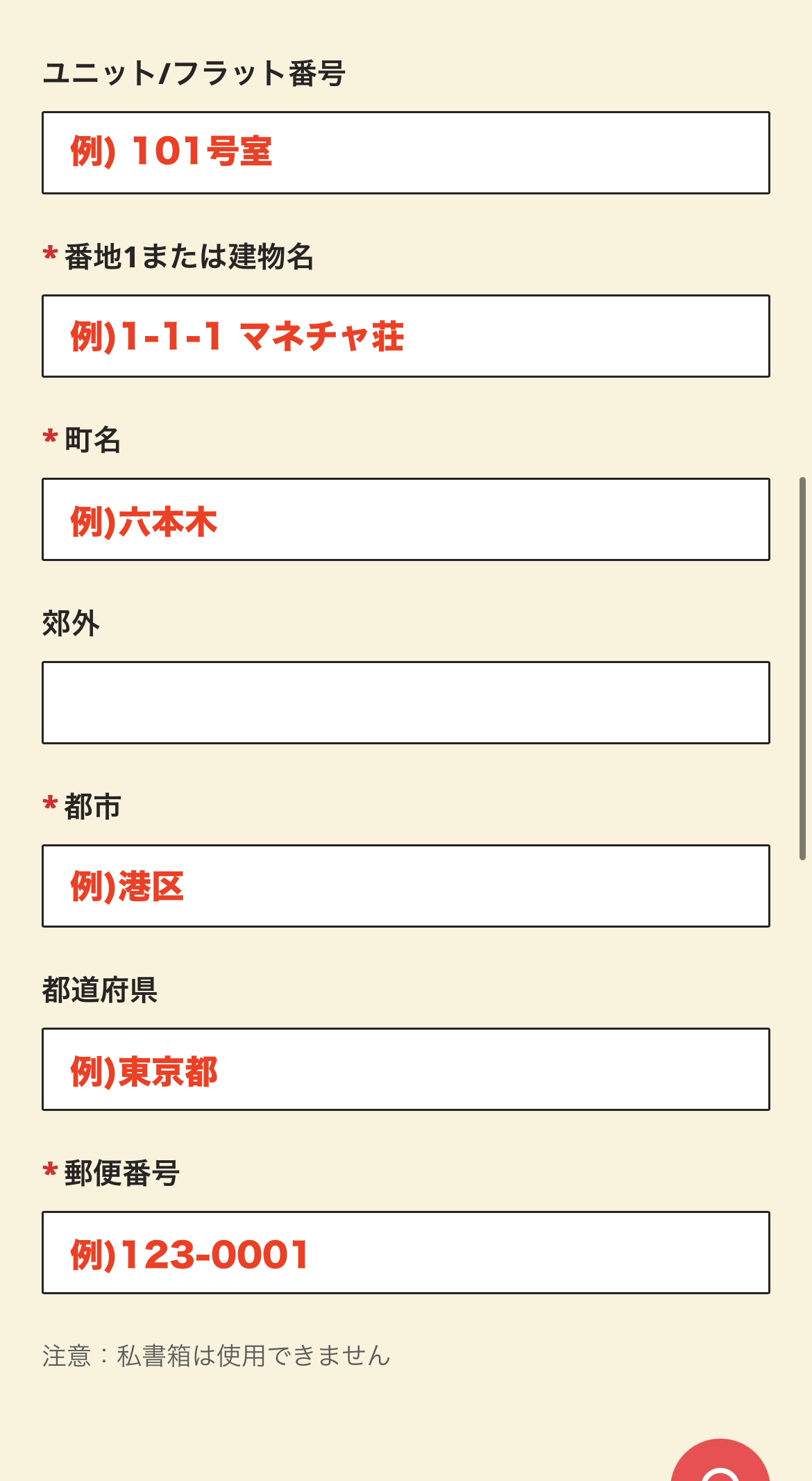
Step 8
Enter your address
Please enter your address in Roman letters. Enter it accurately in the following order: street number, city/ward/town/village, prefecture, and postal code
*Please enter the same address as on the identification document you will be using for identity verification. Verification may fail if the address is different
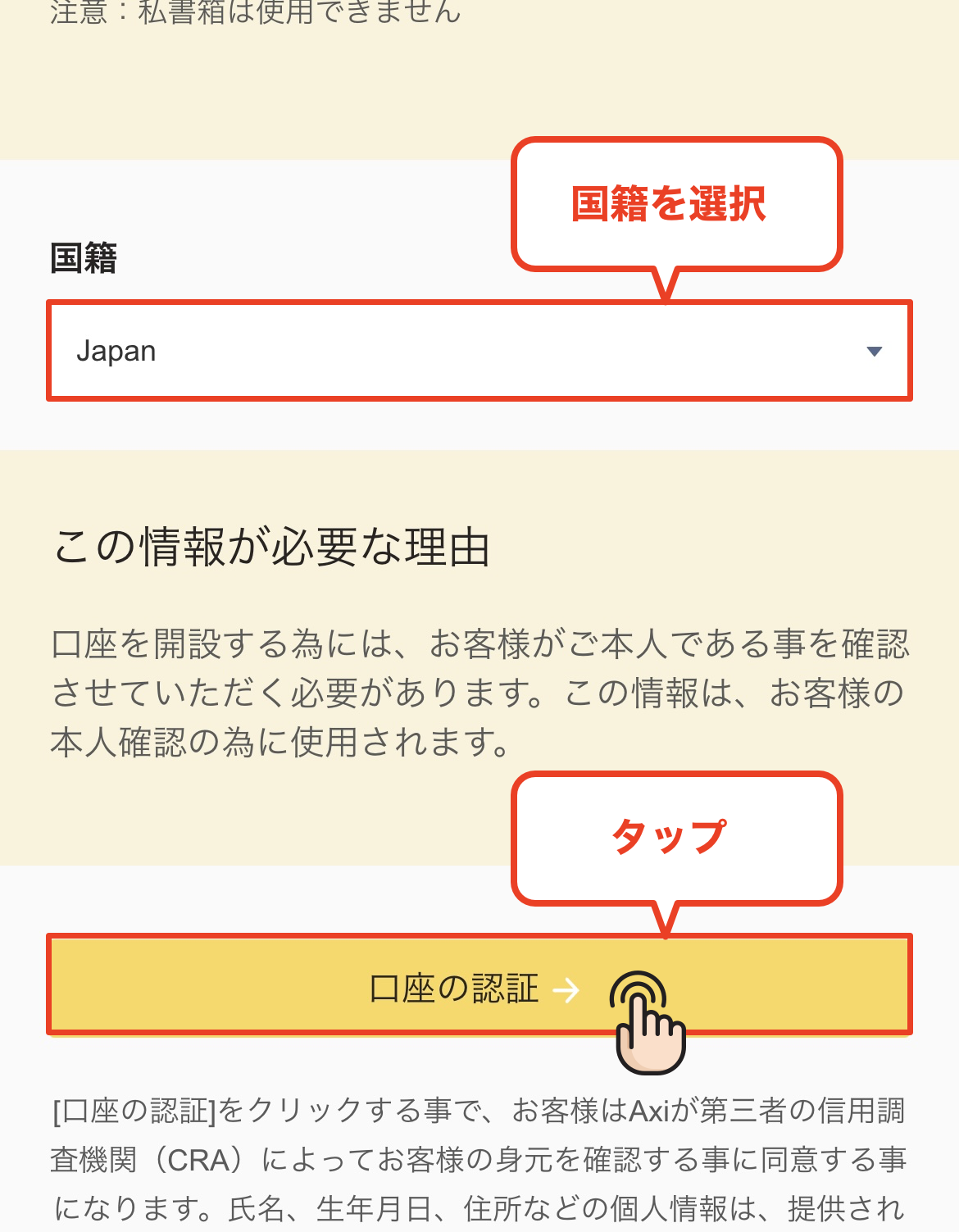
Step 9
Select your nationality and proceed to account verification
Once you have entered your address, select your "Nationality" from the dropdown menu. After selecting "Japan," tap the "Account Verification" button to proceed
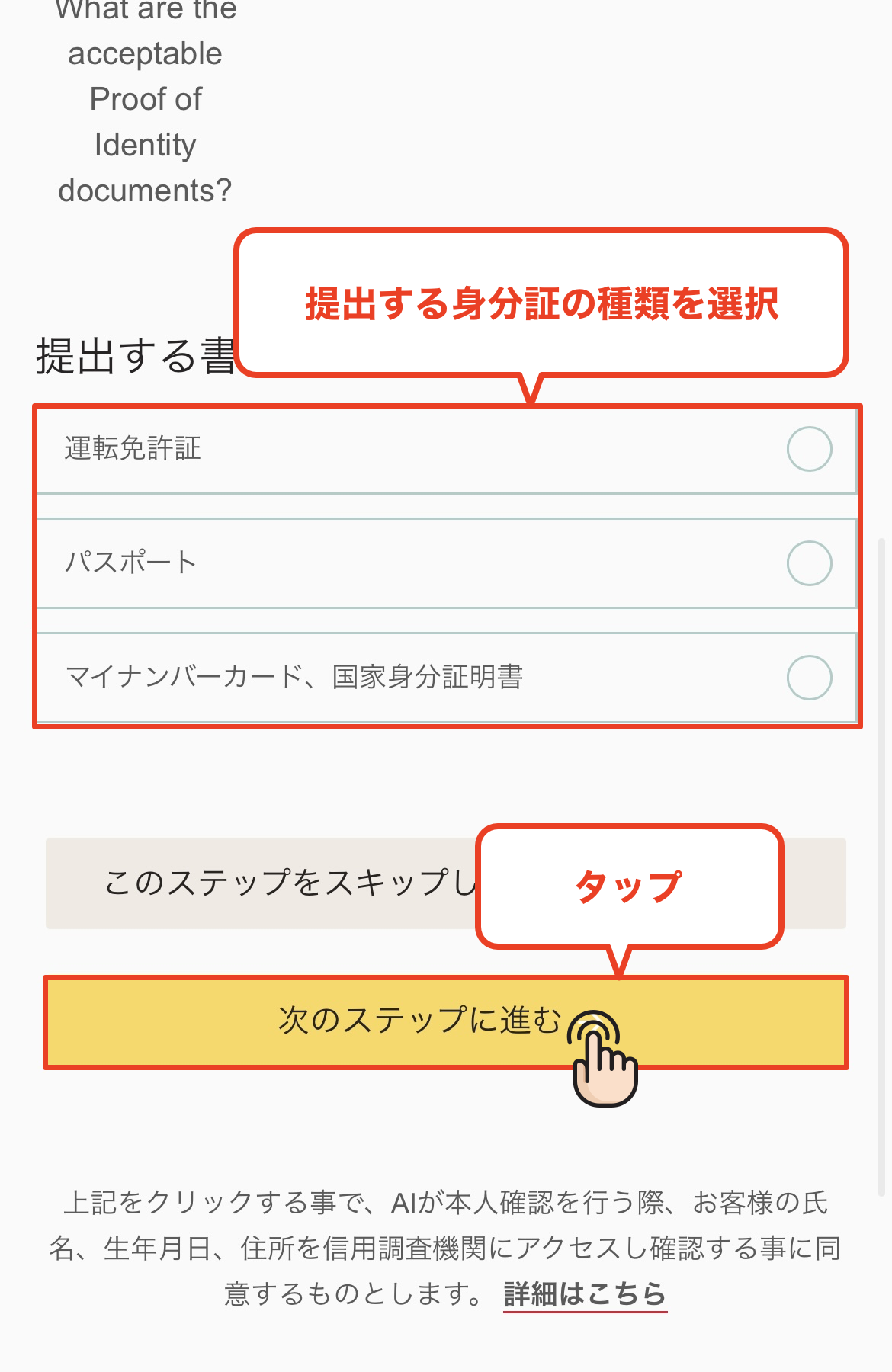
Step 10
Select the type of identification document
We will now proceed to submitting your identification. You can choose from the following three types of identification; please tap the document you have prepared
* Acceptable documents: Passport / Driver's license / My Number Card (Individual Number Card)
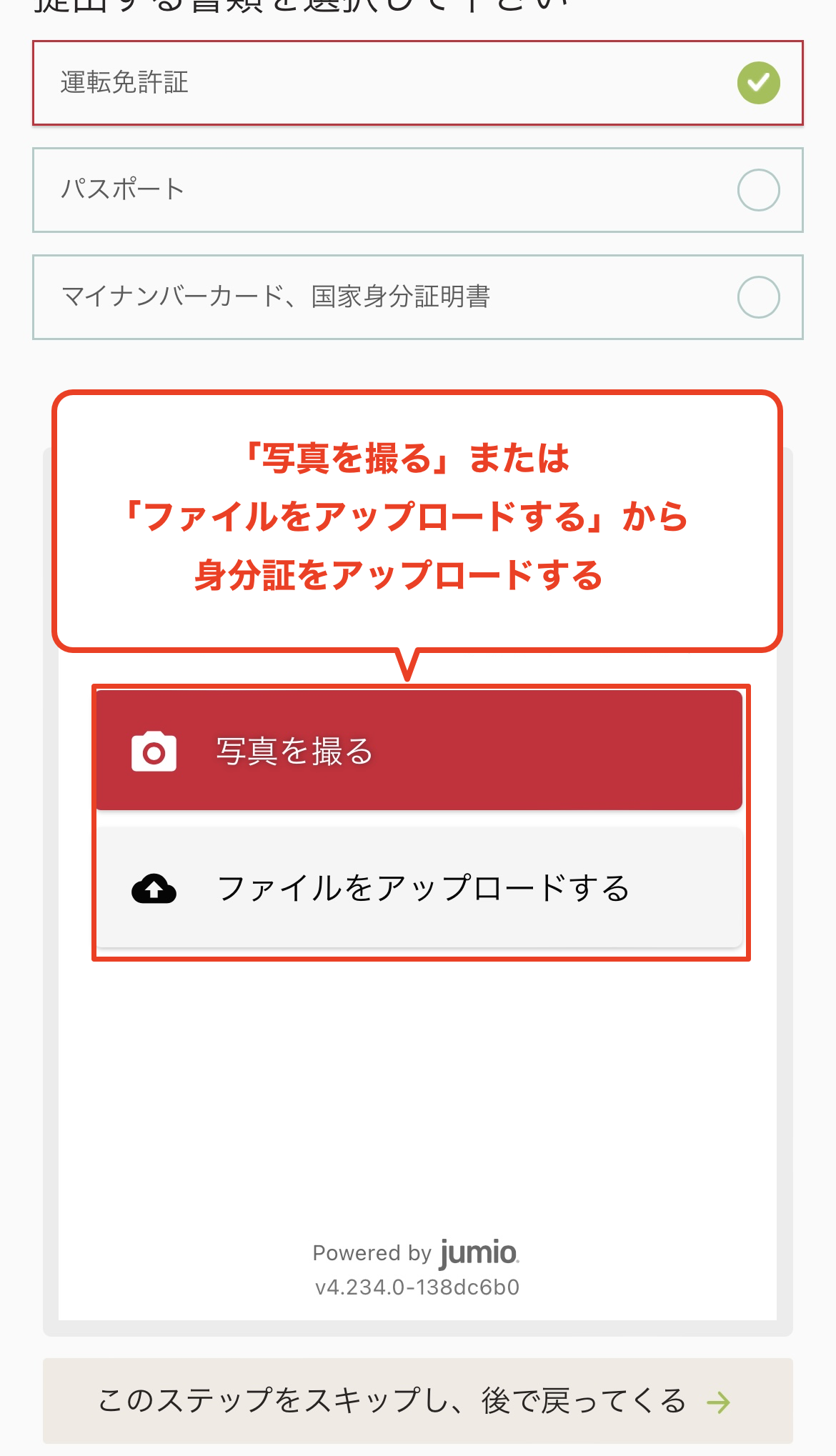
Step 11
Select how you want to upload your identification document
Please upload your identification document using one of the following two methods: "Take a photo with your camera" or "Select from files."
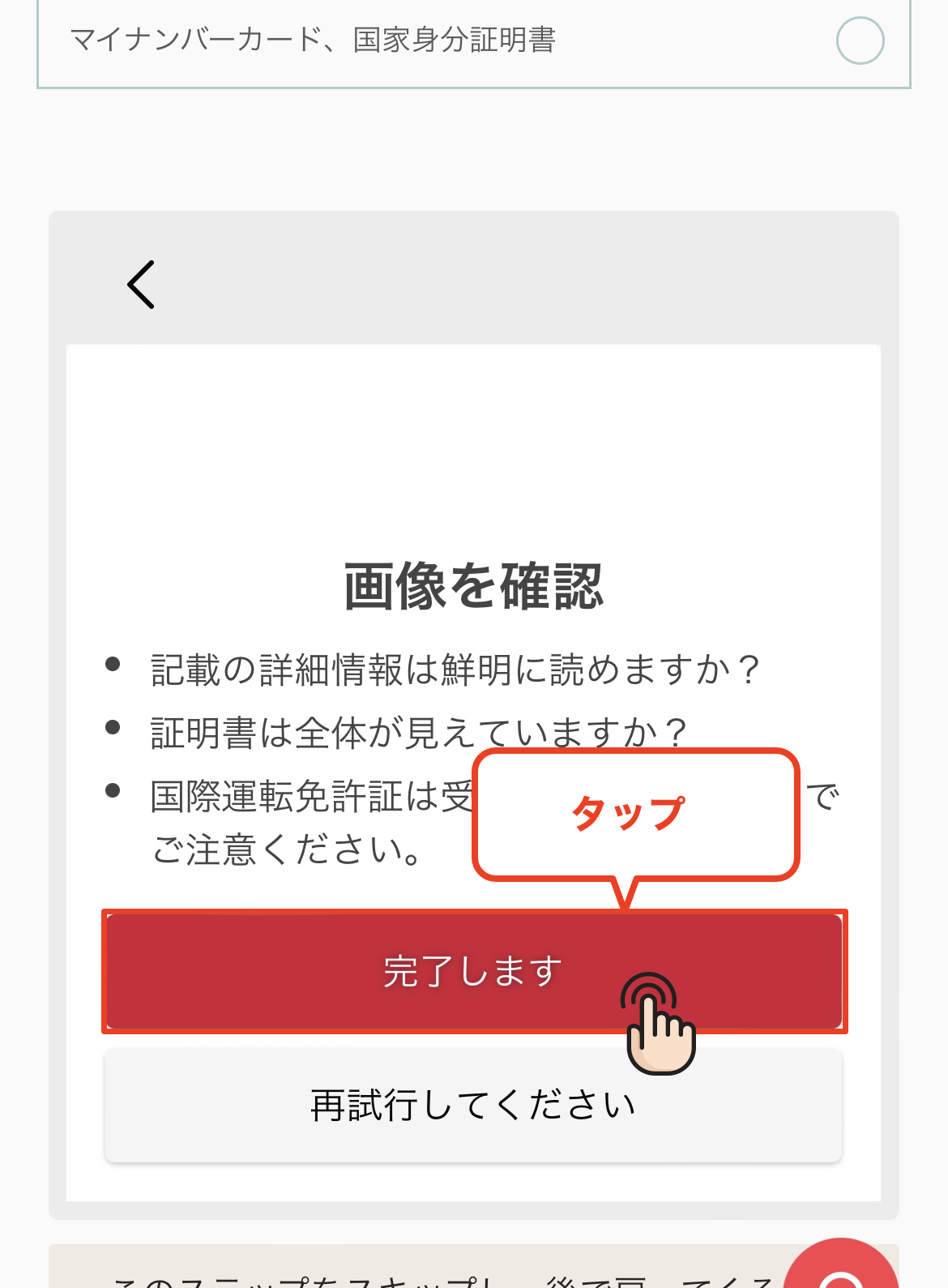
Step 12
Check the uploaded content
Once you have finished uploading your identification document, check to make sure the image has been uploaded correctly, and if there are no problems, tap "Complete"
*Please ensure that all four corners of the document are visible in the image and that the text is clearly legible
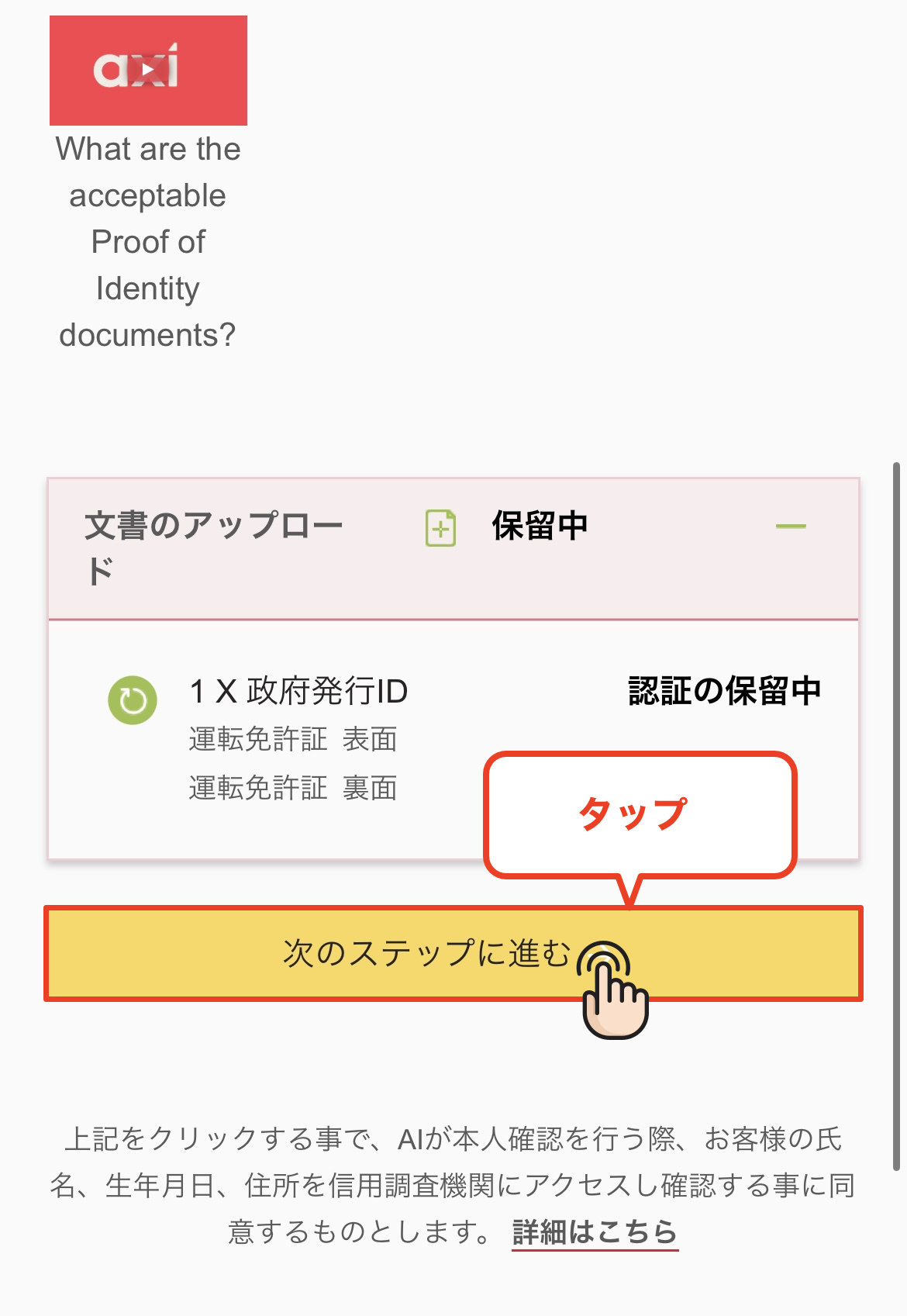
Step 13
Proceed to the next step
Once the upload is complete, tap the "Proceed to the next step" button to go to the survey response screen
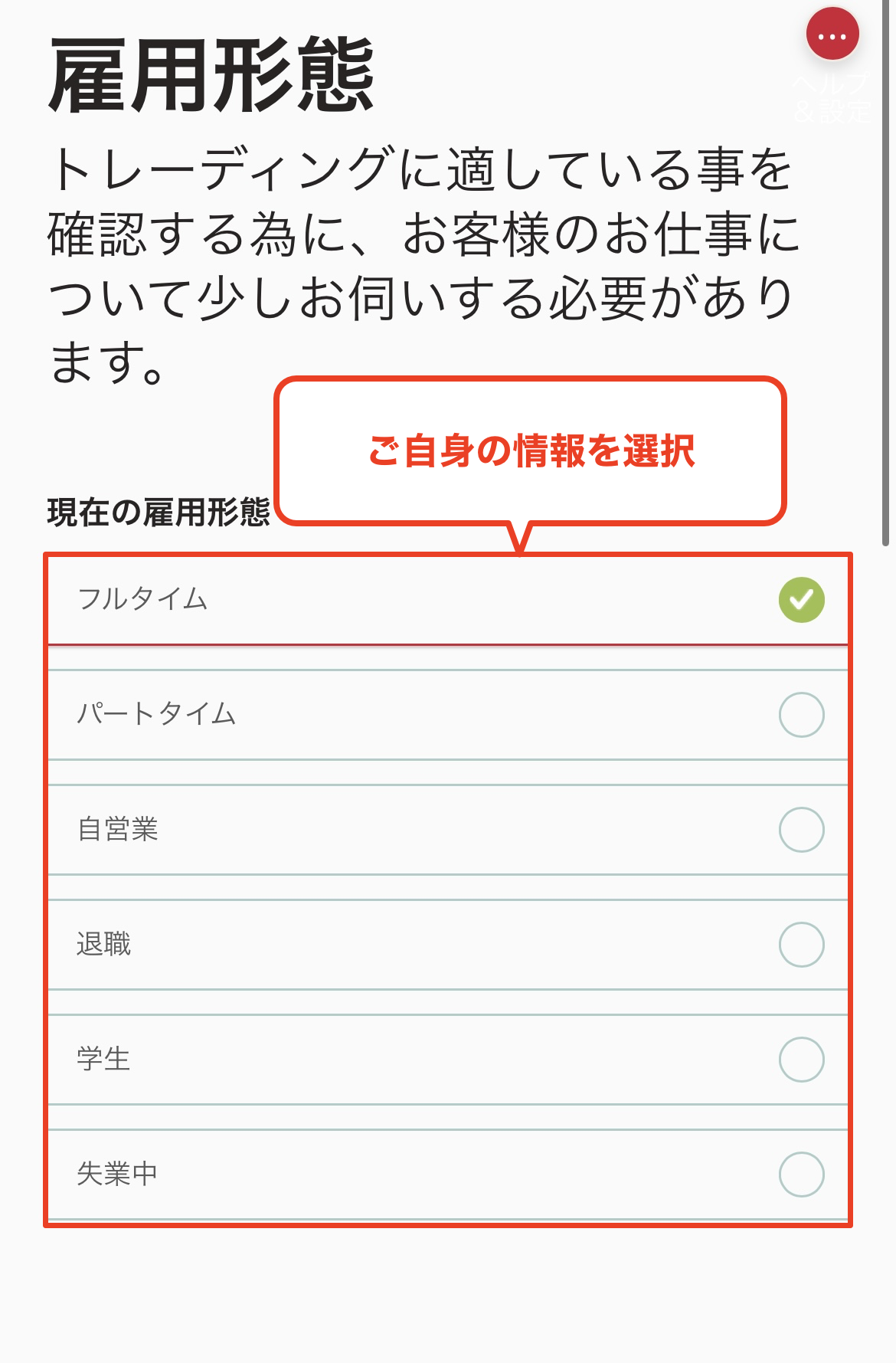
Step 14
Select employment type
From here, you will answer questions about your occupation and trading. First, please select your current employment status
*There is no particular reason why your account opening will be prevented based on your answers
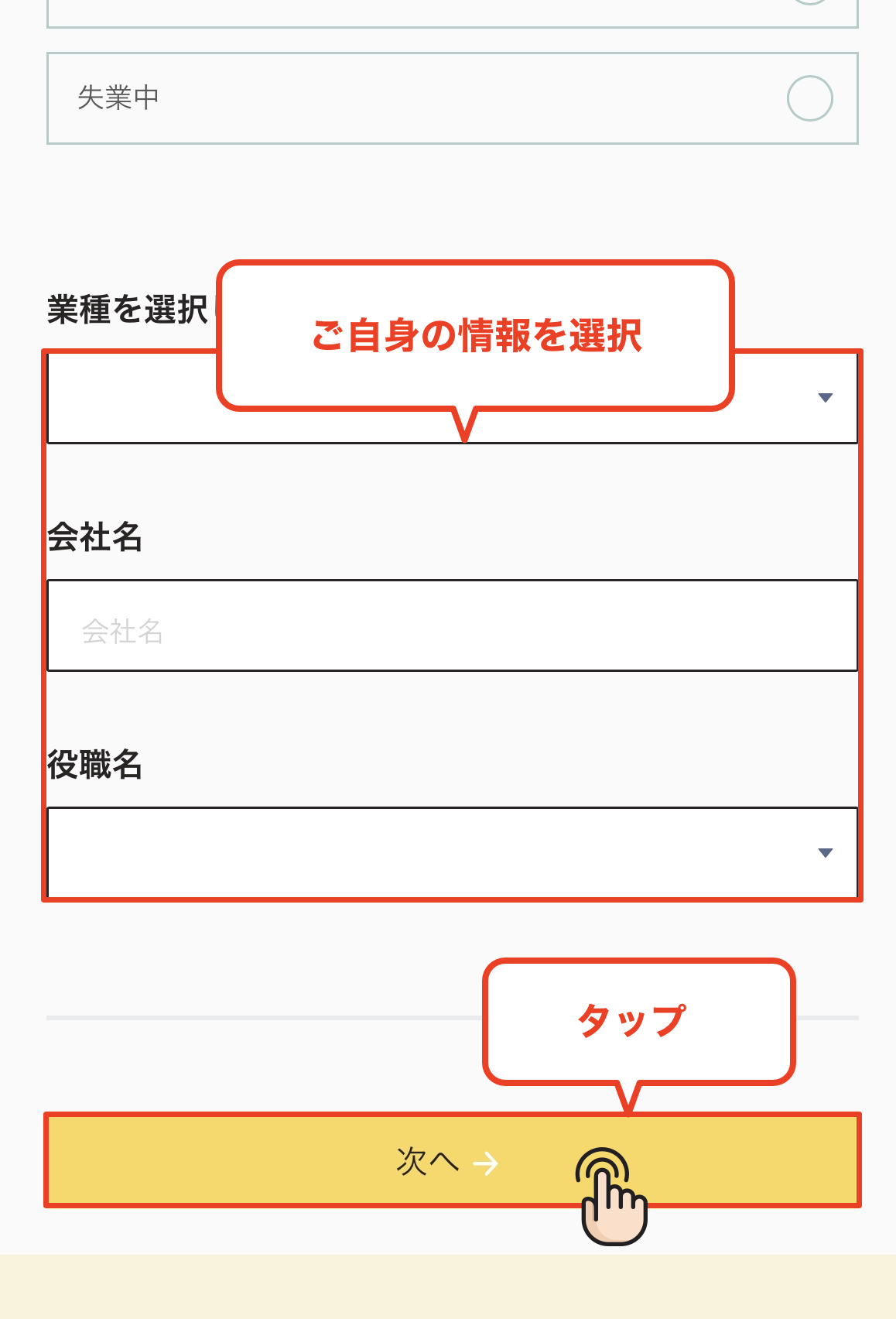
Step 15
Enter your industry and company name
Enter the industry and company name of your workplace, then tap "Next" to proceed
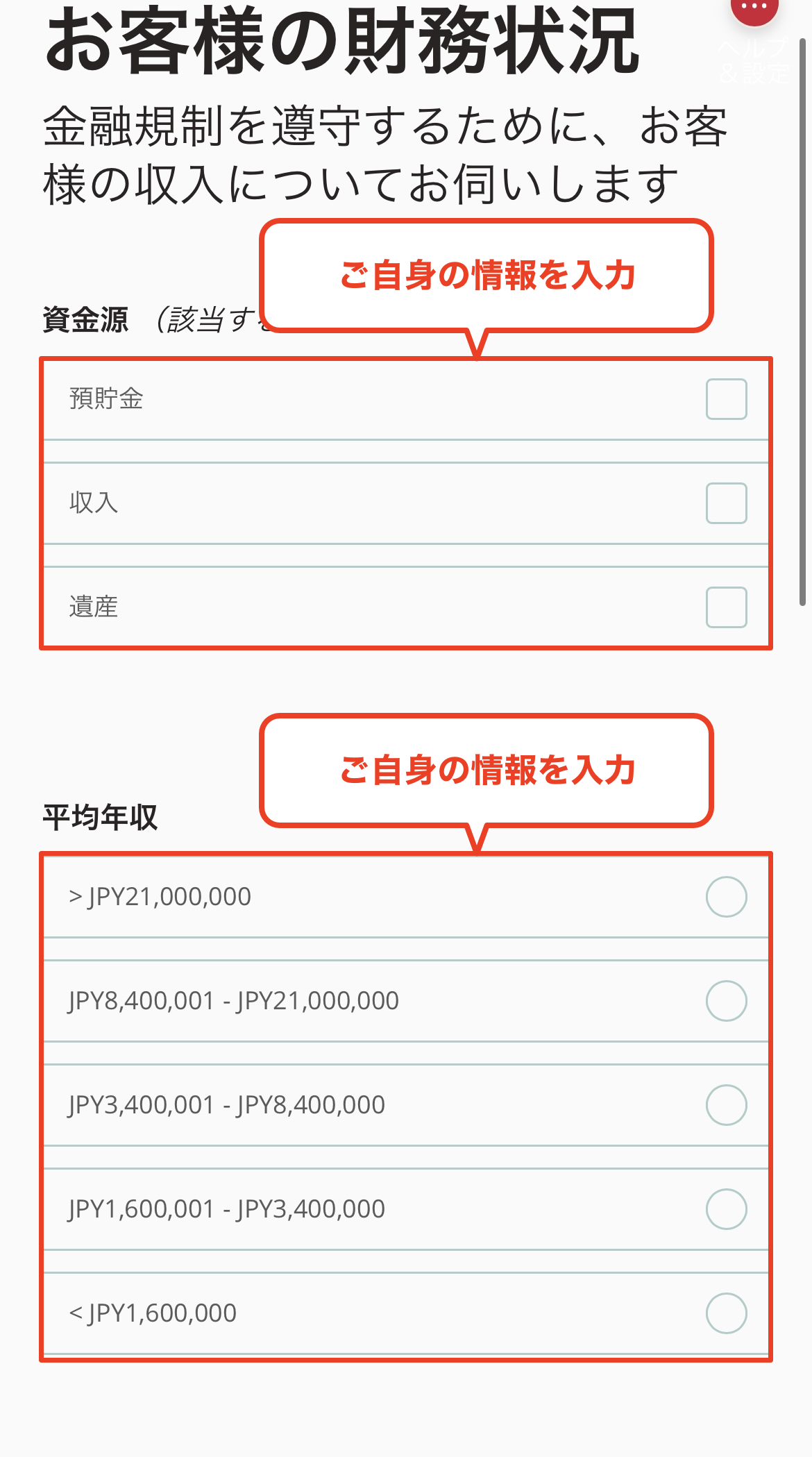
Step 16
Select your source of funding and annual income
Please select the source of the funds you will use for trading (salary, savings, etc.) and your annual income range
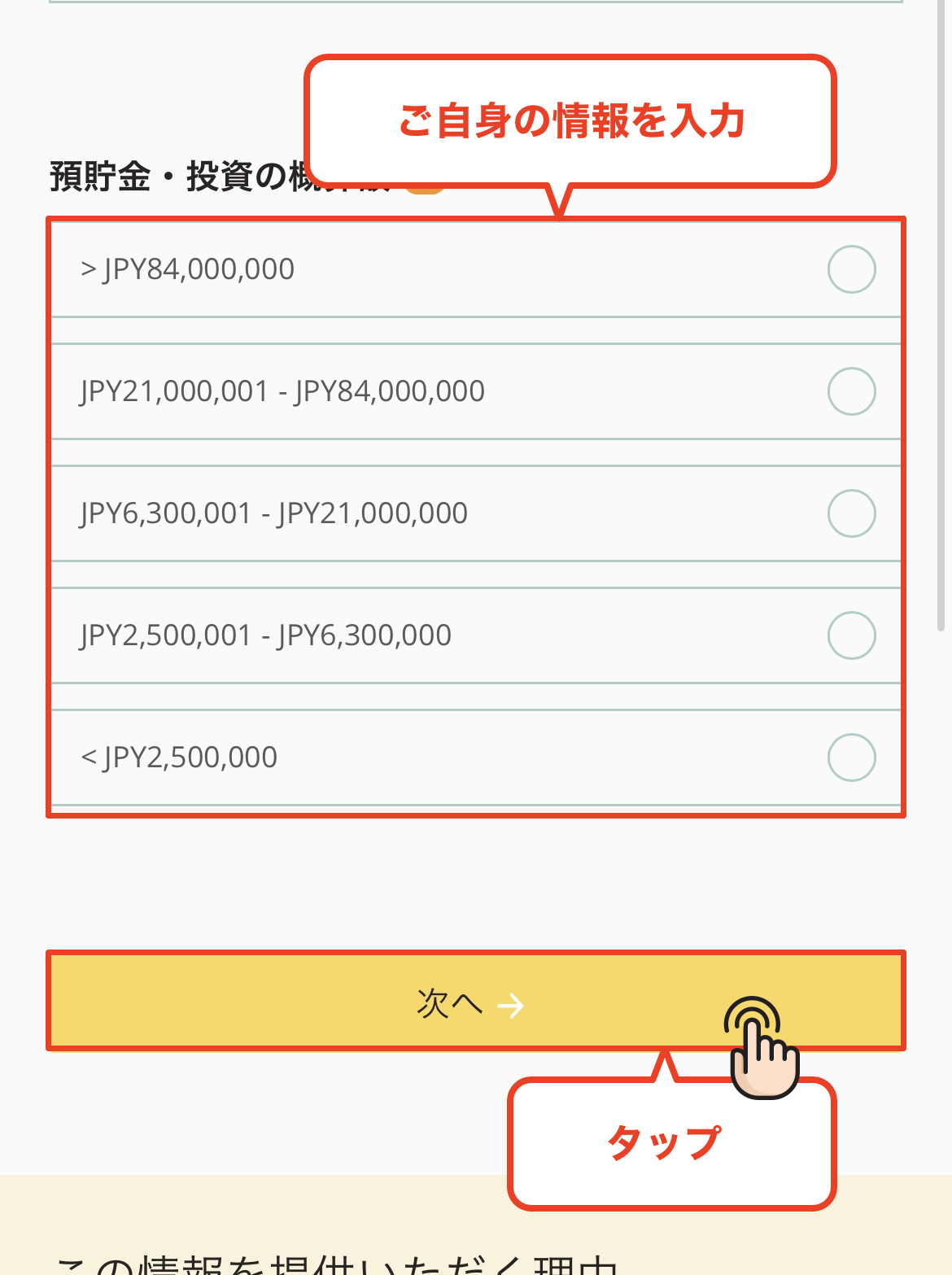
Step 17
Select the amount to save
Next, please select the range of your savings amount. Choose the appropriate amount and proceed to the next step
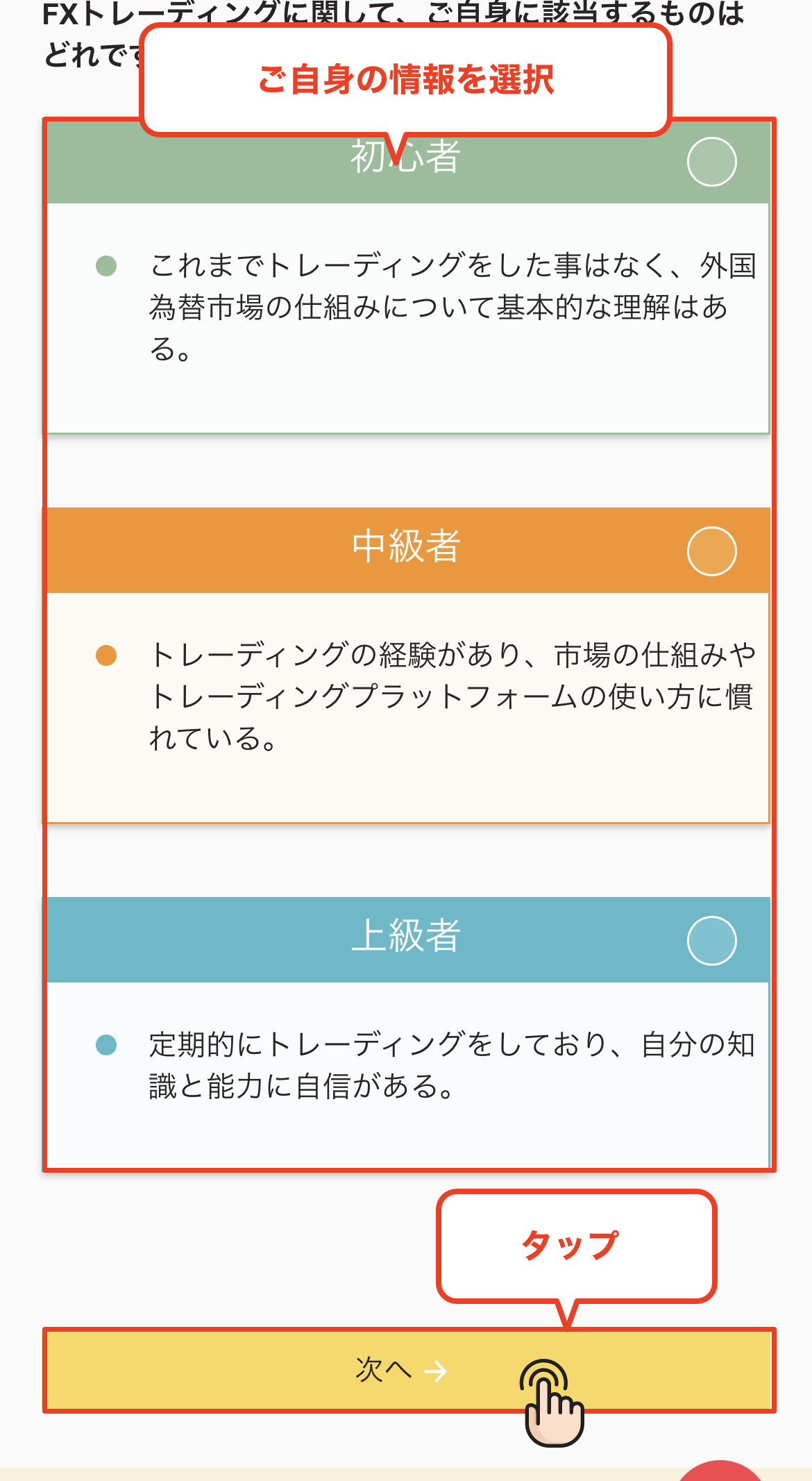
Step 18
Select your trading experience
Please answer the following questionnaire regarding your trading experience with FX, CFDs, etc. Please select your years of experience, trading frequency, etc., and proceed
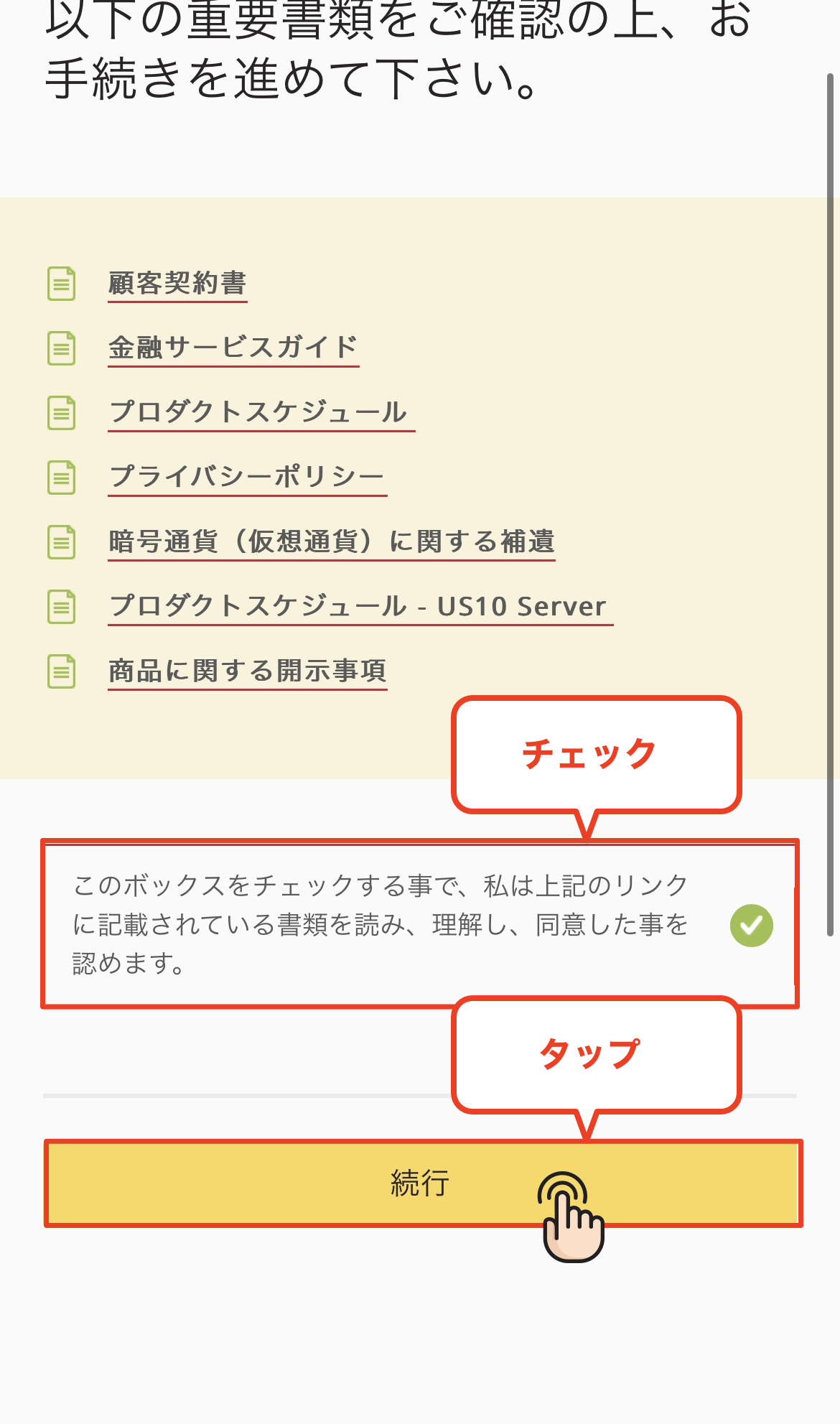
Step 19
I agree to the terms of service
Review the terms of service, check the agreement checkbox, and tap "Continue."
Step 20
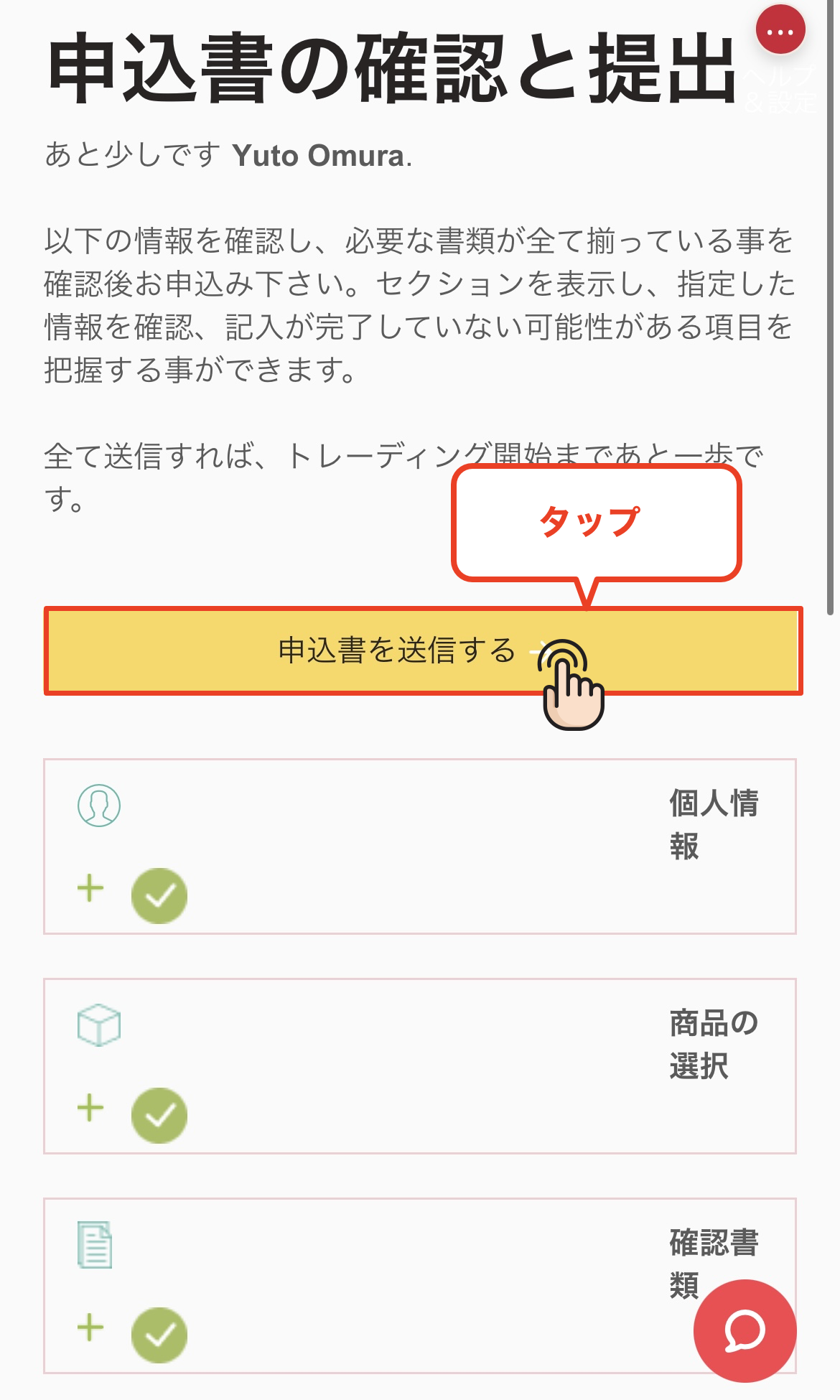
Submit the application form
Please check that the information you have entered is correct, and then tap the "Submit Application" button to complete your application
Step 21
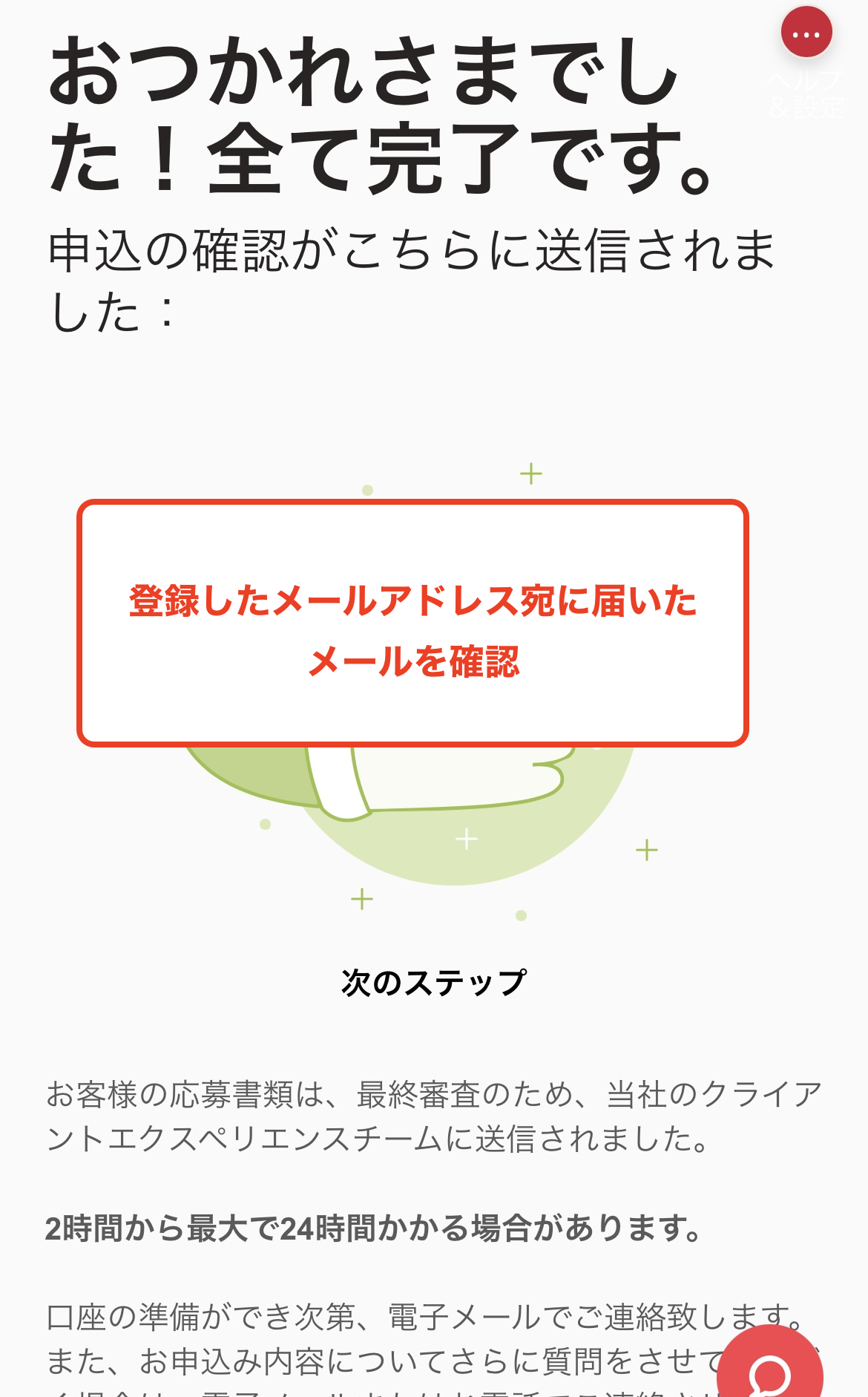
Complete the account opening procedure
Once this screen appears, your Axi new account opening process is complete. Thank you for your hard work. You will receive an account opening notification and trading account information to your registered email address shortly
*It may take some time for you to receive the email confirming your account opening. If you do not receive it, please check your spam folder
Step 22
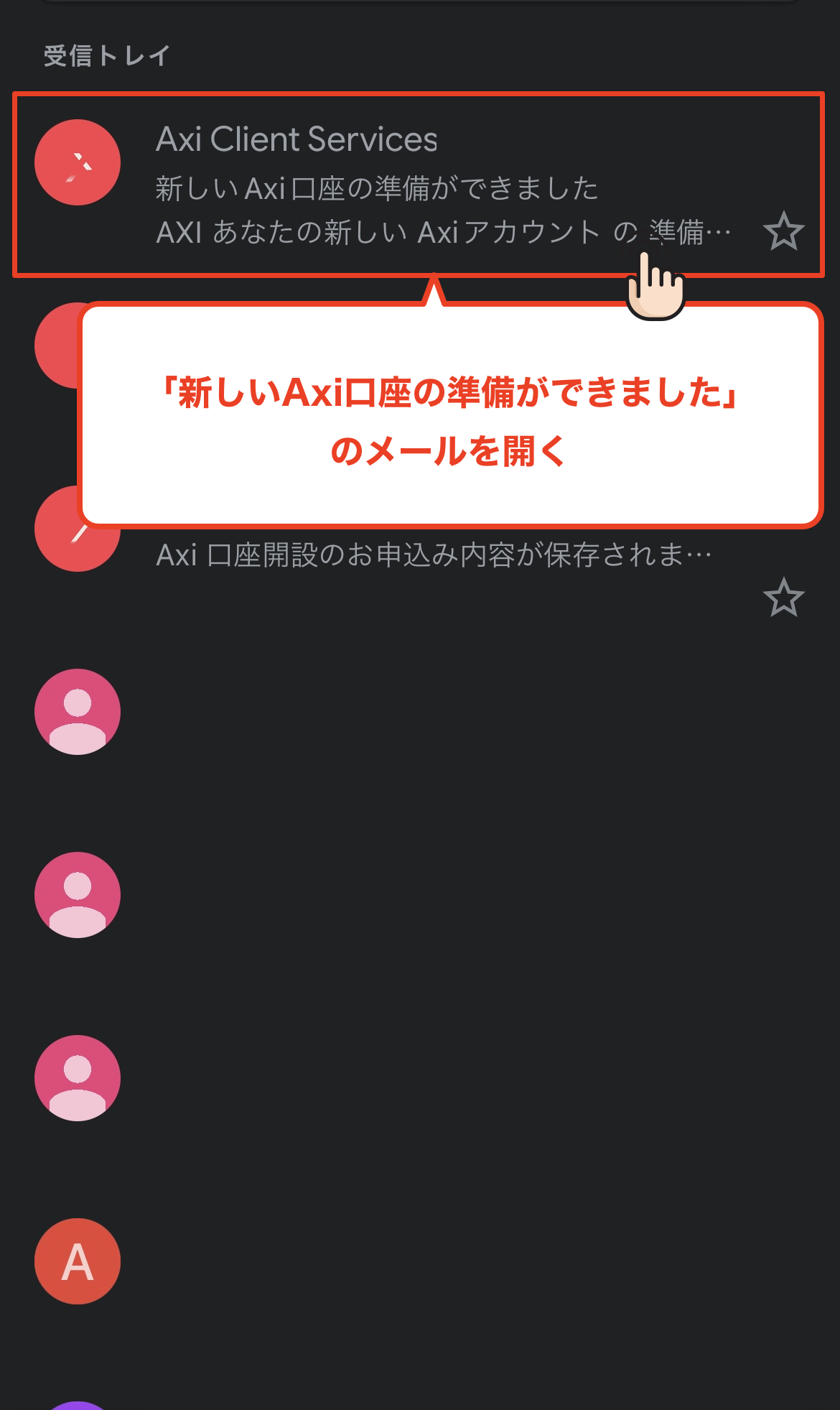
Check emails from Axi
You will receive an email from Axi to your registered email address with the subject line "Your new Axi account is ready." Open the email and check your trading account information
Step 23
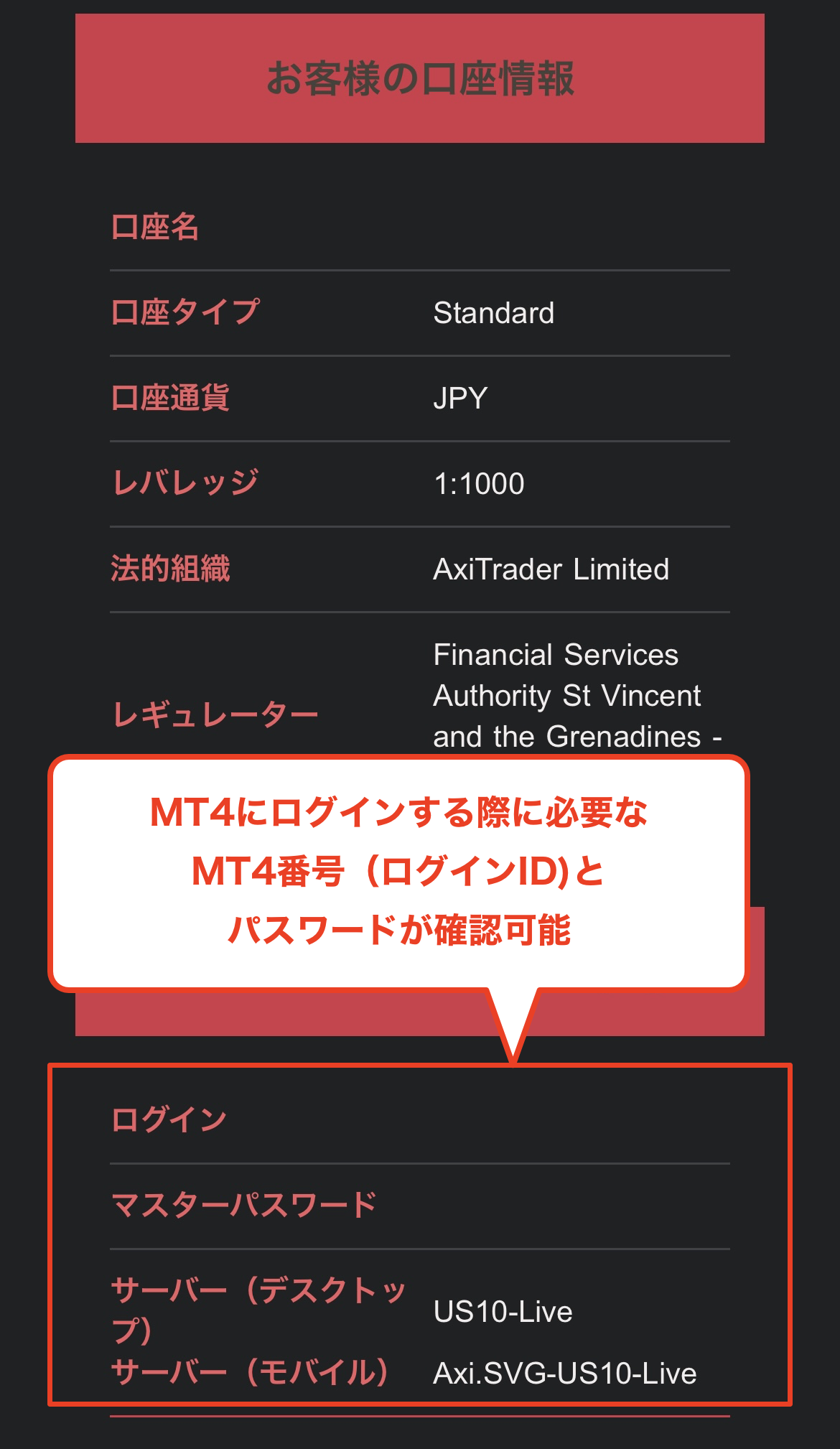
Get your account number and password
When you open the email, you will find your newly opened trading account's "account number (login ID)" and "password." Please make a note of these, as you will need them to log in to MT4 and register for a MoneyChat account
*This account number (login ID) will be needed when registering your MoneyChat account in Part 2, so it's a good idea to write it down or take a screenshot of it
Part 2
Register your account from your MoneyChat My Page (required)
If you forget this step, you will not receive the cashback. Be sure to apply from your MoneyChat My Page and confirm that the status has changed to "Approved" before trading
Step 1
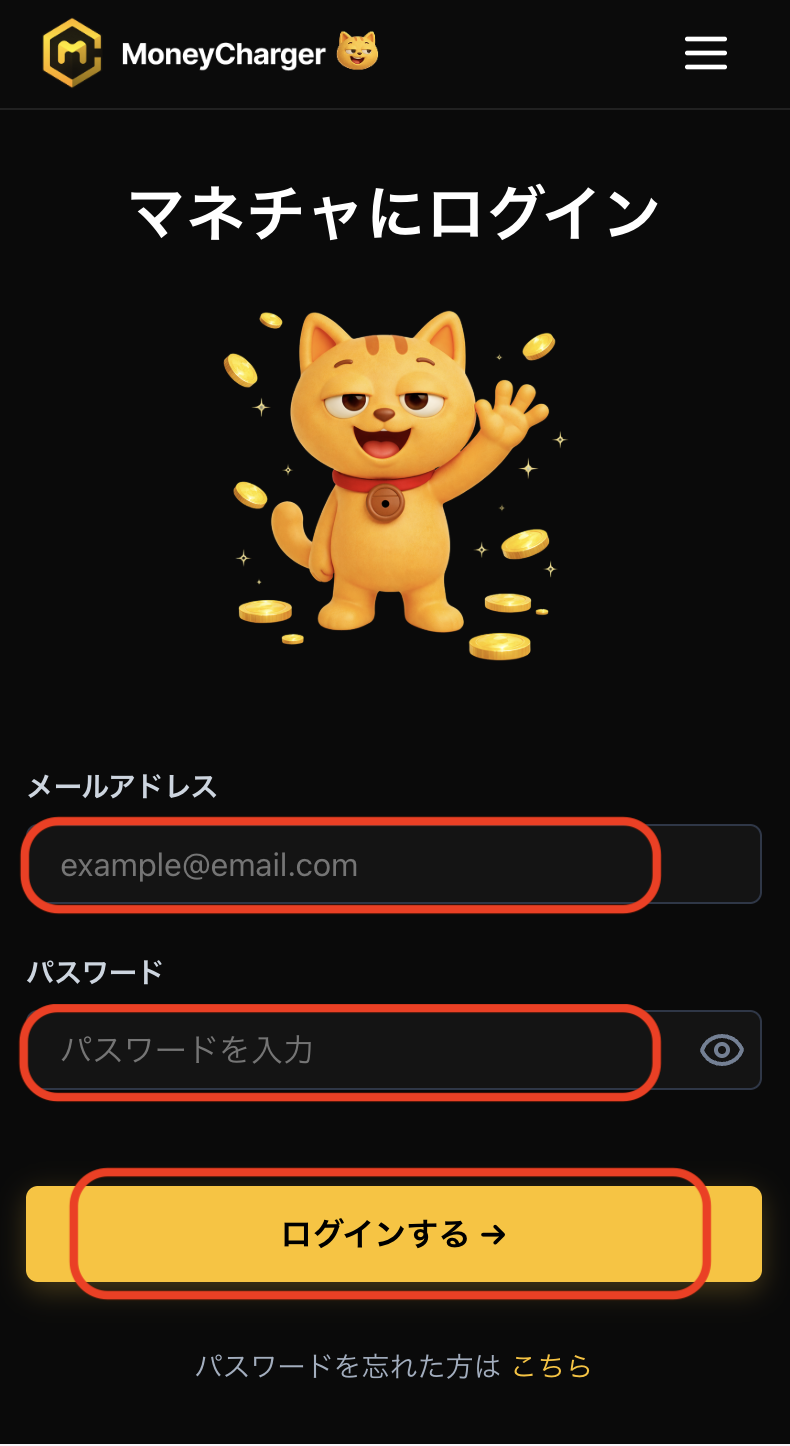
Log in to your MoneyChat My Page
Log in to the MoneyChat page from the login page
Step 2
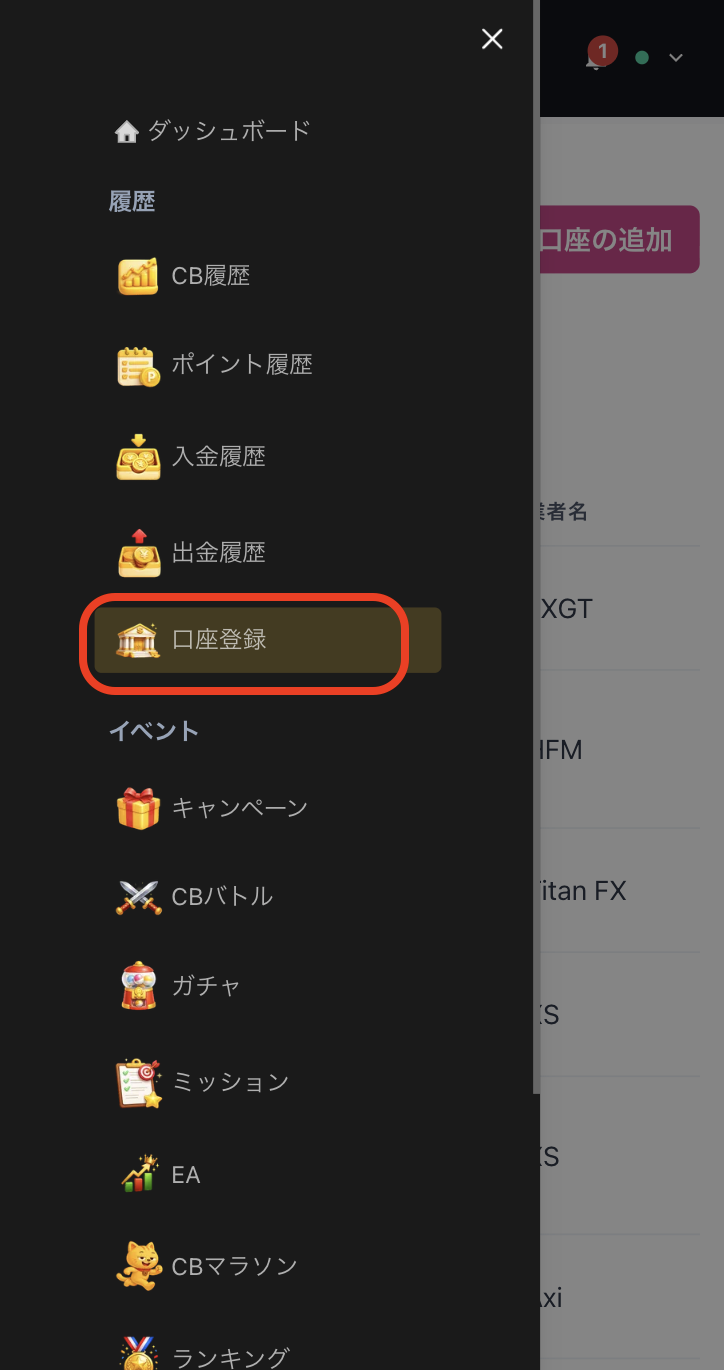
Select "Register Account" from the menu
Tap the three lines in the upper left corner of the screen to bring up a menu, then select "Register Account" from there
Step 3
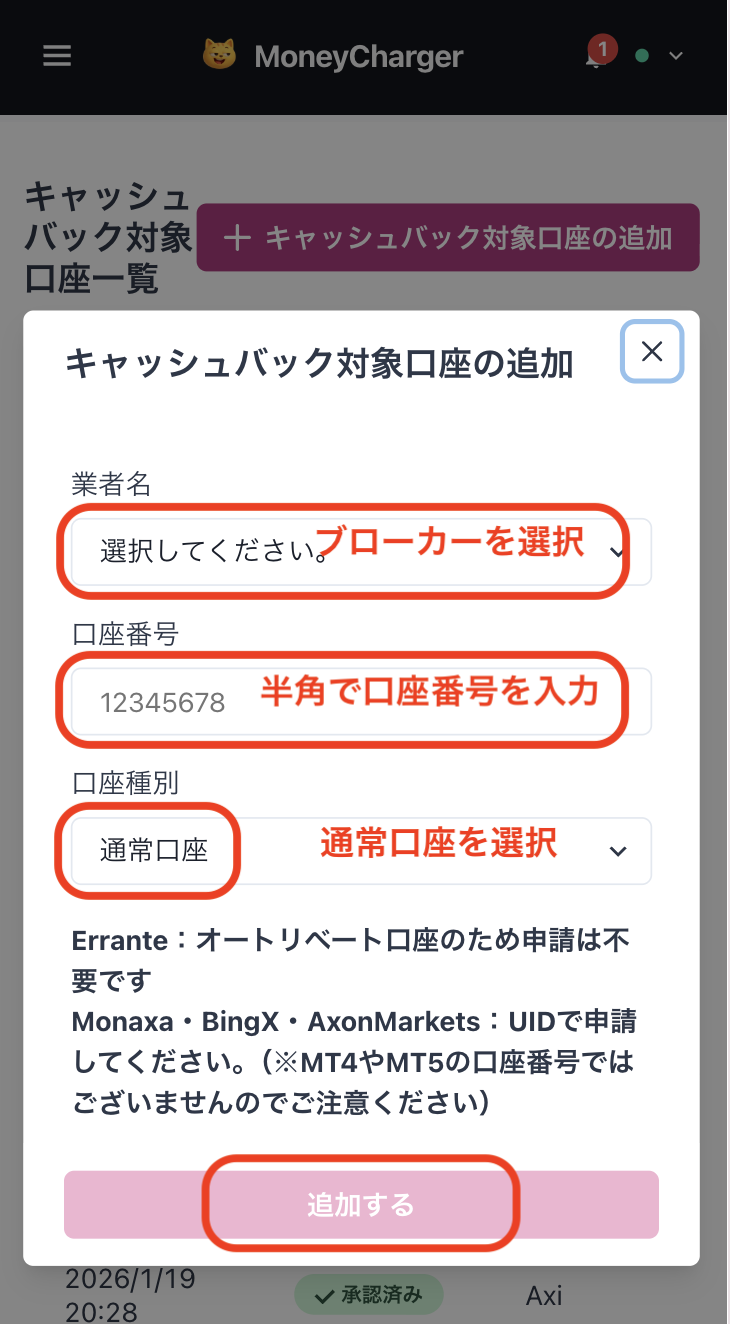
Select a broker and enter your account number
A menu like the one shown in the image will appear. Select "Axi" for the broker name and enter your account number using half-width numerals. For the account type, select "Regular Account" if you are doing regular discretionary trading or using your own EA
While there is an option for a dedicated account for MoneyChat EAs, this is only for those who wish to use EAs within MoneyChat's EA menu, so please select "Regular Account"
Step 4
Once approved, it's complete
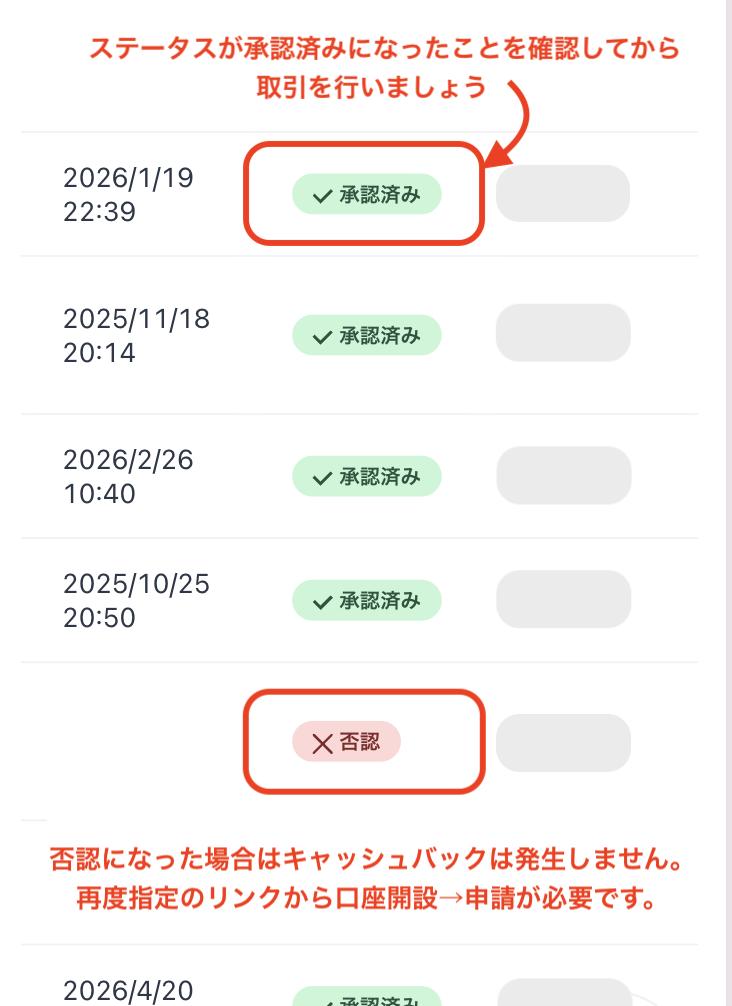
Once you see this screen, your application is complete.
After submitting your application, if there are no problems with your application details, the status at the bottom of "Account Registration" will change to "Approved" within one business day.
Cashback on your transactions will be reflected from the time the status changes to "Approved".
[Caution] Cashback will not be provided if you trade using an account that has not been approved. Please be aware of this