











Contents
- 1 Errante Account Opening Guide | Step-by-Step Explanation with Images
- 2 What is an auto-rebate compatible account?
- 3 How to use an auto-rebate account
- 4 Open an Errante account
- 4.1 Go to the Errante account creation page
- 4.2 Enter your registration information
- 4.3 Get the verification code
- 4.4 Enter your PIN code
- 4.5 Enter your personal information
- 4.6 Submission of identity verification documents begins
- 4.7 Select "Identification Document"
- 4.8 Select the type of identification document
- 4.9 Upload your identification document
- 4.10 Check the approval pending screen
- 4.11 Upload proof of address
- 4.12 Receive a confirmation email
- 4.13 Confirmation that both documents have been approved
- 4.14 Tap "Open Live Account"
- 4.15 Open the account type selection screen
- 4.16 Select account type, leverage, and currency
- 4.17 Confirmation of completion of trading account opening
- 4.18 I received an email with trading server information
- 4.19 Open the IB application menu
- 4.20 Complete the IB application
Errante Account Opening Guide | Step-by-Step Explanation with Images
This guide explains how to open a new account with Errante, using smartphone screenshots and diagrams to ensure even first-time users won't get lost
If you open an account through the auto-rebate compatible account opening link and apply for IB (Introducing Broker) status with Errante, cashback for each trade will be automatically credited to your Errante account. Please follow the steps below to open an account
- Errante Account Opening Procedure
- How to receive cashback with AutoRebate
What is an auto-rebate compatible account?
An auto-rebate account is an account where,simply by opening an account through a dedicated account opening link and applying for an IB (Introducing Broker) on the Errante side, the cashback (rebate) generated for each transaction is automatically reflected in the account.
Normally, receiving cashback with overseas forex brokers requires separate registration with the cashback site and account linking application. However, with an auto-rebate compatible account, all you need to do is apply for an IB (Introducing Broker) through the Errante client portal after opening the account. After that, cashback will be automatically credited to your Errante account every time you trade
- You can become eligible simply by opening an account through the dedicated link and applying for an IB account with Errante
- Cashback is automatically credited to your Errante account for each transaction
- No registration with a separate cashback site is required
How to use an auto-rebate account
Errante supports auto-rebates, so simply open an account via the link below and apply for an IB (Introducing Broker) with Errante, and cashback for each trade will be automatically credited to your Errante account
- ① Open an account using the following Auto Rebate account opening link (no separate account registration is required)
- ② Perform an "IB application" within the Errante client portal
- ③ Once the application is approved by Errante, the account will become eligible for auto-rebates and the rewards will be automatically reflected
*If you do not apply for an IB (Introducing Broker), you will not receive auto-rebates, so please be sure to do so after opening your account (the procedure is explained in Steps 19-20 below)
Guide
Open an Errante account
First, you will need to open an Errante account. Please follow the instructions below and open an account via the dedicated link provided by the button
Step 1
Go to the Errante account creation page
First, click the button below to go to the Errante account creation page. When you open the link, the Errante registration form will be displayed
*Opening an account through this link will create an auto-rebate account where cashback for each trade is automatically reflected after applying for IB (Introducing Broker) status
Step 2
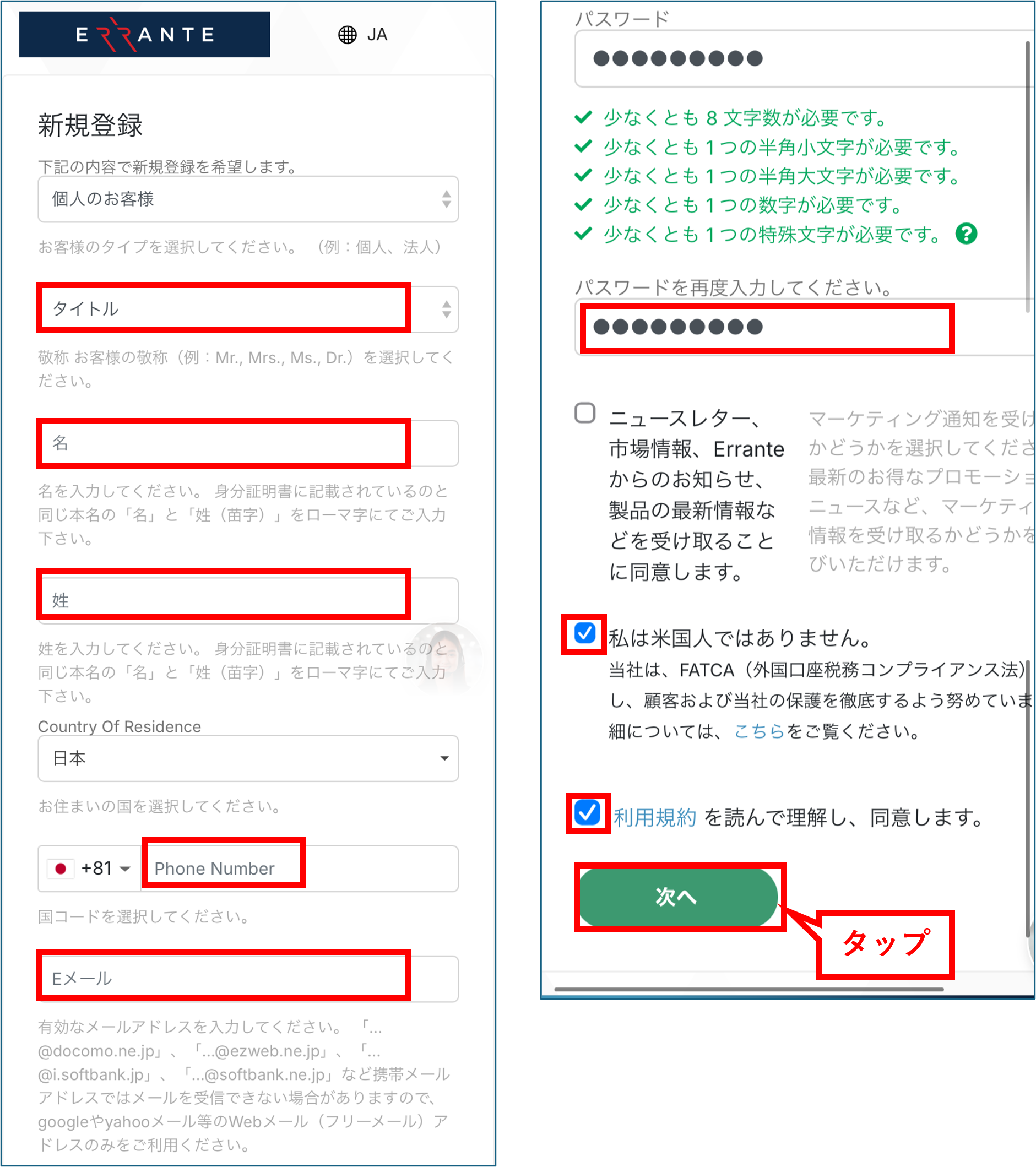
Enter your registration information
Enter the required information into the displayed registration form, starting from the top. Once you have finished entering the information, tap the "Next" button
*Please make sure to write down the email address and password you registered, as you will need them to log in to your My Page
Step 3
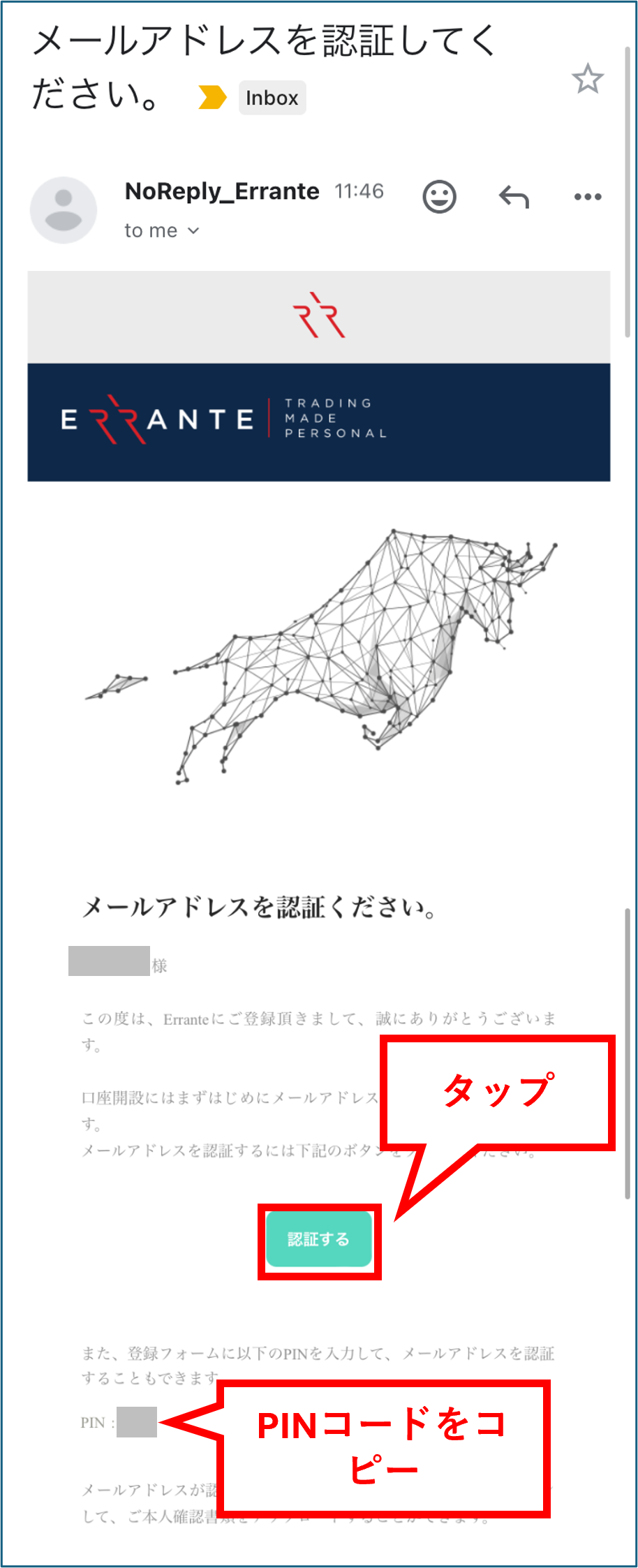
Get the verification code
You will receive an email from Errante containing a verification code at the email address you registered. Copy the PIN code from that email. Then, tap the "Verify" button to proceed to your My Page
*If you do not receive the email, please check your spam folder
Step 4
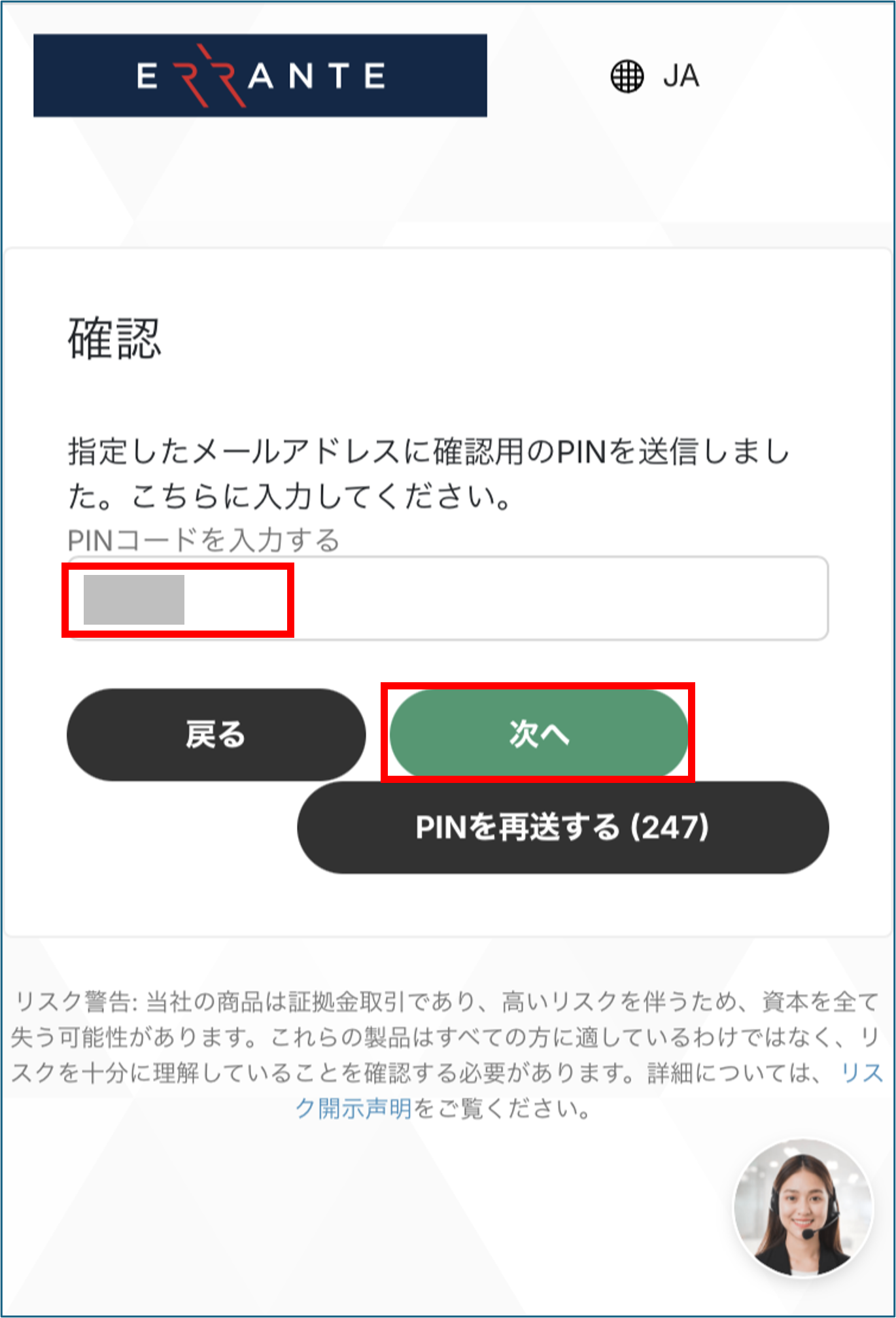
Enter your PIN code
Enter the PIN code you copied earlier into the screen and tap the "Next" button
*In some cases, authentication may be completed simply by tapping "Authenticate" without having to enter a PIN code
Wi5
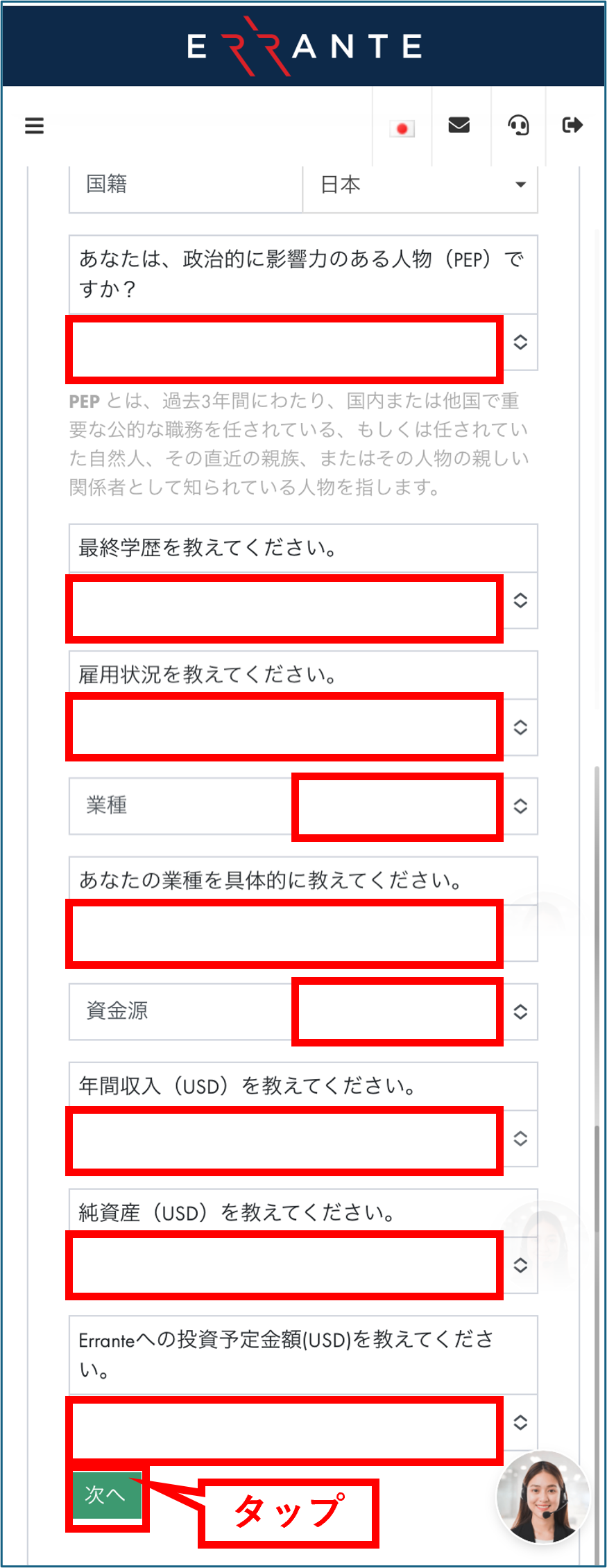
Enter your personal information
Next, you will enter information about yourself. Once you have entered all the information, tap the "Next" button
Step 6
Submission of identity verification documents begins
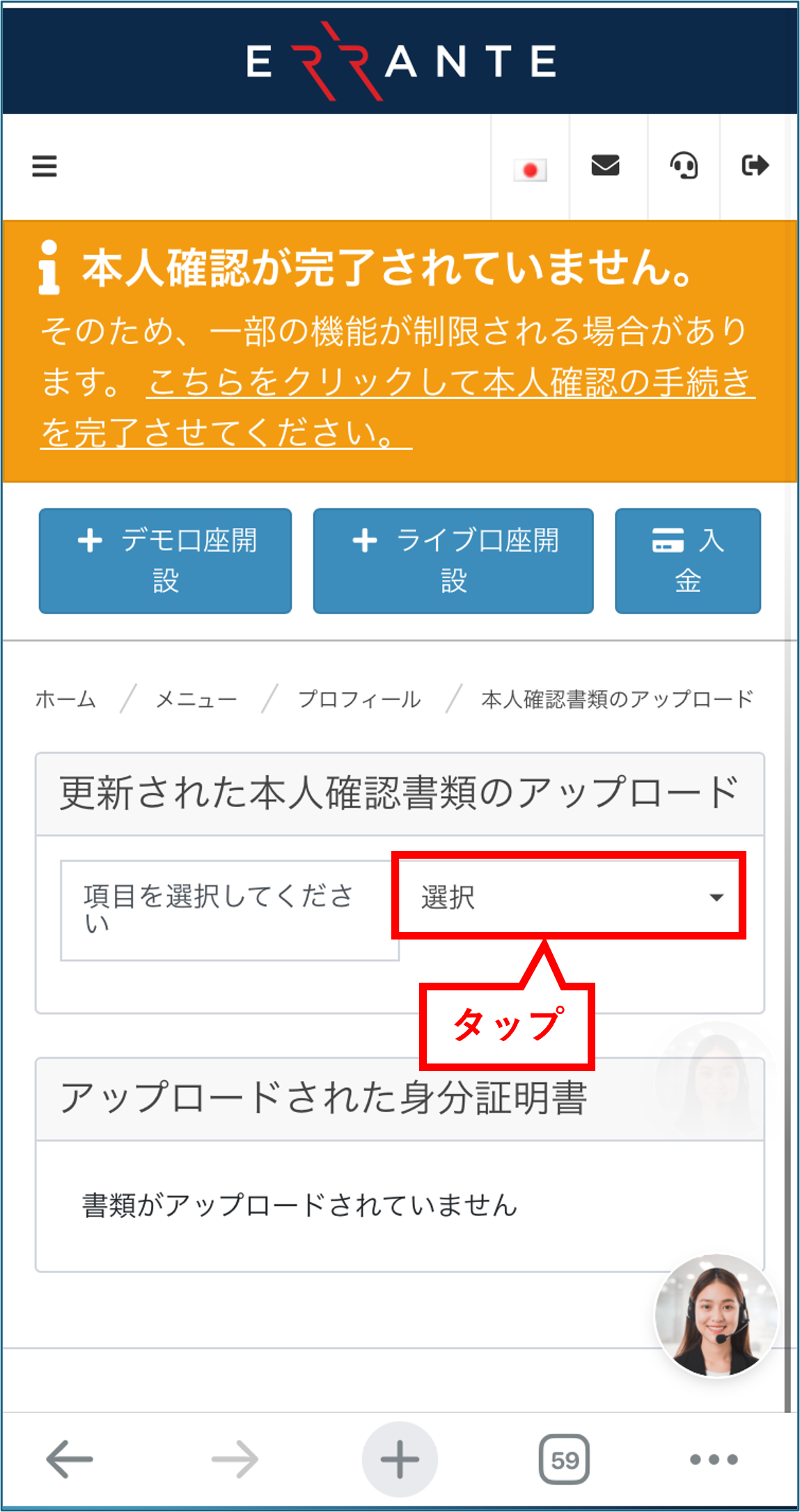
Proceed to submitting your identity verification documents. Tap the "Select" button in the column to the right of "Please select an item."
Step 7
Select "Identification Document"
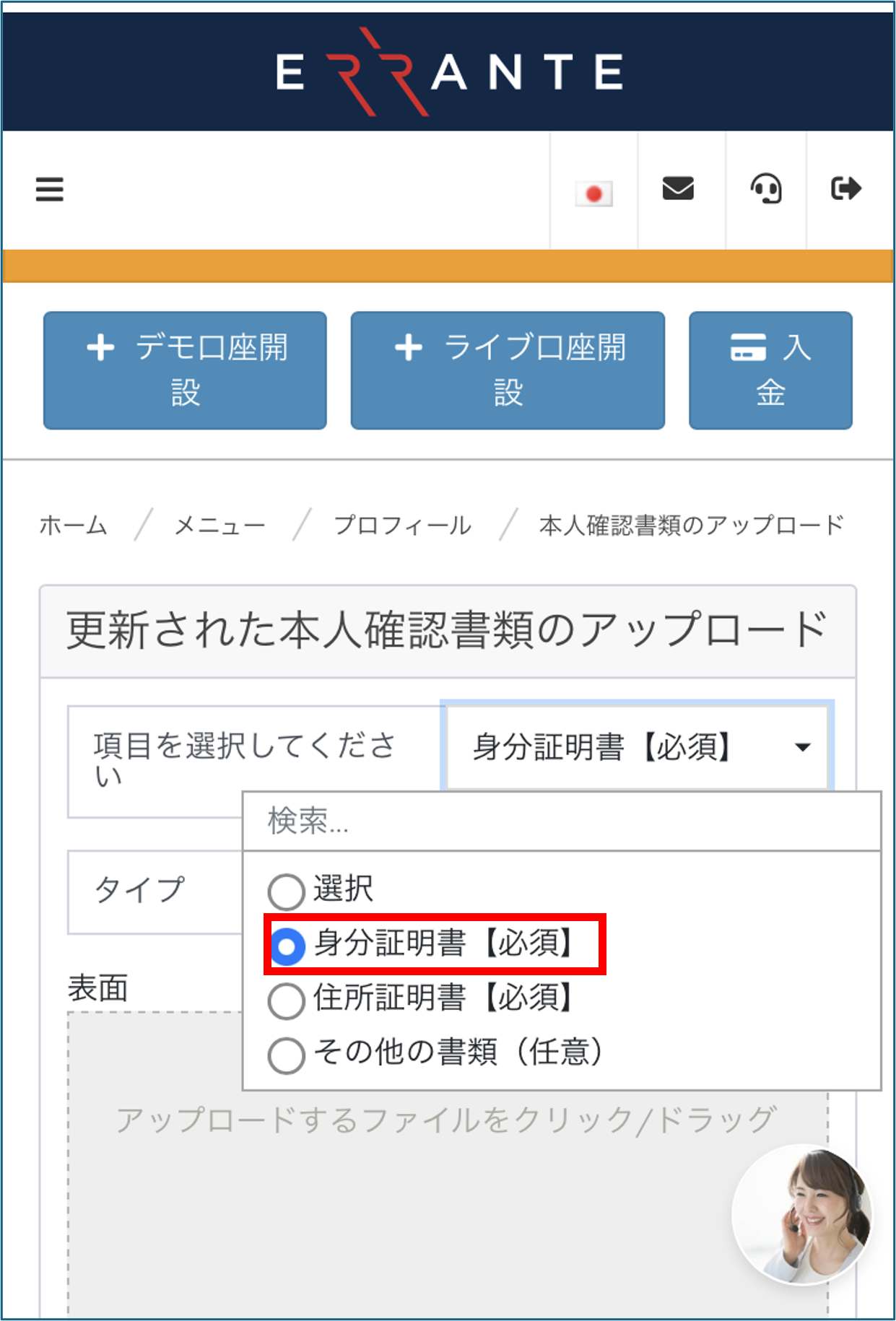
A dropdown menu will open; select "Identification Document [Required]" as it is mandatory to submit this document
*The only documents you are required to submit are your "identification document" and your "proof of address." You will submit your proof of address in a later step
Step 8
Select the type of identification document
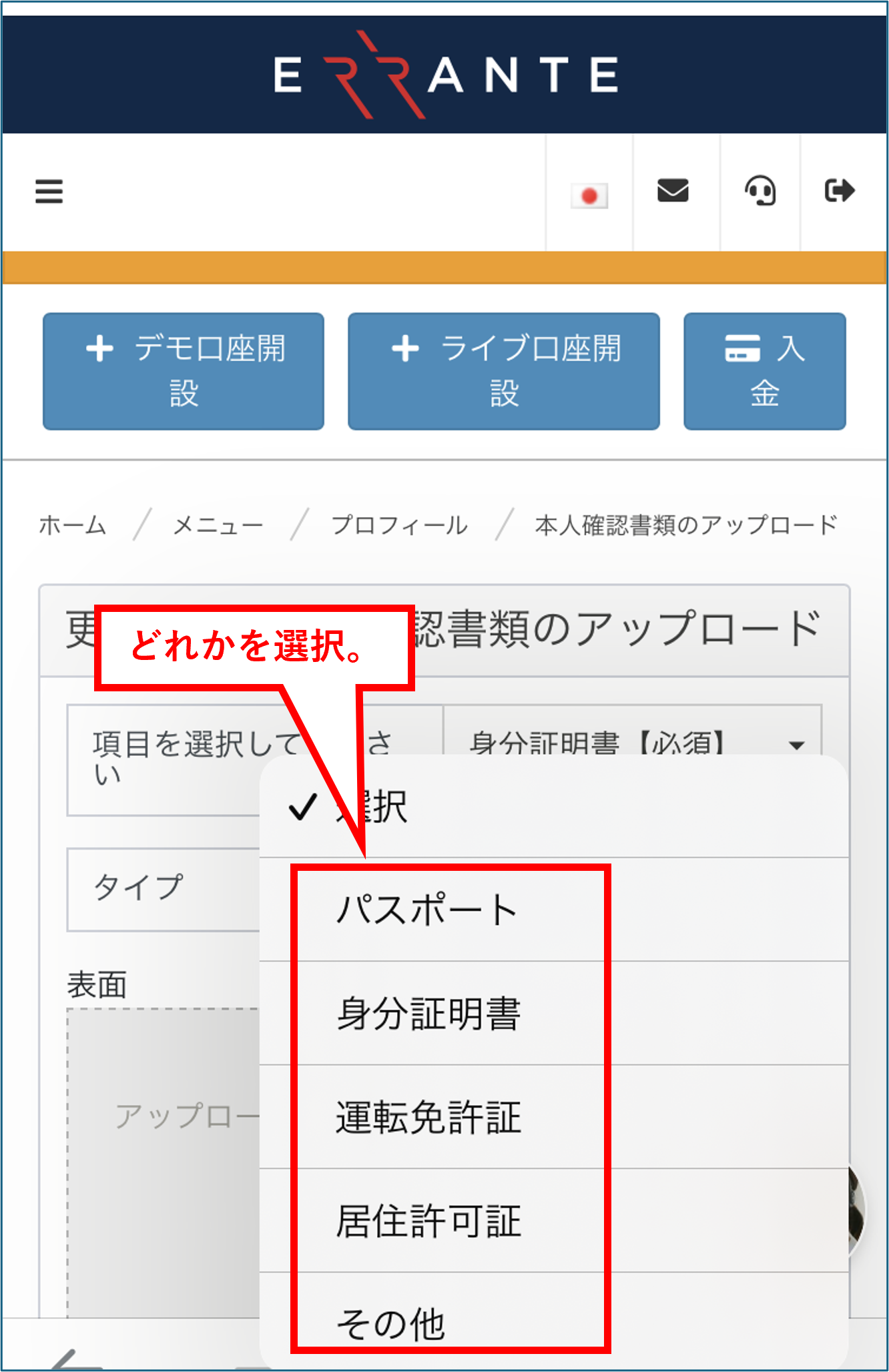
Next, please select the type of identification document you will be submitting (e.g., My Number Card, passport, driver's license)
Step 9
Upload your identification document
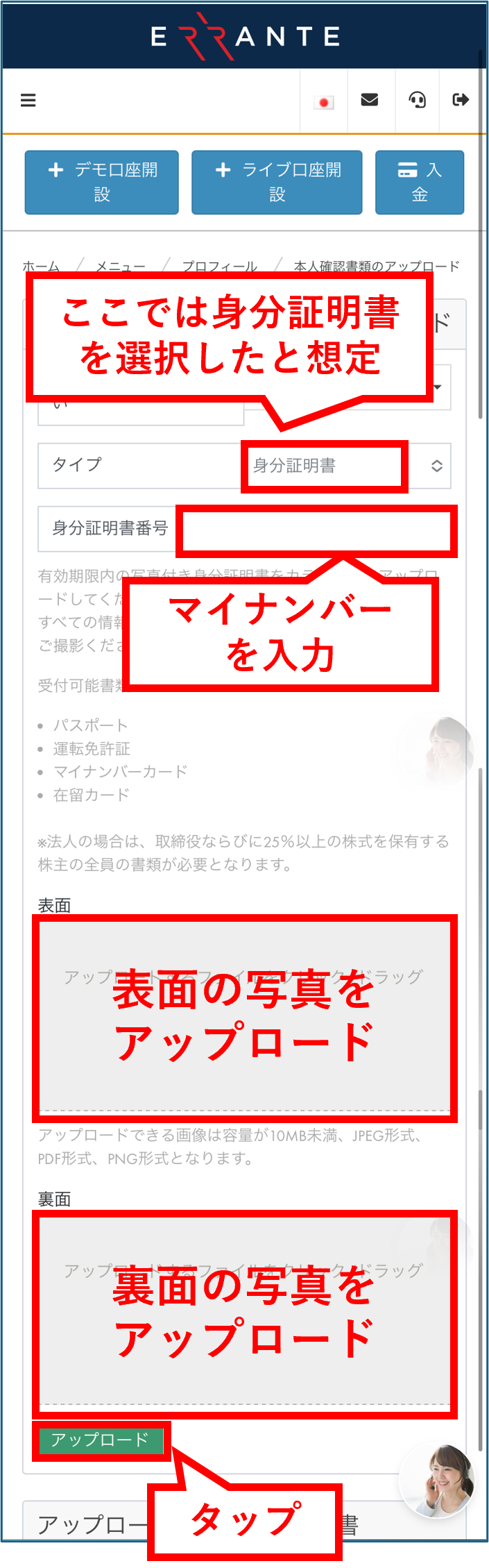
Enter your identification number and upload photos of the front and back of your selected identification document. Once you have entered and uploaded all the information, tap the "Upload" button
*Please ensure that all four corners of the document are visible in the image and that the text is clearly legible when taking the photo
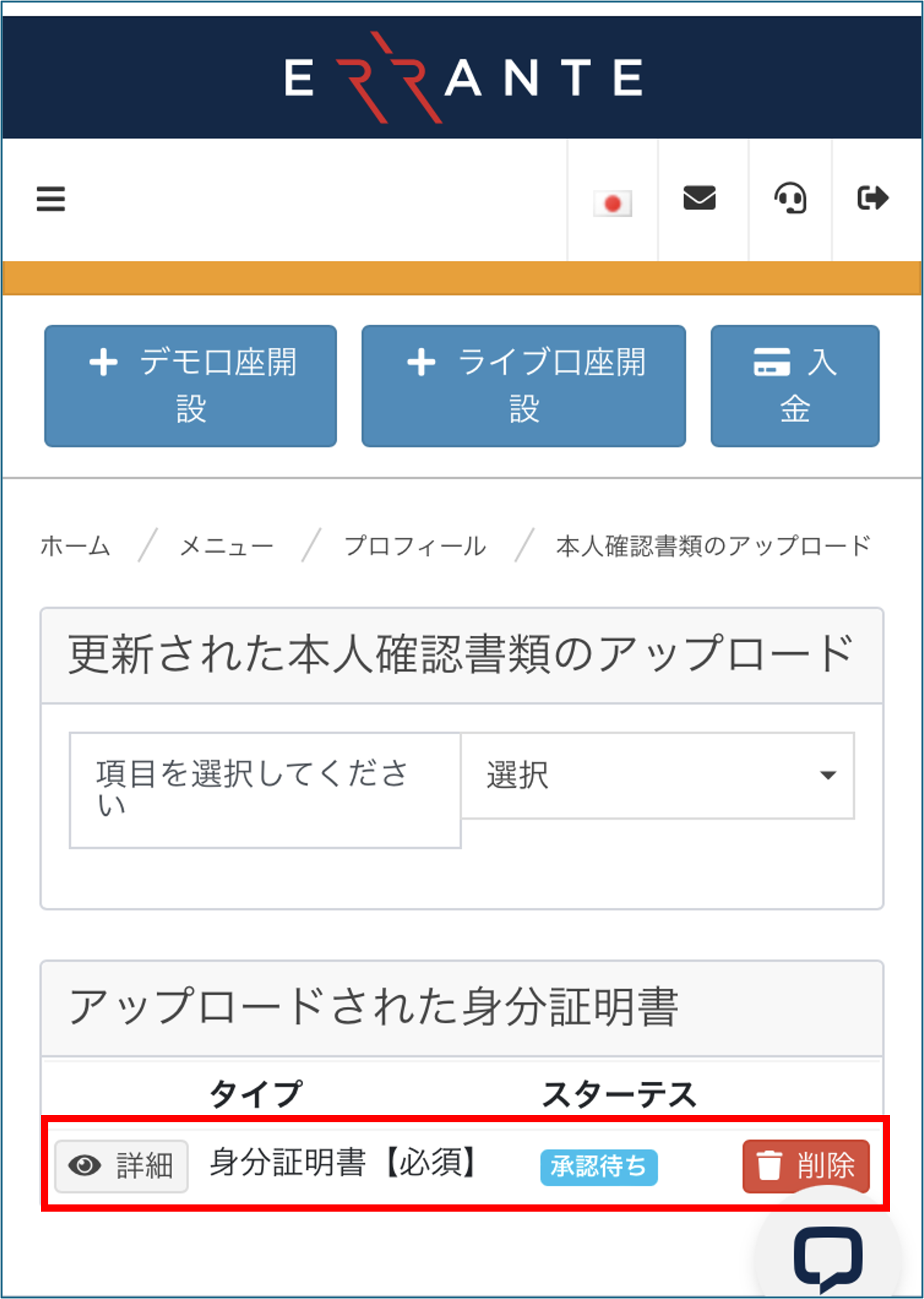
Step 10
Check the approval pending screen
Once you have submitted your identification documents, the status will change to "Pending Approval." Next, you will proceed to submit your proof of address
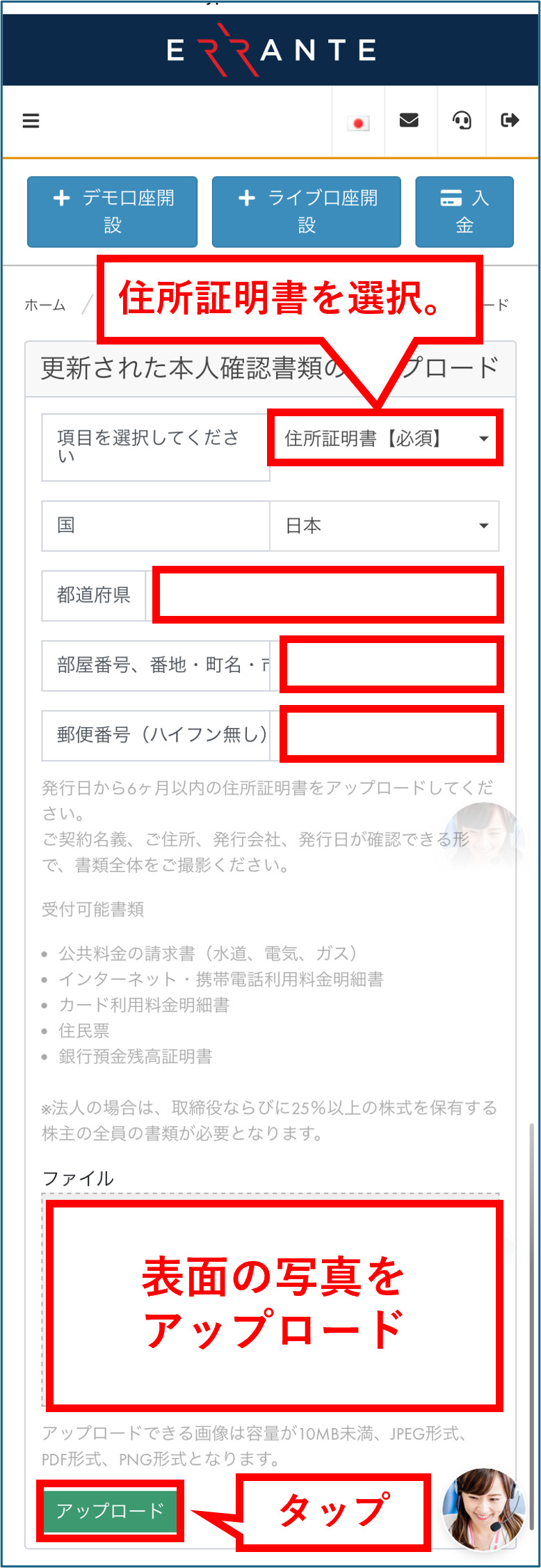
Step 11
Upload proof of address
Under "Please select an item," select "Proof of Address [Required]" and upload a photo of your proof of address document. Once the upload is complete, tap the "Upload" button
*You can submit utility bills, bank statements, etc., issued within the last six months
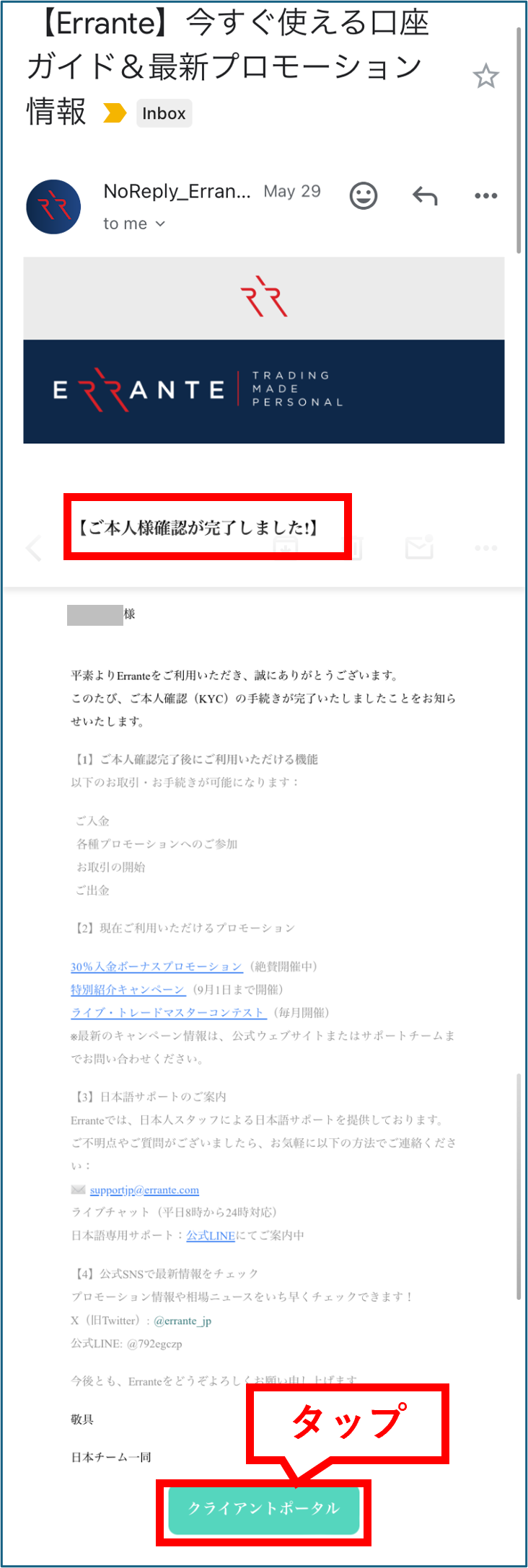
Step 12
Receive a confirmation email
Once your identity verification documents have been confirmed, you will receive a notification email from Errante to the email address you registered. Tap the "Client Portal" button in the email to return to your My Page
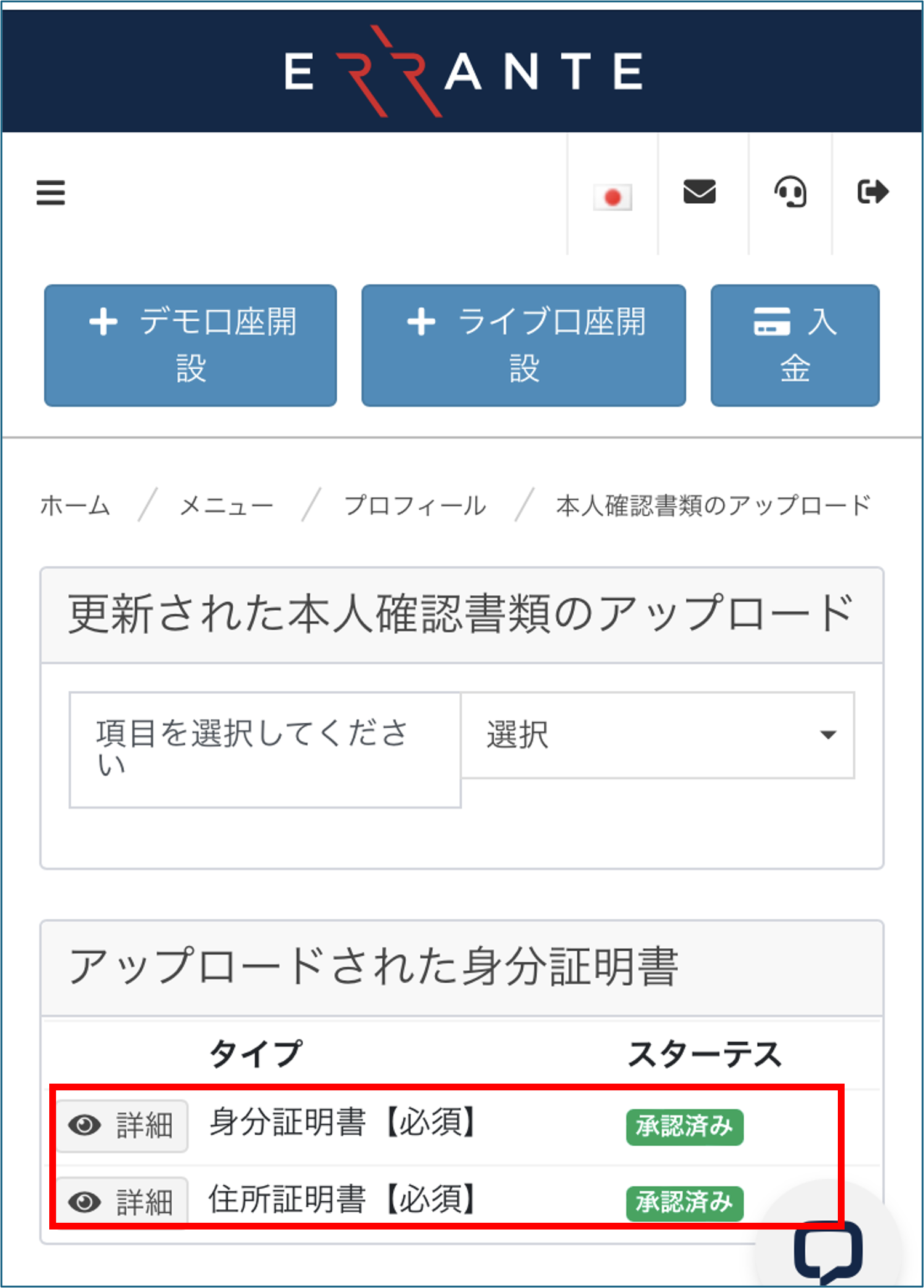
Step 13
Confirmation that both documents have been approved
When you return to your My Page, you can confirm that both documents you submitted are marked as "Approved." Next, you will proceed to open a trading account
Step 14
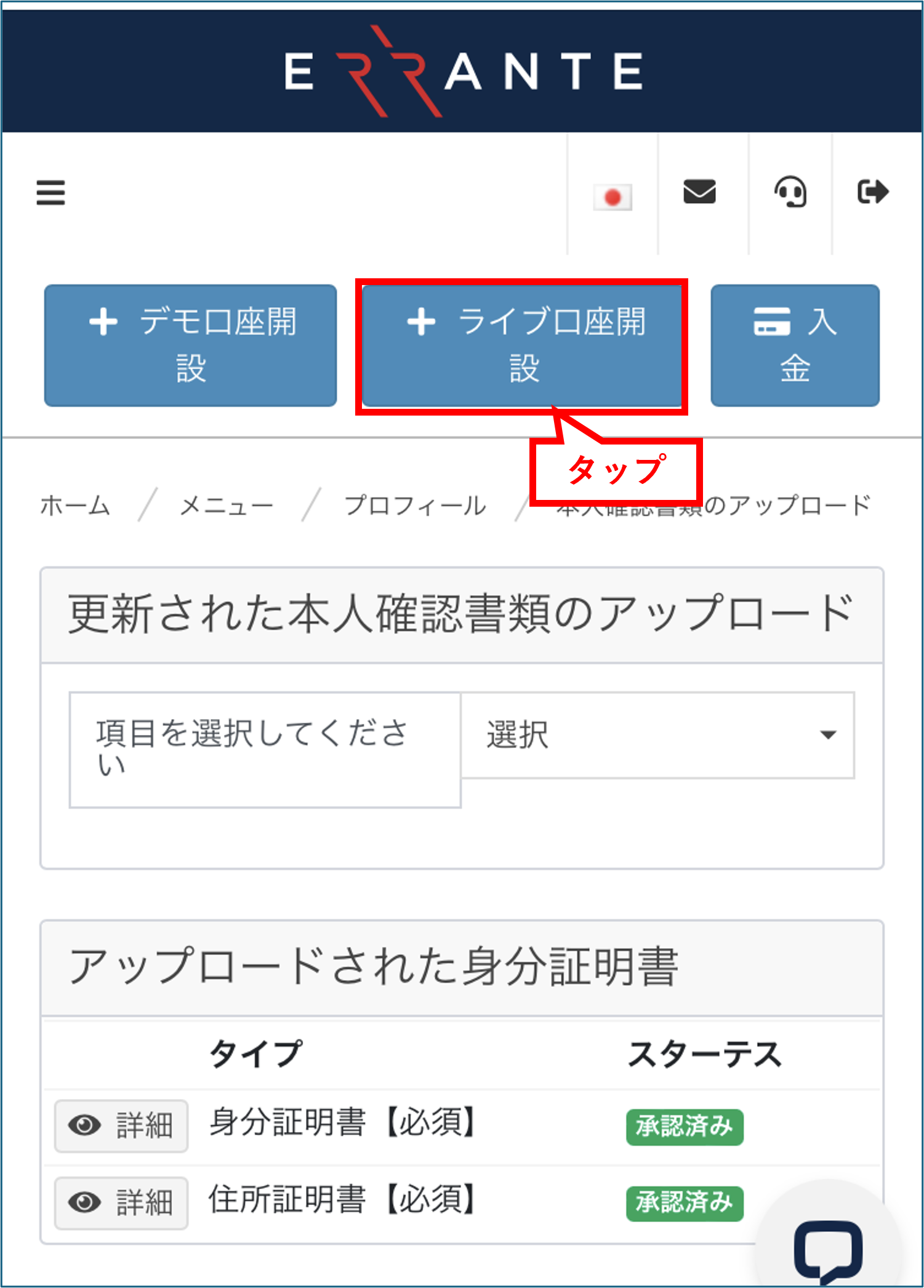
Tap "Open Live Account"
We will now proceed to open a new trading account. Tap the "Open Live Account" button to go to the account creation screen
Step 15
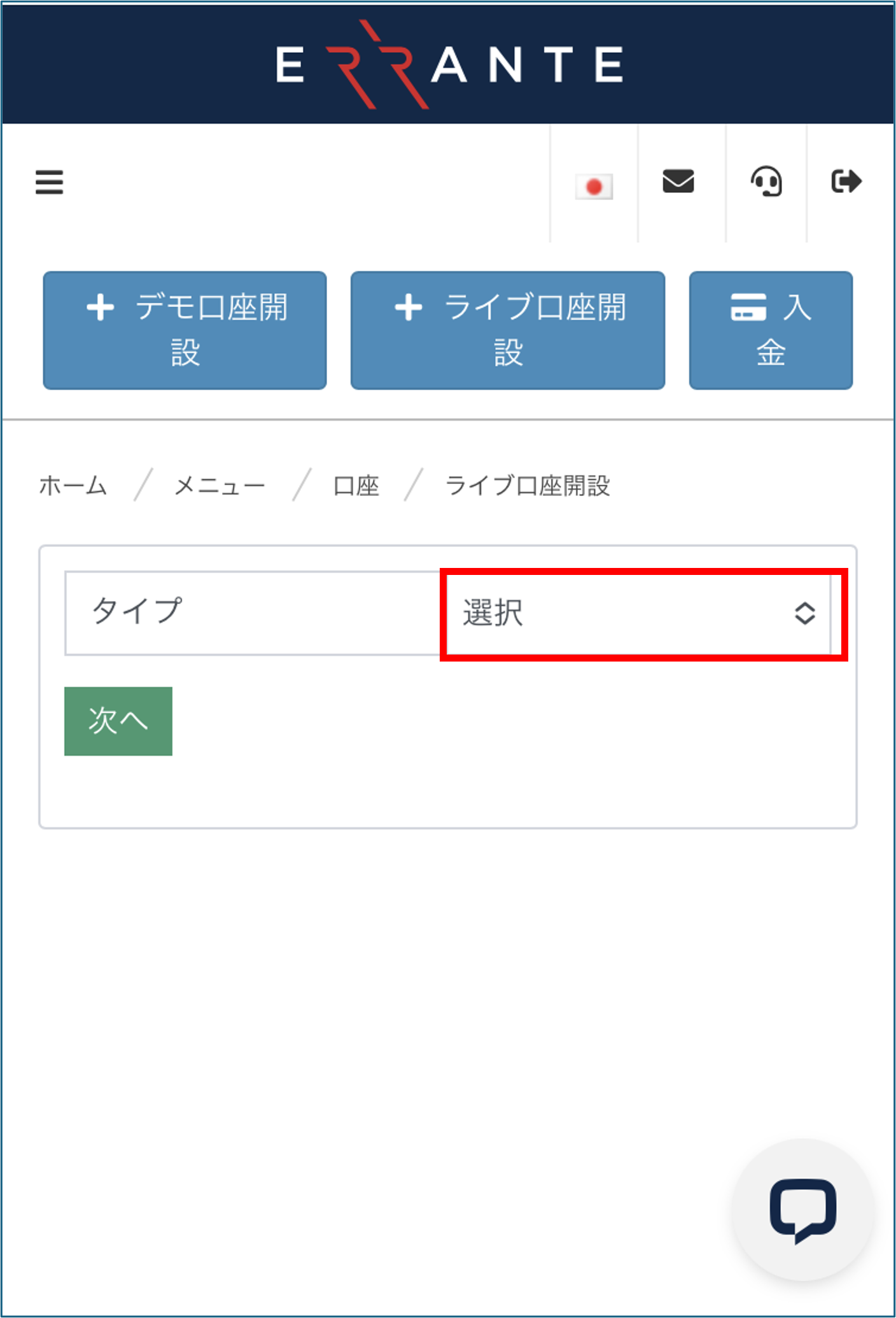
Open the account type selection screen
Tap the "Select" button in the column to the right of "Type" to open the account type selection screen
Step 16
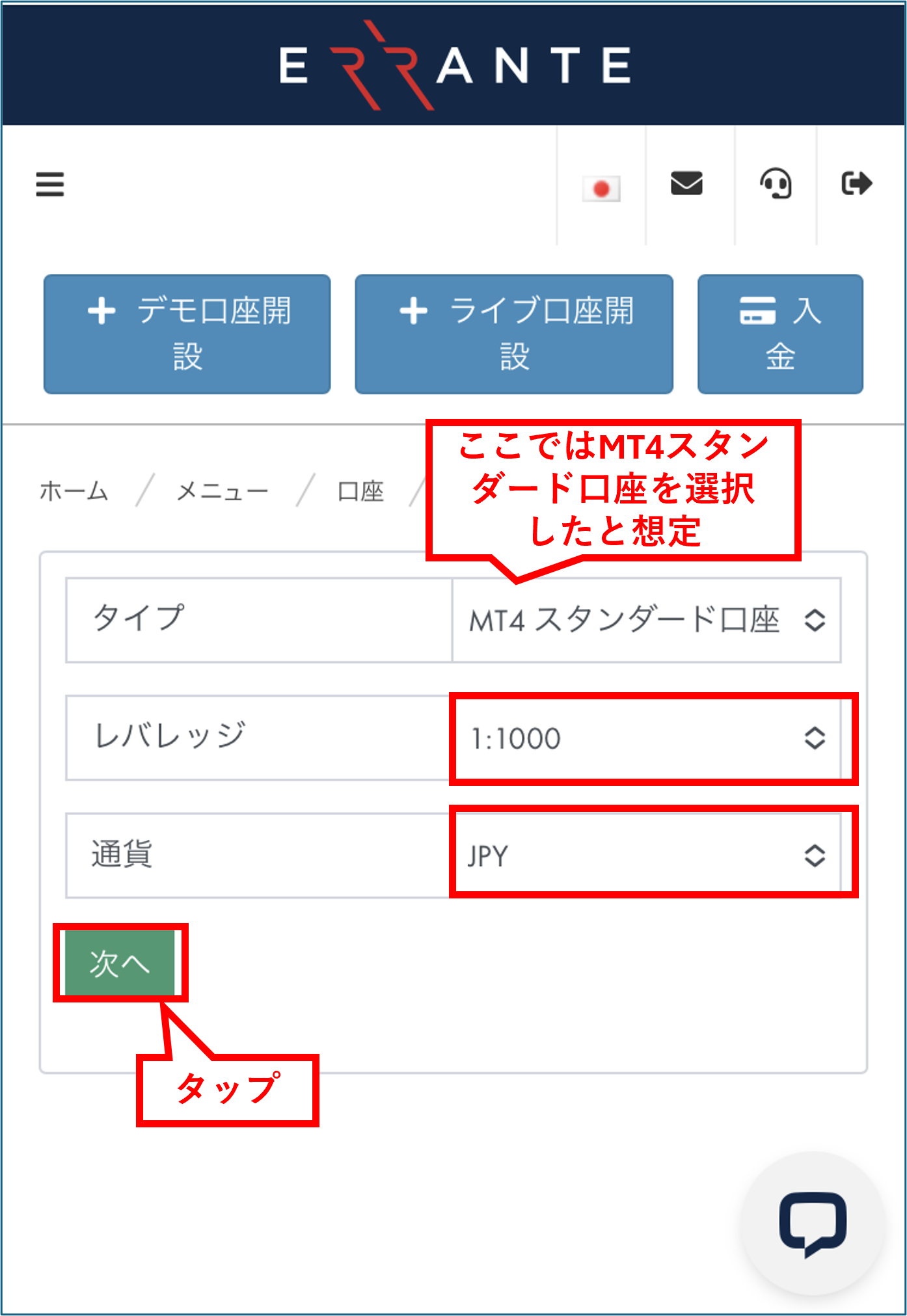
Select account type, leverage, and currency
Select your preferred account type, such as "MT4 Standard," and then choose your leverage and currency. Once you have made your selections, tap the "Next" button
*If you don't have any particular preferences, we recommend choosing the versatile "MT4 Standard" version
Step 17
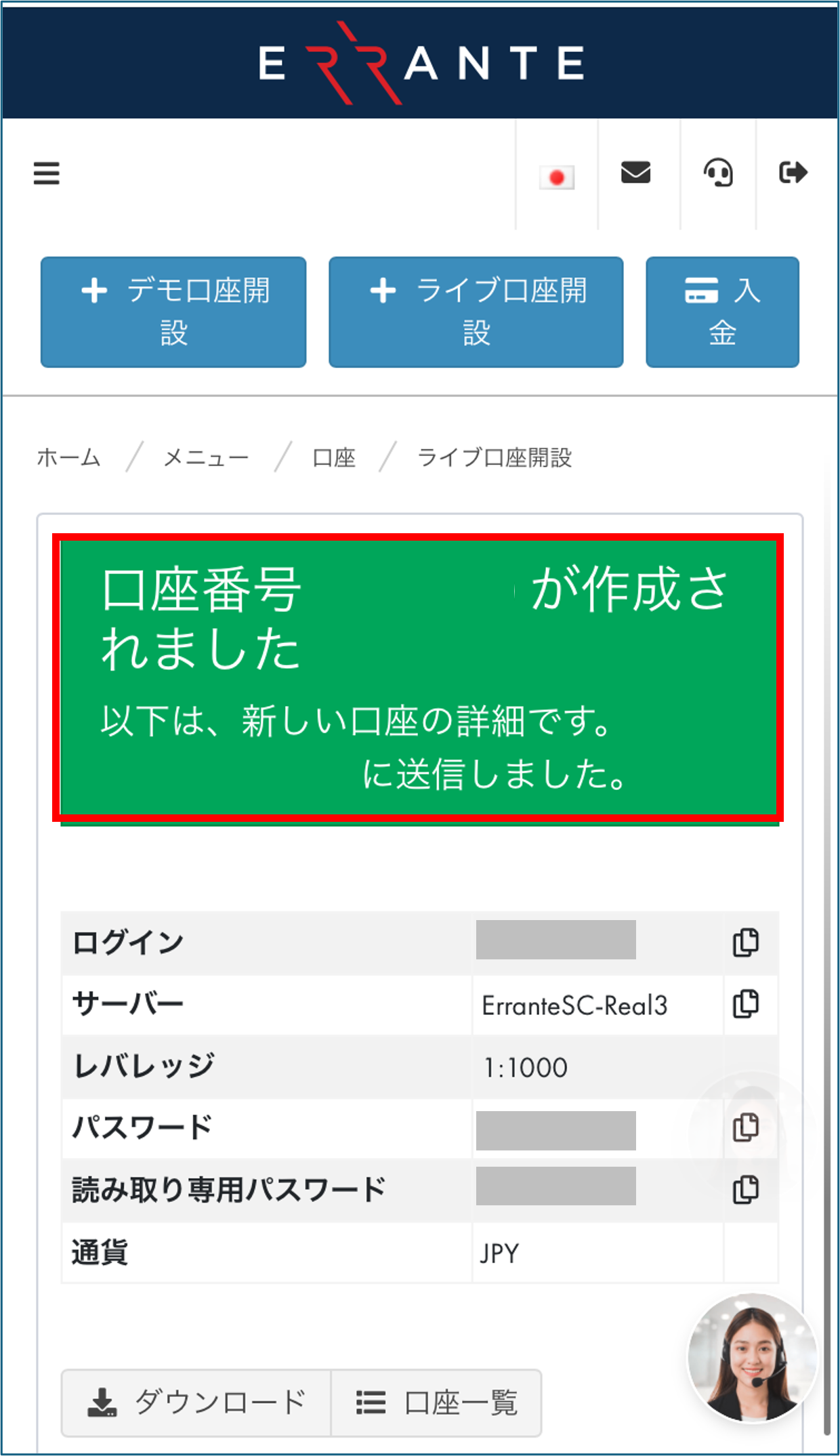
Confirmation of completion of trading account opening
Once this screen appears, your trading account has been opened. Your "Login ID," "Password," and "Read-Only Password" will be displayed at the same time, so please be sure to write them down
*You will need your Login ID and password to log in to MT4/MT5, so please take a screenshot or write them down
Step 18
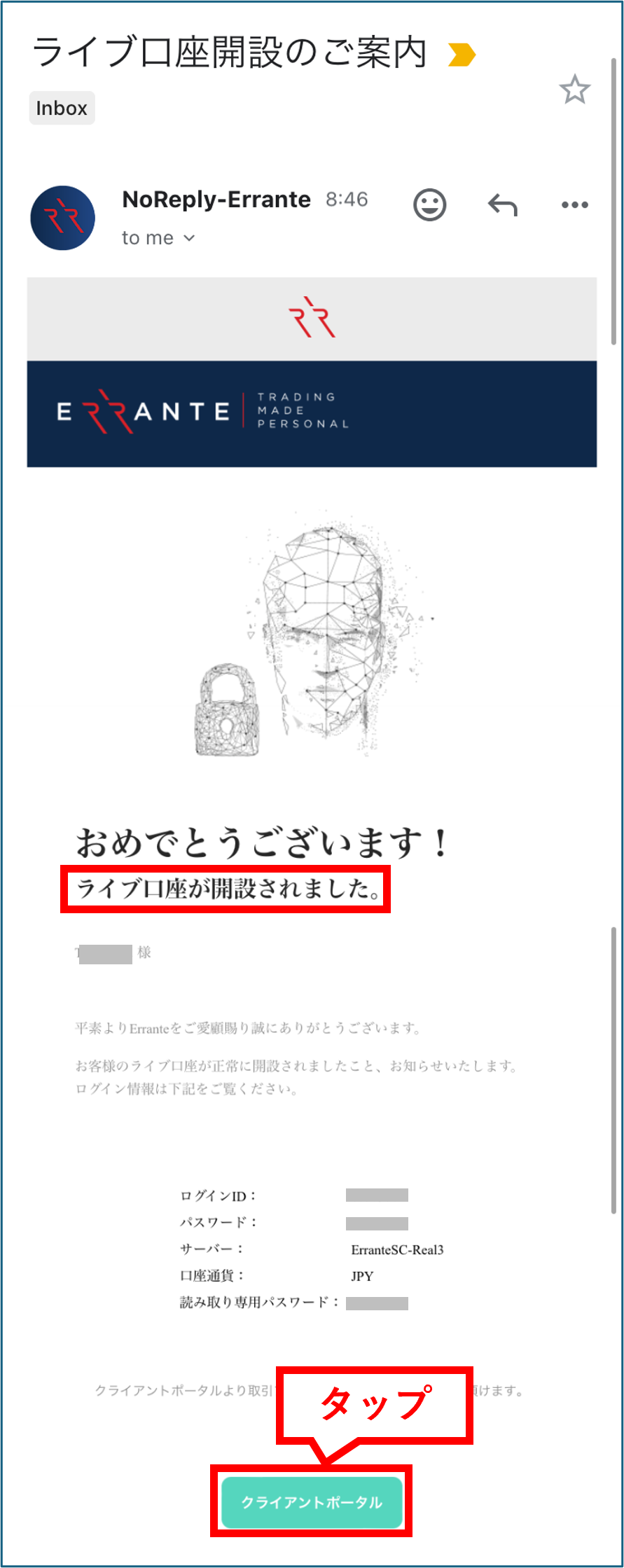
I received an email with trading server information
Once Errante has verified the documents you submitted, you will receive an email from Errante to your registered email address containing your account information for their trading server. Congratulations, your account opening with Errante is now complete
Step 19
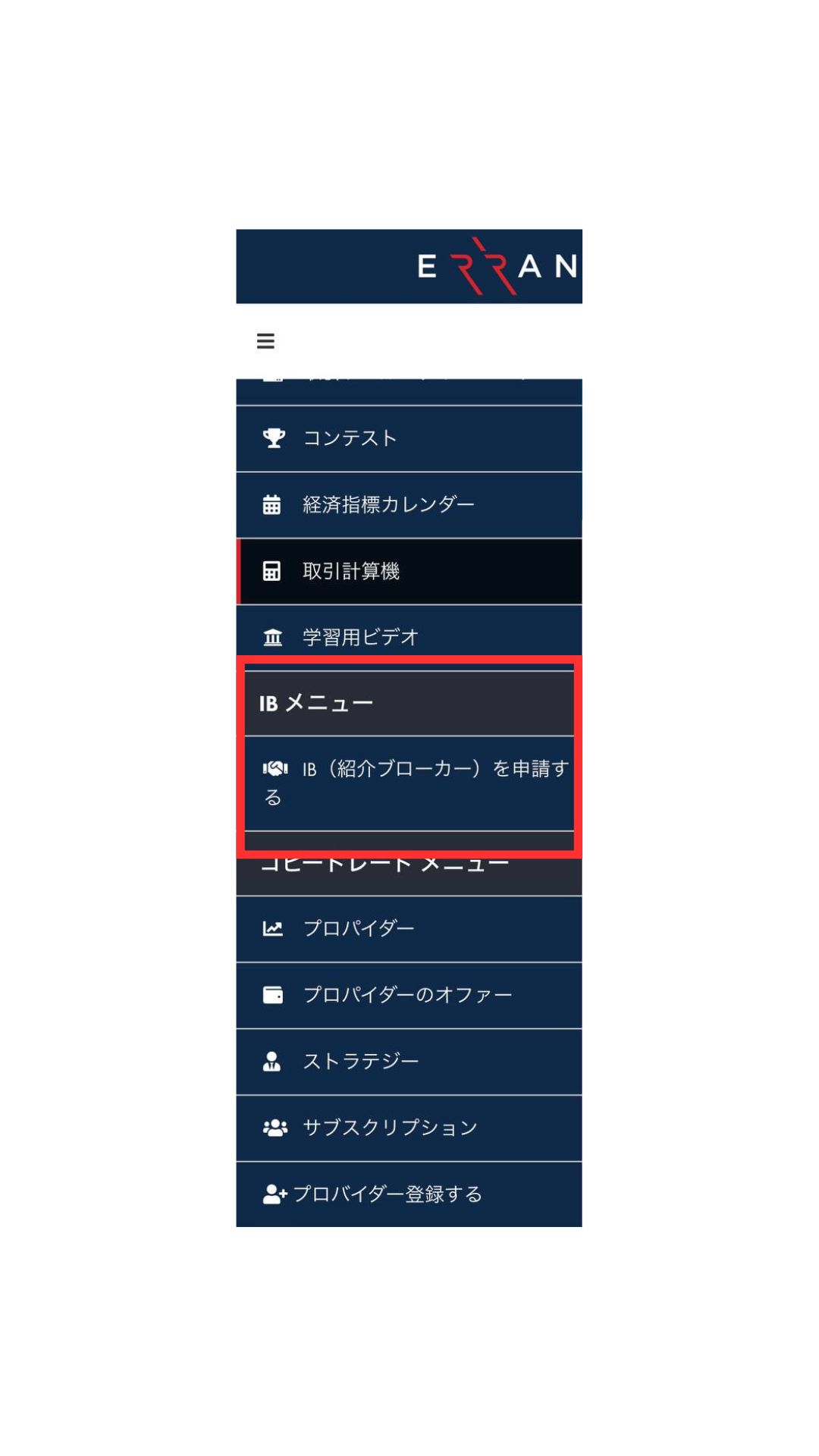
Open the IB application menu
To receive cashback, apply for an IB (Introducing Broker). Tap the three lines in the upper left corner of your My Page, then select "IB Menu" → "Apply for an IB (Referral Broker)"
Step 20
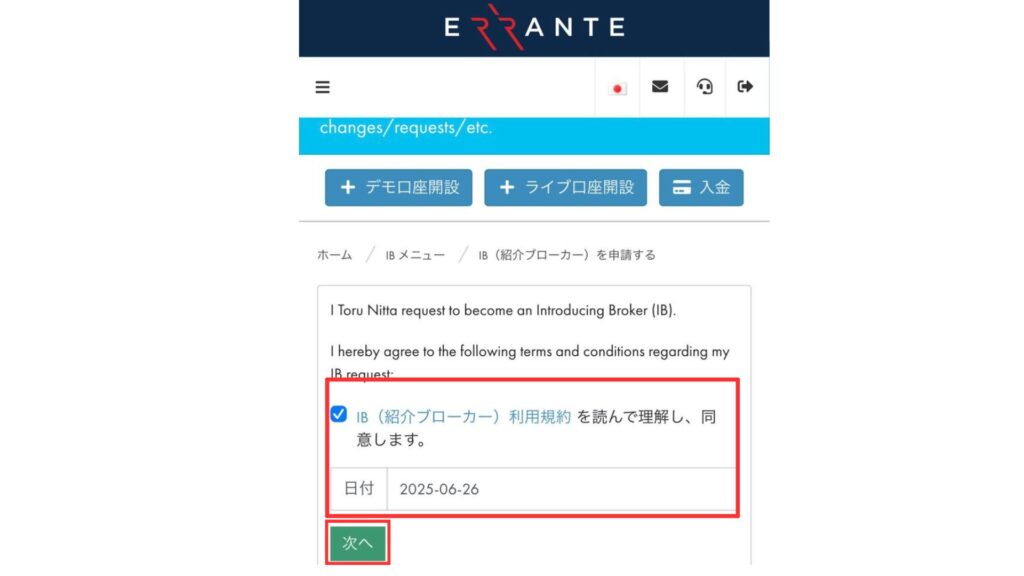
Complete the IB application
After reading and agreeing to the terms of service, enter the date, and tap "Next," your rebate application will be complete. Once your application is approved by Errante, your account will be eligible for auto-rebates, and cashback will be automatically reflected for each transaction. Thank you for your cooperation
*Please be sure to complete the IB application, as cashback on trades with Errante will not be reflected unless you complete the application

記事__アイキャッチ-1-300x158.png)