











Contents
- 1 A complete guide to opening an account with TitanFX, with step-by-step instructions and images
- 2 Open a TitanFX account
- 2.1 Go to the TitanFX account creation page
- 2.2 Enter your registration information
- 2.3 Select a platform
- 2.4 Select an account type
- 2.5 Select the maximum leverage
- 2.6 Select a base currency
- 2.7 I agree to the terms of service
- 2.8 Enter customer information ①
- 2.9 Enter your customer information ②
- 2.10 Enter your phone number and send the verification code
- 2.11 Enter the verification code
- 2.12 Tap "Open a trading account"
- 2.13 Perform email verification
- 2.14 Confirmation of account opening completion
- 2.15 Check your MT4 login information email
- 2.16 Get your account number and password
- 3 Register your account from your MoneyChat My Page (required)
A complete guide to opening an account with TitanFX, with step-by-step instructions and images
This guide explains how to open a new account with TitanFX, using easy-to-follow diagrams and smartphone screenshots
With TitanFX, you can easily open an account and set up cashback by following the instructions
Follow the steps below to open an account and apply for one
- How to open a TitanFX account
- How to apply for an account with MoneyChat
Part 1
Open a TitanFX account
First, you need to open a TitanFX account. Please follow the instructions below and open an account via the dedicated link provided by the button
Step 1
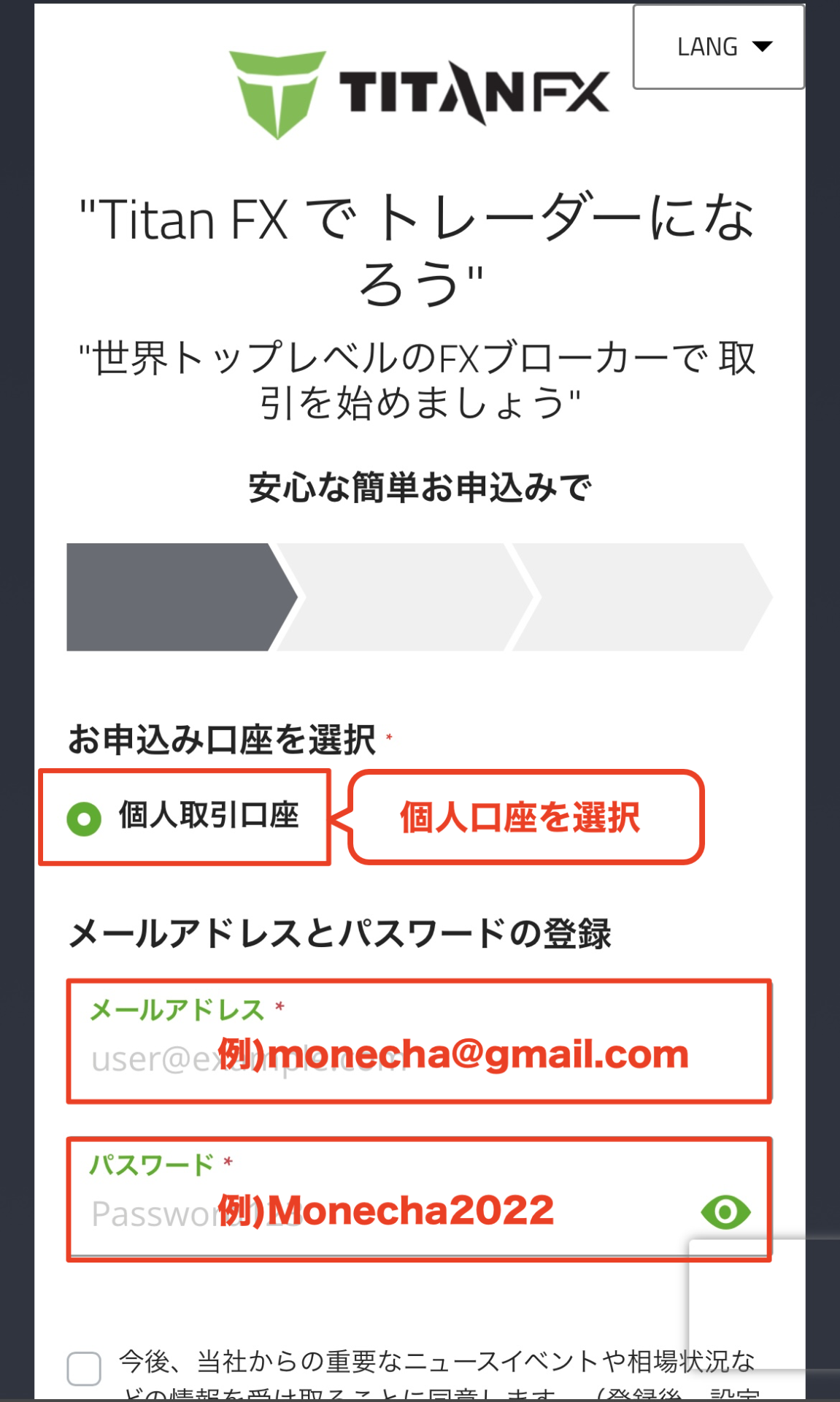
Go to the TitanFX account creation page
First, click the button below to go to the TitanFX account opening page. When you open the link, the TitanFX registration form will be displayed
*Please note that if you register through a link other than the one provided by Moneycha, you will not be able to receive cashback from Moneycha
Step 2
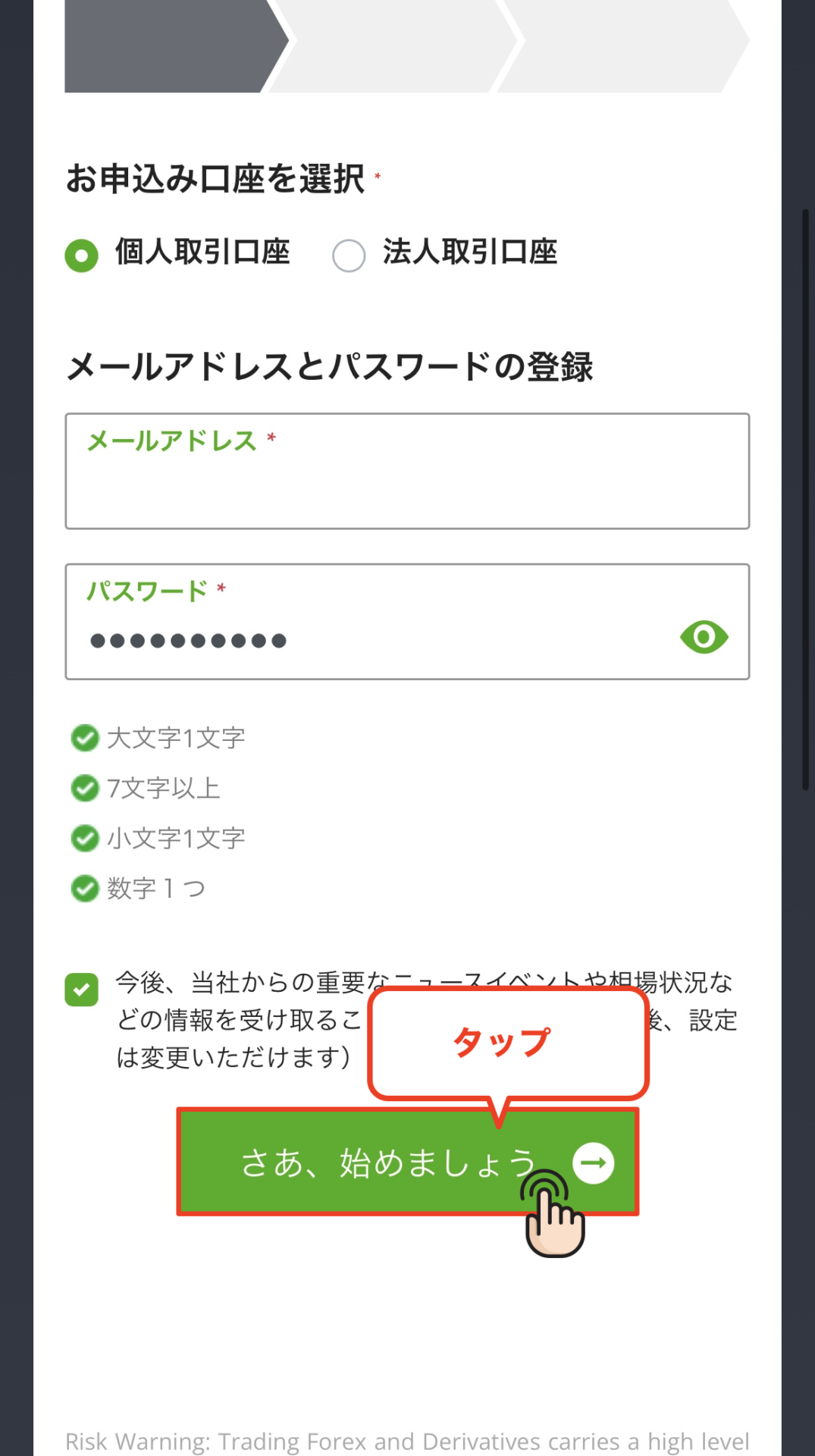
Enter your registration information
Enter your account information, such as your email address and password, into the displayed registration form. Once you have finished entering the information, tap the "Let's get started" button to proceed to the next step
*Please be sure to use an email address that you can send and receive emails at, as TitanFX will send you notifications and other information there
Step 3
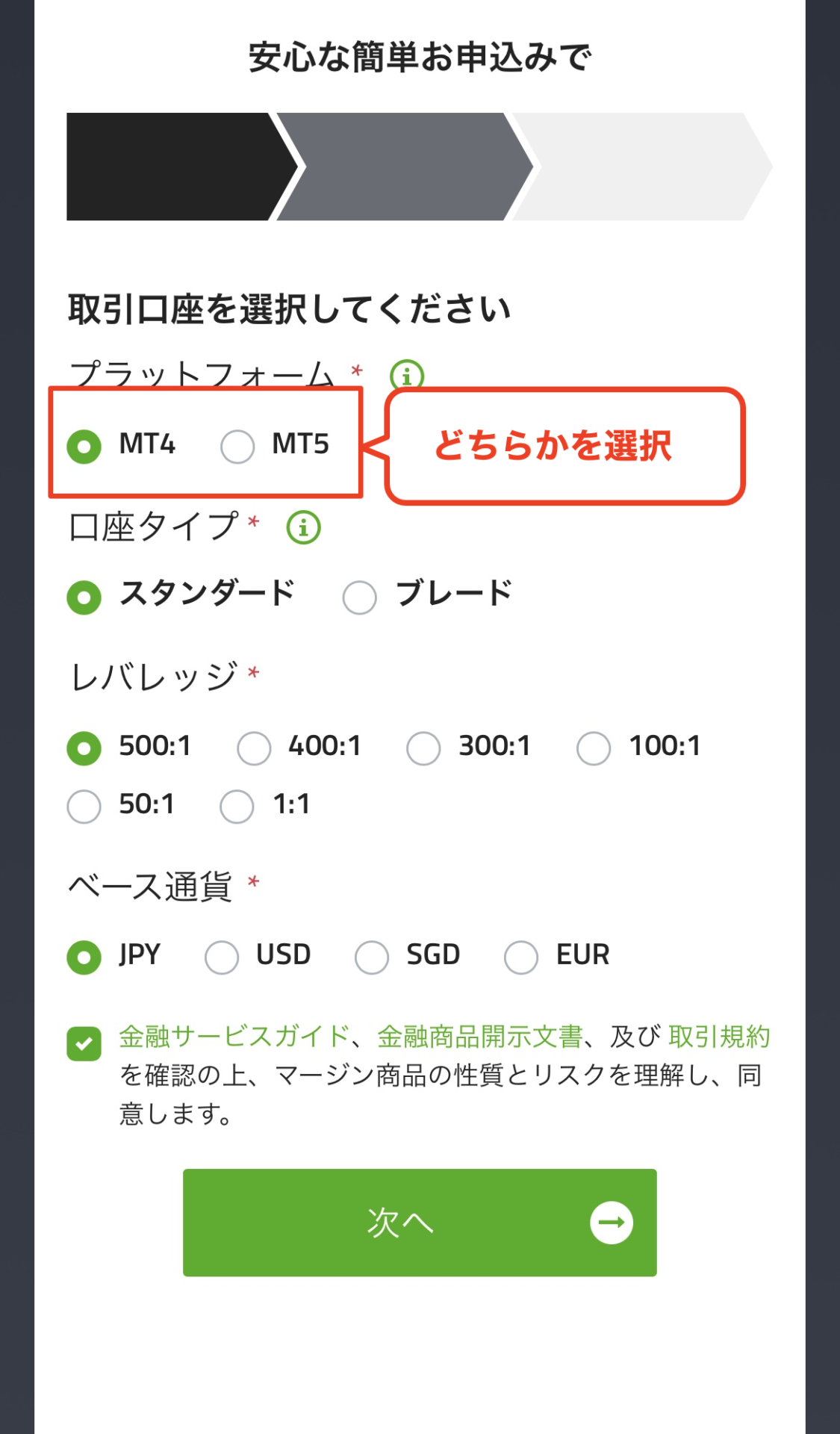
Select a platform
Next, you'll select the platform (MT4/MT5) for the account you're opening with TitanFX. Choose MT4 if you plan to use EAs or custom indicators, and MT5 if you want a smoother trading experience
Step 4
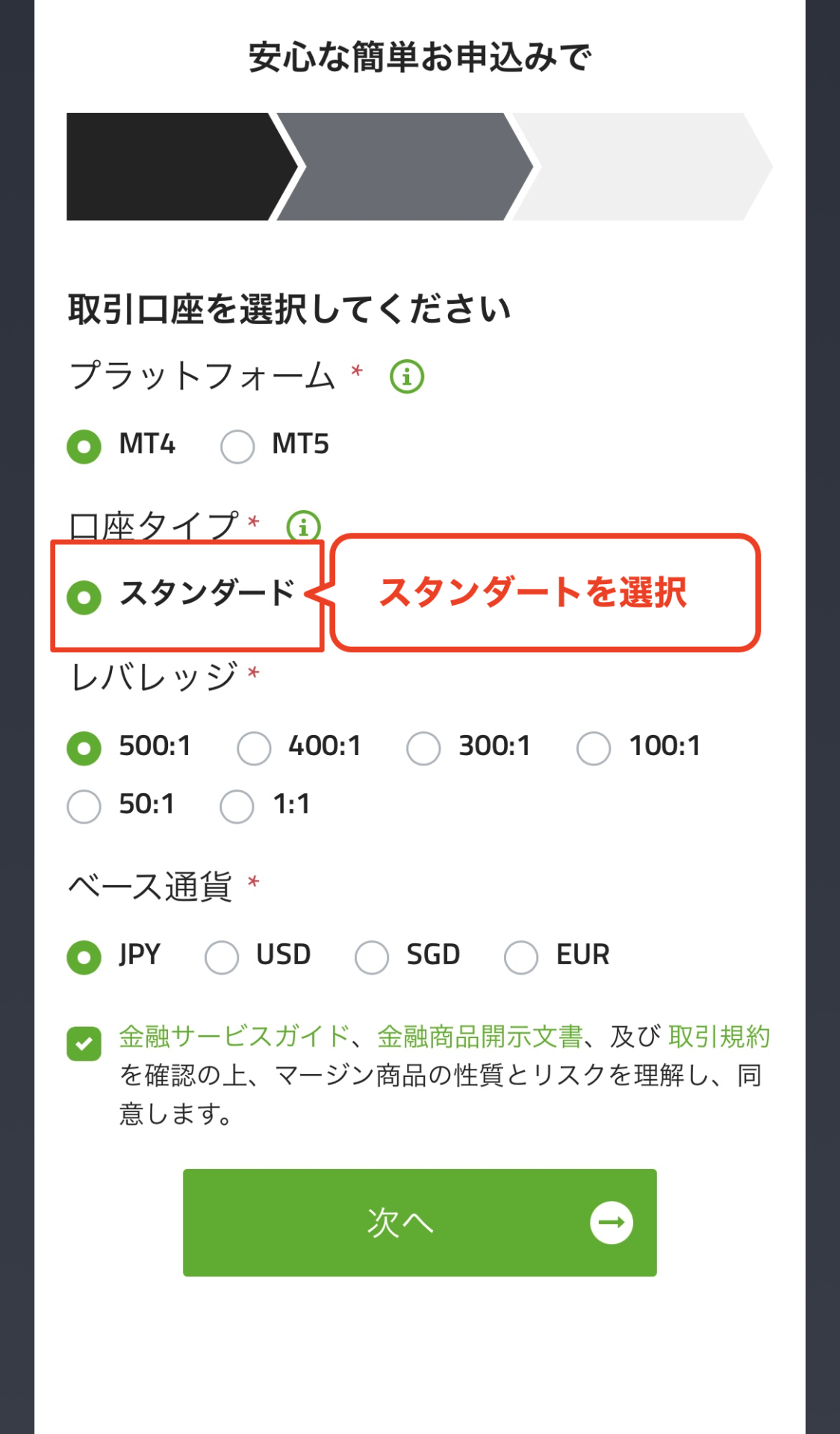
Select an account type
Select the "account type" for the account you want to open with TitanFX. You can choose from Standard, Blade, or Zero
*If you don't have any particular preferences, we recommend choosing the versatile "Standard" account
Wi5
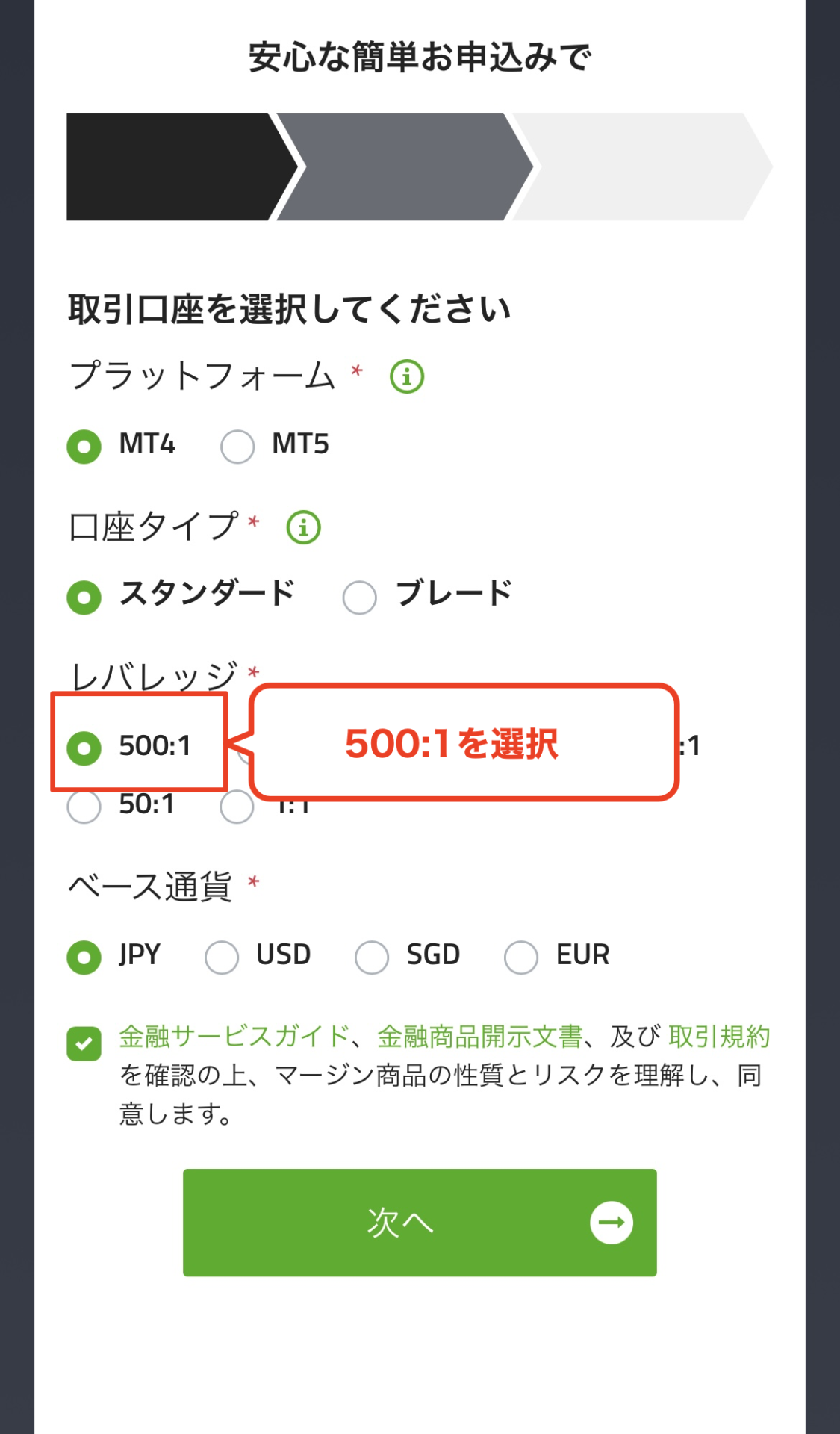
Select the maximum leverage
Select the "maximum leverage" for the account you open with TitanFX. You can choose from 1x to 500x
Step 6
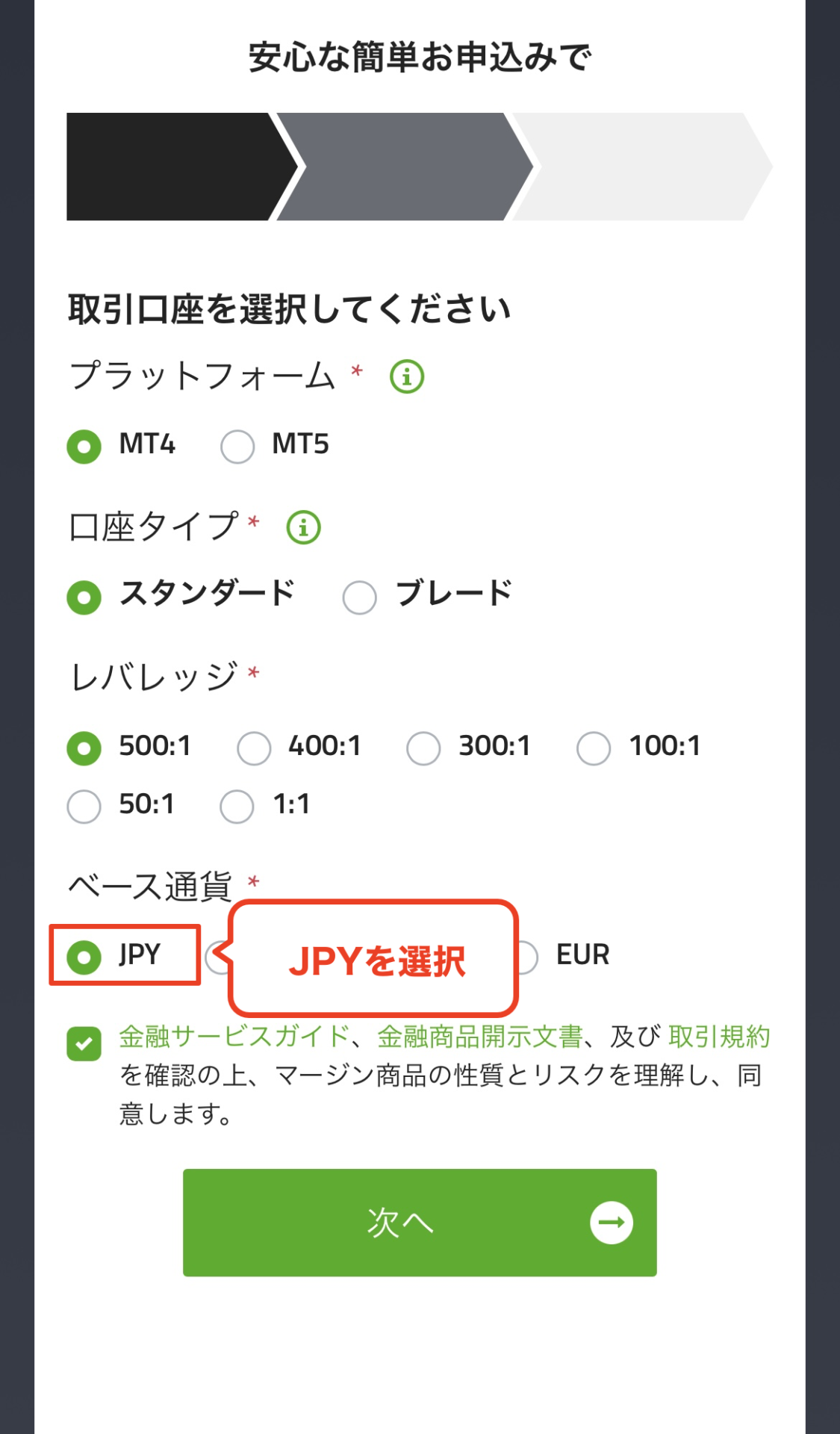
Select a base currency
Select the "base currency" (account currency) for the account you open with TitanFX. You can choose from several currencies, including USD, EUR, and JPY
*If you don't have a particular preference, we recommend choosing "JPY" as it helps reduce exchange fees during deposits and withdrawals
Step 7
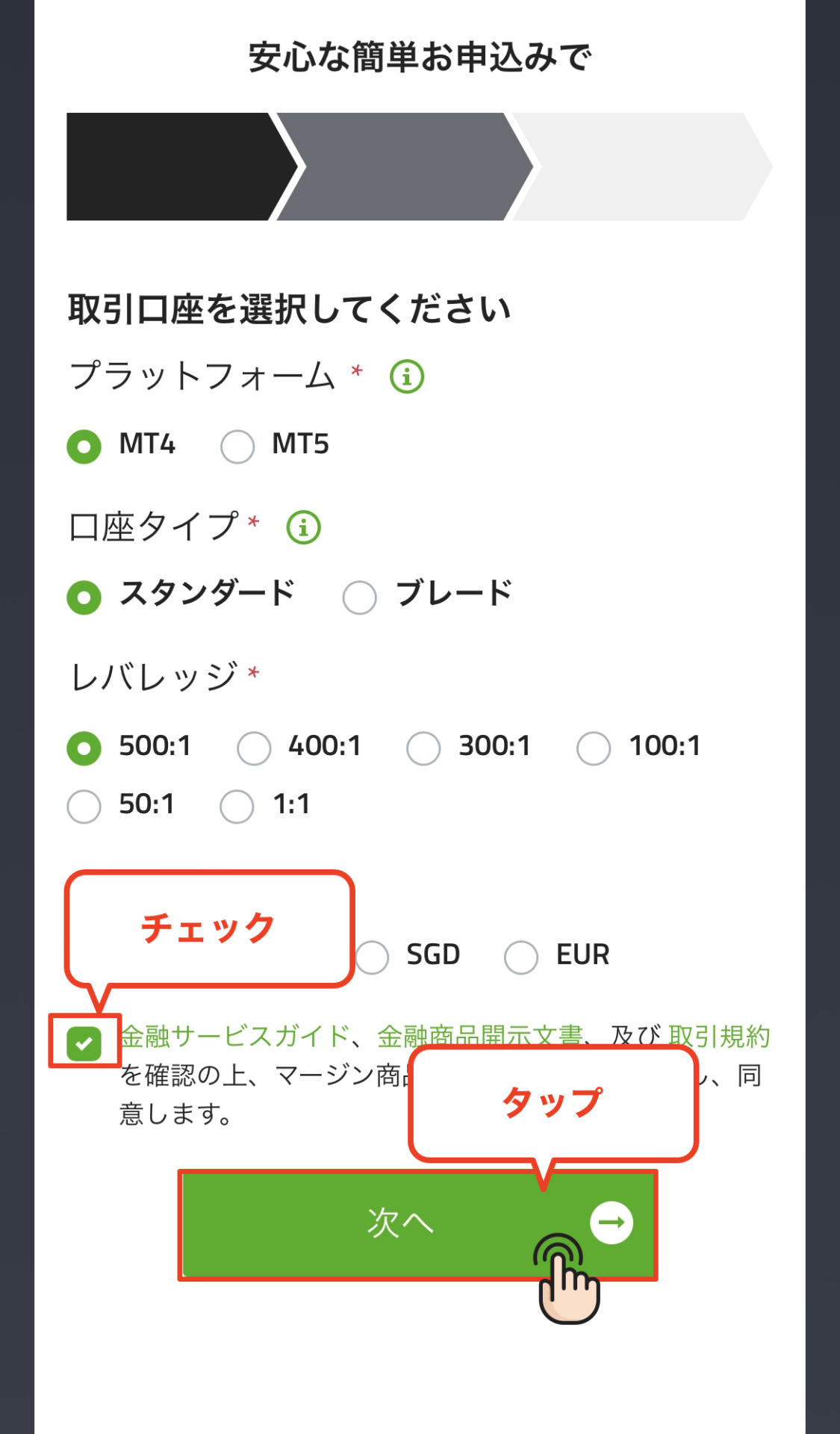
I agree to the terms of service
Check the boxes to confirm your receipt of the financial services guide and terms and conditions, then tap the "Next" button to proceed with registering your personal information
Step 8
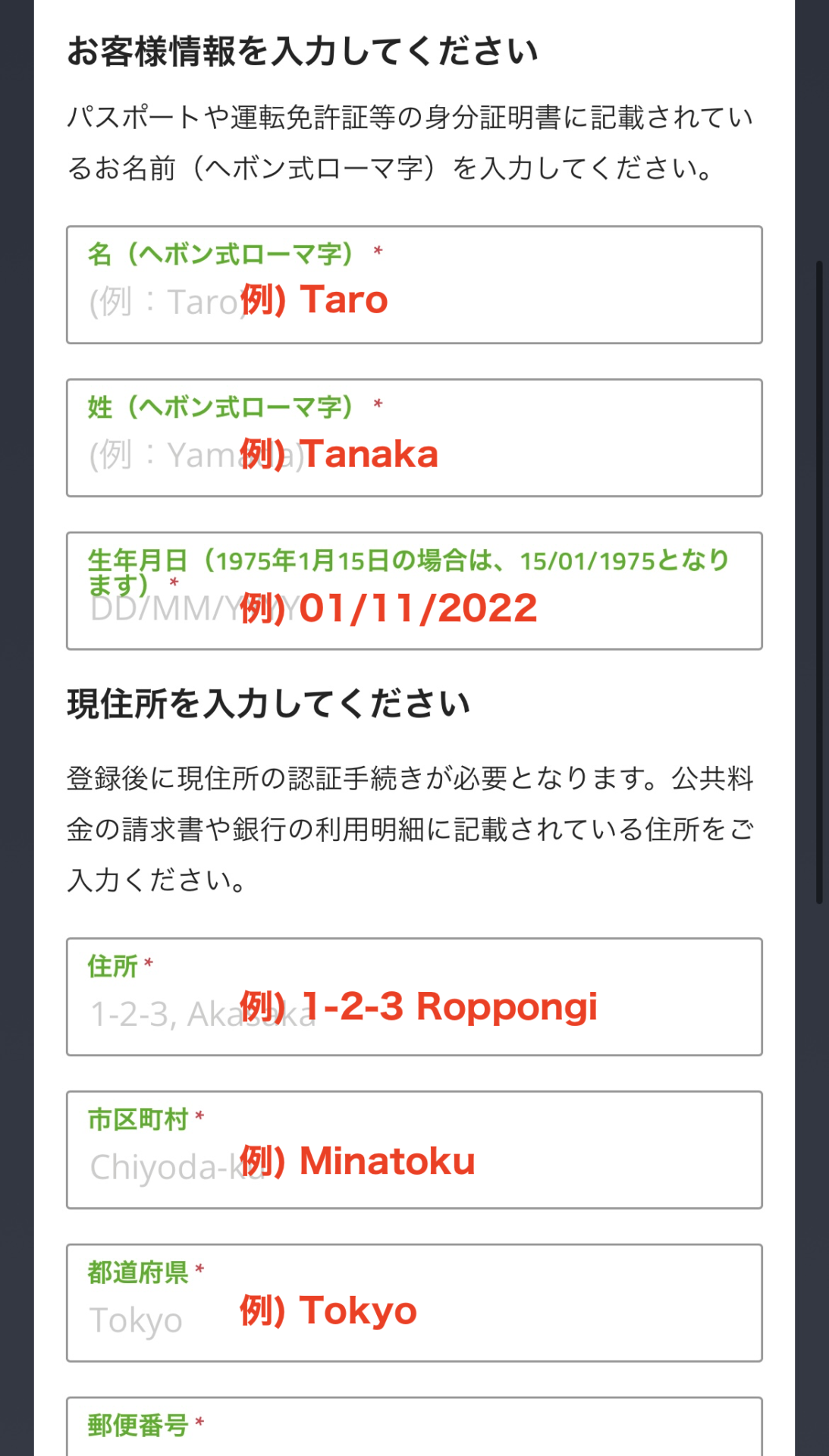
Enter customer information ①
Next, you will enter your customer information (name, date of birth, etc.) to register with TitanFX. Please enter the information accurately, matching it to your identification documents
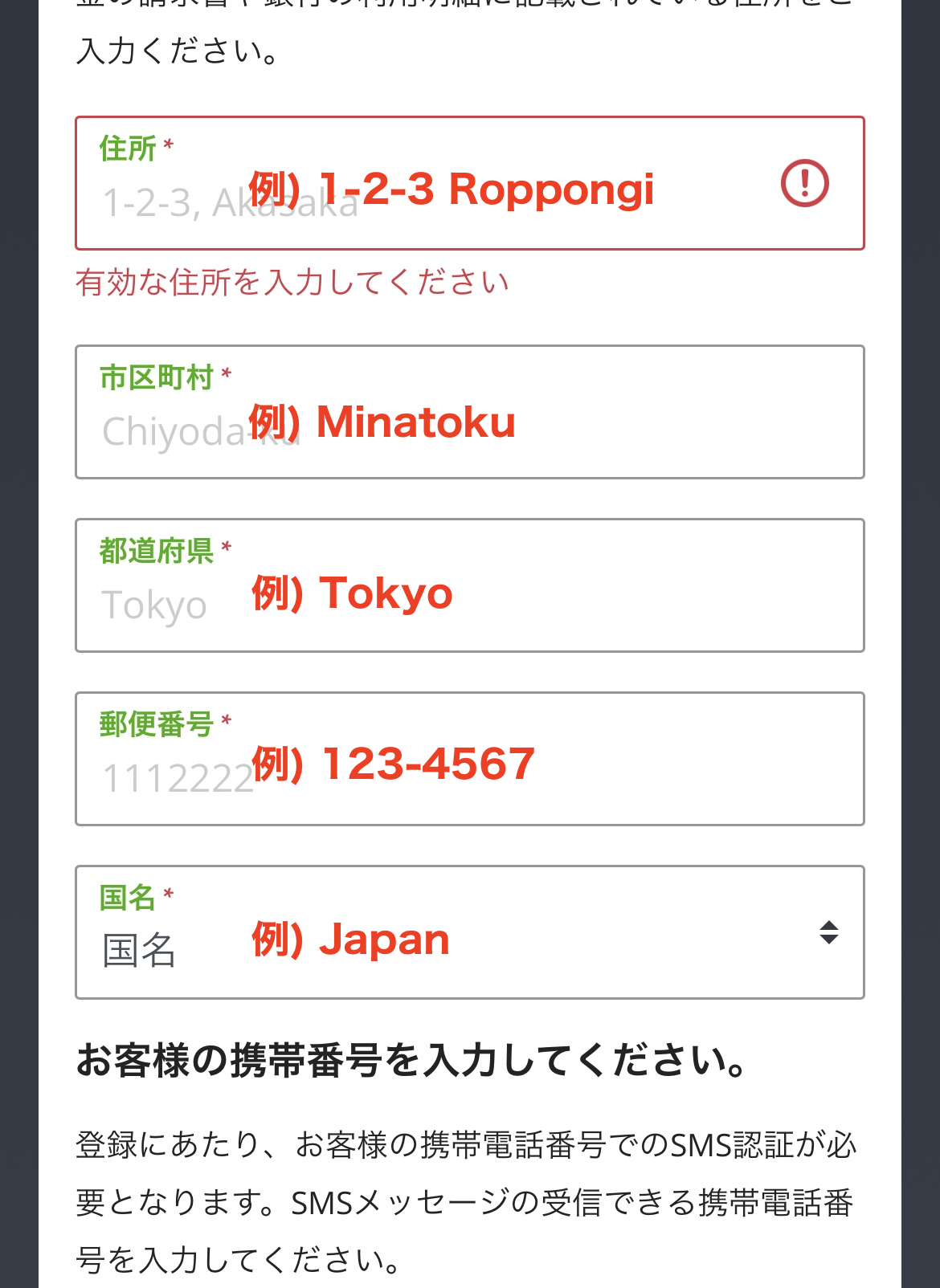
Step 9
Enter your customer information ②
Next, you will enter additional information such as your address. The address must be entered in English
*For entering your current address in English, it is convenient to use an automatic translation service such as "JuDress | Address → Address Converter"
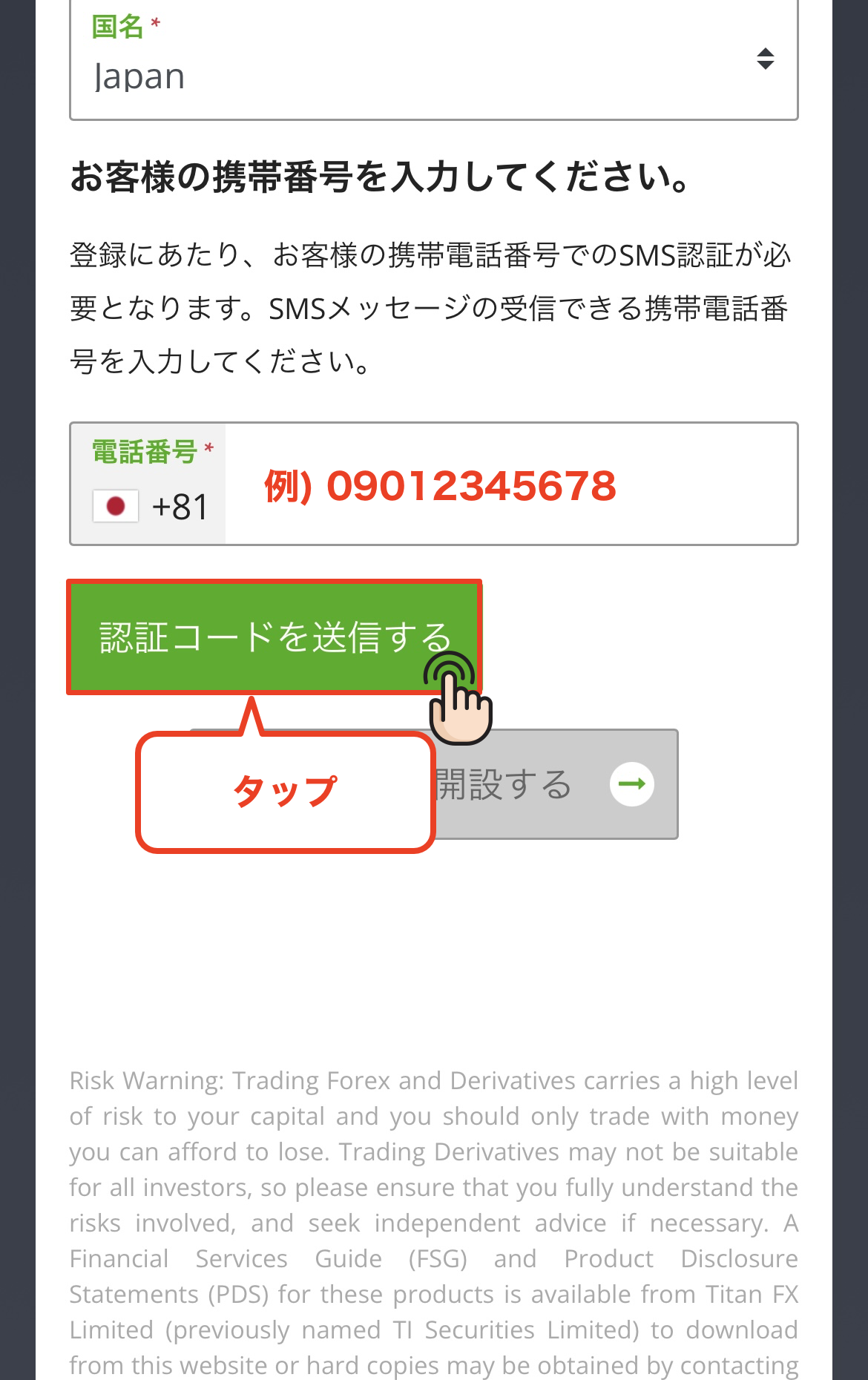
Step 10
Enter your phone number and send the verification code
Opening a TitanFX account requires phone number verification. Enter your phone number and tap the "Send Verification Code" button
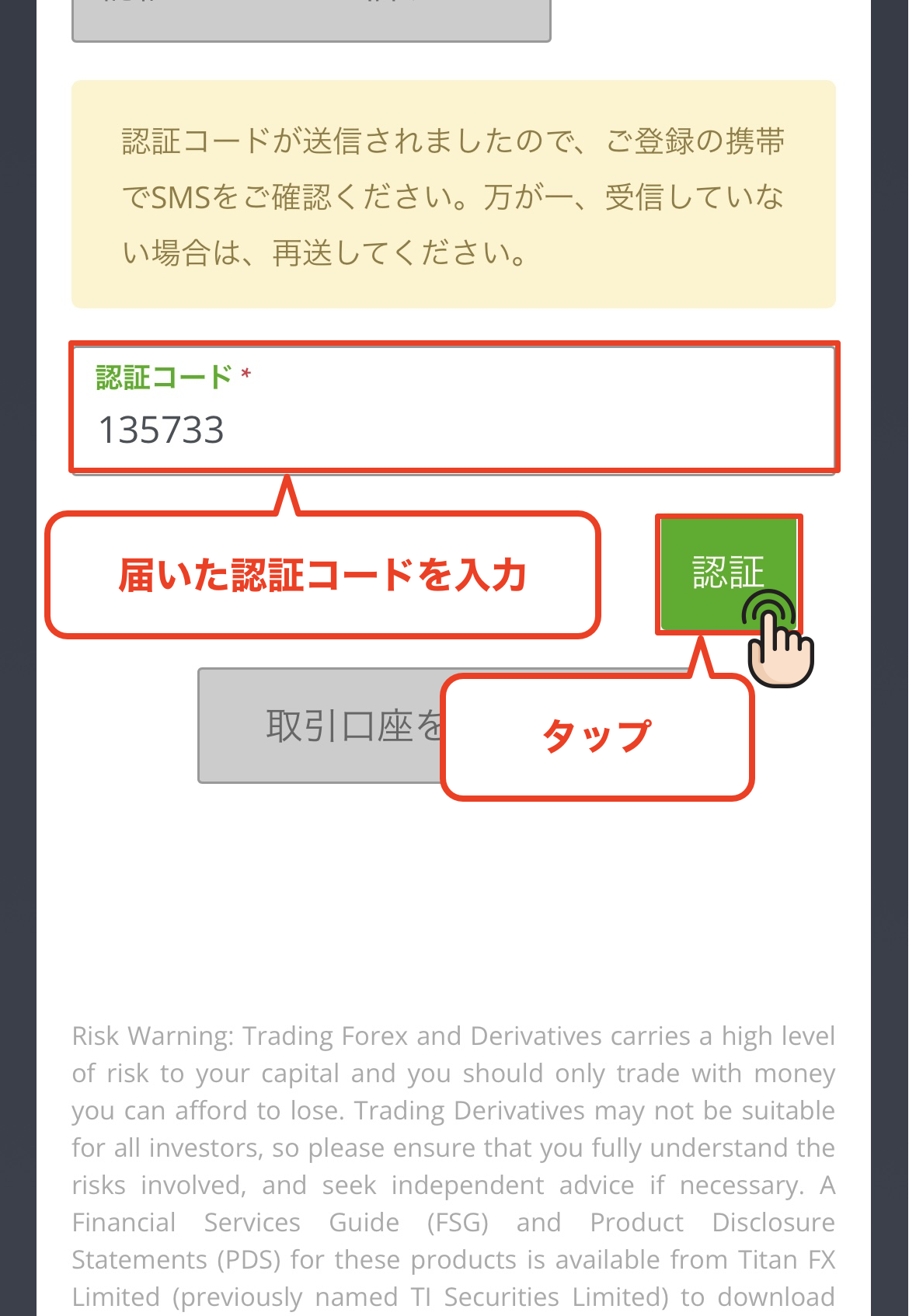
Step 11
Enter the verification code
A verification code will be sent to the phone number you entered. Enter that code on the screen and tap the "Verify" button
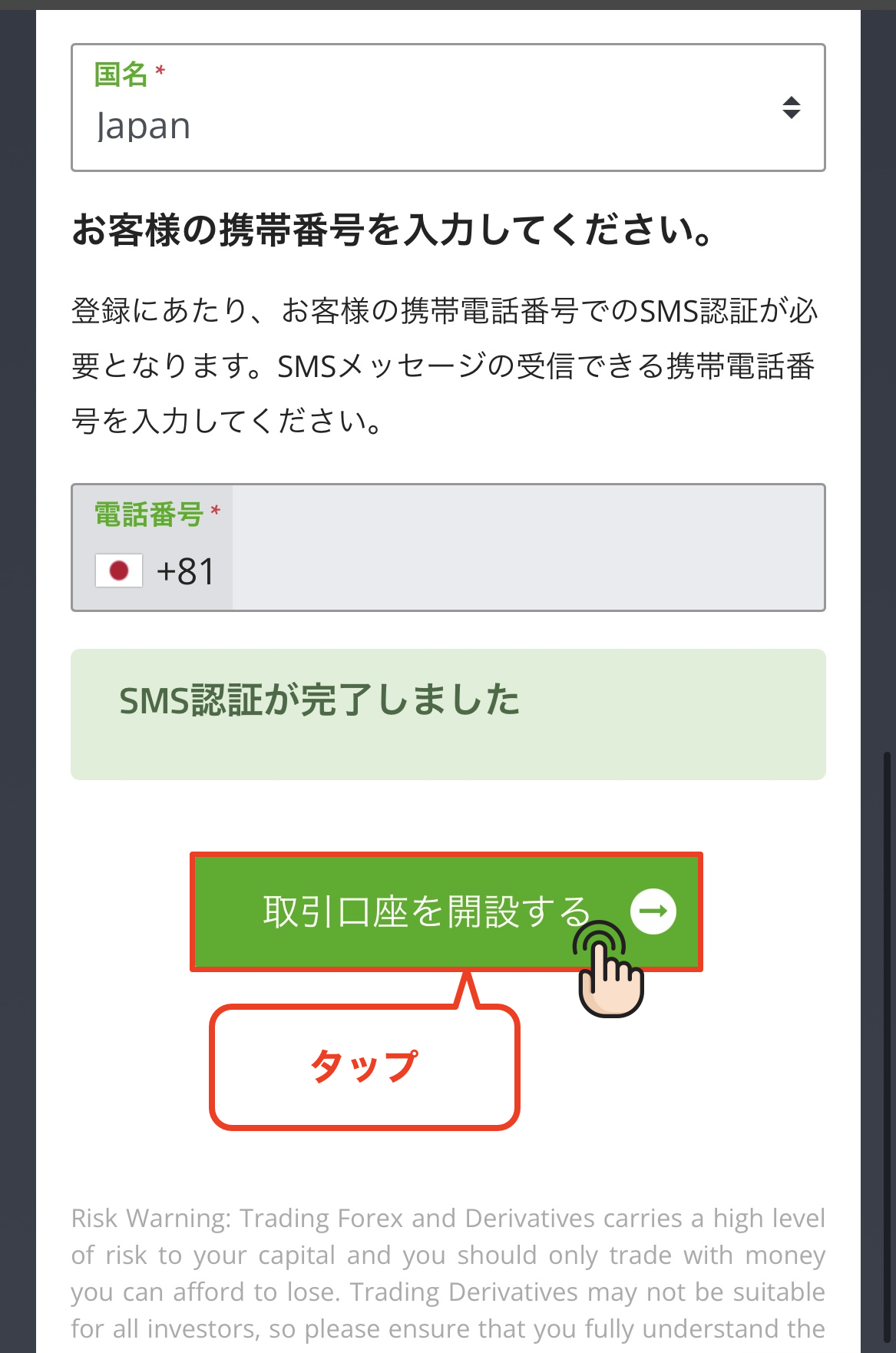
Step 12
Tap "Open a trading account"
Once phone number verification is successful, the "Open a Trading Account" button will become tappable, so tap it
Step 13
Perform email verification
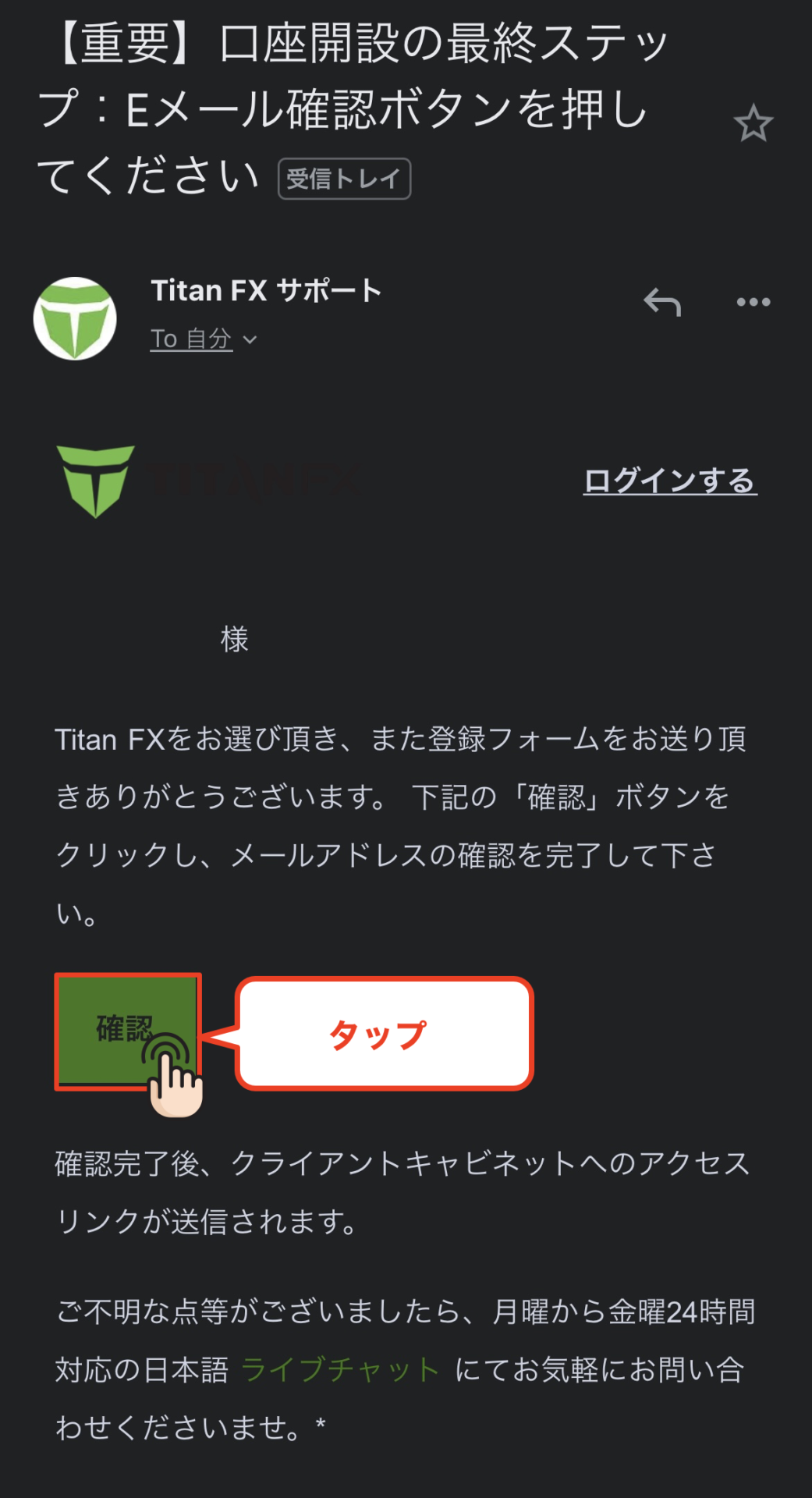
You will receive a verification email from TitanFX to the email address you registered with the subject line "[Important] Final step in account opening: Please press the email verification button." Tap the "Verify" button in the email body to complete email verification
*If you do not receive the email, please check your spam folder
Step 14
Confirmation of account opening completion
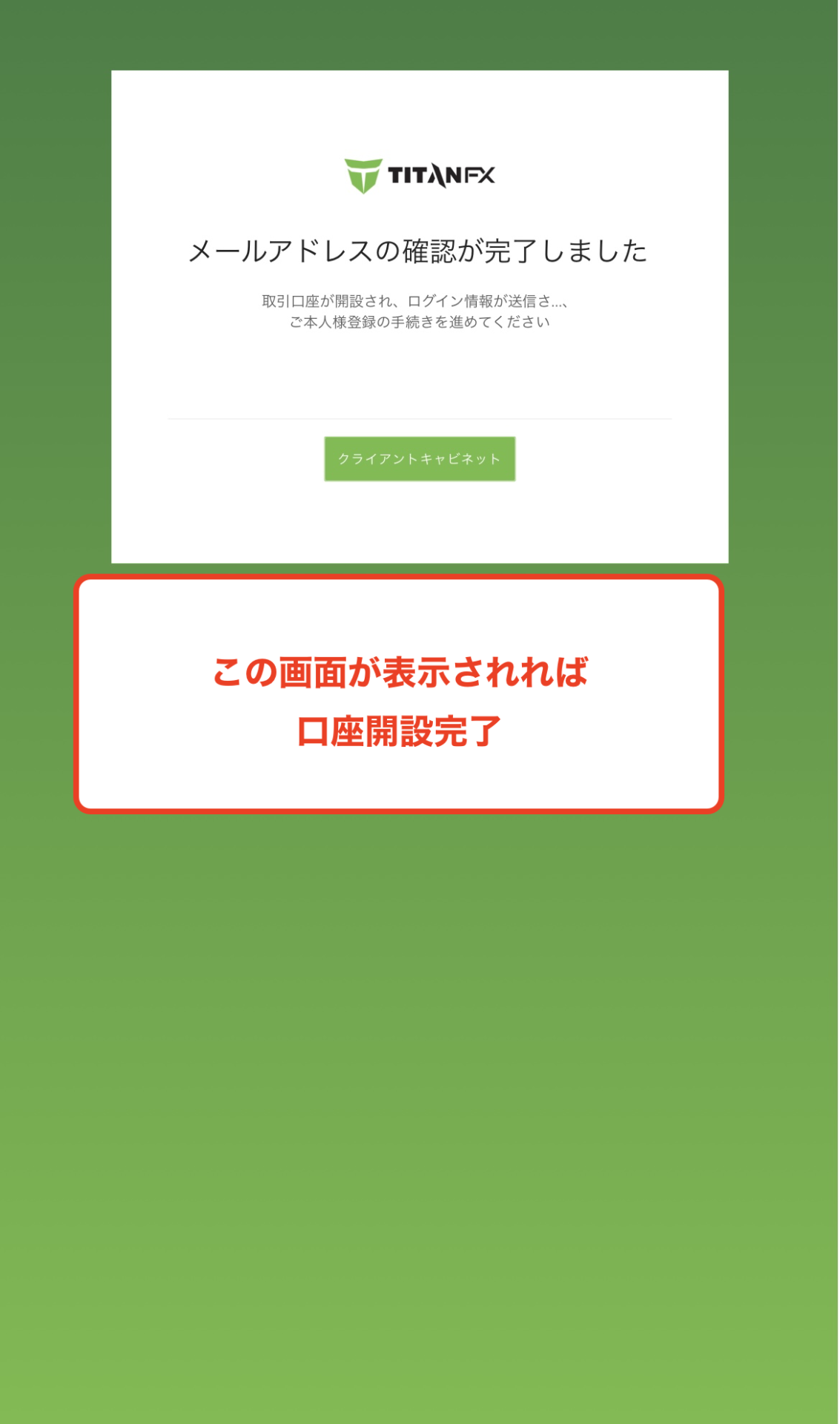
Once this screen appears, your TitanFX account creation/new account opening is complete
Step 15
Check your MT4 login information email
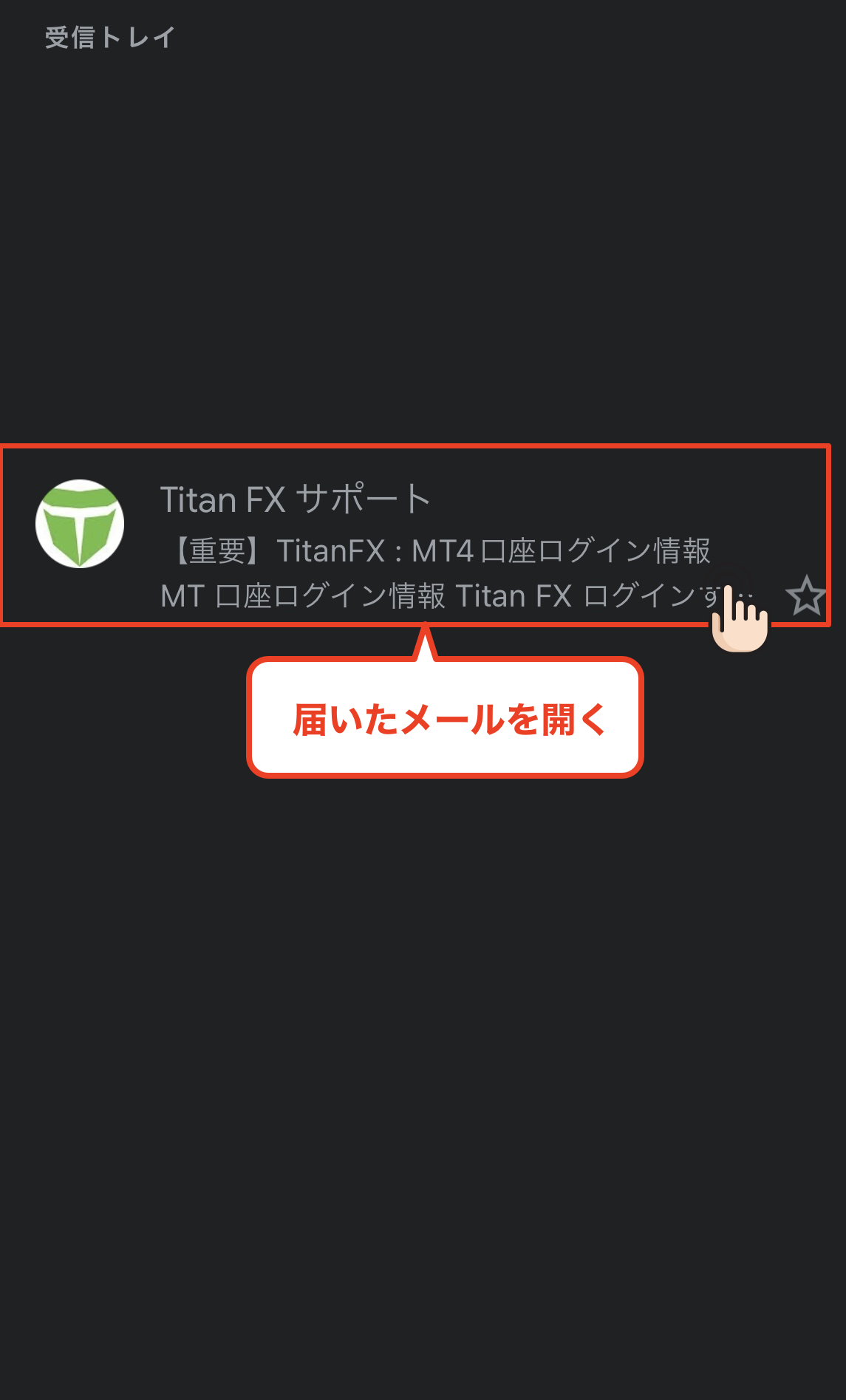
Next, open the email from TitanFX with the subject line "[Important] TitanFX: MT4 Login Information"
Step 16
Get your account number and password
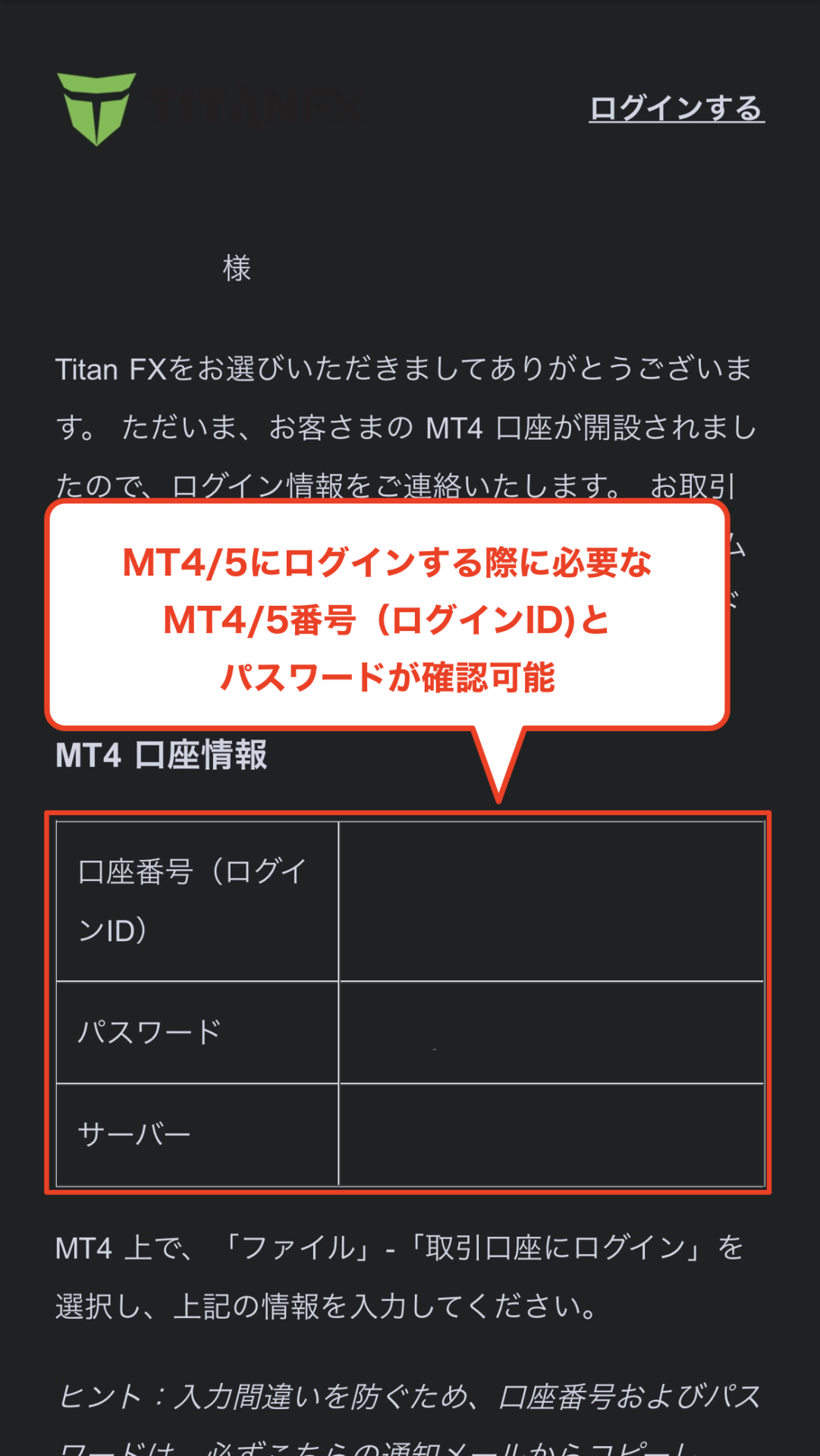
When you open the email, you will see your "account number (login ID)" and "password" for the trading account you just opened, so please make a note of them. Congratulations, your TitanFX account opening is now complete
*This account number will be needed when registering your MoneyChat account in Part 2, so please be sure to write it down
Part 2
Register your account from your MoneyChat My Page (required)
If you forget this step, you will not receive the cashback. Be sure to apply from your MoneyChat My Page and confirm that the status has changed to "Approved" before trading
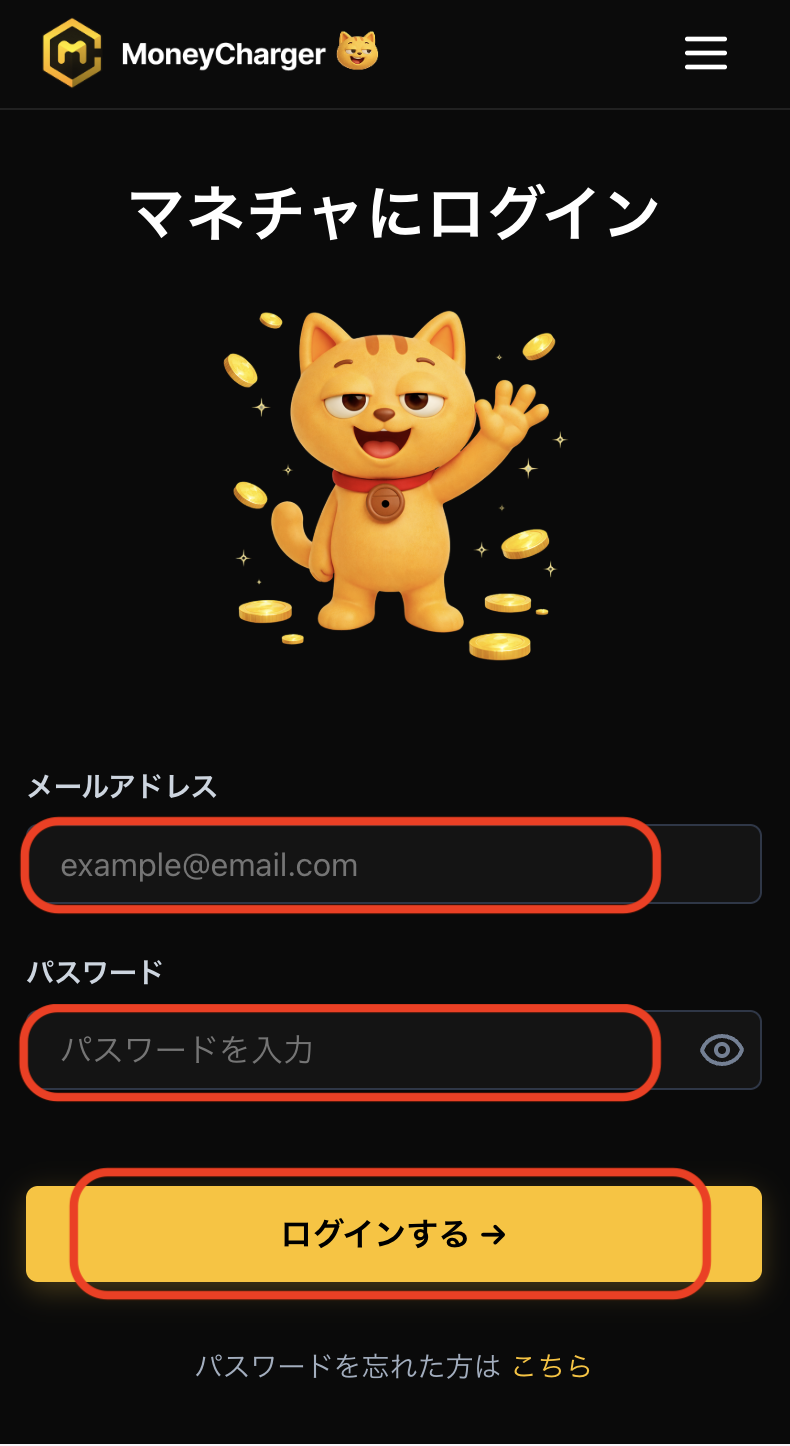
Step 1
Log in to your MoneyChat My Page
Log in to the MoneyChat page from the login page
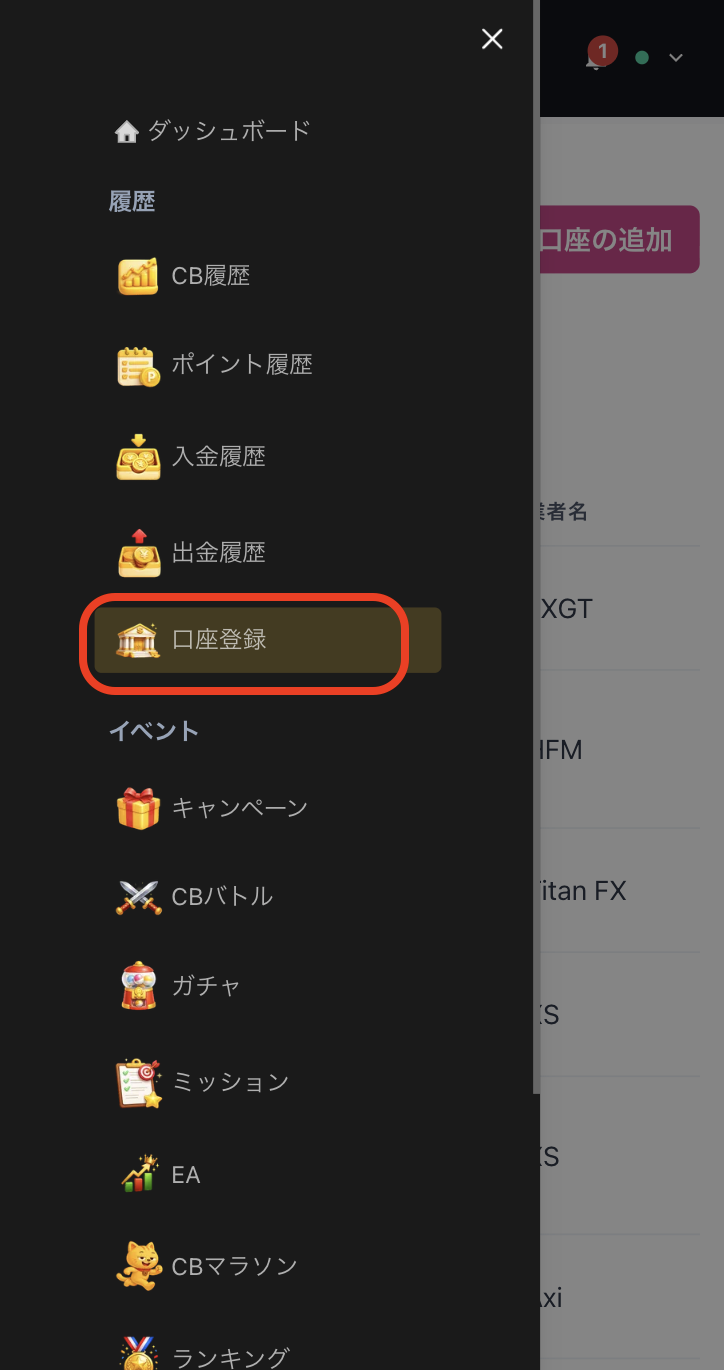
Step 2
Select "Register Account" from the menu
Tap the three lines in the upper left corner of the screen to bring up a menu, then select "Register Account" from there
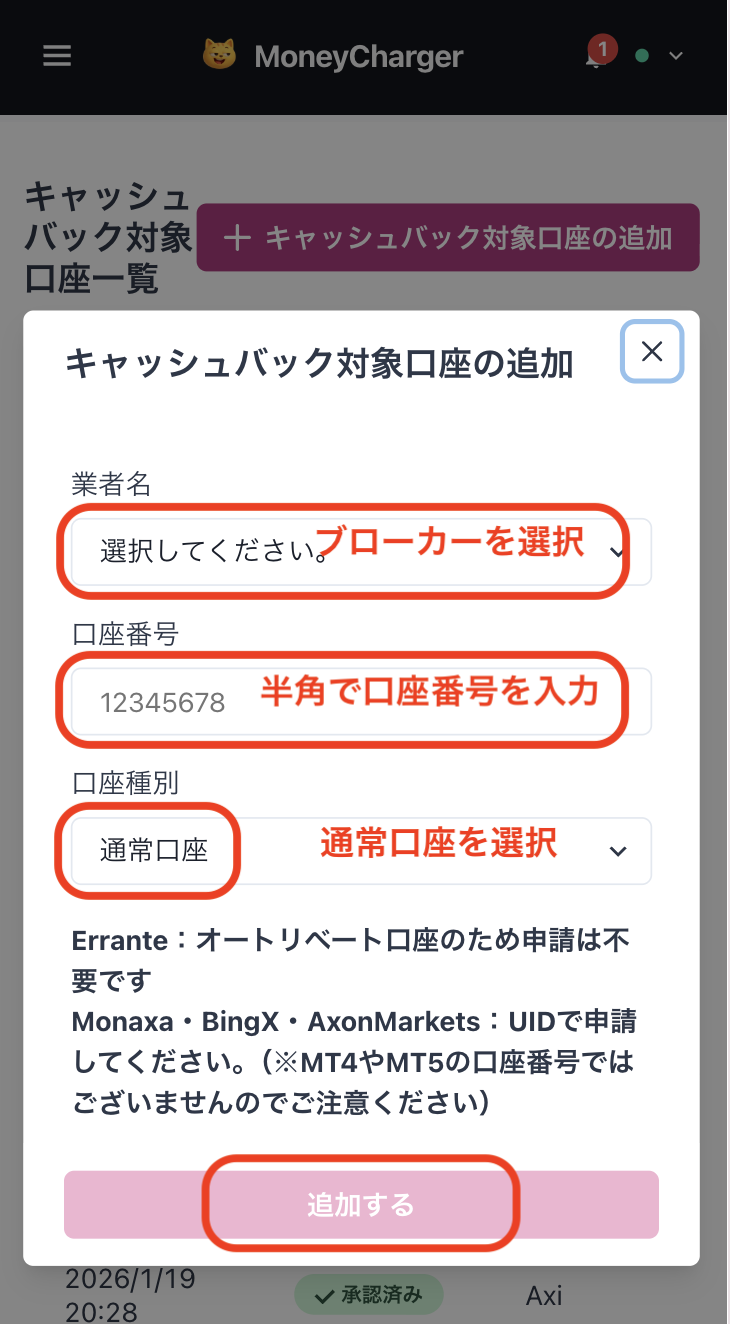
Step 3
Select a broker and enter your account number
A menu like the one shown in the image will appear. Select TitanFX as the broker name and enter your account number using half-width numerals. For account type, select "Regular Account" if you are doing regular discretionary trading or using your own EA
While there is an option for a dedicated account for MoneyChat EAs, this is only for those who wish to use EAs within MoneyChat's EA menu, so please select "Regular Account"
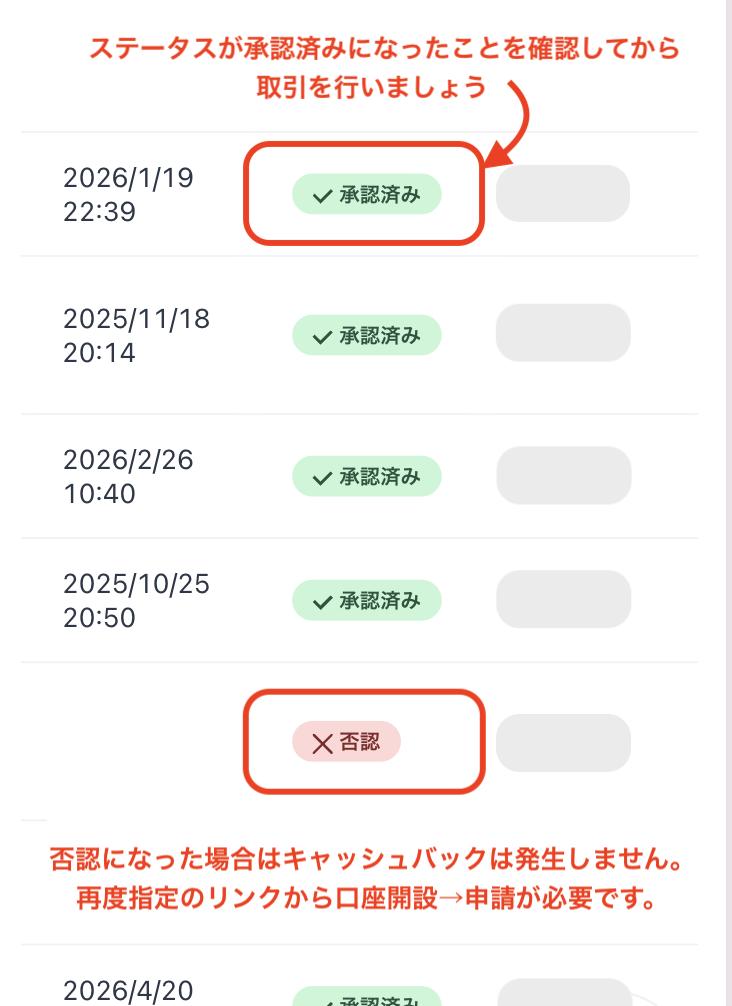
Step 4
Once approved, it's complete
Once you see this screen, your application is complete.
After submitting your application, if there are no problems with your application details, the status at the bottom of "Account Registration" will change to "Approved" within one business day.
Cashback on your transactions will be reflected from the time the status changes to "Approved".
[Caution] Cashback will not be provided if you trade using an account that has not been approved. Please be aware of this