










A complete guide to opening a StarTrader account, with step-by-step instructions and images
This guide explains how to open a new StarTrader account, using easy-to-follow diagrams and smartphone screenshots, making it simple for anyone to follow
StarTrader makes it easy to open an account and set up cashback by following the instructions
Follow the steps below to open an account and apply for one
- How to open a StarTrader account
- How to apply for an account with MoneyChat
you can get cashback if you register with MoneyChat.



available for troubleshooting trading and withdrawal issues.

83 active players.

with 56 participants.


Part 1
Open a StarTrader account
First, you need to open a StarTrader account. Please follow the instructions below and open an account via the dedicated link provided by the button

Step 1
Go to the StarTrader account creation page
First, click the button below to go to the StarTrader account creation page. When you open the link, the StarTrader registration form will be displayed
*Please note that if you register through a link other than the one provided by Moneycha, you will not be able to receive cashback from Moneycha
Step 2
Switch language to Japanese
Tap "English" in the upper right corner of the displayed page to change the language to Japanese
Step 3
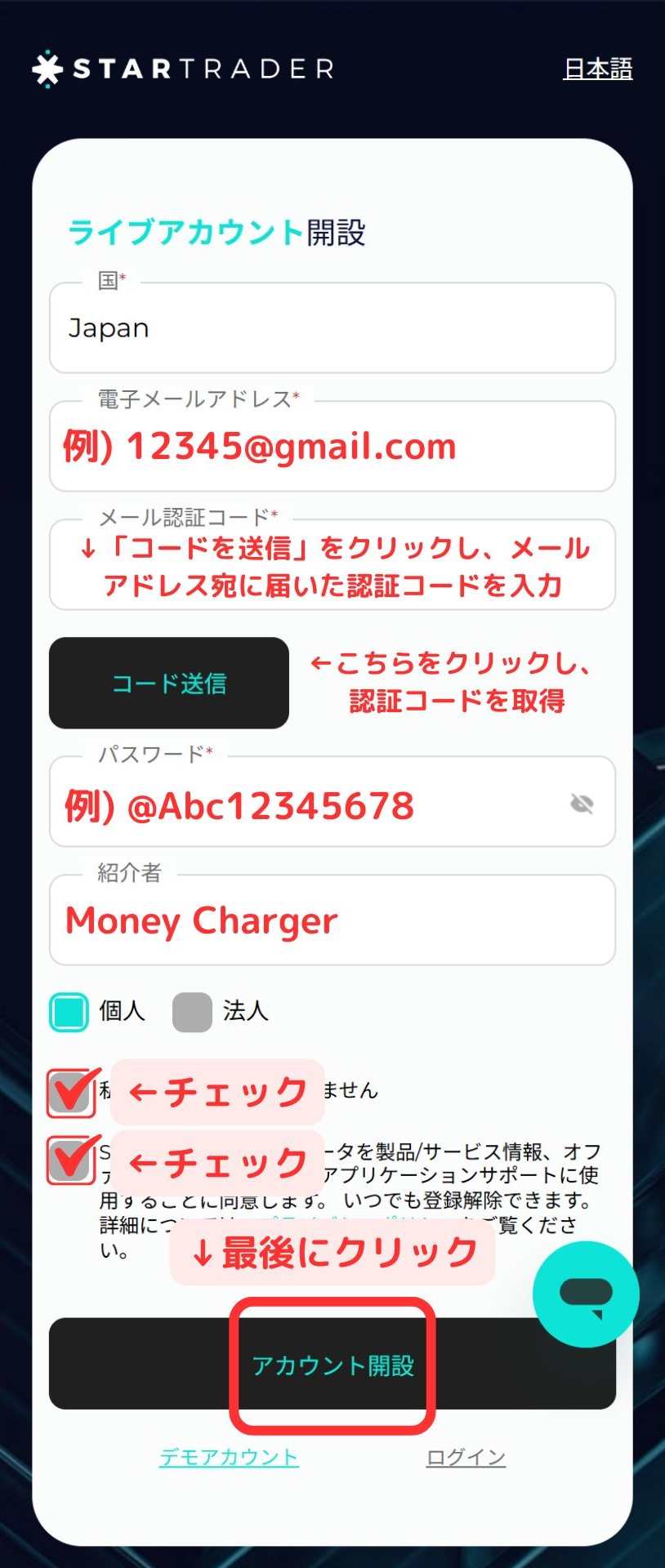
Enter your registration information
Once the language has switched to Japanese, enter your registration information, such as the email address you want to use with StarTrader. After entering your email address, tap the "Send Code" button, and a verification code will be sent to your registered email address. Enter this code on the screen
*If you do not receive the email, please check your spam folder
Step 4
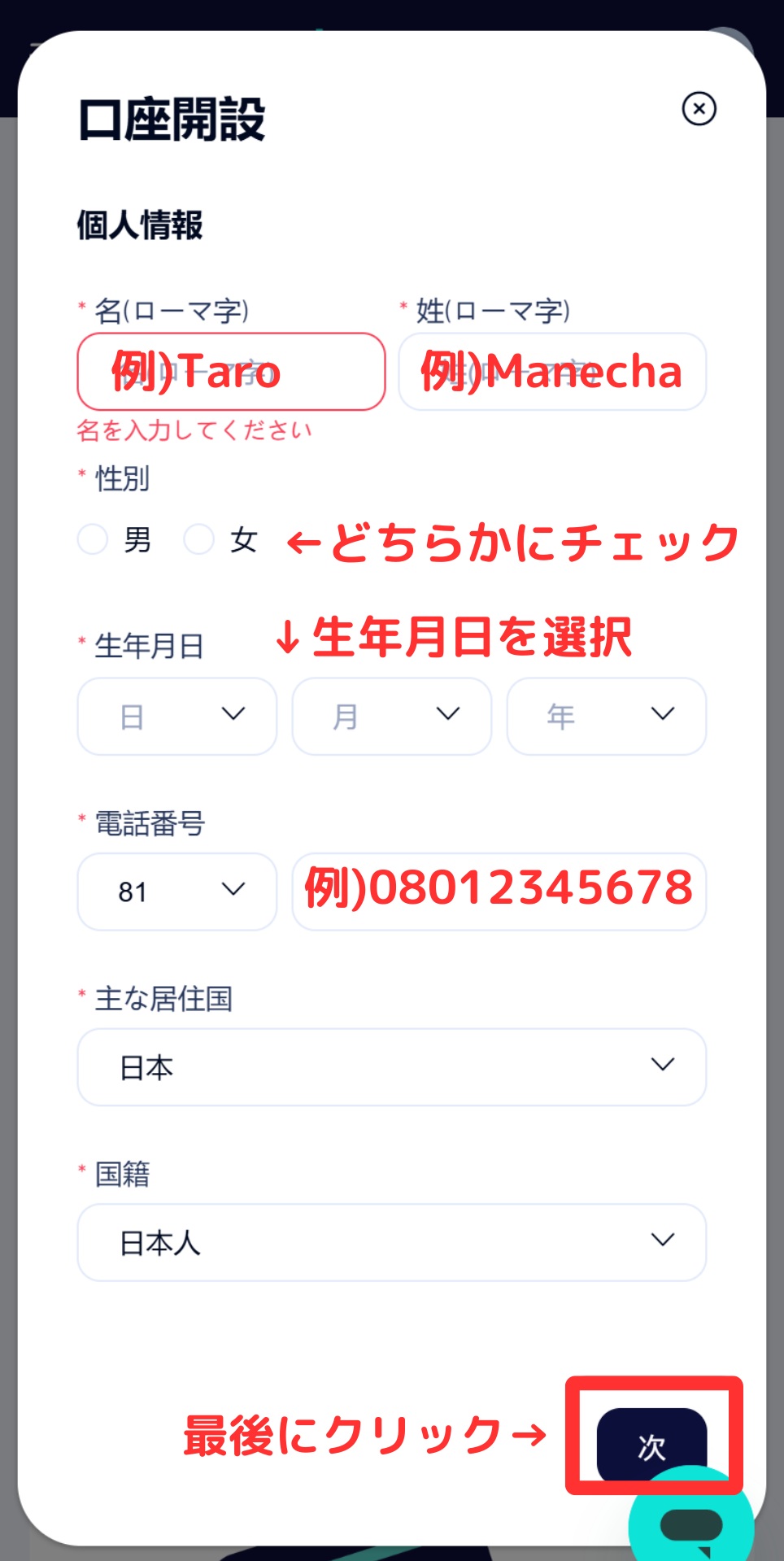
Enter your personal information
Next, enter your personal information, such as your name (in Roman letters), date of birth, and address, exactly as it appears on your identification documents
*If your identification documents and entered information do not match, your application may not be approved during subsequent verification
Wi5
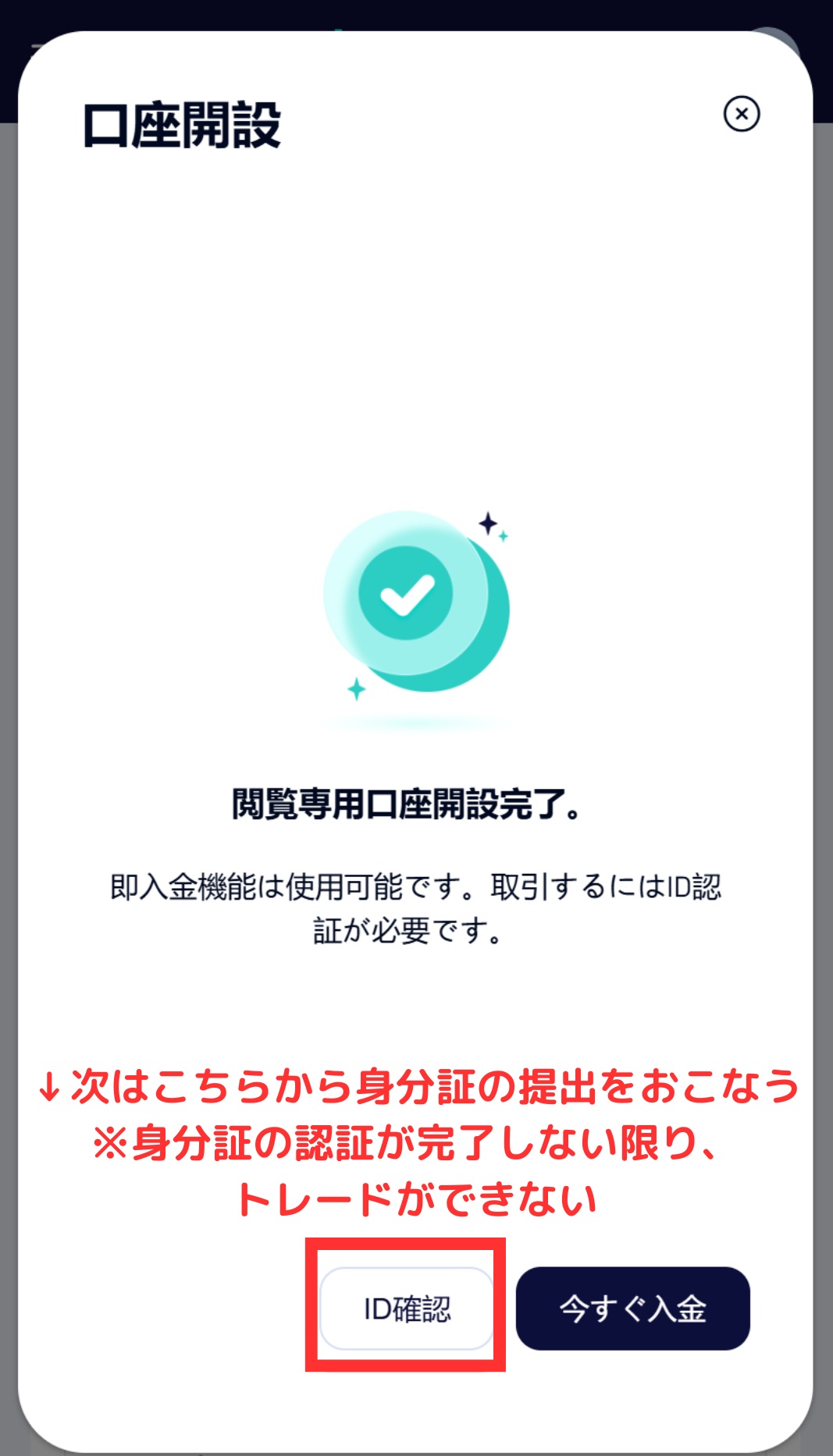
Tap "Confirm ID"
Currently, only view-only accounts are available, so please tap the "ID Verification" button to proceed with submitting your identification document
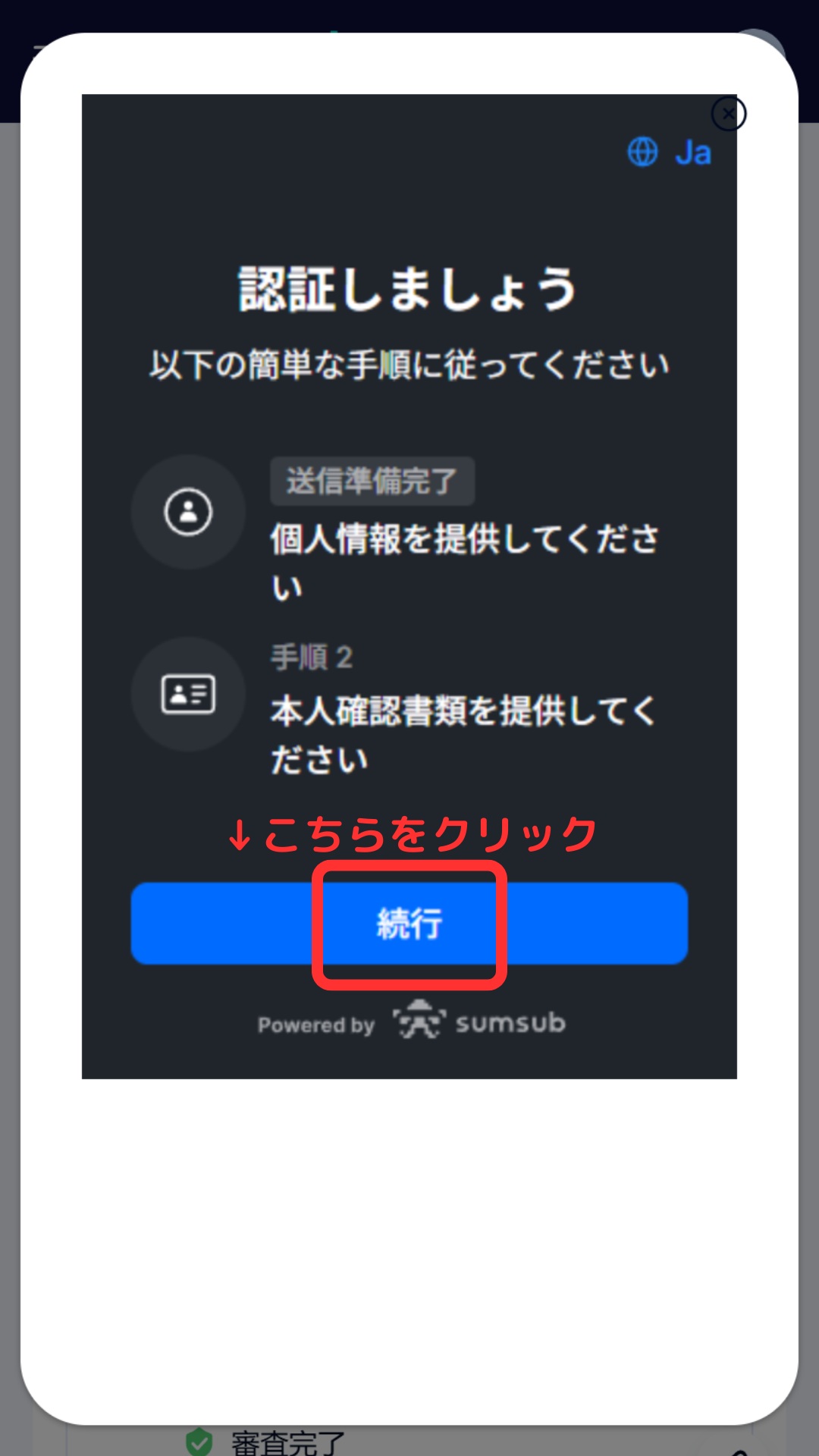
Step 6
Tap "Continue"
On the next screen, tap the "Continue" button to proceed
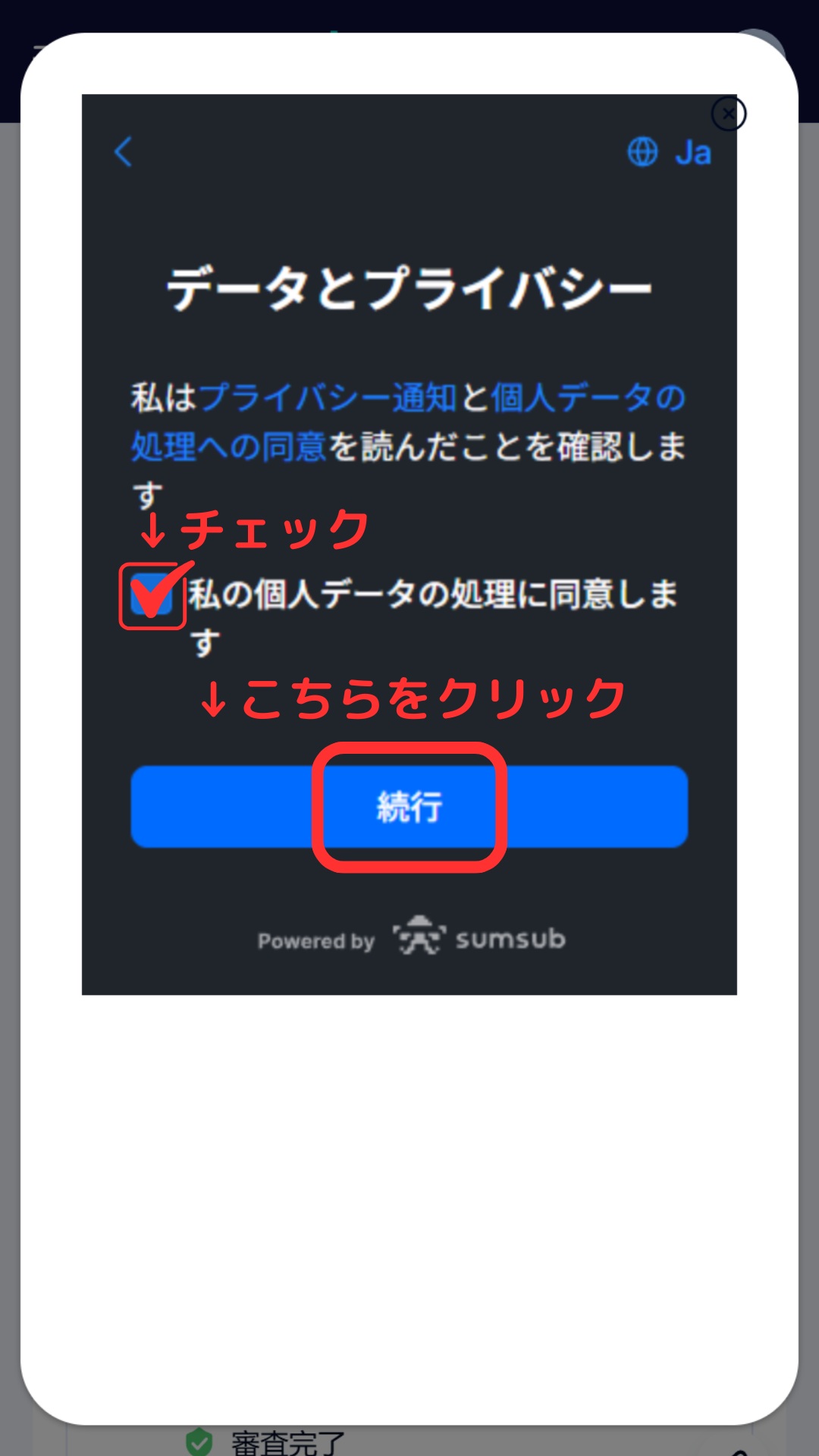
Step 7
Agree and tap "Continue"
Please check the agreement checkbox and tap the "Continue" button
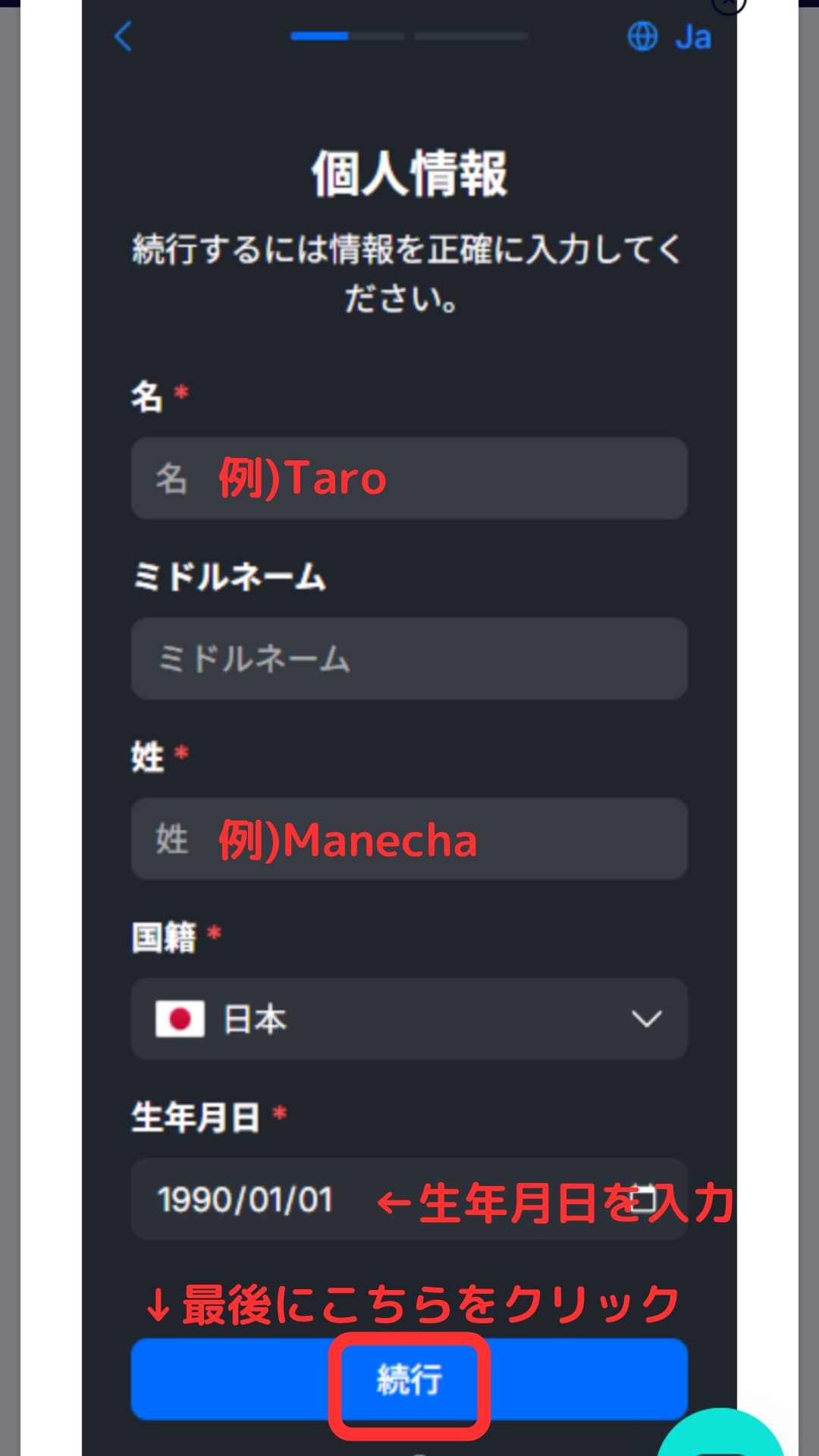
Step 8
Enter your personal information again
For identity verification purposes, you will need to re-enter your personal information, such as your name and address
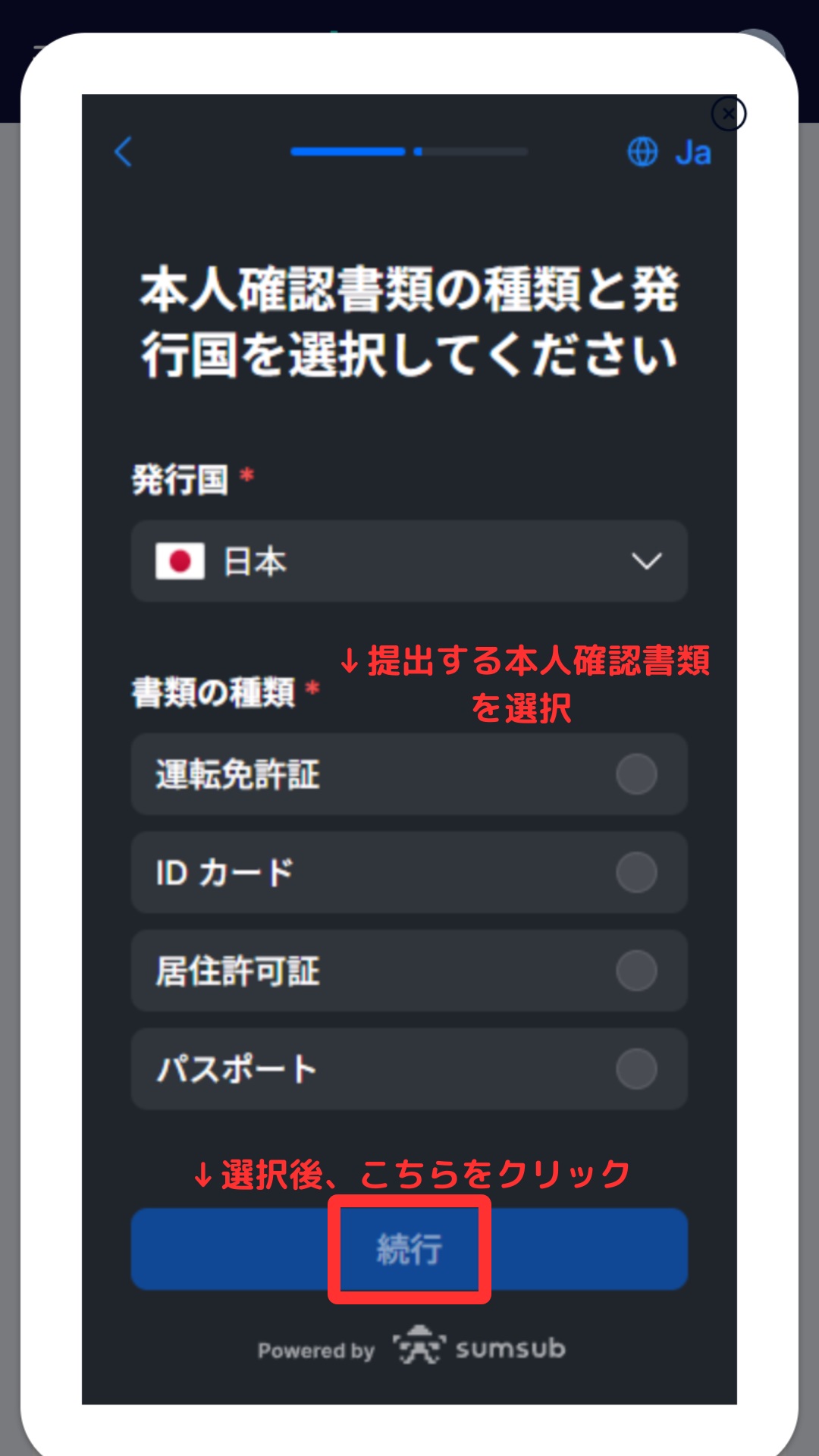
Step 9
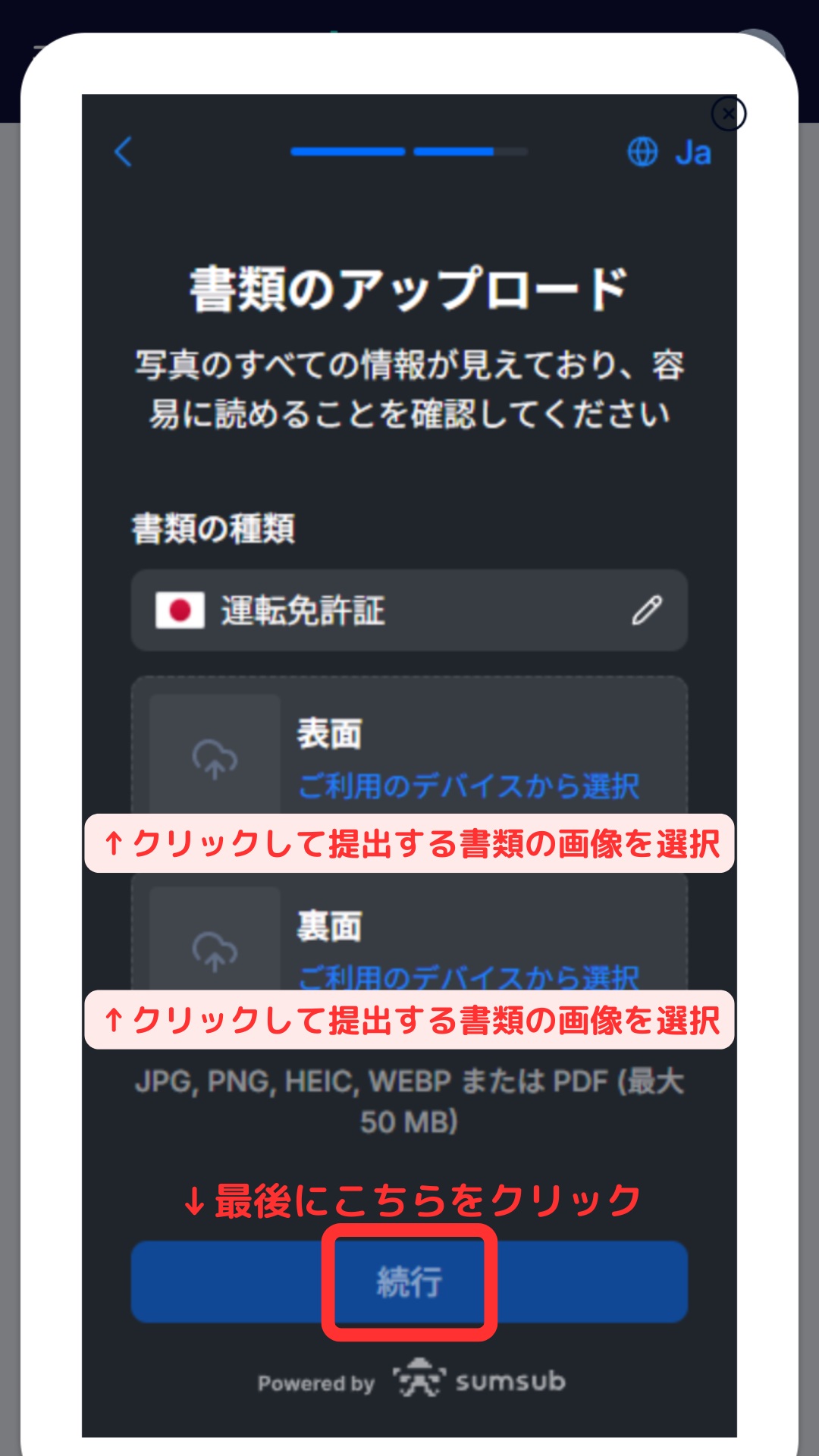
Upload your identity verification documents
Please upload your identity verification documents. You can choose from four types of identity verification documents (driver's license, passport, My Number card, residence card, etc.)
*Please ensure that all four corners of the document are visible in the image and that the text is clearly legible when taking the photo
Step 10
Submit the documents and tap "Continue"
After submitting your documents, tap the "Continue" button to complete your identity verification application
Step 11
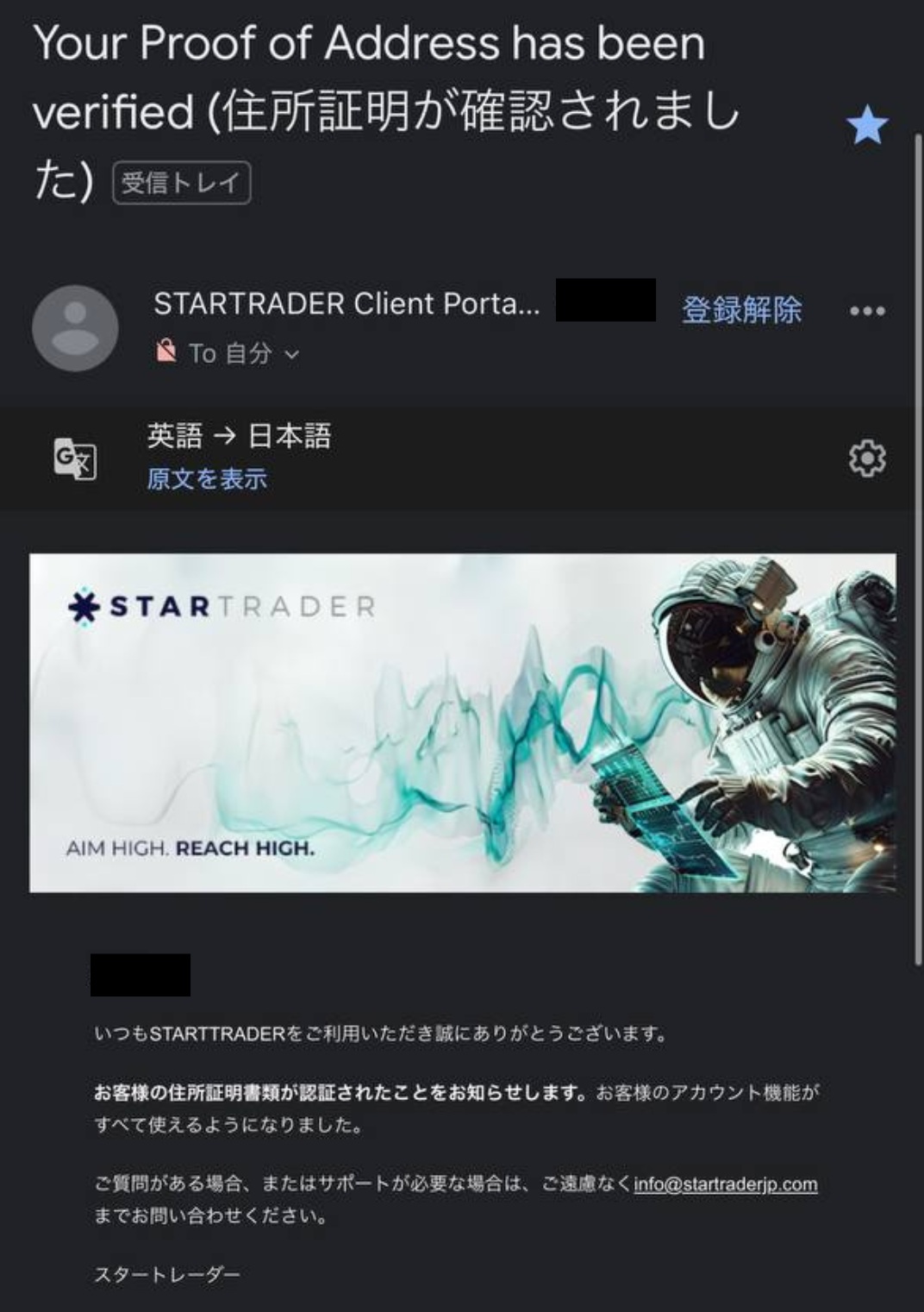
Receive a confirmation email
Once StarTrader has verified the documents you submitted, you will receive a confirmation email from StarTrader to your registered email address
Step 12
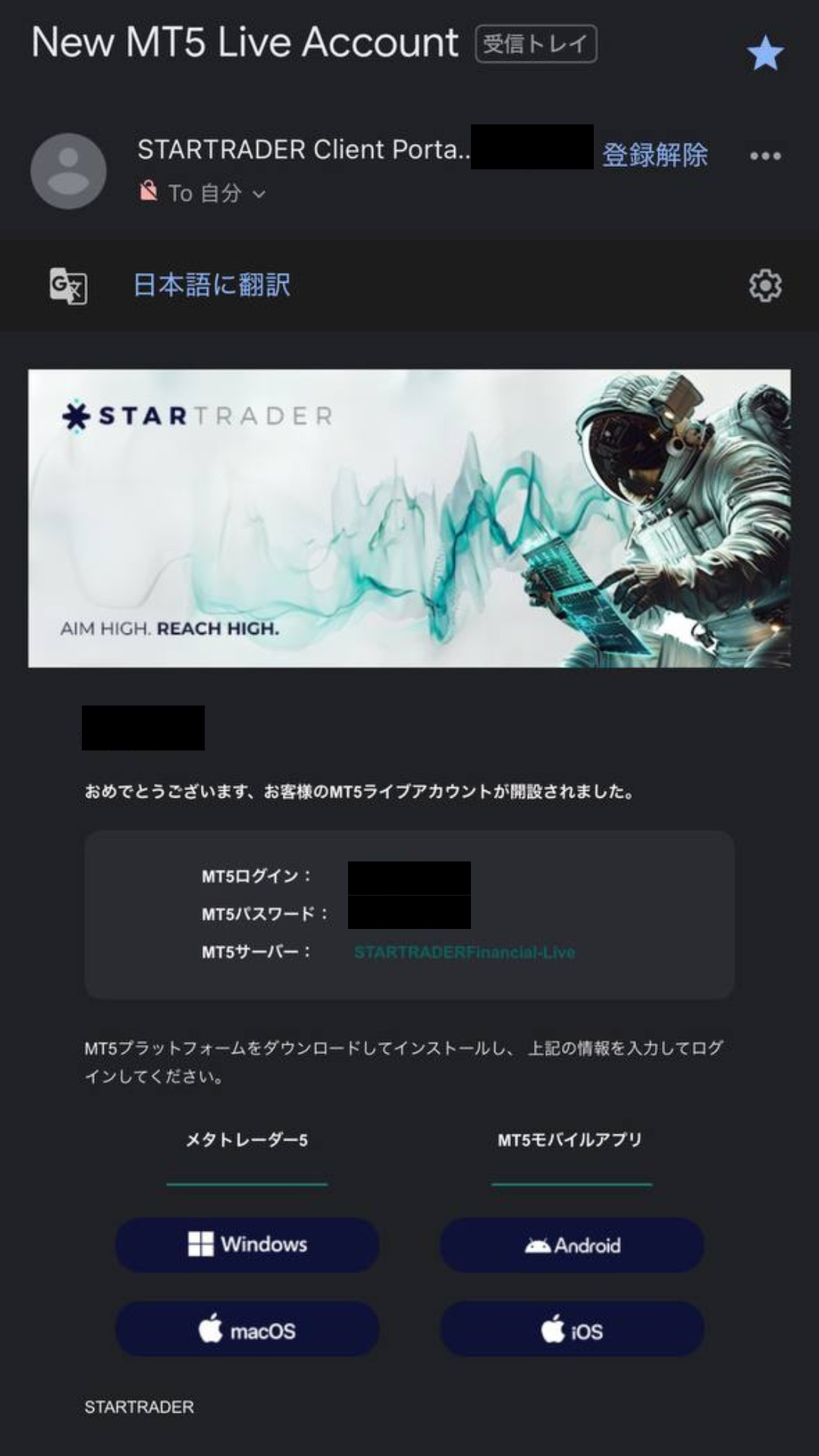
Retrieve trading account information
Next, you will receive an email containing your account information for the trading server. Please save or write it down. Congratulations, your StarTrader account opening is now complete
*This login ID will be required when registering your MoneyChat account in Part 2, so please be sure to write it down
Part 2
Register your account from your MoneyChat My Page (required)
If you forget this step, you will not receive the cashback. Be sure to apply from your MoneyChat My Page and confirm that the status has changed to "Approved" before trading
Step 1
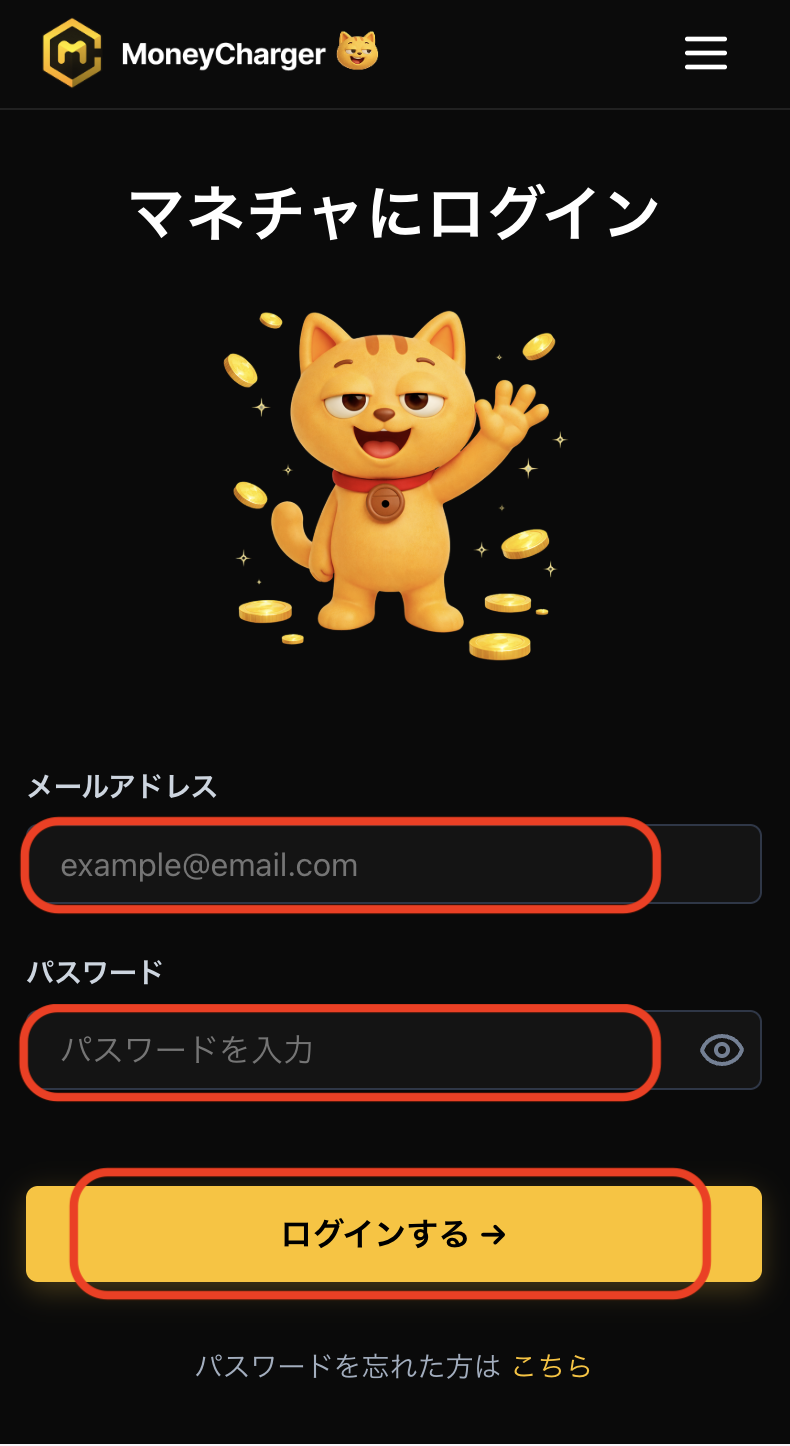
Log in to your MoneyChat My Page
Log in to the MoneyChat page from the login page
Step 2
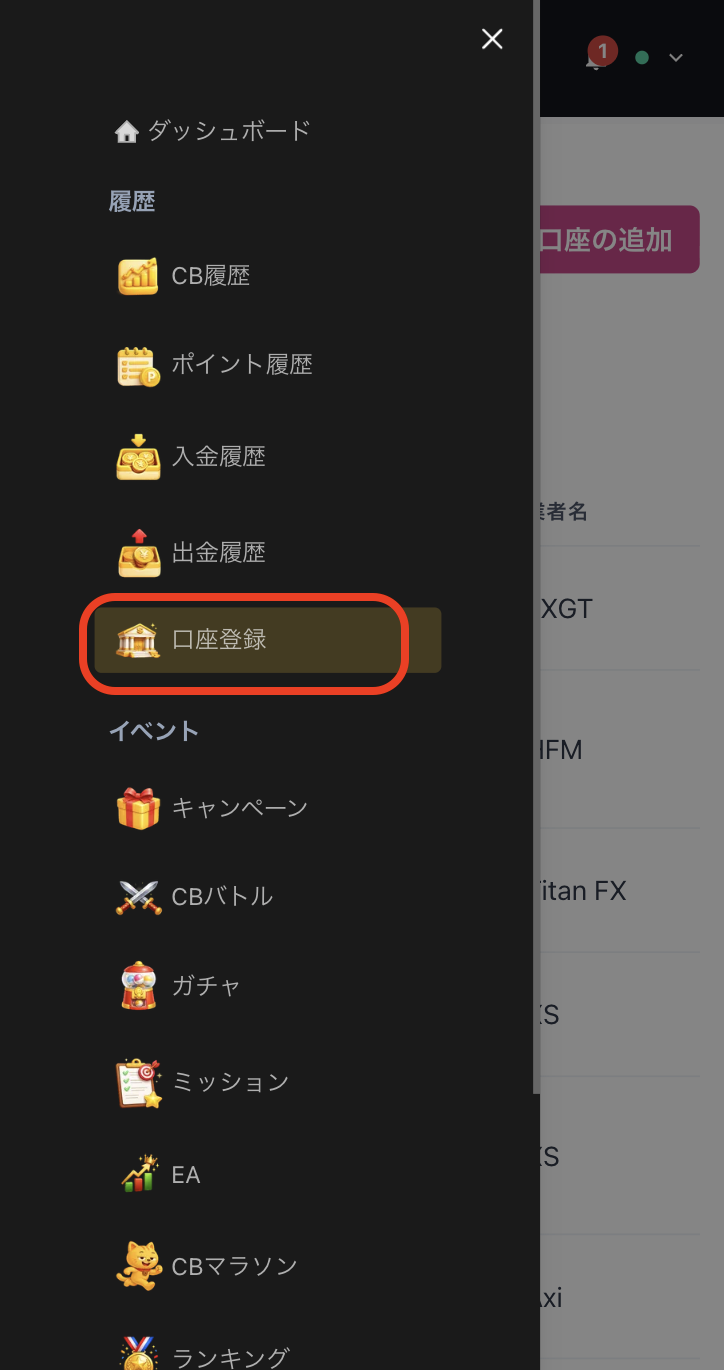
Select "Register Account" from the menu
Tap the three lines in the upper left corner of the screen to bring up a menu, then select "Register Account" from there
Step 3
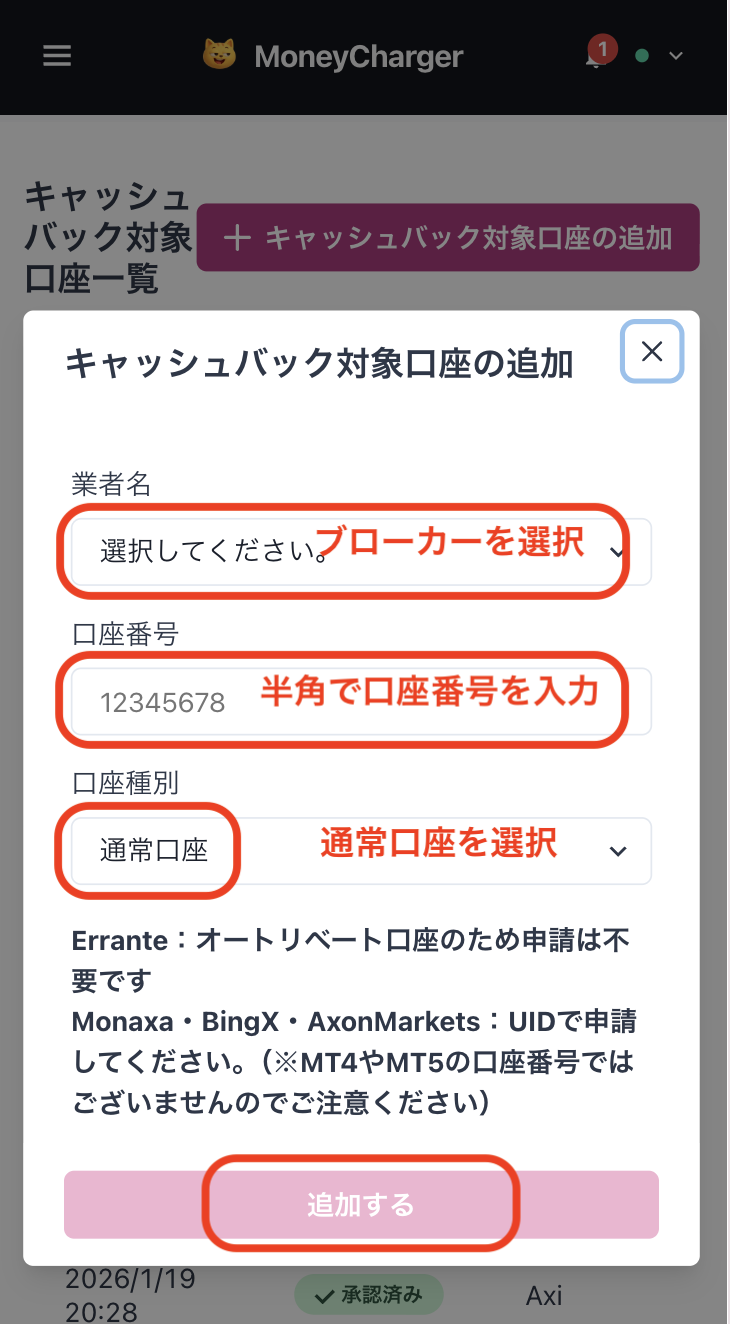
Select a broker and enter your account number
A menu like the one shown in the image will appear. Select StarTrader as the broker name and enter your account number using half-width numerals. For account type, select "Regular Account" if you are doing regular discretionary trading or using your own EA
While there is an option for a dedicated account for MoneyChat EAs, this is only for those who wish to use EAs within MoneyChat's EA menu, so please select "Regular Account"
Step 4
Once approved, it's complete
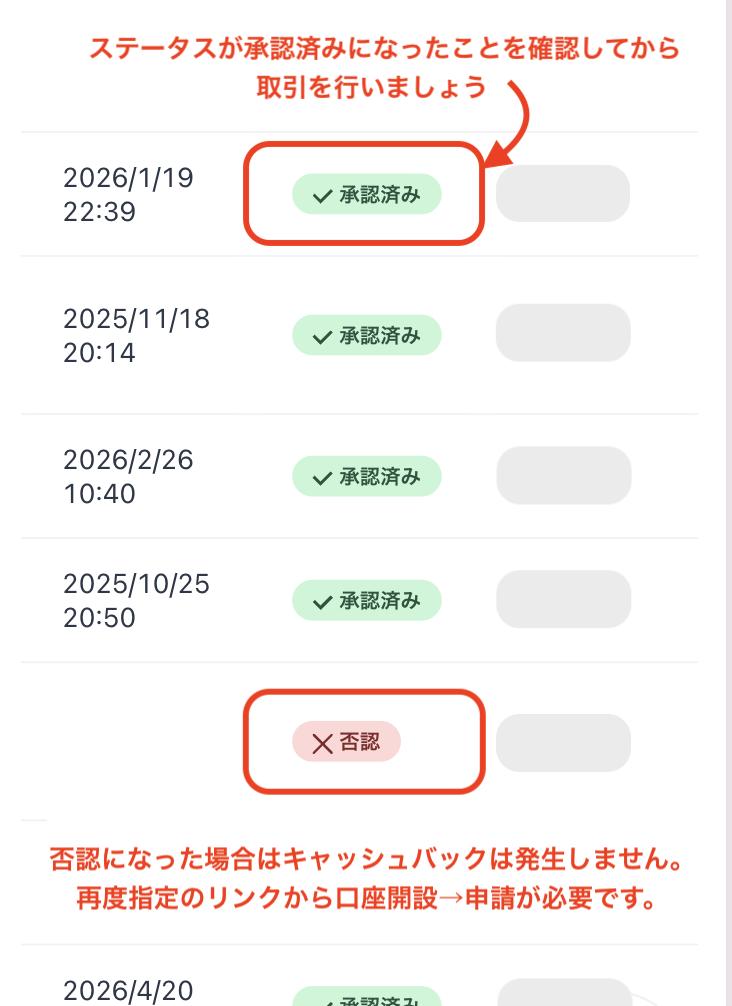
Once you see this screen, your application is complete.
After submitting your application, if there are no problems with your application details, the status at the bottom of "Account Registration" will change to "Approved" within one business day.
Cashback on your transactions will be reflected from the time the status changes to "Approved".
[Caution] Cashback will not be provided if you trade using an account that has not been approved. Please be aware of this