










Exness offers both MT4 and MT5, globally used trading platforms
Both are popular tools, but their features differ significantly depending on whether they are suited for discretionary trading or automated trading
This articleclearly summarizes the differences and features of MT4 and MT5, andprovides detailed explanations of key points for choosing the platform that's right for you.
Contents
- 1 Comparing the basic differences between MT4 and MT5
- 2 Which is better for Exness, MT4 or MT5?
- 3 Features of Exness MT4 | Ideal for discretionary trading and EA use
- 4 Exness MT5 Features | Advanced Analysis and Multi-Asset Support
- 4.1 Optimized for 64-bit operating systems, resulting in faster processing speeds
- 4.2 The number of timeframe and drawing tools has increased, and the analysis capabilities have been enhanced
- 4.3 A standard indicator has been added
- 4.4 Multiple charts can be displayed independently, and new order functions are available
- 4.5 Exness offers a wider range of trading instruments on MT5
- 5 How to install Exness MT4/MT5
- 6 Frequently Asked Questions about MT4 and MT5 from Exness
- 7 Exness MT4/MT5 Summary
Comparing the basic differences between MT4 and MT5
MT4 and MT5, available through Exness, are both part of the MetaTrader series, but they have different strengths. Here, we will explain the differences between MT4 and MT5 as follows
- Discretionary trading is best done with MT5, while automated trading is the main method, so use MT4
- MT5 offers superior basic functionality
- For automated trading, MT4 has an advantage in terms of the number of EAs (Expert Advisors) it supports
Understanding the differences between the two is crucial when choosing a platform that suits your trading style
Discretionary trading is best done with MT5, while automated trading is the main method, so use MT4
For those who primarily engage in discretionary trading, MT5 offers a wide variety of timeframes and drawing tools, and the ability to display multiple charts simultaneously, making it advantageous for trading across a broad range of markets
Furthermore,for traders who want to develop strategies while keeping track of detailed price movements across multiple timeframes, the comprehensive analytical functions of MT5are a significant advantage.
| item | MT4 | MT5 |
|---|---|---|
| Discretionary trading | The functionality is basically sufficient, but it's simple | It has a wide range of timeframes and drawing tools, making it strong for analysis |
| Automated trading | There are a very large number of EAs available, offering a wide range of choices | EAs are available, but the number of supported platforms is less than that of MT4 |
| Multi-chart display | limited | Multiple charts can be displayed simultaneously and independently |
On the other hand, MT4 tends to be chosen when automated trading is a priority
One of its strengths is that a large number of EAs have been developed over the many years since its release
Depending on your trading style, MT5 is appropriate if you prioritize discretionary trading, while MT4 is suitable if you utilize Expert Advisors (EAs)
MT5 offers superior basic functionality
MT5 is a next-generation version of MT4, with significantly enhanced basic functions
The number of timeframes has increased from 9 to 21, and the design makes it easier to check even small price movements
Furthermore,MT5 offers additional order types, supporting not only market and limit orders but also conditional orders.
| item | MT4 | MT5 |
|---|---|---|
| Hourly timeframe | 9 types | 21 types |
| How to order | Market orders and limit orders only | Market order, limit order, conditional order |
| Standard indicator | Approximately 30 types | Approximately 40 types |
MT5 also has a larger number of standard indicators, and its ability to handle a wider range of instruments, including not only forex but also stocks and cryptocurrencies, is another advantage

Therefore, unless there is a reason why the EA or custom indicator you want to use is not compatible with MT5, we generally recommend using MT5 as Exness's trading platform
For automated trading, MT4 has an advantage in terms of the number of EAs (Expert Advisors) it supports
If you're using automated trading, MT4 is more advantageous
Since its release in 2003, MT4 has a long history, during which numerous Expert Advisors (EAs) have been developed and it is used by traders all over the world
A major advantage of using MT4 EAs is that you can find a large number of them on EA sales sites and through free distribution, making it easy to find a strategy that suits your preferences
While the number of EAs for MT5 is increasing, they still lag behind MT4 in terms of quantity and track record
If you prioritize using Expert Advisors (EAs) for trading, choosing MT4 is more practical due to its wide range of options and abundant information
Which is better for Exness, MT4 or MT5?
Here, we will explain which trading platform, MT4 or MT5, is recommended for Exness, based on the following scenarios
- Basically, MT5 is recommended
- Automated trading is mainly done using MT4
- If you want a wide range of trading instruments, MT5 is a must
By choosing a trading platform that best suits your trading style, you can create a convenient and comfortable trading environment
Basically, MT5 is recommended
MT5 was developed by enhancing the features of MT4, resulting in a more comfortable trading environment
The chart offers a wide range of timeframes and drawing tools, allowing for complex market analysis
The number of order methods has also increased, making it possible to develop more flexible trading strategies
Furthermore, Exness allows trading not only in forex but also in stock indices and cryptocurrencies, making MT5, which can handle a wide range of instruments, recommended for both beginners and advanced traders
Automated trading is mainly done using MT4
If you prioritize automated trading using Expert Advisors (EAs), choosing MT4 will be more efficient
Because it has been used worldwide for a long time, there are a very large number of compatible EAs, and it is easy to find information on sales sites and in communities
The fact that you can use existing EAs as they are, resulting in low implementation costs, is also an attractive feature
While automated trading is possible with MT5, the limited number of compatible Expert Advisors (EAs) restricts your options
If you plan to primarily use automated trading (EA) with Exness, MT4 is recommended
If you want a wide range of trading instruments, MT5 is a must
If you want access to multiple markets, including not only FX but also stock indices, energy, and cryptocurrencies, MT5 is essential
MT5 supports multiple assets, allowing you to trade various products on the same platform
In the case of Exness, MT5 offers approximately 20 more trading instruments
Furthermore, in terms of functionality, MT5 offers user-friendliness, such as the ability to split and display multiple charts simultaneously, or to display multiple charts on a single chart using mini-charts
Features of Exness MT4 | Ideal for discretionary trading and EA use
Here, we will explain the following five features of Exness's MT4 platform
- MT4 has by far the widest range of applications for EAs (automated trading systems)
- There are many types of indicators
- The ordering method is simple and easy to use
- One tool can cover all major stocks
- Available on various devices such as PCs, smartphones, and tablets
Learn about the features of MT4, which has been loved by traders worldwide for over 20 years, and use this information to help you trade comfortably with Exness
MT4 has by far the widest range of applications for EAs (automated trading systems)
MT4 offers an environment specifically designed for automated trading, and the number of available Expert Advisors (EAs) far exceeds that of MT5
Because traders can utilize EAs (Expert Advisors) provided by developers all over the world, it's easier for them to choose a strategy that suits them
Furthermore, the active community and the ease with which information and setup instructions can be obtained are reassuring
There are many types of indicators
MT4 comes with numerous indicators as standard, allowing you to start basic market analysis right away
Furthermore, you can import additional indicators (custom indicators) from external sources, allowing you to build an analysis environment tailored to your own trading style
Some traders eliminate the need to constantly monitor charts by freely combining indicators or developing their own analysis methods and trading signals
MT4 has high extensibility through custom indicators and EAs, so one of its strengths is that you can implement almost any function that isn't built-in by searching online
The ordering method is simple and easy to use
MT4 is designed to be intuitive to use, allowing you to place orders without going through complicated procedures
Its key feature is that it's easy to understand basic order types, such as market orders and limit orders, so you can use it immediately without any explanation
Even beginners can get used to it in a short time, and the risk of making mistakes is minimized
Its simple operation makes it suitable for scalping, where speed is essential
One tool can cover all major stocks
With MT4, you can trade not only the currency pairs offered by Exness, but also major financial instruments such as stock indices, energy, precious metals, and cryptocurrencies all in one place
Because you can manage multiple markets on a single platform, it's a user-friendly environment for diversifying your investments
Furthermore, since you can freely arrange the layout of charts and order screens, it is possible to trade while checking multiple stocks simultaneously
For investors who trade a wide range of instruments, not just FX, the ability to efficiently set up a trading environment is a major attraction
Available on various devices such as PCs, smartphones, and tablets
MT4 can be used not only on PCs, but also on smartphones and tablets
You can check charts and place orders using the app even when you're out and about, allowing you to continue trading regardless of your location
Furthermore, using the browser version allows you to access the trading environment without installing any software
The ability to connect to the same account regardless of the device is a major advantage, as it ensures a consistently stable trading environment
Exness MT5 Features | Advanced Analysis and Multi-Asset Support
Here, we will explain the following five features of Exness's MT5 platform
- Optimized for 64-bit operating systems, resulting in faster processing speeds
- The number of timeframe and drawing tools has increased, and the analysis capabilities have been enhanced
- A standard indicator has been added
- Multiple charts can be displayed independently, and new order functions are available
- Exness offers a wider range of trading instruments on MT5
Let's take a closer look at the features of MT5, a trading platform popular among discretionary traders as the successor to MT4
Optimized for 64-bit operating systems, resulting in faster processing speeds
MT5 is optimized for 64-bit operating systems and offers improved processing speed compared to the previous MT4
One of its advantages is its high stability and resistance to slowing down performance, even when running multiple charts and indicators simultaneously
For users with high trading volumes and traders who demand a fast environment, smooth operation improves the accuracy of their strategies
It can be comfortably used when performing large-scale data processing and backtesting with custom indicators
The reason I decided to switch from MT4 to MT5 is that MT5 is clearly much faster.
When using MT4, there's a noticeable sluggishness in overall operation, especially when adding custom indicators.
The number of timeframe and drawing tools has increased, and the analysis capabilities have been enhanced
MT5 has significantly increased the number of available timeframes from 9 to 21
Because it allows for analysis across detailed timeframes, from short-term to long-term, you can more accurately determine entry and exit timings
The platform offers a wide variety of drawing tools, allowing for multifaceted analysis by combining trend lines, Fibonacci retracements, and more
This software offers a range of features that will be useful for users who want to broaden their analytical capabilities in discretionary trading
A standard indicator has been added
MT5 comes with approximately 40 indicators as standard, allowing most traders to trade without having to search for additional indicators
In addition to standard tools such as moving averages and RSI, the added indicators allow you to analyze the market from multiple perspectives
Its appeal lies in its ability to provide comprehensive analysis without the need for external indicators, making it easy for beginners to use
Multiple charts can be displayed independently, and new order functions are available
In MT4, displaying multiple charts independently required a somewhat complicated procedure, such as installing multiple MT4 instances
However, MT5 has a feature that allows for the independent display of multiple charts, which is convenient when trading with multiple monitors
Furthermore,MT5 also implements new order functions such as bulk settlement, making it easier to manage multiple positions.
Exness offers a wider range of trading instruments on MT5
Exness's MT5 platform allows you to trade not only forex, but also a wide range of other instruments including stock indices, energy, precious metals, and cryptocurrencies
While you can trade all markets on MT4, MT5 offers about 20 more trading instruments
Therefore, users who prioritize multi-asset trading will find MT5 to be a very advantageous choice
How to install Exness MT4/MT5
Here, we will explain how to install Exness's MT4 and MT5 trading platforms in the following order
We've compiled installation instructions with images for the PC, mobile, and browser versions, so beginners should find them helpful
Exness MT4 Installation Procedure
The installation method for Exness MT4 is outlined below in order
- Installation procedure for Exness PC version MT4
- Installation Instructions for Exness Mobile MT4
- Installation procedure for Exness browser version MT4 (Web Trader)
Let's take a closer look at each of them
Installation procedure for Exness PC version MT4
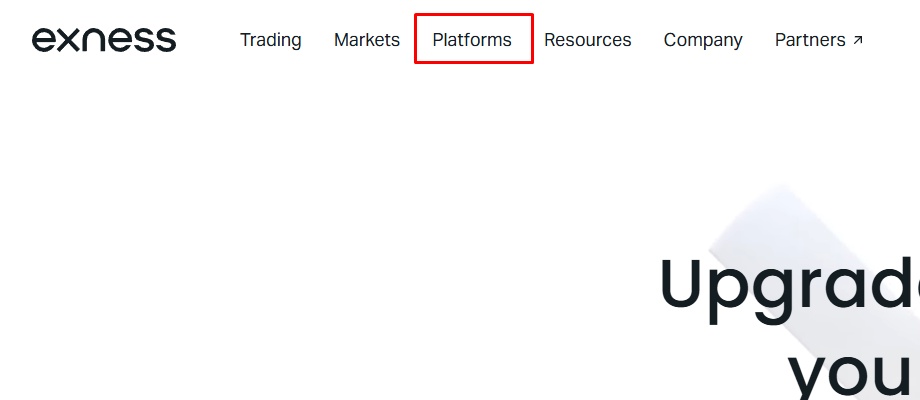
First, open the official Exness website and select "Platform" from the menu at the top

Select "MetaTrader4" from the list of trading platforms

On the next page, click "Download MetaTrader 4" to download the Exness PC version of MT4 installer
Depending on your PC environment, you may see a message saying "Unverified download blocked" during the download process, but you can proceed by selecting "Download unverified file"

Once the downloaded Exness PC version of MT4 has finished installing, it will automatically launch
The process begins with reading the server, so select the server for your Exness trading account from the list and click "Next"

The login information input screen will appear. Check "Existing account" and enter the following login information
- Login: Enter your Exness MT4 trading account number using half-width numerals
- Password: Enter the password set for your Exness MT4 trading account
After entering the above information, click "Complete" to log in to your trading account from MT4
You can start trading right away
Installation Instructions for Exness Mobile MT4
Regarding the mobile version, there is no dedicated MT4 for Exness; you log in to your Exness trading account through the MT4 app to use it
Therefore, if you are using another overseas forex broker, the setup is complete simply by logging into your Exness trading account from the MT4 app
If you haven't used the MT4 app before, please follow the steps below to install it
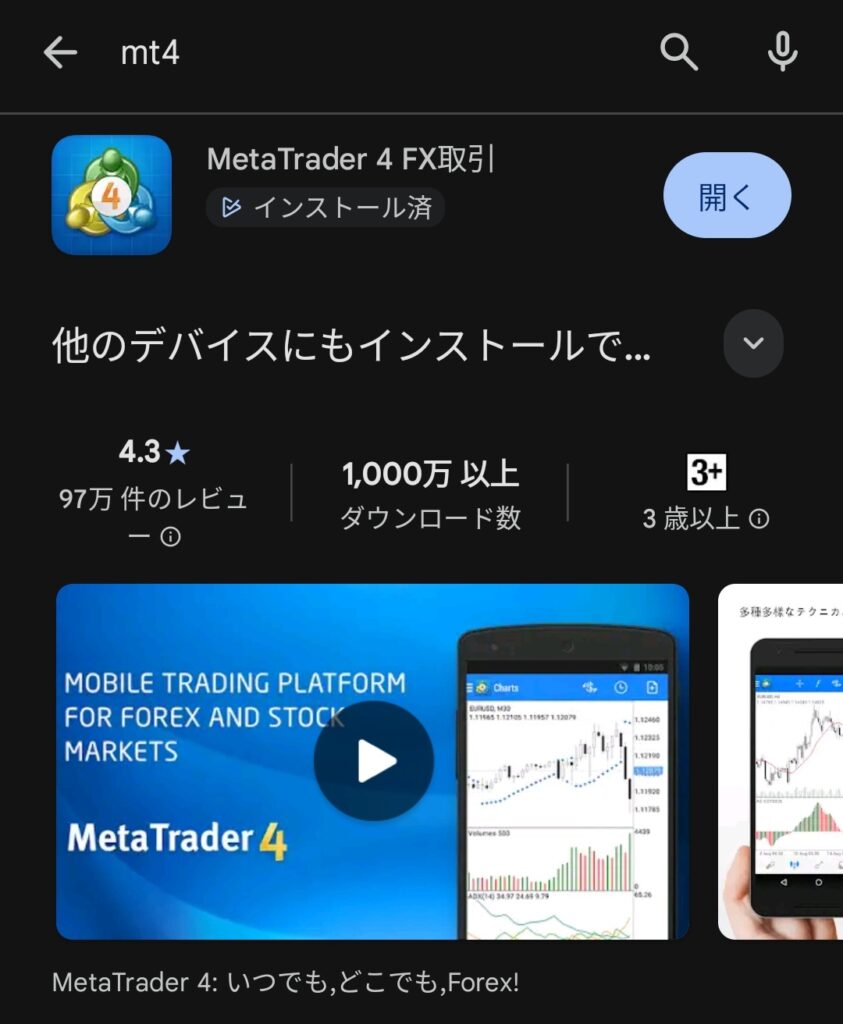
First, download MT4 from your smartphone's app store
If you search for "MT4" on the app store, you can find MetaQuates' MT4
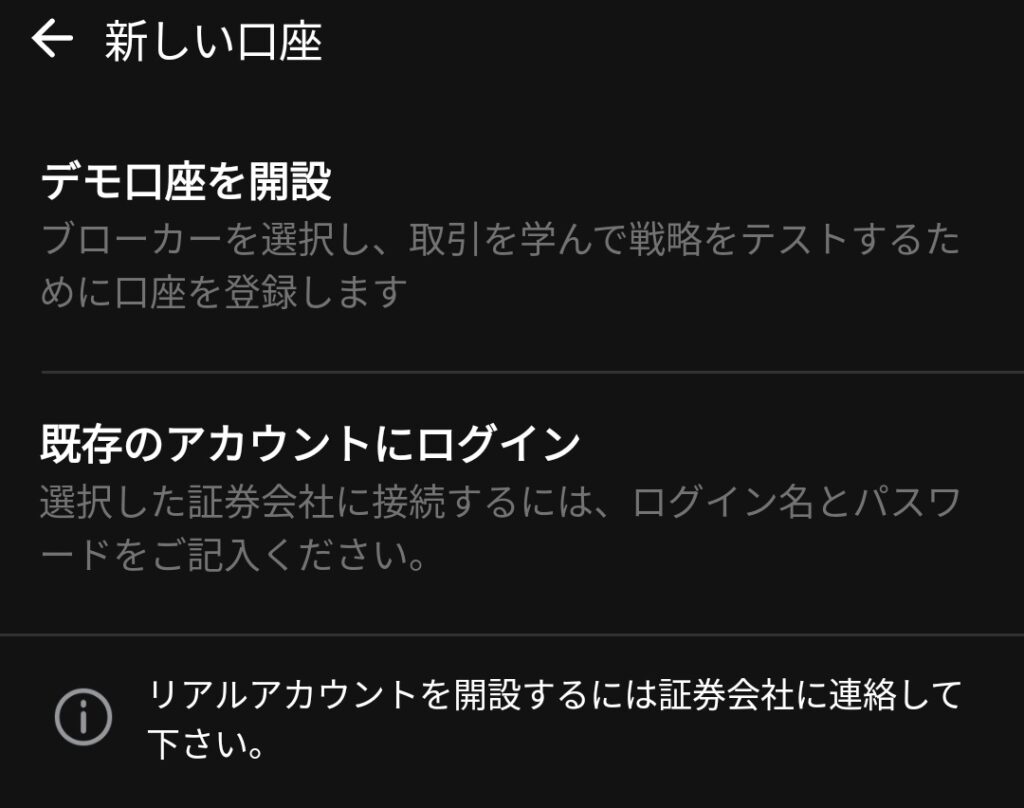
When you first launch the application, select "Log in to an existing account."
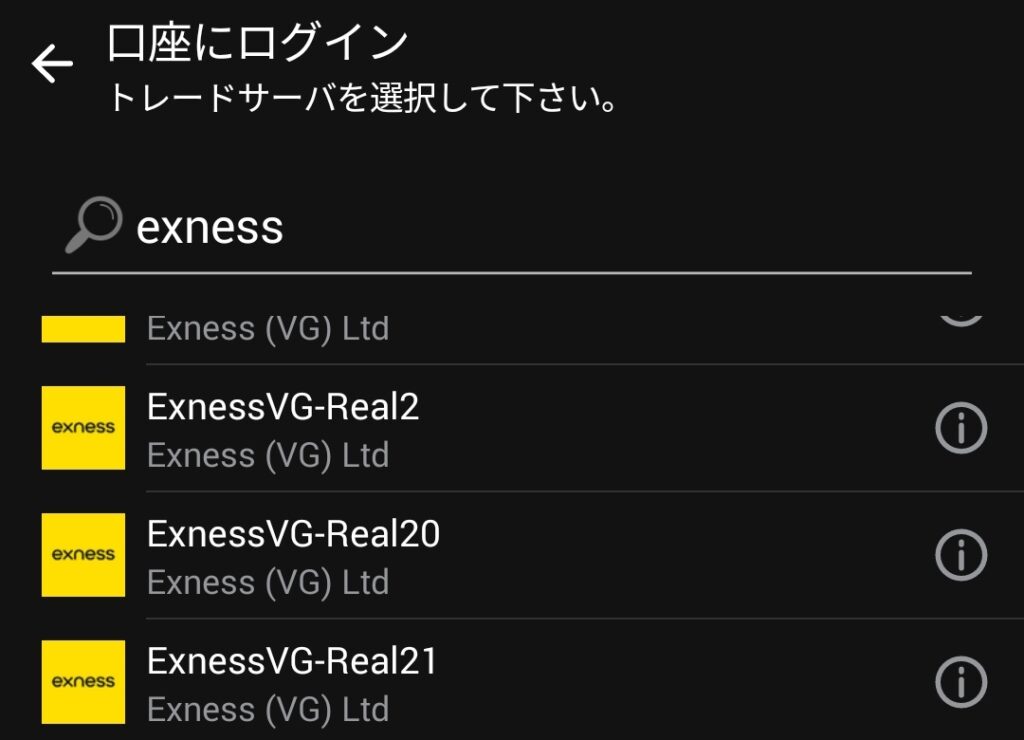
A server selection screen will appear. Enter "Exness" in the search bar and tap to select the server assigned to your trading account
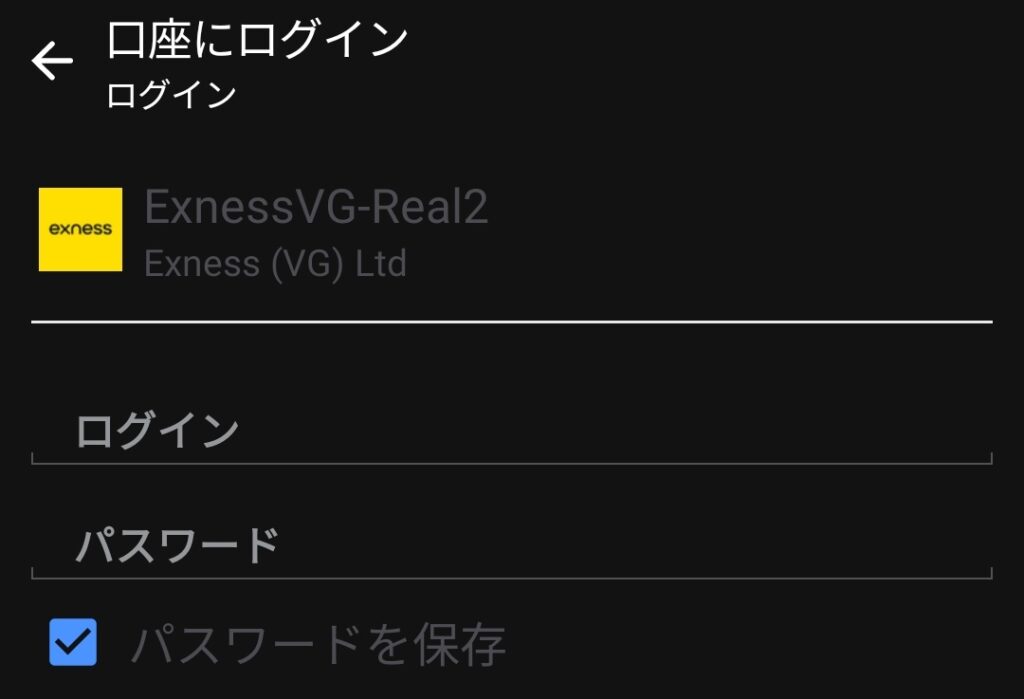
On the next screen, please enter the following information
- Login: Enter your Exness MT4 trading account number using half-width numerals
- Password: Enter the password set for your Exness MT4 trading account
After entering the above information, click "Complete" to log in to your trading account from the MT4 app. You can then start trading
Installation procedure for Exness browser version MT4 (Web Trader)
First, open the official Exness website and select "Platform" from the menu at the top
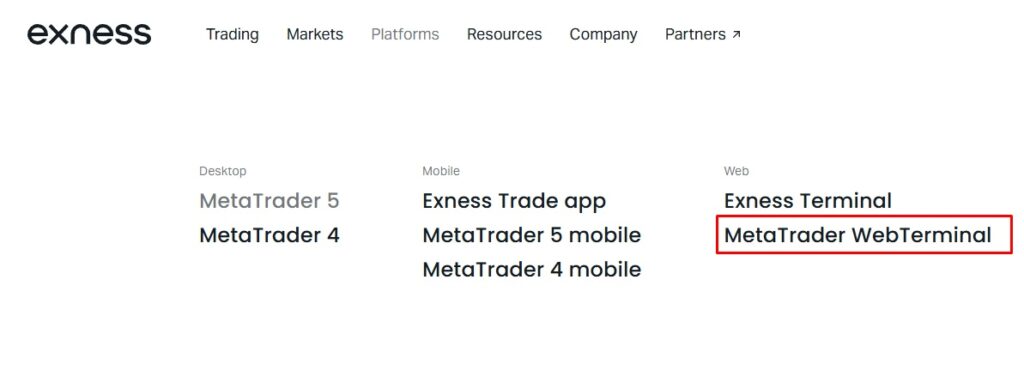
From the list of trading platforms, click on "MetaTrader WebTerminal"
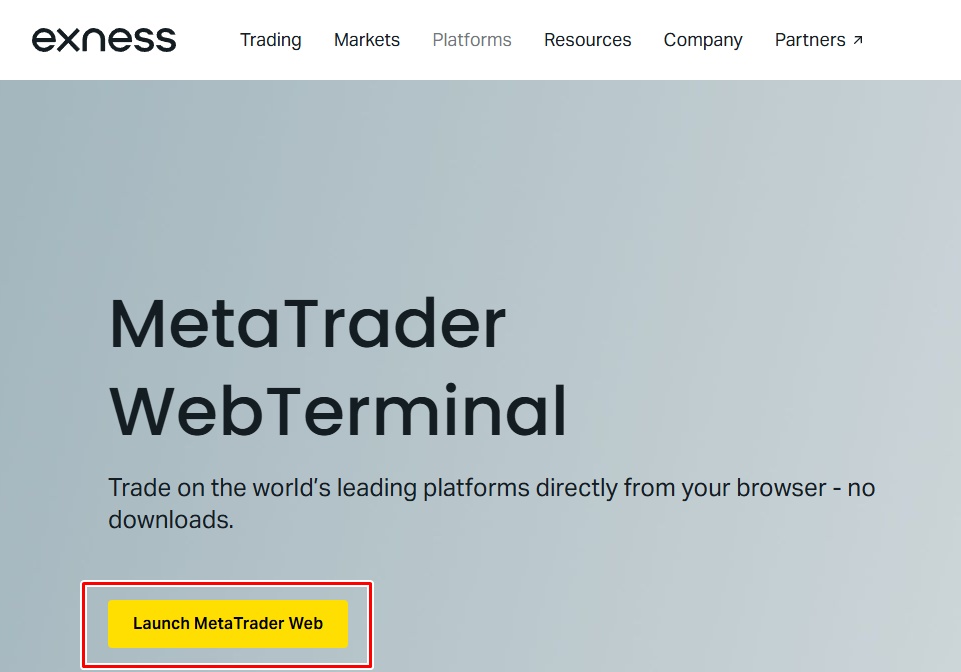
On the next page, click "Launch MetaTrader Web"
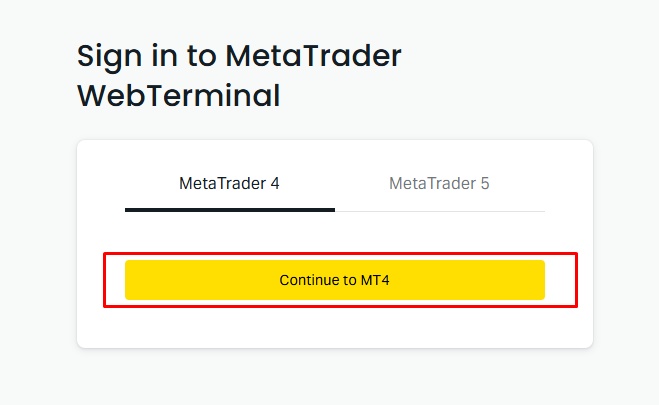
A screen will appear allowing you to choose between MT4 and MT5. Select "MetaTrader4" and click "Continue to MT4"
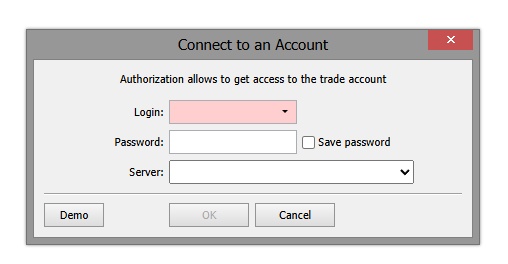
The login screen for your MT4 trading account will be displayed
Please enter the following login information in each field
- Login: Enter your Exness MT4 trading account number using half-width numerals
- Password: Enter the password set for your Exness MT4 trading account
- Server: Select the server configured for your Exness MT4 account
After entering the above information, click "OK" to complete the installation of Exness browser version MT4 (Web Trader)
You can start trading right away
Exness MT5 Installation Procedure
The following outlines how to install MT5 using Exness
- Exness PC version MT5 installation procedure
- Installation procedure for Exness Mobile MT5
- Installation procedure for Exness browser version MT5 (Web Trader)
Let's take a closer look at each of them
Exness PC version MT5 installation procedure
First, open the official Exness website and select "Platform" from the menu at the top

Select "MetaTrader5" from the list of trading platforms

On the next page, click "Download MetaTrader 5" to download the Exness PC version of MT5 installer
Depending on your PC environment, you may see a message saying "Unverified download blocked" during the download process, but you can proceed by selecting "Download unverified file"

Once the installation of Exness PC version MT5 is complete, Exness PC version MT5 will launch automatically
A list of companies will be displayed first, but you can close this screen without any problems

From the "File" menu at the top, open "Log in to trading account"

A login screen will appear, so please enter the following information
- Login: Enter your Exness MT5 trading account number using half-width numerals
- Password: Enter the password set for your Exness MT5 trading account
- Server: Select the server configured for your Exness trading account
Once you have entered all the required information, click "OK" and you can start trading from Exness PC version MT5
Installation procedure for Exness Mobile MT5
Similar to MT4, trading with the Exness mobile version of MT5 is done via smartphone by logging into your Exness trading account through the MT5 app
Therefore, if you have already installed the MT5 app with another overseas forex broker, simply log in to your Exness trading account using the same app
If you haven't installed the MT5 app yet, please follow the steps below to install it

First, download MT5 from your smartphone's app store
If you search for "MT5" on the app store, you will find MetaQuates' MT5 application

When you first launch the application, select "Log in to an existing account."

A server selection screen will appear. Enter "Exness" in the search bar and tap to select the server assigned to your trading account

On the next screen, please enter the following information
- Login: Enter your Exness MT5 trading account number using half-width numerals
- Password: Enter the password set for your Exness MT5 trading account
After entering the above information, click "Complete" to log in to your trading account from the MT5 app
You can start trading right away
Installation procedure for Exness browser version MT5 (Web Trader)
First, open the official Exness website and select "Platform" from the menu at the top
From the list of trading platforms, click on "MetaTrader WebTerminal"
On the next page, click "Launch MetaTrader Web"
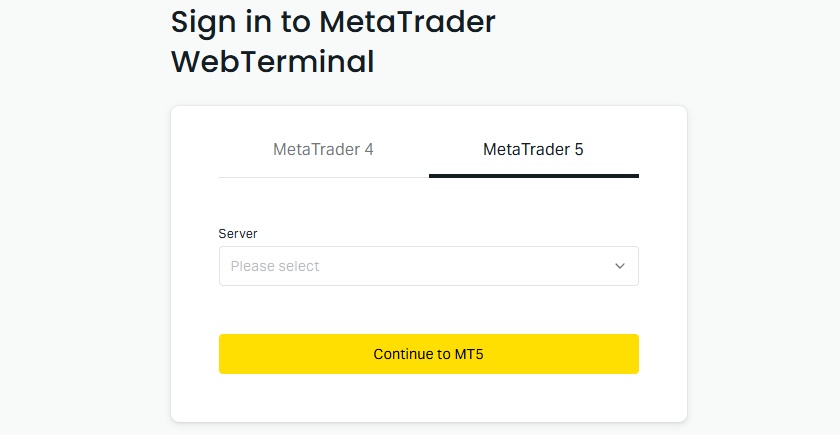
A screen will appear allowing you to select between MT4 and MT5. Select "MetaTrader5" and in the "Server" field, choose the server set up for your Exness MT5 account
Next, click "Continue to MT5" to proceed
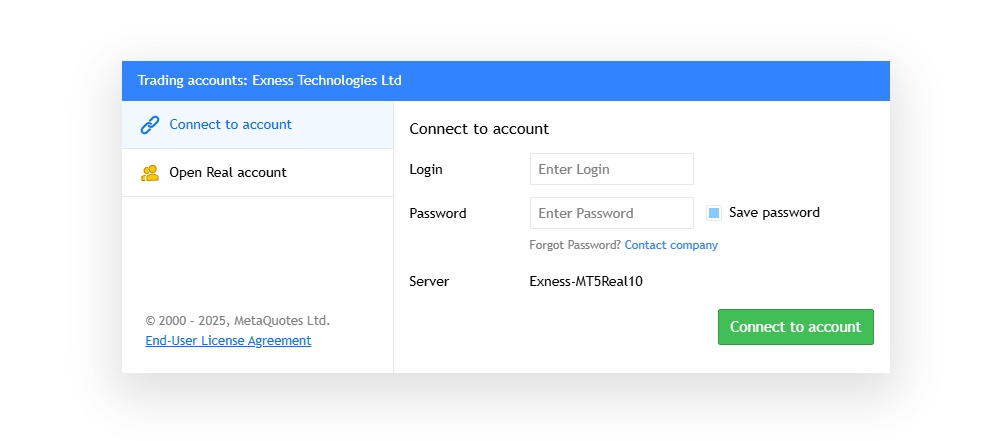
The login screen for your MT5 trading account will appear. Please enter the following login information in each field
- Login: Enter your Exness MT4 trading account number using half-width numerals
- Password: Enter the password set for your Exness MT4 trading account
Once you have entered the above information, click "OK" to complete the installation of Exness browser version MT5 (Web Trader)
You can start trading right away
Frequently Asked Questions about MT4 and MT5 from Exness
Exness MT4/MT5 Summary
Exness offers both MT4 and MT5, each with its own strengths
MT4 has a large number of Expert Advisors (EAs), making it suitable for traders who prioritize automated trading
MT5 has expanded basic functionality and is ideal for users who want to engage in discretionary trading or trade a wide range of instruments
Choose a platform that suits your purpose and set up an efficient trading environment