










A complete guide to opening an IC Markets account, with step-by-step instructions and images
This guide explains how to open a new account with IC Markets, using easy-to-follow instructions and smartphone screenshots.
Opening an account and setting up cashback is simple by following the instructions.
Please refer to the following steps to open your account and apply for it.
- How to open an account with IC Markets
- How to apply for an account with MoneyChat
Part 1
Open an account with IC Markets
First, you need to open an IC Markets account. Please follow the instructions below and open an account via the dedicated link provided by the button
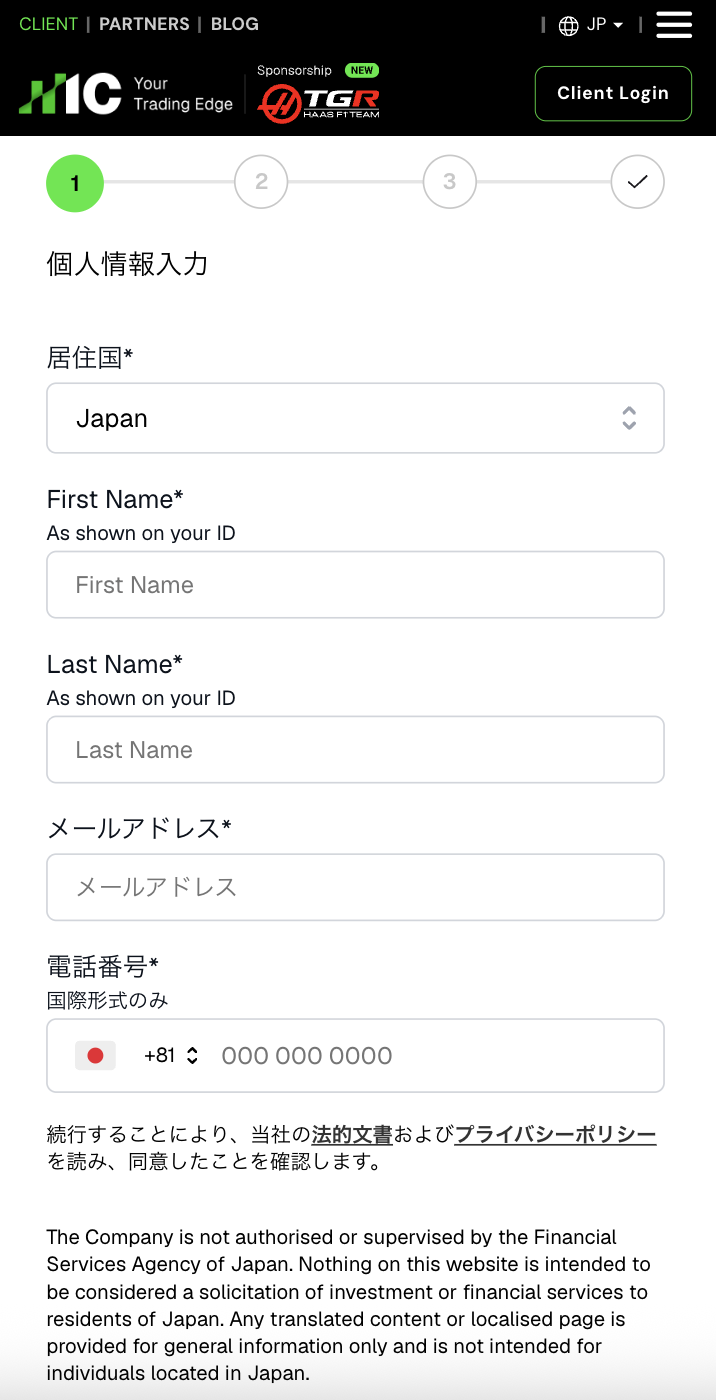
Step 1
Go to the IC Markets account creation page and tap the account creation button
First, please go to the IC Markets account creation page via the link below
*Please note that if you open an account or register an account through a link other than the one provided by Moneycha, you will not be able to receive cashback from Moneycha
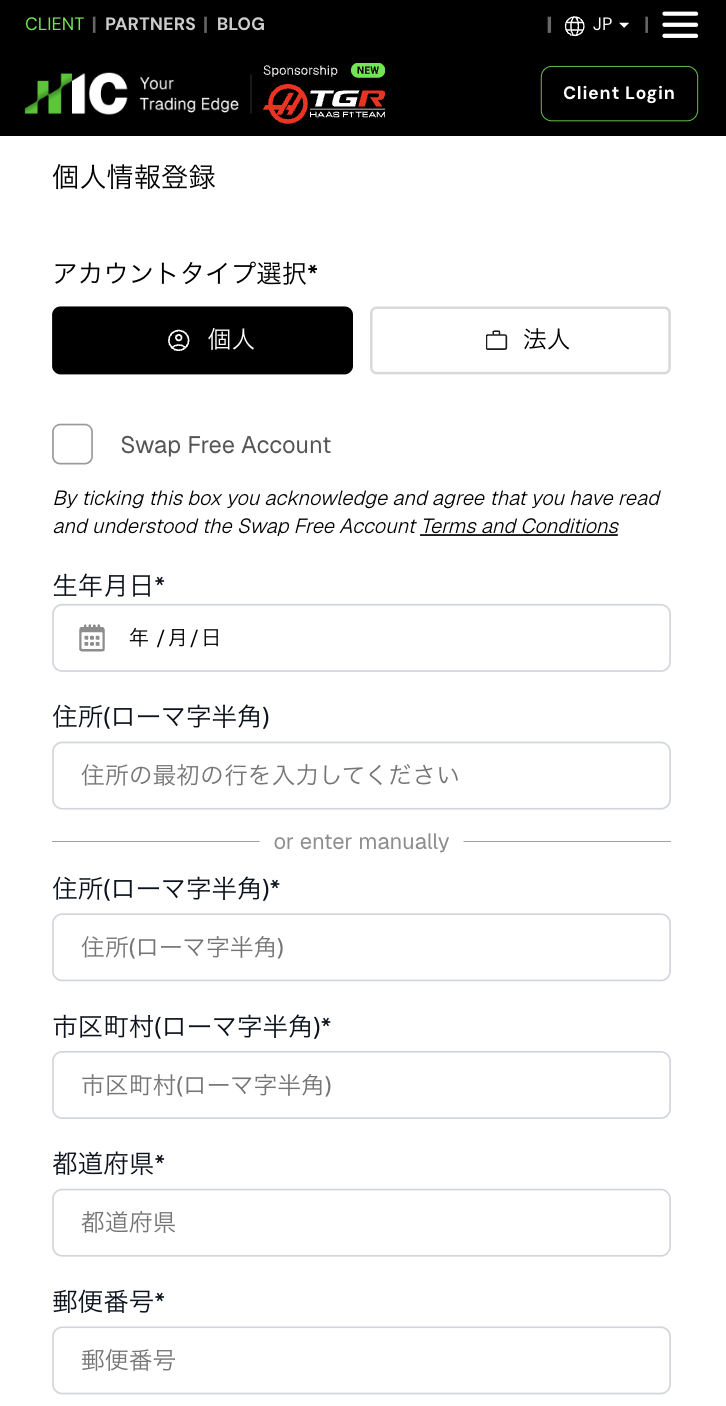
Step 2
Enter your email address and password
Once you proceed, you will be taken to a section where you can enter your personal information. Enter your personal information and follow the on-screen instructions to complete the registration
Part 2
Register your account from your MoneyChat My Page (required)
If you forget this step, you will not receive the cashback. Be sure to apply from your MoneyChat My Page and confirm that the status has changed to "Approved" before trading
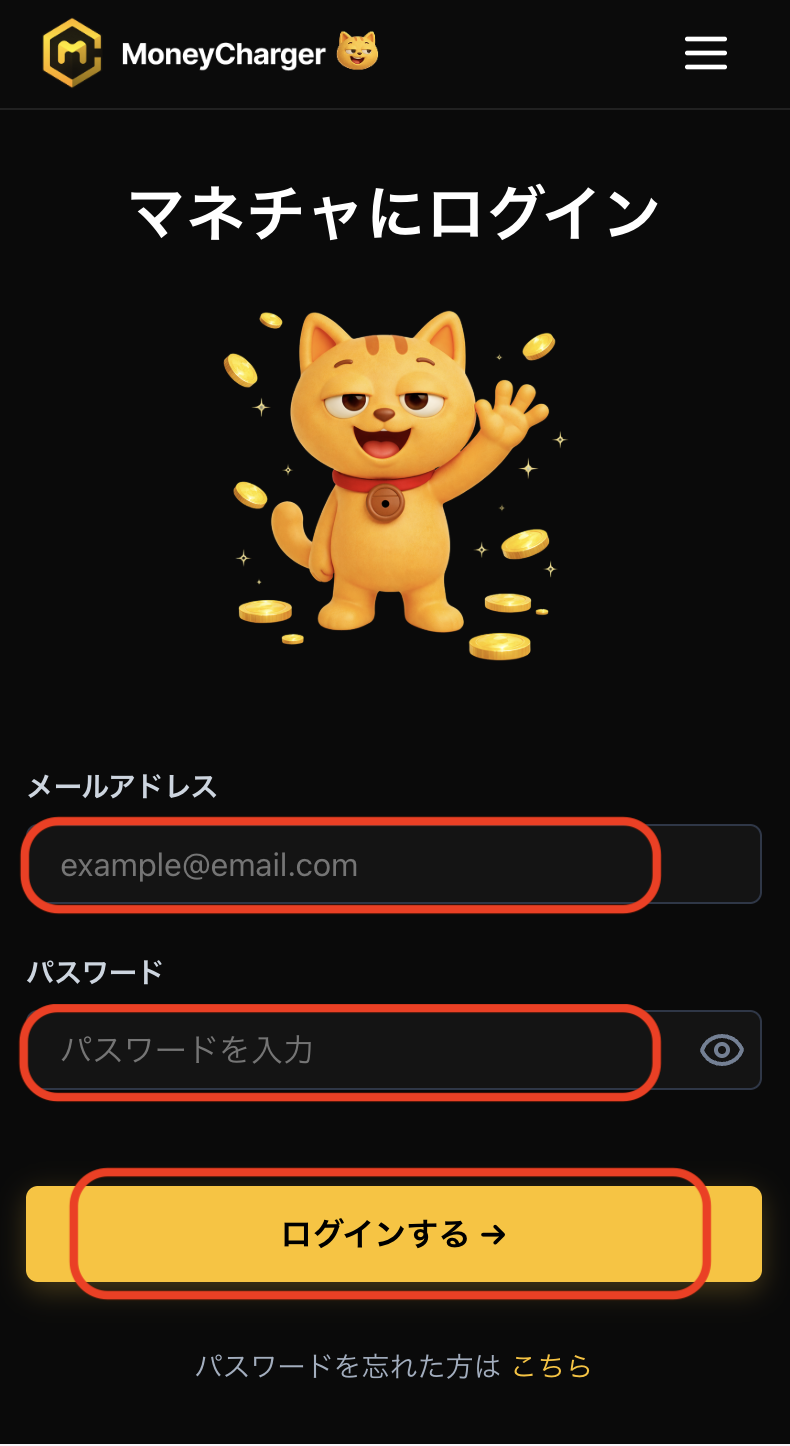
Step 1
Log in to your MoneyChat My Page
Log in to the MoneyChat page from the login page
https://portal.money-charger.com/login
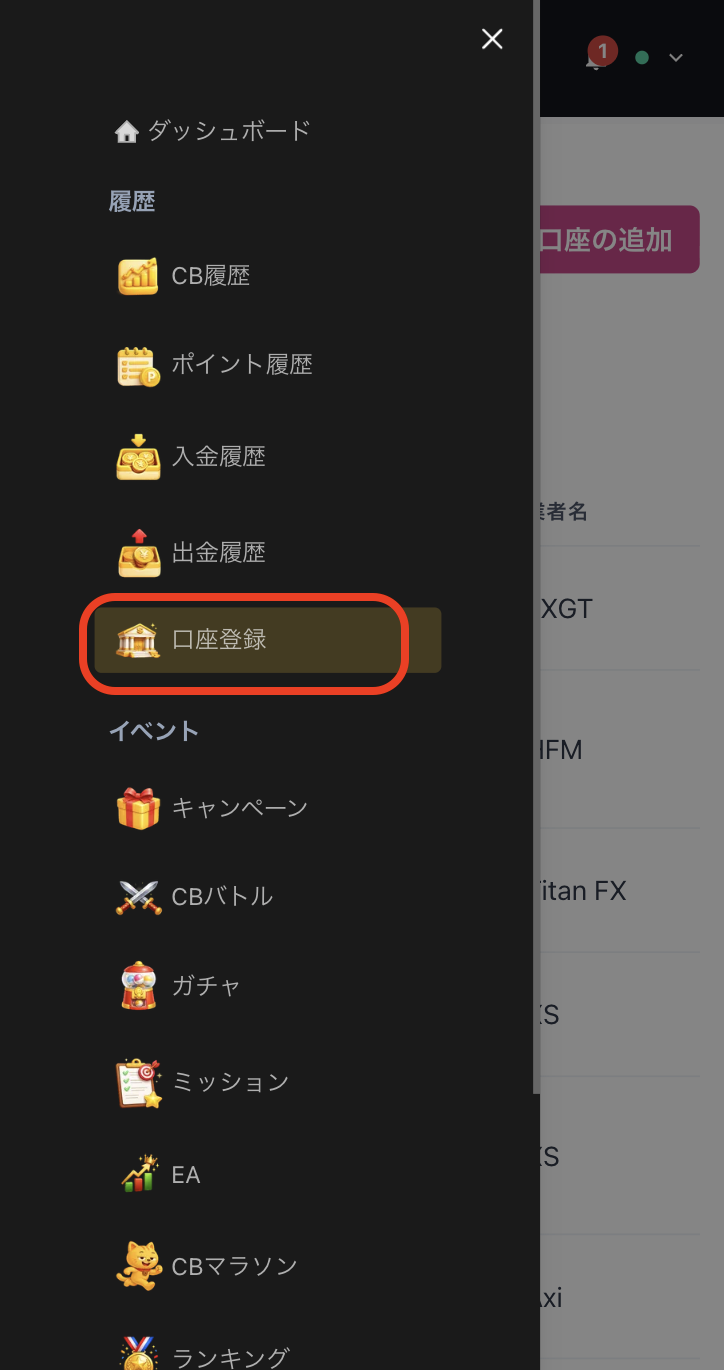
Step 2
Select "Register Account" from the menu
Tap the three lines in the upper left corner of the screen to bring up a menu, then select "Register Account" from there
Step 3
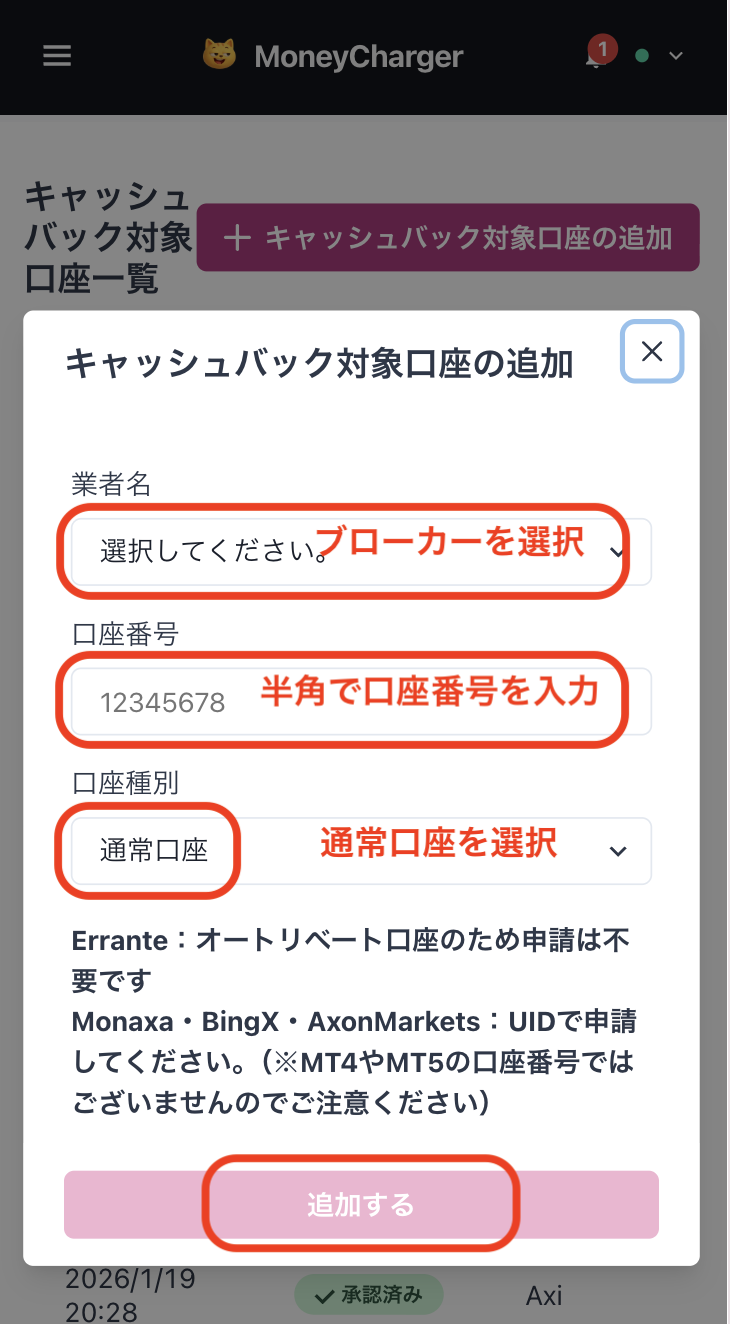
Select a broker and enter your account number
A menu like the one shown in the image will appear. Select HFM as the broker name and enter your account number using half-width numerals. For account type, select "Regular Account" if you are doing regular discretionary trading or using your own EA
While there is an option for a dedicated account for MoneyChat EAs, this is only for those who wish to use EAs within MoneyChat's EA menu, so please select "Regular Account"
Step 4
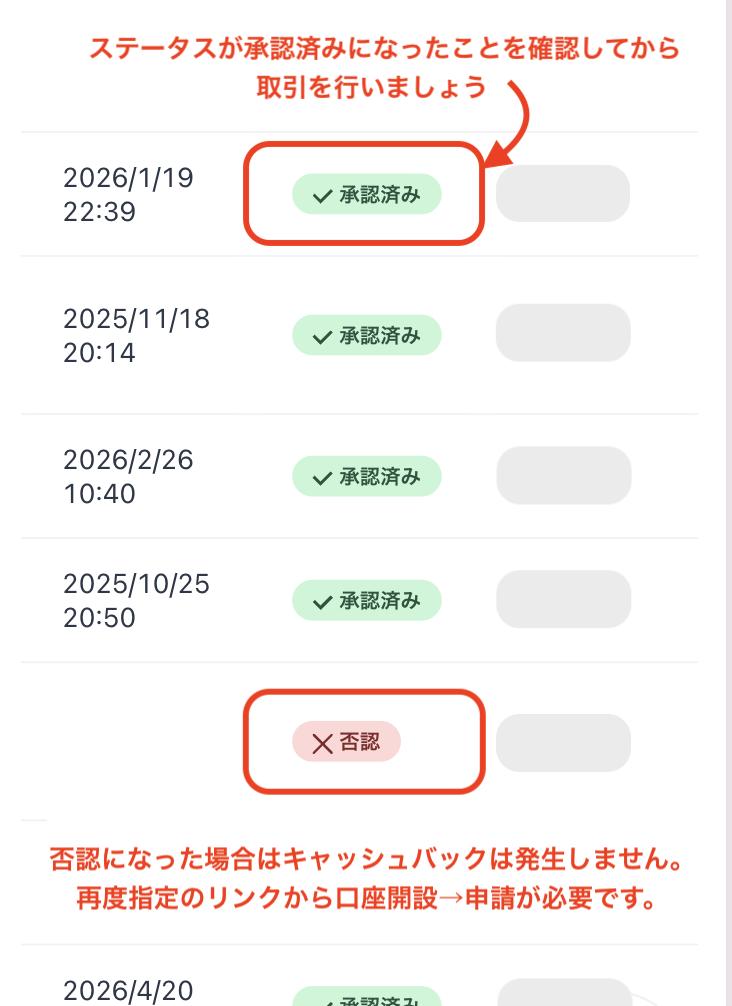
Once approved, it's complete
Once you see this screen, your application is complete.
After submitting your application, if there are no problems with your application details, the status at the bottom of "Account Registration" will change to "Approved" within one business day.
Cashback on your transactions will be reflected from the time the status changes to "Approved".
[Caution] Cashback will not be provided if you trade using an account that has not been approved. Please be aware of this