












HFM(formerly HotForex)'s MT5 (MetaTrader 5)HFMdownloaded for free from the MT5 page on. For the smartphone version, go to the App Store or Google Play via the link on the official page to install the "MetaTrader 5" app,HFMserver, and log in (as of October 14, 2026).
You will need three things to log in: your login ID, password, and server name. These can be found in the email you receive when you open your MT5 account.The MT5 server name is different from that of MT4; the server set in the official download link starts with "HFMarketsGlobal".
This article summarizesHFMhow to set up, place orders, and settle transactions using the smartphone app, and what to do if you can't log in, based on information from the MT5-related pages on the HFM official website (download pages for each terminal, server connection settings, and platform comparison)HFMinformationpublished on the official blog.
Conclusion | Key points ofHFM's MT5
- Download the MT5 from the official MT5 page and select your device. There are PC versions (Windows and Mac), smartphone versions (iPhone and Android), and a web terminal that requires no installation.
- Login requires your login ID, password, and server name. This can be found in the email you received when opening your MT5 account. The server set in the official download link is part of the "HFMarketsGlobal" group (different from "HFMarketsSV" for MT4).
- To use MT5, you need an MT5 trading account. ETFs and DMAs can only be traded on MT5 (and the WebTrader/HFMapp), and it has 21 timeframes, 6 limit order types, and a built-in economic calendar (see official comparison table).
*This article was created by the MoneyCharger editorial team in accordance with their content creation policy , based onHFMofficial website (MT5, terminal-specific downloads, server connection settings, platform comparison, help FAQ), the official blog (MT5 login, download, how to use the app), and information published on the App Store and Google Play as of October 14, 2026. The smartphone app operation screens were photographed by our editorial team using actual accounts, and the display may change due to app updates. Personally identifiable information such as account numbers has been hidden in the images. For precautions regarding the use of overseas FX brokers, please also refer to the information information from published by the Financial Services Agency , and for investment-related solicitation troubles, please refer to the information published by the Consumer Affairs Agency
What is HFM's MT5 (MetaTrader 5)?
MT5 (MetaTrader 5) is an FX and CFD trading platform developed by MetaQuotes, Inc., and is the successor to MT4.HFMofficial website describes MT5 as "a software platform for online trading in FX, CFD, and futures markets," and states that it is free to use and "HFM will not charge any fees." It also supports automated trading using EAs (Expert Advisors)
Differences between trading platforms usable with HFMand MT5
In addition to MT5, HFMoffers MT4,HFMWebTrader for browsers, andHFMapp for smartphones. The main differences in the official platform comparison are as follows:
| function | MT5 | MT4 | HFMWeb Trader | HFMapp |
|---|---|---|---|---|
| Compatible devices | PC, smartphone, web | PC, smartphone, web | web | smartphone |
| Hourly timeframe | 21 | 9 | 9 | 9 |
| Technical indicators | 38 | 30 | 100 or more | 5 |
| Analysis object | 44 | 31 | 80 or more | 11 |
| Types of limit orders | 6 | 4 | 4 | 4 |
| EA (PC version) | ○ | ○ | × | × |
| Built-in economic indicator calendar | ○ | × | ○ | × |
MT5 is characterized by its wide range of timeframes and order types, and the PC version includes a built-in economic calendar. On the other hand, if the EA or custom indicator you want to use is for MT4 (MQL4), then you should choose MT4. Instructions on how to use MT4 are explained in " HFMHow to Download and Log In to MT4 on "
To use MT5, you need an MT5 trading account
The official HFMMT5 page states, "To start trading on the MT5 platform, you must have anHFMMT5 trading account." When opening a trading account, you choose whether to use MT4 or MT5, so if you only have an MT4 account, please open an additional MT5 account from the member page (myHF)
MT5 allows you to trade FX, metals, energy, commodities, cryptocurrencies, bonds, and stock indices, as well as stocks, ETFs, and DMA CFDs. The official platform comparison states that "ETFs and DMA (Direct Market Access) areHFMWebTrader, MT5, andHFMapp," while the MT4 page states that "Stocks, ETFs, and DMA are only available on MT5," meaning these cannot be traded on MT4. For information on choosing an account type, only available on please see " HFMAccount Type Comparison ."
How to download MT5 from HFM
HFM's MT5 can be downloaded from the official website's menu under "Trading" → "MT5," where you select the terminal you will be using. The download locations for each terminal are as follows:
| terminal | Download location | supplement |
|---|---|---|
| Windows | Official "Download MT5 for PC" | Run the .exe file from "Download to Windows" |
| Mac | Official: "InstallHFM MT5 on Mac" | Installation instructions can be found in the manual (PDF) on the same page |
| iPhone/iPad | Official "MetaTrader 5 for iPhone" | MetaTrader 5 on the App Store (iOS 15.0 or later) |
| Android | Official "MetaTrader 5 for Android" | MetaTrader 5 on Google Play |
| browser | Official "MT5 Web Terminal" | No installation required. Open from "Launch MT5 Terminal" |

Steps to install MT5 on your smartphone (iPhone/Android)
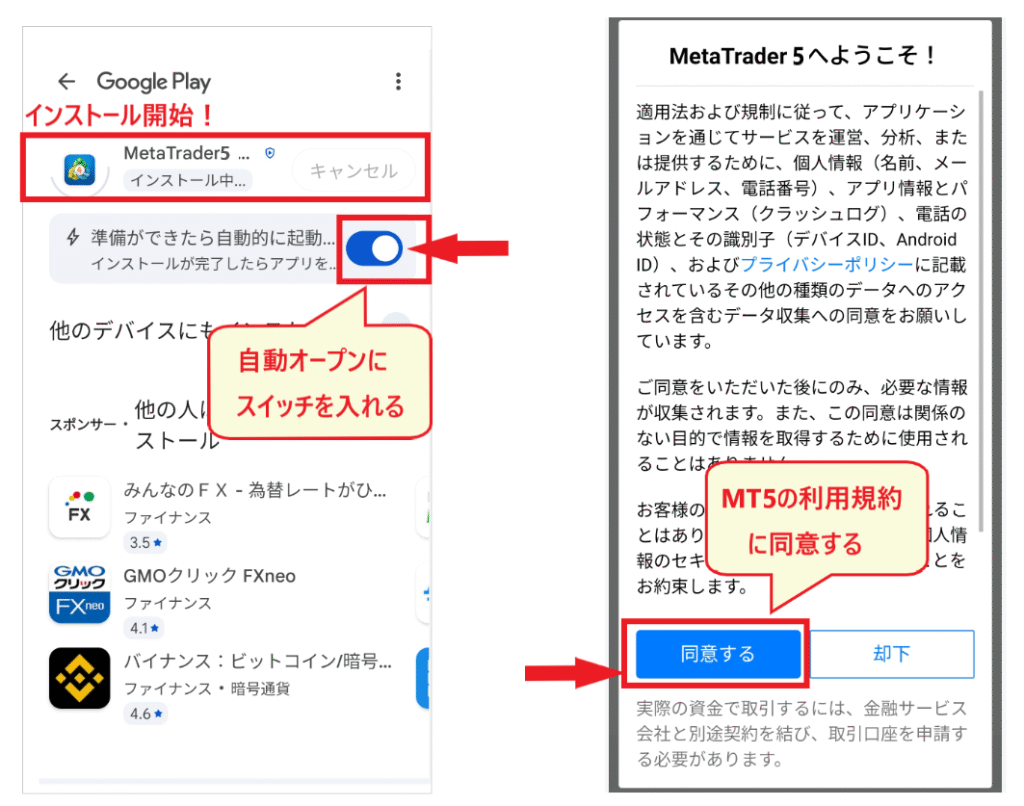
From the bottom of the MT5 page on the official website, open the respective download page from "For Android" or "For iOS" and tap the "Android Download Link" or "iPhone Download Link". The link will take you to "MetaTrader 5" (developed by MetaQuotes) on Google Play or the App Store, so tap "Install" (or "Get" on iPhone)
When you launch the app for the first time after installation, the terms of service ("Welcome to MetaTrader 5!") will be displayed, so tap "Agree". You can also set Google Play to automatically open the app after installation is complete
Steps to install MT5 on a PC (Windows/Mac)
For Windows, click "Download to Windows" on the official "Download MT5 for PC" page and run the downloaded .exe file to install (the official procedure is three steps: "Download" → "Run .exe file" → "Log in toHFM MT5 account"). For Mac, download from either the "Download to Mac" link on the same page or the "InstallHFM MT5 on Mac" page, and then follow the instructions in the manual on that page to install
According to the official blog, the four main reasons why MT5 cannot be downloaded on a PC are: it is blocked by security software, the browser's security settings are too high, downloading from a link for a different OS is attempted, and the internet connection is poor. For smartphones, the causes include insufficient storage space, the OS is not updated, and the internet connection is poor. If you want to use it without installing it, the web terminal that can be opened in a browser is convenient
How to log in to MT5 on HFM
Three pieces of information required to log in
To log in to MT5, you need three things:HFM/MT5 OOOO account has been opened" that you receive when you open an MT5 account. The password is the MT5 login password (trader password) assigned to each account. your Login ID (account number), password, and server name . According to the official blog "Can't log in to MT5?", these are listed in the email titled "Your
The email address and password used to log in to the member page (myHF) are different from your MT5 login information. According to the official blog, the passwords for the two may be different, so you should enter your MT5 password for MT5

HFM's MT5 server name (different from MT4)
The MT5 servers listed on the official HFMmobile download link and the "Connect toHFM MT5 Terminal" page are the following 21 servers, all starting with "HFMarketsGlobal". Each account is assigned a specific server, so please select the server name provided in your email. The official blog advises against manually entering the server name; instead, "please copy and paste it."
| kinds | Server name |
|---|---|
| Live Account (18) | HFMarketsGlobal-Live1・Live3・Live4・Live5・Live7・Live8・Live9・Live10~Live20 |
| Demo account (3) | HFMarketsGlobal-Demo,HFMarketsGlobal-Demo3,HFMarketsGlobal-Demo4 |
The MT4 server name starts with "HFMarketsSV," so searching for the same name as your MT4 account will not allow you to log in to your MT5 account. Also, the company name you select in the MT5 app is "HF Markets (SV) Ltd." (the company that operates Japanese accounts), while the server name is "HFMarketsGlobal," so be careful not to confuse them. Please check that the server name matches exactly, character by character, as stated in the email
Login procedure for the MT5 mobile version
The official blog post "How to use the MT5 app" explains the procedure as follows: For Android, tap the "three lines" in the upper left corner → "Account Management" → "+" in the upper right corner. For iPhone, tap "Settings" at the bottom of the screen → "New Account"
- Enter "HFM" in the search bar
- From the displayed list ofHFMcompany names, tap the company name listed in the email (for Japanese accounts, it's "HF Markets (SV) Ltd.")
- On the login screen, enter your login ID, password, and server name (e.g.,HFMarketsGlobal-Live1), then tap "Login"
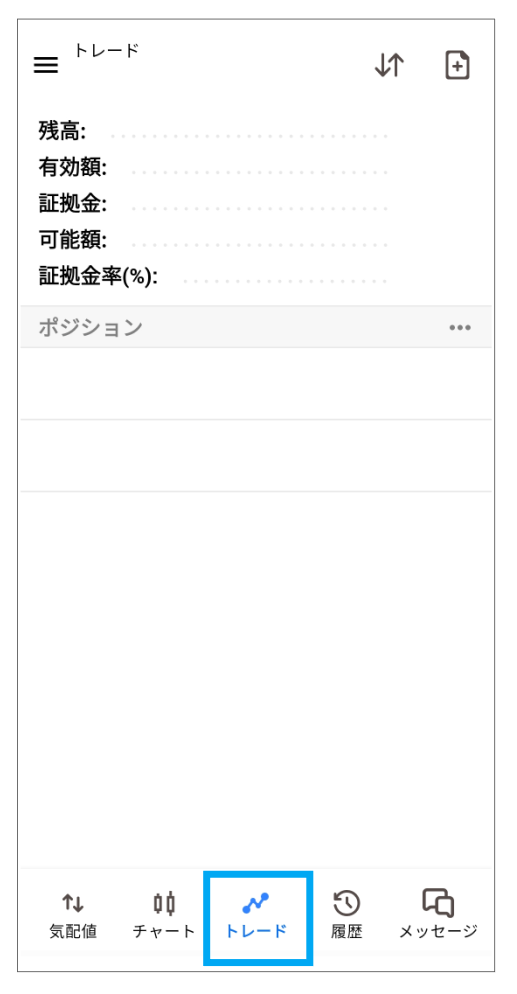
Login is complete when your margin balance is displayed under "Trade" at the bottom of the screen, or when your account name and account number are displayed under the "three lines" in the upper left corner
For the PC version, launch MT5 and enter the same three pieces of information via "File" → "Log in to trading account". For the web terminal, open it from "Launch MT5 Terminal" on the official page and log in
How to view HFMMT5 app screen and menus
From here on, we'll cover the basic operations of the MT5 smartphone version (explained using screenshots from the Android version). The iPhone version has a slightly different layout, with settings and other menus grouped at the bottom of the screen, but the functions on each screen are the same
Three menus: top left, top right, and bottom of the screen
The first screen you see after logging in is the "Quotes" screen. Use the "three lines" in the upper left to access the side menu, the "+" and "pen" in the upper right to add or edit stocks, and the menu at the bottom of the screen to switch between Quotes, Charts, Trades, History, and Messages
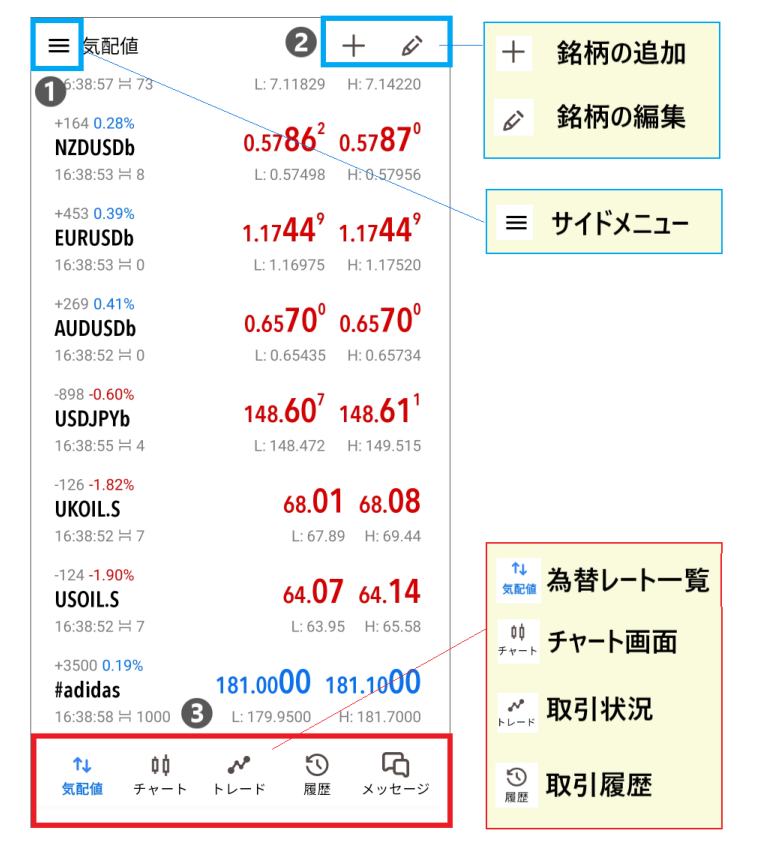
The side menu allows you to access account switching (account management), the trading screen, various MT5 settings, the economic calendar, and more. When using multiple accounts, switch between them from "Account Management" at the top

Each screen: quotes, charts, trades, and history
| screen | What you can do |
|---|---|
| Indicative price | View a list of the bid and ask prices, high and low prices, and spreads for the registered stocks |
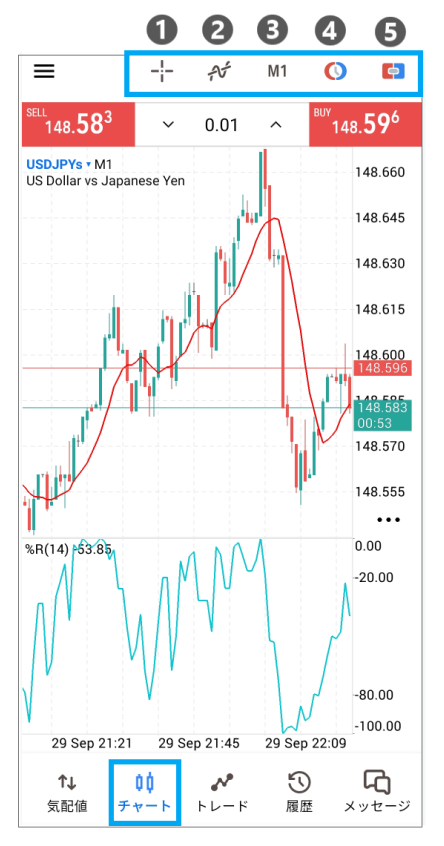
| chart | Displaying charts, adding crosshairs, indicators, and objects, displaying the order screen and one-click order panel |
| trade | Check your balance, effective margin, margin, excess margin, margin maintenance ratio, and open positions and pending orders |
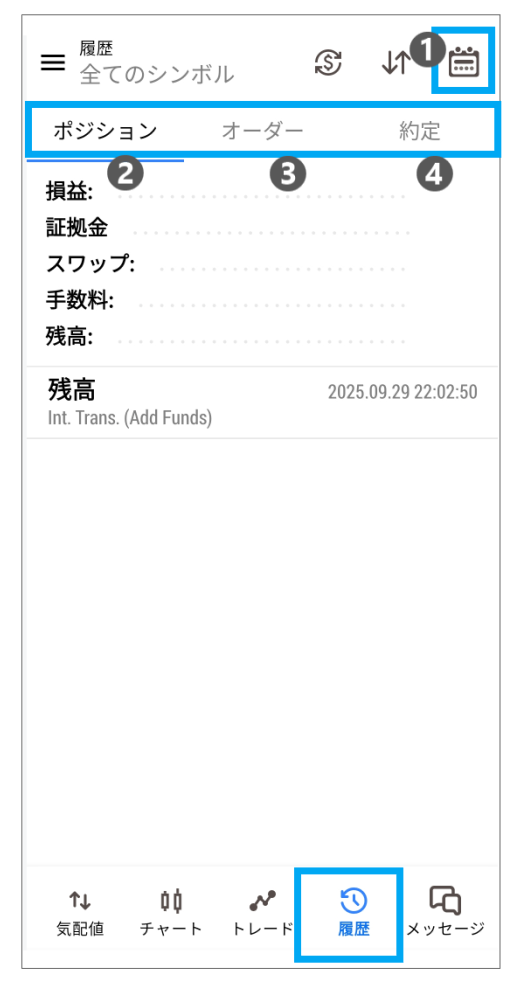
| history | View the history of positions, orders, and trades for a specified period |
How to display currency pairs and symbols in MT5 HFM
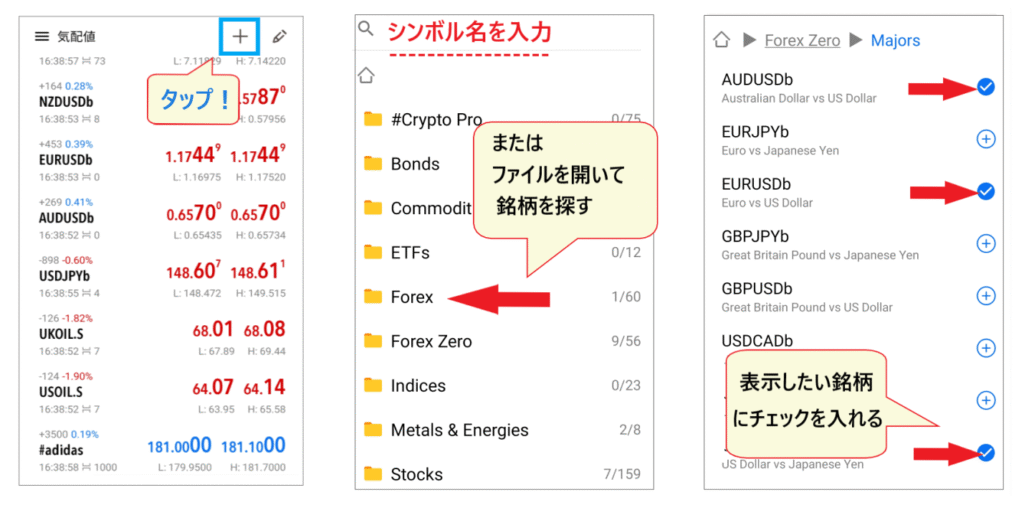
Upon logging in, several stocks are displayed in the quotes section. You can add, delete, and rearrange the stocks you want to trade. InHFM, a symbol is added to the end of the stock name depending on the account type (KATANA account has "x", Cent account has "c", Zero account has "b", Pro account has "r", and Premium account has no symbol), so when searching, be sure to include the symbol at the end
Add currency pair/instrument
Tap the "+" in the upper right corner of the quote screen and enter the stock name in the search field, or open folders such as "Forex," "Metals & Energies," "Indices," or "Stocks" to find the stock. Tap the "+" to the right of the stock you want to display; it will change to a checkmark and will be added to the quotes
Delete and rearrange currency pairs/symbols
To delete, tap the "pen" icon in the upper right corner of the quote screen, then tap the "trash can" icon, check the stocks you want to delete, and then tap the "trash can" icon again

To rearrange the stocks, tap and hold the stock you want to move in the same "Pen" editing screen, then slide it up or down. When finished, use the "←" in the upper left corner to return (official blog). Arranging frequently viewed stocks at the top makes it easier to check their rates
How to set up a chart in MT5 with HFM
Open the chart and display the Ask price line (the initial recommended setting)
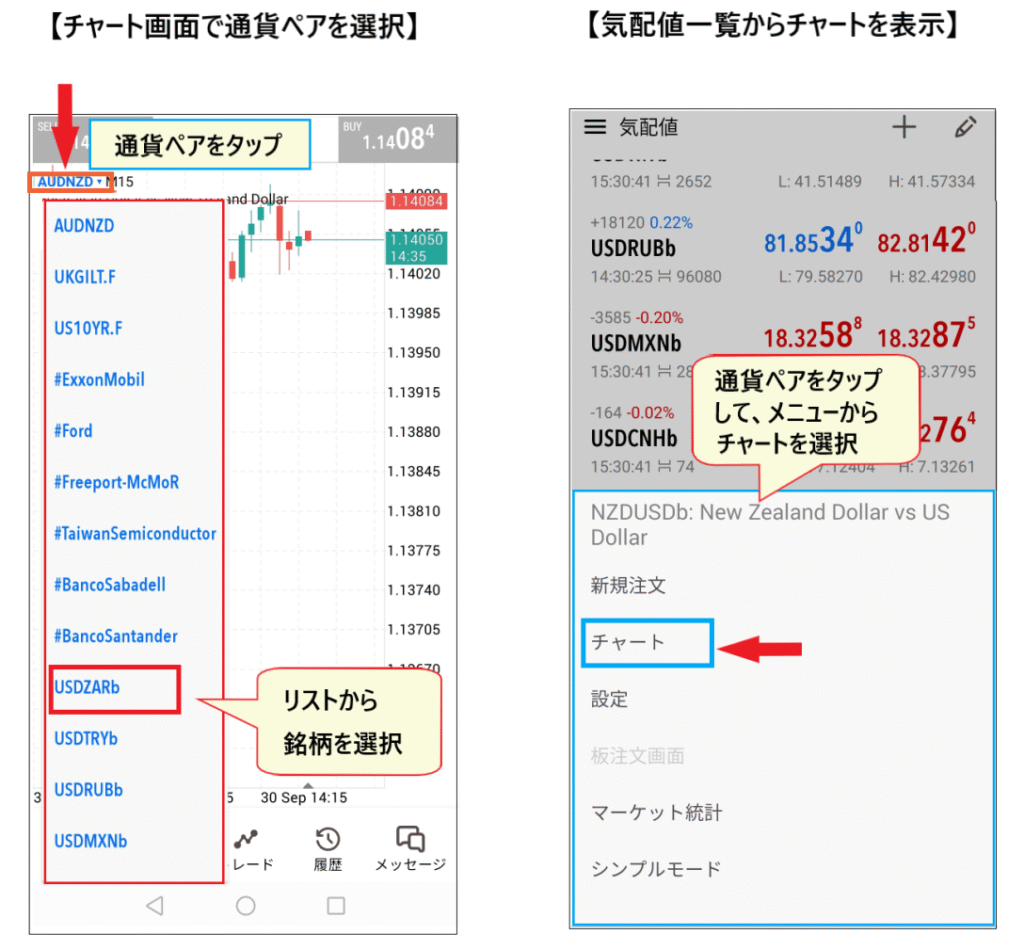
You can open the chart by tapping "Chart" at the bottom of the screen, or by tapping the stock symbol in the quotes and selecting "Chart" from the menu that appears. To switch between stocks, tap the stock name on the chart screen to select it
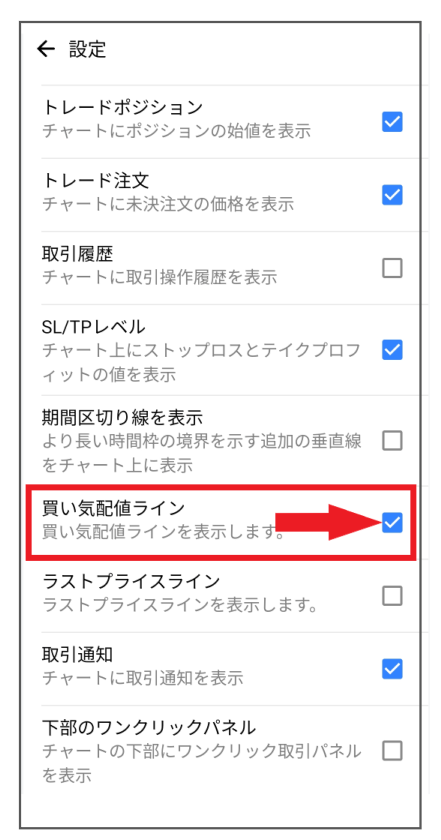
By default, MT5 charts only display the bid line. To see the buy price and spread on the chart when you enter a buy position, open "Settings" in the side menu and check "Bid Line"
Switch or add timeframes
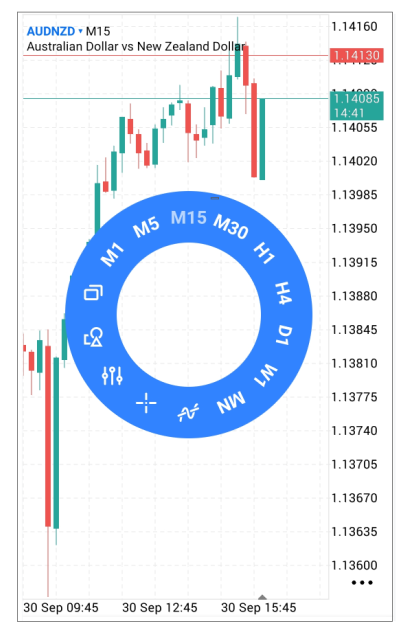
You can select the timeframe by tapping the timeframe at the top of the chart (e.g., M15) and choosing from the list that appears. You can also switch timeframes from the circular menu that appears when you tap the chart (M is minute timeframe, H is hourly timeframe, D, W, and MN are daily, weekly, and monthly timeframes, respectively)
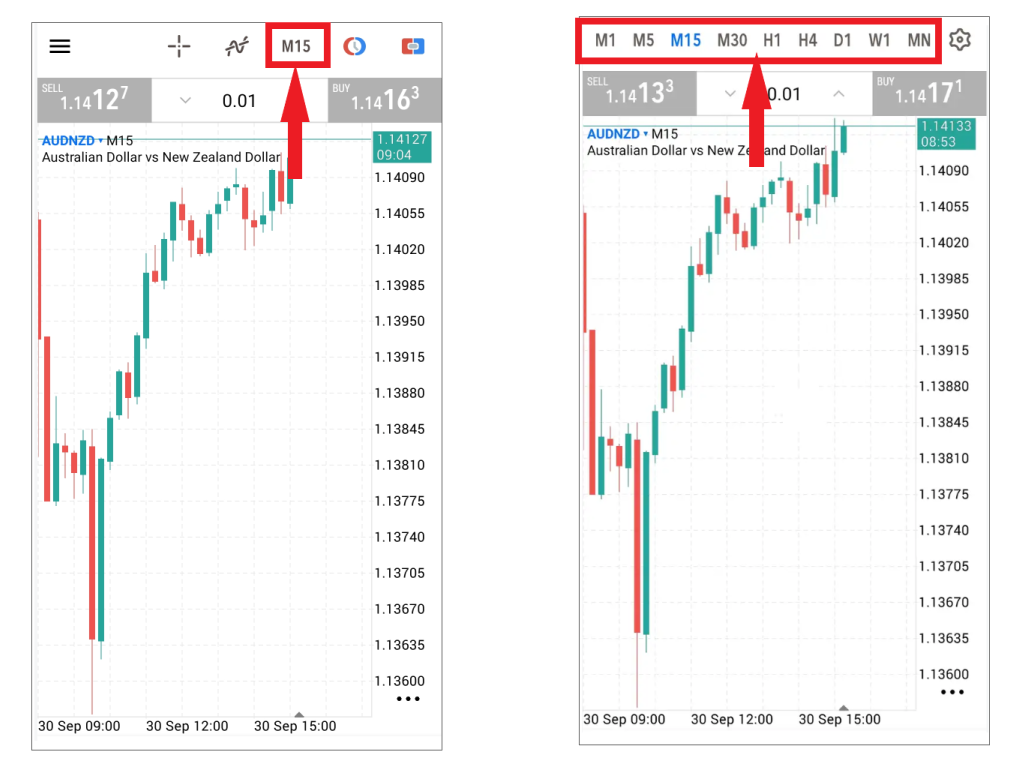
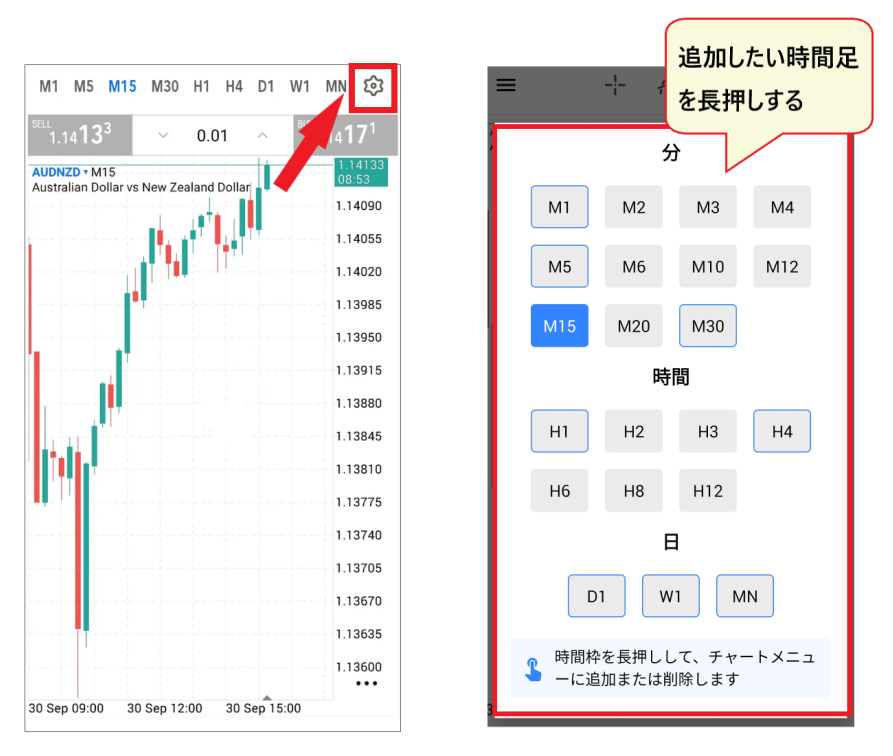
To use a timeframe not listed at the top (such as M2, M3, H6, H12, etc.), open the gear icon in the timeframe list and long-press the timeframe you want to add. You can zoom in and out of the chart by spreading two fingers apart (pinch out) or pinching them in (pinch in)
Add, hide, or remove indicators
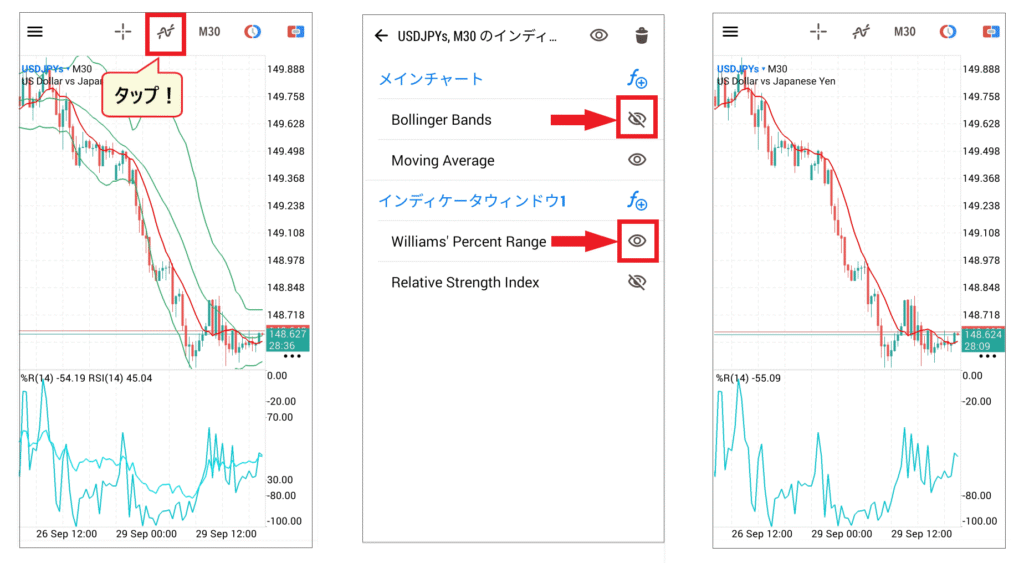
Tap the waveform icon at the top of the chart, then tap "f+" next to "Main Chart" to display a list of indicators. Trend indicators such as moving averages are displayed overlaid on the chart, while oscillator indicators such as RSI are displayed as "Indicator Window 1" in a separate window below the chart. The smartphone version does not allow the addition of external indicators like the PC version (official blog)
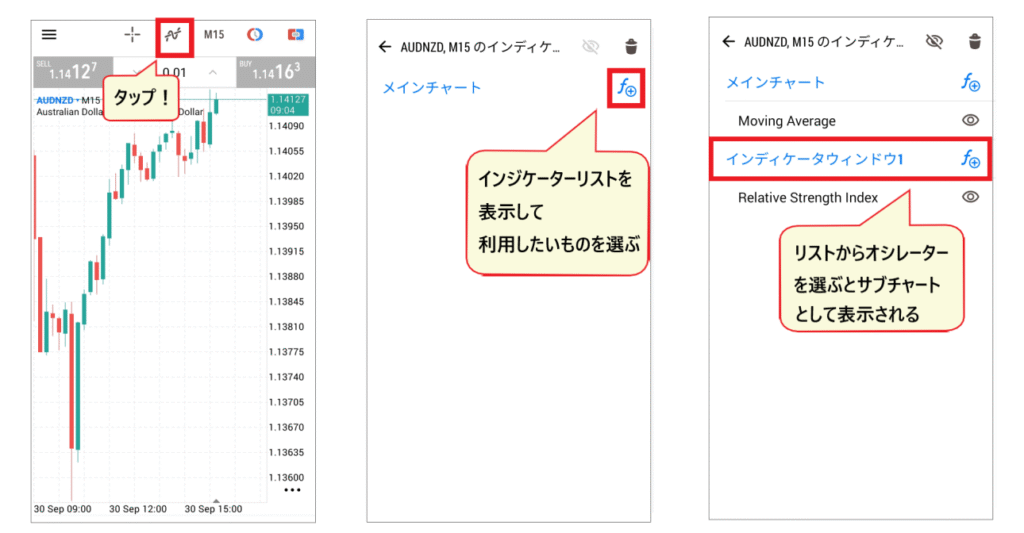
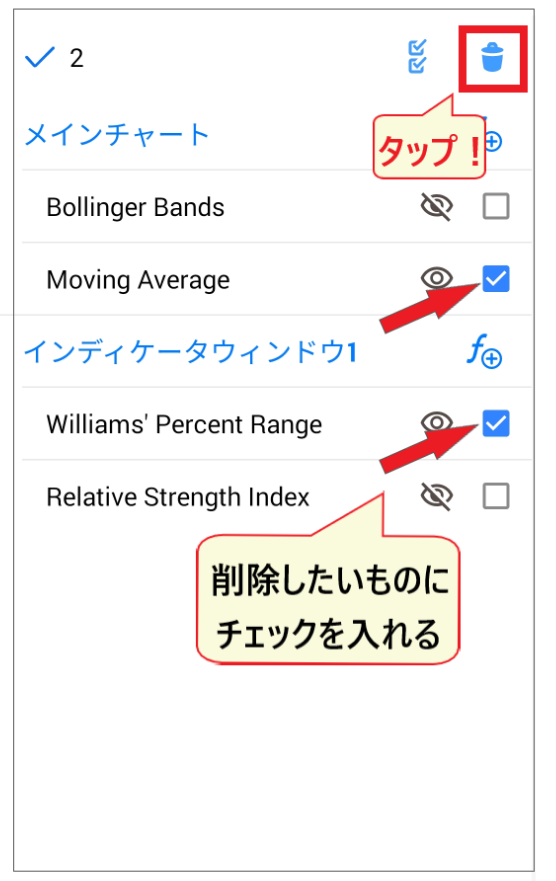
On the same screen, you can toggle the display of an indicator by tapping the "eye" icon next to it. To delete an indicator, tap the "trash can" icon, check the indicator you want to delete, and then tap the "trash can" icon again
Display the economic calendar in Japanese
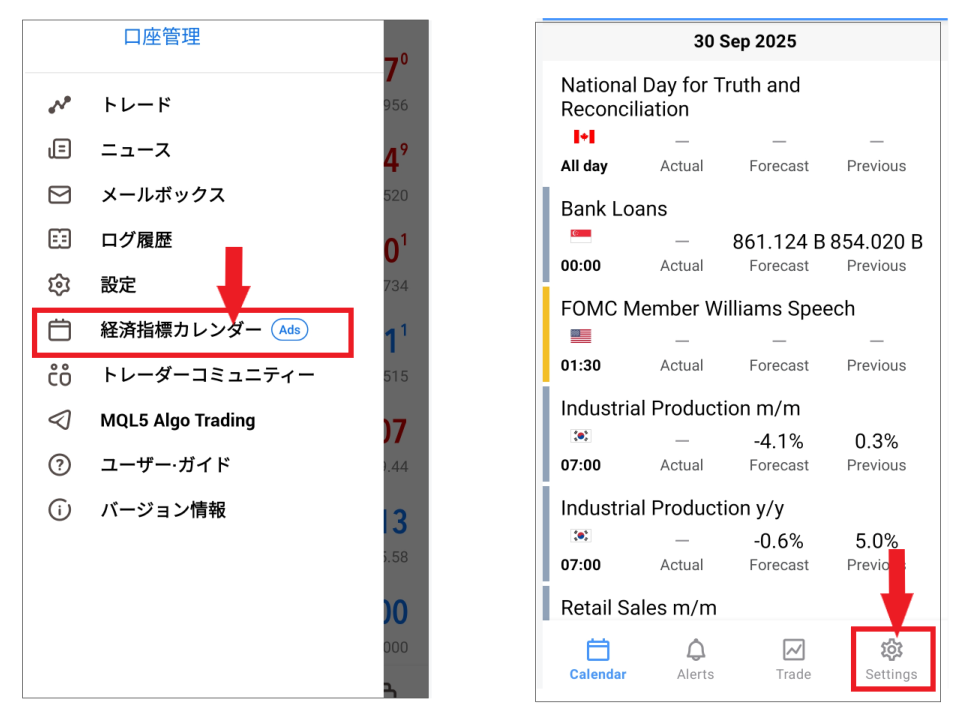
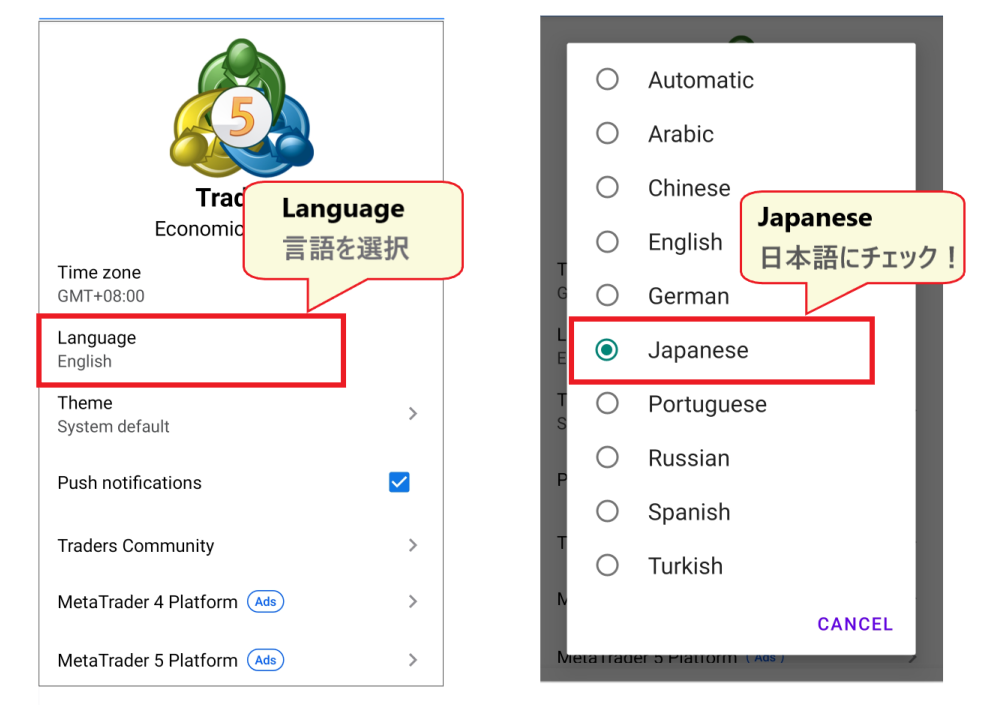
According to the official comparison table, MT5 has a built-in economic calendar (MT4 does not). On the smartphone app, you can open the MetaQuotes economic calendar (Tradays) screen from the "Economic Calendar" (with "Ads" displayed) in the side menu and check the release time, forecast, previous value, and result of the indicators. If it is displayed in English, you can change it to Japanese by selecting "Japanese" in "Settings" → "Language" in the lower right corner of the calendar screen
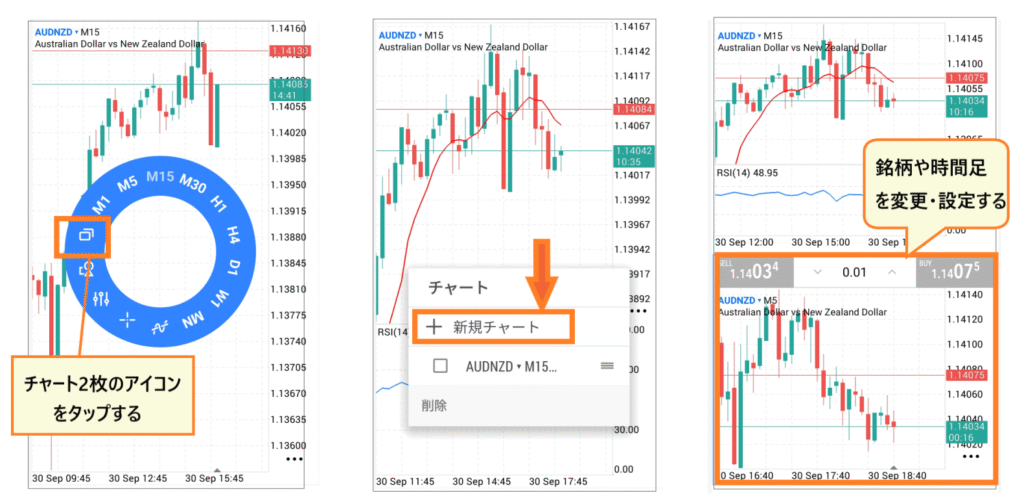
Display the chart in two sections / Return to the original view
The MT5 app allows you to split the chart into two sections, one above the other, to display different instruments or timeframes side-by-side. Tap the chart to display a circular menu, then tap the "Dual Charts" icon and select "New Chart" to add a new chart to the bottom section
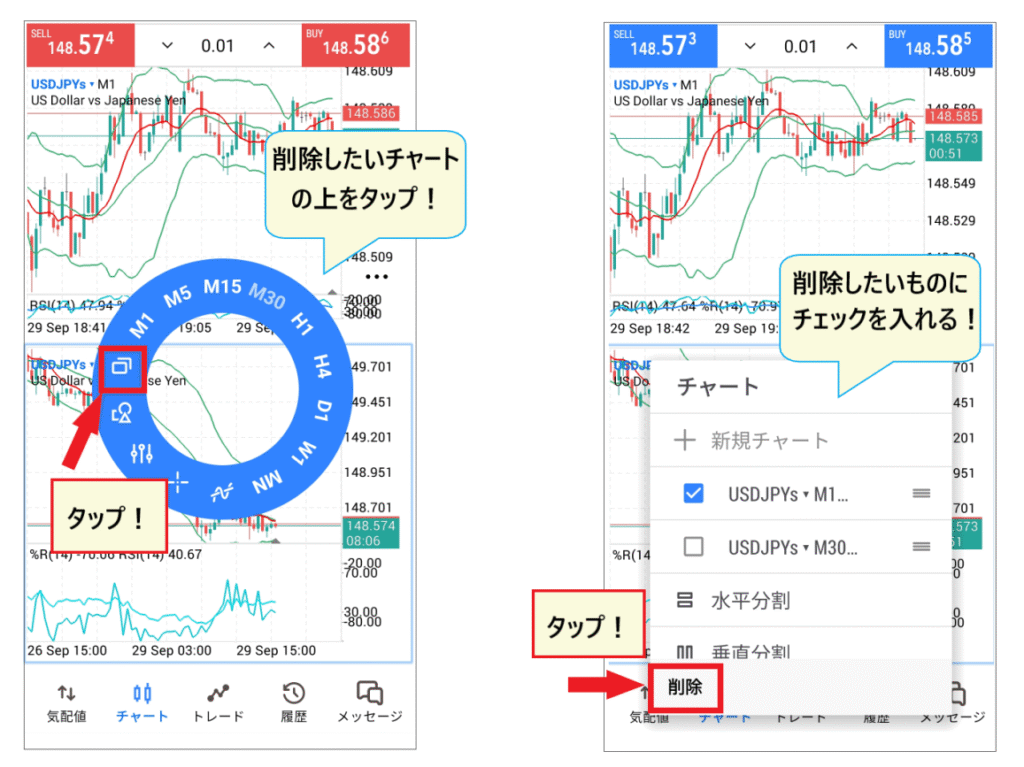
To undo an action, tap the same icon on the chart you want to delete, check the box next to the chart you want to remove, and then tap "Delete."
How to place an order using HFMon MT5
The order screen can be accessed by tapping the listed stock and selecting "New Order" from the menu, clicking the order button at the top of the chart screen, or by clicking "Trade" at the bottom of the screen followed by the "+" in the upper right corner. The following steps follow the instructions inHFMofficial blog "How to Use the MT5 App" (updated October 12, 2026)
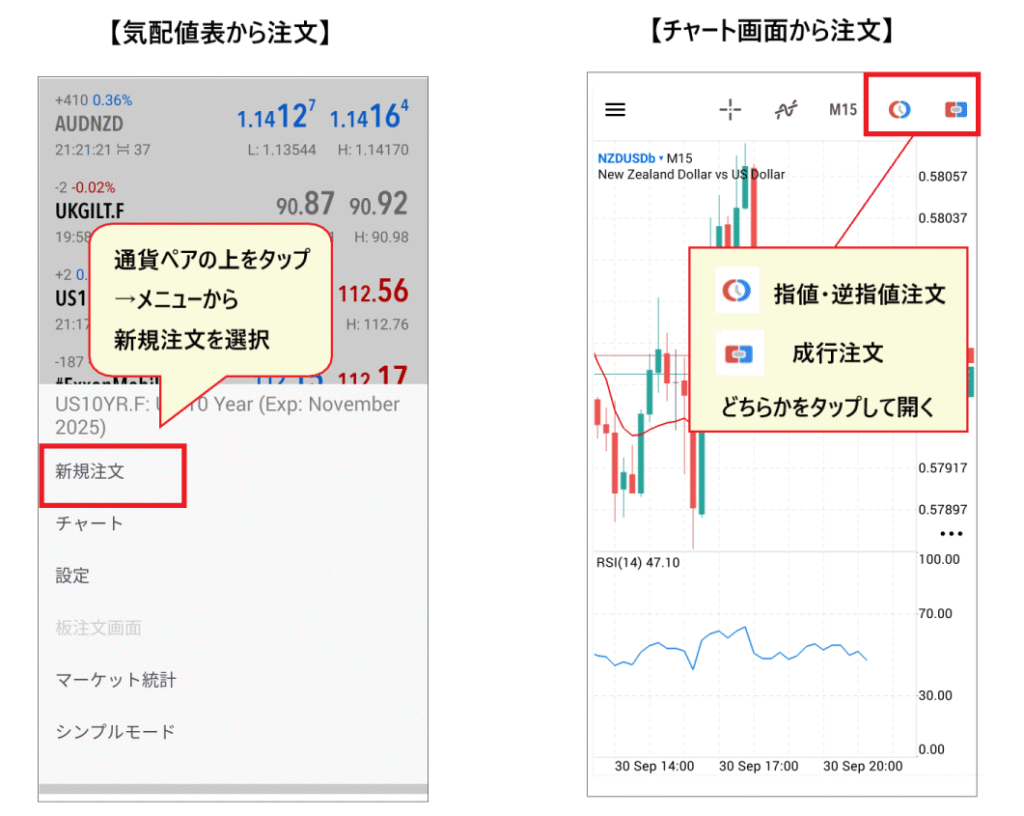
Market order
A market order is an order to buy or sell at the current price immediately. You set the order in the following order on the order screen
- Tap the "$" mark in the upper right corner and select the stock you want to order (the stocks you have registered in the bid/ask price list will be displayed)
- Select "Market Order" from the list of order methods
- Set the lot size (blue numbers in increments of 0.1 and 0.01; tap the center to enter directly)
- Enter stop-loss (S/L) and take-profit (T/P) prices if necessary (you can leave them blank, and you can set them after placing the order)
- Review the details and tap either "BUY" or "SELL"
According to the official blog, tapping BUY or SELL immediately sends an order, but the order is not yet confirmed while the waiting screen is displayed, so the actual execution price may differ. Once the completion screen is displayed, check to see if your position is displayed in the "Trade" tab
Limit orders and stop-limit orders (6 types)
To place an order with a specified price, select the type from the list of order methods on the order screen. MT5 offers six types of limit orders, adding two "stop-limit" orders to the four types available in MT4 (according toHFM's official platform comparison and blog)
| Order type | Content |
|---|---|
| Buy Limit | I'll buy it when the price drops even lower than it is now |
| Sell Limit | I'll sell if the price goes up higher than it is now |
| Buy Stop Order | I'll buy it if the price goes up higher than it is now |
| Sell Stop Order | I'll sell it when the price drops below the current price |
| Buy Stop Limit | When the specified stop price is reached, a buy limit order will be placed at the set price |
| Sell Stop Limit | When the specified stop price is reached, a sell limit order will be placed at the set price |
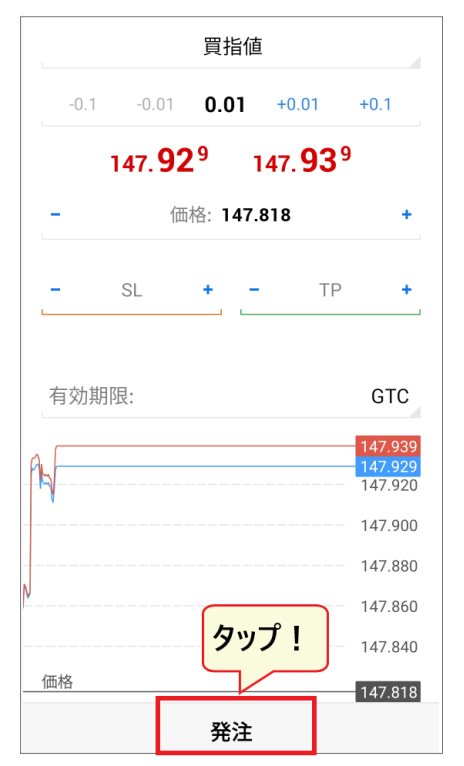
After selecting the type, enter the lot size and order price (directly enter by tapping the center, and fine-tune with the "-" and "+" buttons on the left and right), and if necessary, enter the stop-loss and take-profit prices and place the order. The placed order will be displayed in the order list in the "Trade" tab. To cancel a pending order, long-press the order and tap "Delete Order" → "Delete"
Place orders using chart lines / One-tap orders
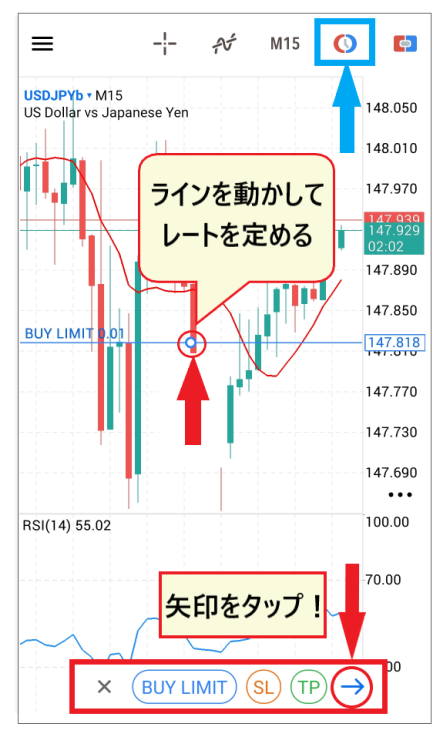
In the MT5 app, you can also set limit and stop-loss prices by moving lines on the chart. Tap the limit order button (clock icon) at the top of the chart, select the order type (e.g., Buy Limit), and a line will appear on the chart. Move the line with your finger to the price where you want to place the order, and then tap the "→" at the bottom. Stop-loss and take-profit lines will appear when you tap "SL" and "TP"
After reviewing the order details on the order screen, tap "Place Order" at the bottom, and the order line will appear on the chart
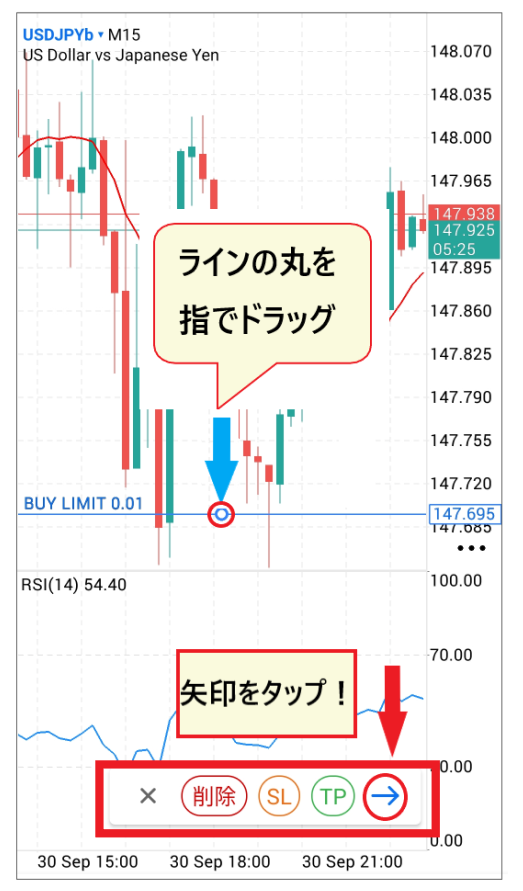
If you want to change the position of the line after placing an order, drag the round part of the line with your finger to move it to the new price, and then tap "→" to modify the order
Using the one-tap order feature, accessible from the icon in the upper right corner of the chart screen, you can place a market order simply by selecting the lot size in the center and tapping "SELL" or "BUY." The official blog warns that there is no confirmation screen and the order is confirmed immediately, so be careful. When using it for the first time, you will need to agree to the one-tap order terms of service
How to set stop-loss, take-profit, and close orders in MT5 with HFM
Settle immediately (market order) / Settle only a portion
Your open positions are displayed in the "Trade" tab at the bottom of the screen. To close a position, long-press the position you want to close and tap "Close," or slide the position to the left and tap the leftmost checkmark icon to open the closing screen. Tapping the closing price displayed at the bottom of the screen will close the position, and a completion screen will appear. The operation is the same for both stop-loss and take-profit orders
To close only a portion of your position (partial closing), change the lot size at the top of the closing screen to the desired quantity, and then tap the price at the bottom. The initial display shows the lot size for the entire position (official blog)
Set and change stop-loss (S/L) and take-profit (T/P) levels
Stop-loss orders are displayed as Stop Loss (S/L), and take-profit orders as Take Profit (T/P). To set or change settings for an open position, long-press the position in the "Trade" tab, select "Change Position" from the menu, enter the stop-loss and take-profit prices, and tap "Change" at the bottom
You can also change it from the chart screen. Tap the order on the chart, then tap "SL" or "TP" displayed at the bottom to show a line, then move it with your finger to tap "→" → "Place Order" (official blog)
For a long position, you set a stop-loss at a lower price and a take-profit at a higher price . For a short position, it's the opposite: a stop-loss at a higher price and a take-profit at a lower price .
Troubleshooting steps for when you can't log in to MT5 on HFMor the server can't be found
The official blog post, "Can't log in to MT5?", lists the main reasons for login problems as incorrect login ID, password, or server information, expired demo account, account suspension, and MT5 maintenance. If the login screen displays "Invalid Account," it means there is an error in your login information (ID, password, or server name). Please check the following in order
| cause | Things to check and how to deal with them |
|---|---|
| Incorrect or not found server name | Verify that you have selected the server name starting with "HFMarketsGlobal" as stated in your MT5 account email (this is different from "HFMarketsSV" for MT4). If it does not appear in the list, enter the server-specific connection destination (domain name) from the official "Connect toHFM MT5 Terminal" page into the server field on the login screen |
| Incorrect login ID or password | Copy and paste the login ID and password provided in the email you received when opening your MT5 account. If you have previously changed (reset) your password, you cannot log in using the password from the email. You cannot check your password in the member area (myHF), so if you forget it, reset it from there. You cannot log in to MT5 using your MT4 account ID |
| Demo account expired | According to the official blog, demo accounts that have not been logged into or traded for 29 days will be frozen and cannot be reactivated. Open a new demo account |
| Live account freeze (suspension) | According to the official blog, accounts with no trading activity for 60 days will be frozen, and the balance will be moved to the "wallet" in the member's page. You will need to open a new MT5 account to transfer funds |
| maintenance | You cannot log in while the MT5 andHFMservers are undergoing maintenance. Please wait until the maintenance is complete |
If you are unable to log in to the PC version of MT5 because you are still using an older version, please download the latest version from the official website. If you still cannot log in after trying the above, or if you cannot find your email address and do not know your login information, please contactHFMsupport (live chat or email). The contact information for Japanese inquiries ishfm(listed on the official website)
Frequently Asked Questions about MT5 on HFM
Where can I download MT5 for HFM?
You can download it from HFMofficial website's "Trading" → "MT5" page, selecting Windows, Mac, iPhone, Android, or Web Terminal. For the smartphone version, you can install it by going to the "MetaTrader 5" app on the App Store or Google Play via the link on the official page. Downloading and using it is free
What is the server name for HFM's MT5?
The official HFMMT5 download link and connection settings page lists servers starting with "HFMarketsGlobal". Live accounts useHFMarketsGlobal-Live1, Live3-5, and Live7-20, while demo accounts useHFMarketsGlobal-Demo, Demo3, and Demo4. The server you use is determined by your account type, so please check the email you receive when you open your MT5 account. This is different from the MT4 server (HFMarketsSV)
What should I do if there is no server available or the server cannot be found for HFM's MT5?
In the MT5 app, after searching for "HFM," first select the company name (for Japanese accounts, it's "HF Markets (SV) Ltd."), and then enter/select the server name on the next login screen. Make sure the server name matches exactly the one that starts with "HFMarketsGlobal" as stated in the email, and also check that you haven't already searched for the MT4 server name (HFMarketsSV). If you still can't find it, enter the server-specific connection destination (domain name) listed on the official "Connecting toHFM MT5 Terminal" page into the server field on the login screen. The official help FAQ states that if the server is not active, you can log in by pasting the server's IP address into the server field
Why can't I log in to MT5 on HFM?
The most common causes are incorrect login ID, password, or server name. If you see "Invalid Account," please check the three pieces of information provided in your MT5 account email and copy and paste them back in. Other possible causes include expired demo accounts (frozen after 29 days of inactivity), frozen live accounts (frozen after 60 days of inactivity), and maintenance (official blog)
What should I do if I forget my HFMMT5 password?
Your MT5 password can be found in the email you received when you opened your MT5 account. Since you cannot find your password in the member area (myHF), if you cannot find the email, go to "My Trading Accounts" in the member area, select the gear icon for the relevant account, and choose "Reset Password" to issue a new password (official blog). If you have forgotten your password for the member area itself, reset it from "Forgot your password?" on the login screen. If you are unable to find it, please contactHFMsupport
Can I use MT5 with an HFMMT4 account?
It's not possible. The officialHFMMT4 page states, "If you have an MT4 trading account, you cannot trade with MT5. To trade with MT5, you need an MT5 trading account." Please open an additional MT5 account from your member page (myHF). Note that you can trade with either an MT4 or MT5 account usingHFMWebTrader accessed through a browser (official platform comparison)
Can I trade stocks and ETFs using HFM's MT5 platform?
Yes, you can. The officialHFMMT5 page lists the following products as tradable on MT5: "FX, metals, energy, commodities, cryptocurrencies, bonds, indices, stocks, ETFs, and DMA CFDs." Stocks, ETFs, and DMA cannot be traded on MT4, so if you want to trade these, you will need an MT5 account
Can I use EAs (Expert Advisors/automated trading systems) on HFM's MT5 platform?
Yes, it's usable.HFMMT5 page states that it supports automated trading using EAs (Expert Advisors) created with MQL (MetaQuotes Language). EAs run on the PC (desktop) version of MT5 (see official platform comparison). According to the official blog, MT4 and MT5 EAs and indicators are not compatible, so check which platform your desired EA is compatible with before choosing an account. Points to note when trading with EAs The official are explained in " HFMScalping "
Summary: DownloadHFM's MT5 from the official website and log in usingHFMarketsGlobal server
- DownloadHFMMT5 page and select your device(Windows, Mac, iPhone, Android, Web Terminal). The mobile version is available on the App Store and Google Play under "MetaTrader 5".
- Login requires your login ID, password, and server name. This information can be found in the email confirming your MT5 account opening; the server is part of the "HFMfor MT4HFM). If it's not found, manually enter the connection details.
- MT5 requires an MT5 account. It features 21 timeframes, 6 limit order types, a built-in economic calendar, and allows trading of stocks, ETFs, and DMAs.
If you use MoneyChat, you'll get cashback for every trade you make on MT5
Our website, "Money Charger (Manecha),"HFMis an official IB partner ofOpening an account through Manecha will earn you cashback with every trade. Trading conditions, such as spreads, are the same as when opening an account directly through the official website.
| Account type | BTC/USD | Gold (XAU/USD) |
|---|---|---|
| Top-up / Premium | $16.00/lot | $12.00/lot |
| Pro/Zero | $6.40/lot | $5.60/lot |
| KATANA | $2.80/lot | $2.40/lot |
| Saint | $1.60/lot | $0.12/lot |
*Cashback rates may vary. For a list of cashback amounts by account type, how to receive it, and whether you can switch existing accounts, please see "How to Receive HFMCashback ". For instructions on opening an account, see " HFMHow to Open an Account ", for instructions on using MT4, see " HFMHow to Download and Log In to 's MT4 ", andHFM's safety and reputation, for information on see " HFMReviews and Testimonials "
\ The terms and conditions are the same as the official site, and you get cash back with every transaction! /
*Download locations, server names, and app screens may change. The information in this article is based onHFMofficial website, official blog, and app store information as of October 14, 2026. Please check the official website for the latest information. Overseas FX trading involves exchange rate fluctuation risk, and the higher the leverage, the greater the potential for significant losses in a short period of time. Investment decisions should be made at your own risk