





Contents
- 1 This is a complete guide to opening an account with IC Markets, with step-by-step instructions and images
- 2 Open an account with IC Markets
- 2.1 Go to the IC Markets account creation page
- 2.2 Enter your basic information in the registration form
- 2.3 Please review your input and submit your registration
- 2.4 Enter your account type, date of birth, and address
- 2.5 Enter your My Number and security question
- 2.6 Check your MoneyChat IB number and press Continue
- 2.7 Log in to the client portal
- 2.8 Enter your email address and password to upload your KYC documents
- 3 Register your account from your MoneyChat My Page (required)
This is a complete guide to opening an account with IC Markets, with step-by-step instructions and images
This guide explains how to open a new account with IC Markets, using easy-to-follow diagrams and smartphone screenshots
IC Markets makes it easy to open an account and set up cashback by following the instructions
Follow the steps below to open an account and apply for one
- How to open an account with IC Markets
- How to apply for an account with MoneyChat
Part 1
Open an account with IC Markets
First, you need to open an IC Markets account. Please follow the instructions below and open an account via the dedicated link provided by the button
Step 1
Go to the IC Markets account creation page
First, click the button below to go to the IC Markets account creation page. When you open the link, the IC Markets homepage will be displayed with your MoneyChat IB number (camp=92494) already linked. Tap one of the CTA buttons displayed on the screen, such as "Discover more," "Start Trading," or "Open an Account," to proceed to the registration form
*Please note that if you register through a link other than the one provided by Moneycha, you will not be able to receive cashback from Moneycha
Step 2
Enter your basic information in the registration form
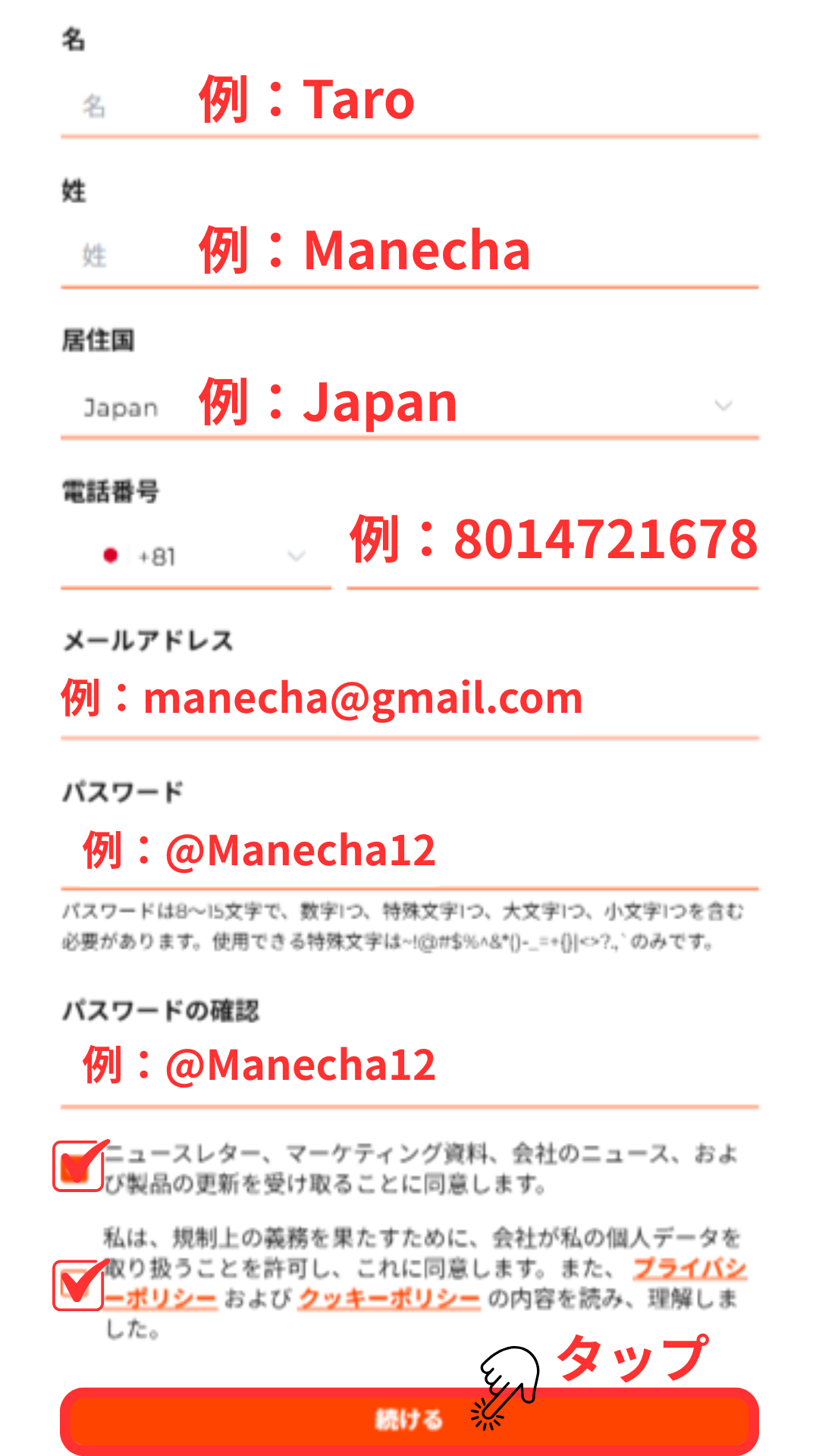
A registration form will appear with the message "Fill in your personal details." Select "Japan" for Country of Residence, and enter your First Name, Last Name (in Roman letters, matching your identification document), Email, and Mobile (international phone number)
*Please ensure your name spelling exactly matches that on your identification document. The email address you enter will be used for receiving verification emails and logging into the portal, so please enter an address you can access
Step 3
Please review your input and submit your registration
Please review the Country of Residence, First Name, Last Name, Email, and Mobile information you entered, agree to the Terms of Service and Privacy Policy, and click the Continue button at the bottom of the form. After submission, IC Markets will send a confirmation email to your registered email address. Please activate your account using the link in the email
*If you do not receive the email, please check your spam folder. Tapping the link in the confirmation email will automatically take you to Step 2 of the account opening process (the next step)
Step 4
Enter your account type, date of birth, and address
On screen 2/3 of "Open Live Account," enter your account type (Individual / Corporate), Date of Birth, Address, City, State, and Zip Code. Please enter information that exactly matches your identification documents
*Please ensure your name, date of birth, and address exactly match those on your identification document (driver's license, passport, My Number card, etc.). Please enter your address in Roman letters
Wi5
Enter your My Number and security question
Next, you will enter your National ID (such as your My Number or other national identification number), Security Question (select from the dropdown menu), and Security Answer (the answer to your security question). These will be used to verify your account and for authentication during support inquiries
*For National ID, please enter your Japanese My Number (12 digits). Please remember to write down the answer to your security question, as it will be used for account recovery and support contact
Step 6
Check your MoneyChat IB number and press Continue
Make sure the "I was referred by an Introducing Broker" checkbox at the bottom of the form is checked and that the IB number "92494" (Manecha) is displayed. Once confirmed, tap the "Continue" button to proceed to the next screen (account type and platform selection)
*If IB number 92494 is not displayed, you will not be able to receive cashback via Manecha. Please close your browser and access Manecha again using the referral link (camp=92494)
Step 7
Log in to the client portal
Access the client portal (Client Portal Login) via the link in the registration email. Tap the login button on the displayed login screen to enter the portal. Within the portal, you can upload KYC documents, verify your trading account, and more
*Login information is included in the registration confirmation email you receive from IC Markets. If you do not receive the email, please check your spam folder
Step 8
Enter your email address and password to upload your KYC documents
Enter the email address and password provided in the registration confirmation email into the login form to log in to the portal. After logging in, complete the KYC verification process by uploading your identity verification documents (driver's license, passport, My Number card, etc.) and address verification documents (utility bill, bank statement, issued within the last 3 months) from the "Account Verification" menu. After the verification is complete, you will receive an email containing your trading account login ID (account number). Be sure to write down this account number as you will need it for registering your MoneyChat account in Part 2
*KYC (Know Your Customer) verification usually takes 1-2 business days to complete. Please ensure all four corners of your documents are visible in the image and that the text is clearly legible. Proof of address must be issued within the last 3 months
Part 2
Register your account from your MoneyChat My Page (required)
If you forget this step, you will not receive the cashback. Be sure to apply from your MoneyChat My Page and confirm that the status has changed to "Approved" before trading
Step 1
Log in to your MoneyChat My Page
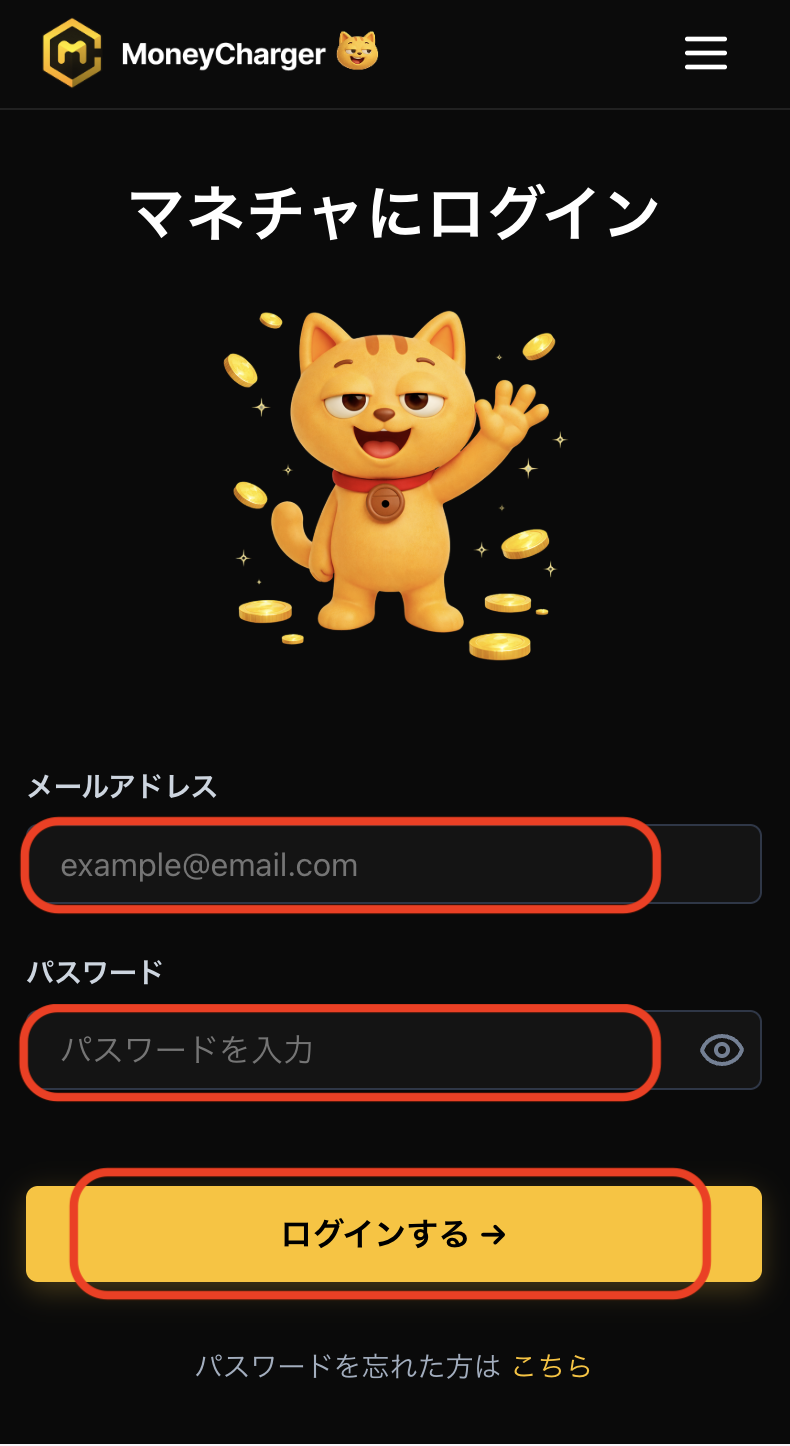
Log in to the MoneyChat page from the login page
Step 2
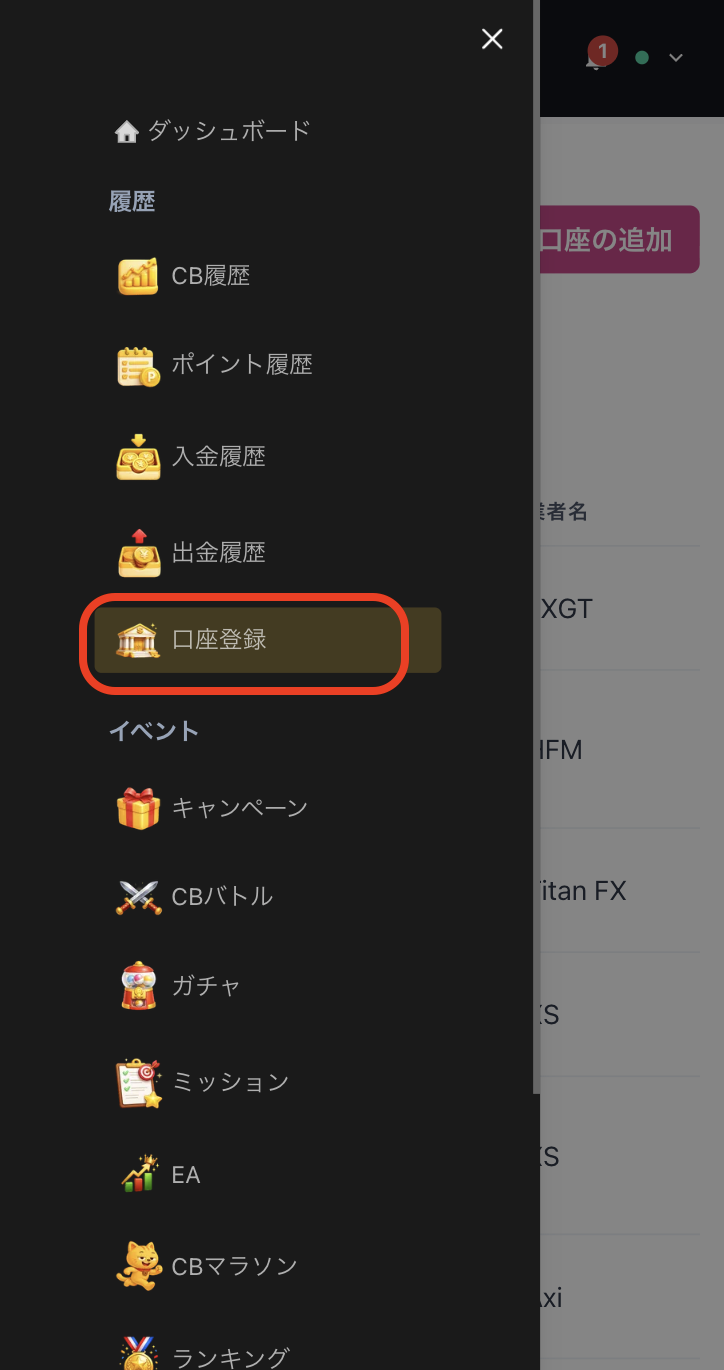
Select "Register Account" from the menu
Tap the three lines in the upper left corner of the screen to bring up a menu, then select "Register Account" from there
Step 3
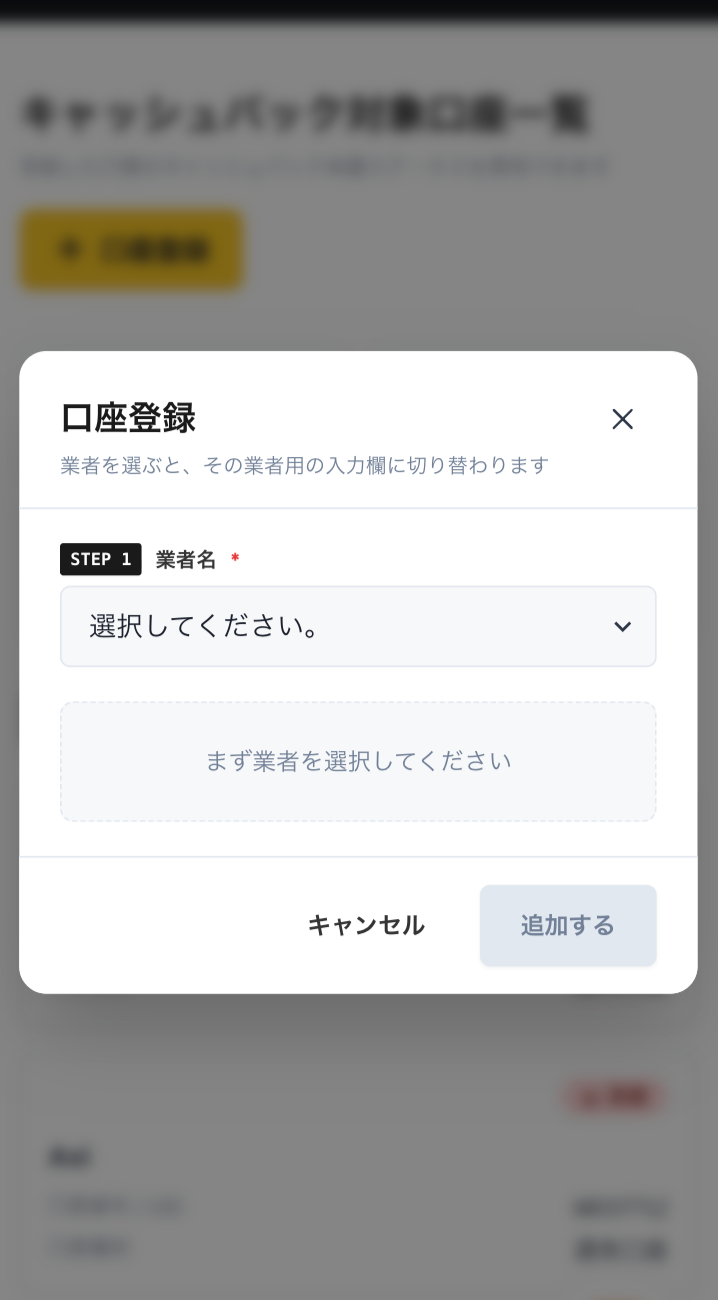
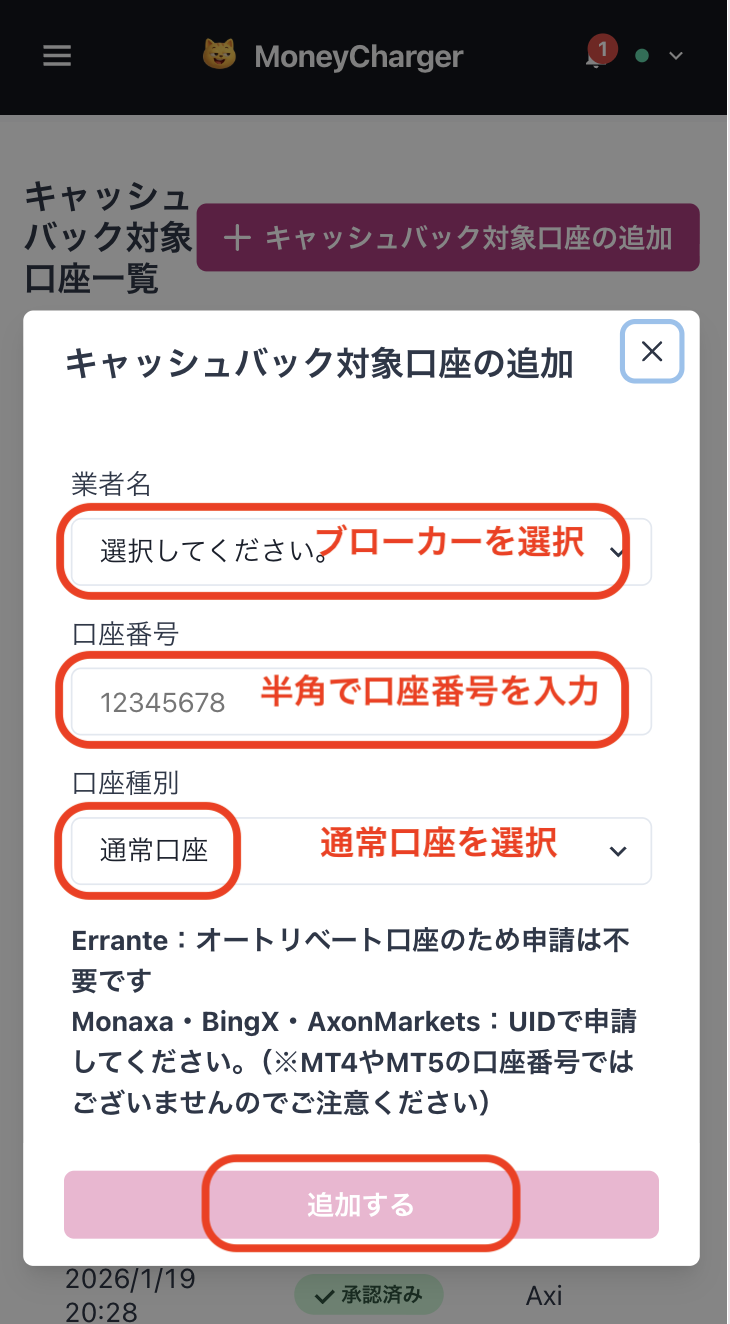
Select a broker and enter your account number
A menu like the one shown in the image will appear. Select IC Markets as the broker name and enter your account number using half-width numerals. For account type, select "Regular Account" if you are doing regular discretionary trading or using your own EA
While there is an option for a dedicated account for MoneyChat EAs, this is only for those who wish to use EAs within MoneyChat's EA menu, so please select "Regular Account"
Step 4
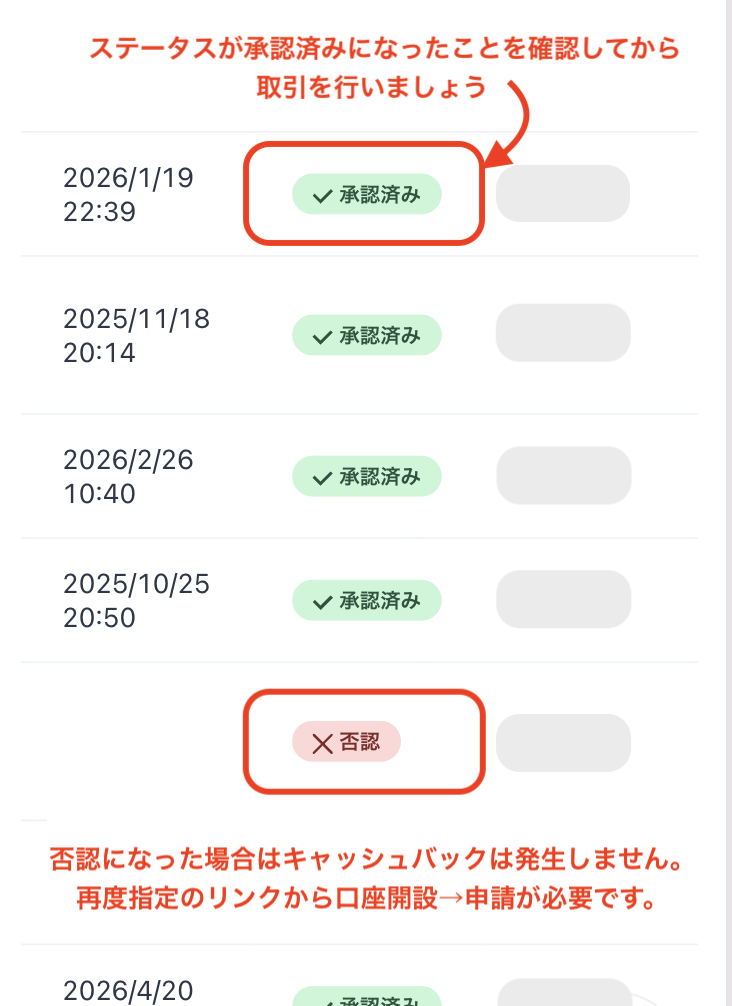
Once approved, it's complete
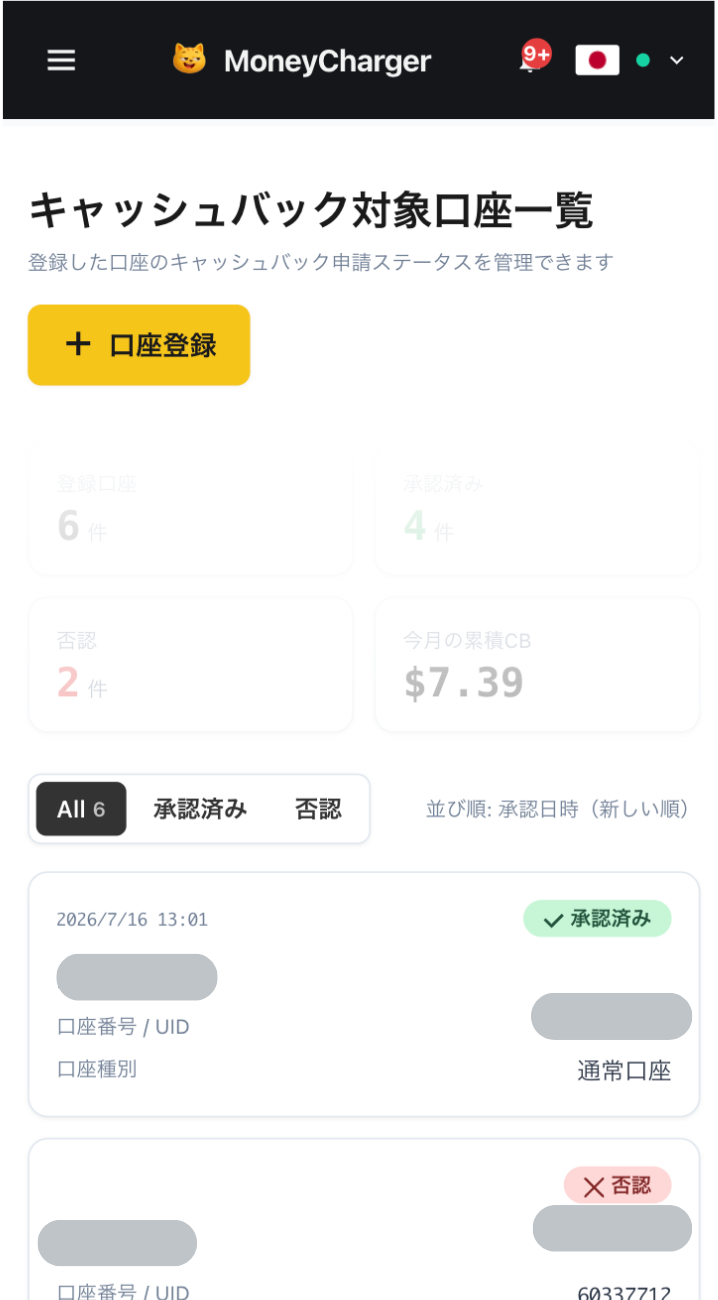
Once you see this screen, your application is complete.
After submitting your application, if there are no problems with your application details, the status at the bottom of "Account Registration" will change to "Approved" within one business day.
Cashback on your transactions will be reflected from the time the status changes to "Approved".
[Caution] Cashback will not be provided if you trade using an account that has not been approved. Please be aware of this