










News NOTICE
[Illustrated Guide] Tapbit New Account Opening Procedure [Easy Account Creation with Latest Smartphone Images] (Tapbit)
Here's how to open a new account with Tapbit
We will explain it with diagrams and smartphone images so that anyone can easily understand it
In conclusion, Tapbit is
You can easily open an account in just two steps
- Step 1: Create a Tapbit account
- Step 2: Obtain your account ID
Step 1: Create a Tapbit account
① Go to the Tapbit account creation page
First, click the link below to go to the Tapbit account creation page
https://www.tapbit.com/auth/LQTJHSK
*Please note that if you register through any link other than this one, you will not be able to receive cashback from Money Charger (Moneycha)
What is cashback with MoneyChat?
② Obtaining an email verification code
"Tapbit page URL" will take you to the official Tapbit website.
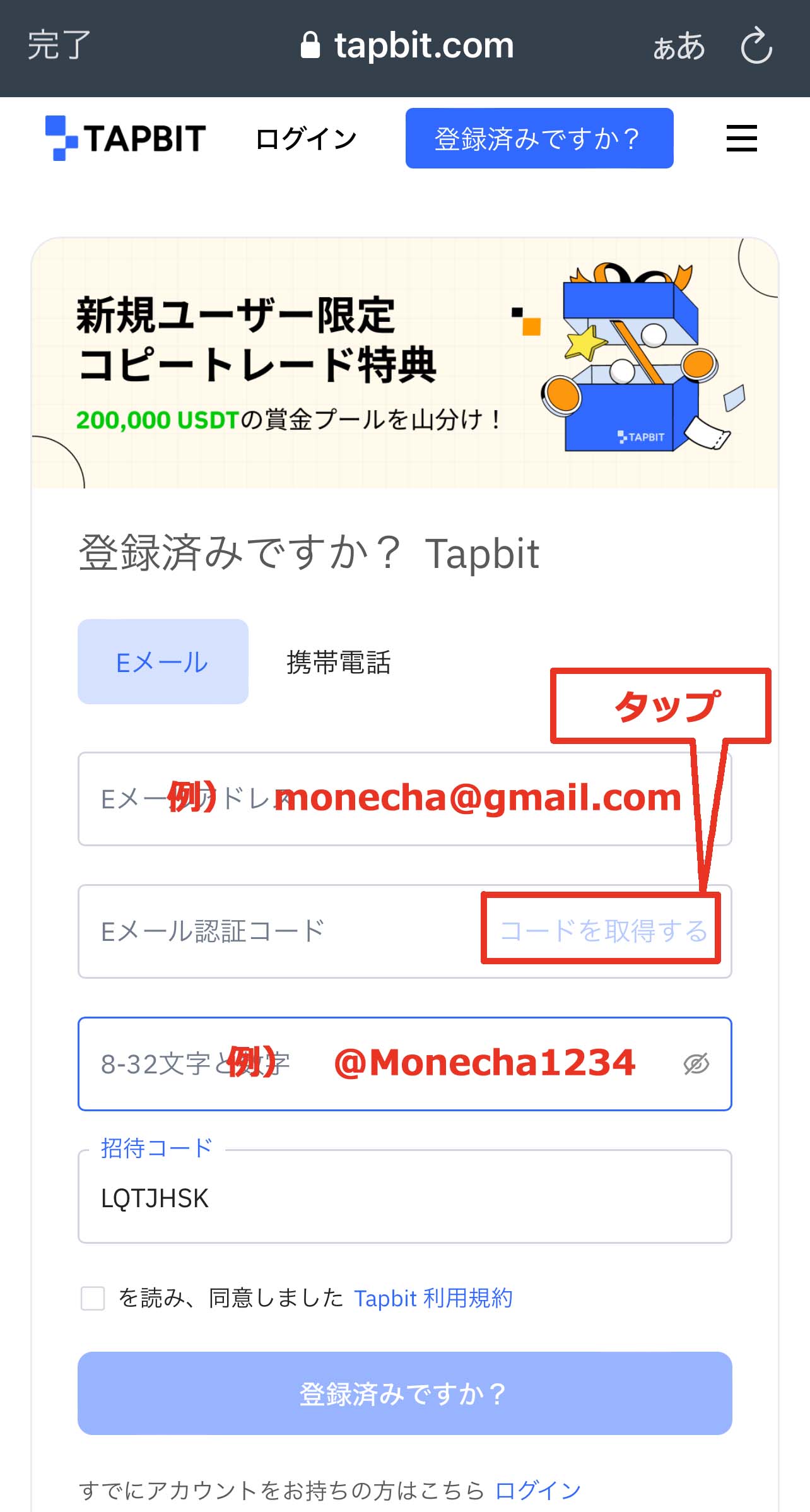
Please enter the following information correctly
- Email address: Enter the email address you wish to register
- Password: Enter the password you wish to register (set a password of 8 to 32 characters or more, combining lowercase letters, uppercase letters, numbers, and symbols)
Before creating an account, you will need to obtain an email verification code, so tap "Get Code"
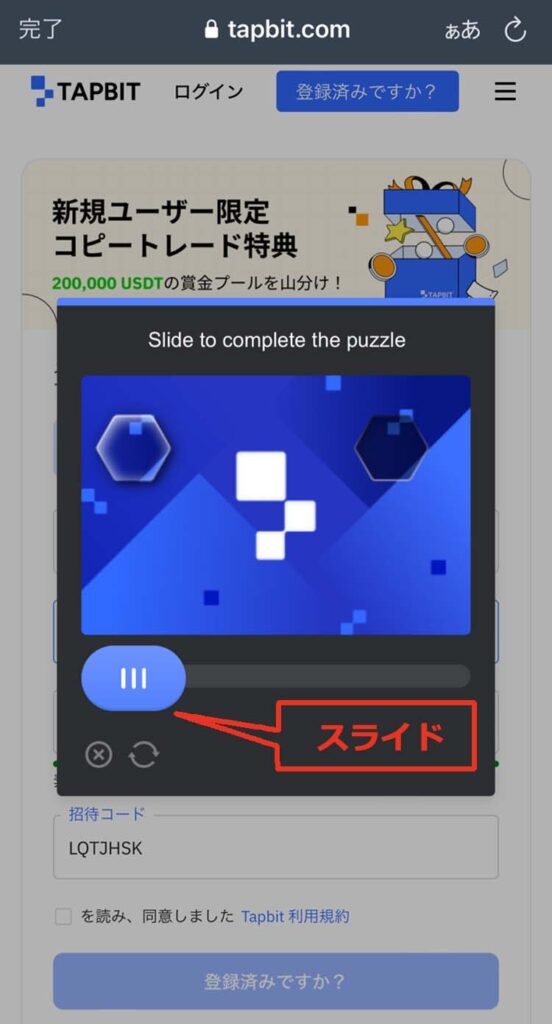
You will then be taken to an image verification screen. Move the slider to select the correct image and complete the verification process
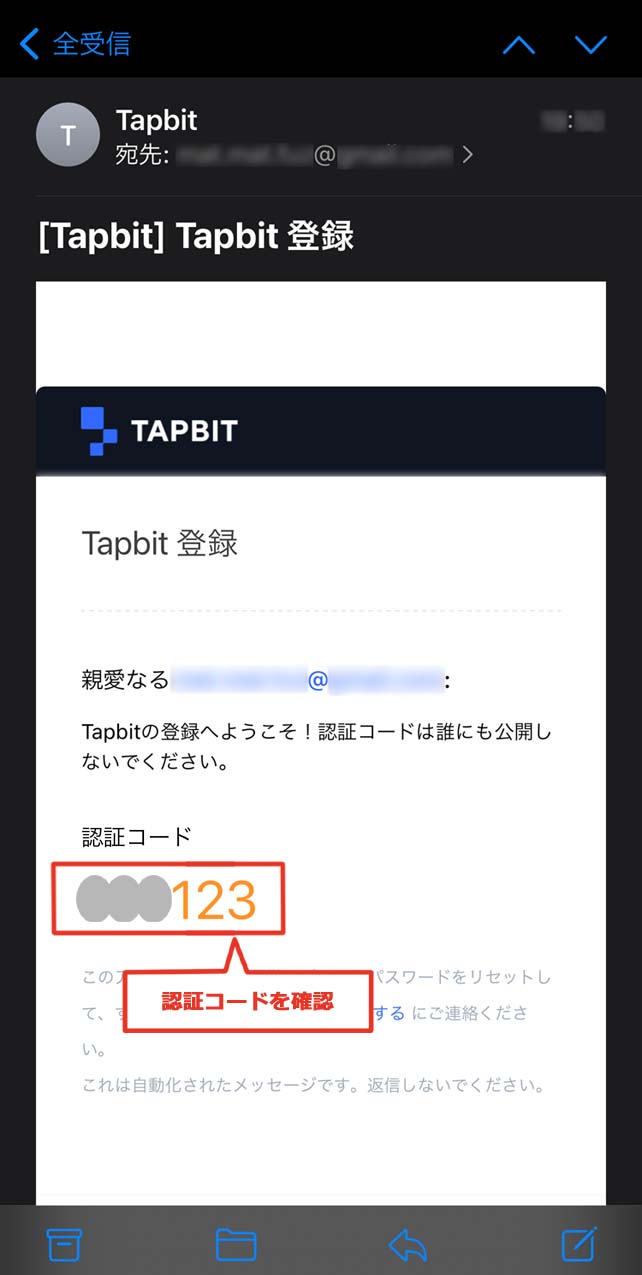
③ Check the authentication code
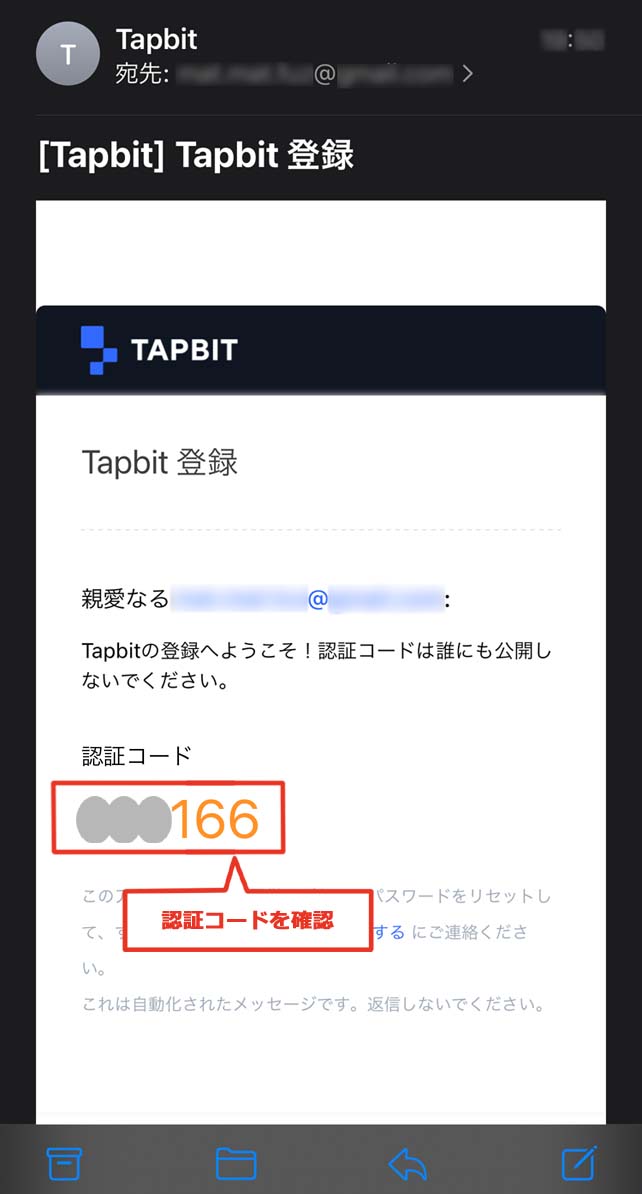
Once you complete the verification process, you will receive an email from Tapbit containing a verification code. Open the email and check the verification code
④ Enter the verification code
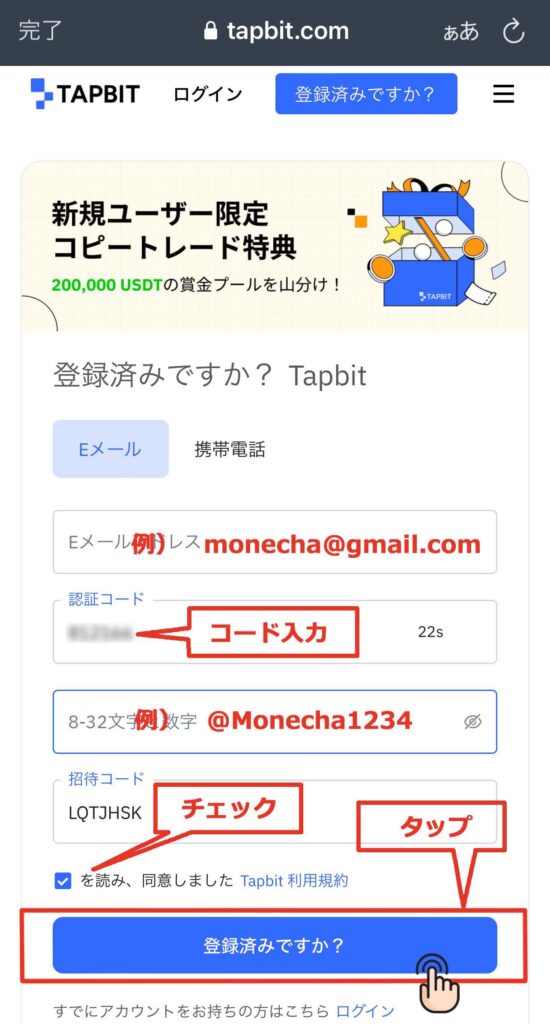
Go back to the previous screen, enter the verification code, read the Tapbit Terms of Service, check the box, and tap "Already registered?"
Please note that the verification code is only valid for 60 seconds. If you miss the deadline, tap "Get Code" again to complete the image verification and receive the verification code again via email
⑤ Account creation complete
This completes the process of creating your Tapbit account
Step 2: Obtain your account ID
① Download the application
Next, you will be taken to download the app, so tap "Download now"
You can also access the download page from this link. ↓↓
https://apps.apple.com/jp/app/tapbit/id1610497530

② Download the app
You will be taken to the download screen for the official Tapbit app, so please tap "Get" to download it
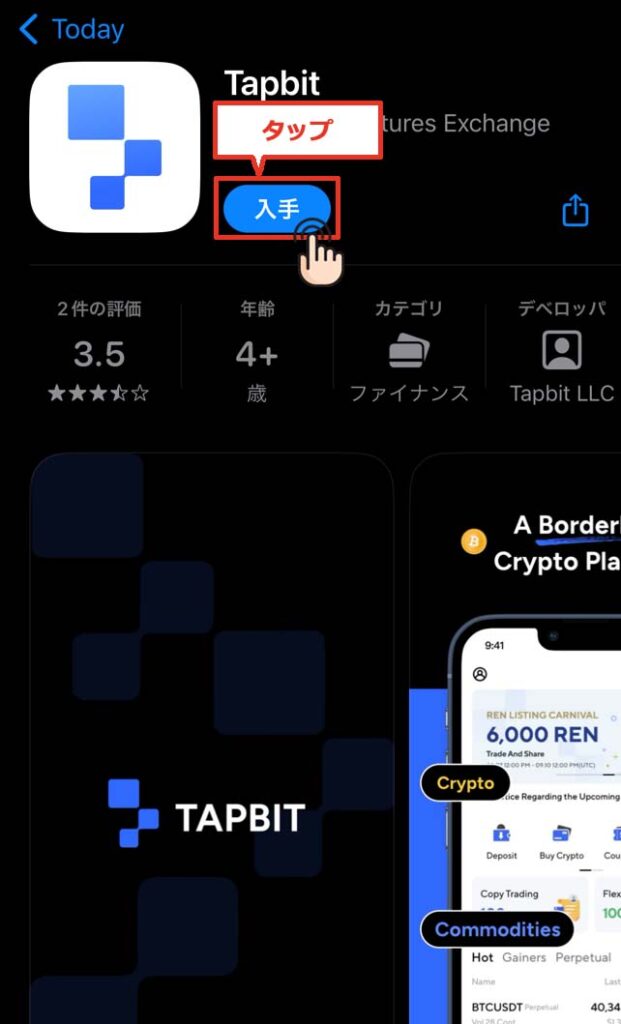
③ Tap "Login/Register"
When you launch the app, you will see a screen like the one below, so please tap "Login/Register"
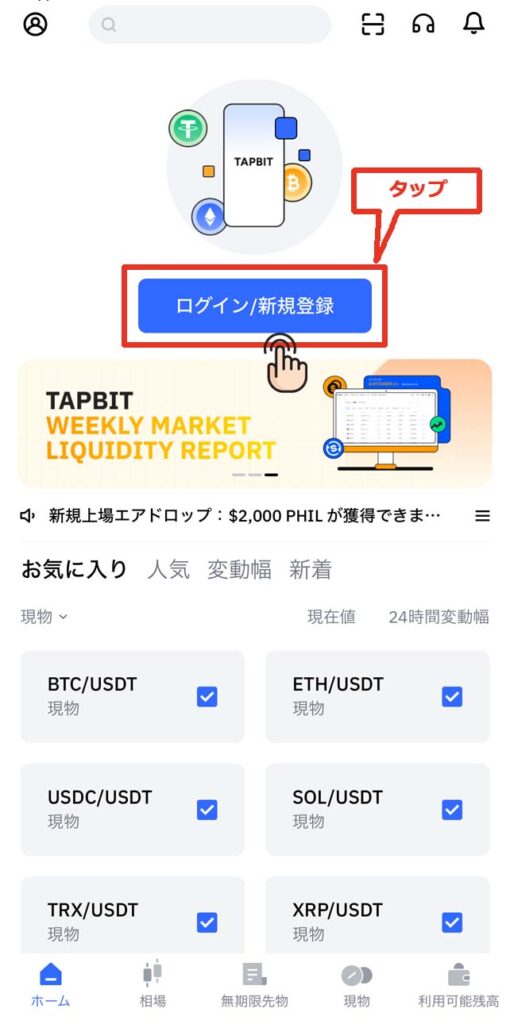
④ Enter your registered login information and tap "Next"
Please enter the email address and password you registered earlier, and then tap "Next"
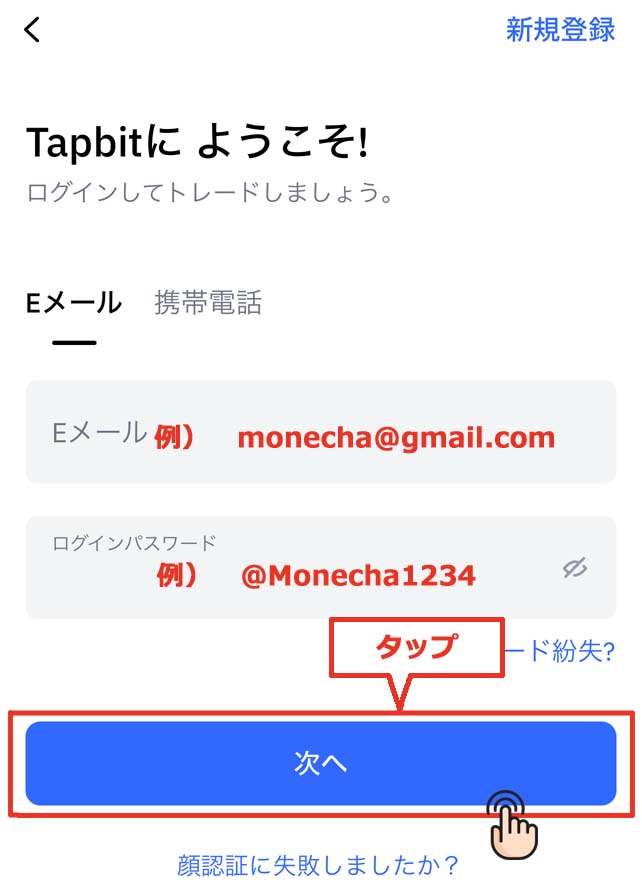
⑤ Image verification
You will then be taken to an image verification screen. Move the slider to complete the image and complete the verification process
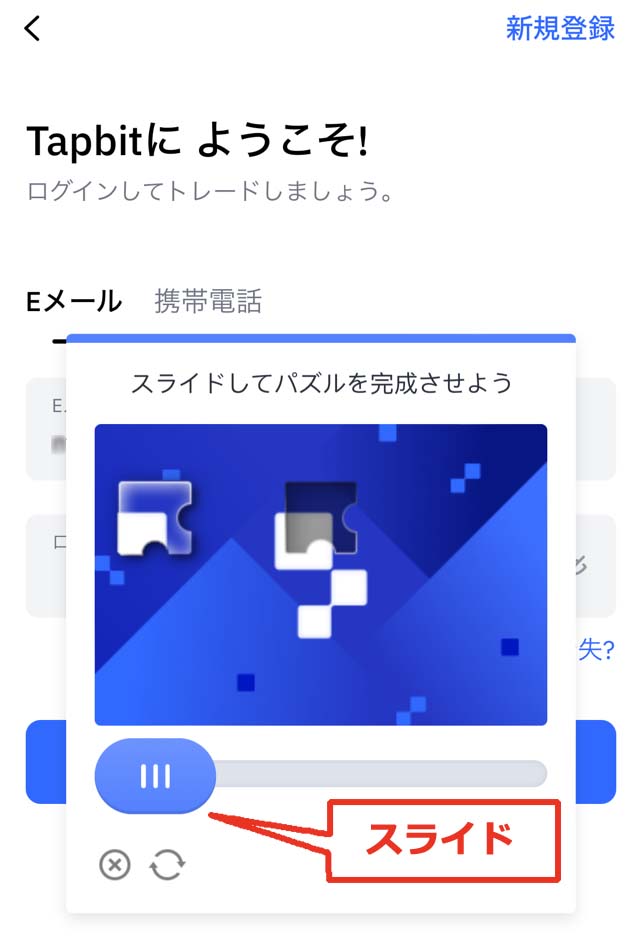
⑥ Obtaining the authentication code
Once you complete the verification process, you will receive an email from Tapbit containing a verification code. Open the email and check the verification code
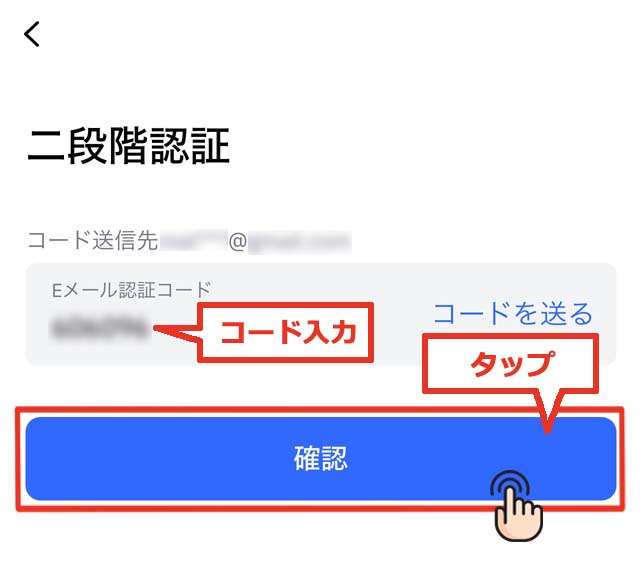
④ Two-factor authentication
Enter the verification code in your email and tap "Confirm"
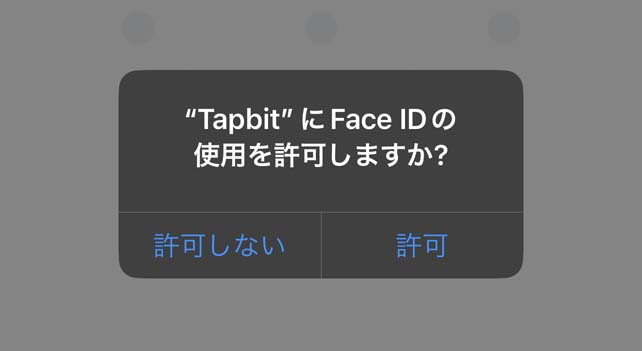
⑤ Grant permission to use Face ID
Allow the use of Face ID as needed
⑥ Setting a pattern password (if Face ID is not permitted)
You set a "pattern password" by tracing nine dots in a single continuous line

Let's draw the same pattern again

⑦ Tap the person icon in the upper left corner
Once you have logged in, tap the mailbox icon in the upper left corner of the home screen
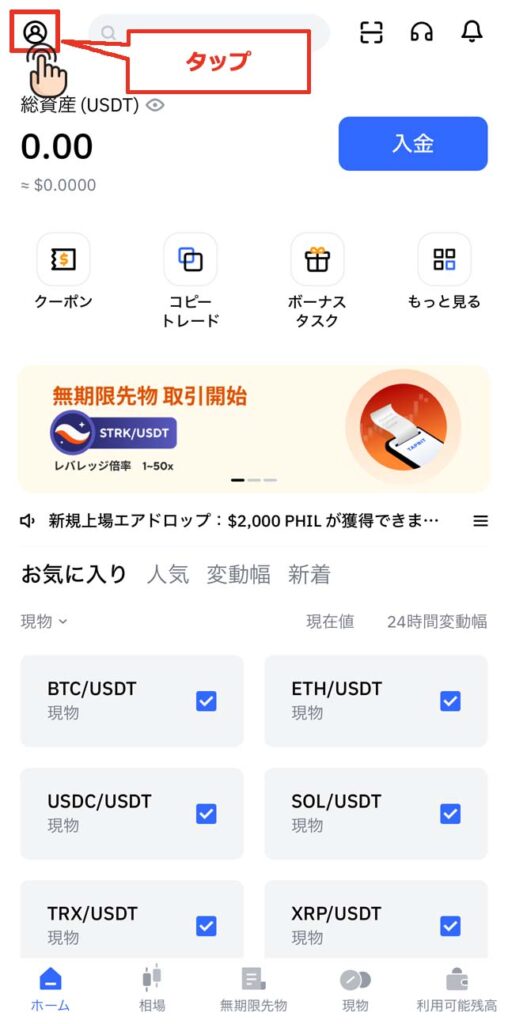
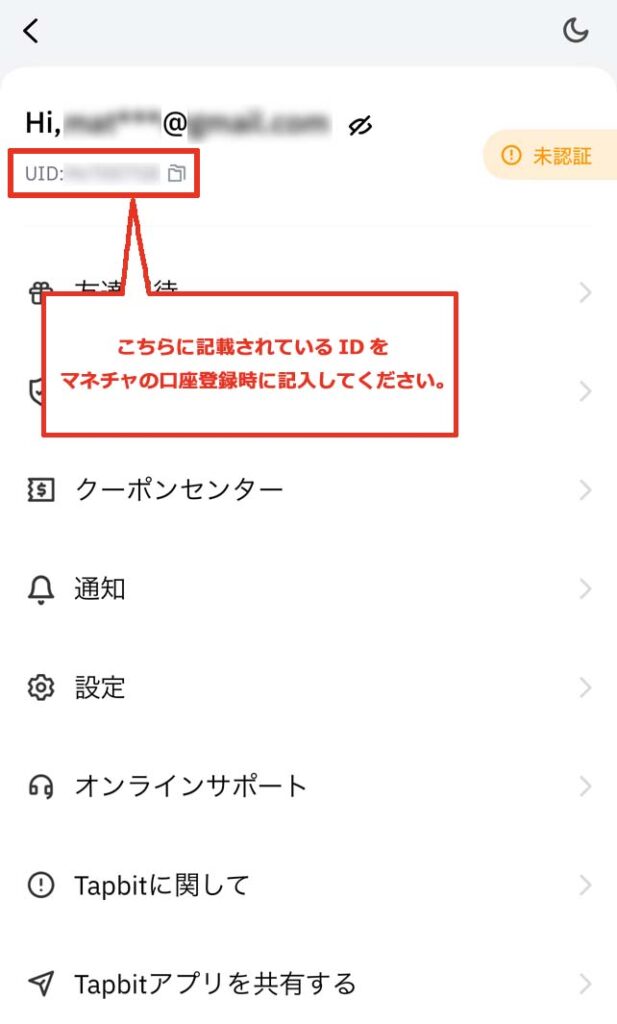
⑧ Confirm the ID to be used when registering your account
Your account number, called "UID," will be displayed below your email address
This ID numberwill be your "account number" when you register with Moneycha.
In conclusion
The above is a step-by-step guide with smartphone screenshots explaining how to open a new account with Tapbit
Next, go to your Money Charger My Page and apply to register your cashback account
Click here for an article explaining how to register a trading account ↓