












"I installed the EA in MT4/MT5, but it's not working." "Where do I check the box to start automated trading?" "The backtest settings are mixed with English and I don't understand them." — The biggest stumbling block with EAs (Expert Advisors, automated trading) is almost always the setup stage.In short, setting up an EA involves five steps: ① Install the EA → ② Place it on the chart → ③ Turn on the permissions in three places → ④ Verify with a backtest → ⑤ Start it up. The typical reasons why it doesn't work are the permission settings in ③ and issues with the account and time zone.
This article uses the MT5 screen (with differences from MT4 noted) to explainhow to install an EA, apply it to charts and "allow three locations," the meaning of parameters, the eight settings of the strategy tester and how to interpret the results, how to start, stop, manually close, and delete the EA, how to diagnose when the EA is not working, and how to purchase a paid EA, all based on the official MetaQuotes help and MQL5 documentation. "What is an EA?", "Where can you get one?", and "How to identify a winning EA" arethe overseas FX automated trading (EA) mechanism and how to get started, and how to choose a broker and free EAthe overseas FX automated trading (EA) recommendation ranking, so this article focuses on "operation".
Conclusion | 5 Key Points to Remember When Setting Up an EA in MT4/MT5
- There are three ways to install an EA: Direct installation via "Download" on the MQL5 Marketplace; placing the EA file (.ex5 or .ex4) in "Data Folder → MQL5 (MQL4) → Experts"; or activating a purchased EA. MT4 and MT5 versions are not compatible.
- To run it, you need permission in three places: ① EA properties "Allow Algorithmic Trading" ② Tools → Options → Expert Advisors "Allow Algorithmic Trading" ③ Toolbar "Algorithmic Trading" button ON. If even one is OFF, no orders will be placed.
- Before deployment, verify with the strategy tester: there are 8 settings. Model: "All Tick", Latency: "Random Latency", Results: Profit Factor, Maximum Drawdown (both Balance and Effective Margin), and Number of Trades.
- Even when stopped, open positions remain: Button OFF only stops new orders. Positions must be closed manually, and the EA itself must be removed from the chart or deleted using Navigator.
- If it's not working, check the following in order: "Icon in the upper right corner → Is the market open? → Account and login → Error message in the log → Files and environment"(see the diagnostic table and flowchart in the main text).
*This article was created by the MoneyCharger editorial teamtheir content creation policy. Screen names, settings, and tester specifications were confirmed on September 7, 2026, based on the official MetaTrader 4/MetaTrader 5 help, MQL5 official documentation, and market terms. The operation screen was photographed by our editorial team using MT5 (Windows version, Japanese UI) (photographed in May 2025; notation and layout may differ depending on the version). The backtest results presented are examples of our editorial team's verification and do not indicate future performance. Overseas FX brokers are not registered with the Japanese Financial Services Agency, andthe Financial Services Agencyandthe Consumer Affairs Agencyhave issued warnings about trading with unregistered brokers. This article is for general informational purposes only and does not endorse the use of any specific EA or broker.
If you are new to overseas forex trading,our complete guide for overseas forex trading beginners.
Three ways to install an Expert Advisor (EA) in MT4/MT5
There are three ways to install an EA (Expert Advisor) into MT4/MT5, depending on how you obtained it.The easiest is to use the "Download" button on the MQL5 Marketplace, which installs the EA directly from the webpage into the terminal (MT4/MT5 itself).EAs distributed from websites or those you create yourself must be manually placed in the Experts folder, while paid EAs purchased from the Marketplace are installed into the terminal logged in with the MQL5 account used for purchase.
| How to obtain | How to put it in | Placement and confirmation | Points to note |
|---|---|---|---|
| ① MQL5 Market (Free EA) | On the EA details page, click "Download" → "Yes, I have MetaTrader 5 (4)" → Terminal opens and installation starts automatically | It will be added to the Navigator's "Expert Advisors" → "Market" folder | The market categories are different for MT5 and MT4. Make sure you are logged into the terminal with your MQL5 account |
| ② EA files (.ex5/.ex4/.mq5/.mq4) | Copy the file to "Experts" by going to "File" → "Open Data Folder" → "MQL5" (or "MQL4" for MT4) → "Experts" in the terminal → right-click on the Navigator and select "Refresh" or restart | It is displayed directly below "Expert Advisors" in the Navigator | MT4-compatible (.ex4) files will not work with MT5, and vice versa. .mq5/.mq4 are source files, and compiling them with MetaEditor will produce .ex5/.ex4 files. |
| ③ Paid EAs on MQL5 Market | "Purchase" or "Rent" → Payment → Install using the same procedure as in ① in the terminal logged in with the purchased MQL5 account | Add to the "Market" folder. Using it on another PC or VPS requires one activation (PC authentication) | The number of activations is limited to 5-20 per buyer (set by the seller). Refunds are not available (seepurchase procedure). |
Steps to download and install an Expert Advisor (EA) from the MQL5 Marketplace
If you're using the MQL5 marketplace,: "Find an EA in the marketplace → Click 'Download' on the details page → Select 'Yes, I have MetaTrader 5' → The terminal will open and you can add it to your navigator." This assumes you have an MQL5 account (free) and are logged into the same account in the terminal (seethe MQL5 marketplace usage guide in the automated trading article).
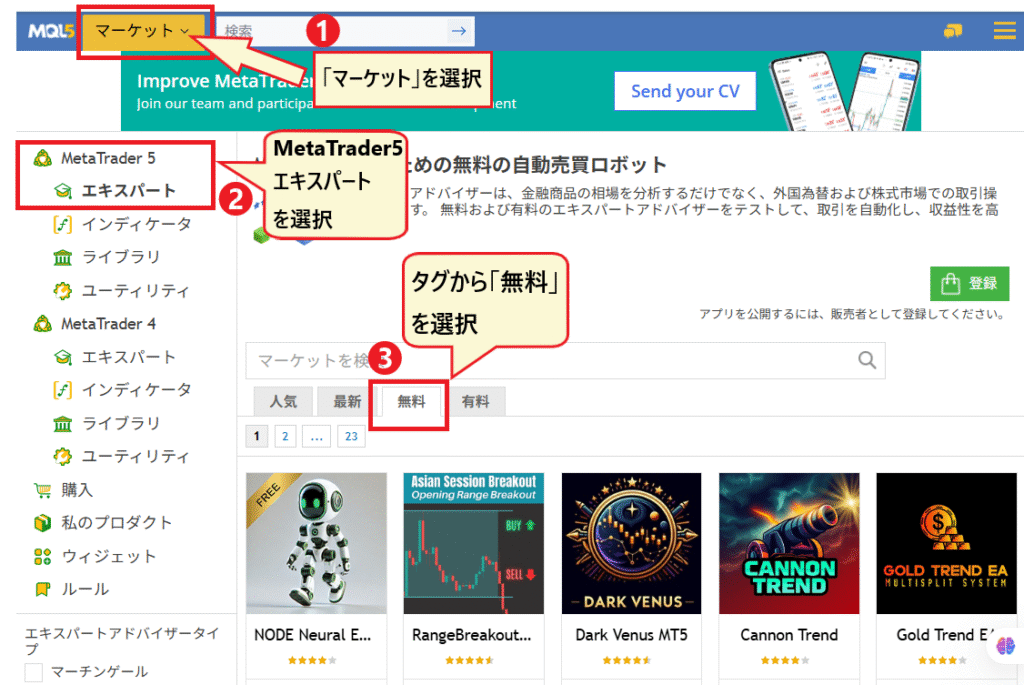
- the "Market" menu at the top of MQL5.com, and select "Experts" for MetaTrader 5 (or MetaTrader 4) from the left menu. To see only free EAs, filter by the tag "Free".
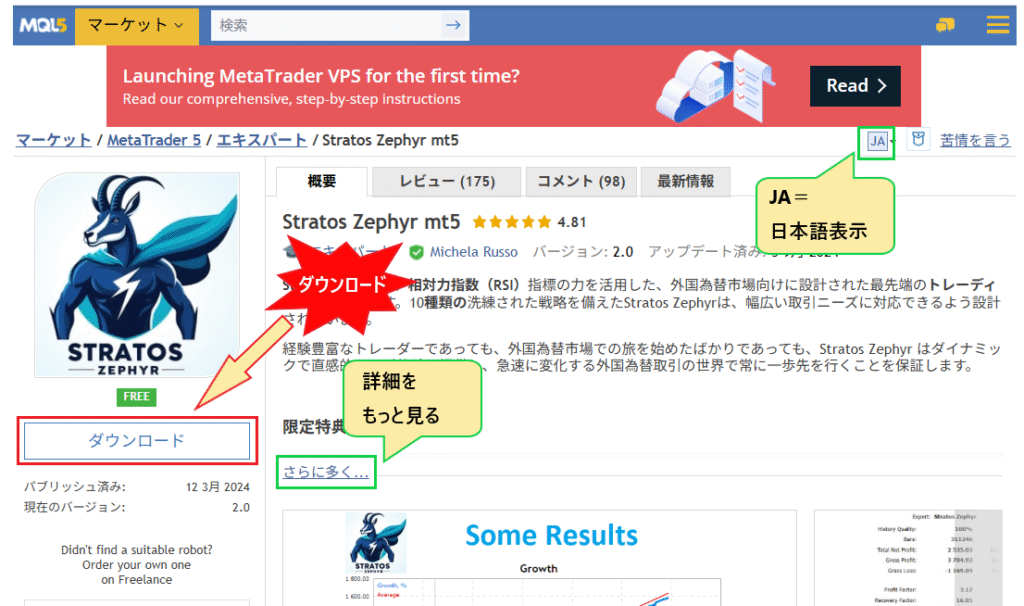
- Click "Download" on the EA details page (for paid EAs, click "Purchase" or "Rent")
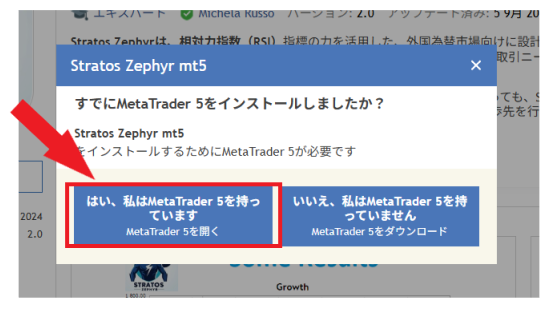
- If you select "Yes, I have MetaTrader 5,"the terminal will launch with "Open MetaTrader 5." If you are using an MT4 EA, select the same option for MetaTrader 4 (the wording on the screen may vary slightly depending on when it is displayed).
- The process is complete when the EA name is added to the "Expert Advisors" → "Market" section in the terminal's navigator . If it doesn't appear, right-click the navigator → "Refresh"
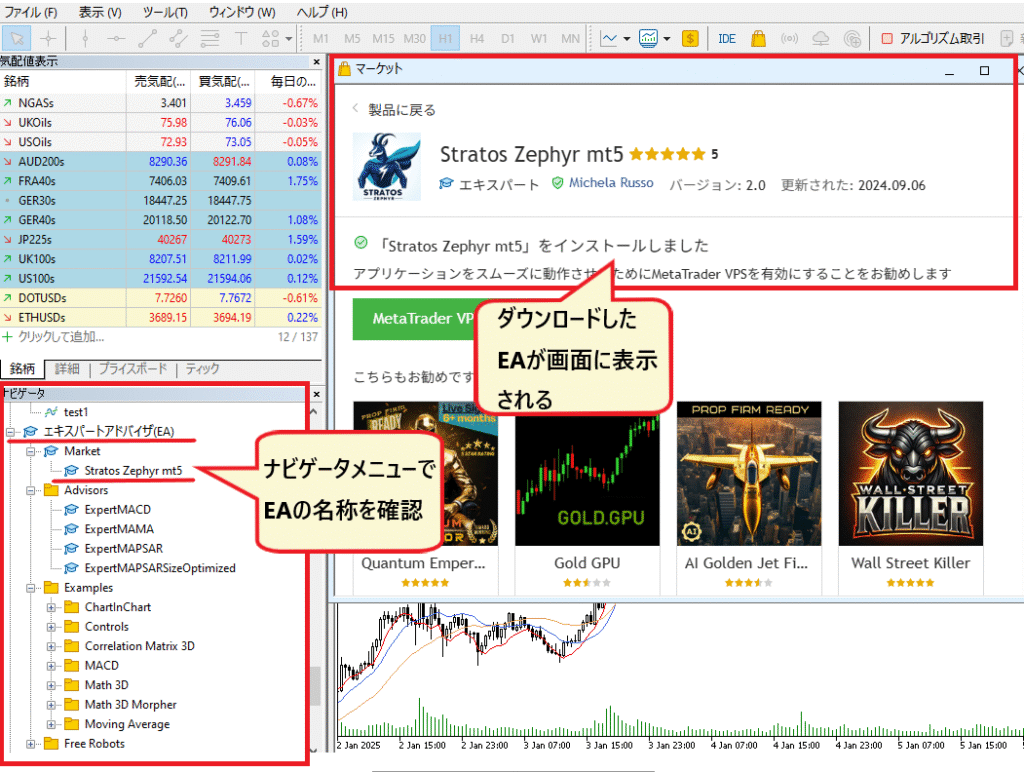
If you haven't already installed MT4 or MT5, please download it for free from the official website of your chosen overseas forex broker, log in with your account number, password, and server name, and then proceed with the steps above. For information on choosing a broker that supports EAs and which account types to use, please refer to our ranking of recommended overseas forex brokers for EAs
Filter EAs using market search criteria (reviews, price, type)
The list of market experts is extensive, so use the search criteria in the left menu to narrow down your results.It's best to start with two conditions: "with reviews" and "4 stars or higher."You can also filter by price (free/under $50, etc.) and EA type (trend, grid, martingale, hedging, neural network, etc.).
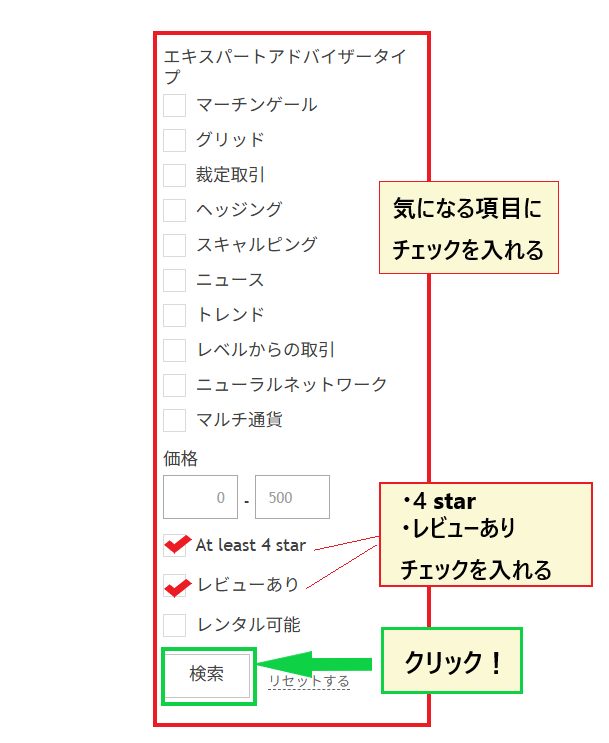
When narrowing down your choices, be aware that even if "Martingale" and "Grid" strategies have high review ratings, their structure involves increasing lot sizes while accumulating unrealized losses, meaning that sudden market changes can wipe out your entire margin. Since review ratings tend to be biased towards those who have made money, be sure to check the characteristics of each strategy and its maximum drawdown. The favorable and unfavorable market conditions for each strategy, along with the six indicators used for identification, are organized in the EA type table and the section on how to identify winning EAs in the automated trading article
Applying an EA to a chart and turning on automated trading | "Permissions in 3 places"
An EA won't work just by installing it.You need to place the EA on the chart of the instrument you want to trade, and then enable automated trading (algorithmic trading in MT5) in three places: "EA Properties," "Terminal Options," and "Toolbar Buttons." Only then will orders be placed.The official MetaTrader 5 help also explains that if the icon in the upper right corner of the chart indicates that trading is not possible, you need to enable it in both the EA settings and the Terminal Options. The most basic reason why an EA won't work is that one of these three settings is turned OFF.

| Permitted location | Notation in MT5 | Notation in MT4 | range of effect |
|---|---|---|---|
| ① EA properties (the "Share" tab in the dialog box that appears when you place it on the chart) | Check "Allow algorithmic trading" | Check "Allow live trading" (the common Japanese translation is "Allow automated trading." Since MT4 doesn't have official Japanese help, check your build for the correct option.) | Only that specific EA on that chart (only one EA can be placed per chart - official) |
| ② Terminal options (Tools → Options → "Expert Advisors" tab) | Check the box for "Allow algorithmic trading." The same screen also shows automatic OFF conditions such as "Disable when account is changed." | Check the box for "Allow automated trading" (the common Japanese translation is "Allow automated trading") | Initial setup of the entire terminal |
| ③ Buttons on the toolbar | "Algorithmic Trading" button (green ▶ is ON, red ■ is OFF) | "Algorithmic trading" button (previously "Automated trading" in older builds) | Turn all EAs on/off in the terminal at once |
*The MT5 terminology is based on our editorial team's actual terminal (Japanese UI, as of May 2025). MetaQuotes' official help still uses the old name "AutoTrading," but it has been renamed to "Algorithmic Trading" in current terminals. The "AutoTrading" button on the MT4 (MetaTrader 4) toolbar also displays "Algorithmic Trading" in the current build, so the names may differ from older explanatory articles. If you are using an MT4 EA (MT4 EA files are .ex4), please check our comparison article of overseas FX brokers that offer MT4-compatible account types
Instructions | Drag and drop → Allow in Properties → Turn on the button
This example demonstrates how to run the free MQL5 marketplace EA "Stratos Zephyr" on a USD/JPY chart. Each EA has recommended currency pairs and timeframes, so please open the chart as instructed on the details page before starting
- Drag and drop the Navigator EA onto the chart of the instrument you want to trade(double-clicking also works).
- In the dialog box that opens, check "Allow algorithmic trading" in the "Sharing" tab. Only check "Allow modification of signal settings" if the EA uses the signal function. Check the lot size and other parameters in the "Input" tab and click "OK".
- Turn on the "Algorithmic Trading" button (green ▶) on the toolbar. For the first time, also check that "Allow Algorithmic Trading" is checked in Tools → Options → "Expert Advisors" tab.
- the EA name and icon appear in the upper right corner of the chart,it is running (on our MT5, it's a blue hat. On MT4, as per the official help, it's a smiling icon, and if trading is unavailable on the EA side, it changes to an "L", and if all EAs are stopped, it changes to a dagger-like symbol. On our MT4, it was displayed as a frowning face icon). On MT5, if the hat is white, trading is unavailable.
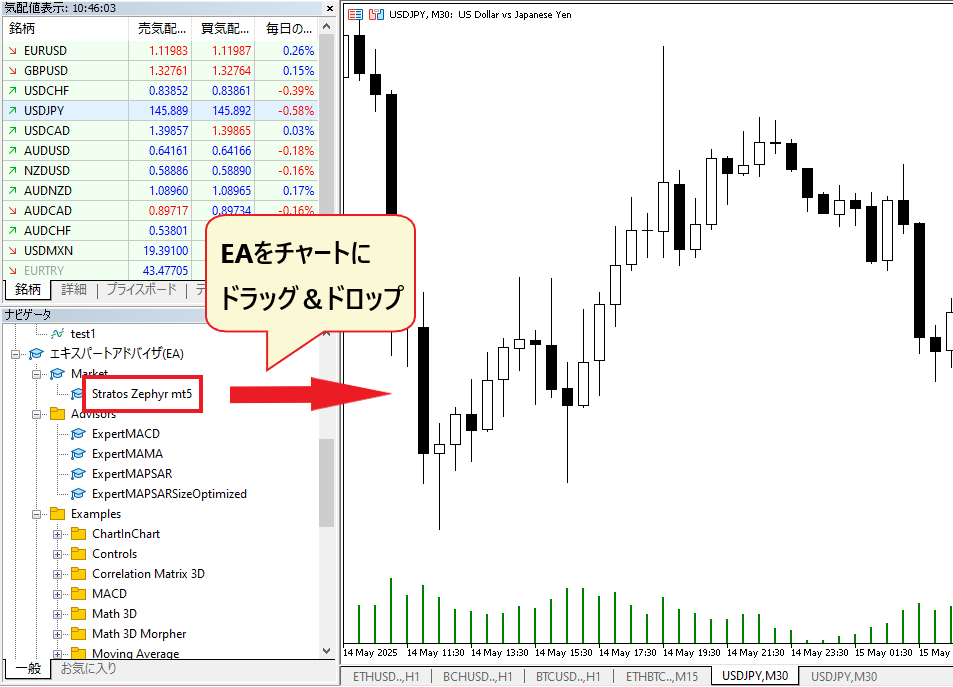
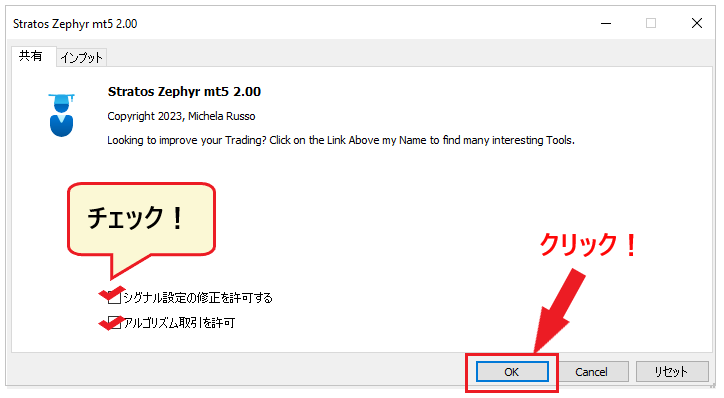
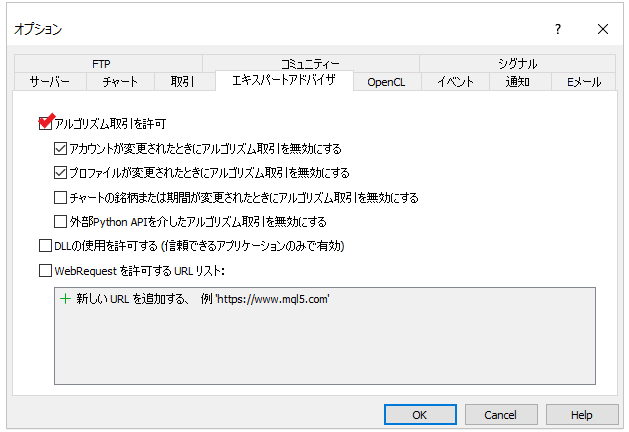
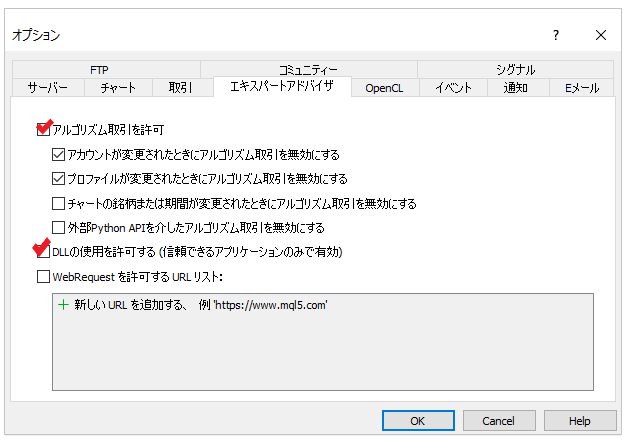

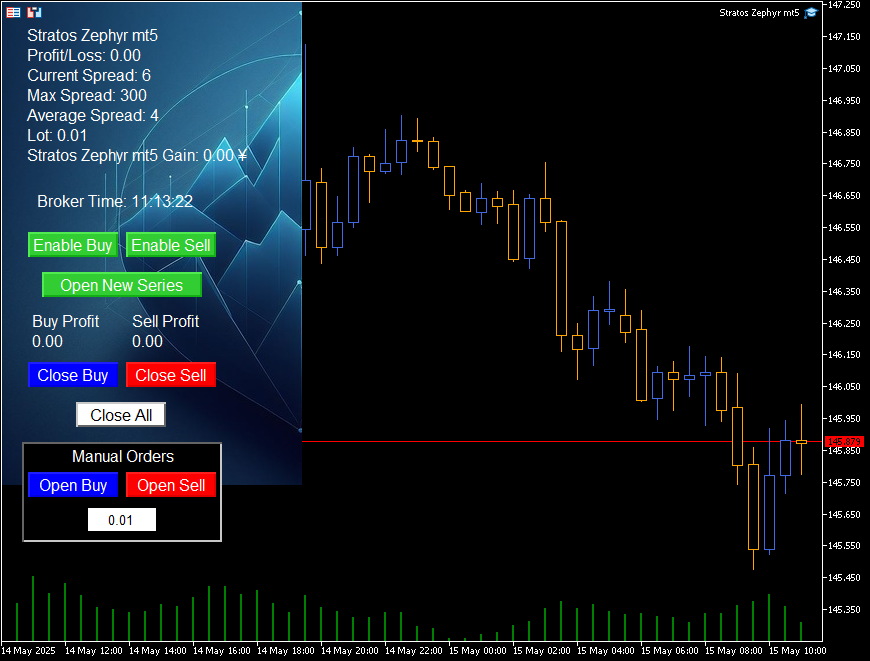
As stated in the official help documentation,only one EA can run on a single chartat a time. Adding another EA to the same chart will remove the previous one. When using multiple EAs, please separate charts by instrument and timeframe. The "Allow DLL usage" option in the options screen is only necessary if the EA calls external programs (DLLs). For such EAs, an additional "Dependencies" tab will appear in the properties.Allowing DLLs for EAs from unknown sources carries the risk of arbitrary code running on your PC, so please only enable this for MQL5 marketplace products or EAs from trusted developers. Items such as "Disable algorithmic trading when account is changed" are safety features that automatically turn off EAs when switching accounts or profiles, and can be left at their default settings.
How to interpret parameter settings | Lot size, stop-loss, and magic number
The parameters (settings) are listed in the "Input" tab of the EA's properties.The names differ from EA to EA, but if you know the meaning of eight types—lot size, risk, stop loss, take profit, magic number, spread limit, trading time, and loss limit—you can understand the parameters of most EAs. Forthe first time, it is safest to run the EA with the developer's initial values (default) at the minimum lot size, and then change them after confirming its behavior with a backtest.
| Common parameter names | meaning | How to determine initial values and precautions |
|---|---|---|
| Lots / Fixed Lot / Lot Size | Lot size per order (fixed) | Initially, use the minimum lot size (0.01 for most brokers). If the EA uses a martingale strategy to open multiple positions, consider the total lot size |
| RiskPercent/AutoLot/MM (Money Management) | Automated lot size that sets a risk of ◯% of the balance for each trade | When turned ON, the lot size changes depending on the balance increase or decrease. Use a fixed lot size until you get used to it |
| StopLoss/SL (pips・points) | Stop-loss range. Check the EA description to see if the unit is pips or points (0.1 pips) | Some EAs (Expert Advisors) have no stop-loss (0).Always check that there is a value. If it is narrower than the broker's "stop level," the order will be rejected. |
| TakeProfit/TP | profit margin | Same unit as SL. If it's 0, profit taking is left to the EA's logic |
| MagicMax | The number that the EA uses to identify its own order | When running multiple EAs on the same account,always use different account numbers. Duplicate numbers will close the positions of other EAs. |
| MaxSpread/Slippage | I will not place an order with a spread or slippage wider than this value | If the spread is too narrow, it can be a reason for traders not to trade. It should be slightly wider than the average spread of the broker |
| TradingHours/StartHour・EndHour/GMT Offset | Difference between trading time and server time | The time is set based on the broker's server time (which varies by broker; the time displayed in the MT4/MT5 quotes is the server time). It is not Japan Standard Time |
| MaxDrawdown/Loss Cap/EquityStop | A safety mechanism that stops and closes all positions if losses reach a certain amount or percentage | If available, always activate it. The following example is a type that stops at a certain loss amount |
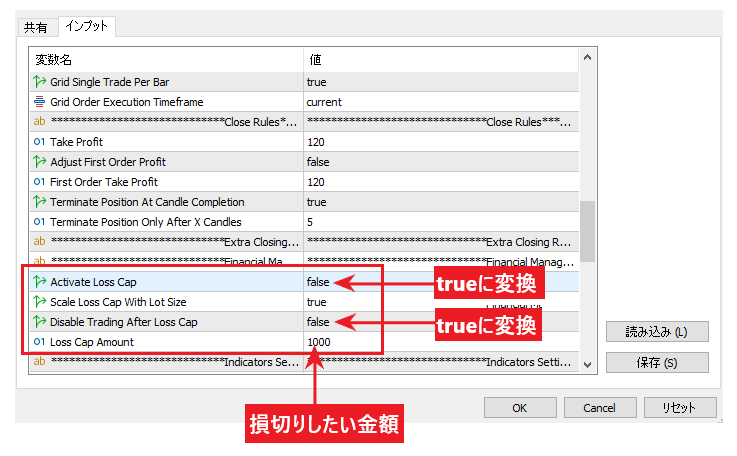
In the example above, changing "Activate Loss Cap" from false to true and entering the acceptable loss amount in "Loss Cap Amount" will cause the EA to stop trading once that amount is reached. Setting "Disable Trading After Loss Cap" to true will prevent automatic restart after the limit is reached. As, after changing parameters, you should run a backtest with the same settings before putting it into operation(next chapter).
Backtesting with Strategy Tester | 8 Settings and How to Interpret the Results
Once you've installed the EA, before running it on a live account,you should use the Strategy Tester (built into MT4/MT5, free) to backtest with historical data and see numerically "how much profit the EA made and how much loss it incurred, on which instruments, timeframes, and settings."The official MetaQuotes help defines testing as "a single run with fixed parameters" and optimization as "multiple runs with combinations of multiple parameters." Start with a single test.
Eight items in the settings tab | Model: "All Ticks", Latency: "Random"
The testerright-clicking the EA in the Navigator and selecting "Test" (or by going to the "View" menu and selecting "Strategy Tester"). Simply fill in the eight items listed in the "Settings" tab at the bottom and press "Start". The meaning of each item has been summarized based on the explanations in the official MetaTrader 5 help documentation.

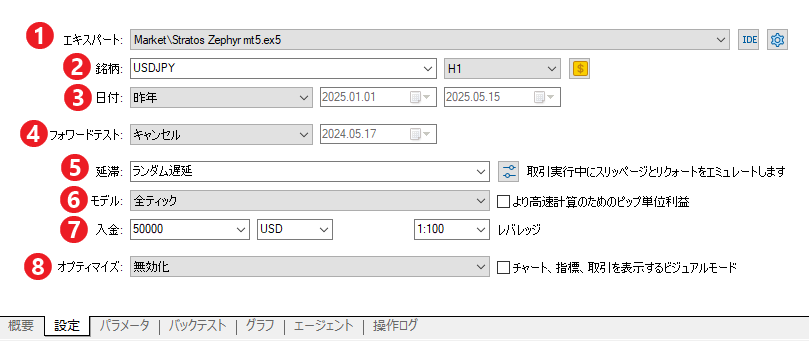
| Item (MT5 Japanese UI) | Summary of the official help documentation | Recommended settings for beginners |
|---|---|---|
| ① Expert | The EA to test. Choose from your installed EAs. You can change the EA's parameters using the gear icon on the far right | I want to test the EA |
| ② Stock symbol and time frame | Specify the chart (main chart) on which to display the EA. Only instruments that are displayed in the quotes can be selected | Recommended instruments and timeframes as described in the EA description |
| ③ Date | Choose from preset time periods (past month, last year, etc.) or a custom period. A minimum of 100 test bars of history are required; if there aren't enough, the start date will automatically be shifted later (a notification will be sent to the log) | First, the most recent year. If using daily charts, then the past three years or more |
| ④ Forward Test | The specified period is divided into "backtest (first half)" and "forward test (second half)". The division can be 1/2, 1/3, 1/4, or custom. This feature helps avoid over-optimization | Initially, it's "Cancel (none)". This is used when optimizing |
| ⑤ Delinquency (late payment) | Reproducing network latency. "No latency" is the ideal condition (no requotes). "Random latency" adds a random delay between 0 and 9 seconds (if 9 seconds is obtained, it is re-randomized and added). "Fixed latency" specifies a measured value such as ping | "Random delay" (closer to actual operation) |
| ⑥ Model (Tick Generation) | "All Ticks" = The most accurate and slowest mode, generating ticks from M1 charts / "All Ticks Based on Actual Ticks" = No generation using actual ticks accumulated by the broker (large download required the first time) / "1-Minute OHLC" = Only the four values of each 1-minute chart / "Open Price Only" = A rough, high-speed test using only the open price of each candle (limit and stop order execution prices are not accurate) | "All ticks." If the service provider is providing actual tick data, then "all ticks based on actual ticks" is the closest to reality |
| ⑦ Deposit and leverage | Initial margin, currency (default is account currency), and leverage. These affect the amount of margin required | The actual amount you plan to deposit and the leverage of your account |
| ⑧ Optimize | "Disable" = 1 test / "Slow complete algorithm" = all combinations / "Fast genetic algorithm" = search using a genetic algorithm / "All stocks in the quote display" = multiple stocks with the same settings | "Disable". Optimization willbe discussed later. |
*The item names are those used by our editorial team in MT5 (Japanese UI, as of May 2025). In the official MetaTrader 5 help, these are referred to as "Execution (Delay)", "Tick generation mode", and "Optimization". The MT4 tester has three models: "Every tick / Control points / Open prices only", and does not have a real tick mode
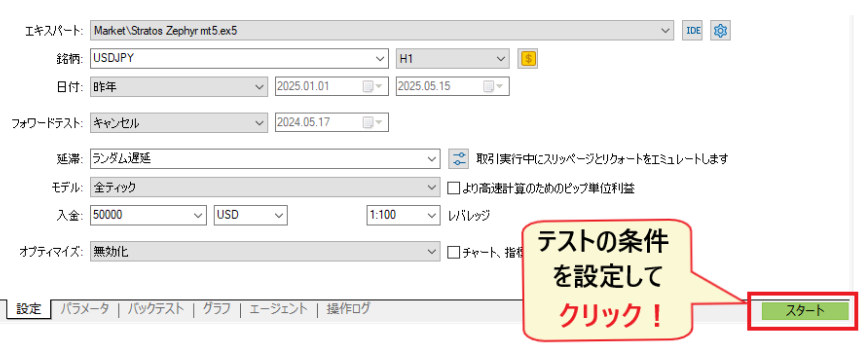
The initial test will take some time because it downloads the full history of the instrument and the currency pair for conversion (if testing an instrument different from your account currency). As stated in the official help, the download only happens once, and subsequent tests will be faster
How to interpret the results | Our editorial team's verification example (Stratos Zephyr, USD/JPY, 1-hour chart)
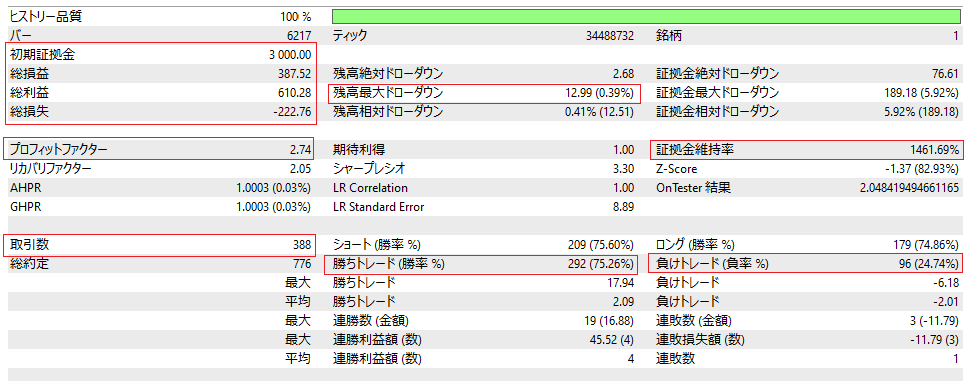
Once the test is complete, the numerical data will be displayed in the "Backtest" tab (called the "Results" tab in the official help), and the balance and effective margin trends will be displayed in the "Graph" tab.What you should be looking at is not the "Total Profit/Loss," but rather the four metrics: Profit Factor, Maximum Drawdown (both balance and effective margin), Number of Trades, and Expected Gain. We will show you how to interpret these resultsusing the results of our editorial team's test of the free EA "Stratos Zephyr mt5" in May 2025, using USDJPY, a 1-hour chart, a full year in 2024, an initial margin of $3,000, all ticks, and random delays.
| item | Values in the verification example | Official definition (MetaTrader 5 Help) | How to read |
|---|---|---|---|
| Total profit and loss | $387.52 (approximately 12.9% of $3,000) | Total profit/loss of all trades | Look at the ratio to the period and initial margin. Do not judge based on this alone |
| Profit Factor (PF) | 2.74 | Total profit ÷ Total loss. If it's 1, profit and loss are equal | A value below 1.0 will result in a decrease in funds. 1.3 or higher is a point to consider. With a small number of trades, a few wins can cause a significant jump |
| Maximum drawdown of balance | $12.99 (0.39%) | The maximum drop in balance from the maximum value to the next minimum value (on a settlement basis) | It only reflects the decline after the settlement.Looking at this alone, you might misidentify EAs that are holding unrealized losses. |
| Margin (Effective Margin) Maximum Drawdown | $189.18 (5.92%) | The maximum drop in effective margin (including unrealized gains and losses) from the maximum to the next minimum | This shows the peak of unrealized losses. This EA had unrealized losses approximately 15 times its balance. This is a significant factor in martingale strategies |
| Number of transactions | 388 times (292 wins, 75.26% / 96 losses, 24.74%) | Total number of trades with realized profit or loss and the percentage of wins and losses | A record of several hundred or more trials is statistically reliable. A 75% win rate also suggests the possibility of a "small wins, big losses" pattern (maximum loss $6.18 vs. maximum win $17.94 = this EA is the opposite and therefore healthy) |
| expected gain | $1.00 | Average return per trade (statistical value) | See if the amount is small enough to be wiped out by changes in spreads and fees. $1 per trade is small |
| Recovery Factor | 2.05 | Profit earned ÷ Maximum drawdown | The higher the price, the less risk was involved in the profit. (Comparison over the same period.) |
| Sharpe ratio | 3.30 | (Return - Risk-free interest rate) ÷ Standard deviation of returns. The tester assumes the risk-free interest rate is zero | The official guideline is "1.0 or higher is good, 3.0 or higher is very good, and anything below 0 is unprofitable." |
| Margin maintenance ratio | 1461.69% | Lowest margin maintenance ratio recorded during testing | The lower the value, the closer you are to a stop-loss. Increasing the lot size will lower this value |
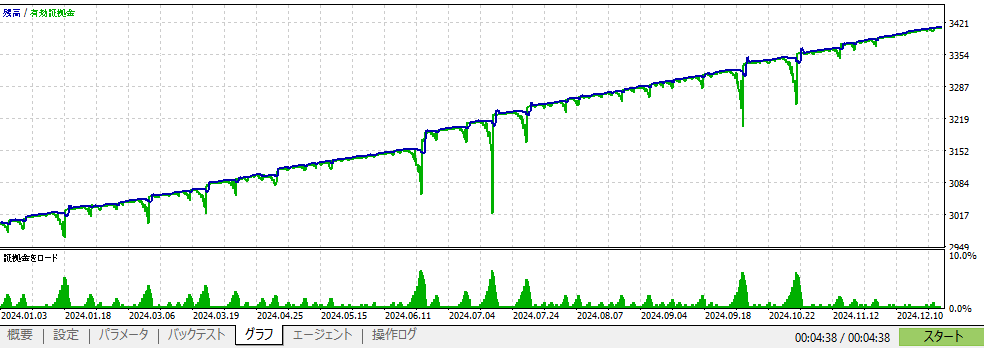
In the graph, blue represents the balance and green represents the effective margin.even though the balance is steadily increasing, there are several instances where the effective margin temporarily drops significantly. This means that there are times when you are holding unrealized losses while waiting for a recovery, and this corresponds to the "Maximum margin drawdown of 5.92%" in the table. If you increase the lot size with high leverage, this drop will directly lead to a stop-loss, so in this example, the premise is to "use the minimum lot size and maintain a margin of safety."
Backtest results are based on past data and do not guarantee future profits. The MQL5 Marketplace terms and conditions also state that test results and product descriptions do not guarantee future results
Testing with different currency pairs and timeframes | The correct way to use optimization and forward testing
Even with the same EA, performance can vary significantly depending on the currency pair and timeframe.In our editorial team's testing, using the same Stratos Zephyr, we saw a loss of $1,017 over one year with EURUSD (PF 0.33, maximum drawdown of 40.45%), while it generated profits with USDJPY and AUDJPY.By running several tests with different settings, you can identify the conditions under which that EA excels and the conditions under which it should not be used.
| currency pair | Total profit/loss (dollars) | PF | Maximum drawdown of balance |
|---|---|---|---|
| USD/JPY | 387.52 | 2.74 | 0.39% |
| EURUSD | −1,017 | 0.33 | 40.45% |
| AUDJPY | 295.82 | 3.47 | 0.49% |
| Hourly timeframe | Total profit/loss (dollars) | PF | Maximum drawdown of balance |
|---|---|---|---|
| 1-minute chart (3 months) | 427.67 | 2.90 | 0.74% |
| 1-hour chart (1 year) | 295.82 | 3.47 | 0.49% |
| Daily (3 years) | 41.73 | 5.56 | 0.08% |
*This analysis was conducted by our editorial team using the MT5 Strategy Tester in May 2025. The top table shows 1-hour chart data for the year 2024, and the bottom table shows AUD/JPY. Both use an initial margin of $3,000 and default parameters. Rows other than USD/JPY and the 1-hour chart are recorded values from that time, and the results screen was not saved. Due to the different time periods, the total profit/loss cannot be directly compared
One thing to be careful of is thatif you spend too much time searching for the "best performing setting," you might end up with a setting that only matches past price movements (over-optimization). The official MetaTrader 5 help documentation provides a "Forward Test" feature in the settings tab to address this. It divides the specified period into two halves, and the settings optimized in the first half are verified in the second half (forward period). With exhaustive search, the top 10% of settings are retested in the forward period, and with genetic algorithms, the top 25% are retested, and you can compare them in the "Optimization Results" and "Forward Results" tabs.
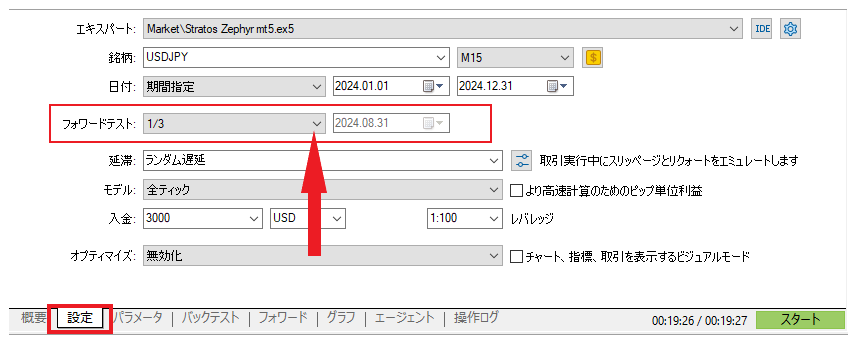
- The meaning of "1/2," "1/3," and "1/4" for forwarding: The forward period is the latter half, third, and quarter of the set period, respectively. "Custom" allows you to manually specify the start date for forwarding.
- How to optimize: In the settings tab, select "Fast Genetic Algorithm" under "Optimize," then in the "Parameters" tab, check the items you want to run and specify the start value, end value, and step. The total number of combinations will be displayed below. Double-clicking the "Optimization Results" row will rerun the unit test with those settings.
- Criteria for selection: Only settings that show the same performance trend in both the optimization and forward testing periods will be considered. Settings that perform poorly in the forward testing period will not be adopted.
- Running on a demo account is also a type of forward testing—after the tester, the system is run on a demo account or with the minimum lot size for several weeks to check for deviations from the tester results before going live.
Reasons why backtesting may not work or may be slow
Most cases of "backtesting not working" are due to configuration or historical data issues, and solutions are provided in the official help documentation
| Symptoms | cause | handle |
|---|---|---|
| The stock name does not appear in the dropdown menu | Only stocks listed on the quote display can be tested (official) | Right-click on the bid/ask price display → Select the desired stock by selecting "Stock Name" |
| The start date is automatically pushed back | A minimum of 100 bars of history are required for the test; if there aren't enough, the start date will be automatically adjusted (the log will show "start time changed to…"). This is not an error | Use a shorter timeframe or shorten the period. Daily charts can be off by several months |
| The first session never ends | The first time you download, all transaction history and the history of the converted currency pair will be downloaded. The real tick mode has an even larger capacity | Wait for the first run (be fast from the second run onwards). First, use "1-minute OHLC" to narrow down the possibilities, then run "all ticks" only on the candidates |
| Even after pressing start, no transactions appear | Different currency pair/timeframe than recommended by the EA / Expired demo version of the market product / Failure to meet the EA's requirements (minimum deposit amount, passcode) | Set it up according to the EA instructions. The free demo version on the market is for testers only, and the expiration date is displayed in the "Sharing" tab of the properties |
| The results do not match reality | The model is being tested under ideal conditions such as "open price only," "no delay," and "fixed spread." | Retest with "All Ticks" or actual ticks + "Random Delay". MT4 results are coarser when using "Control Points" or "Open Price Only" (official) |
EA Activation, Deactivation, Manual Settlement, and Deletion | Basic Operation
There are four ways to operate a running EA: "Stop," "Close Positions," "Remove," and "Delete,"each with a different scope of effect. Turning off the toolbar button will not close open positions, and deleting the EA from the Navigator will not stop the EA on the chart(MetaTrader 4 official help). To stop losses, perform a "button OFF + manual closing" combination.
| Things I want to do | Operation (MT5) | Operation (MT4) | Effective range and precautions |
|---|---|---|---|
| Stop placing new orders for all EAs | Turn OFF the "Algorithmic Trading" button on the toolbar (red square) | Turn OFF the "Algorithmic Trading" (formerly "Automated Trading") button on the toolbar | All EAs on the terminal will stop placing new orders.Open positions will remain as they are. In some cases, the closing logic of EAs will also stop. |
| Stop only specific EAs | Right-click on the running EA in the Navigator list and select "Disable Trading," or uncheck "Allow Algorithmic Trading" in the EA properties of the chart | Uncheck "Allow automated trading" in the EA properties of the chart | Only the EA for that chart. The icon in the upper right corner changes to indicate that trading is unavailable |
| Close your open positions | In the "Trade" tab of the toolbox, right-click on the position and select Close, or click the "x" on the far right | In the terminal's "Trade" tab, double-click the position → Close, or click the × on the far right | Stopping the EA will not automatically close positions. This is the first place to check during sudden changes |
| Remove the EA from the chart | Right-click the chart → "Expert Advisors" → "Remove", or select "Remove from Chart" from the list of active advisories in Navigator | Right-click on the chart → "Expert Advisors" → "Delete" | The EA will completely stop. Closing the chart, adding another EA to the same chart, or changing the profile will also disable it (official) |
| Delete the EA file itself | Right-click on the EA name in Navigator → "Delete" | Same left | Even if you remove it from the Navigator, the EA with the same name displayed on the chart will not stop(MT4 official help). Remove it from the chart first. |
Start/Stop | Check the status using the button and the icon in the upper right corner of the chart
Switching between running and stopping is done with a single "Algorithmic Trading" button on the toolbar.A green ▶ indicates ON (running), and a red ■ indicates OFF (stopped), and the icon in the upper right corner of the chart changes accordingly. The official MetaTrader 5 help explains that "turning this button OFF will disable automated trading for all EAs, even if you have individually permitted it for each EA."
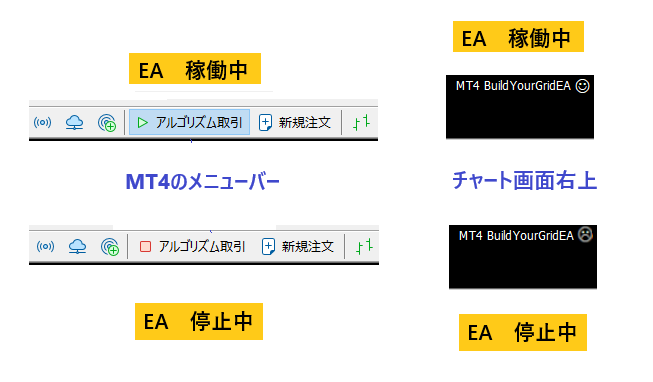
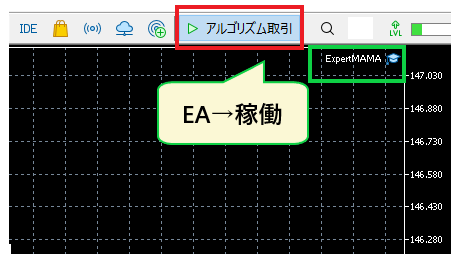
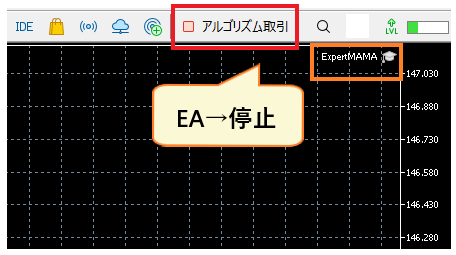
In MT5, a blue hat icon indicates the EA is running, while a white icon indicates it's unavailable for trading (as displayed on our editorial team's terminal). In MT4, as described in the official help documentation, a smiley face next to the EA name indicates it's running, an "L" indicates it's unavailable for trading on the EA's side, and a dagger-like symbol (a frowning face icon on our MT4) indicates all EAs are stopped.EAs also stop when you close the terminal, close the chart, or switch profiles, so if you're running on a VPS, make sure the terminal is still running before disconnecting the remote connection.
Manual Closing | Close positions yourself after stopping the EA
Simply turning the button OFF will leave the positions opened by the EA in your account.To stop losses during sudden market changes, right-click the position in the "Trade" tab of the toolbox (Terminal in MT4) and select "Close," or manually close it by clicking the "×" at the right end of the row.If there are multiple positions, close them one by one, or use the bulk close option in the right-click menu.
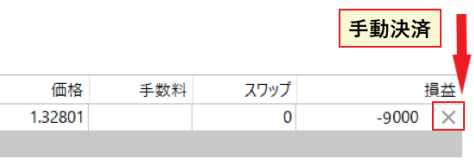
If an EA (Expert Advisor) manages a manually closed position as "its own open positions," the EA's internal state and the account state may become mismatched. Especially with martingale/grid-type EAs, manually closing only a portion of the position can trigger unexpected additional orders, soto remove the EA from the chart before closing the position manually.
Remove from chart / Remove from Navigator
To completely stop an EA, right-click on the chart → "Expert Advisors" → "Delete" to remove the EA from the chart (in MT5, you can also remove it from the list of active EAs in the Navigator). If you want to delete the file as well, right-click on the EA name in the Navigator → "Delete"
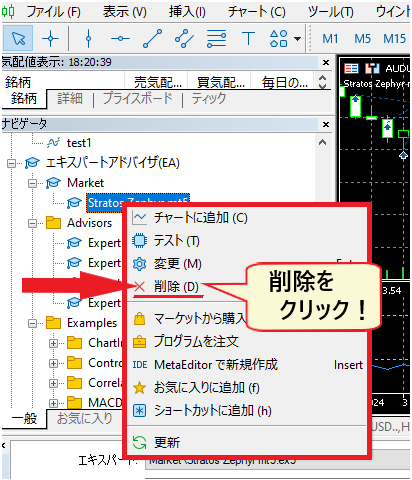
The official MetaTrader 4 help documentation clearly states that "removing an EA from the Navigator will not stop any EAs with the same name that are displayed on the chart." The correct procedure is: ① Close the position → ② Remove from the chart → ③ Remove from the Navigator if necessary. Deleted EAs can be reinstalled using the initial installation procedure
Reasons why your EA isn't working and how to fix them: 5 checks and how to read the logs
The reasons why "the EA is installed but not trading" can be categorized into five types:① permission setting is OFF, ② the market is closed or prices are not moving, ③ account/login problems, ④ orders are being rejected by the server, and⑤ mismatch in EA file or environment. The official MetaTrader 5 help explains that when automated trading is OFF, "the EA will run but cannot trade," which is a typical case where the EA name appears in the upper right corner but no orders are placed. If you check them in order from the top, you can usually isolate the problem within 10 minutes.

| Symptoms | Possible causes | Place to check | handle |
|---|---|---|---|
| The EA name does not appear in the upper right corner | EA is not installed / I installed an MT4 EA on MT5 (it doesn't appear in the Navigator) / I installed a different EA and the previous EA was removed | Navigator's "Expert Advisor" | Reinstall the correct version (.ex5/.ex4) and drag it onto the chart. 1 chart, 1 EA |
| The EA name appears, but the icon is untradeable (white hat, "L", frowning face) | One of the three permission settings is OFF. There is also a setting that automatically turns OFF when you switch accounts, profiles, or timeframes | EA Properties "Share" tab / Tools → Options → Expert Advisor / Toolbar buttons | Turn all three locations ON. MT4's "Allow" settings in the options don't reflect changes to currently running EAs (the default settings for newly added EAs will apply), so you need to reinstall the EA (official) |
| The icon looks normal, but no orders are being placed | The market is closed (weekends, holidays, or outside of trading hours for the instrument) / the price is not moving / the EA's entry conditions are not met / waiting due to spread restrictions or trading time parameters | Update the quote display, log's "Expert" tab | Wait for the market to open. Check the parameters MaxSpread and TradingHours. If conditions are still pending, just wait and see |
| The log says "Market is closed" | Server return code 10018 (MT4 is 132) = Closed/Outside of trading hours | "Operation Log" "Expert" tab | Check the trading hours for the specific stock and wait |
| The log says "not enough money" | 10019 (134 in MT4) = Insufficient margin. The lot size is too large relative to the balance | Same as above, excess margin in the "Trading" tab of the toolbox | Reduce lot size, deposit funds. For averaging down strategies, calculate using the total lot size |
| The log shows "Invalid stops" | 10016 (130 in MT4) = Stop-loss and take-profit range is narrower than the broker's stop level | "Stop level" specified by the stock | Extend the SL/TP parameters beyond the stop level |
| The logs show "Trade is disabled" and "Autotrading disabled by server" | 10017・10026 (133・4112 for MT4) = The server has disabled trading/automated trading for that account or instrument | Vendor's My Page/Support | Check with your broker to see if your account type supports EAs. If you're logged in with your investor password, log in again with your trading password (official: investor privileges are view-only) |
| The log shows "Autotrading disabled by client terminal" | 10027 (MT4 is 4109 "Enable checkbox "Allow live trading"") = Terminal-side permission OFF | Permits for 3 locations | Turn on permission |
| The log shows "Invalid volume" | 10014 (131 in MT4) = Does not match the lot size increment/minimum/maximum lot size | Minimum lot size and lot step size for each brand specification | Adjust the lot size parameters to match the account tick size (e.g., 0.01) |
| The log shows "Invalid order filling type" | 10030 = The execution method (FOK/IOC) does not match the broker's specifications. This is likely to occur with EAs that are set up for a different broker | "Execution" field in the stock specifications | Change the execution method parameters of the EA, or check with the developer |
| The log shows "No connection" followed by "Requote" | 10031 = Server not connected, 10004 = Requote (price fluctuation/delay) | The connection status in the lower right corner of the screen, VPS/network | Log in again, restart the VPS. Increase the slippage tolerance parameter |
| It stopped working when I changed the timeframe or account type | The option "Disable algorithmic trading when the instrument or timeframe of the account/profile/chart is changed" was activated (official safety mechanism) | Tools → Options → Expert Advisor | Turn the button ON again. The same applies when switching from demo to real |
*The error messages and codes are based on the official MQL5 reference "Trade Server Return Codes" and the official MQL4 reference "Error Codes" (confirmed September 7, 2026). The log will remain in English
How to view logs | "Expert" tab and "Operation Log" tab
The quickest way to identify the cause is through the logs. As stated in the official MetaTrader 5 help,EA activity records (opening and closing positions, modifying orders, EA alerts) are displayed in the "Experts" tab of the "Toolbox," while records of the entire terminal (executing trades, connecting)are displayed in the "Operation Log" tab. In MT4, these are the "Experts" tab and the "Operation History" tab in the "Terminal" window.
- "Expert" tab- Messages and order results issued by the EA. Look for lines containing "failed," "error," or "retcode." If the EA is waiting for conditions to be met, nothing will be displayed, or only the EA's own comments will be shown.
- "Operation Log" tab- Records login, connection, enabling/disabling automated trading, and order submission. The "Autotrading disabled" and "connection" rows indicate the status of the terminal.
- Log files– Right-click the tab and select "Open" to open the folder. Terminal logs are saved in "Logs," and EA logs are saved in "MQL5\Logs" (MT4 is "MQL4\Logs") with a date-based filename (YYYYMMDD.log). Include this file when contacting the developer.
- Strategy Tester Log– The "Operation Log" tab at the bottom of the tester. "start time changed to…" indicates an automatic adjustment of the start date due to insufficient history; it is not an error (official).
When MT4/MT5 itself is not working / When the PC/VPS is the cause
Sometimes the problem isn't with the EA, but with the terminal or environment. A common issue is whencharts don't move on weekends, leading people to think it's "broken,"when in fact it's simply because the market is closed. Otherwise, you should troubleshoot in the following order.
| situation | Confirmation and Action |
|---|---|
| The chart is not updating | Check the connection status (displaying connection speed) in the lower right corner of the screen. If it says "Connection lost," log in again. This is the system's specification on weekends and holidays |
| I have multiple MT4/MT5 installations and another terminal open | Each broker uses a different terminal. Check if it's the terminal/account where you installed the EA |
| Demo accounts are no longer available | The expiration date of a demo account is set by the broker (there are no regulations from MetaQuotes). If it expires, the broker will reissue it |
| The EA stopped on the VPS | Terminal crashes are often caused by Windows Update's automatic restart, VPS contract expiration, or insufficient memory. Check if the terminal and EA start automatically after restarting, and set the update time to a time with less trading activity |
| My PC freezes | Avoid opening too many charts and indicators. Lighten the terminal by dedicating it to the EA (close unnecessary charts). If this doesn't improve things, move to a VPS |
| Nothing I do can fix it | Restart the terminal → Restart your PC/VPS → Reinstall the EA → If it still doesn't work, contact the EA's distributor/vendor support and attach the log file |
The EA will stop when you restart or close the terminal, but your open positions will remain. Before restarting, please check that it is okay to keep your positions open (i.e., that stop-loss orders have been triggered)
Steps to purchase a paid EA | Payment, rental, and activation on the MQL5 marketplace
Paid EAs are purchased through the MQL5 Market (website or Market in the terminal).The process involves four steps: "Test the free demo with a tester → Choose 'Purchase' or 'Rent' → Pay from your MQL5 balance → Automatic download to the terminal." Regardless of the payment method, the system first charges the balance to your MQL5 account before deducting the payment.Purchased items are non-refundable, and the charged balance cannot be withdrawn, so it is essential to test with a rental or demo before purchasing (MQL5 official, confirmed September 7, 2026).
| item | Official MQL5 specifications (confirmed September 7, 2026) | Points to note |
|---|---|---|
| Prerequisites for purchase | Set your MQL5 account in the terminal under "Tools" → "Options" → "Community" tab. Phone number verification (SMS or Telegram) is required for paid services | You cannot proceed with payment unless you register your phone number |
| Pre-purchase verification | Download the demo version via "Free Download" → Access the strategy tester from the Navigator by selecting "Test". The demo version will not work on charts in live or demo accounts; it is for testers only | It's not possible to test it on a chart. For testing that closely resembles actual operation, you'll need to rent it |
| Buy outright | The price next to the "Purchase" button is the price for an unlimited license. After purchase, updates from the same vendor are free and will be reflected in the terminal within 24 hours of release | Items purchased through the marketplace are non-refundable(Terms and Conditions IV.14). |
| rental | If set by the seller, rentals are available for 1, 3, 6, or 12 months. Unlike the demo version, there are no restrictions other than the rental period | When the term expires, the EA will automatically be removed from the chart and any open positions will be left untouched(official warning). A notification will be sent to the operation log one day before the term expires. The rental fee will not be applied to the purchase price. |
| Payment methods | All payments are in US dollars. Payments are accepted via Visa, Mastercard, JCB, UnionPay, and other regional payment systems. Regardless of the method, you must first top up your MQL5 balance before making a payment | The charged amount cannot be withdrawn (it can only be used within MQL5). Charge only the amount you need |
| Activation (PC authentication) | Purchased items are linked to the PC used for the purchase. The number of uses is set by the seller, ranging from a minimum of 5 times (including the initial purchase) to a maximum of 20 times per buyer. It is not linked to an account or vendor, and can be used on multiple terminals within the same PC | This is consumed once each time you switch PCs or VPS. Set up your MQL5 account in the destination terminal → Market → "Purchased" → "Install" |
| Storage location after purchase | Automatically downloaded to "MQL5 Experts Market". Listed in the Navigator under "Market" → "My Purchases" | Even if you manually copy the file, it won't work on other PCs (authentication is required) |
Purchase procedure (via MQL5.com website)
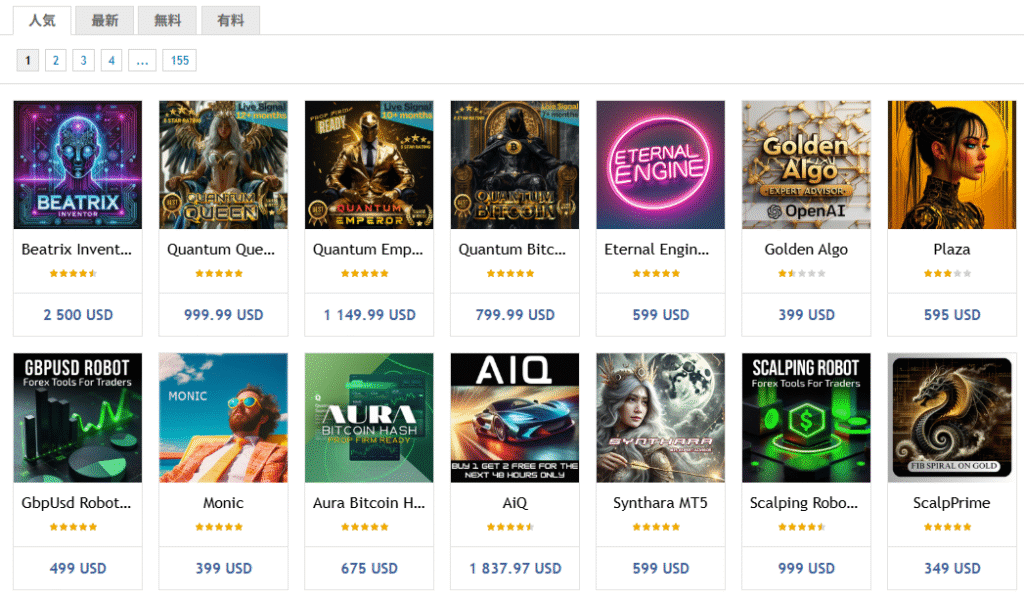
You can also purchase them using the same procedure from the "Market" section within the terminal, but here we will explain using the web version for easier viewing. As a price guideline, when our editorial team checked the market in May 2025, most of the top-ranked paid EAs in the "Popular" category were priced around $500-$1,000, and filtering the price to "Under $50" yielded dozens of pages of inexpensive EAs.There is no correlation between price and performance, so please make your decision based on reviews and tester results.
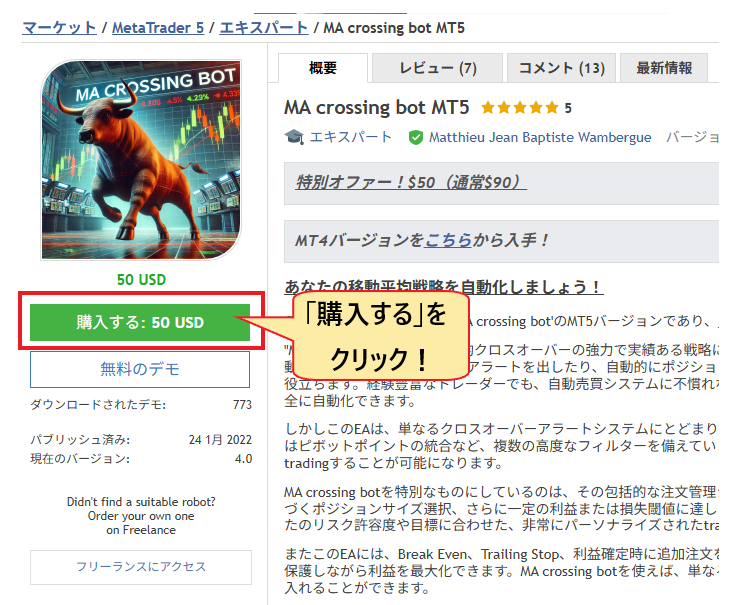
- On the EA details page, click "Purchase" (or "Rental Period"). Next to the price, you will see "Activation: ◯" and the number of activations; please check this.
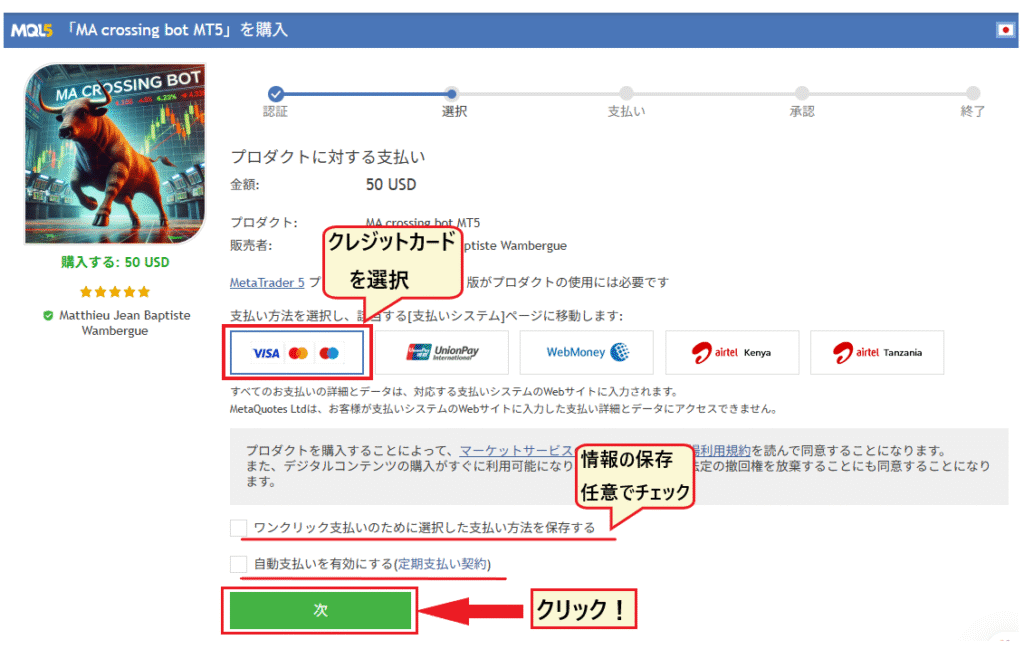
- Select your payment method on the payment screen. If your MQL5 balance is insufficient, top up the required amount using a card or other method before paying. "Save selected payment method for one-click payment" is optional. "Enable automatic payment" is a consent item for recurring billing services such as signals and VPS; MQL5 officially does not support recurring billing for market products, so rentals will not be automatically renewed (rentals must be manually extended before the expiration date).
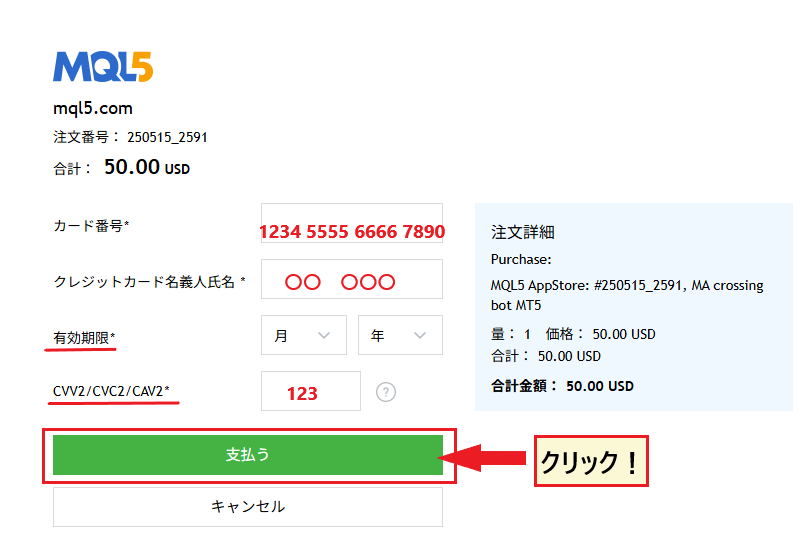
- Enter your card information and click "Pay". Once completed, the EA will be automatically downloaded to the terminal, and you can place it on the chart by going to "Market" → "Purchased" in the Navigator and clicking "Start".
The National Consumer Affairs Center of Japan has published reports of fraudulent cases involving EAs distributed on sites other than the MQL5 Marketplace or sold by individuals. These EAs lack refund, review, and activation mechanisms, and often involve enticing customers with promises of "guaranteed profits" and "limited availability," combined with directing them to unregistered overseas companies for payment. For information on how to identify legitimate sources, please refer to the checklist for fraudulent EAs in our automated trading articles
Points to note when operating an EA: VPS, lot size, periodic checks, and stopping decisions
There are four key points to avoid failure in operation after the setup is complete:"Prepare a working environment (VPS)", "Start with the minimum lot size", "Regularly check logs and performance", and "Stop trading in unsuitable market conditions". An EA is a tool that mechanically executes predetermined rules and does not adapt to market changes on its own, so the decision to stop trading remains a human task.
Four rules for operation
- For 24/7 operation,use a VPS — EAs only run while the terminal is open. They stop when the PC goes to sleep, Windows Update restarts, or the internet connection is lost. Use a free VPS from your broker (XM requires a total balance of over $1,000 + over 5 round-trip lots in the past 30 days, TitanFX requires an effective margin of over $1,000 + over 5 lots per month - official requirements confirmed by each company as of September 2026) or an MQL5 VPS ($10-15 per month). For details, seethe VPS comparison in the automated trading article.
- Start with the minimum lot size and run for several weeks before increasing it—the deviation from backtesting results, and the impact of broker spreads and execution, can only be understood with a real account. Only put in an amount of money you can afford to lose into a single EA.
- Regularly review logs and performance—check the "Expert" tab (EA operation log) and "Operation Log" tab (Terminal operation log) in the toolbox at least once a week for any errors.
- Establish stopping criteria beforehand—for example, "Stop if the maximum drawdown of effective margin exceeds twice the backtest result" or "Stop before important economic indicators are released." Always enable the Loss Cap parameter in EAs.
Rather than searching for the "ultimate EA," it's more effective to question the "compatibility between settings and market conditions" when your existing EAs aren't performing well. When running multiple EAs on a single account, use different magic numbers and separate charts for each EA. Having multiple EAs hedging on the same account, or targeting only sudden changes due to economic indicator announcements, may be restricted by the broker's terms and conditions (seethe EA usage conditions of major brokers in the automated trading article). While overseas FX brokers generally allow the use of EAs, understand that they are not registered with the Japanese Financial Services Agency and are therefore outside of their protection framework (seeaccount freezing conditions and examples).
Frequently Asked Questions about EA Settings in MT4 and MT5
Is it okay to turn off my PC while the EA is running?
Turning it off will stop the EA. Since the EA only runs while MT4/MT5 is running, turning off the power will stop both new orders and settlement logic, leaving only open positions in the account. If you want to run it 24/7, run the terminal on a VPS (Virtual Private Server) and use your home PC for monitoring only. VPS costs and free conditions from brokers are summarized in the automated trading article
Can I set up and run an Expert Advisor (EA) using the MT4/MT5 app on my smartphone?
No, it's not possible. The smartphone app versions of MT4 and MT5 do not have the functionality to run EAs or a strategy tester; they only allow you to check positions and manually close them. EA setup and operation are typically done on the Windows version (or Windows on a VPS), and monitoring and stopping are done from a smartphone by connecting to the VPS using a remote desktop application
Can EAs designed for MT4 be used with MT5?
It won't work. MT4 (.ex4/.mq4) and MT5 (.ex5/.mq5) EAs use different development languages and are not compatible. Installing an MT4 EA on MT5 will cause it to not display in the Navigator and won't work. Even if the EA has the same name, check if a separate MT5 version is available. MetaQuotes has stopped providing new MT4 licenses and has shifted its development focus to MT5, so if you're choosing now, it's safer to choose an EA that has an MT5 version (seethe difference between MT4 and MT5 in the automated trading article).
Can I run multiple EAs simultaneously?
Yes, you can run them. However, as stated in the official help documentation, only one EA can be placed on a single chart, so you will need to open a separate chart for each EA. When running multiple EAs on the same account, set the magic number to a different value, and ensure that the margin is sufficient to withstand the combined maximum drawdown of each EA. The "Algorithmic Trading" button on the toolbar affects all EAs, so if you want to stop only one, disable it in the EA properties of that chart
Why do backtest results and real account results differ?
The main reason is that the test conditions are more ideal than reality. Testing with models using "open price only" or "no delay," fixed spreads, and no slippage will yield more favorable results than actual execution. Retest with "all ticks" or "all ticks based on actual ticks" and "random delay," and if the discrepancy is still large, suspect the influence of the broker's spread widening periods, execution power, or over-optimization
Does the behavior of an EA (Expert Advisor) differ between netting accounts and hedging accounts?
It does change. MT5 has two methods: "netting," which combines positions into one per instrument, and "hedging," which allows you to hold separate buy and sell orders for the same instrument. Many EAs (Expert Advisors) that use martingale, grid trading, or hedging are designed with hedging accounts in mind. If the EA's instructions specify an account type, follow that; otherwise, it's safest to try it with a hedging account. Most MT5 accounts from overseas forex brokers use the hedging method, but be sure to check when opening an account
How do I update EA?
MQL5 Market EAs can be updated to the latest version by right-clicking the EA in the "Market" folder in the Navigator and selecting "Refresh" (or downloading the latest version from the purchase history page). For EAs obtained as files, overwrite the existing .ex5/.ex4 file in the Experts folder with the new one and re-add it to the chart. After updating, parameters may revert to their default values, so please note down your settings before updating and verify the behavior with a backtest
Are there any overseas forex brokers that prohibit the use of Expert Advisors (EAs)?
Major overseas forex brokers such as XM,Exness,FXGT,AXIORY, and TitanFX allow the use of Expert Advisors (EAs) on MT4 and MT5. The terms and conditions may not prohibit EAs themselves, but rather methods such as arbitrage, exploiting delays in price feeds, internal hedging across multiple accounts, and abuse of bonuses. Some brokers also have clauses that may restrict high-frequency trading. For scalping EAs or EAs that only trade during economic indicators, please check the terms and conditions and the EA usage conditions of the top 10 brokers before opening an account
Summary | Setting up an EA involves 5 steps: "Install, Load, Allow access in 3 locations, Verify, and Run"
Setting up an EA in MT4/MT5 involves importing the EA from the MQL5 marketplace or a file, placing it on the chart, granting permissions in three places: "Properties," "Options," and "Toolbar," and then testing it with the Strategy Tester before running it.Typical reasons why it might not work include permission settings, market closures, incorrect account or login, or using the wrong EA file. These can be identified by checking the "Expert" and "Operation Log" tabs in the log.
Key points of this article
- There are three ways to install an EA: "Download from the market," "Place it in the Experts folder," and "Activate the purchased item." There is no compatibility between MT4 and MT5 versions
- To run it, you need to grant permissions in three places (EA Properties / Options / Toolbar). One EA per chart. Check the status using the icon in the upper right corner
- Backtesting is performed using "all ticks + random delay". Results are interpreted as profit factor, balance, maximum drawdown of effective margin, number of trades, and expected profit, and verification is performed by changing the currency pair and time frame. Optimization is performed in conjunction with forward testing
- Open positions remain open when the button is turned OFF. To stop losses, manual closing is required. Deleting the EA from the Navigator does not stop it from running on the chart
- If it's not working, diagnose it by going to "Icon → Market → Account/Login → Logs → Files and Environment". 24/7 operation is done on a VPS
For information on how EAs work, where to obtain them, and how to identify profitable EAs, pleasethe overseas FX automated trading (EA) system and how to get started, as well as recommended brokers and verified free EAs inthe overseas FX automated trading (EA) ranking. If you open an account through MoneyChat, you will also receive cashback on EA trading based on your trading volume.
The account on which the EA runs is accessed via MoneyChat, which accumulates cashback with every trade