











\Better deal than registering directly through the official website/in 1 minuteEBC Financial GroupOpen an

There are only three things you need to do!
Step 1
Open an account via the referral link
Step 2
Register an account with MoneyChat
Step 3
If it's approved, then it's OK!
Let's get started by opening an account withEBC Financial Group!
Proceed to the officialEBC Financial Groupwebsite via the referral link ↗Check the account opening procedure
that suits you.

EBC Financial Groupcreating an account with
?
HOW TO OPEN
Account Opening Procedure
Please see below for detailed instructions
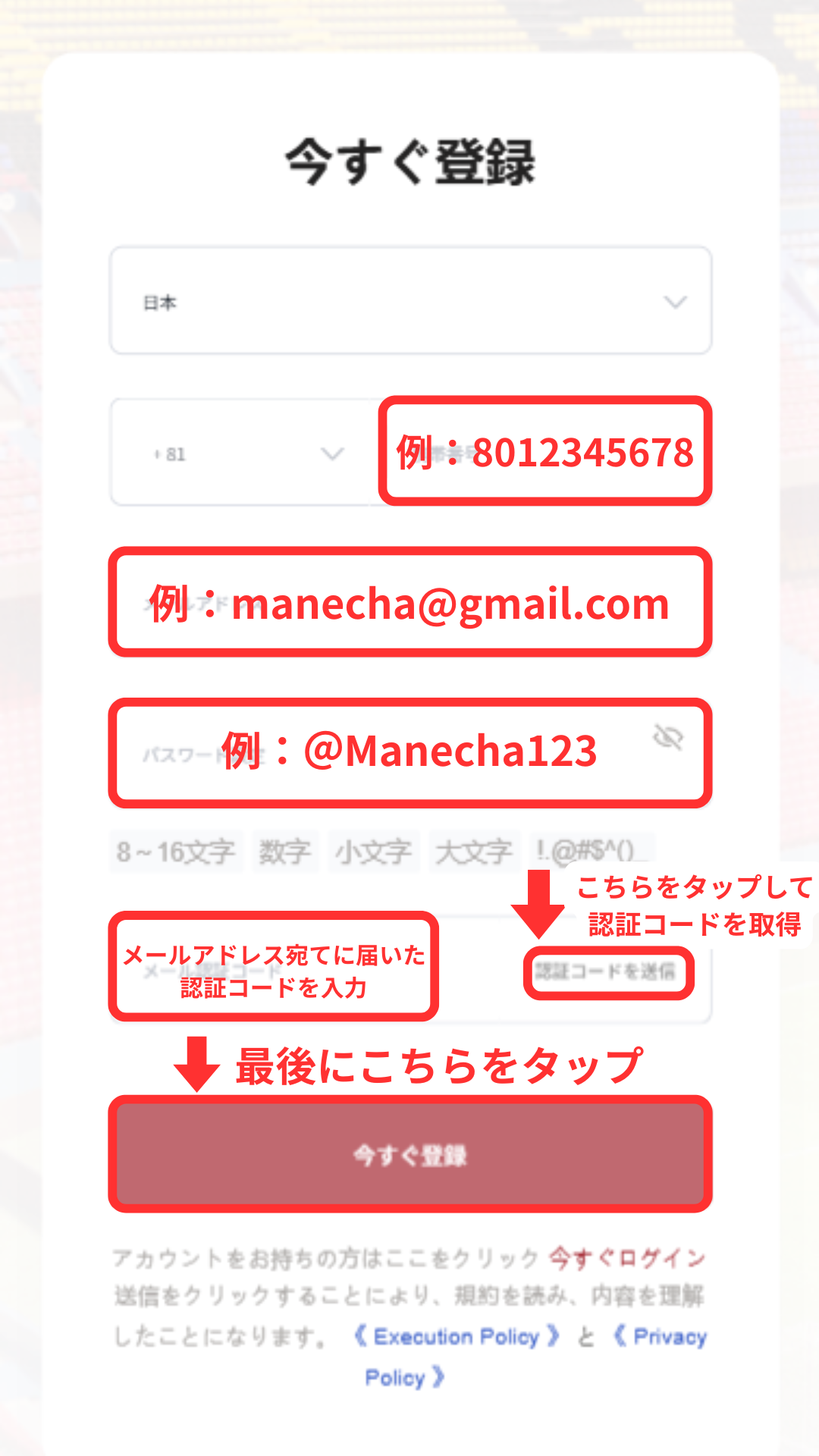
Enter registration information and authentication code
After entering your email address, tap "Send Verification Code" and enter the verification code that you receive in your email address
Get cashback
once your account is open !
CASHBACK APPLICATION
Register with Manecha and get
cashback on every trade.
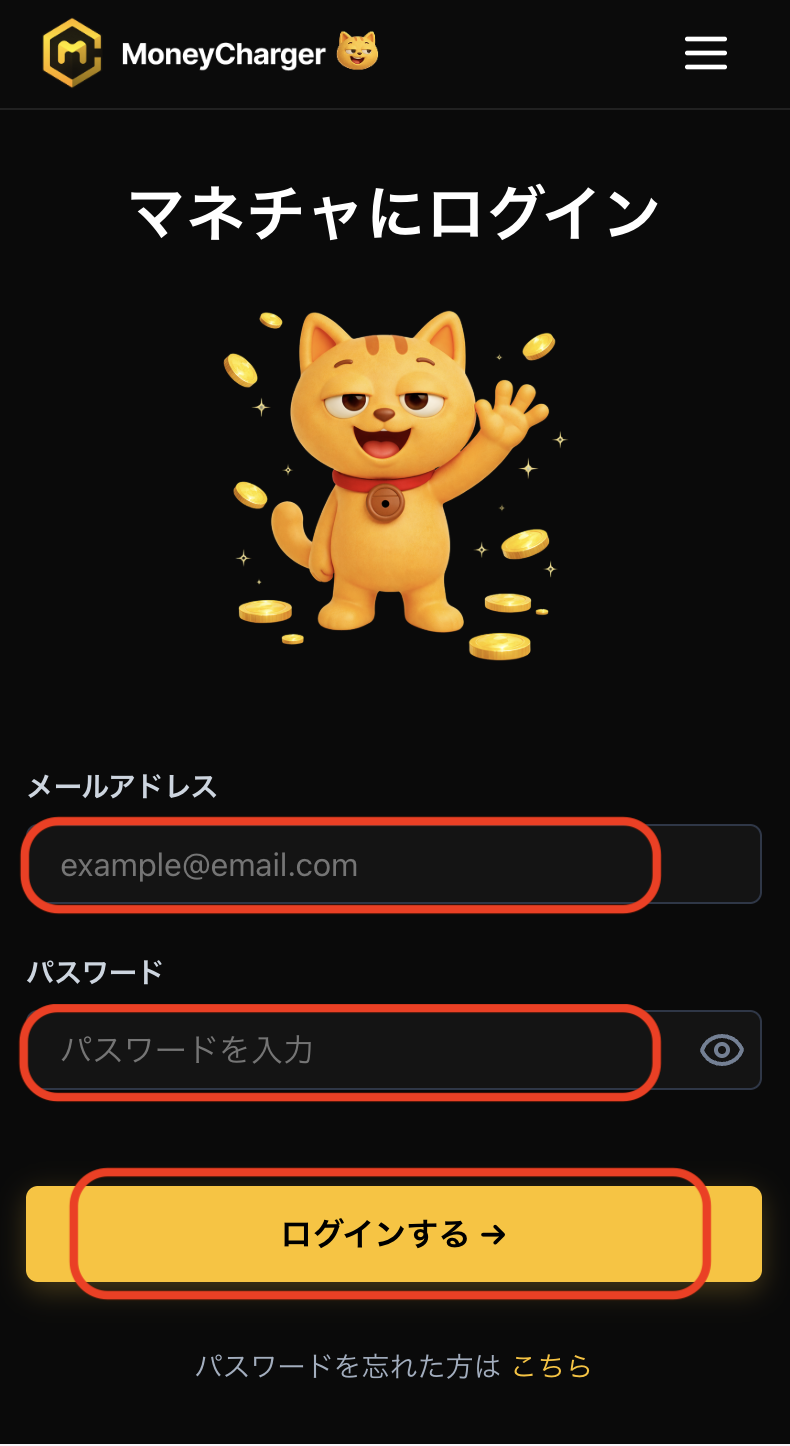
Log in to your MoneyChat My Page
Once your account is opened, log in to your MoneyChat My Page
If you haven't yet registered for a free Manecha account, please complete your registration first
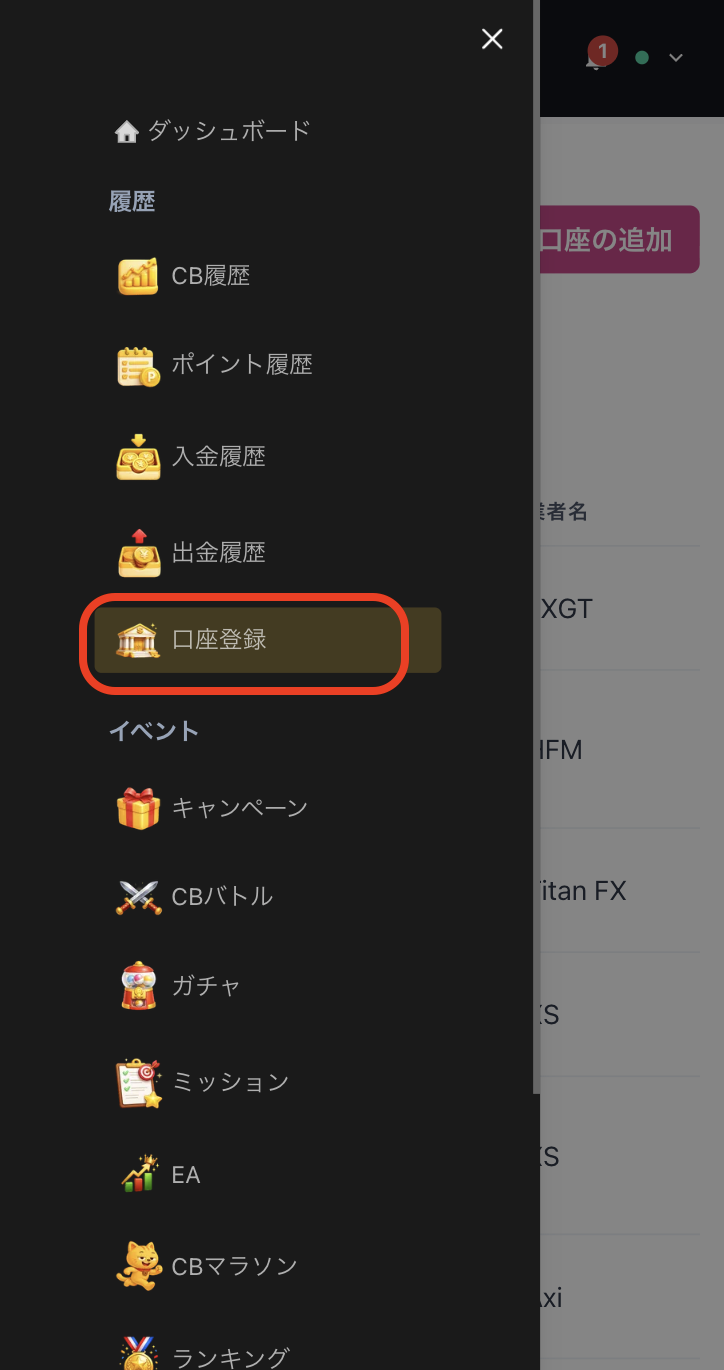
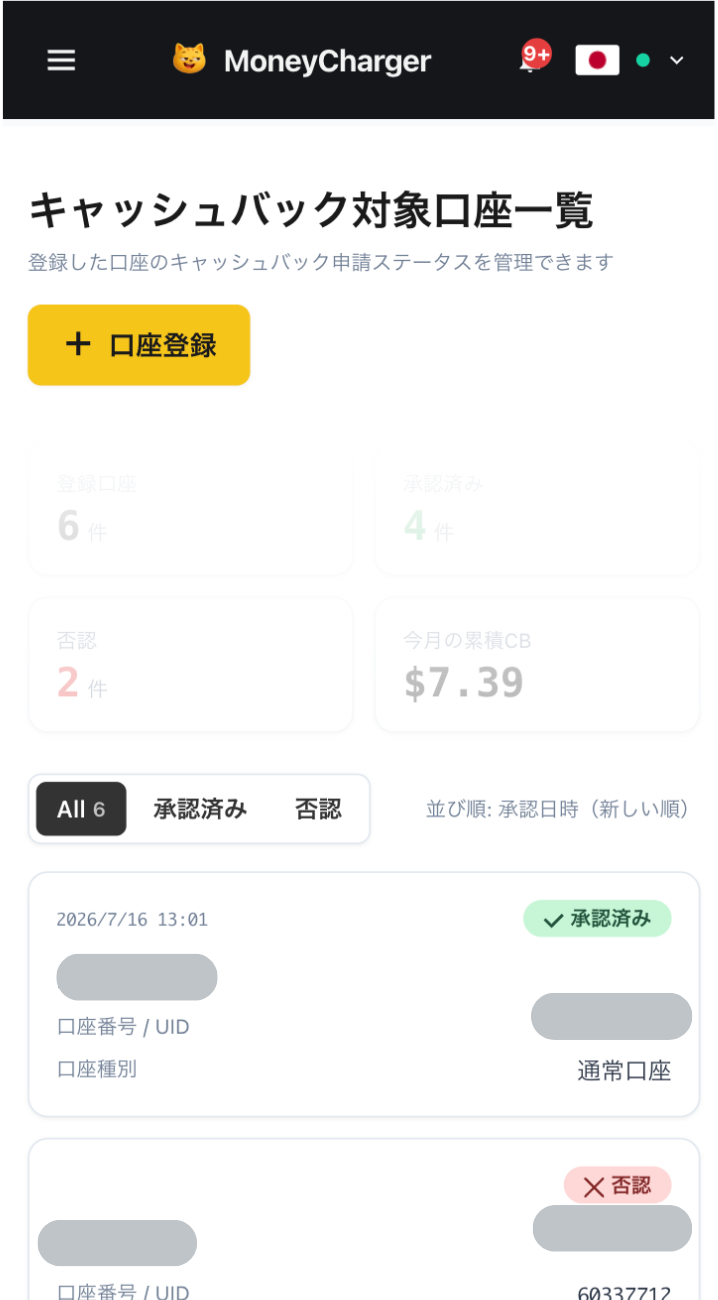
Select "Register Account" from the menu
Open the menu in the upper left corner of the screen and select "Register Account"
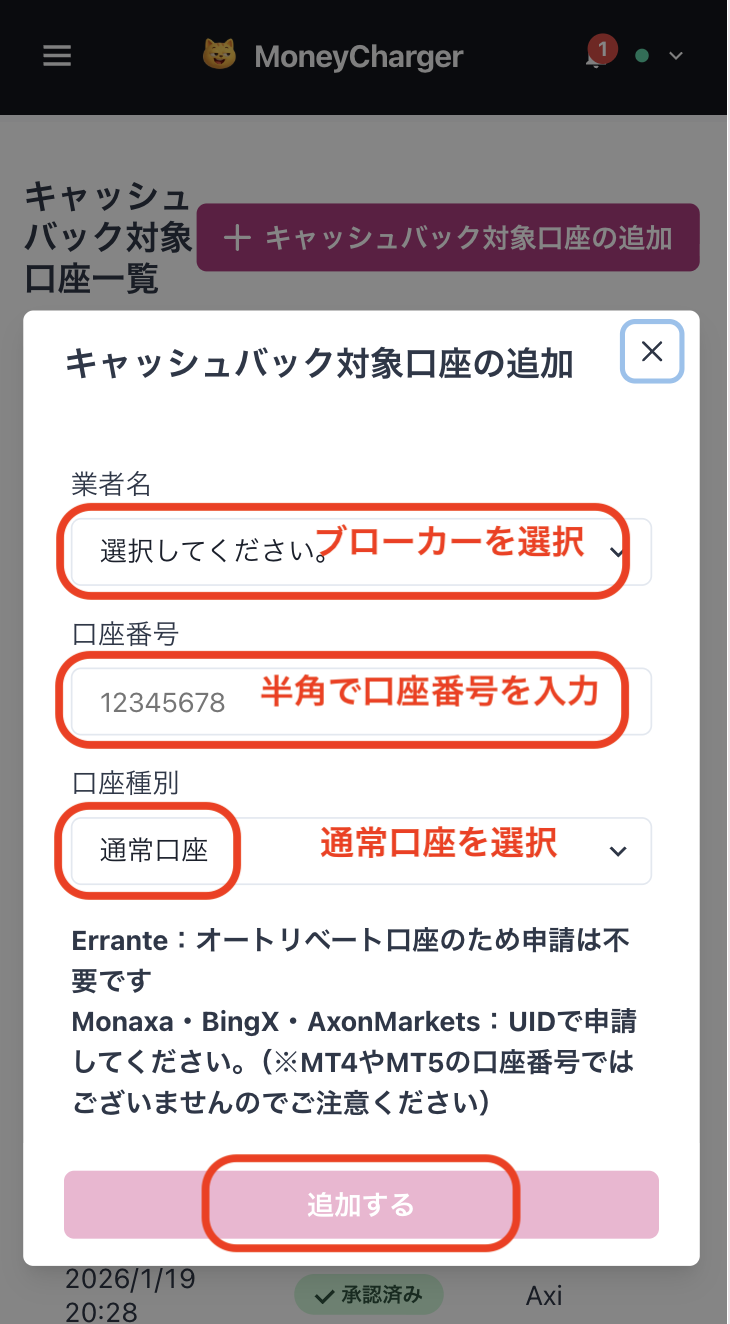
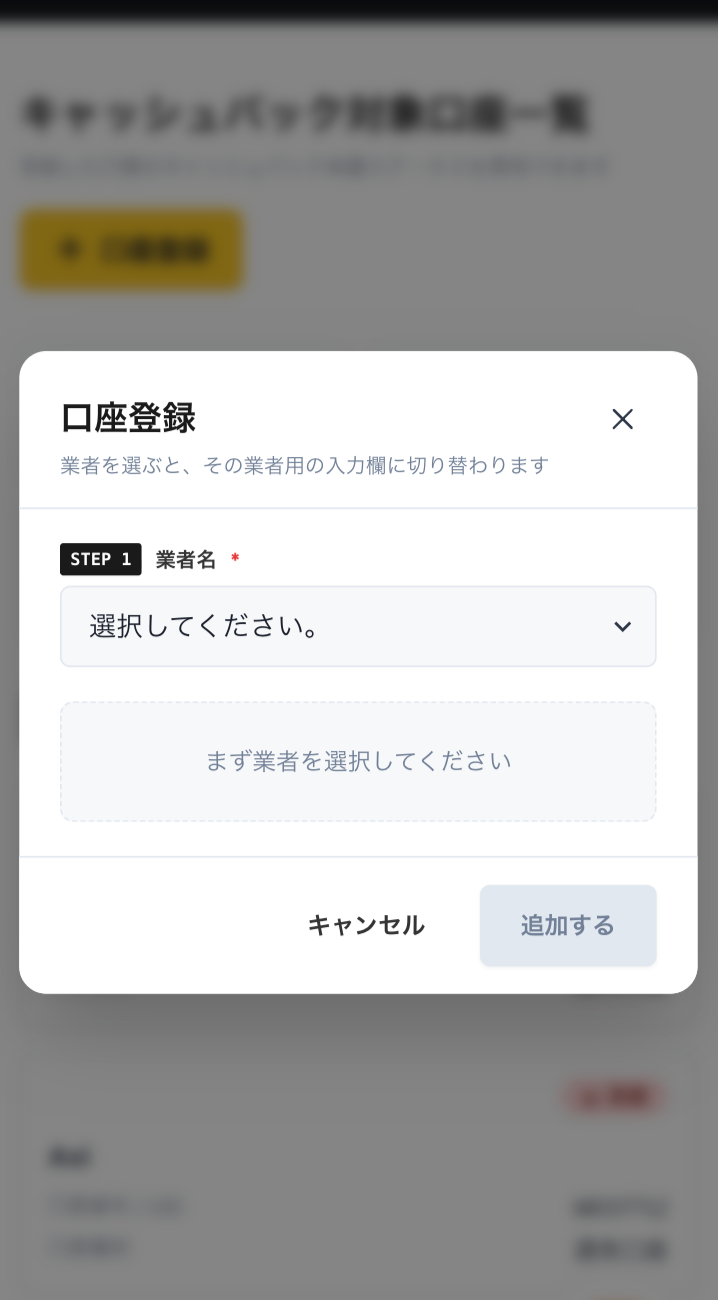
Enter your broker and account number on the account registration screen
On the account registration screen in My Page, selectEBC Financial Groupas the broker name and enter the opened trading account number using half-width numerals
If you are using regular discretionary trading or your own Expert Advisor (EA), please select "Standard Account" as your account type
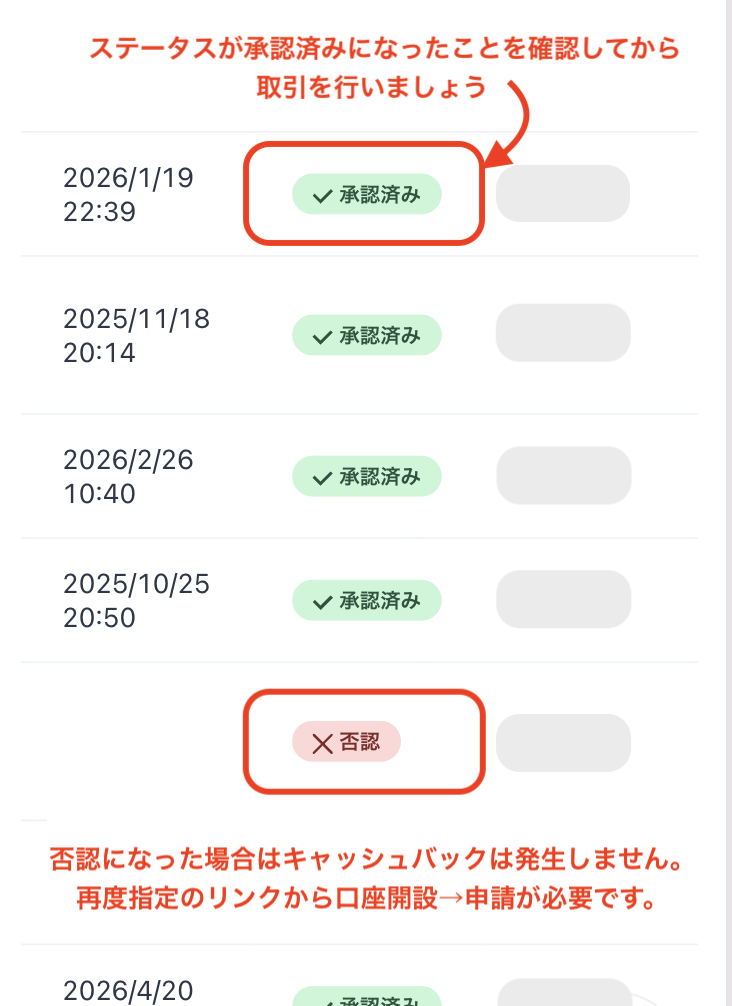
You will be eligible for the cashback after approval from the management
Once your application is approved, the cashback earned for each eligible transaction will be reflected in your MoneyChat My Page
Transactions that have not yet been approved may not be eligible for cashback. Please check that the status is "approved" before making a transaction
HOW TO OPEN
Transfer procedure
Please see below
for instructions on how to make your existing account eligible for MoneyChat
How to change the linking method for EBC Financial Group
Send an email to EBC support from your EBC registered email address to request a change in the linked information
- Send an email from your EBC registered email address to cs.jp@ebc.com (IB code V7037780-e01). The official page is here.
- Subject: "Request for IB linking change"
- Please include your name, EBC trading account number, and request to link to MoneyChat IB link in the text message
- Waiting for a response from EBC support
- After processing is complete, apply for account registration on your MoneyChat My Page
FAQ
Frequently Asked Questions about
Opening an Account or Switching Accounts
What documents are required to open an account?
Generally, you will need to provide proof of identity (passport, driver's license, or My Number Card) and proof of address (utility bill, bank statement, or resident registration certificate, issued within the last three months)
How long does it take to open an account?
The input process itself takes as little as 5 minutes, and the identity verification review is usually completed within one business day. The actual time required may vary depending on the service provider and the review status
I already have an account withEBC Financial Group. Am I eligible for cashback?
Existing accounts are generally not eligible. Please check the "Already usingEBC Financial Group" tab at the top of the page for instructions on how to switch or add an account
Can I open multiple accounts with EBC Financial Group?
The possibility and conditions for opening multiple accounts vary from broker to broker. If you plan to use an additional account, please check the process for receiving cashback through MoneyChat before proceeding
Does EBC Financial Groupoffer auto-rebate?
No.EBC Financial Groupdoes not currently support auto-rebates. To receive cashback, please register your account number on your MoneyChat My Page