












EA Installation Guide (New)
This page provides a detailed explanation of the EA installation procedure for customers who are using an EA for the first time
- Create a MoneyChat account
- Open an HFMaccount
- Apply for an account with MoneyChat
- Once you've completed these steps, contact our support line!
- Make a deposit
- Prepare a VPS
- Download the EA file
- Install MT5
- Turn on automated trading
- Send a message to the open chat!
- summary
- Supplementary information (How to install more than one MT5 application)
① Create a MoneyChat account
Please register for a Money Charger account using the following URL.
━━━━━━━━━━
▼Register for an account here
https://portal.money-charger.com/register
━━━━━━━━━━
*If you already have a Money Charger account, you can skip this step.
② Open anHFMaccount
*Even if you already have an via MoneyChat,HFMbe sure to open an additional account using the URL below. account https://www.hfm.com/int/jp/?refid=368246hfmthis ━━━━━━━━━━ ▼HFMAccount Opening URL ━━━━━━━━━━ *If is your first time registering, please complete the identity verification process. *Please select either a TOP-UP BONUS account or a PREMIUM account with MT5. (Please note that MT4 is not available.)
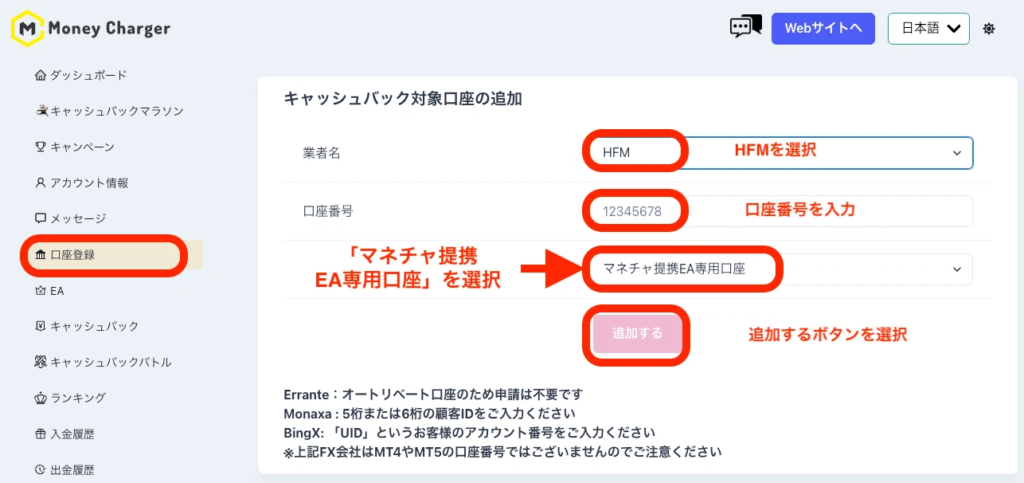
③ Apply for an account with MoneyChat
the MoneyChat management screenand apply for an account from the "Account Registration" menu.
At this time, please select "MoneyChat Partner EA Dedicated Account" when applying.
④ Once you've completed these steps, contact our support line!
Please contact us via LINE with the message "Application complete!" ✨
*If you can set up the VPS yourself, you do not need to contact us.
⑤ Make a deposit
Deposit funds into the account you opened.
*For OMEGA, a minimum deposit of approximately $625.00 is recommended.
⑥ Prepare a VPS
A VPS (Virtual Server) is an essential environment for securely running EAs (Expert Advisors) on a virtual PC environment.
If you do not have a VPS, please register for one from the URL below. (The 2GB plan is recommended.)
━━━━━━━━━━
▼VPS Registration URL
https://x.gd/ONSFM
━━━━━━━━━━
*If you have a PC that can run 24 hours a day, you can run the EA without having to set up a VPS
⑦ Download the EA file
Once approval is complete, the EA file will be available for download. Please refer to the image below and download the file from the EA menu
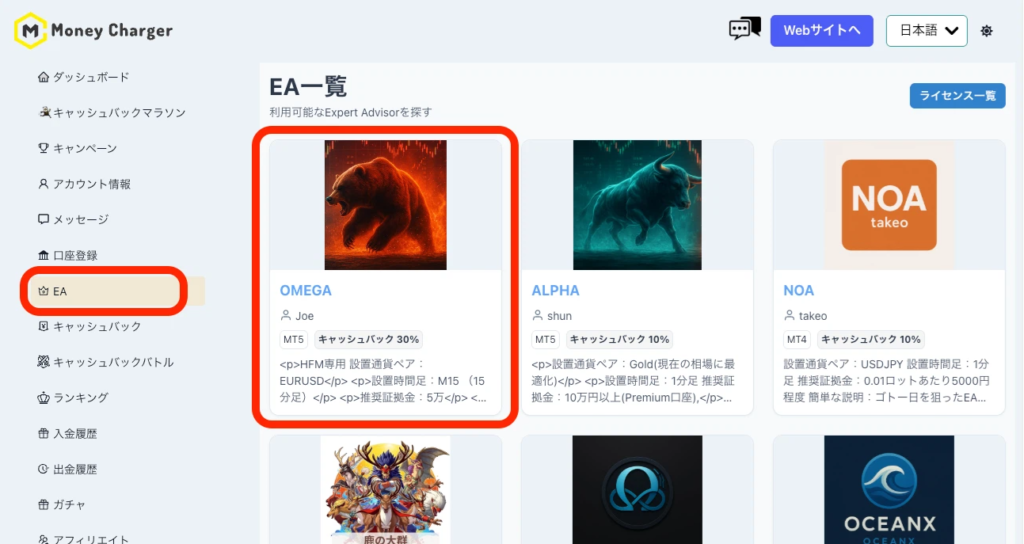
1. Log in to My Page and select OMEGA
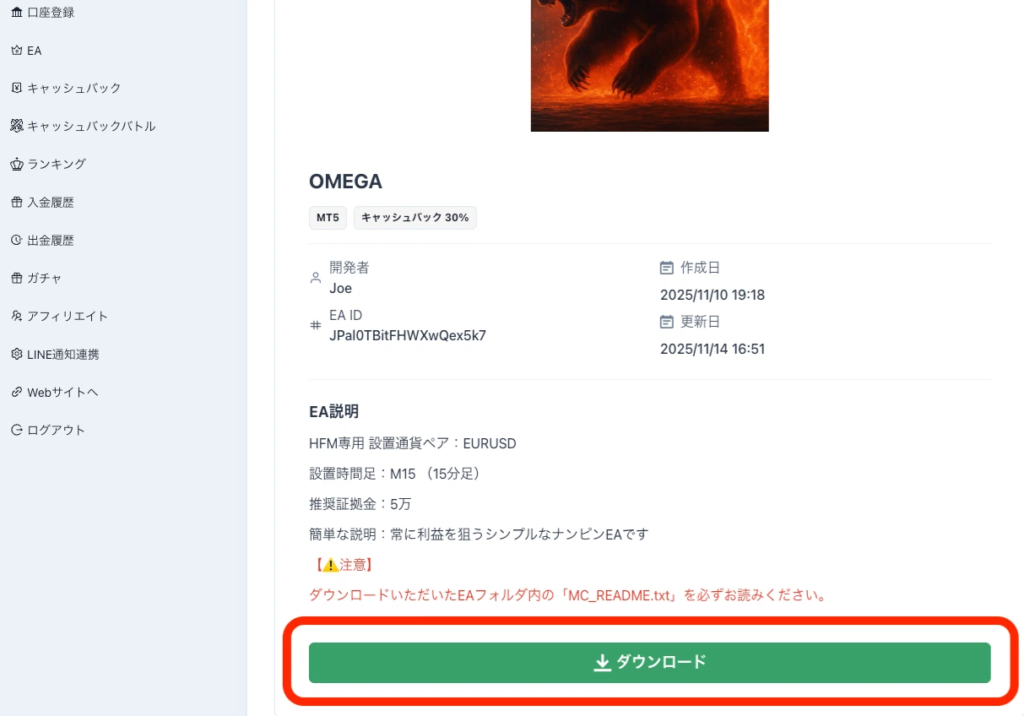
2. Scroll down the screen and you will see a download button; click on it
⑧ Install MT5
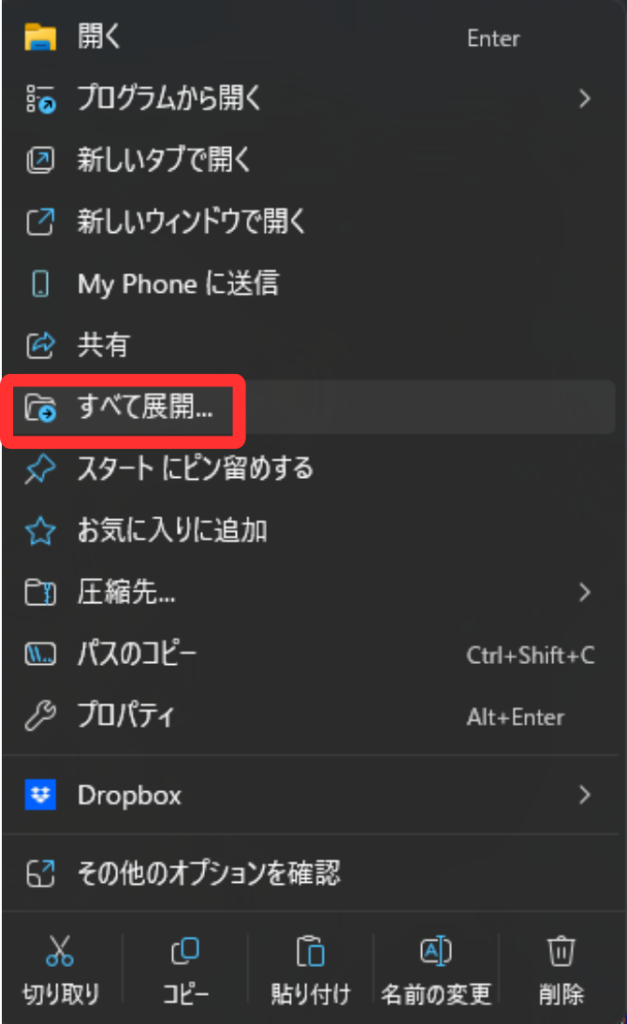
① First, extract the downloaded file.
Right-click the file and click "Extract All".
② Download the MT5 PC application. Please download it from here
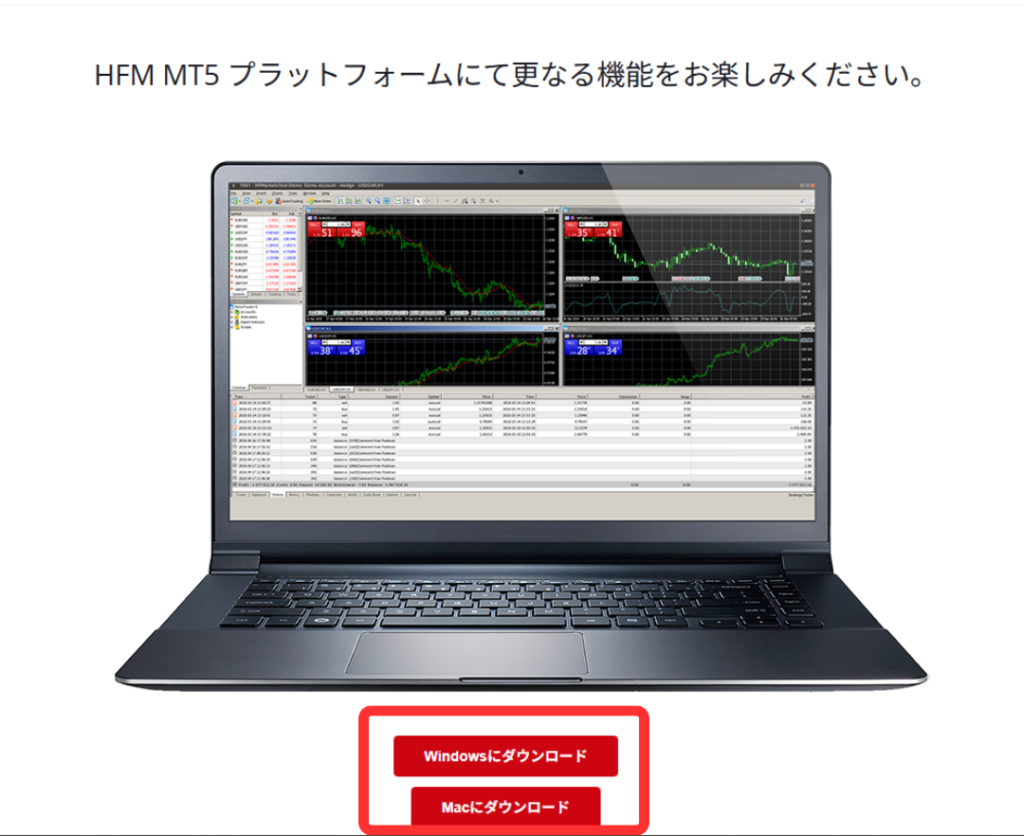
③ Once the app has downloaded, tap the file to proceed with the installation
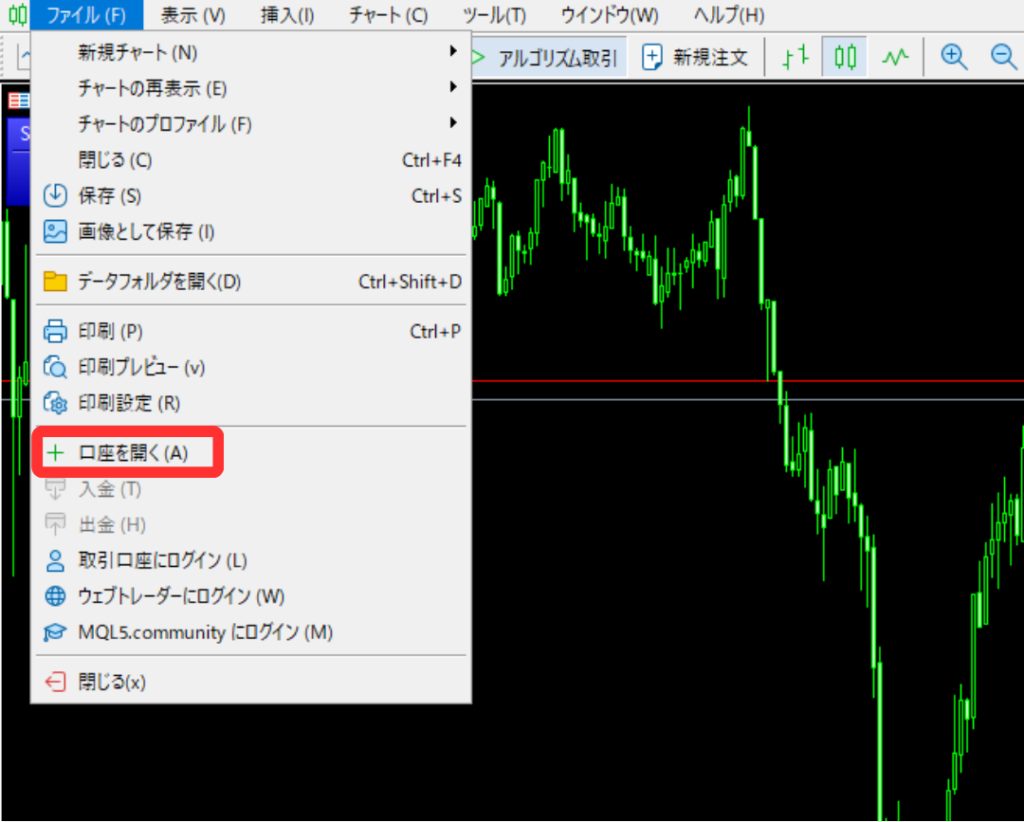
④ Once MT5 is installed, open the app and log in to your account.
Click "Open Account" from "File" in the upper left corner.
⑤ Check the email titled "HFM/MT5 Live Account Opened" sent fromHFM, and copy and paste the server information
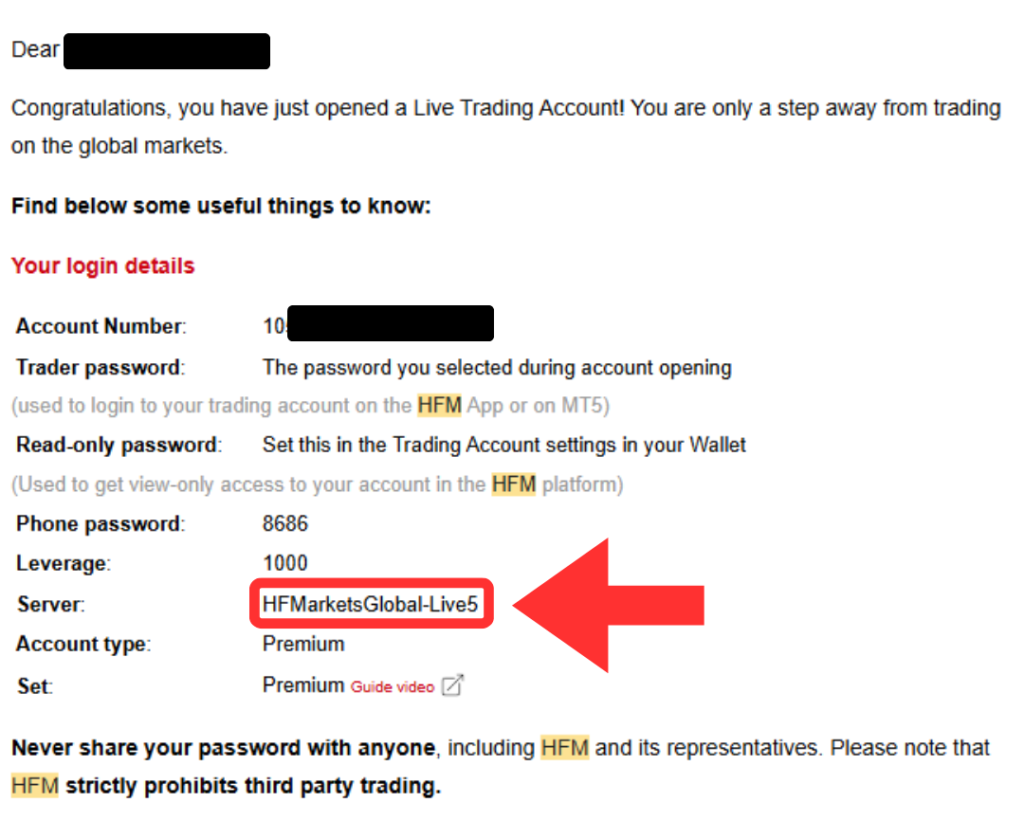
Copy this ↑
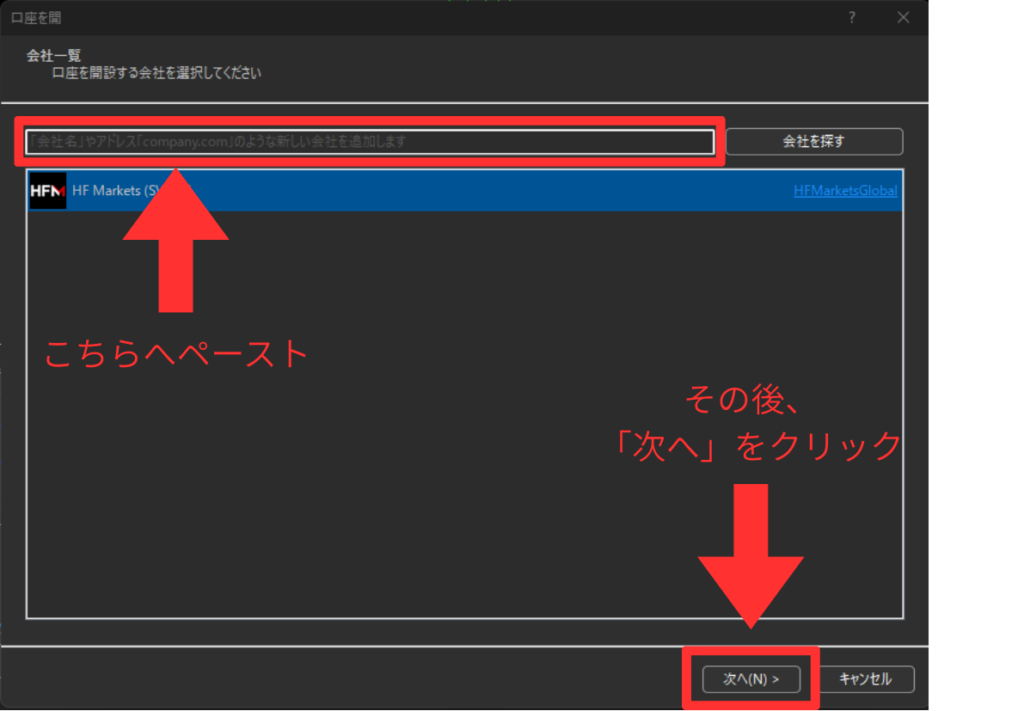
Paste here ↑
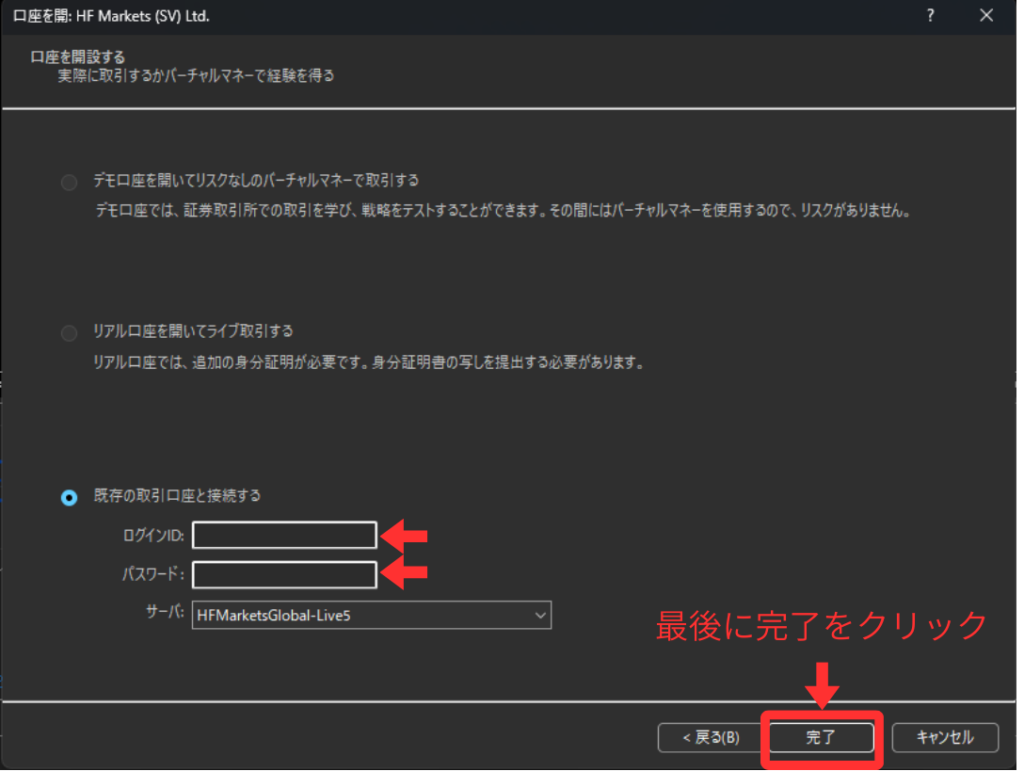
⑥ Enter your Login ID and password.
*The password is the one you set when you opened your account.
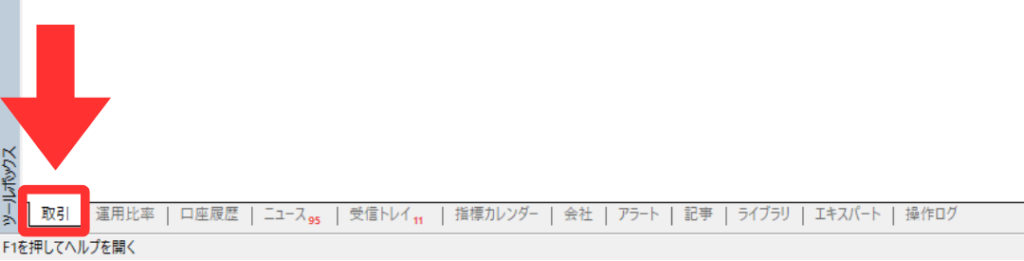
⑦ Please check if you were able to log in.
If you logged in successfully, a "Transactions" tab will be added to the bottom left.
⑧ Add the EA.
Open the folder by going to "File" → "Open Data Folder" in the upper left corner.
Next, open "MQL5" → "Experts" → "Advisors" and drag and drop the MQL5 Program file that you downloaded in step 7.
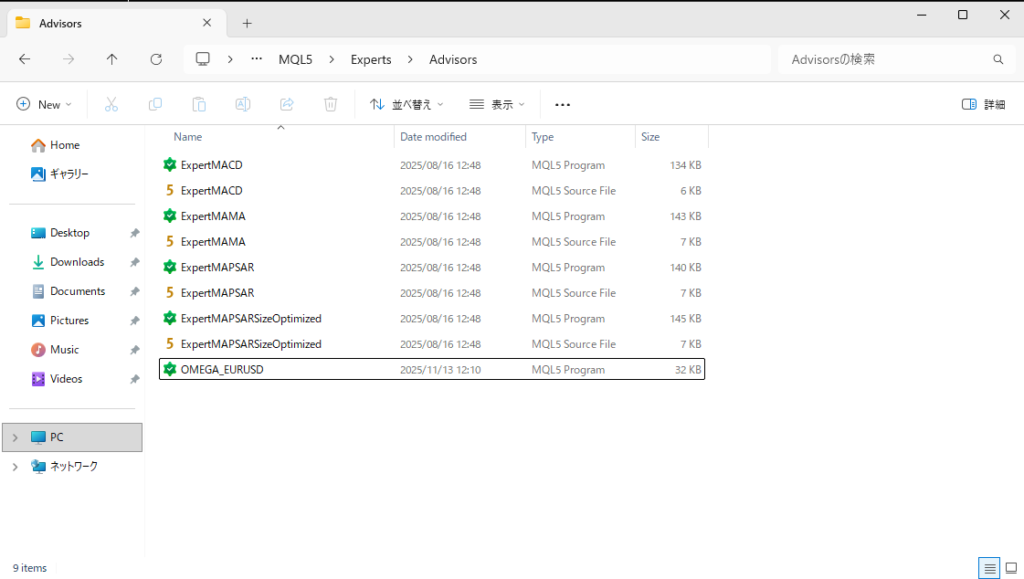
↑When it reaches this state, the installation is complete
⑨ Activate the EA.
Right-click the Advisors folder in the Navigator tab on the right side of the MT5 app and click "Refresh".
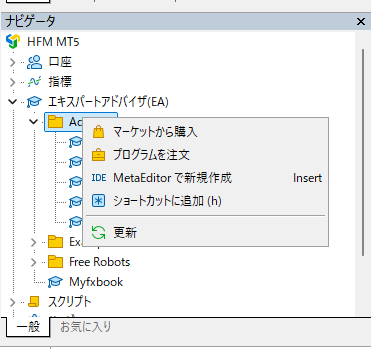
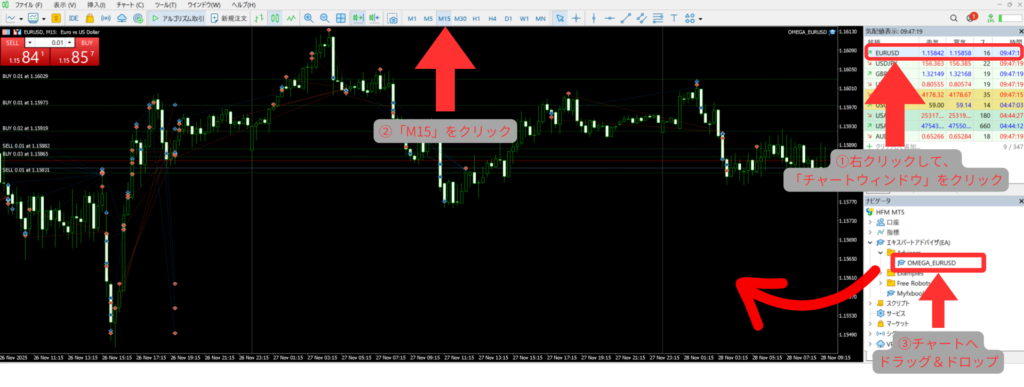
⑩ The EA you added to the folder will be displayed, so drag and drop it onto the chart.
*If using OMEGA, open the EURUSD 15-minute chart beforehand and drag and drop it there.
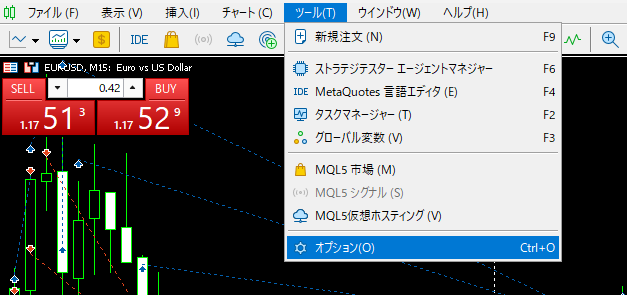
⑪ Configure the EA settings. Open "Tools" → "Options" at the top
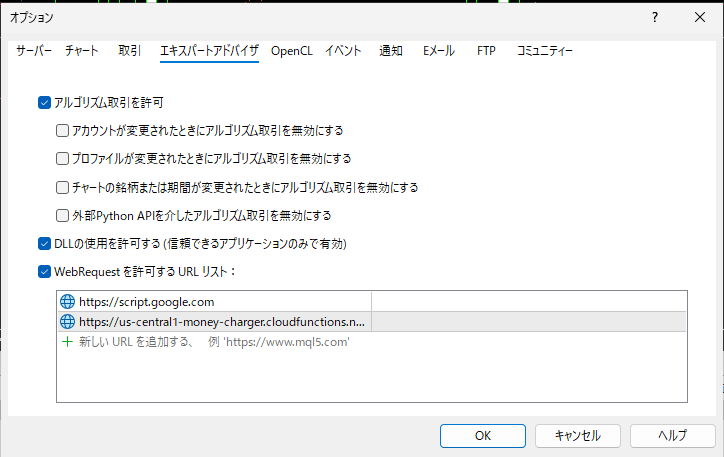
1. Check "Allow algorithmic trading"
. 2. Check "Allow DLL usage".
3. Check "Allow WebRequest URL list" and enter "https://us-central1-money-charger.cloudfunctions.net/api_license_auth" in "Add a new URL".
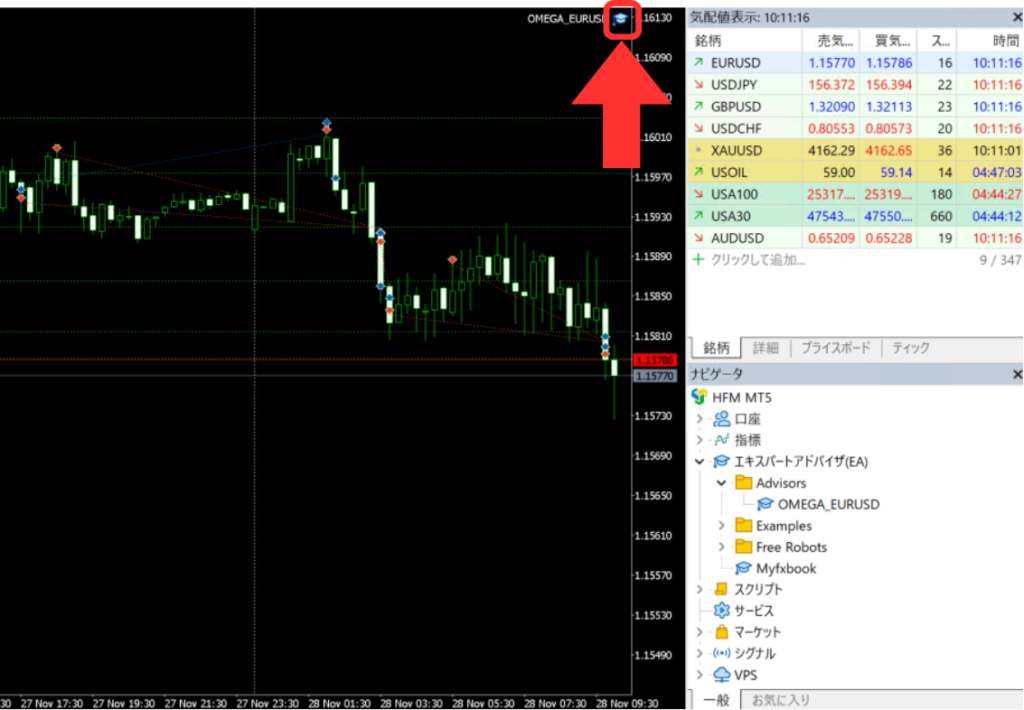
⑫ Set the parameters for the EA.
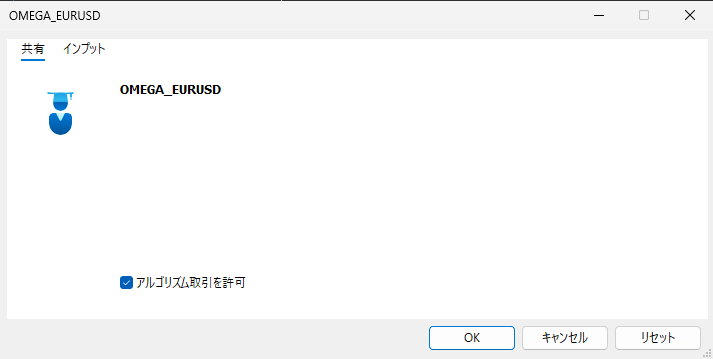
Double-click the hat icon in the upper right corner.
Check the "Allow algorithmic trading" option in the Sharing tab
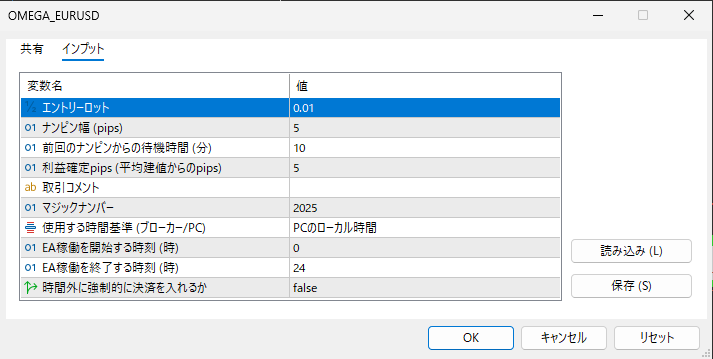
Set the parameters from the Input tab.
The following are the standard parameters for OMEGA.
Click "OK" when you have finished entering the information.
⑬ Great job! Your automated trading system (EA) is now ready to start anytime
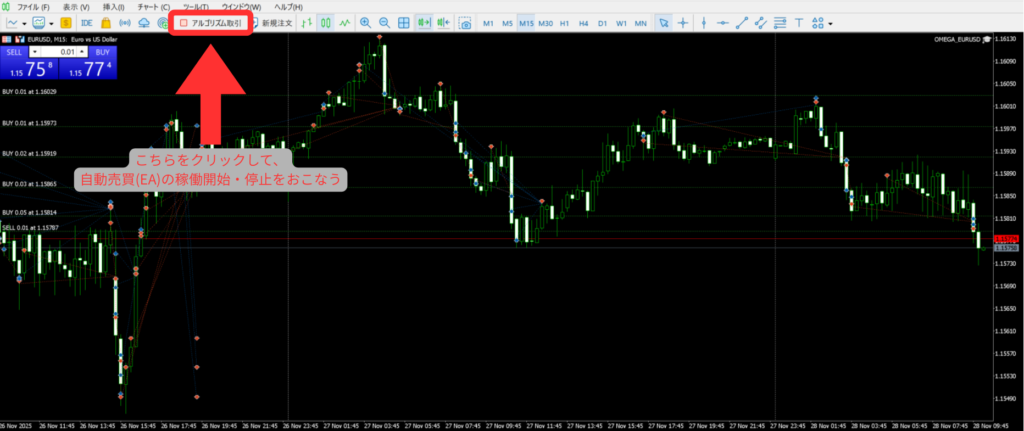
Turn on automated trading
Click the button indicated by the arrow to start the EA running!
*If the button is green (▷), it is running; if it is red (■), it is stopped.
*For detailed operating rules for OMEGA, please check the following note:
https://note.com/manecha/n/n2c5d910e8108
⑩ Send a message to the open chat!
Once the setup is complete,the open chat(optional☝️).
Enjoy interacting and exchanging ideas!
⑪ Summary
How was it?
I hope this page has been helpful to you.
If you have any questions, please feel free to contact us via our official LINE account
Please see here for rules regarding the operation of OMEGA
⑫ Supplementary Information (How to install more than one MT5 application)
If you want to run two or more EAs on a single PC or VPS, you will need to install multiple MT5 applications.
This section explains how to do that.
① Click the Windows icon in the bottom left corner, typeHFMin the search bar, and click "Open file location"
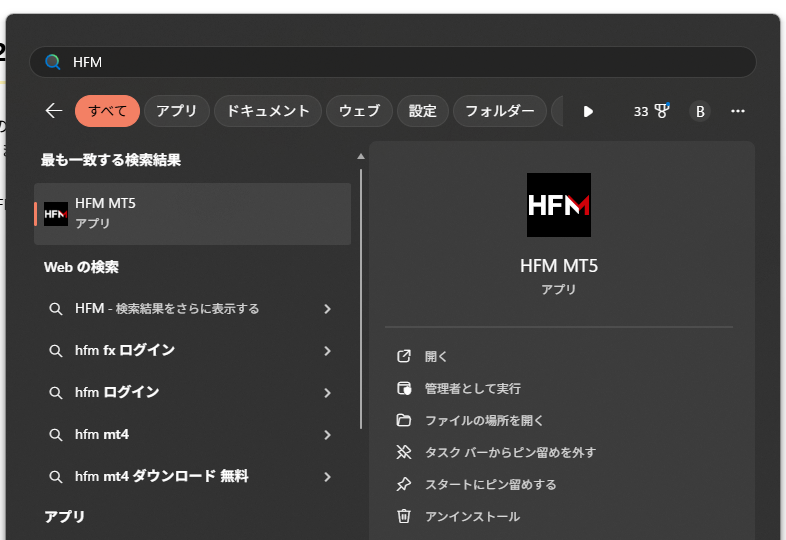
② Right-click "HFM MT5" again and click "Open file location"
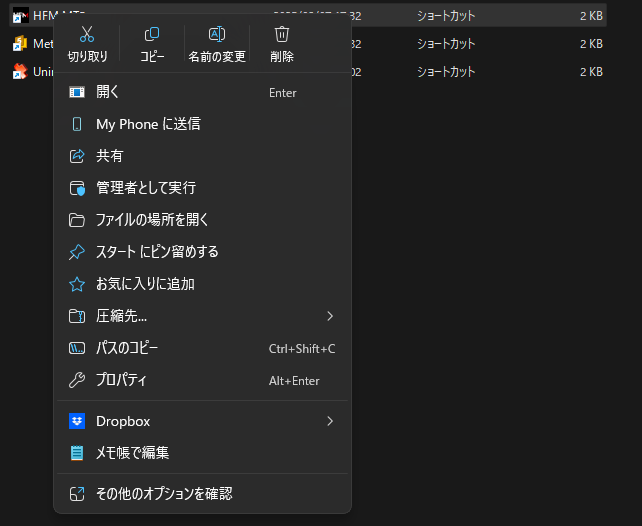
③ Click "Program Files," copy "HFM Metatrader 5" using Ctrl+C, and paste it into the same folder using Ctrl+V

If it says that administrator privileges are required, click "Continue"
④ A folder named "HFM Metatrader5-copy" will be created, sodouble-click it.

⑤ Double-click the file named "terminal61.exe" to launch MT5

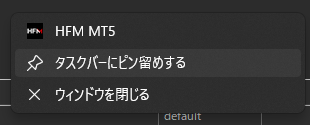
⑥ Once you've successfully launched the second MT5 instance, we recommend right-clicking and pinning it to the taskbar so you can launch it anytime
⑦ When installing the third or subsequent MT5 instances, repeat steps ① through ⑥