






Contents
- 1 This is a complete guide to opening an Axiory account, with step-by-step instructions and images
- 2 Open an Axiory account
- 2.1 Start opening an account from the Axiory official website
- 2.2 Enter your information in the registration form
- 2.3 Agree and tap "Start Transaction"
- 2.4 Verify your email address
- 2.5 Log in to My Page
- 2.6 Tap "Upgrade"
- 2.7 Tap "Open a real account"
- 2.8 Select platform and account information
- 2.9 Enter your personal information (name and date of birth)
- 2.10 Enter your address and contact information
- 2.11 Enter employment information
- 2.12 Please enter your asset status and annual income
- 2.13 Please describe your investment experience and trading objectives
- 2.14 Please review your input and submit
- 2.15 Select the language for the identity verification process
- 2.16 Select the country where your identification documents were issued
- 2.17 Select the identification document you wish to submit
- 2.18 Take a picture of your ID and upload it
- 2.19 Wait until authentication is complete
- 2.20 Please check your account number in the account opening confirmation email
- 3 Register your account from your MoneyChat My Page (required)
This is a complete guide to opening an Axiory account, with step-by-step instructions and images
This guide explains how to open a new Axiory account, using easy-to-follow diagrams and smartphone screenshots, making it accessible to everyone
Axiory makes it easy to open an account and set up cashback by following the instructions
Follow the steps below to open an account and apply for one
- How to open an Axiory account
- How to apply for an account with MoneyChat
Part 1
Open an Axiory account
First, you need to open an Axiory account. Please follow the instructions below and open an account via the dedicated link provided by the button
Step 1
Start opening an account from the Axiory official website
First, click the button below to go to the official Axiory website. Once the site loads, tap the "Open an Account" button on the screen to proceed to the account opening form
*Please note that if you register through a link other than the one provided by Moneycha, you will not be able to receive cashback from Moneycha
Step 2
Enter your information in the registration form
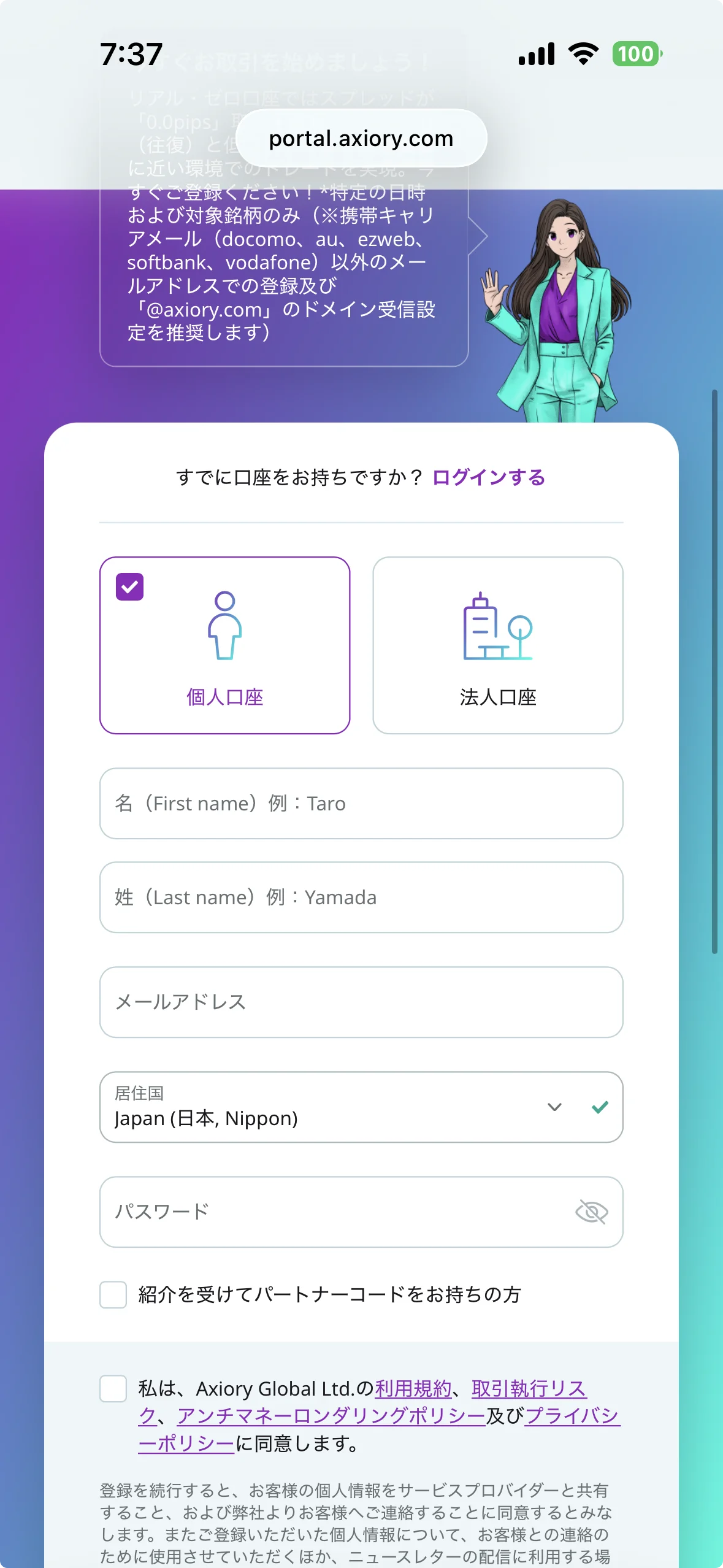
Please fill in the required information on the displayed registration form from top to bottom. Enter your name in Roman letters and the email address you normally use
*The email address you register will be used to receive verification emails and log in to your My Page, so please be sure to enter an address that you can access
Step 3
Agree and tap "Start Transaction"
Once you have finished entering your registration information, check the "I agree to the Privacy Policy" checkbox and tap the "Start Trading" button
Step 4
Verify your email address
You will receive a verification email from Axiory to the email address you registered. Tap the "Verify Email Address" button in the email to complete the verification process. This completes the creation of your Axiory account
*If you do not receive the email, please check your spam folder
Wi5
Log in to My Page
The Axiory login screen will appear. Enter your registered email address and password, then tap the "Log in" button to log in to your My Page
Step 6
Tap "Upgrade"
Once you log in to your My Page, tap the "Upgrade" button on the screen to proceed with opening a real account
Step 7
Tap "Open a real account"
On the next screen, tap the "Open a Real Account" button to begin the process of opening a real trading account
Step 8
Select platform and account information
Select your preferred trading platform (MT4 / MT5 / cTrader), and enter information such as account type, leverage, and base currency. Once you have made all your selections, tap the "Start Trading" button
*If you don't have any particular preference, we recommend the versatile MT4 or MT5, which allows leverage up to 1000x
Step 9
Enter your personal information (name and date of birth)
You will now proceed to enter your personal information. First, please enter your basic information, such as your name (in Roman letters) and date of birth, exactly as it appears on your identification documents
*If your identification documents and entered information do not match, your application may not be approved during subsequent verification
Step 10
Enter your address and contact information
Next, please enter your contact information, such as your address (in Roman letters) and phone number. Please enter it accurately in the following order: street number, city/ward/town/village, prefecture, and postal code
Step 11
Enter employment information
Select and enter information about your current employment status and occupation. Please choose the appropriate option from the dropdown menu and proceed
Step 12
Please enter your asset status and annual income
Select your asset information, such as annual income and net worth. Choose the appropriate income range from the dropdown menu and proceed
Step 13
Please describe your investment experience and trading objectives
We will answer questions about your experience investing in FX and other financial products, your trading objectives, etc. Please select the appropriate option and proceed to the next step
Step 14
Please review your input and submit
Please review the personal information you have entered so far to ensure there are no errors, and finally tap the "Submit" button to complete the registration of your personal information
Step 15
Select the language for the identity verification process
Your Know Your Customer (KYC) verification process will now begin. First, please select the language you wish to use for the process. Japanese is supported, so selecting "Japanese" will make the process easier
Step 16
Select the country where your identification documents were issued
Select the country of issue for the identification document you are submitting. If the document was issued in Japan, please select "Japan"
Step 17
Select the identification document you wish to submit
Select the type of identification document you will submit. Tap the document you have available, such as a driver's license, passport, or My Number card
Step 18
Take a picture of your ID and upload it
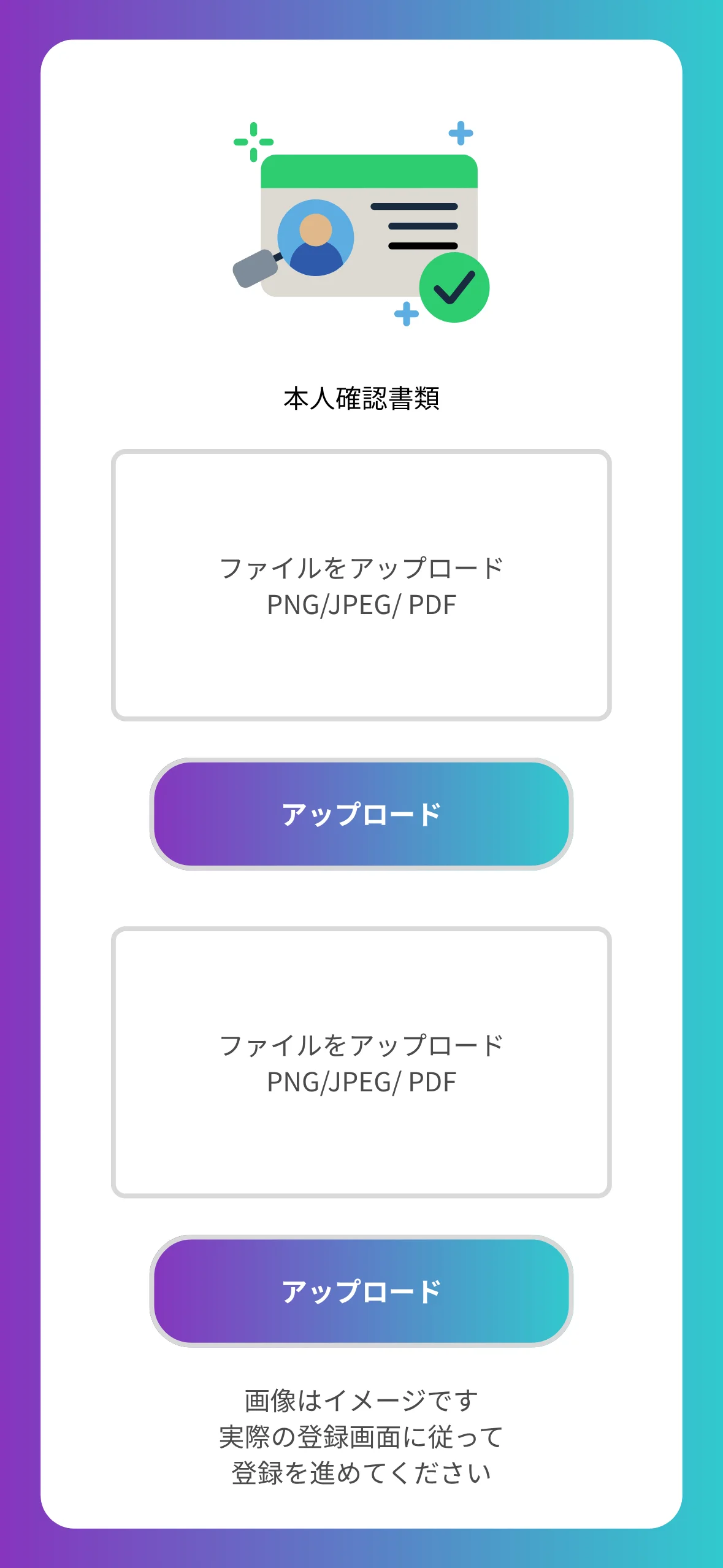
Tap "Take a photo of the front" to take a picture of the front of your ID, then take a picture of the back in the same way and upload it
*Please ensure that all four corners of the document are visible in the image and that the text is clearly legible
Step 19
Wait until authentication is complete
A screen indicating that authentication is in progress will appear. Please do not close the window and wait. This may take some time
Step 20
Please check your account number in the account opening confirmation email
You will receive an email from Axiory to your registered email address with the subject line "A new real account has been opened." The "Login" link in the email is your "account number" to register with MoneyChat, so be sure to write it down
*This account number (login ID) will be needed for registering your MoneyChat account in Part 2, so please make a note of it or take a screenshot
Part 2
Register your account from your MoneyChat My Page (required)
If you forget this step, you will not receive the cashback. Be sure to apply from your MoneyChat My Page and confirm that the status has changed to "Approved" before trading
Step 1
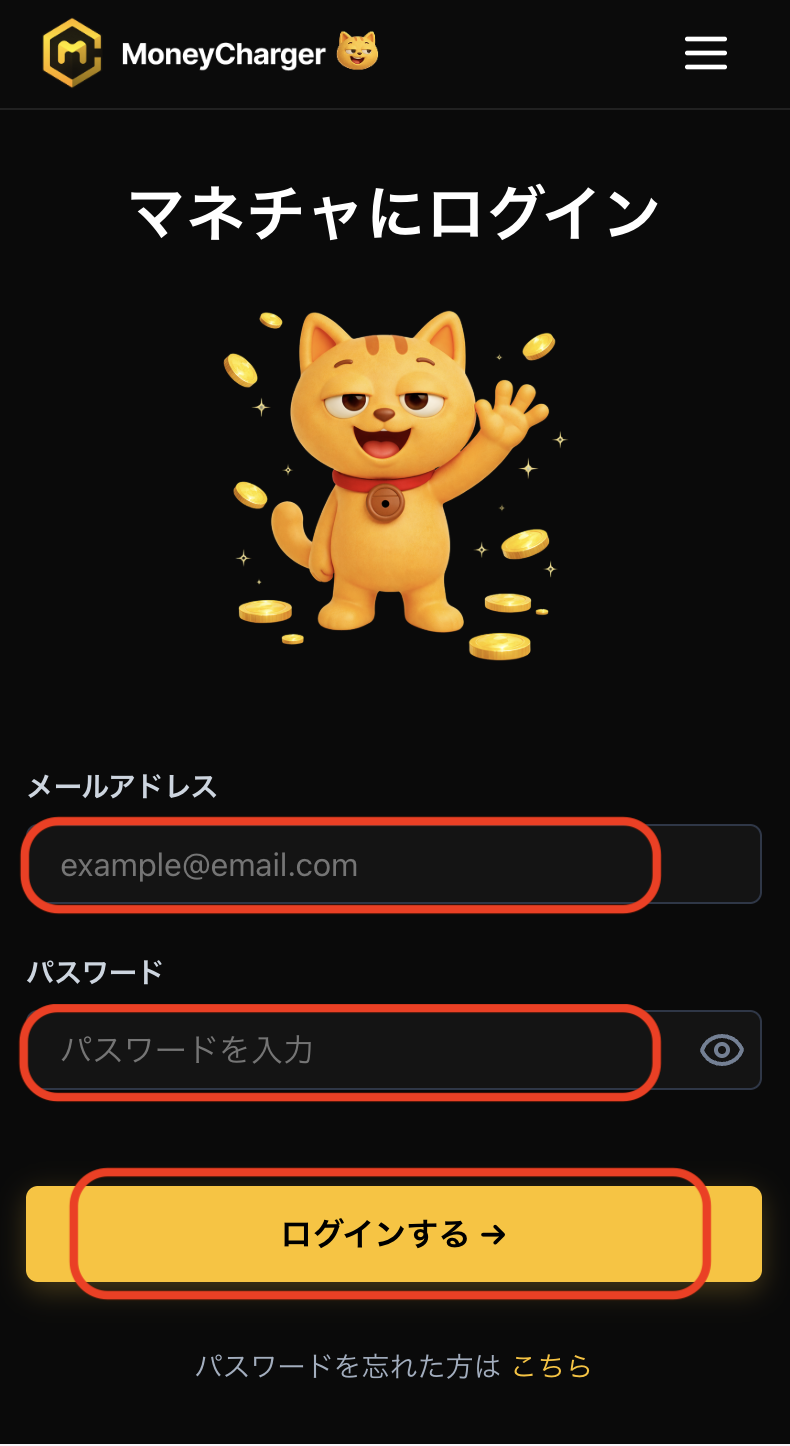
Log in to your MoneyChat My Page
Log in to the MoneyChat page from the login page
Step 2
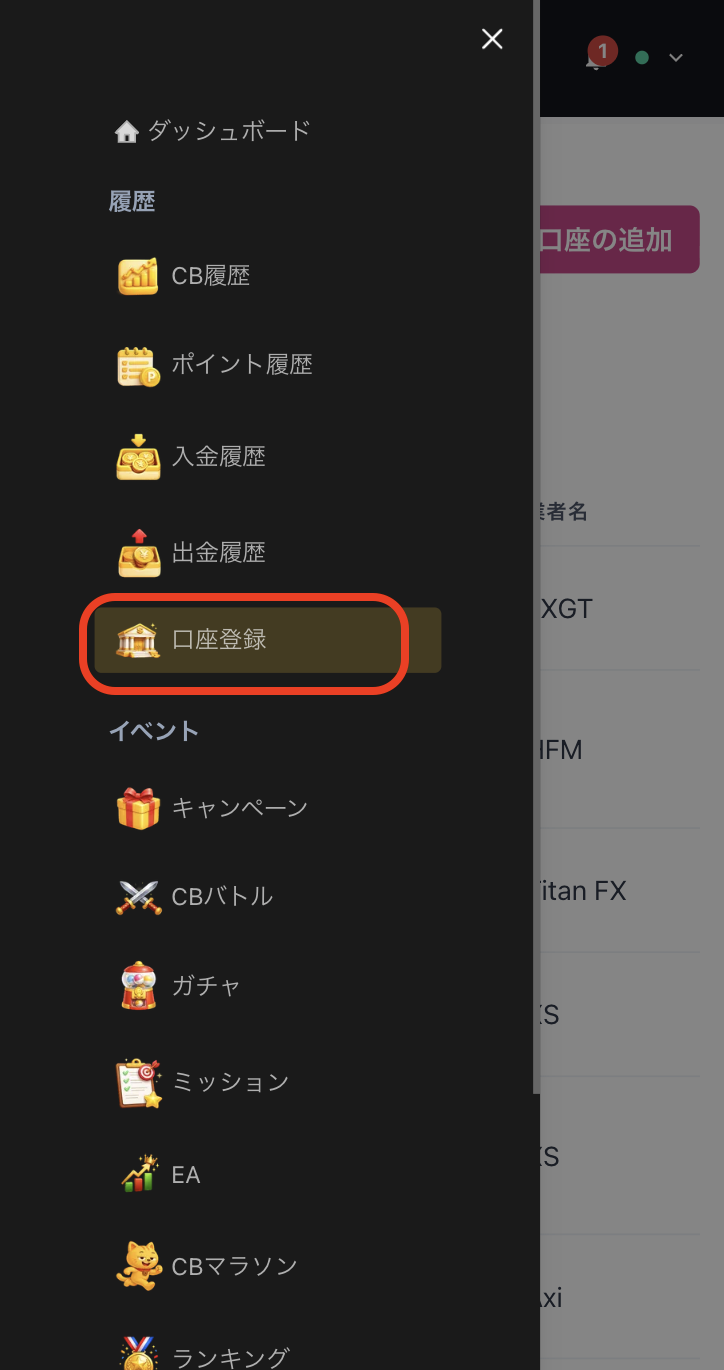
Select "Register Account" from the menu
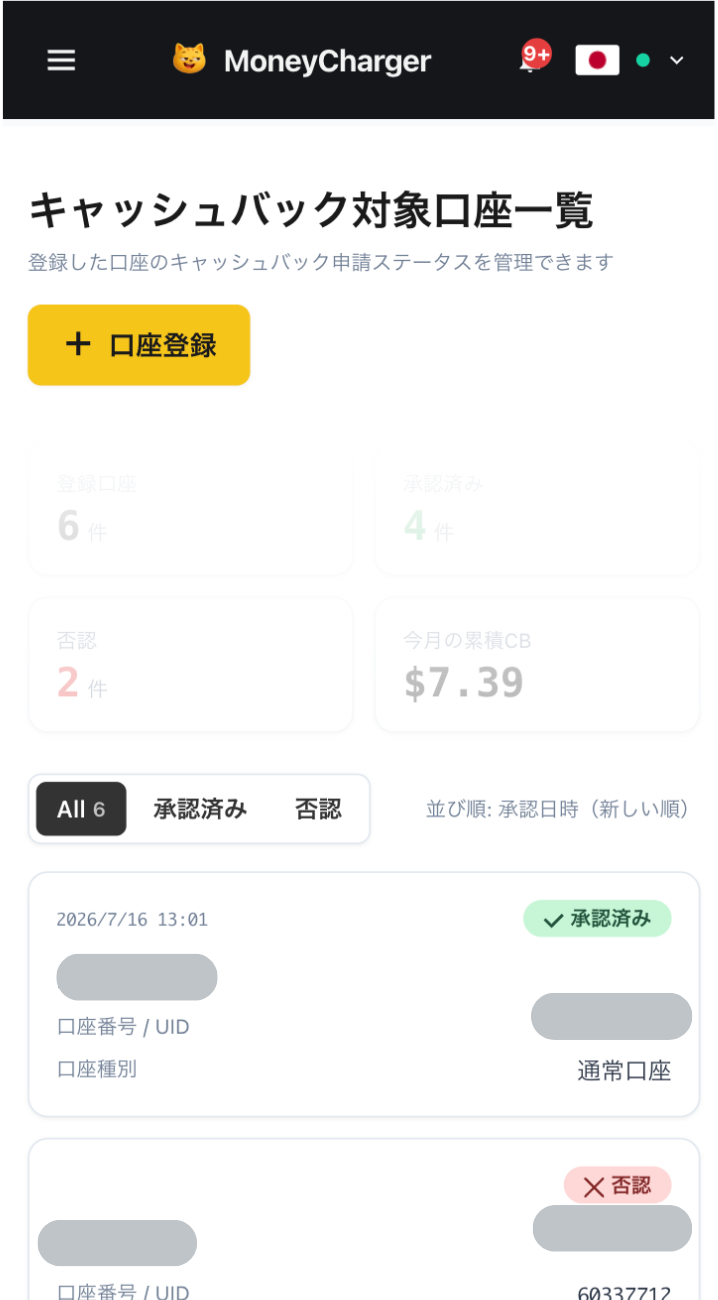
Tap the three lines in the upper left corner of the screen to bring up a menu, then select "Register Account" from there
Step 3
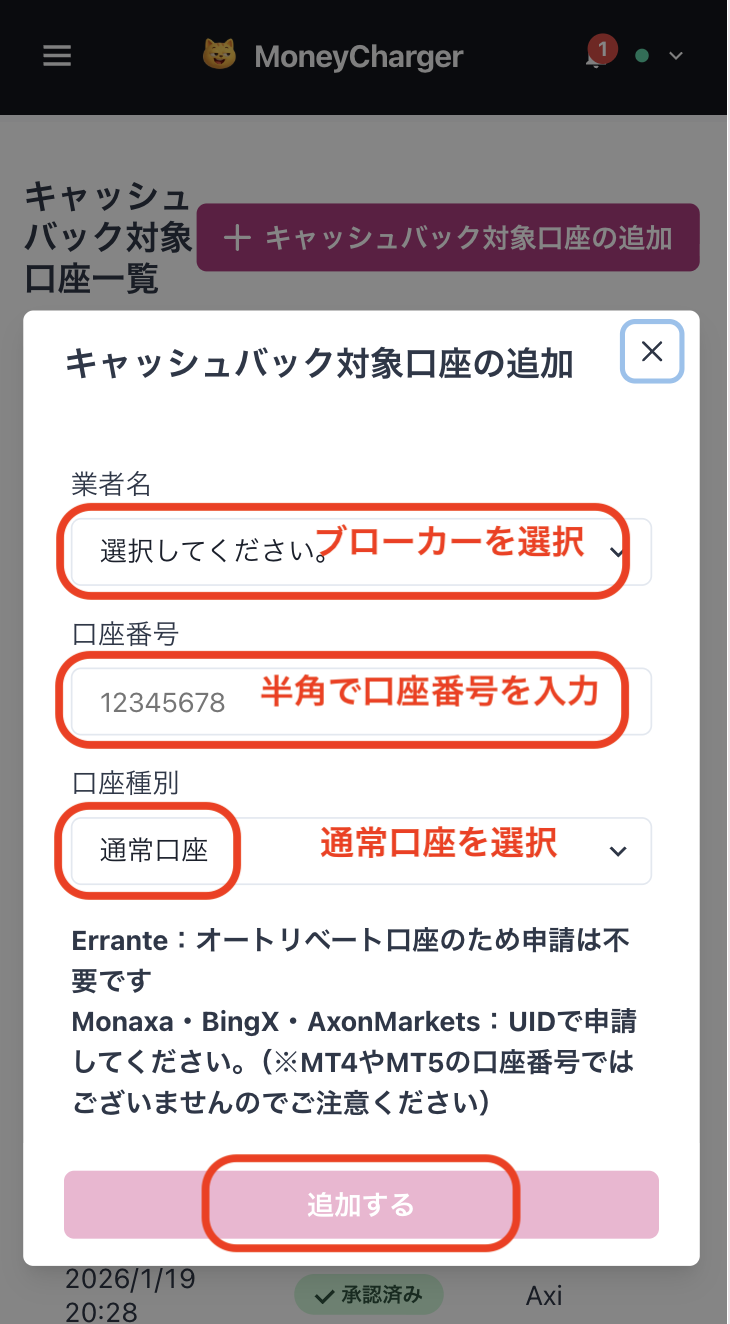
Select a broker and enter your account number
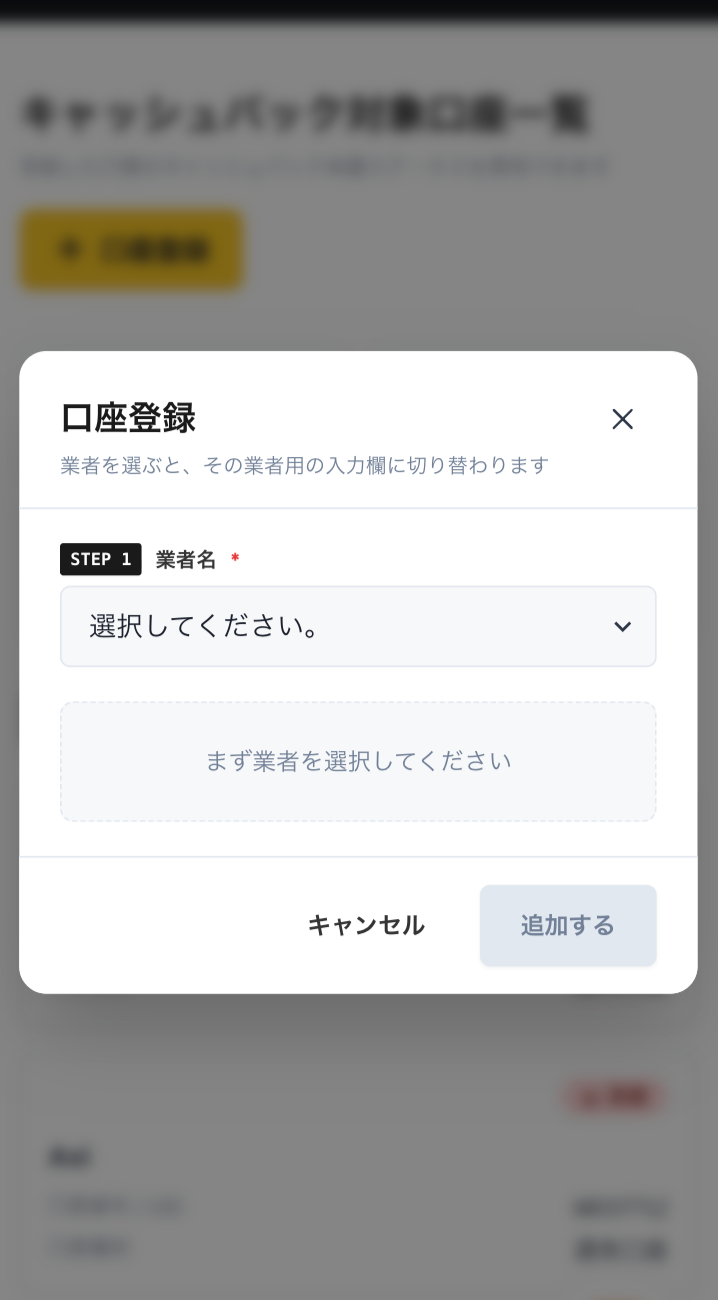
A menu like the one shown in the image will appear. Select Axiory as the broker name and enter your account number using half-width numerals. For account type, select "Regular Account" if you are doing regular discretionary trading or using your own EA
While there is an option for a dedicated account for MoneyChat EAs, this is only for those who wish to use EAs within MoneyChat's EA menu, so please select "Regular Account"
Step 4
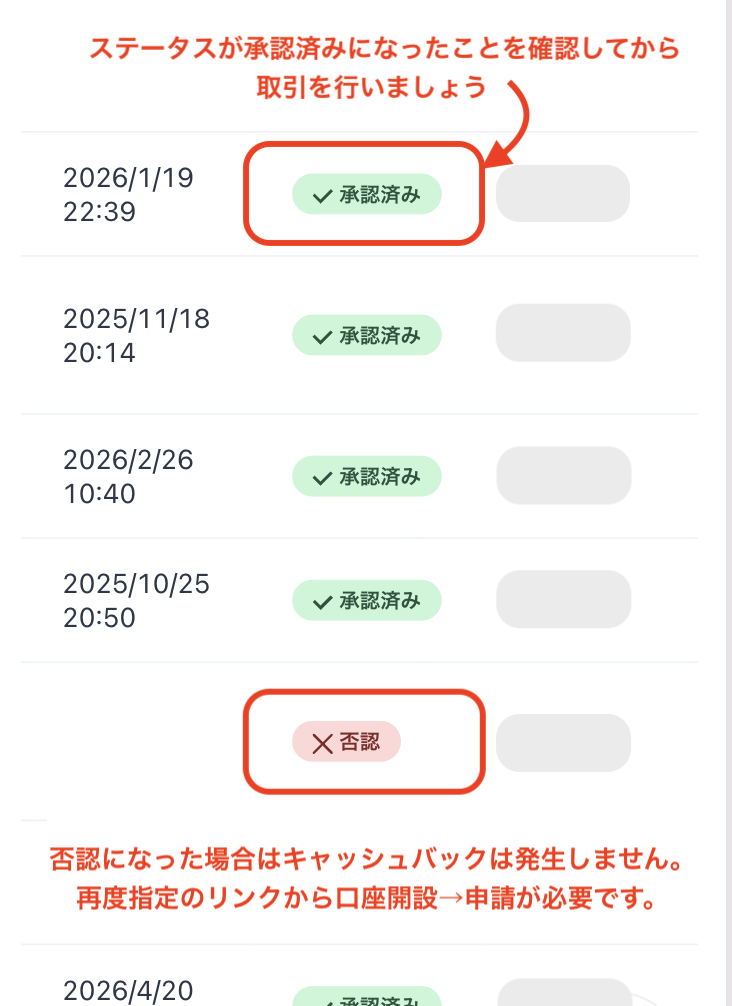
Once approved, it's complete
Once you see this screen, your application is complete.
After submitting your application, if there are no problems with your application details, the status at the bottom of "Account Registration" will change to "Approved" within one business day.
Cashback on your transactions will be reflected from the time the status changes to "Approved".
[Caution] Cashback will not be provided if you trade using an account that has not been approved. Please be aware of this